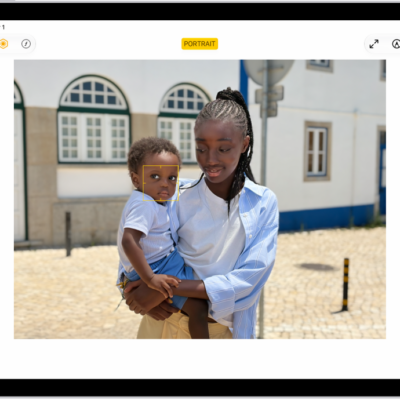
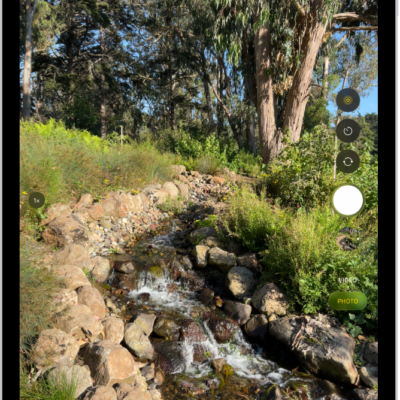
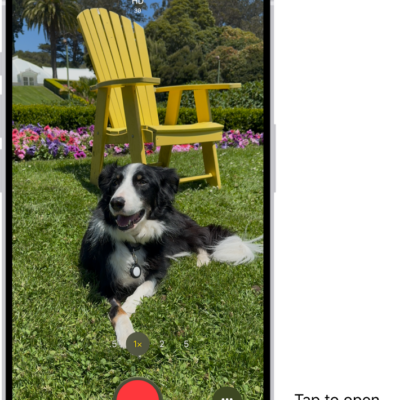
Use your iPad camera to take a photo of yourself (a selfie). You can take selfies in Photo mode, Portrait mode, Video mode, or Square mode.
You can also take a mirrored selfie, so the shot looks the way you see it in the camera frame. The flash can be on or off, and depending on your iPad model, you can zoom out to increase your field of view. You can even take a Portrait mode selfie and edit Portrait mode photos.
Take a selfie
- Open Camera on your iPad.
- Tap the Camera Chooser Back-Facing button and then hold your iPad in front of you.
- Tap the Shutter button or press either volume button to take the shot.
Mirror the front camera
To take a mirrored selfie that captures the shot as you see it in the camera frame, go to Settings > Camera, then turn on Mirror Front Camera.
To turn the flash on or off, tap the Flash button, then choose Auto, On, or Off.
Quick tip: To zoom out and get a wider field of view, tap the Zoomed In button at the left side of the screen (depending on your iPad model), and tap the Zoomed Out button to zoom back in.
See also