A Live Photo captures what happens just before and after you take a photo, including the audio. You take a Live Photo just like you do a normal photo.
Live Photo is on by default in Photo mode, and your Live Photos are saved automatically in your photo library. You can add effects such as bounce and loop, or turn off Live Photos. If you’ve already taken a Live Photo, you can turn the effect off later, too.
Take a Live Photo
- Open Camera on your iPad.
-
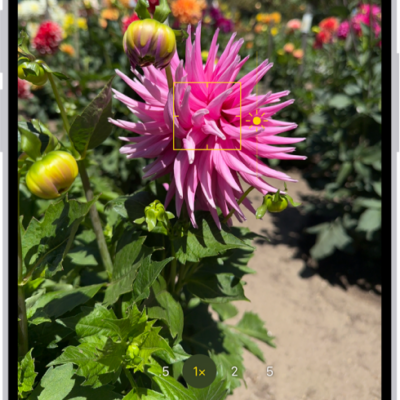
Make sure Camera is set to Photo mode and that Live Photo is turned on.
Note: Live Photo is on by default. When it’s on, you see the Live Photo button in yellow on the right side of the screen.
- Tap the Shutter button to take a Live Photo.
- To play the Live Photo, tap the photo thumbnail below the Shutter button. Touch and hold the screen.
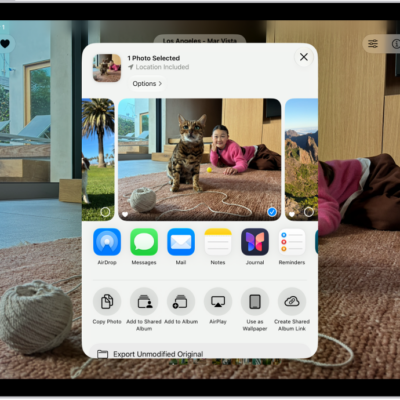
Your Live Photos go into your photo library in the Photos app automatically. For effects like bounce and loop on your Live Photos, see our guide, Add effects to a Live Photo.
Turn off Live Photos
- Open Camera on your iPad.
- Make sure Camera is set to Photo mode.
- Tap the Live Photo button on the right side of the screen so that a slash appears through the button.
To turn the effect off on a Live Photo you’ve already taken, read our article, Make Live Photo edits.
See also