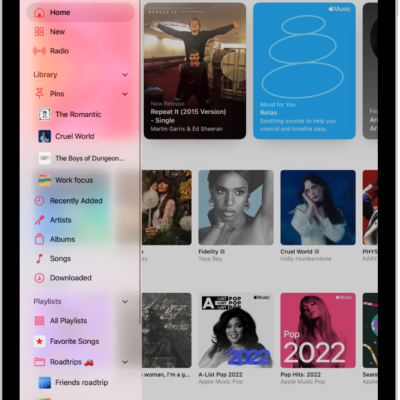
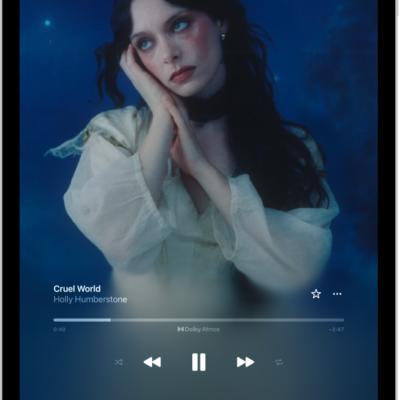
Play music you added or downloaded from Apple Music, music and videos you synced to iPad, and your iTunes Store purchases.
You can play songs from your library, stream recommended songs, and play music from the Lock Screen. You can also play songs across an artist’s catalog, mixing hits and deep cuts, and change the list of Library categories, adding ones like Genres and Compilations.
Here’s how to play music on iPad.
Siri: You can use Siri to search for and play music, add music to your library, and more. For example, ask Siri something like, “Play something I like.” See Play music and podcasts with Siri.
Play songs from your library
- Open the Music app on your iPad.
-
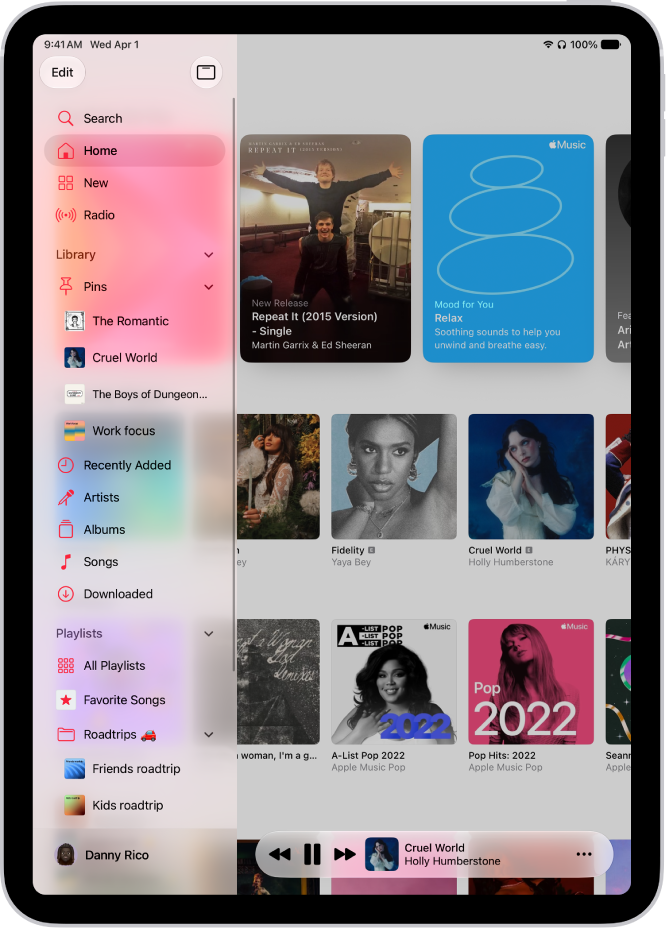
Tap the Show Sidebar button and then tap a category under Library, such as Albums or Songs; tap Downloaded to view only music stored on iPad.
Tip: To play songs across an artist’s catalog—mixing hits and deep cuts—go to an artist page, then tap the Play button next to the artist’s name.
- Scroll to browse—or type in the search field to filter your results—to find what you want to play.
-
Tap an item, then tap Play, or tap Shuffle to shuffle an album or playlist.
You can also touch and hold a playlist or album, then tap Play.
To change the list of Library categories, tap Edit, then select categories you’d like to add, such as Genres and Compilations. Tap any existing categories to remove them.
Stream recommended songs
- Open the Music app on your iPad.
-
Do any of the following to find music you want to play:
- View recommendations tailored for you: Tap Home in the sidebar, then tap a playlist or album.
- See what’s new in Apple Music: Tap New in the sidebar. Find music by mood, new releases, charts, and more.
- Search the Apple Music catalog: See Search for music.
-
Tap an item, then tap Play, or tap Shuffle to shuffle an album or playlist.
You can also touch and hold a playlist or album, then tap Play.
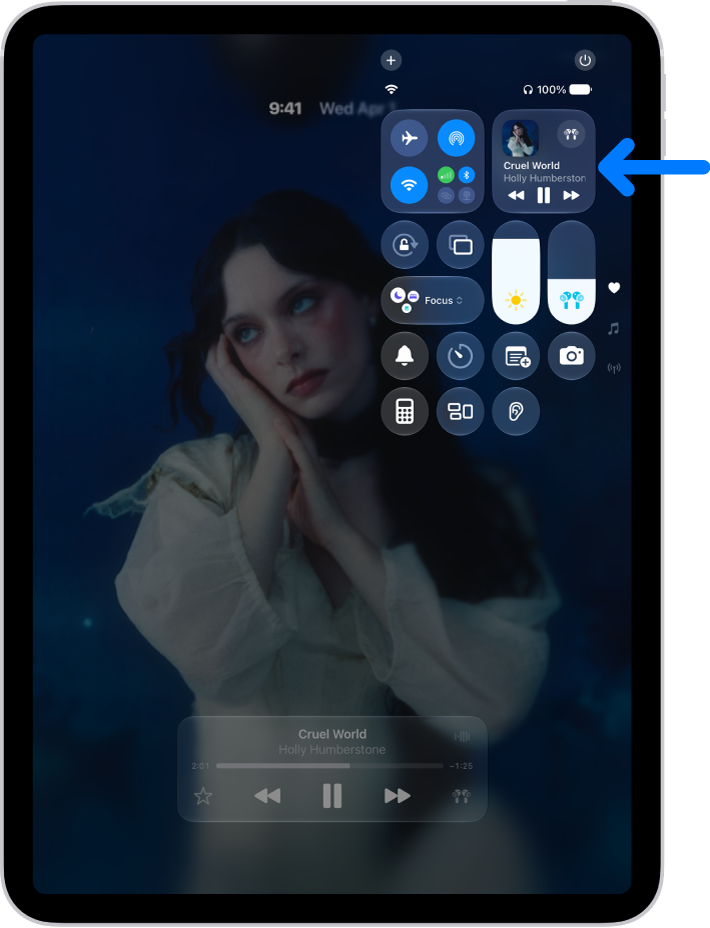
Play music from the Lock Screen or when using another app
Open Control Center, then tap the audio card.
Quick tip: Another way to identify a song playing on or near your iPad is by adding the Music Recognition control to Control Center. To add it, open Control Center and tap the Add button at the top left. Next, tap Add a Control at the bottom and tap the Recognize Music control. Then, whenever a song is playing, open Control Center and tap the Recognize Music button.
Play music shared on a nearby computer
If a computer on your network is sharing music through Home Sharing, your iPad can stream its music.
- Open the Settings app on your iPad.
- Tap Apps and tap Music.
- Tap Sign In below Home Sharing. Then sign in to your Apple Account.
- Go to the Music app, tap Library > Home Sharing, and choose a shared library.
Set content restrictions
In Music, you can restrict access to explicit content, music videos, and music profiles, and you can also set restrictions for your child.
Sort your music
- Open the Music app on your iPad.
- Tap the Show Sidebar button and tap a category under Library.
- Tap the More button and then choose a sorting method, such as Title, Artist, Date Added, or Release Date.
You can also shuffle and repeat songs, queue them up in a specific order, or transition them using Crossfade or AutoMix.
When you purchase access to movies, TV shows, music, music videos, ebooks, audiobooks, or ringtones from Apple, you also have the option to permanently download these items to a compatible iPhone, iPad, Mac, or PC. Apple cannot revoke your downloaded content, and you can always access your downloaded content without an internet connection.