You can create folders for your playlists to keep them organized.
You can add or remove items from a playlist folder, rename a folder, and even put a playlist or folder inside another folder. A playlist can go back to the main Playlists list, too, and when Sync Library is turned on, changes to your playlist folders update across all your devices.
Here’s how to organize playlists in folders in Music on iPad.
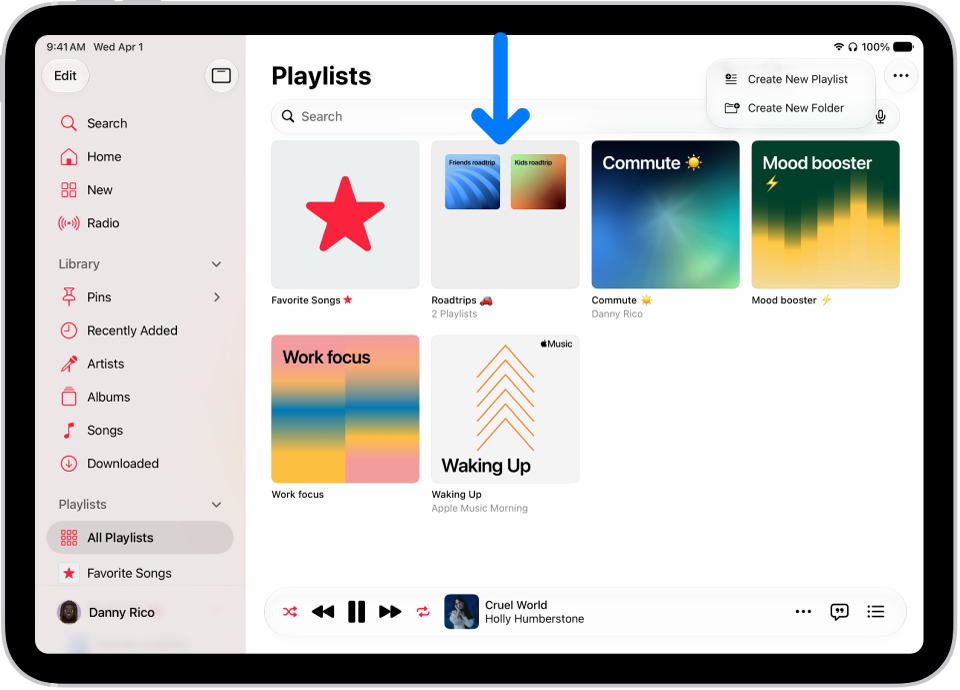
Create a new playlist folder
- Start the Music app on your iPad.
- Tap the Show Sidebar button, tap All Playlists.
- Tap the More button at the top right and then tap New Folder.
-
Type a name for the folder, then tap Create.
To rename a folder, tap the More button at the top right, tap Rename, then type the new name.
Add or remove items from a playlist folder
- Start the Music app on your iPad.
-
Tap the Show Sidebar button, touch and hold a playlist or folder, and then tap Move to Folder.
Tip: You can also drag a playlist or folder into another folder.
-
Tap the folder and then tap the Done button.
If a playlist is already in a folder and you want to move it back to the main Playlists list, don’t select a folder—just tap Move.
Quick tip: To create a new folder and move a playlist into it, touch and hold the playlist in your library, tap “Move to,” and then tap New Folder.
Changes you make to your playlist folders are updated across all your devices when Sync Library is turned on (go to Settings > Apps > Music, then turn on Sync Library). If you’re not an Apple Music subscriber, the changes appear in your music library the next time you sync with your computer.
See also