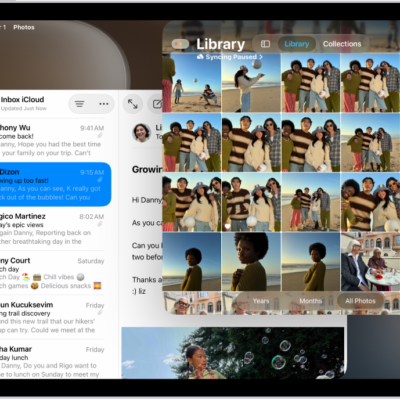
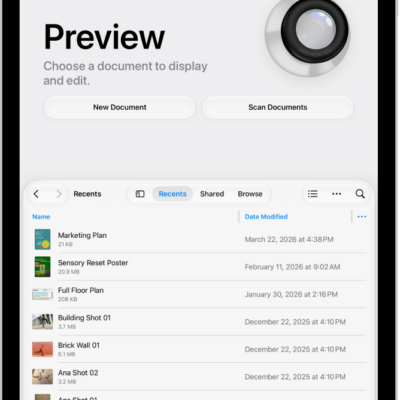
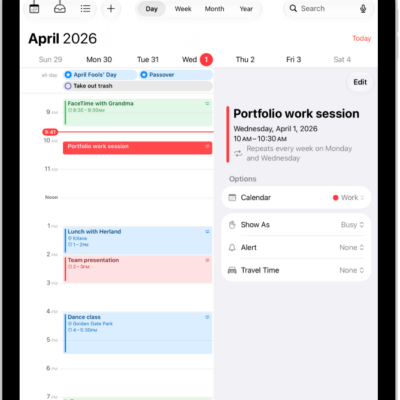
You can use Stage Manager to multitask and get things done with ease. You can group apps for specific tasks or projects, and also arrange windows, resize them, and overlap them.
When you turn it on, the apps you’re working in move to the front, and all your other open apps form a list of recent apps on the left. When you switch apps, whatever you’ve been working in moves to the recent apps list.
Turn Stage Manager on or off
- Start the Settings app on your iPad.
-
Tap Multitasking & Gestures and select Stage Manager.
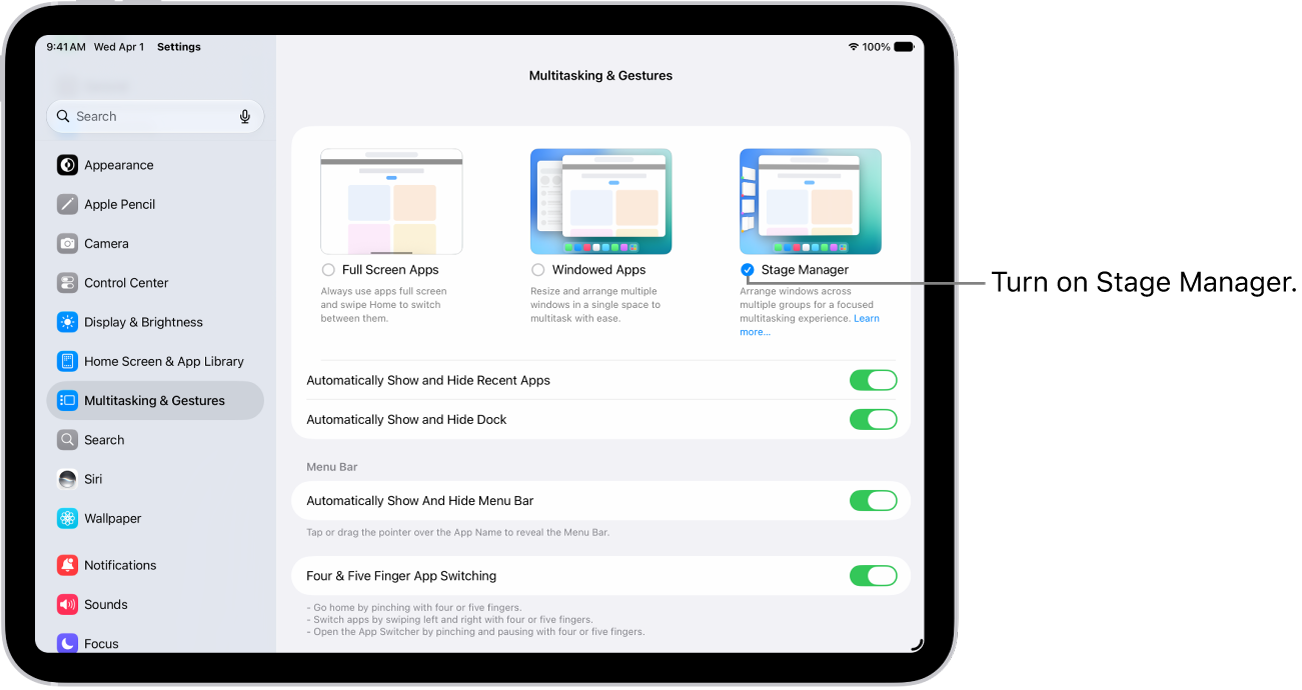
Turning on Stage Manager moves the apps you’re working in to the front, while all other open apps line up along the left side of the screen as a list of recent apps.
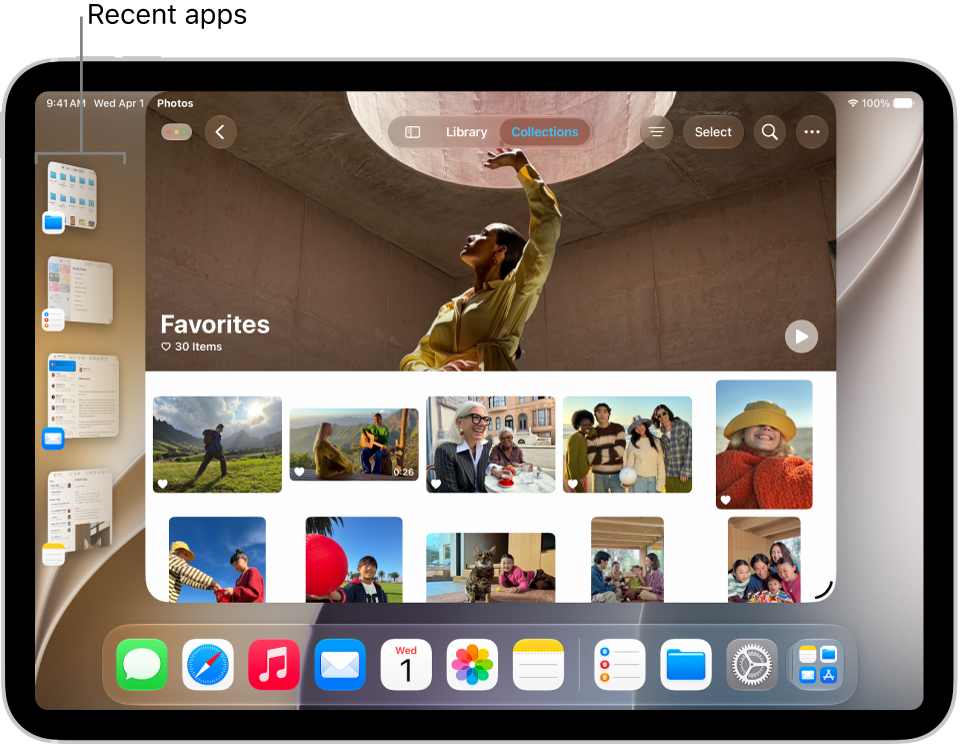
Switch between apps in Stage Manager
With Stage Manager, you can switch apps by tapping another app in the recent apps list, or tapping an icon in the Dock.
Switching to another app sends the app or group you’ve been working in to the recent apps list on the left, and the one you tapped takes its place.
Doing any of the following also switches apps:
- Swipe up from the bottom of the screen, then pause in the center of the screen to see the recent apps and groups.
- Swipe left or right with one finger along the bottom edge of the screen. (On an iPad with a Home button, perform this gesture with a slight arc.)
- Swipe left or right with four or five fingers.
For more, see our article, Switch between apps on iPad.
Organize apps into groups in Stage Manager
You can create groups of windows for specific tasks or projects by dragging app windows from the recent apps list into the center of the screen. You can also drag app icons from the Dock into the center of the screen to add them to a group.
You can return a window to the recent apps list by dragging it to the left. If you minimize a window in an app group, the app window is removed from the group and returned to the recent apps list.
Show or hide the recent apps list
- Start the Settings app on your iPad.
- Tap Multitasking & Gestures. Select or deselect the checkbox for Stage Manager.
Quick tip: Moving a window too close to the list of recent apps can hide the list, but swiping from the left edge of the screen makes it reappear.
See also
- Work with multiple windows at the same time on iPad
- Open multiple windows of an app on iPad
- Change the layout of windows on iPad