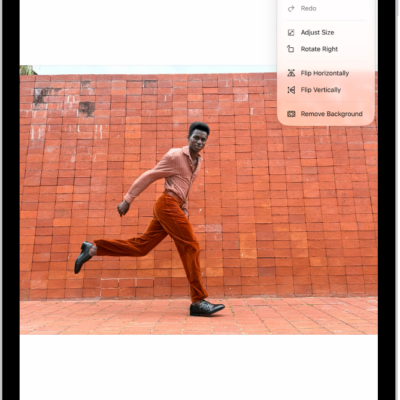
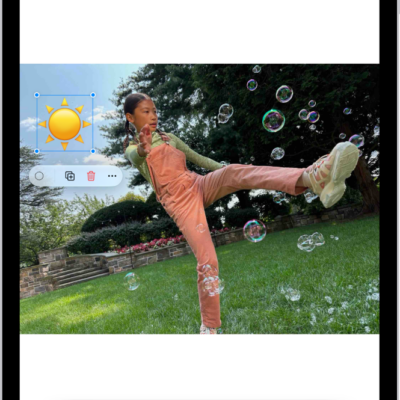
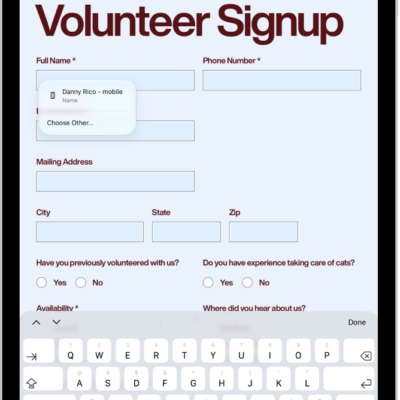
In Preview, you can browse and open PDFs and images directly, without opening the Files app first. You’ll find files you opened recently in Recents. Once a file is open, you can find text in a PDF, view information about the PDF or image, and view an Apple Reference Image.
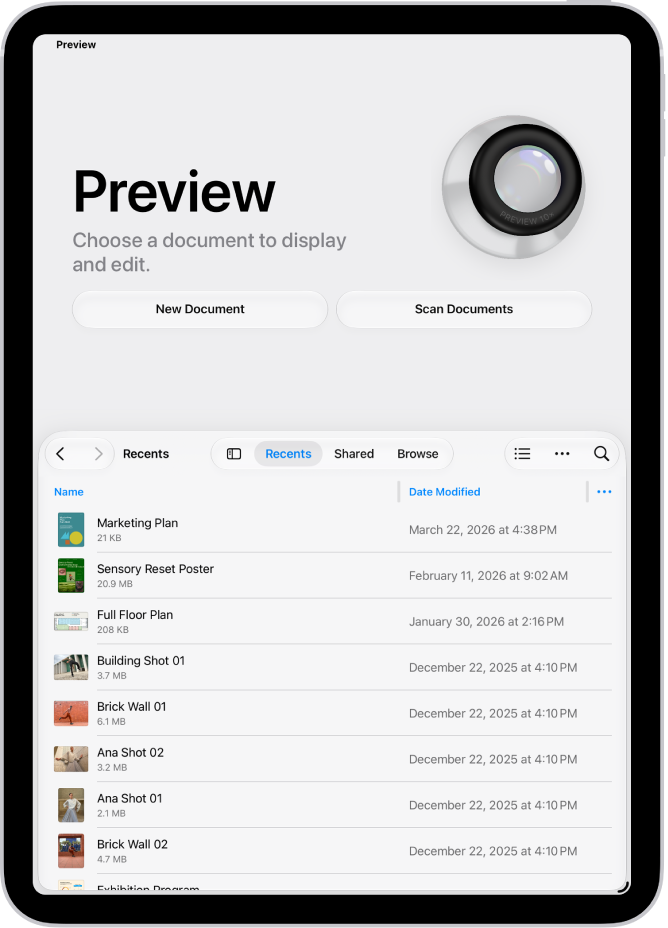
Open a PDF or image
You can browse and open PDFs and images directly in Preview, with no need to open the Files app first.
- Start the Preview app on your iPad.
- Do any of the following to find a file:
- View files you opened recently: Tap Recents.
- View shared files: Tap Shared.
- Browse available files: Tap Browse.
- Choose a location to browse: Tap the Toggle Sidebar button, then tap an option under Locations in the sidebar.
- Browse by tag: Tap the Toggle Sidebar button, then tap an option under Tags in the sidebar.
- Optionally, tap the More button. Then select how items appear (icons or list) or how items are sorted.
- Tap a file to open it.
Quick tip: When someone emails you a PDF form to fill out, tap the attached file in the Mail app, and you can open and complete the form in Preview. Then reply to the sender with the completed form attached. Read our guide, Reply to an email with a PDF attachment.
View a PDF or image
- Start the Preview app on your iPad.
- Open the PDF or image that you want to view.
- Do any of the following:
- Zoom in or out: Pinch two fingers open or closed on a page or image.
- Open or close thumbnail view for a PDF: Tap the Toggle Sidebar button.
- Scroll pages in a PDF: Swipe up or down.
- Go to a specific page in a PDF: Tap the More button and tap Go to Page. Enter a page number and tap Go.
View an Apple Reference Image
For a photo that includes an Apple Reference Image, Preview can display the reference image and its information, letting you verify whether the photo has been altered or edited.
- Start the Preview app on your iPad.
- Open the PDF or image that includes an Apple Reference Image.
- Tap the Info button and then tap Reference Image to view the unedited image.
- Tap the Info button again to see the information about the Reference Image data.
Find text in a PDF
- Start the Preview app on your iPad.
- Open a PDF you want to search.
- Tap the Search button.
-
Optionally, tap the Search Options button in the search field and do any of the following:
- Exclude matches where the search text is part of another word: Select Whole Word.
- Only include results that match the capitalization of the search text: Select Match Case.
-
Enter a word or phrase in the search field.
If you enter a phrase, Preview searches for that exact phrase.
- Tap the Next Result button or the Previous Result button to go to the next or previous search result.
- Tap the Done button to close the search results.
View information about a PDF or image
The Preview app can give you information about PDF documents and images, like creation date, filename, and more. And if location information is available for a photo, you can view the latitude and longitude where it was taken.
- Start the Preview app on your iPad.
- Open a PDF or image.
- Tap the Info button to view information about the file.
- To add or change a caption, tap Add a Caption (or the current text), enter text, and then tap the Done button on the keyboard.
- Tap the Info button to close the Info window.
See also