Got a tip for us?

Multitasking

With Picture in Picture, you can watch a video or use FaceTime while you use other apps. The video window scales down to a corner of your screen, and you can resize it, move it to a different corner, hide it off the edge of the screen, or return to a full video screen.

Note: Picture in Picture works only with supported apps and videos, so if the option isn’t available, it’s possible the app or video doesn’t support it.

Start Picture in Picture

While watching a video, tap the Minimize Video button or press the Home button (on an iPad with a Home button).

Because the video window scales down to a corner of your screen, the Home Screen stays visible and you can open other apps.

Manage the Picture in Picture window

You can do any of the following while the video window is showing:

  • Resize the video window: To make the small video window larger, pinch open. To shrink it again, pinch closed.
  • Show and hide controls: Tap the video window.
  • Move the video window: Drag it to a different corner of the screen.
  • Hide the video window: Drag it off the left or right edge of the screen.
  • Close the video window: Tap the Close button.
  • Return to a full video screen: Tap the Restore Full Screen button in the small video window.

See also

If your iPad (compatible models) is connected to an external display, you can work across both screens, moving apps and windows between the screens and arranging them in a way that works best for you. You can also open an app right on the display you want to use it on.

Note: Using an external display with iPad requires a compatible iPad model and a compatible cable or adapter. See Connect iPad to a display with a cable.

Do any of the following to move apps between displays:

  • Drag the window: Use your cursor to drag from the top of the app window to move it from one display to another.
  • Open on a specific display: Tap the app icon in the Dock or App Library on the display you want to use it on.
  • Use window controls: Touch and hold the Multitasking menu, then tap Move to Display or Move to iPad.

See also

If an app isn’t responding, you can quit it and then reopen it. You can quit it from Exposé, or if the app is in a window, close the window, then reopen it on the Home Screen, App Library, or in the Dock. If the app is still unresponsive after you quit and reopen it, restarting your iPad may help.

Note: Since iPad automatically manages how apps run in the background, quitting apps you’re not using doesn’t prolong battery life.

You can do one of the following to quit an app:

  • To quit an app, swipe up from the bottom edge of the screen and hold, then release to open Exposé, then swipe up on the app.
  • If the app is in a window, tap the Window Controls button, then tap the Close Window button.

To reopen the app, tap it on the Home Screen, App Library, or in the Dock. If the app is still unresponsive after quitting and reopening, try restarting your iPad.

See also

While you’re working in multiple apps, you can arrange the windows to make them easier to see and work in. You can also tile two apps side by side. And you can designate one window as a Slide Over window, and it’ll stay open on top of your other windows, even full-screen ones.

An iPad screen showing work in progress across two Notes windows and one Mail window.

Arrange windows with gestures

While working with windowed apps, you can drag and drop apps from the Dock, Home Screen, App Library, or Spotlight to easily arrange them among your windowed apps.

You can do any of the following with apps in windows:

  • Open an app in a window: While working with other apps in windows, drag the app icon to the center of the screen. If it was previously full screen, it opens as a windowed app, and if it was previously resized, it opens in its previous size.
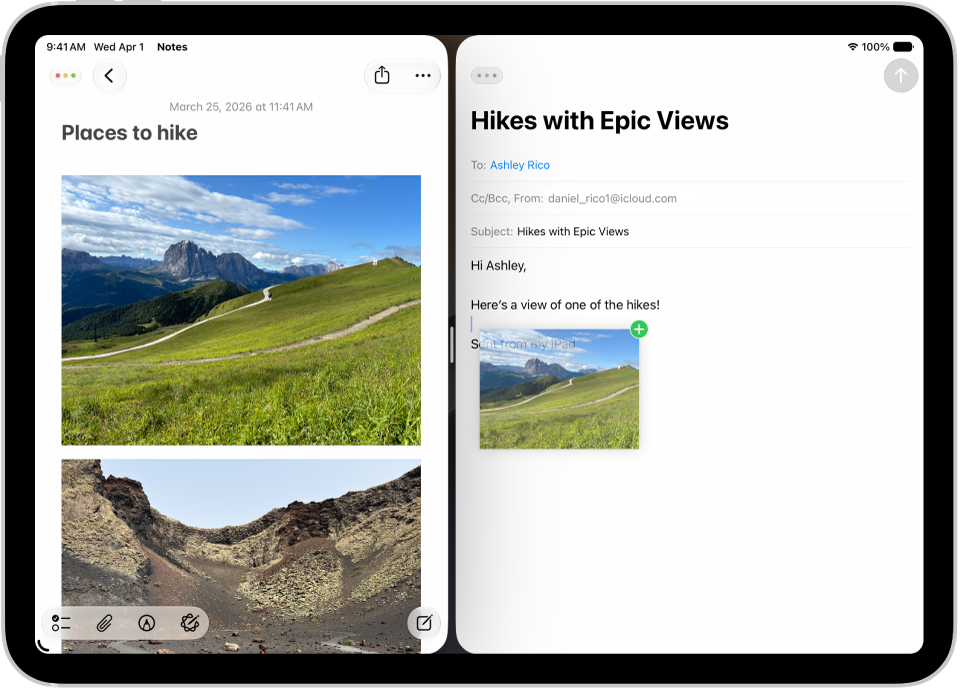
  • Split the screen between two apps: Drag an app icon to the right or left on top of a full-screen app to quickly tile the two apps side-by-side.
  • Replace a window on the left or right edge with another app: Drag an app icon from the Dock or Home Screen on top of a window that’s touching the right or left edge of the screen. The new app opens in that window, replacing its previous contents.
  • Tile two windows side-by-side: When you already have two apps in windows and want to tile them side by side, drag one of the app windows from the top, hold it briefly, then swipe it quickly to one side of the screen. Drag the other window from the top, hold it briefly, then swipe it to the other side of the screen.
  • Adjust the size of tiled windows: Drag the divider between two side-by-side windows to adjust their size at the same time.
  • Make side-by-side windows full screen: When you have two app windows tiled side-by-side, drag the divider all the way to one edge to make one of the windows full screen, or drag the divider to the other edge to make the other window full screen.

Arrange windows with tiling

  1. Tap one of the windows to bring it to the front.
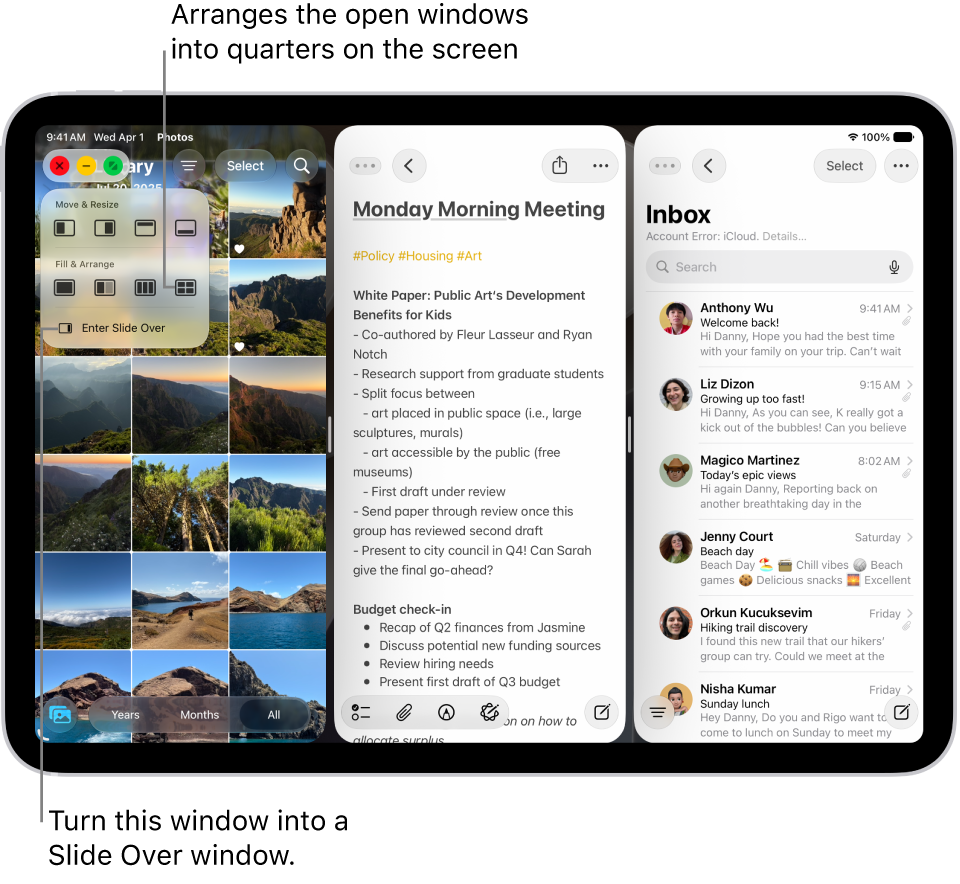
  2. Touch and hold the Window Controls button in the top-left corner to see a menu of layout options.
  3. Choose one of the preset window layouts.

    An iPad screen with four apps open and a selected window layout that arranges them in quarters.

    The windows arrange themselves according to the layout you selected.

    Note: To see more layout options for the active app, tap Window in the menu bar, then tap Move & Resize.

Add a Slide Over window

While you work in Windowed Apps or Stage Manager, you can designate one window as a Slide Over window to stay open on top of your other windows or full-screen apps. This window stays on the right or left side of the screen. You can drag this window off screen, and bring it back out when you need it.

While you work this way, you can do any of the following:

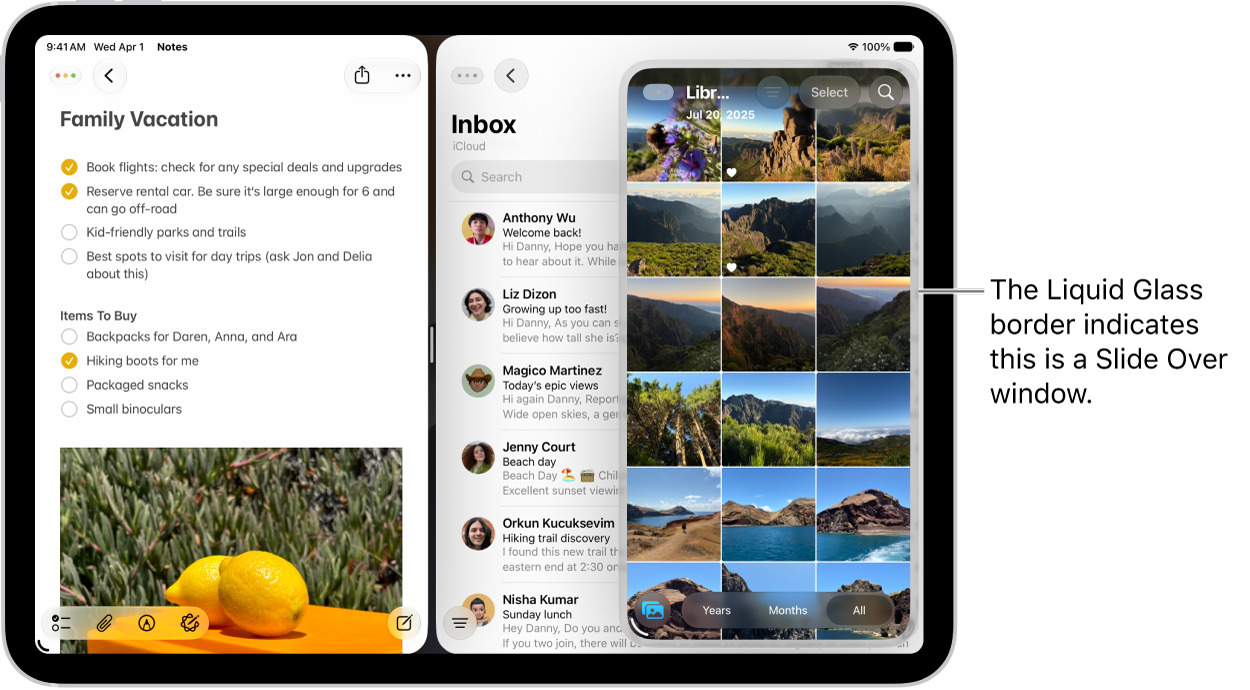
  • Move a window into Slide Over: Touch and hold the Window Controls button, then tap Enter Slide Over. Or, while working in apps, drag an app icon from the Dock, Home Screen, App Library, or Spotlight to the left or right edge on top of the arrow.

    Three app windows open on the screen, one of which is a Slide Over window, as indicated by the Liquid Glass border.

  • Switch Slide Over windows: To switch which window is in Slide Over, touch and hold the Window Controls button of a different window and tap Enter Slide Over. This window enters Slide Over and the previous one leaves Slide Over. You can also drag the app you want from the Dock, Home Screen, App Library, or Spotlight over the existing Slide Over window to switch them.
  • Hide the Slide Over window off screen temporarily: Drag the top of the window past the left or right edge of the screen. An arrow appears at the edge where the window disappeared.
  • Bring the Slide Over window back: Tap the Arrow button or swipe from the edge of the screen where you moved the Slide Over window to bring it back into view.
  • Reposition the Slide Over window: Drag the top of your Slide Over window to move it. The window snaps to the left or right side of the screen.
  • Resize the Slide Over window: Drag a bottom corner of the Slide Over window to resize it.
  • Exit Slide Over: Touch and hold the Window Controls button, then tap Exit Slide Over. Or move the window to the middle of the screen and pause. The window leaves Slide Over and the border around it disappears. It no longer always stays on top of the other windows.
  • Change the Slide Over window: You can replace the contents of a Slide Over window with another app by dragging the app icon (from the Dock or Home Screen) on top of the Slide Over arrow (or the Slide Over window).

Open an item in the center of the screen

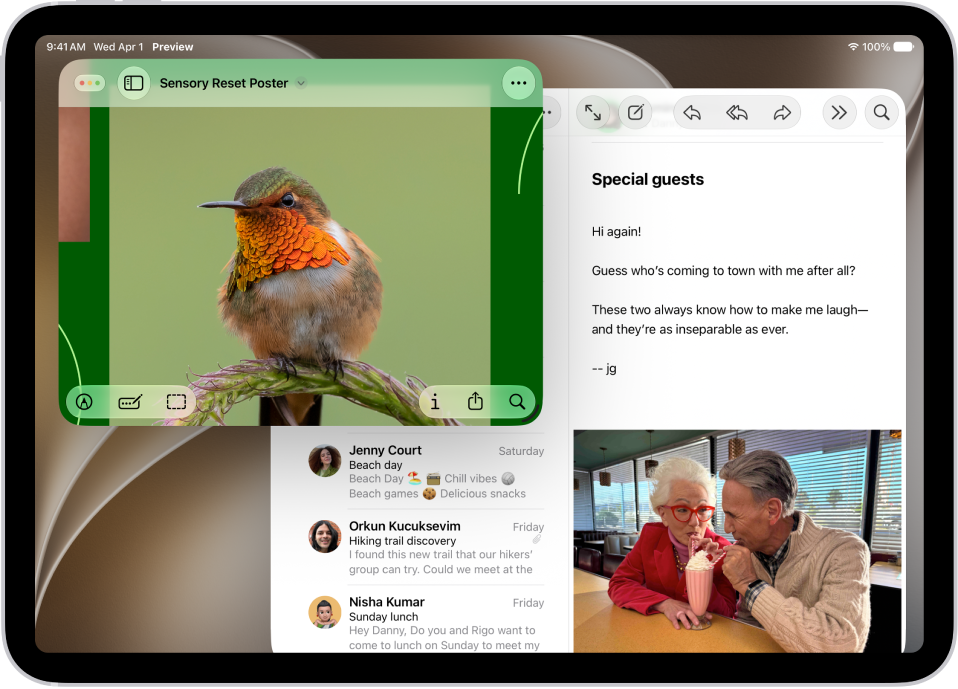
Many iPad apps, including Mail, Messages, and Notes, let you open an item in a window of its own in the center of the screen.

  1. For example, do any of the following:

    • Touch and hold a message in a mailbox in Mail.
    • Touch and hold a conversation in Messages.
    • Touch and hold a note in Notes.
  2. Tap Open in New Window.

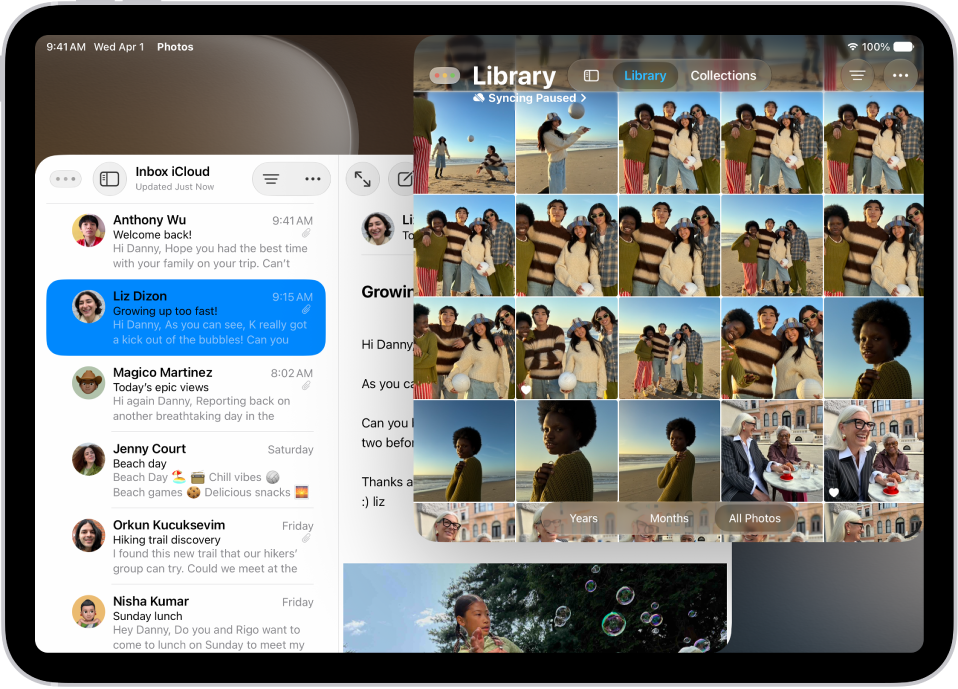
    The item opens in the center of the screen, on top of what you’re viewing, without changing your view.

You can change a center window to full screen: Tap the Window Controls button, then tap the Full Screen button.

See also

You can open a new window in any app that supports multiple windows, like Mail, Notes, Safari, and Files. You can even open a window for just one item, like a note or a Mail message, and view all the open windows of a particular app with App Exposé.

Open a new window in an app

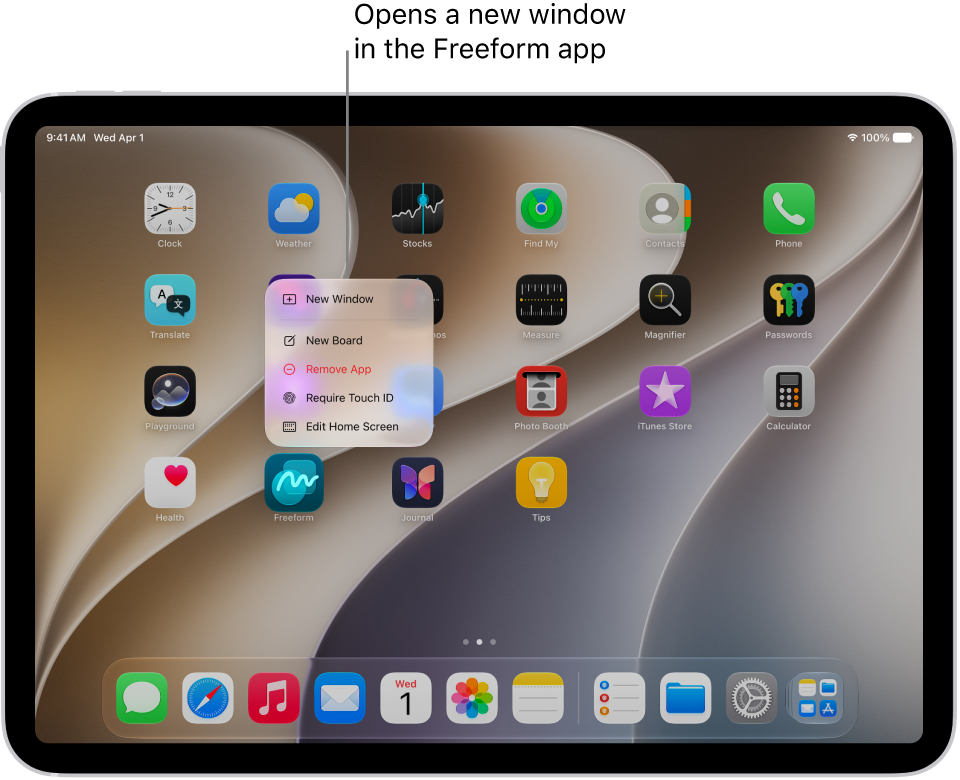
  1. Touch and hold the app icon for an app that supports multiple windows (for example, Mail, Notes, Safari, Files, and others) until a menu appears.
  2. Choose New Window from the menu.

    An iPad Home Screen with the Freeform app menu open, showing a list of actions you can choose—including open a new window in the app, create a new board, show all the open app windows, and others.

Note: There’s another way to open a new window in an app: Drag the app icon from the Dock onto another window from the same app. Or drag content out of the app window or to the edges of iPad (a Note or a Mail message, for example), and a window opens for just that content.

View an app’s open windows

If you have multiple windows open in an app, App Exposé can show you all of them at once.

  1. Do any of the following:

    • Swipe up from the bottom edge of the screen to reveal the Dock.
    • Go to the Home Screen.
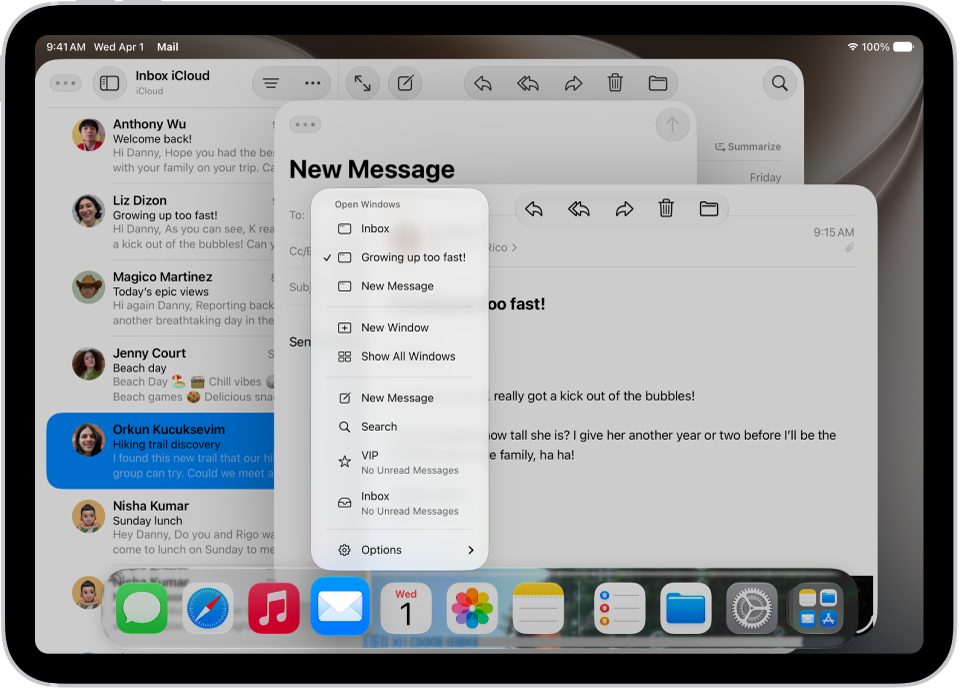
  2. On the Home Screen or in the Dock, touch and hold the app with the windows you want to view and tap Show All Windows or tap a specific window that’s listed under Open Windows.

    Note: If you touch and hold an app on the Home Screen for too long, all the apps begin to jiggle. Tap Done at the top right, then try again.

    An iPad screen with open windows for the Mail app and showing the app menu for the app in one of the windows.

    Tip: Here’s another way to view an app’s open windows: Swipe up from the bottom of the screen, pause in the middle to open Exposé, then tap one of the app icons to open App Exposé for that app.

For more ways to move between apps, see our guide, Switch between apps on iPad.

View hidden windows for an app

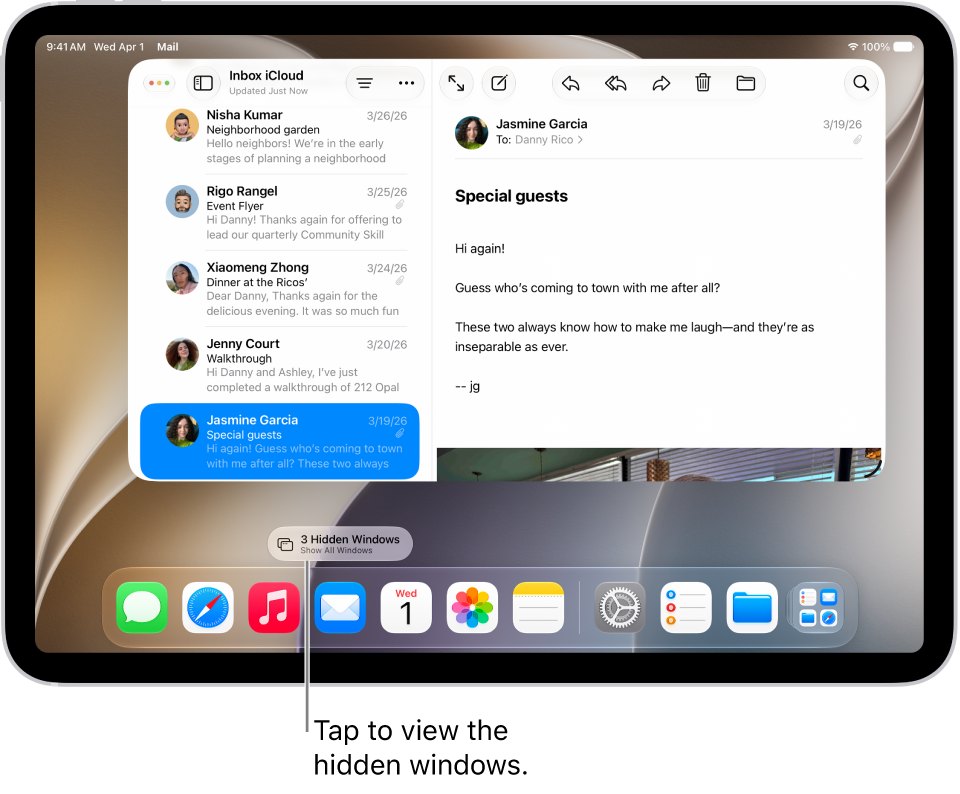
When you switch to an app with hidden windows—that are either minimized, full-screen, or behind another app—a pill-shaped button appears that you can tap to view all the open windows of the app.

An iPad screen with two apps open and the pill-shaped Show All Windows button, which, when tapped, shows all the open windows in the target app.

See also

You can use Stage Manager to multitask and get things done with ease. You can group apps for specific tasks or projects, and also arrange windows, resize them, and overlap them.

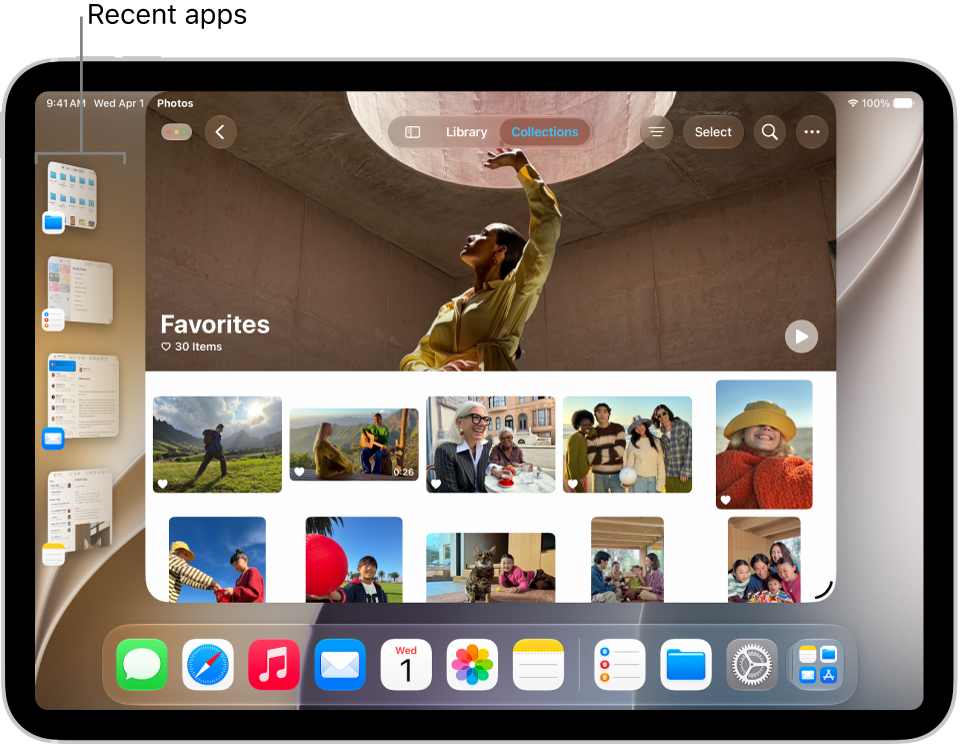
When you turn it on, the apps you’re working in move to the front, and all your other open apps form a list of recent apps on the left. When you switch apps, whatever you’ve been working in moves to the recent apps list.

Turn Stage Manager on or off

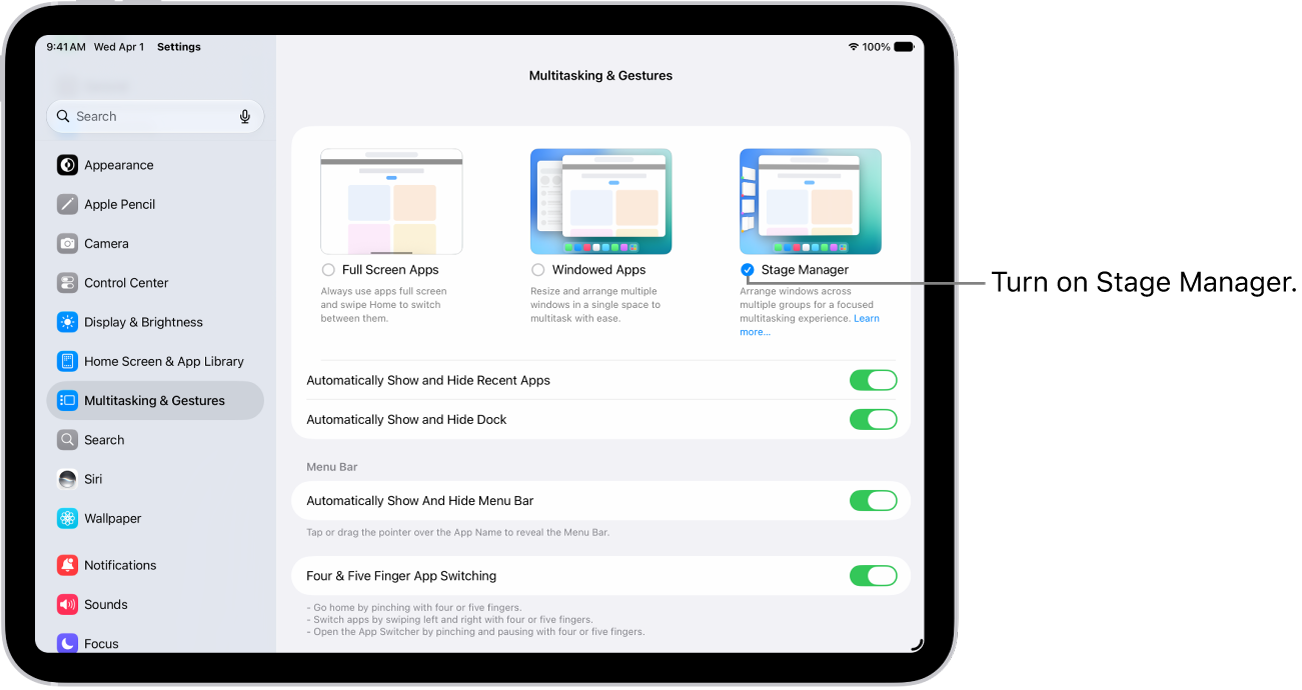
  1. Start the Settings app on your iPad.
  2. Tap Multitasking & Gestures and select Stage Manager.

    The iPad Settings app, showing the Multitasking & Gestures options you can choose for working in multiple apps.

Turning on Stage Manager moves the apps you’re working in to the front, while all other open apps line up along the left side of the screen as a list of recent apps.

An iPad display with Stage Manager turned on. The current window is in the front, and other recent apps are in a list on the left side of the screen.

Switch between apps in Stage Manager

With Stage Manager, you can switch apps by tapping another app in the recent apps list, or tapping an icon in the Dock.

Switching to another app sends the app or group you’ve been working in to the recent apps list on the left, and the one you tapped takes its place.

Doing any of the following also switches apps:

  • Swipe up from the bottom of the screen, then pause in the center of the screen to see the recent apps and groups.
  • Swipe left or right with one finger along the bottom edge of the screen. (On an iPad with a Home button, perform this gesture with a slight arc.)
  • Swipe left or right with four or five fingers.

For more, see our article, Switch between apps on iPad.

Organize apps into groups in Stage Manager

You can create groups of windows for specific tasks or projects by dragging app windows from the recent apps list into the center of the screen. You can also drag app icons from the Dock into the center of the screen to add them to a group.

You can return a window to the recent apps list by dragging it to the left. If you minimize a window in an app group, the app window is removed from the group and returned to the recent apps list.

Show or hide the recent apps list

  1. Start the Settings app on your iPad.
  2. Tap Multitasking & Gestures. Select or deselect the checkbox for Stage Manager.

Quick tip: Moving a window too close to the list of recent apps can hide the list, but swiping from the left edge of the screen makes it reappear.

See also

You can use the Dock, Exposé, or a gesture to quickly switch from one app or window to a different one. When you switch back, you can pick up right where you left off.

The Dock keeps your favorite apps on the left and suggested apps on the right, including ones you opened recently and ones open on your nearby iPhone or Mac. Exposé shows all your open apps and windows at once, so you can move between them.

Here’s how to switch between apps on iPad.

Open an app from the Dock

Swipe up from the bottom edge of the screen just far enough to reveal the Dock, then tap the app you want to open.

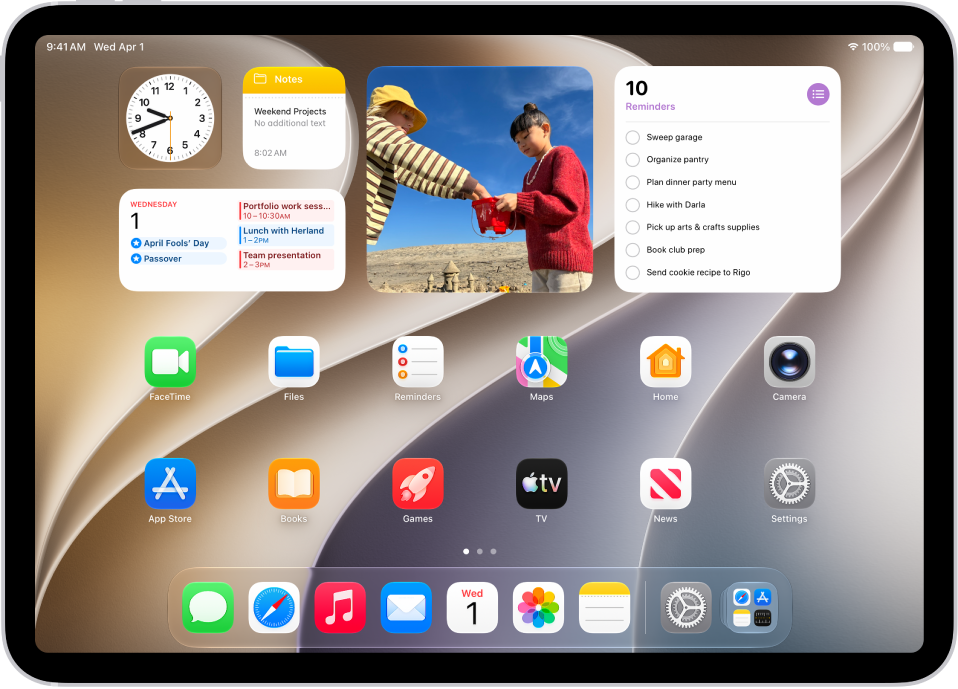
The left side of the Dock holds your favorite apps, and suggested apps appear to the right, like apps you recently opened on iPad or have open on your nearby iPhone or Mac. App Library opens from the rightmost icon in the Dock.

To open folders quickly, you can also move them from the Files app to the Dock. To learn how, read our article, Modify files and folders in Files.

The Home Screen with the Dock showing six favorite apps on the left and three suggested apps to the right. The rightmost icon in the Dock opens App Library.

View and switch between apps with Exposé

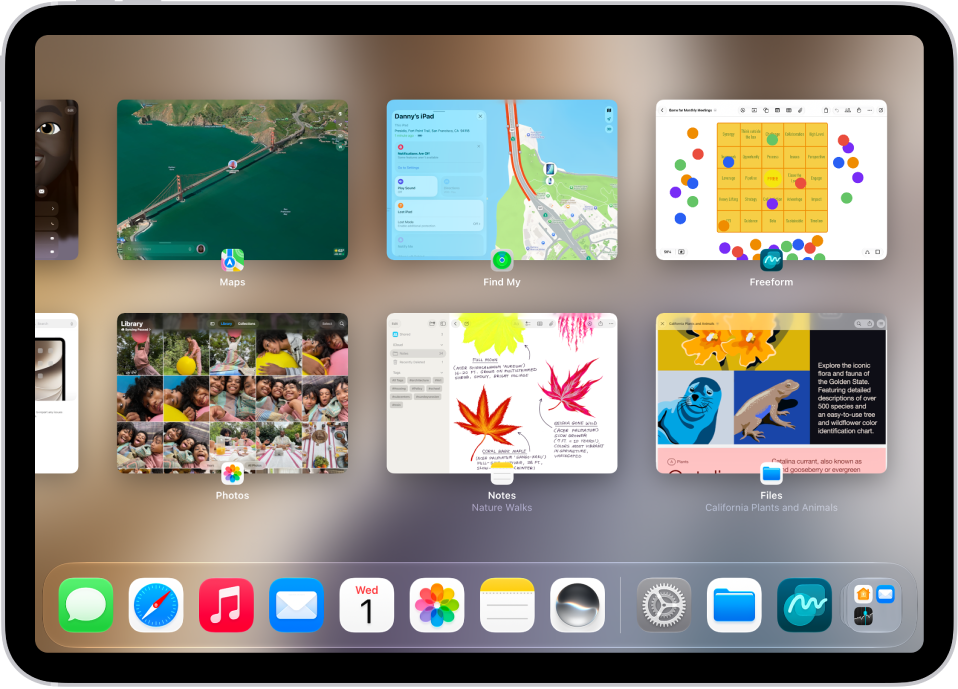
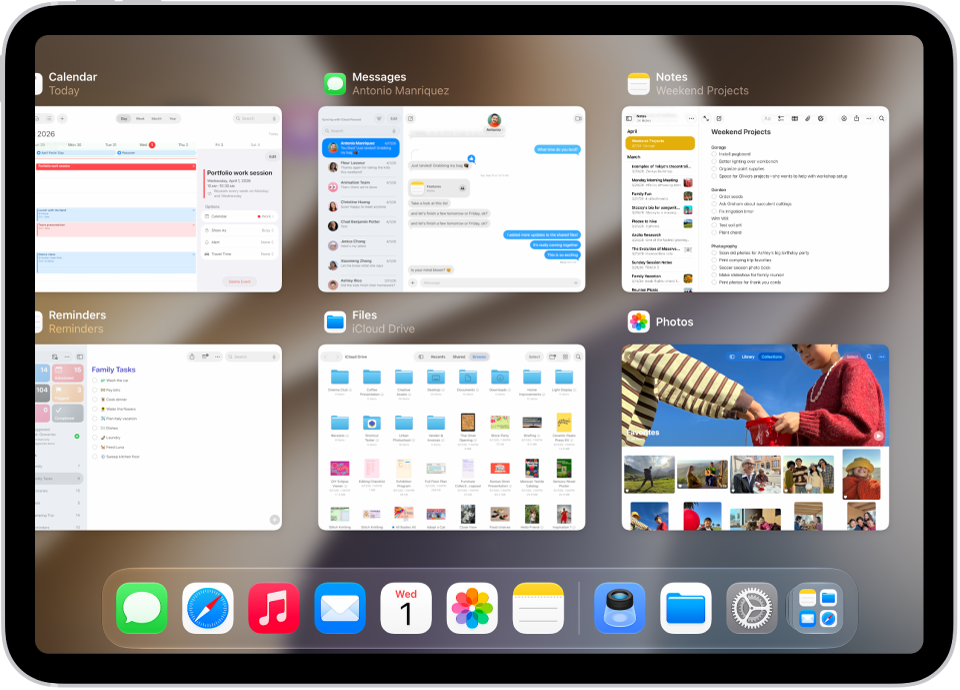
With Exposé, you see all your open apps and windows and can switch between them.

  1. Swipe up from the bottom of the screen, pause in the center of the screen and then lift your finger.

    Exposé showing multiple recently used apps.

  2. To browse the open apps, swipe right or left.

    If you’re working with multiple windows on the same screen, those windows appear on the right. Other open apps appear on the left.

  3. Tap an app window to open it.

See also

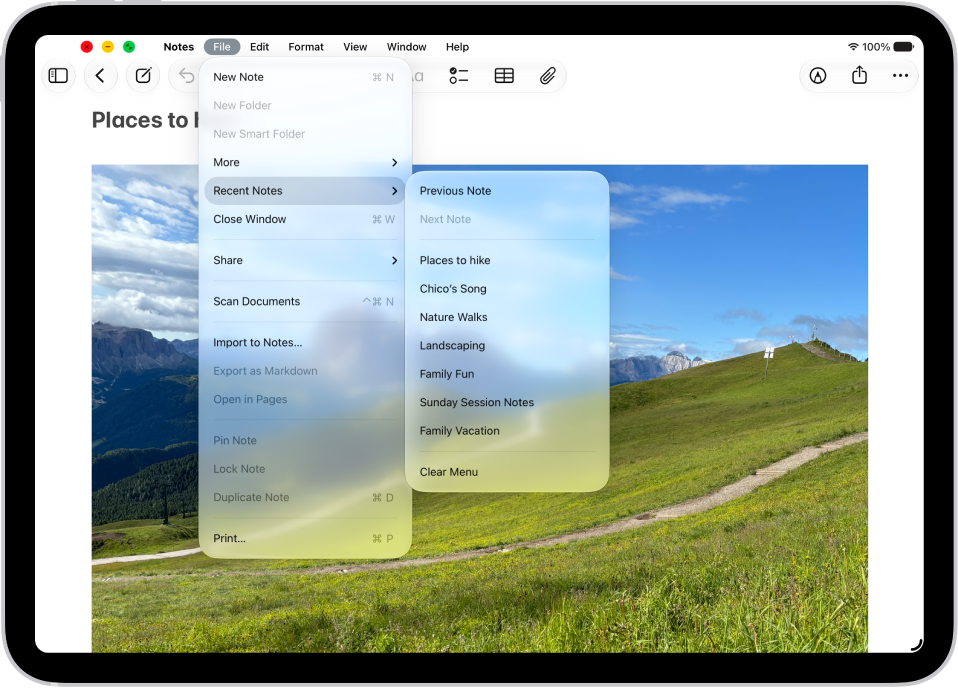
You can access an app’s features and commands in the menu bar for the active app on iPad.

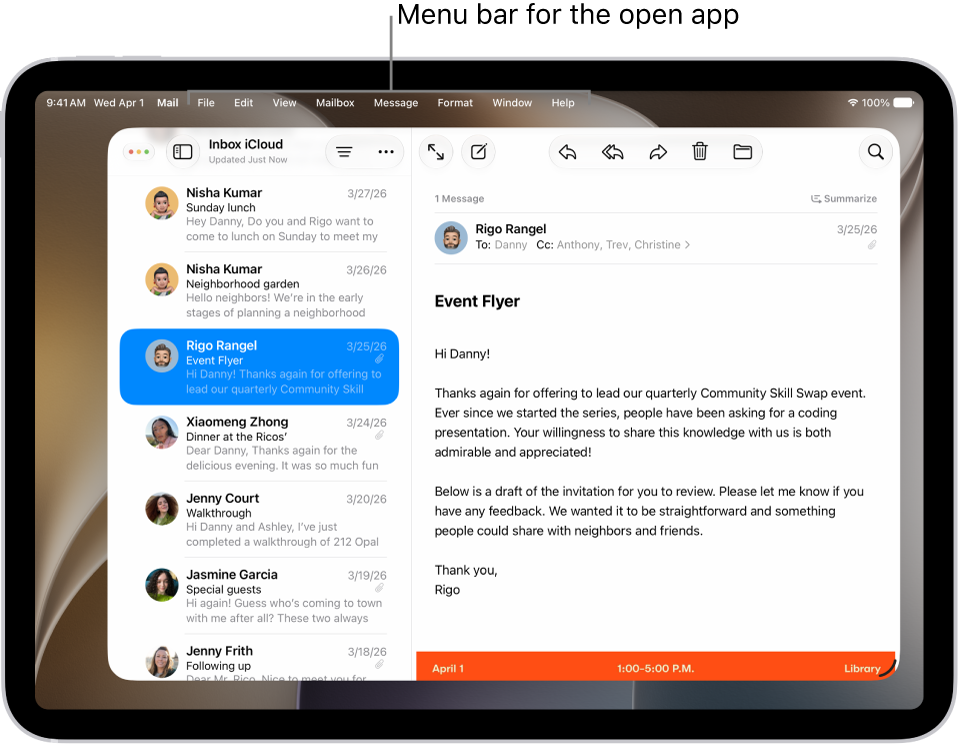
The menu bar only appears when Windowed Apps or Stage Manager is turned on, so if you don’t see one at the top of your screen, you can set up iPad to work in multiple windows. With a mouse or a trackpad, the menu bar opens when you move the pointer over the app’s name. You can also open multiple windows of an app on iPad.

Open the menu bar for the current app

  1. If you’re using apps as windows, tap the app with the menu bar you want to access.
  2. Tap the app’s name in the status bar in the top-left corner. If you’re using a mouse or a trackpad, move the pointer over the app’s name instead.

    The Mail app open on the iPad screen, with the menu bar showing at the top of the screen.

See also

On iPad you can work with multiple apps, or multiple windows of the same app. As you work, you can resize, move, and add windows.

Multiple windows work when either Windowed Apps or Stage Manager is turned on in the Settings app. You can open a second app or window, place it alongside your other resized app windows, and return a window to full screen when you’re ready. You can also organize windows with Stage Manager.

An iPad screen showing work in progress across two Mail windows and one Notes window.

Set up iPad to work in multiple windows

To work with multiple windows, you’ll need to turn on Windowed Apps or Stage Manager in the Settings app.

  1. Open the Settings app on your iPad.
  2. Tap Multitasking & Gestures, then select Windowed Apps.

    An iPad window showing Multitasking & Gestures settings.

Or you can select Stage Manager instead; read our guide, Organize windows with Stage Manager.

Resize and move windows

A window open on iPad, with a resize handle in the lower-right corner and window controls in the upper-left corner.

To open an app, tap it in the Dock, on one of your Home Screens, or in App Library, then do any of the following:

  • Resize a window: Drag the resize handle in the bottom-right corner of the window.
  • Move a window: Drag it from the top.
  • Manage an app window: After you resize a window, the window controls appear at the top left of the window. You can use these controls to close, minimize, or make your window full screen again. Touch and hold the window controls to reveal more options.

Open a second app or window

  • Tap the app in the Dock or App Library.
  • Swipe up from the bottom edge of the screen. This temporarily moves your windows to the edges of the screen so you can see and open the apps on your Home Screen.

If you open an app to full screen, you can still resize it and place it alongside your other resized app windows.

Return a window to full screen

When multiple windows are resized, you can switch any of them to full screen by doing one of the following:

  • Tap the Window Controls button at the top of the window, then tap the Full Screen button.
  • Double-tap the top of the window.
  • Drag the window down from the top and hold, then swipe it up quickly toward the top of the screen.

For more on layouts, see our guide, Change the layout of windows.

Minimize or close a window

Tap the Window Controls button at the top of the window, then do any of the following:

  • Tap the Minimize button to minimize the window.
  • Tap the Close button to close the window.

Quick tip: Swipe up from the bottom of the screen and then swipe up again, and all your windows minimize at once.

See also