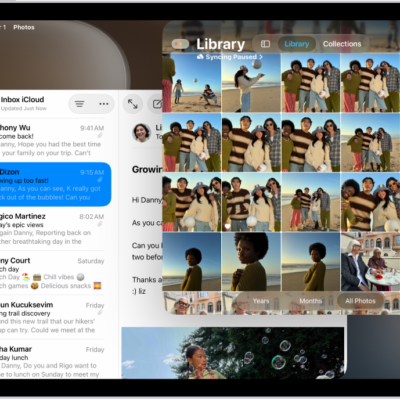
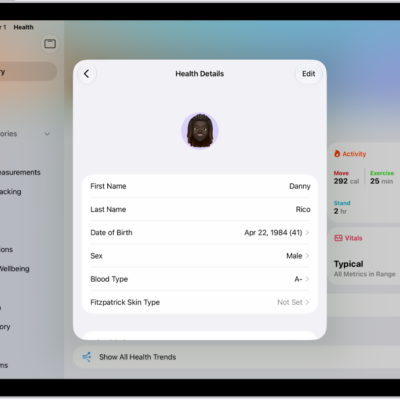
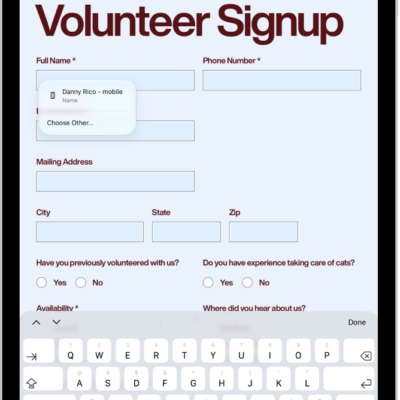
You can use the Dock, Exposé, or a gesture to quickly switch from one app or window to a different one. When you switch back, you can pick up right where you left off.
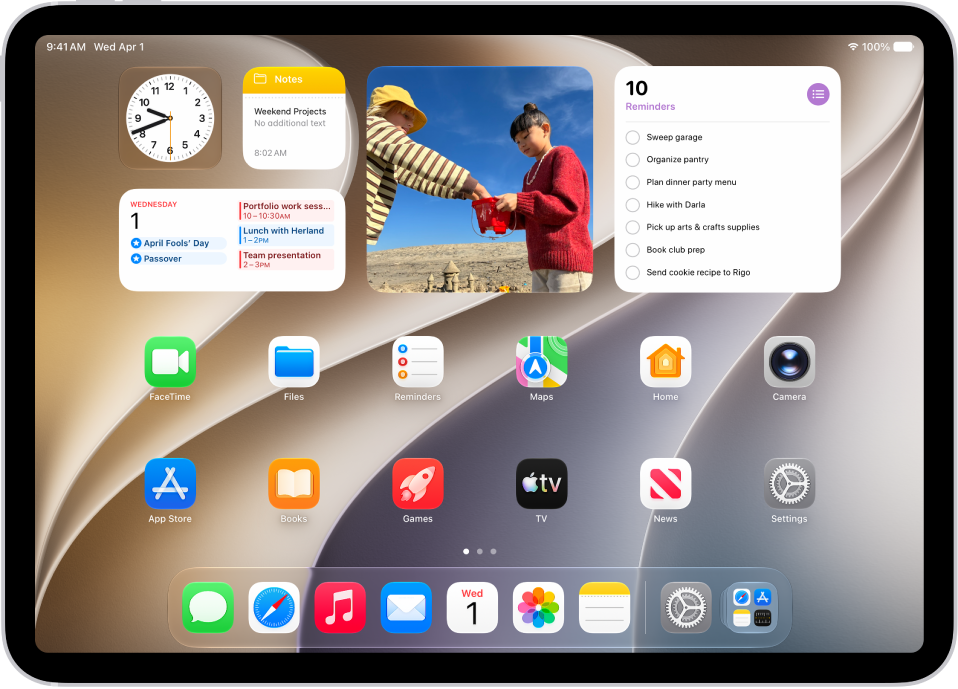
The Dock keeps your favorite apps on the left and suggested apps on the right, including ones you opened recently and ones open on your nearby iPhone or Mac. Exposé shows all your open apps and windows at once, so you can move between them.
Here’s how to switch between apps on iPad.
Open an app from the Dock
Swipe up from the bottom edge of the screen just far enough to reveal the Dock, then tap the app you want to open.
The left side of the Dock holds your favorite apps, and suggested apps appear to the right, like apps you recently opened on iPad or have open on your nearby iPhone or Mac. App Library opens from the rightmost icon in the Dock.
To open folders quickly, you can also move them from the Files app to the Dock. To learn how, read our article, Modify files and folders in Files.
View and switch between apps with Exposé
With Exposé, you see all your open apps and windows and can switch between them.
-
Swipe up from the bottom of the screen, pause in the center of the screen and then lift your finger.
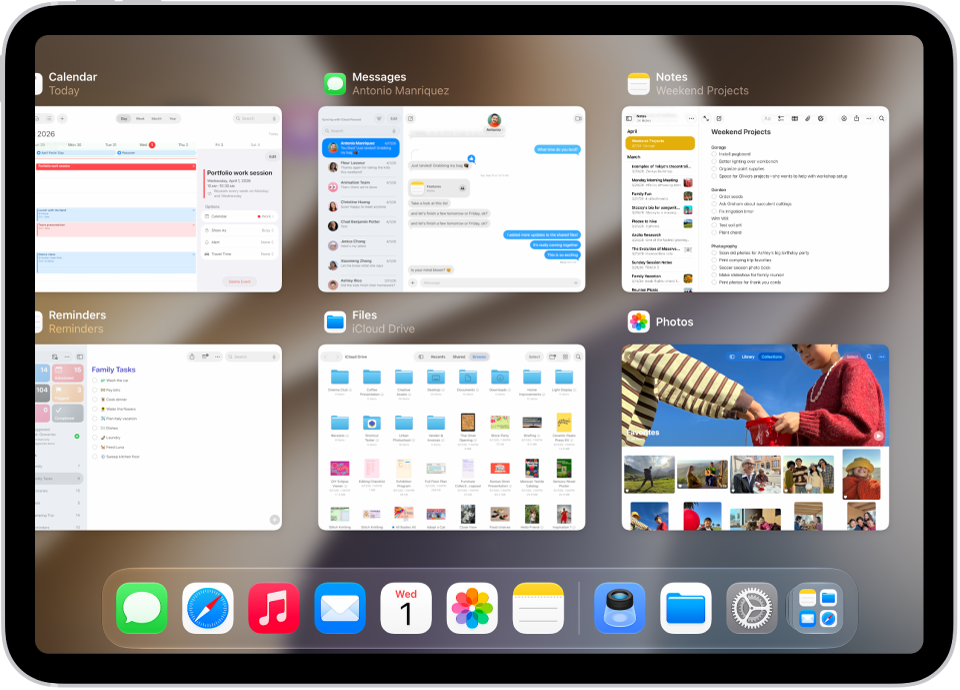
-
To browse the open apps, swipe right or left.
If you’re working with multiple windows on the same screen, those windows appear on the right. Other open apps appear on the left.
- Tap an app window to open it.
See also