There are a few ways to streamline the workflow on iPad. You can learn how to quickly switch between apps, resize and arrange multiple app windows on your screen, and more. You can also use multiple apps at the same time, find commands in the menu bar, and access your folders from the Dock.
Switch between apps on iPad
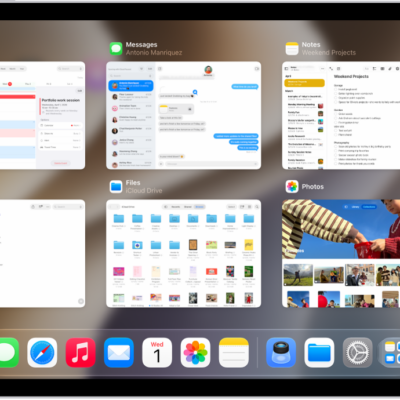
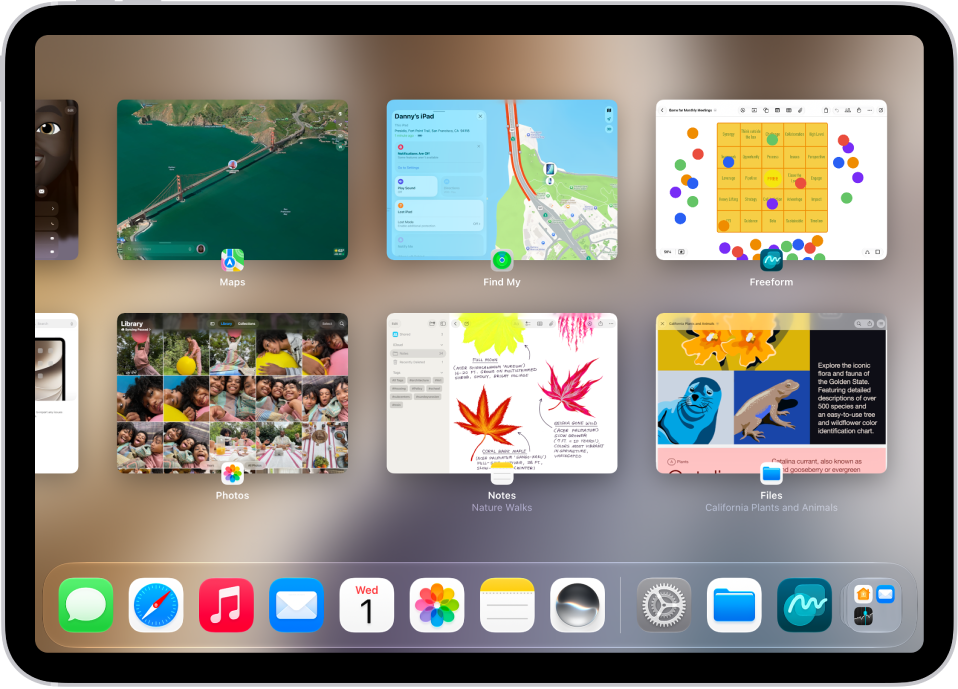
To see all your open windows and apps, swipe up from the bottom of the screen, then pause in the middle. Tap a window to bring it to the front. Or, swipe up from the bottom of the screen, just far enough to reveal the Dock, then tap the app you want to use.
To quickly switch between open apps, swipe left or right along the bottom edge of the screen.
Use multiple apps at the same time
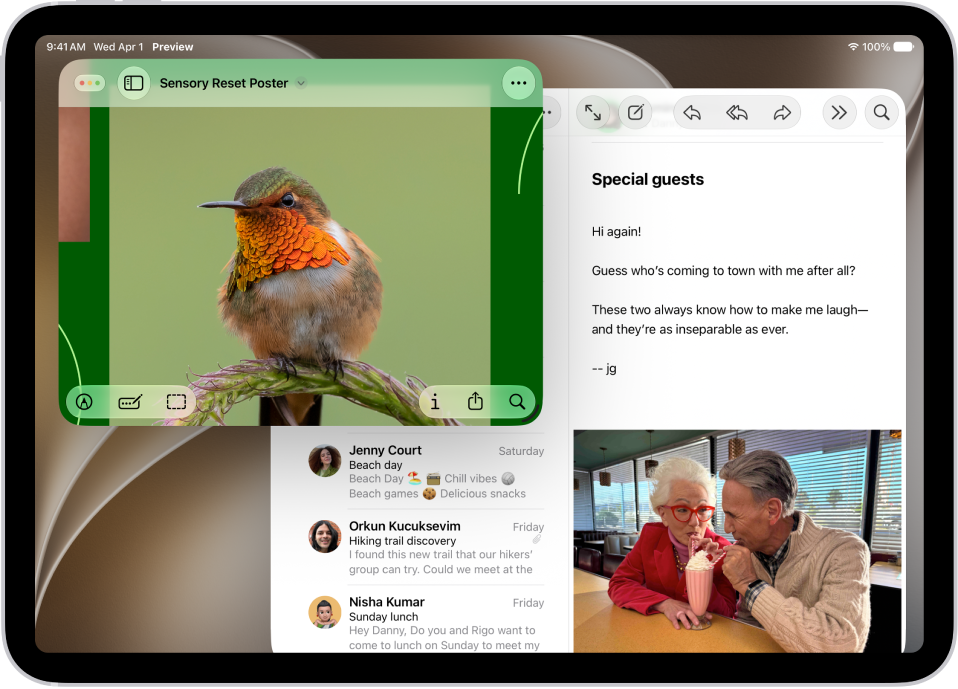
First, go to the Settings app, tap Multitasking & Gestures, then choose Windowed Apps.
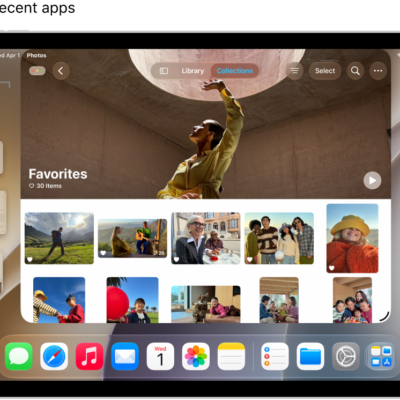
To resize an app window, drag from either of the bottom corners. Or touch and hold Multitasking Menu, then select one of the window layouts. To open another app window, use the Dock. To move your open windows to the side—so you can access the Home Screen, swipe up from the bottom of the screen.
Find commands in the menu bar
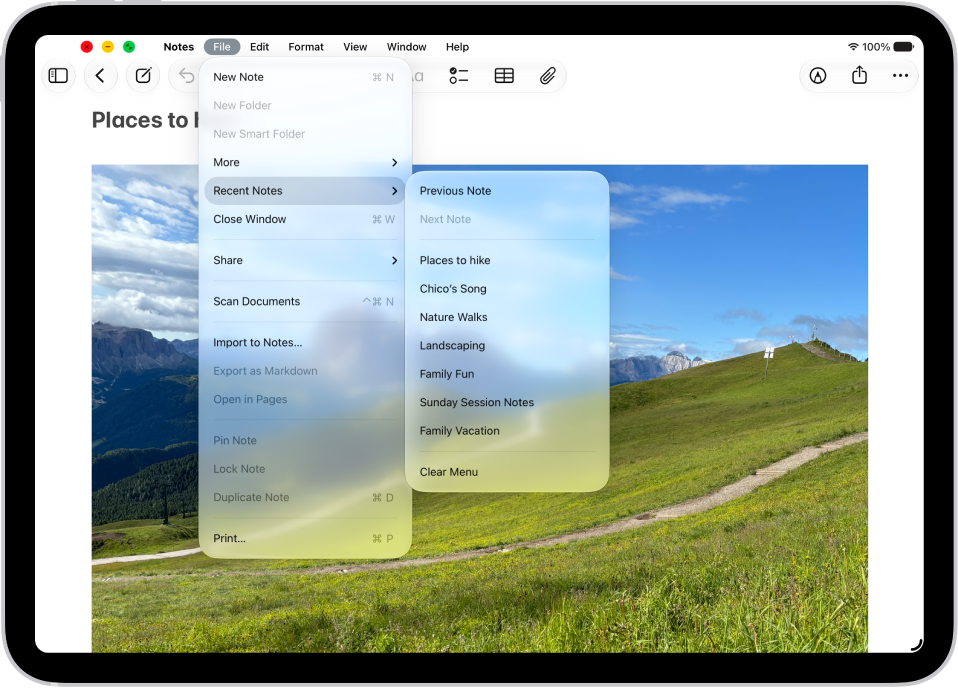
On iPad, apps have a menu bar you can use to quickly take action. To view the menu bar, tap a window from the open app, then tap the app’s name in the status bar in the top-left corner. If you’re using a mouse or a trackpad, move the pointer over the app’s name instead.
Access your folders from the Dock
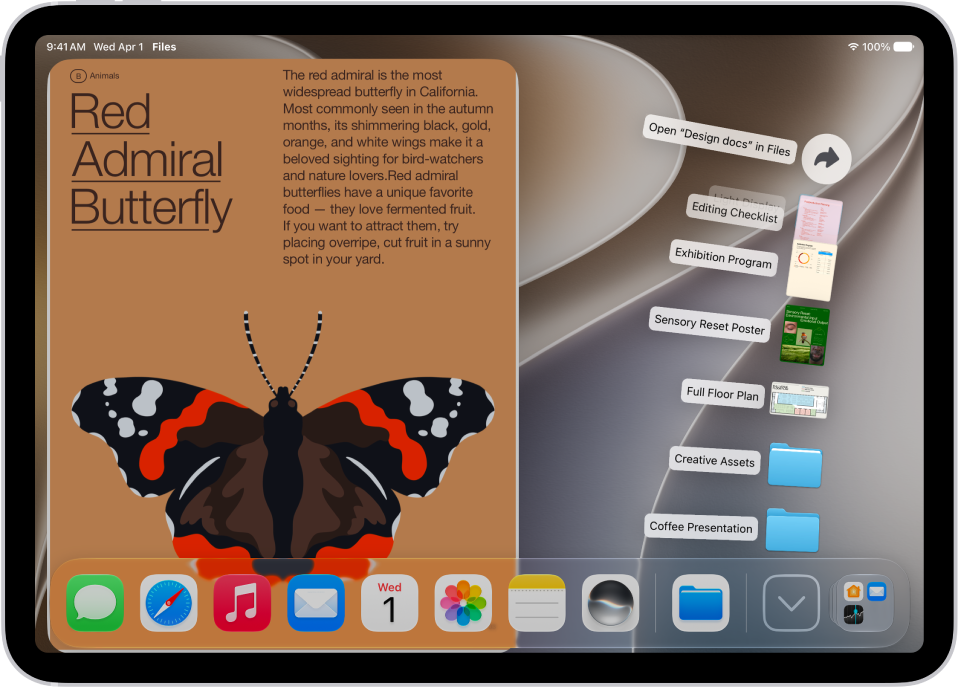
To more easily find and open folders you access frequently, you can add them to the Dock. In the Files app, touch and hold the folder you want to move. When a menu opens, choose Add To, then tap Dock.
For more ways to speed up your work on iPad, see these guides:
- Open an app on iPad
- Work with multiple windows at the same time on iPad
- Arrange windows with gestures
- Change the layout of windows on iPad
- Organize windows with Stage Manager on iPad