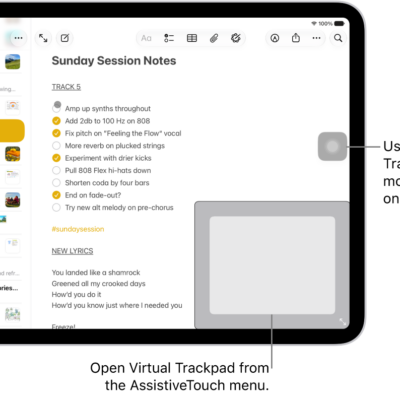
With Guided Access, you can temporarily restrict iPad to a single app. You can set a time limit, and customize which features, hardware buttons, and areas of the screen are available.
If you’re a parent, a teacher, or a caregiver, or are trying to help yourself focus, Guided Access can keep you on a task. You can end a session with a passcode, Face ID, or Touch ID, and play a sound to announce time limits. You can also hear time limits spoken, and set how long it takes iPad to lock automatically.
Set up Guided Access
- Start the Settings app on your iPad.
- Tap Accessibility, tap Guided Access, and turn on Guided Access.
- Do any of the following for Guided Access sessions:
- End a session with a passcode: Tap Passcode Settings, tap Set Guided Access Passcode, and enter a passcode.
- End a session with Face ID or Touch ID: Tap Passcode Settings, then turn on Face ID (on an iPad with Face ID) or Touch ID (on other iPad models).
- Play a sound to announce time limits: Tap Time Limits, tap Sound, and then select a sound or tap Tone Store to browse other options.
- Hear time limits spoken: Tap Time Limits. Turn on Speak to hear the time remaining before a Guided Access session ends.
- Allow Accessibility Shortcut during a session: Turn on Accessibility Shortcut.
- Set how long it takes iPad to lock automatically: Tap Display Auto-Lock, then select an option.
Start a Guided Access session
- Open the app you want to use.
-
To turn on Guided Access, do one of the following:
Siri: Ask Siri something like, “Turn on Guided Access.” Learn how to use Siri.
- Use Control Center if you’ve added Guided Access there.
- Use the Accessibility Shortcut.
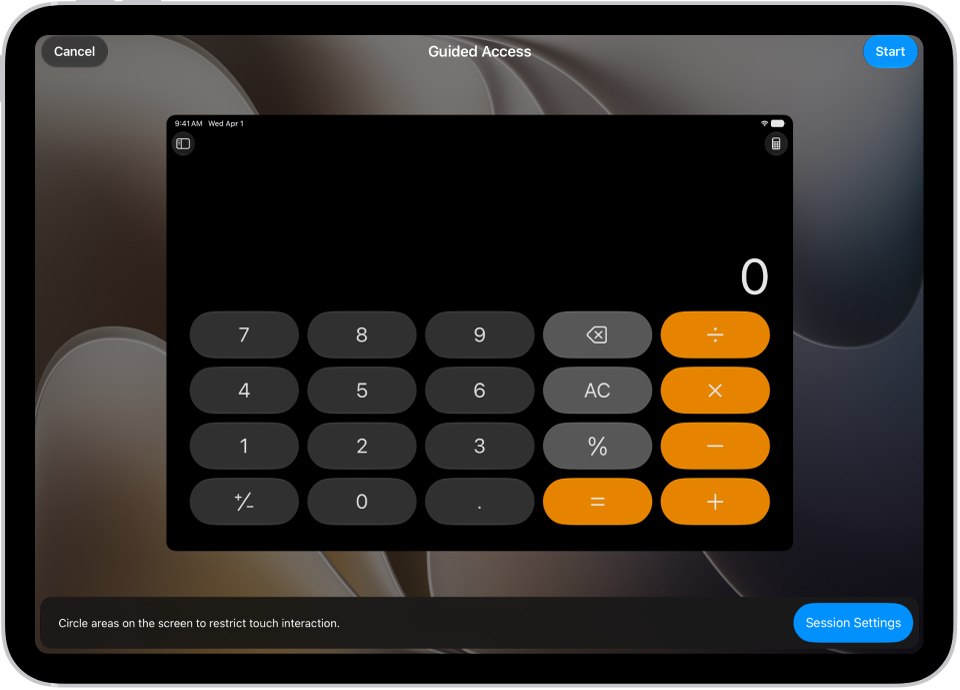
- Circle any areas of the screen you want to disable. Drag the mask into position or use the handles to adjust its size.
-
Tap Session Settings and then turn on or off any of the following:
- Top Button
- Volume Buttons
- Motion (to prevent iPad from switching from portrait to landscape or from responding to other motions)
- Software Keyboards
- Touch
- Time Limit
- Tap Done and tap Start.
End a Guided Access session
You end a Guided Access session by entering your Guided Access passcode or using Face ID, depending on the passcode options you chose when setting up Guided Access.
- Use the passcode: Triple-click the top button (on an iPad with Face ID) or Home button (on other iPad models), then enter your Guided Access passcode.
- Use Face ID or Touch ID: If you turned on the Face ID or Touch ID option in Guided Access Passcode Settings, triple-click the top button or Home button, then unlock your iPad with Face ID or Touch ID (depending on your iPad model).
See also
- Set up a Focus on iPad
- Hide distractions when reading articles in Safari on iPad
- Customize onscreen motion on iPad
- Cognitive accessibility features on iPad