Got a tip for us?

AirPods

You can change how the controls on your AirPods respond to suit your motor needs. On your iPhone, iPad, Mac, Apple TV, or Apple Watch, you can adjust the button, force sensor, or force sensor with volume swipe settings for AirPods 3, 4, or 5, AirPods Pro, or AirPods Max.

When an action requires multiple presses, you can adjust how quickly you must press. You can also adjust how long you need to hold before an action occurs. And on models with the force sensor with volume swipe, like AirPods Pro 3, Volume Swipe can be adjusted or turned off.

Change force sensor or button settings using iPhone or iPad

  1. Open the Settings app on your iPhone or iPad.
  2. Tap Accessibility, then tap AirPods.
  3. Set any of the following options:

    • Press Speed: When an action requires multiple presses of the buttons, force sensor, or force sensor with volume swipe, adjust how quickly you must press before the action occurs.
    • Press and Hold Duration: Adjust how long you must press and hold the buttons, force sensor, or force sensor with volume swipe before an action occurs.
    • Volume Control for AirPods 5 with Wireless Charging Case, AirPods Pro 2, and AirPods Pro 3: If you don’t want to control the volume by swiping up or down on the stem, turn off Volume Swipe.

      You can also adjust the length of the swipe by tapping an option below Volume Swipe.

Change force sensor or button settings using Mac

  1. Open the System Settings app on your Mac.
  2. Click Accessibility in the sidebar. Click Audio (you may need to scroll down).
  3. Set any of the following options:
    • Press speed: When an action requires pressing the buttons or force sensor multiple times, adjust how quickly you must press before the action occurs.
    • Press and hold duration: Adjust the duration required to press and hold the buttons or force sensor on your AirPods before an action occurs.
    • Volume Control for AirPods 5 with Wireless Charging Case, AirPods Pro 2, and AirPods Pro 3: If you don’t want to control the volume by swiping up or down on the stem, turn off Volume Control.

Change force sensor or button settings using Apple Watch

  1. Wear your AirPods, and make sure they’re connected to your Apple Watch.
  2. Open the Settings app on your Apple Watch.
  3. Tap Accessibility, tap AirPods, and then choose settings.

Change force sensor or button settings using your Apple TV device

  1. Wear your AirPods, and make sure they’re connected to your Apple TV 4K or Apple TV HD.
  2. Open the Settings app on your Apple TV 4K or Apple TV HD.
  3. Select Accessibility, select AirPods, and select your AirPods from the list. Adjust any of the following:
    • Press Speed: When an action requires multiple presses of the buttons, force sensor, or force sensor with volume swipe, adjust how quickly you must press before the action occurs.
    • Press and Hold Duration: Adjust how long you must press and hold the buttons, force sensor, or force sensor with volume swipe before an action occurs.

You can also change the accessibility settings for your AirPods so they suit your hearing needs. Check out our article, Set headphone accommodations for AirPods, for the steps.

See also

You can amplify sound with Live Listen, which works through your iPhone or iPad. With your device placed near what you want to hear, you listen through your AirPods.

It can help you hear better in some situations, for example, when you’re having a conversation in a noisy environment. Live Listen lives in Control Center on your iPhone or iPad, and it works with iOS 27, iPadOS 27, or later.

Here’s how to start Live Listen with your AirPods.

  1. Wear your AirPods, and make sure they’re connected to your device.
  2. Open Control Center on your iPhone or iPad, tap the Hearing Devices button, and then tap Live Listen.

    If you don’t see the Hearing Devices button, add it to Control Center. Open Control Center, touch and hold the screen, tap Add a Control, then tap Hearing.

  3. Position your device near the sound source.

This guide is for iOS 27, iPadOS 27, macOS 27, tvOS 27, watchOS 27, or later.

See also

When you use supported AirPods with iPhone, iPad, or Mac, you can change the accessibility settings for your AirPods to suit your hearing needs. Headphone accommodations amplify soft sounds and adjust certain frequencies, so music, movies, phone calls, and podcasts sound more crisp and clear.

You can choose Balanced Tone, Vocal Range, or Brightness, pick Slight, Moderate, or Strong amplification of soft sounds, and apply these audio settings to phone calls, media, or both.

Here’s how to set up headphone accommodations for your AirPods.

Set headphone accommodations on iPhone or iPad

  1. Start the Settings app on your iPhone or iPad.
  2. Tap Accessibility and tap Audio & Visual. Tap Headphone Accommodations.
  3. Turn on Headphone Accommodations.
  4. Tap Customize Audio. Then follow the onscreen instructions, or manually set any of the following:
    • Audio Tuning: Choose Balanced Tone, Vocal Range, or Brightness.
    • Level: Choose Slight, Moderate, or Strong amplification of soft sounds.
    • Phone: Apply these audio settings to phone calls.
    • Media: Apply these audio settings to media playback.
    • Transparency mode on AirPods Pro: Turn on Custom Transparency Mode and adjust the amplification, balance, and tone to help you hear what’s happening around you. See Use and customize Transparency mode.
  5. To preview your audio settings, tap Play Sample.

Set headphone accommodations on Mac

  1. Start the System Settings app on your Mac.
  2. Click Accessibility in the sidebar.
  3. Click Audio and turn on Headphone Accommodations. (You may need to scroll down.)

    Note: To use Headphone Accommodations, you need to turn off Hearing Aid and Media Assist in AirPods settings. See Use hearing health features with AirPods Pro 2 or AirPods Pro 3.

  4. Click Customize Audio and then follow the onscreen instructions. Or manually set any of the following:

    • Audio tuning: Choose Balanced Tone, Vocal Range, or Brightness.
    • Optimization: Adjust the slider to choose Slight, Moderate, or Strong amplification of soft sounds.
    • Phone: Apply these audio settings to phone calls.
    • Media: Apply these audio settings to media playback.
    • Transparency mode on AirPods Pro: Turn on Transparency Mode and adjust the amplification, balance, tone, and more to help you hear what’s happening around you. See Use and customize Transparency mode.
  5. To preview your audio settings, click Play Sample.

See also

AirPods Pro 2 and AirPods Pro 3 support a clinical-grade Hearing Aid feature for perceived mild to moderate hearing loss. You can take a Hearing Test with your AirPods Pro 2 or AirPods Pro 3 using your iPhone or iPad, or use an existing hearing test result, such as an audiogram from your hearing healthcare professional. Your AirPods Pro 2 or AirPods Pro 3 can then use your audiogram to adjust sounds to match your unique ability to hear.

They help in another way, too. With active Hearing Protection, AirPods Pro 2 and AirPods Pro 3 help minimize your exposure to loud environmental noise across listening modes.

Here’s what you need to know about the hearing health features on AirPods Pro 2 and AirPods Pro 3.

Note: The Hearing Aid, Hearing Test, and Hearing Protection features are not available in all countries and regions.

Cleaning your AirPods Pro 2 or AirPods Pro 3 regularly gives you the best experience.

Take a Hearing Test with your iPhone or iPad

Since the test takes about 5 minutes, find a quiet room before you begin.

  1. Wear your AirPods Pro 2 or AirPods Pro 3, and make sure they’re connected to your device.
  2. Open the Settings app on your iPhone or iPad.
  3. Tap the name of your AirPods near the top of the screen.
  4. Tap Take a Hearing Test (if you don’t see that option, first tap Hearing Health) and then follow the onscreen instructions.

    You may be asked to find a quieter space or adjust the position of your AirPods. If you’ve made several adjustments to the position of your AirPods in your ears, you may need to use different size ear tips before you can start the test.

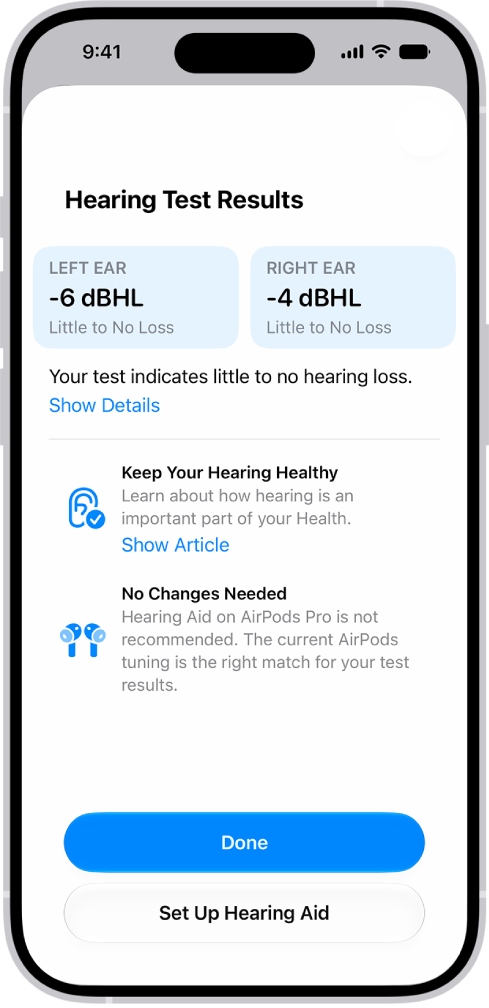
Your hearing test results will indicate your hearing loss classification and recommend next steps.

Hearing Test results on iPhone, showing little to no hearing loss in both ears. At the bottom are options to tap Done or set up Hearing Aid.

To share your audiogram with your hearing healthcare professional, you can also export a PDF version of it.

Set up Hearing Aid on AirPods Pro 2 or AirPods Pro 3

  1. Wear your AirPods Pro 2 or AirPods Pro 3, and make sure they’re connected to your device.
  2. Open the Settings app on your iPhone or iPad and then tap the name of your AirPods near the top of the screen.
  3. Tap Hearing Assistance (if you don’t see that option, first tap Hearing Health). Then follow the onscreen instructions.

    Note: You may need to take the Hearing Test.

Turn on and adjust Hearing Aid on AirPods Pro 2 or AirPods Pro 3

If you’ve already taken a hearing test on your iPhone or iPad, or added audiogram results from your hearing healthcare professional, you can use the clinical-grade Hearing Aid feature on your AirPods Pro 2 or AirPods Pro 3 to adjust sounds to match your unique ability to hear. You can also adjust the Hearing Assistance settings for the Hearing Aid feature, like amplification, balance, and tone.

Note: The Hearing Aid feature is intended for people with perceived mild to moderate hearing loss.

  1. Wear your AirPods Pro 2 or AirPods Pro 3, and make sure they’re connected to your device.
  2. Do one of the following:

    • iPhone or iPad: Go to the Settings app, tap the name of your AirPods near the top of the screen, and then tap Hearing Assistance (if you don’t see that option, first tap Hearing Health).
    • Mac: Go to the System Settings app, click the name of your AirPods in the sidebar (you may need to scroll down), and click Hearing Health.
  3. Turn on Hearing Aid (if it’s not already on).
  4. Do any of the following:

    • Adjust settings for the Hearing Aid feature, like amplification, balance, and tone: Tap or click Adjustments, then make your changes.

      It can take time to adjust to the Hearing Aid feature. For the best experience, make small adjustments over time while your hearing adjusts, instead of changing multiple settings at once or making large adjustments.

      Tip: You can also adjust your Hearing Assistance settings in Control Center on your iPhone or iPad. Open Control Center, then tap the Hearing Devices button.

    • Allow force sensor with volume swipe to adjust amplification: Tap or click Adjustments and then turn on Swipe to Control Amplification.

      You can use the force sensor with volume swipe to adjust amplification when you’re using Transparency mode.

      On iPhone, iPad, or Apple Watch, you can adjust amplification no matter which listening mode you’re using. On iPhone or iPad, open Control Center, touch and hold the volume control, then drag the amplification slider. On Apple Watch, open Control Center, tap the AirPods icon on the left (you may need to scroll down), then drag the slider.

    • Turn on Conversation Boost: Tap or click Adjustments and turn on Conversation Boost. (You may need to scroll down.)

      Conversation Boost focuses your AirPods Pro on the person speaking to you, making it easier to hear face-to-face conversations in noisy environments.

      Note: In some countries and regions, Conversation Boost engages automatically without the need to turn it on.

    • Allow Own Voice Amplification: Tap or click Adjustments and drag the Own Voice Amplification slider. (You may need to scroll down.)

      Own Voice Amplification adjusts the amplification of your voice. The adjustment doesn’t change the amplification of external sounds.

      Note: Regions must be HAF v2 approved for Own Voice Amplification to be available.

    • This slider is also available in Hearing Assistance settings in Control Center on your iPhone, iPad, or Mac.

Add audiogram results from your hearing healthcare professional

When you have hearing test results from your hearing healthcare professional, your iPhone or iPad can add them for use with your AirPods Pro 2 or AirPods Pro 3.

  1. Wear your AirPods Pro 2 or AirPods Pro 3, and make sure they’re connected to your device.
  2. Open the Settings app on your iPhone or iPad.
  3. Tap the name of your AirPods near the top of the screen.
  4. Tap Hearing Assistance (if you don’t see that option, first tap Hearing Health). Then tap Add Hearing Test Result.

    Note: You may see an option other than Add Hearing Test Result, such as Use a Prior Test Result or Update Hearing Test Results, if you previously used the Hearing Test feature or added an audiogram.

  5. Do one of the following:

    • Tap Add Hearing Test Results, then answer the required questions.
    • Tap Use a Prior Test Result, answer the required questions, then tap Add Hearing Test Result.

      Note: This option appears if you previously used the Hearing Test feature or added an audiogram.

  6. Scan the audiogram with your iPhone or iPad camera, or enter the results manually.

Turn on and adjust Media Assist with AirPods Pro 2 or AirPods Pro 3

When you turn on Media Assist, it enhances audio in media and calls.

  1. Wear your AirPods Pro 2 or AirPods Pro 3, and make sure they’re connected to your device.
  2. Do one of the following:
    • iPhone or iPad: Go to the Settings app, tap the name of your AirPods near the top of the screen, and then tap Hearing Assistance (if you don’t see that option, first tap Hearing Health).
    • Mac: Go to the System Settings app, click the name of your AirPods in the sidebar (you may need to scroll down), and click Hearing Health.
  3. Turn on Media Assist. Turn Adjust Music and Video or Adjust Calls and FaceTime on or off.

Use the Hearing Protection feature with AirPods Pro 2 or AirPods Pro 3

The active Hearing Protection feature helps protect your hearing across listening modes.

Important: If you have AirPods Pro 3 and your country or region follows EN 352 Standards, you can set up EN 352 Protection to limit the maximum sound level of media. See Use EN 352 Protection with AirPods Pro 3, below.

  1. Wear your AirPods Pro 2 or AirPods Pro 3, and make sure they’re connected to your device.
  2. Do one of the following:

    • iPhone or iPad: Go to the Settings app, tap the name of your AirPods near the top of the screen, and tap Hearing Protection (if you don’t see that option, first tap Hearing Health).
    • Mac: Go to the System Settings app, click the name of your AirPods in the sidebar (you may need to scroll down) and click Hearing Health. Click Hearing Protection.
  3. Do any of the following:

    • Learn more: Tap or click About Hearing Protection to learn more about Hearing Protection.
    • Check the fit: On your iPhone or iPad, tap Ear Tip Fit Test or Test Acoustic Seal.

      Properly fitting AirPods are required for Hearing Protection to work as intended.

Hearing Protection is off when you select Off Listening Mode, when AirPods Pro have no battery charge, or when Loud Sound Reduction is turned off in Transparency and Adaptive listening modes. See Switch between listening modes and Use and customize Transparency mode.

Use EN 352 Protection with AirPods Pro 3 (not available in all countries or regions)

With AirPods Pro 3, you can use EN 352 Protection, which limits the maximum sound level of media to 82 dBA and meets the applicable EN 352 Standard requirements for hearing protection.

Note: This setting applies only to AirPods Pro 3, and availability depends on whether your country or region follows EN 352 Standards.

  1. Wear your AirPods Pro 3, and make sure they’re connected to your device.
  2. Do one of the following:

    • iPhone or iPad: Go to the Settings app, tap the name of your AirPods near the top of the screen, and tap Hearing Protection (if you don’t see that option, first tap Hearing Health).
    • Mac: Go to the System Settings app, click the name of your AirPods in the sidebar (you may need to scroll down) and click Hearing Health. Click Hearing Protection.
  3. Do any of the following:

    • Learn more: Tap or click About Hearing Protection to learn more about Hearing Protection.
    • Check the fit: On your iPhone or iPad, tap Test Acoustic Seal.

      Properly fitting AirPods are required for Hearing Protection to work as intended.

  4. Tap or click Set Up EN 352 Protection, then follow the onscreen instructions.

EN 352 Protection is off when you select Off Listening Mode, when AirPods Pro have no battery charge, or when Loud Sound Reduction is turned off in Transparency and Adaptive listening modes. See Switch between listening modes and Use and customize Transparency mode.

Your AirPods may periodically play a quiet chime while they’re in their charging case. It helps keep your AirPods microphones and speakers operating at their best, for example, so they can provide high-quality hearing test results.

The Hearing Test and Hearing Aid features are subject to regulatory authorization and are not available in all countries and regions.

The Hearing Protection feature works with AirPods Pro 2 or AirPods Pro 3 with the latest firmware when paired with a compatible iPhone, iPad, or Mac device running the latest operating system software. This feature is not available in all regions or all languages. The Hearing Protection feature is not suitable for protection against extremely loud impulse sounds, such as gunfire, fireworks, or jackhammers, or against sustained sounds louder than 110 dBA. The Hearing Protection feature is not suitable for use in all workplaces. Consult with your employer prior to use.

See also

AirPods shut down and charge whenever they’re in the case, as long as the lid is closed. You can connect the case to a power outlet using a cable and a compatible power adapter, or use a MagSafe, Qi-certified, or Apple Watch charger with supported models.

The light on the case shows the charge status, and green means fully charged.

Charge AirPods or AirPods Pro

  1. Put your AirPods in their case.
  2. Close the lid.

    AirPods shut down and charge whenever they’re in the case with the lid closed.

Charge the AirPods or AirPods Pro case

  • Charge with a cable: Connect the case to a power outlet using a cable (Lightning to USB cable or USB-C cable) and a compatible power adapter.

    Note: The cable you need depends on your AirPods model. If you have AirPods 4, AirPods 5, AirPods Pro 2 (USB-C), or AirPods Pro 3, connect the case to a power outlet using a USB-C cable and a compatible power adapter.

  • Charge with MagSafe: For AirPods 3 (MagSafe) or AirPods Pro, place the case with the status light facing up on the center of a MagSafe wireless charger.
  • Charge with a Qi-certified charger: For AirPods 2, AirPods 3 (MagSafe), AirPods 4 (ANC), AirPods 5 with Wireless Charging Case, or AirPods Pro, place the case with the status light facing up on the center of a Qi-certified charger.
  • Charge with an Apple Watch charger: For AirPods 4 (ANC), AirPods 5 with Wireless Charging Case, AirPods Pro 2, or AirPods Pro 3, place the case—with the status light facing up—on the center of an Apple Watch wireless charger.

When the case lines up properly with the charger, its status light turns on for several seconds and then turns off as the case keeps charging. On AirPods Pro 2, AirPods Pro 3, AirPods 4 (ANC), and AirPods 5 with Wireless Charging Case, the charging case also plays a sound by default, but you can turn it off. Check out our article, Turn charging case sounds on or off for AirPods 4 (ANC), AirPods 5 with Wireless Charging Case, AirPods Pro 2, or AirPods Pro 3, to find out how.

Charge AirPods Max

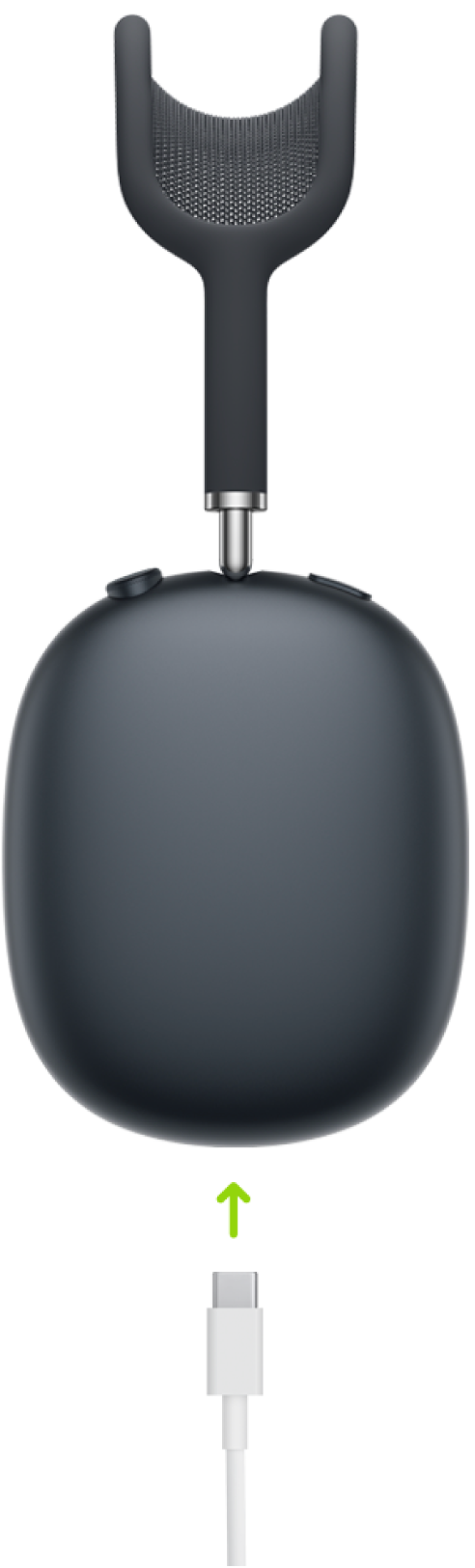
A USB-C charging cable connecting to the bottom of the right earphone of AirPods Max 2.

  • AirPods Max 1: Connect AirPods Max to a power outlet using a Lightning to USB Cable and a compatible power adapter.
  • AirPods Max 1 (USB-C) or AirPods Max 2: Connect AirPods Max to a power outlet using a USB-C cable and a compatible power adapter.

Note: When you’re not using AirPods Max, placing AirPods Max in the Smart Case puts them in sleep mode, which helps maintain the battery charge. You can’t play audio on AirPods Max while they’re in the Smart Case, though.

Check the charge status

To check the battery percentage of AirPods, AirPods Pro, or AirPods Max, you can use your iPhone, iPad, or Mac.

Quick tip: With AirPods Pro 2, AirPods Pro 3, AirPods Max 2, AirPods 4 (ANC), or AirPods 5 with Wireless Charging Case, you can also get a notification when your AirPods need charging and when your AirPods are fully charged. It’s easy to set up: Go to the Settings app on your iPhone or iPad, and tap the name of your AirPods at the top of the screen. Then tap Battery and turn Charging Notifications on or off.

  1. Wear your AirPods, and make sure they’re connected to your device.
  2. Do one of the following:

    • iPhone or iPad: Go to the Settings app. Then tap the name of your AirPods near the top of the screen to see the battery percentage.

      You can also add a widget to quickly check the battery level of your devices, including your AirPods.

    • Mac: Click the Bluetooth status menu in the menu bar to see the battery percentage of your AirPods.

      If the Bluetooth status menu isn’t in the menu bar, go to the System Settings app, then click Menu Bar in the sidebar. Below Menu Bar Controls, select the box next to Bluetooth.

With your AirPods or AirPods Pro in the case and the lid open, the case light shows the charge status of your AirPods. Once you take your AirPods out, it shows the case’s status instead. Green means fully charged. Amber means less than one full charge remains. And if no light appears, your AirPods may need charging before you can use them again.

Optimize battery charging

Optimized Battery Charging cuts the time your AirPods Pro, AirPods 3, AirPods 4, or AirPods 5 spend fully charged. It’s designed to reduce wear on your battery and its lifespan.

Besides using Optimized Battery Charging, AirPods Pro 3 also learn from your daily usage to work out when to charge to an optimized limit and when to allow a full charge. That limit adapts to how you use them each day, preserving your battery lifespan over time. Once you’ve turned on Optimized Charge Limit for AirPods Pro 3, opening the charging case lid with the AirPods inside shows a divided charge ring.

  1. Wear your AirPods, and make sure they’re connected to your device.
  2. Start the Settings app on your iPhone or iPad.
  3. Tap the name of your AirPods near the top of the screen and tap Battery. Then do one of the following:

    • AirPods 3, 4, or 5, or AirPods Pro 1 or 2: Turn on Optimized Battery Charging.
    • AirPods Pro 3: Turn on Optimized Charge Limit.

      To fully charge your AirPods Pro 3, turn off Optimized Charge Limit, then tap Turn Off Until Tomorrow, or tap Turn Off to turn off the setting entirely. You can also tap Charge to Full Now when you open the lid of the charging case with the AirPods inside and see the current battery and charge status of the AirPods and case.

Turn on Charging Notifications

If you choose to receive notifications on your iPhone or iPad, you’ll get a reminder to charge your AirPods when the battery is low, plus another when charging is complete.

  1. Wear your AirPods, and make sure they’re connected to your device.
  2. Start the Settings app on your iPhone or iPad.
  3. Tap the name of your AirPods near the top of the screen, tap Battery, and turn on Charging Notifications.

This guide is for iOS 27, iPadOS 27, macOS 27, tvOS 27, watchOS 27, or later.

See also

Tag: Battery

You can change the name of your AirPods using your iPhone, iPad, or Mac. When you’re signed in to the same Apple Account on multiple devices, the new name is updated across devices, so you only have to rename them on one.

Your AirPods do need to be connected to your device while you change the name, and the feature works with iOS 27, iPadOS 27, macOS 27, or later.

Here’s how to change the name of your AirPods.

  1. Wear your AirPods, and make sure they’re connected to your device.
  2. Do one of the following:
    • iPhone or iPad: Go to the Settings app and then tap the name of your AirPods near the top of the screen. Tap the current name and then enter a new name.
    • Mac: Go to the System Settings app and click the name of your AirPods in the sidebar (you may need to scroll down). Enter a new name.

This guide is for iOS 27, iPadOS 27, macOS 27, tvOS 27, watchOS 27, or later.

See also

Your AirPods can double as a camera remote. With AirPods 4, AirPods 5, AirPods Pro 2, AirPods Pro 3, or AirPods Max 2, you can take a photo or start recording a video in supported camera apps on your iPhone or iPad.

They can also work as a microphone, like a lapel mic, when you record. First, though, you need to set up your AirPods as a camera remote on your iPhone or iPad.

Here’s how to take photos and record video with your AirPods, and how to use them as a microphone.

Note: Using AirPods as a camera remote or camera microphone is available in supported camera apps on devices with iOS 26, iPadOS 26, or later. Some features are not available in all countries or regions, and availability may vary due to local laws and regulations.

Before you begin

Make sure your AirPods are set up as a camera remote.

  1. Wear your AirPods, and make sure they’re connected to your iPhone or iPad.
  2. Open the Settings app on your iPhone or iPad.
  3. Tap the name of your AirPods near the top of the screen.
  4. Tap Camera Remote (if you don’t see that option, first tap Controls & Gestures) and tap either Press Once or Press and Hold.

    Note: If you select Press Once, media control gestures are temporarily unavailable while you use a supported camera app. If you select Press and Hold, listening modes and Siri gestures are temporarily unavailable while you use a supported camera app.

Use your AirPods to take photos and record video

  1. Wear your AirPods, and make sure they’re connected to your iPhone or iPad.
  2. Open the Camera app (or another supported camera app) on your iPhone or iPad.
  3. Do one of the following:

    • Take a photo: Press or press and hold (depending on your settings) the stem on your AirPods or the Digital Crown on your AirPods Max 2.

      Note: In some countries or regions, the 3-second timer and feedback tone in Photo mode in the Camera app isn’t available. You won’t hear a feedback tone when the ringer is turned off or when Live Photos is turned on.

    • Take a video: Select Video mode in the Camera app. Then press or press and hold (depending on your settings) the stem on your AirPods or the Digital Crown on your AirPods Max 2. To stop recording video, press the stem or Digital Crown again.

Use your AirPods as a microphone in camera apps

With supported camera apps, your AirPods can work as a microphone, like a lapel mic.

Note: Using AirPods as a camera microphone isn’t available in all countries or regions, including the EU.

  1. Wear your AirPods, and make sure they’re connected to your iPhone or iPad.
  2. Open the Camera app (or another supported camera app) on your iPhone or iPad.
  3. Select Video mode in the Camera app.
  4. Open Control Center, tap Camera Controls, and do any of the following:

    • Input: Tap the name of your AirPods.

      Note: You might also be able to select Same as System.

    • Mic mode: Tap Automatic, Standard, Voice Isolation, or Wide Spectrum.
  5. Swipe up from the bottom of the screen to go back to the Camera app.
  6. Press or press and hold (depending on your settings) the stem on your AirPods or the Digital Crown on your AirPods Max 2 to start recording.

You can also select your AirPods as a microphone in Settings. Go to the Settings app, tap Sounds & Haptics, tap Input, then select your AirPods.

If you’ve got AirPods Pro 2, AirPods Pro 3, AirPods 4, or AirPods 5, you can choose which one of your AirPods to use as a microphone. Read our guide, Set the microphone location for your AirPods or AirPods Pro, to learn how.

See also

Tag: camera

On iPhone, iPad, or Mac, you can change the settings for your AirPods or AirPods Pro.

For example, you can change what happens when you double-tap your AirPods 1 or AirPods 2, set the microphone location for your AirPods, and turn automatic ear detection on or off. By default, a single press mutes and unmutes and a double press ends a call, but you can switch these actions. Newer models, like AirPods Pro 3, also let you turn charging case sounds on or off.

Change what the double tap, force sensor, or force sensor with volume swipe controls

You can change the action performed when you double-tap your AirPods 1 or AirPods 2, or when you press and hold the stem on AirPods 3, AirPods 4, AirPods 5, or AirPods Pro.

  1. Wear your AirPods, and make sure they’re connected to your device.
  2. Do one of the following:
    • iPhone or iPad: Go to the Settings app. Tap the name of your AirPods near the top of the screen.
    • Mac: Go to the System Settings app and click the name of your AirPods in the sidebar (you may need to scroll down).
  3. Below Press and Hold AirPods, choose Left or Right (if you don’t see those options, first choose Controls & Gestures). Choose the action you want performed every time you press and hold the stem.

Set the microphone location for your AirPods or AirPods Pro

  1. Wear your AirPods, and make sure they’re connected to your device.
  2. Do one of the following:
    • iPhone or iPad: Go to the Settings app. Tap the name of your AirPods near the top of the screen.
    • Mac: Go to the System Settings app. Click the name of your AirPods in the sidebar. (You may need to scroll down.)
  3. Choose Microphone (if you don’t see that option, first choose Audio & Routing) and choose one of the following:
    • Automatically Switch AirPods: Either of your AirPods can act as the microphone. If you use only one of them, it acts as the microphone.
    • Always Left AirPod or Always Right AirPod: The AirPod you choose becomes the microphone, even if you remove it from your ear or put it in the case.

Turn automatic ear detection on or off

Your AirPods automatically stop playing audio once you take them off and resume playback when they’re back on, but you can change this setting.

  1. Wear your AirPods, and make sure they’re connected to your device.
  2. Do one of the following:
    • iPhone or iPad: Go to the Settings app, tap the name of your AirPods near the top of the screen, and then turn Automatic Ear Detection on or off (if you don’t see that option, first tap Audio & Routing).
    • Mac: Go to the System Settings app, click the name of your AirPods in the sidebar (you may need to scroll down), and then turn Automatic Ear Detection on or off (if you don’t see that option, first click Audio & Routing).

Change how you end a call or mute yourself with AirPods 3, AirPods 4, AirPods 5, or AirPods Pro

By default, you can double-press the stem on your AirPods once to end a call, and press once to mute and unmute. You can switch these actions.

  1. Wear your AirPods, and make sure they’re connected to your device.
  2. Do one of the following:
    • iPhone or iPad: Go to the Settings app and tap the name of your AirPods near the top of the screen. Tap Mute & Unmute or End Call (if you don’t see those options, first tap Controls & Gestures) and choose Press Once or Press Twice. The other option automatically switches.
    • Mac: Go to the System Settings app and click the name of your AirPods in the sidebar (you may need to scroll down). Click the pop-up menu next to Mute & Unmute or the pop-up menu next to End Call (if you don’t see those options, first tap Controls & Gestures) and choose Press Once or Press Twice. The other option automatically switches.

Turn Camera Control on or off on AirPods 4, AirPods 5, AirPods Pro 2, or AirPods Pro 3

If you have AirPods Pro 2, AirPods Pro 3, AirPods 4, or AirPods 5, you can change the action needed to take a photo or start or stop a video recording.

  1. Wear your AirPods, and make sure they’re connected to your iPhone.
  2. Open the Settings app on your iPhone.
  3. Tap the name of your AirPods near the top of the screen.
  4. Tap Camera Remote (if you don’t see that option, first tap Controls & Gestures) and then do one of the following:

    • Turn Camera Control on: Tap either Press Once or Press and Hold.

      Note: If you select Press Once, media control gestures are temporarily unavailable while you use a supported camera app. If you select Press and Hold, listening modes and Siri gestures are temporarily unavailable while you use a supported camera app.

    • Turn Camera Control off: Tap Off.

Pause audio when you fall asleep with AirPods 4, AirPods 5, AirPods Pro 2, AirPods Pro 3, or AirPods Max 2

With AirPods Pro 2, AirPods Pro 3, AirPods Max 2, AirPods 4, or AirPods 5, audio can pause automatically when you fall asleep while you’re listening, and you choose whether that happens from your iPhone, iPad, or Mac.

  1. Wear your AirPods, and make sure they’re connected to your device.
  2. Do one of the following:
    • iPhone or iPad: Go to the Settings app, tap the name of your AirPods near the top of the screen, and turn on Pause Media When Falling Asleep (if you don’t see that option, first tap Audio & Routing).
    • Mac: Go to the System Settings app, click the name of your AirPods in the sidebar (you may need to scroll down), and turn on Pause Media When Falling Asleep (if you don’t see that option, first click Audio & Routing).

Turn charging case sounds on or off for AirPods 4 (ANC), AirPods 5 with Wireless Charging Case, AirPods Pro 2, or AirPods Pro 3

The charging case plays a sound when it pairs, charges, and more if you have AirPods Pro 2, AirPods Pro 3, AirPods 4 (ANC), or AirPods 5 with Wireless Charging Case. You can switch these sounds on or off.

  1. Wear your AirPods, and make sure they’re connected to your device.
  2. Do one of the following:
    • iPhone or iPad: Go to the Settings app, tap the name of your AirPods near the top of the screen, and then turn Enable Charging Case Sounds on or off (if you don’t see that option, first tap Audio & Routing).
    • Mac: Go to the System Settings app, click the name of your AirPods in the sidebar (you may need to scroll down), and turn Enable Charging Case Sounds on or off (if you don’t see that option, first click Audio & Routing).

You can read our guide, Adjust the volume of sound effects for AirPods, to change the volume of the sound effects your AirPods play.

See also

Your AirPods have controls built right in. Besides controlling audio from the apps you use with your AirPods, you can use controls directly on your AirPods to do things like pause and resume playback, skip tracks, answer calls, and use Siri.

Newer models go a step further. If you have AirPods 4, AirPods 5, AirPods Pro 2, AirPods Pro 3, or AirPods Max 2, you can use head gestures to accept or decline calls and open or dismiss notifications, without using your voice or hands.

Here’s what you need to know about the controls and gestures on your AirPods.

Adjust controls and gestures for AirPods

To adjust the controls, wear your AirPods and do any of the following:

  • iPhone or iPad: Go to the Settings app, tap the name of your AirPods near the top of the screen, then adjust the controls (if you don’t see the controls, first tap Controls & Gestures).
  • Mac: Go to the System Settings app, click your AirPods in the sidebar (you may need to scroll down), then adjust the controls (if you don’t see the controls, first click Controls & Gestures).

AirPods 1 and 2 controls
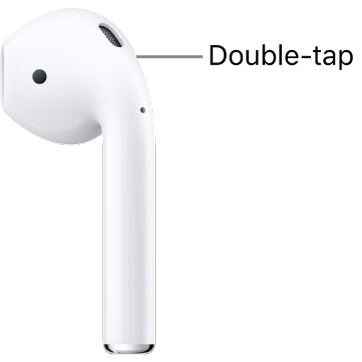
The location to double-tap on AirPods 1 or 2, at the top edge of the stem.

You can control your AirPods with a double tap at the top of the stem. For example, when you get an incoming call, double tap to answer. You can also set each of your AirPods to do one of the following with a double tap:

  • Play and pause audio content.
  • Play the next track.
  • Go back to the previous track.
  • Activate Siri.

See Change settings for AirPods or AirPods Pro.

AirPods 3 controls
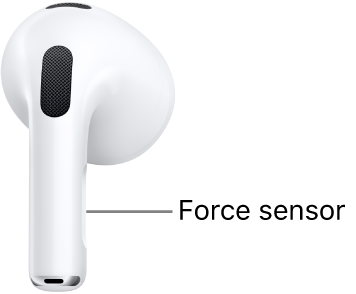
The location of the force sensor on AirPods 3, along the stem of each of your AirPods.

There’s a force sensor on the stem of both AirPods 3, which you can use to do any of the following:

  • Play and pause audio: Press the stem. To resume playback, press it again.
  • Play the next track: Double-press the stem.
  • Play the previous track: Triple-press the stem.
  • Answer a call: When you receive a call, press the stem.
  • Activate Siri: Press and hold the stem, then ask questions, control apps, and more.

AirPods 4 and AirPods 4 (ANC) controls and gestures
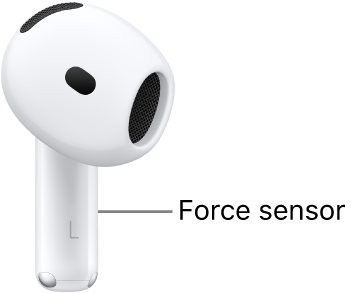
The location of the force sensor on AirPods 4, along the stem of each of your AirPods.

AirPods 4 have a force sensor on the stem that can do any of the following:

  • Play and pause audio: Press the stem. To resume playback, press it again.
  • Play the next track: Double-press the stem.
  • Play the previous track: Triple-press the stem.
  • Answer a call: When you receive a call, press the stem.
  • Switch between Active Noise Cancellation, Transparency mode, and Adaptive Audio: On AirPods 4 (ANC) only, you can set either of your AirPods to perform this action when you press and hold the stem. See Change settings for AirPods or AirPods Pro.
  • Start Live Translation: On AirPods 4 (ANC) only, press and hold the stem on both AirPods at the same time to start Live Translation. See Translate in-person conversations with AirPods.
  • Activate Siri: You can set either of your AirPods to perform this action when you press and hold the stem. See Use Siri with AirPods.

Use head gestures to respond to Siri

  • Accept a call or reply to notifications and messages: Nod your head up and down.
  • Decline a call or dismiss notifications and messages: Shake your head side to side.

Note: Announce Calls and Announce Notifications must be on so you can use head gestures to respond to Siri. Check out our article, Use Siri to announce calls or notifications, for help.

AirPods 5 controls and gestures
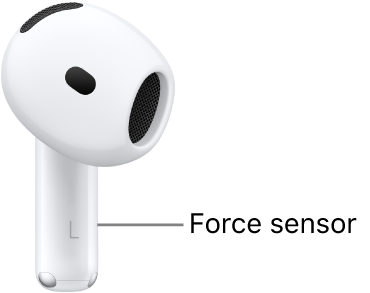
The location of the force sensor on AirPods 5, along the stem of each of your AirPods.

With AirPods 5, the force sensor on the stem can handle any of the following:

  • Play and pause audio: Press the stem. To resume playback, press it again.
  • Play the next track: Double-press the stem.
  • Play the previous track: Triple-press the stem.
  • Answer a call: When you receive a call, press the stem.
  • Switch between Active Noise Cancellation, Transparency mode, and Adaptive Audio: You can set either of your AirPods to perform this action when you press and hold the stem. See Change settings for AirPods or AirPods Pro.
  • Start Live Translation: Press and hold the stem on both AirPods at the same time to start Live Translation. See Translate in-person conversations with AirPods.
  • Activate Siri: You can set either of your AirPods to perform this action when you press and hold the stem. See Use Siri with AirPods.

Use head gestures to respond to Siri

  • Accept a call or reply to notifications and messages: Nod your head up and down.
  • Decline a call or dismiss notifications and messages: Shake your head side to side.

Note: Before head gestures can respond to Siri, Announce Calls and Announce Notifications need to be on. For details, see our article, Use Siri to announce calls or notifications.

AirPods 5 with Wireless Charging Case controls and gestures
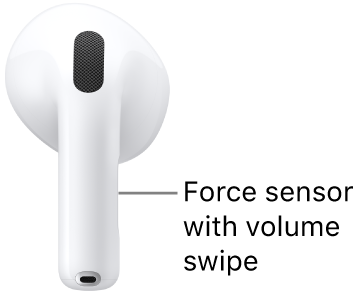
The location of the force sensor with volume swipe on AirPods 5 with Wireless Charging Case, along the stem of each of your AirPods.

With the force sensor with volume swipe on the stem of AirPods 5 with Wireless Charging Case, you can do any of the following:

  • Play and pause audio: Press the stem. To resume playback, press it again.
  • Play the next track: Double-press the stem.
  • Play the previous track: Triple-press the stem.
  • Answer a call: When you receive a call, press the stem.
  • Adjust volume: Lightly swipe up or down on the stem.
  • Switch between Active Noise Cancellation, Transparency mode, and Adaptive Audio: You can set either of your AirPods to perform this action when you press and hold the stem. See Change settings for AirPods or AirPods Pro.
  • Start Live Translation: Press and hold the stem on both AirPods at the same time to start Live Translation. See Translate in-person conversations with AirPods.
  • Activate Siri: You can set either of your AirPods to perform this action when you press and hold the stem. See Use Siri with AirPods.

Use head gestures to respond to Siri

  • Accept a call or reply to notifications and messages: Nod your head up and down.
  • Decline a call or dismiss notifications and messages: Shake your head side to side.

Note: To respond to Siri with head gestures, Announce Calls and Announce Notifications must be on. Read our guide, Use Siri to announce calls or notifications.

AirPods Pro 1 controls
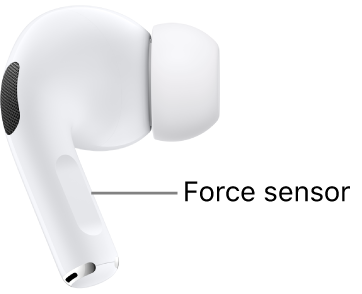
The location of the force sensor on AirPods Pro 1, along the stem of each of your AirPods.

On both AirPods Pro 1, there’s a force sensor on the stem that can do any of the following:

  • Play and pause audio: Press the stem. To resume playback, press it again.
  • Play the next track: Double-press the stem.
  • Play the previous track: Triple-press the stem.
  • Answer a call: When you receive a call, press the stem.
  • Switch between Active Noise Cancellation and Transparency mode: You can set either of your AirPods to perform this action when you press and hold the stem. See Change settings for AirPods or AirPods Pro.
  • Activate Siri: You can set either of your AirPods to perform this action when you press and hold the stem. See Use Siri with AirPods.

AirPods Pro 2 controls and gestures
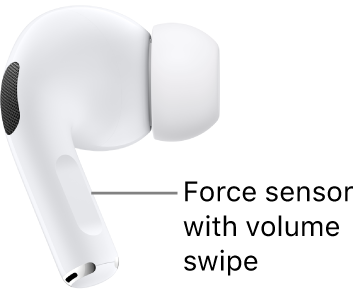
The location of the force sensor with volume swipe on AirPods Pro 2, along the stem of each of your AirPods.

With the force sensor with volume swipe on the stem of both AirPods Pro 2, you can do any of the following:

  • Play and pause audio: Press the stem. To resume playback, press it again.
  • Play the next track: Double-press the stem.
  • Play the previous track: Triple-press the stem.
  • Answer a call: When you receive a call, press the stem.
  • Adjust volume: Lightly swipe up or down on the stem.

    You can also turn on Personalized Volume to automatically adjust the volume based on listening preferences and your environment. See Use Personalized Volume or Conversation Awareness.

  • Switch between Active Noise Cancellation, Transparency mode, and Adaptive Audio: You can set either of your AirPods to perform this action when you press and hold the stem. See Change settings for AirPods or AirPods Pro.
  • Start Live Translation: Press and hold the stem on both AirPods at the same time to start Live Translation. See Translate in-person conversations with AirPods.
  • Activate Siri: You can set either of your AirPods to perform this action when you press and hold the stem. See Use Siri with AirPods.

Use head gestures to respond to Siri

  • Accept a call or reply to notifications and messages: Nod your head up and down.
  • Decline a call or dismiss notifications and messages: Shake your head side to side.

Note: Announce Calls and Announce Notifications have to be on for head gestures to respond to Siri. If they aren’t, check out our article, Use Siri to announce calls or notifications.

AirPods Pro 3 controls and gestures
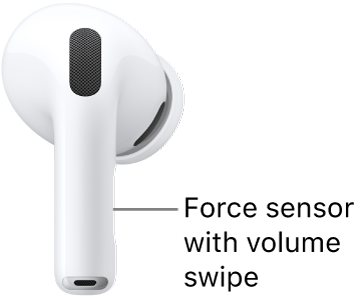
The location of the force sensor with volume swipe on AirPods Pro 3, along the stem of each of your AirPods.

With the force sensor with volume swipe on the stem of both AirPods Pro 3, you can do any of the following:

  • Play and pause audio: Press the stem. To resume playback, press it again.
  • Play the next track: Double-press the stem.
  • Play the previous track: Triple-press the stem.
  • Answer a call: When you receive a call, press the stem.
  • Adjust volume: Lightly swipe up or down on the stem.

    You can also turn on Personalized Volume to automatically adjust the volume based on listening preferences and your environment. See Use Personalized Volume or Conversation Awareness.

  • Switch between Active Noise Cancellation, Transparency mode, and Adaptive Audio: You can set either of your AirPods to perform this action when you press and hold the stem. See Change settings for AirPods or AirPods Pro.
  • Start Live Translation: Press and hold the stem on both AirPods at the same time to start Live Translation. See Translate in-person conversations with AirPods.
  • Activate Siri: You can set either of your AirPods to perform this action when you press and hold the stem. See Use Siri with AirPods.

Use head gestures to respond to Siri

  • Accept a call or reply to notifications and messages: Nod your head up and down.
  • Decline a call or dismiss notifications and messages: Shake your head side to side.

Note: You’ll need to turn on Announce Calls and Announce Notifications to respond to Siri with head gestures. For the steps, read our guide, Use Siri to announce calls or notifications.

AirPods Max 1 controls
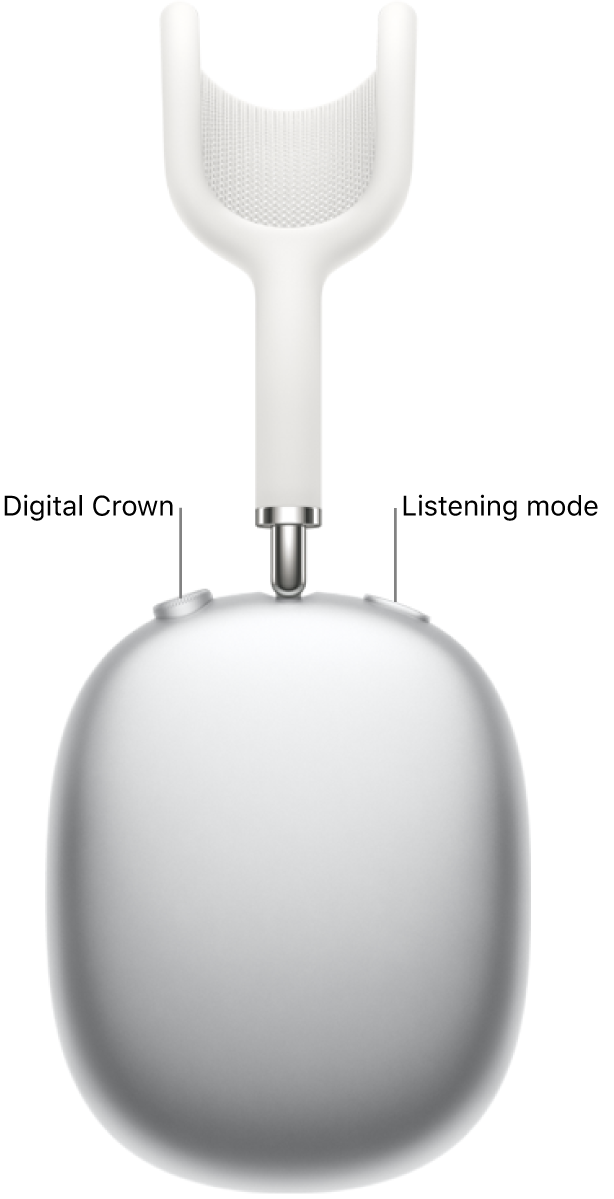
The right headphone on AirPods Max 1, showing the Digital Crown on the top left of the headphone and the listening mode button on the top right.

The Digital Crown and the listening mode button, both on the right headphone, let you control audio, phone calls, and FaceTime calls and activate Siri.

Control audio content

You can do any of the following with the Digital Crown and listening mode button:

  • Play and pause audio content: Press the Digital Crown. To resume playback, press it again.
  • Play the next track: Double-click the Digital Crown.
  • Play the previous track: Triple-click the Digital Crown.
  • Adjust the volume: Turn the Digital Crown.
  • Switch between Active Noise Cancellation and Transparency mode: Press the listening mode button. See Change settings for AirPods Max.

Control phone and FaceTime calls

When you receive a call, the Digital Crown can do any of the following:

  • Answer a call: Press the Digital Crown.
  • Decline an incoming call: Double-click the Digital Crown.
  • Answer a second incoming call and put the first call on hold: Press the Digital Crown.
  • Switch between two active calls: Double-click the Digital Crown to end the current call and switch to the other call.
  • Decline a second incoming call: Double-click the Digital Crown.
  • End a call: Double-click the Digital Crown. See Change settings for AirPods Max.
  • Mute or unmute a call: Press the Digital Crown. See Change settings for AirPods Max.

For more on calls, check out our article, Make and answer calls with AirPods Max.

Activate Siri

  • Activate Siri: Press and hold the Digital Crown, wait for a chime, then ask questions, control apps, and more.

AirPods Max 2 controls and gestures
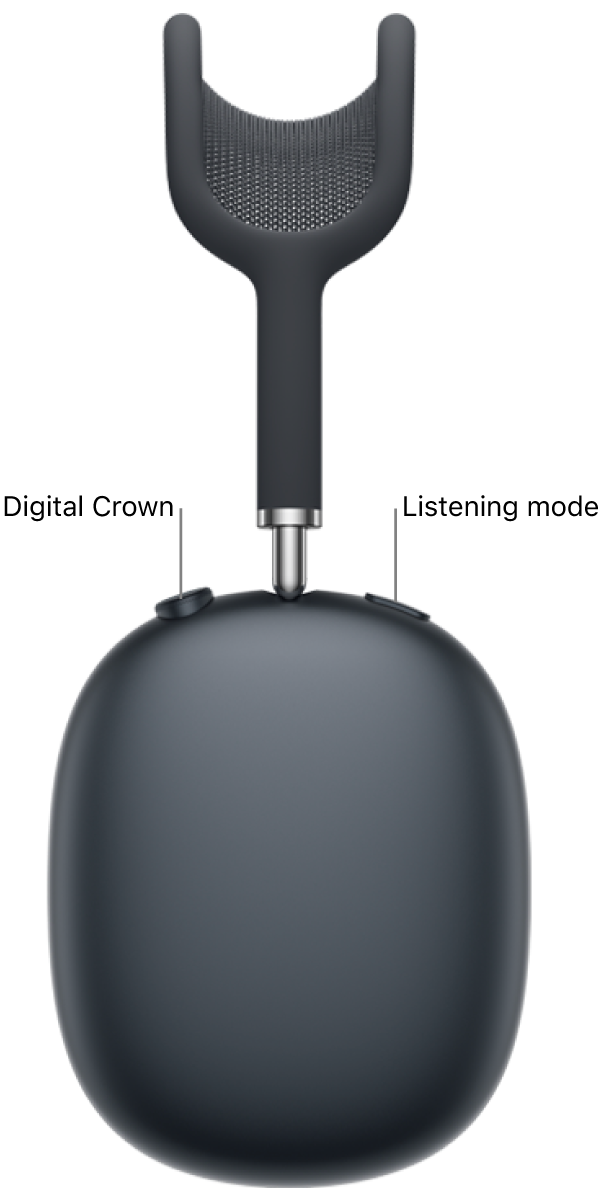
The right headphone on AirPods Max 2, showing the Digital Crown on the top left of the headphone and the listening mode button on the top right.

You’ll find the Digital Crown and the listening mode button on the right headphone, and you can use them to control audio, phone calls, and FaceTime calls, or to activate Siri.

Control audio content

The Digital Crown and listening mode button let you do any of the following:

  • Play and pause audio content: Press the Digital Crown. To resume playback, press it again.
  • Play the next track: Double-click the Digital Crown.
  • Play the previous track: Triple-click the Digital Crown.
  • Adjust the volume: Turn the Digital Crown.

    You can also turn on Personalized Volume to automatically adjust the volume based on listening preferences and your environment. See Use Personalized Volume or Conversation Awareness.

  • Switch between Active Noise Cancellation, Transparency mode, and Adaptive Audio: Press the listening mode button. See Change settings for AirPods Max.
  • Start Live Translation: Press and hold the listening mode button. See Translate in-person conversations with AirPods.

Control phone and FaceTime calls

When a call comes in, the Digital Crown lets you do any of the following:

  • Answer a call: Press the Digital Crown.
  • Decline an incoming call: Double-click the Digital Crown.
  • Answer a second incoming call and put the first call on hold: Press the Digital Crown.
  • Switch between two active calls: Double-click the Digital Crown to end the current call and switch to the other call.
  • Decline a second incoming call: Double-click the Digital Crown.
  • End a call: Double-click the Digital Crown. See Change settings for AirPods Max.
  • Mute or unmute a call: Press the Digital Crown. See Change settings for AirPods Max.

You can read our guide, Make and answer calls with AirPods Max, to learn more about handling calls.

Activate Siri

  • Activate Siri: Press and hold the Digital Crown, wait for a chime, then ask questions, control apps, and more.

Use head gestures to respond to Siri

  • Accept a call or reply to notifications and messages: Nod your head up and down.
  • Decline a call or dismiss notifications and messages: Shake your head side to side.

Note: Head gestures won’t respond to Siri until you turn on Announce Calls and Announce Notifications. To do that, see our article, Use Siri to announce calls or notifications.

This guide is for iOS 27, iPadOS 27, macOS 27, tvOS 27, watchOS 27, or later.

See also

When AirPods are connected to iPhone, iPad, Mac, or Apple Watch, you can use Siri to find information, play music, accept or decline calls, announce notifications from apps, and more.

With newer models, like AirPods Pro 3 and AirPods Max 2, you can also respond to Siri privately without speaking, using head gestures. Announce Calls and Announce Notifications need to be on first. Then you nod your head to answer a call, or shake your head to dismiss a notification.

Here’s what you need to know about using Siri with your AirPods.

Set up Siri on your device

  • iPhone or iPad: Go to the Settings app, tap Siri, then tap Requests. Tap “Siri” or “Hey Siri.”

    Note: If you don’t see Requests, turn on Siri first.

  • Mac: Go to the System Settings app, then click Siri in the sidebar. Turn on Siri, then click Requests. Click “Siri” or “Hey Siri.”
  • Apple Watch: Go to the Settings app, tap Siri, tap “Listen for,” then tap “Siri” or “Hey Siri.”

Note: In some countries and regions, you may only have an option for “Hey Siri.”

With AirPods Max 2, AirPods Pro 2, AirPods Pro 3, AirPods 4, or AirPods 5, either “Siri” or “Hey Siri” activates Siri. Other AirPods models need “Hey Siri.”

Use Siri to announce calls or notifications

With supported headphones, Siri can announce incoming calls if you allow it. When you’ve got your AirPods in and they’re paired with your iPhone, iPad, or Apple Watch, Siri also announces time-sensitive notifications automatically. And you choose which apps you get notifications from and how often.

  • iPhone or iPad: Go to the Settings app, tap Notifications, then tap Announce Notifications. Turn on Announce Notifications, then choose the settings you want.

    For example, choose Headphones Only or turn on Headphones if you only want Siri to announce calls or notifications while you’re wearing your AirPods.

  • Apple Watch: Go to the Settings app, tap Notifications, then tap Announce Notifications. Turn on Announce Notifications, then adjust Announce Notifications From settings.

You can limit notifications when you need to concentrate.

Activate Siri with your voice

AirPods Pro, AirPods Max, AirPods 2, AirPods 3, AirPods 4, and AirPods 5 all let you activate Siri with your voice.

  1. Wear your AirPods, and make sure they’re connected to your device.
  2. Say “Hey Siri” and then use Siri to get answers to questions, control apps, and more.

    For example, say something like “Hey Siri, what causes a rainbow?” or “Hey Siri, set a meeting with Gordon at 9” to create an event in Calendar.

Activate Siri with controls

  1. Wear your AirPods, and make sure they’re connected to your device.
  2. Do one of the following:

    • AirPods 1 or 2: Double-tap either of your AirPods, wait for a chime and then make your request.

      To change the settings on AirPods 2 to activate Siri with a double tap, see Change your settings to activate Siri with a touch.

    • AirPods 3, 4, or 5, or AirPods Pro: Press and hold the stem on either of your AirPods, wait for a chime and then make your request.

      To set up AirPods Pro 1 to activate Siri when you press and hold the stem of either of your AirPods, see Change your settings to activate Siri with a touch.

    • AirPods Max: Press and hold the Digital Crown, wait for a chime. Then make your request.

Use Siri to start a workout from your AirPods Pro 3

AirPods Pro 3 can start a workout for you in the Fitness app on your iPhone or Apple Watch.

During Fitness app workouts, AirPods Pro 3 use their heart rate sensors to track your fitness metrics, including heart rate, pace, distance, and calories burned, plus steps for walking and running workouts.

  1. Wear your AirPods Pro 3, and make sure they’re connected to your device.
  2. Press and hold the stem on either of your AirPods Pro 3, wait for a chime, then ask Siri something like, “Start a 30-minute outdoor run.”

Or start the workout yourself in the Fitness app on your iPhone or Apple Watch.

Change your settings to activate Siri with a touch

You can use the buttons on your AirPods to activate Siri.

  1. Wear your AirPods, and make sure they’re connected to your device.
  2. Do one of the following:
    • iPhone or iPad: Go to the Settings app. Tap the name of your AirPods near the top of the screen. Below Press and Hold AirPods, choose Left or Right (if you don’t see those options, first tap Controls & Gestures). Choose Siri.
    • Mac: Go to the System Settings app. Then click your AirPods in the sidebar (you may need to scroll down). Click a pop-up menu next to L or R (if you don’t see those options, first click Controls & Gestures). Then choose Siri.

Note: AirPods Max, AirPods Pro 2, and AirPods 1 and 3 have their controls set to activate Siri by default. For more on the controls, check out our article, Use controls and gestures with your AirPods.

This guide is for iOS 27, iPadOS 27, macOS 27, tvOS 27, watchOS 27, or later.

Tag: Siri