Got a tip for us?

Continuity

You don’t always have to switch AirPods between Apple devices yourself. When you’re signed in to the same Apple Account on your Apple devices, supported AirPods connect to whichever device you’re listening to.

Say you’re listening to music on your Mac with AirPods and you start playing a podcast on your iPhone. Your AirPods switch to iPhone automatically, and they also switch to iPhone when you make a call. You can also manually switch AirPods to another device, or keep them from switching automatically.

Manually switch AirPods to another device

  1. Wear your AirPods near the device you want to switch to.
  2. Do one of the following:
    • iPhone or iPad: Tap the AirPods icon on the Now Playing screen, the Lock Screen, or in Control Center. Then select your AirPods.
    • Apple Watch: Press the side button to open Control Center, tap the AirPlay icon on the right (you may need to scroll down), and select your AirPods.
    • Mac: Click the Bluetooth status menu in the menu bar and select your AirPods.
    • Apple TV 4K or Apple TV HD: When you see the name of your AirPods appear on your Apple TV device, press the TV Control Center button on the Siri Remote.

Switch back to your iPhone or iPad

When your AirPods switch to another device while you’re listening to audio on your iPhone or iPad, it’s easy to switch back.

Tap the Return Headphone Connection button in the “Moved to” notice at the top of the screen.

The Lock Screen on iPhone with a message at the top reading "Moved to Mac" and a button to switch the AirPods back to iPhone.

Prevent AirPods from automatically switching to your iPhone, iPad, or Mac

  1. Wear your AirPods, and make sure they’re connected to your device.
  2. Do one of the following:
    • iPhone or iPad: Go to the Settings app and then tap the name of your AirPods near the top of the screen. Tap Connect to This [device] (if you don’t see that option, first tap Audio & Routing) and then tap When Last Connected to This [device].
    • Mac: Go to the System Settings app and click the name of your AirPods in the sidebar (you may need to scroll down). Below Connect to This Mac, choose When Last Connected to This Mac (if you don’t see that option, first click Audio & Routing).

In some situations, you receive a notification about your AirPods on the screen of your Mac. Click the Connect button to confirm that you want your AirPods to switch to—or stay with—your Mac.

Prevent AirPods from automatically switching to other playback devices

If a phone conversation in the car needs to stay private, for example, audio can stay in your AirPods even when your iPhone connects to playback devices like cars or speakers.

  1. Open the Settings app on your iPhone or iPad.
  2. Tap General, tap AirPlay & Continuity, and then turn on Keep Audio with Headphones.

In some situations, a banner appears at the top of your iPhone screen asking if you want to switch audio to a different device. When Keep Audio with Headphones is turned on, click the AirPlay button to manually transfer the audio to the other playback device. When Keep Audio with Headphones is turned off, click the Back button to move the audio back to AirPods.

This guide is for iOS 27, iPadOS 27, macOS 27, tvOS 27, watchOS 27, or later.

See also

When you use your iPhone with another Apple device, like your Mac, iPad, or Apple Watch, you can take advantage of special Continuity features that let you use your devices in unique ways. You can work across your devices, hand off tasks, share files and photos, stream video and audio, and more.

There’s no additional app you need to install. Continuity features are built directly into your devices’ operating systems and many of the apps you use every day, so you just sign in to the same Apple Account on each device to get started.

Note: Continuity features have minimum system requirements, and some of them require Wi-Fi and Bluetooth®.

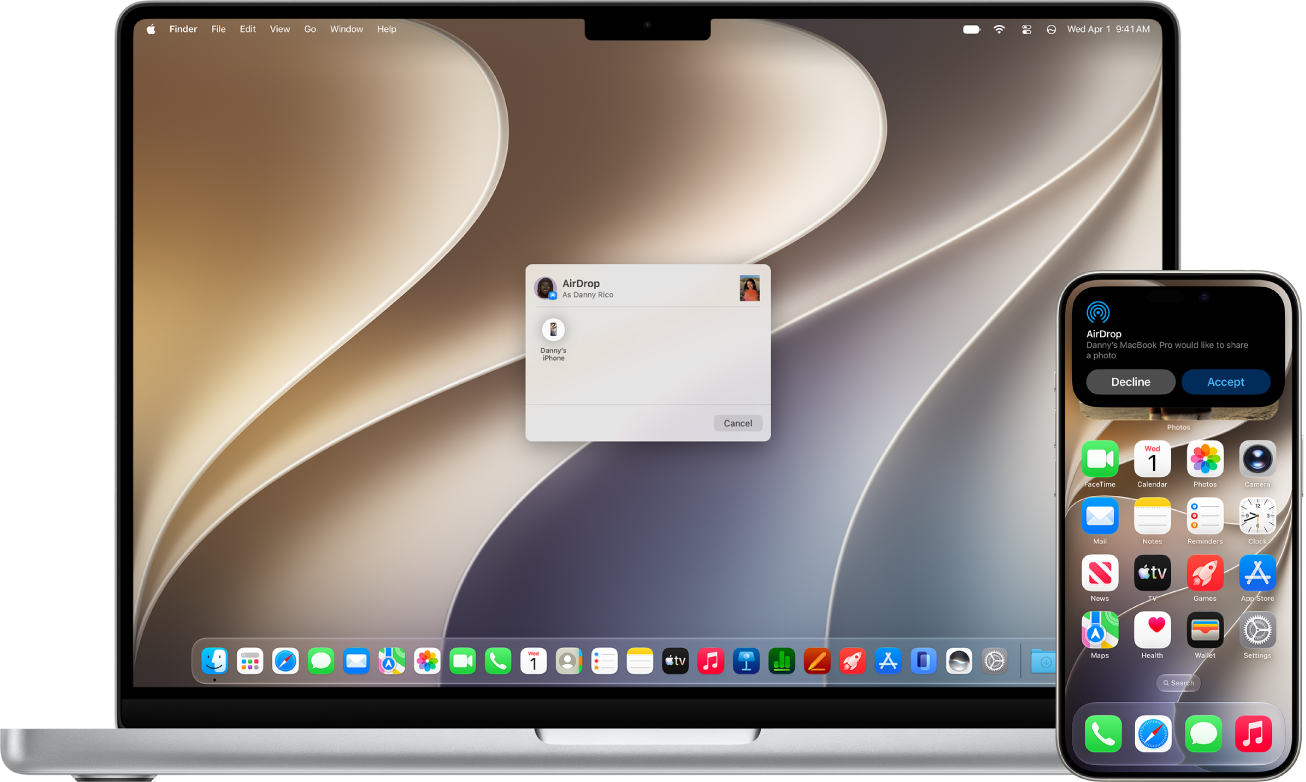
A Mac is next to an iPhone. The AirDrop dialog is open on the Mac desktop, ready to share a document with the iPhone. The iPhone screen has a notification about receiving the document.

Quickly share content between devices

Share photos, videos, contacts, and more, with anyone on an Apple device near you. AirDrop makes sharing between iPhone, iPad, and Mac as simple as dragging and dropping. Use AirDrop to send items to nearby Apple devices

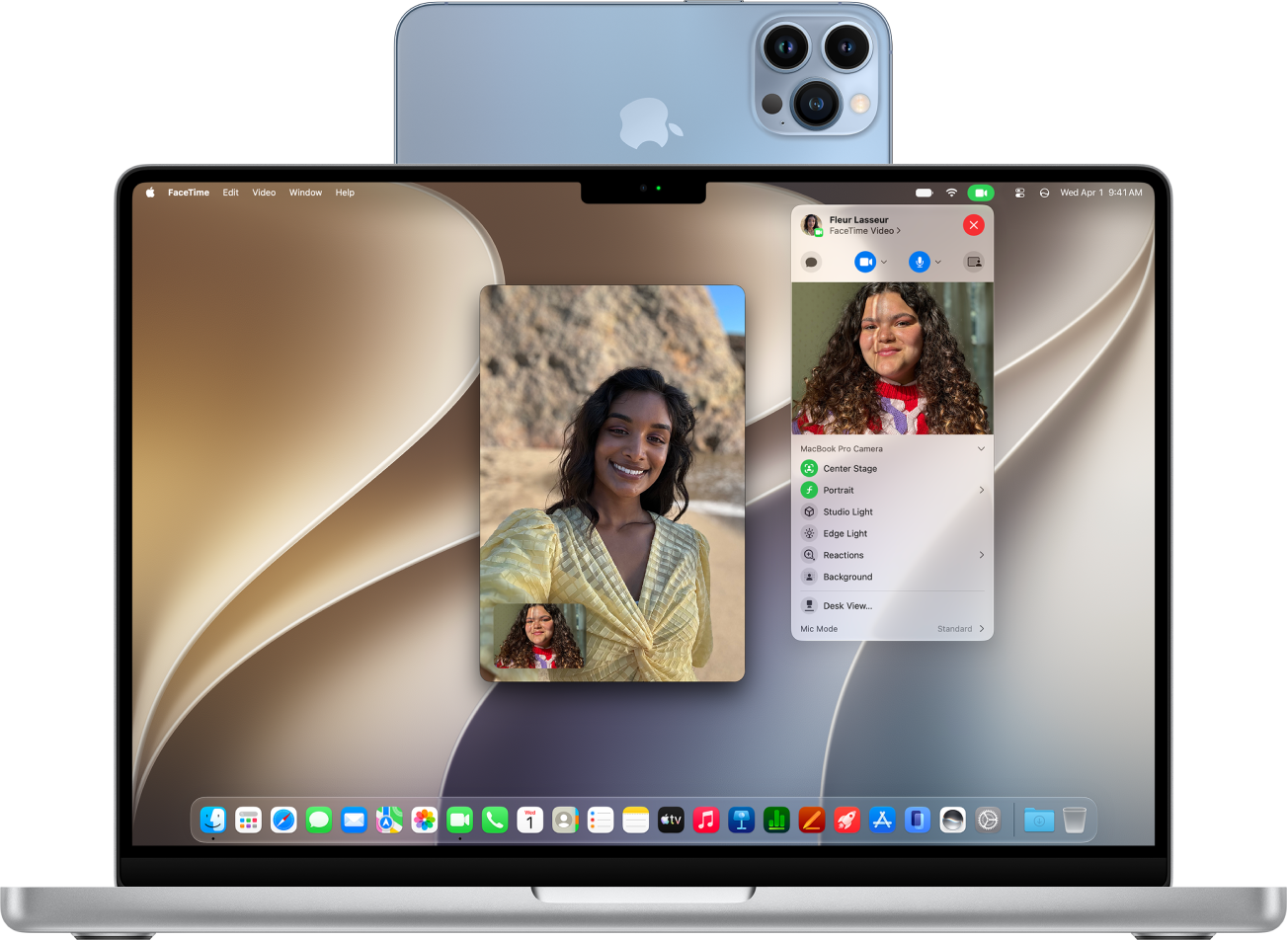
A MacBook Pro using an iPhone as a webcam and showing a FaceTime conversation.

Use your iPhone camera with your Mac

You can use your iPhone as your Mac computer’s webcam or microphone with a feature called Continuity Camera. You can also use video effects when using your iPhone as a webcam, like Desk View. Use your iPhone as a webcam on Mac

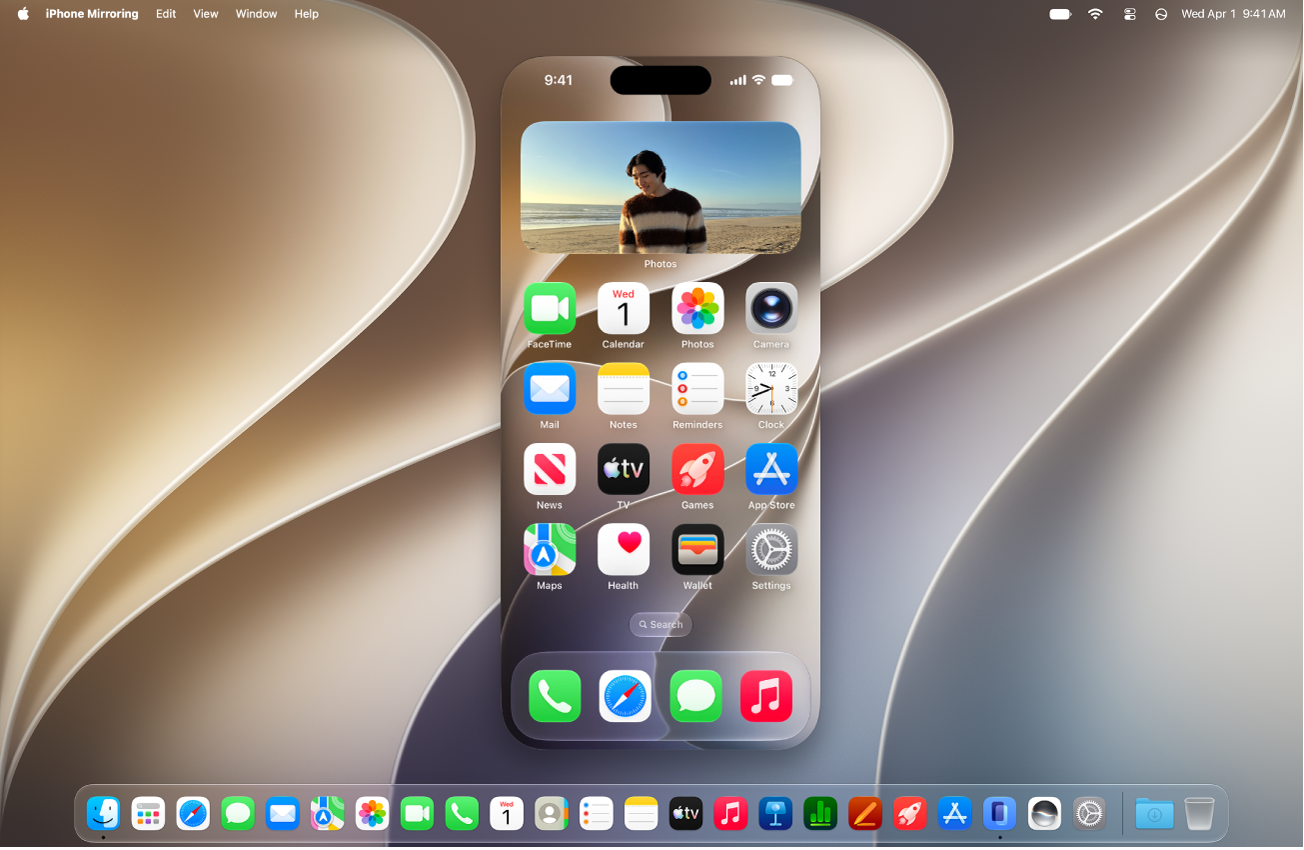
The iPhone Mirroring app appears on a Mac computer desktop.

Control your iPhone from your Mac

Control your iPhone from your Mac and receive iPhone notifications and Live Activities on your Mac, so you never miss a thing. Control your iPhone from your Mac

Even more Continuity features

Copy and paste Copy text, images, photos, and videos from one Apple device and paste them on another device with Universal Clipboard. Copy and paste between your iPhone and other Apple devices

Hand off tasks Start a task—like creating a document, writing an email, or browsing the web—on one device and pick up where you left off on another device with Handoff. Hand off tasks between your iPhone and your other devices

Insert sketches, photos, and scans Take a picture or scan a document with your iPhone camera and have it appear instantly on your Mac. Insert sketches, photos, and scans from your iPhone on Mac

Stream to a larger screen Share videos, music, photos, and more from your iPhone to your Mac, an Apple TV 4K, or an AirPlay 2-enabled TV. Stream video and audio from your iPhone with AirPlay

Answer calls and send texts from your iPad or Mac Relay calls from your iPhone and send and receive texts on your iPad or Mac. Use iPhone to allow calls and text messages on your iPad and Mac

Share your Wi-Fi Connect your Mac to the internet using the Personal Hotspot on your iPhone. Share your internet connection from your iPhone

Other ways to use your devices together

Continuity features aren’t the only option for using your Mac with your other Apple devices, since you can also:

Note: To use iPhone Mirroring, it must be available in your country or region. iPhone Mirroring isn’t currently available in the European Union.

With Continuity Camera, you can use your iPad as a webcam or microphone for your Apple TV 4K. That way, you get the powerful iPad camera and video effects for apps and FaceTime calls on the big screen, and you can hand off a FaceTime call from your iPad, too.

Here’s some of what you can do with Continuity Camera on Apple TV 4K:

  • Use your iPad as a webcam in FaceTime.
  • Sing along to Apple Music and appear onscreen with visual effects.

See also

You can start a FaceTime call on your iPad and move the call to another device where you’re signed in to the same Apple Account, like an iPhone with iOS 16 or later or a Mac with macOS 13 or later.

A call can even continue on the bigger screen of Apple TV 4K (2nd generation or later), with your iPad serving as its webcam and microphone. And if you change your mind, you can bring the call back.

With Continuity Camera and Mic, you can also use iPad as a webcam and microphone for FaceTime calls on your Mac or Apple TV 4K.

Note: The contact information you’ve chosen for the call (shown in Settings > Apps > FaceTime) has to match the contact information selected in Settings > Apps > FaceTime on whichever device you want to hand off to.

Hand off a FaceTime call from iPad to iPhone or Mac

You can hand off a FaceTime call in progress on your iPad to your Mac (macOS 13 or later) or iPhone (iOS 16 or later). Both devices need to be signed in to the same Apple Account.

  1. During a call in the FaceTime app on your iPad, do one of the following on your other device:

    • Tap the notification with the suggestion “Move call to this [device].”
    • Tap the Video Handoff button at the top of the screen.
  2. Tap Switch or Join.

    The call moves to the new device. On the original device, a banner appears confirming that the call was continued elsewhere, along with a Switch button, which you can tap if you want to bring the call back.

Hand off a FaceTime call from your iPad to Apple TV 4K

If you’re signed in to the same Apple Account on both devices, you can start (or receive) a FaceTime call on your iPad, then hand off the call to Apple TV 4K (2nd generation or later) for a larger screen. Once you hand off the call, it continues on Apple TV 4K, and your iPad works as the webcam and microphone for Apple TV 4K for the whole call. Supported iPad models can use Continuity Camera with Apple TV 4K (2nd generation or later).

See also

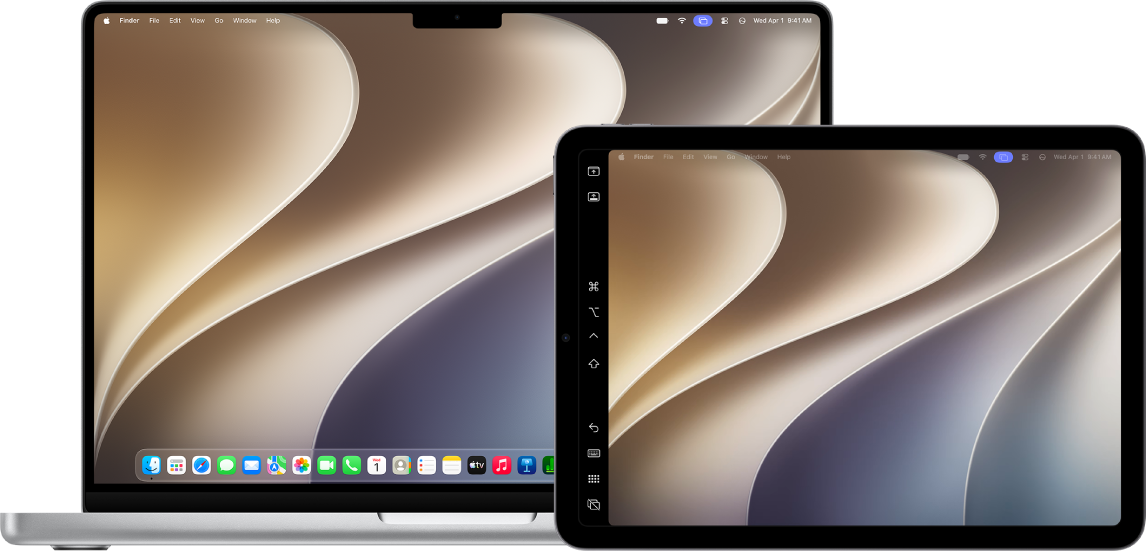
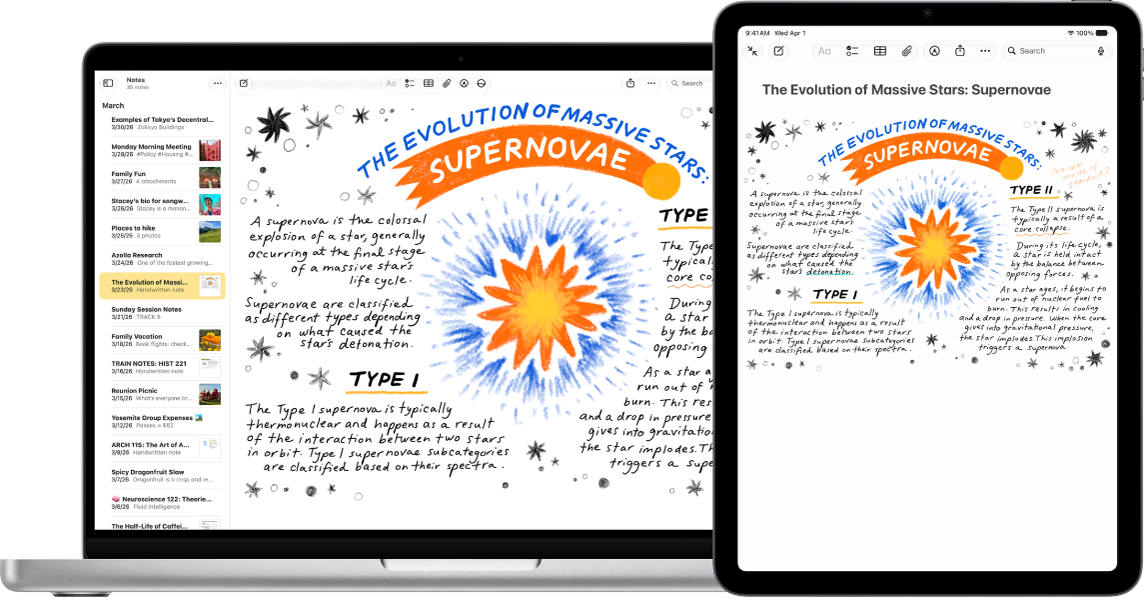
You can extend the workspace of your Mac by using your iPad as a second display with the Sidecar feature. The extended workspace allows you to use different apps on the different screens, or to use the same app across both screens, but control different aspects of it. For example, when you use the same app on both screens, you can view your artwork on your Mac while you use Apple Pencil and an app’s tools and palettes on iPad.

You can move windows between your Mac and iPad, and use the sidebar and Touch Bar on iPad.

A Mac screen next to an iPad screen. Both screens show the Mac desktop.

Before you begin

You’ll want to confirm each of the following first:

  • Both devices have Wi-Fi, Bluetooth®, and Handoff turned on.
  • You’re signed in to the same Apple Account on both devices.
  • Both devices meet minimum system requirements for Sidecar.

If you’re using a VPN, make sure its configuration allows local networking. Preventing it may interfere with some Continuity features.

Set up Sidecar

  1. On your Mac, open the System Settings app.

    Note: If your Mac has macOS 12.5 or earlier, choose Apple menu > System Preferences.

  2. Click Displays in the sidebar. (You may need to scroll down.)

    Tip: You can also connect your Mac and iPad using a USB cable. You can use the USB cable that came with your iPad or another cable that matches the ports on your Mac and iPad.

  3. Click the Add Display menu on the right and choose your iPad.
  4. To change Sidecar options (for example, to extend or mirror your Mac display), choose your iPad in Displays and choose from the available options.

    You can also adjust the arrangement of your Mac and iPad displays. Click Arrange, then drag your displays into a new position.

    Tip: You can also use Control Center to set up Sidecar. Click screen mirroring in the menu bar, click Screen Mirroring, then choose your iPad. You can adjust some Display settings here, or click Display Settings for more options.

Use Sidecar with your Mac or iPad

With Sidecar running, you can do any of the following:

  • Move windows between Mac and iPad: Drag a window to the edge of the screen until the pointer appears on the other device. Or while using an app, choose Window > “Move to”.
  • Use the sidebar on iPad: With your finger or Apple Pencil, tap the icons in the sidebar to show or hide the Menu Bar, show or hide the Dock, or show the onscreen keyboard. Or tap one or more modifier keys, such as Control, to use keyboard shortcuts.
  • Use the Touch Bar on iPad: With your finger or Apple Pencil, tap any button in the Touch Bar. The buttons available vary depending on the app or task.
  • Use Apple Pencil on iPad: With your Apple Pencil, tap to select items such as menu commands, checkboxes, or files. If your Apple Pencil supports it (and you selected the option in Displays settings), you can double-tap the lower section of your Apple Pencil to switch drawing tools in some apps.
  • Use gestures on iPad: Use basic gestures, such as tap, swipe, scroll, and zoom, as well as gestures for entering and editing text. See the Learn basic gestures to interact with iPad.
  • On iPad, switch between the Mac desktop and the iPad Home Screen: To show the Home Screen, swipe up from the bottom edge of your iPad. To return to the Mac desktop, swipe up, then tap the Continuity icon.

Turn off Sidecar

Once you’re done using your iPad as a second display for your Mac, you can do one of the following:

  • On a Mac: Click the Control Center status in the menu bar, click Screen Mirroring, then deselect your iPad from the list below “Mirror or extend to.”
  • On an iPad: Tap the Disconnect button at the bottom of the sidebar.

If Sidecar isn’t working

  • Make sure you’re signed in to the same Apple Account on both devices.
  • Make sure that both devices have Wi-Fi, Bluetooth, and Handoff turned on and are on the same Wi-Fi network.

See also

You can use the keyboard and mouse (or trackpad) of your Mac to control your iPad with the Universal Control feature. You can even connect an additional Mac or iPad and work across three devices. When you use Universal Control, you can open and use apps, enter text, and drag items across devices.

Both devices need Wi-Fi, Bluetooth®, Handoff, and two-factor authentication turned on, and you need to be signed in to the same Apple Account on both. Once they’re connected, you can move the pointer across screens, and change the screen arrangement between your Mac and iPad.

Before you begin

First, confirm each of the following:

  • Both devices have Wi-Fi, Bluetooth®, Handoff, and two-factor authentication turned on.
  • You’re signed in to the same Apple Account on both devices.
  • Both devices meet minimum system requirements for Universal Control.
  • If your Mac doesn’t have a built-in trackpad or keyboard, you must connect a keyboard and mouse or trackpad to your Mac.

When you’re using a VPN, make sure its configuration allows local networking, since preventing it may interfere with some Continuity features.

Set up Universal Control

To connect your Mac and iPad, wake and unlock both devices, then do one of the following:

  • On your Mac, use your mouse or trackpad to move the pointer to the right or left edge of the screen, whichever is closest to your other device. Pause, then move the pointer slightly past the edge of the screen. When a border appears at the edge of the other device, continue moving the pointer to the other device’s screen.
  • On your Mac, click the Control Center menu in the menu bar, click Display, then choose your other device below “Link keyboard and mouse to.” Then use your mouse or trackpad to move the pointer past the edge of the Mac screen until it appears on your other device.

With a connection established, the pointer moves across screens until you disconnect your devices or one of them goes to sleep.

Use your Mac keyboard and mouse or trackpad with your iPad

Your Mac mouse or trackpad works with many of the actions and gestures that work on your iPad with an external mouse or trackpad. See our article, Mouse actions and gestures for iPad, and our guide, Trackpad gestures for iPad.

Many iPad features available with external keyboards also work with your Mac keyboard. For these, see our guide, Switch between keyboards with iPad, and the keyboard topics after it.

Change the screen arrangement between your Mac and iPad

The side of the display you’ll use to move the pointer across devices depends on the direction you move it when establishing the Universal Control connection.

You can also adjust the arrangement of your devices.

  1. On your Mac, open the System Settings app.

    Note: If your Mac has macOS 12.5 or earlier, choose Apple menu > System Preferences.

  2. Click Displays in the sidebar. (You may need to scroll down.)
  3. Drag the iPad image to the new position.

Disconnect Universal Control between your Mac and iPad

To temporarily stop using Universal Control, disconnect your Mac and iPad.

To disconnect them, do one of the following:

  • On your iPad: Press the top button on your iPad to put it to sleep.
  • On your Mac: Click the Control Center menu in the menu bar, click Display, then deselect your iPad, below “Link keyboard and mouse to.”

Stop your Mac and iPad from automatically connecting

With Universal Control set up, your Mac and iPad or another Mac reconnect automatically whenever they’re close to each other with their screens unlocked. If you’d rather your Mac and iPad or another Mac not connect automatically, turn off this option on your Mac.

  1. On your Mac, open the System Settings app.

    Note: If your Mac has macOS 12.5 or earlier, choose Apple menu > System Preferences.

  2. Click Displays in the sidebar. (You may need to scroll down.)
  3. On the right, click Advanced. Then turn off Automatically reconnect to any nearby Mac or iPad.

Turn off Universal Control

Turning off Universal Control keeps your Mac keyboard and mouse or trackpad from being used across your iPad and other devices.

  1. On your Mac, open the System Settings app.

    Note: If your Mac has macOS 12.5 or earlier, choose Apple menu > System Preferences.

  2. Click Displays in the sidebar. (You may need to scroll down.)
  3. Click Advanced on the right. Then do one of the following:

    • Turn off all Universal Control connections: Turn off “Allow your pointer and keyboard to move between any nearby Mac or iPad.”
    • Prevent a connection when moving the pointer to the edge of the screen: Turn off “Push through the edge of a display to connect to a nearby Mac or iPad.”

To prevent connecting your iPad keyboard and mouse or trackpad to your Mac, on iPad go to Settings > General > AirPlay & Continuity, then turn off Cursor and Keyboard.

If Universal Control isn’t working

  • Make sure you’re signed in to the same Apple Account on both devices.
  • Make sure that both devices have Wi-Fi, Bluetooth, Handoff, and two-factor authentication turned on and are on the same Wi-Fi network.

See also

With the Continuity Camera and Continuity Sketch features, you can draw a sketch, take a photo, or scan a document using your nearby iPad and have it appear instantly on your Mac, exactly where you want it—like in an email, note, or folder. You can also mark up a file on your Mac with your iPad using Continuity Markup.

Both devices need Wi-Fi and Bluetooth® turned on and the same Apple Account. Depending on where it’s inserted, you can mark up a photo or scan, crop it, or apply a filter.

An iPad showing a sketch, next to a Mac where the sketch appears in a note.

Before you begin

Before you start, check that everything on this list is in place:

  • Both devices have Wi-Fi and Bluetooth® turned on.
  • You’re signed in to the same Apple Account on both devices.
  • Both devices meet minimum system requirements for Continuity Camera, Continuity Sketch, and Continuity Markup.

If you’re running a VPN, its configuration shouldn’t prevent local networking, because that may interfere with some Continuity features.

Where the photo or scan is inserted determines whether you can mark it up or adjust other aspects, like cropping it or applying a filter.

Insert a sketch, photo, or scan from your iPad

Draw a sketch on your iPad, and Continuity Sketch makes it appear on your Mac. Continuity Camera does the same on your Mac for photos you take or documents you scan on your iPad.

  1. On your Mac, Control-click where you want to insert the sketch or photo—for example, in an open window, like a note or email message.

    You can also Control-click the desktop or a folder in a Finder window.

  2. Choose an option from the pop-up menu.

    You may need to click “Insert from iPhone or iPad” before seeing the options.

  3. Do any of the following:

    • Add a sketch: On your iPad, draw a sketch using your finger.

      On iPad, you can also use Apple Pencil.

    • Take a photo: On your iPad, take a photo. Then tap Use Photo or Retake.
    • Scan a document: On your iPad, scan a document. Your iPad detects the edges of the document and autocorrects any skewing of the image. If you want to adjust the area included in the scan, drag the frame or its edges. When you’re ready, tap Keep Scan or Retake. You can continue to scan documents until you’re done and tap Save.

You might be able to mark up the photo or scan, or crop it, apply a filter, and adjust other aspects, depending on where it’s inserted.

Note: If you take scans on your iPad, they aren’t saved on the device.

Use your iPad to mark up a file on your Mac

With Continuity Markup, your iPad can add text, make drawings, and crop and rotate images, PDF documents, and more on your Mac.

  1. On your Mac, click the desktop to open the Finder.
  2. Control-click the file you want to mark up and choose Quick Actions. Choose Markup.

    The file opens.

  3. In the toolbar, click the iPad button or click the Markup button (the button may have an arrow next to it) and then choose your device.
  4. Use the Markup tools to draw, add text or shapes, and more.

    On iPad, you can also use Apple Pencil.

  5. When you’re done, tap Done on your iPad.
  6. To save your changes, click Done on your Mac.

If Continuity Camera, Continuity Sketch, or Continuity Markup aren’t working

  • Make sure you’re signed in to the same Apple Account on both devices.
  • Make sure that both devices have Wi-Fi and Bluetooth turned on.
  • Make sure your device meets minimum system requirements for Continuity Camera.

When you use your iPad with another Apple device—like your Mac, iPhone, or Apple Watch—you can take advantage of Continuity features that let you use your devices in unique ways. You can work across your devices, hand off tasks, share files and photos, and stream video and audio. With Sidecar, your iPad even becomes a second display for your Mac.

Your iPad can extend your Mac desktop, or show one app on both screens while you control different aspects of it. And AirDrop makes sharing between iPhone, iPad, and Mac as easy as dragging and dropping.

Note: There are minimum system requirements for Continuity features, and some of these features need Wi-Fi and Bluetooth®.

Extend your workspace with an iPad

A MacBook Air and an iPad sitting side by side. Both screens show the Mac desktop with a purple Screen Mirroring icon in the menu bar.

Sidecar turns your iPad into a second display for your Mac. You can extend your Mac desktop, or you can show the same app on both screens and control different aspects of it. For more, see our article, Use your iPad as a second display for your Mac.

Quickly share content between devices

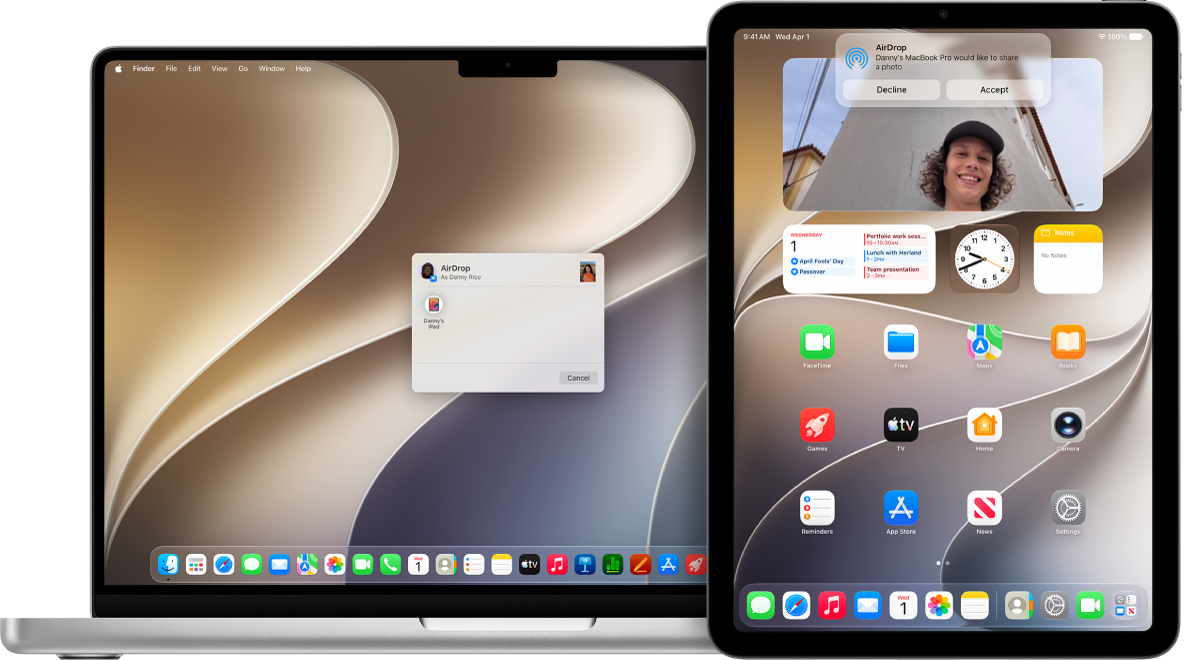
A Mac is next to an iPad. The AirDrop dialog is open on the Mac desktop, ready to share a document with the iPad. The iPad screen has a notification about receiving the document.

With AirDrop, you can share photos, videos, contacts, and more with anyone near you who has an Apple device. Sharing between iPhone, iPad, and Mac is as simple as dragging and dropping. Check out our guide, Use AirDrop on iPad to send items to nearby Apple devices.

Sharing content between your devices is easy, from handing off tasks between devices to copying text on an iPad and pasting it on your Mac or sending a file from your iPhone to your iPad.

AirDrop lets you quickly share photos, videos, contacts, and anything else, wirelessly, with anyone near you. Sending to iPhone, iPad, and Mac takes nothing more than dragging and dropping. See our article, Use AirDrop on iPad to send items to nearby Apple devices.

With Universal Clipboard, you’re able to copy text, images, photos, and videos on one Apple device, then paste the content on another. Let’s say you copy a recipe from Safari on your iPad: You can then paste it into Notes on your nearby Mac. Read our guide, Copy and paste between iPad and other Apple devices.

With Handoff, you’re able to start a document, an email, or a message on one device, then pick up where you left off on another. Mail, Safari, Maps, Messages, Reminders, Calendar, Contacts, Pages, Numbers, and Keynote are among the apps that support it. See our guide, Hand off tasks between iPad and your other devices.

Insert sketches, photos, and scans

An iPad showing a sketch, next to a Mac where the sketch appears in a note.

With Continuity Sketch, a sketch you draw on your iPad appears on your Mac. And with Continuity Camera, you can take a photo or scan a document on your iPad, then have it show up on your Mac. See our article, Insert sketches, photos, and scans from your iPad on Mac.

Even more Continuity features

Other ways to use your devices together

Continuity features aren’t the only way to use your Mac with your other Apple devices, and you can also:

With Handoff, you can start a task on one device and complete it on another—say, start an email on your iPad and finish it on your Mac computer’s bigger screen. It works with many Apple apps, like Safari, Mail, FaceTime, and Maps, and some third-party apps, too. You can use it between your iPhone, iPad, and Mac, and between your Apple Watch and iPhone.

Both devices need Wi-Fi and Bluetooth® turned on, and you need to be signed in to the same Apple Account on both. When your devices are near each other, you’ll see an icon whenever a task can be handed off.

Before you begin

Before using Handoff between your devices, check that each of these is true:

  • Both devices have Wi-Fi and Bluetooth® turned on.
  • You’re signed in to the same Apple Account on both devices.
  • Both devices meet minimum system requirements for Handoff.

Using a VPN? Check that its configuration doesn’t prevent local networking, since that may interfere with some Continuity features.

Turn on Handoff

Turn on Handoff on both your iPad and your other Apple device.

  • On your iPhone or iPad: Go to Settings > General > AirPlay & Continuity, then turn on Handoff.
  • On your Mac: Choose Apple menu > System Settings, click General in the sidebar. (You may need to scroll down.) Click AirPlay & Continuity, then turn on Handoff.

    Note: If your Mac has macOS 12.5 or earlier, choose Apple menu > System Preferences, click General, then select “Allow Handoff between this Mac and your iCloud devices.”

Hand off a task between your iPad and other devices

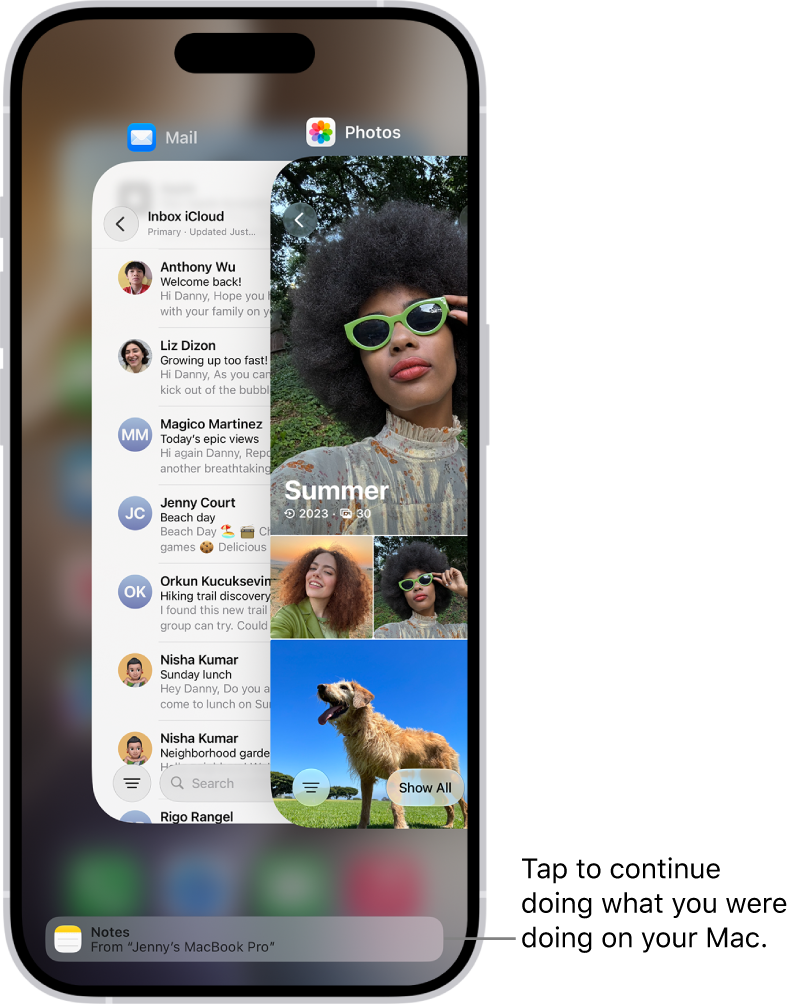
When your devices are near each other, an icon appears whenever a task can be handed off. Just tap or click the Handoff icon to continue working on your other device.

Where the Handoff icon shows up depends on the device:

  • On an iPhone: At the bottom of the App Switcher screen.

    The App Switcher on iPhone showing a handoff notification at the bottom of the screen.

  • On an iPad: At the right end of the Dock.

    The Handoff icon visible in the Dock on an iPad.

  • On a Mac: Toward the right end of the Dock, if the Dock is at the bottom of the screen. If you set up the Dock to appear on the left or right side of your screen, the Handoff icon appears at the bottom of the Dock.

If Handoff isn’t working

  • Make sure that both devices have Wi-Fi and Bluetooth turned on, and you’re signed in to the same Apple Account.
  • Check that your app supports Handoff. Calendar, Contacts, FaceTime, Keynote, Mail, Maps, Pages, Numbers, Reminders, and Safari, as well as many third-party apps, allow Handoff.

Quick tip: With Handoff on, Universal Clipboard lets you copy and paste text, images, photos, and videos across devices.

See also

You can use a feature called Universal Clipboard to copy content from one of your Apple devices and paste it on another. You might copy text on your iPad and paste it into a note on your iPhone, or copy an image from Safari and paste it into an email on your Mac.

It works with your iPhone, iPad, and Mac, as long as both devices have Wi-Fi, Bluetooth®, and Handoff turned on and you’re signed in to the same Apple Account.

Before you begin

For Universal Clipboard to work, all of these need to be true:

  • Both devices have Wi-Fi, Bluetooth®, and Handoff turned on.
  • You’re signed in to the same Apple Account on both devices.
  • Both devices meet minimum system requirements for Universal Clipboard.

If you’re using a VPN, confirm its configuration doesn’t block local networking, since that may interfere with some Continuity features.

Copy and paste between your iPad and other devices

You won’t actually see Universal Clipboard. It works just like copy and paste on your iPad, except you can paste on one of your other Apple devices, like a Mac or an iPhone.

  1. Select the text or image on your iPad, then tap Copy.
  2. On your other device, either tap (on another iPad or an iPhone) or click (on a Mac) where you want to paste the text or image. Then tap or click Paste. You can also use keyboard shortcuts.

    For more information on how to copy or paste on your iPhone, iPad, or Mac, see How to copy and paste on an iPhone or iPad or How to copy and paste on a Mac.

    Note: When you copy the content, it’s available on your Clipboard for a time.

How to copy and paste on an iPhone or iPad

  • Select and copy text: Double-tap with one finger to select a word or triple-tap with one finger to select a paragraph. (You can also move the grab points to adjust your selection.) Then tap Copy.
  • Select and copy an image: Touch and hold to select an image, then tap Copy.
  • Paste text or an image: Tap where you want to paste the text or image, then tap Paste.

For more gestures that let you copy and paste, check out our guide, Select, cut, copy, and paste text on iPad.

How to copy and paste on a Mac

  • Select text or an image: With your pointer, select the text or image you want to copy.
  • Copy text or an image: Press Command-C or choose Edit > Copy from the menu bar.
  • Paste text or an image: Move your pointer where you want to paste the text or image and click, then press Command-V or choose Edit > Paste from the menu bar.

Additional gestures can also help you copy and paste. See our article, Select, cut, copy, and paste text on iPad.

If Universal Clipboard isn’t working

  • Make sure that you’re signed in to the same Apple Account on both devices.
  • Make sure that both devices have Wi-Fi, Bluetooth, and Handoff turned on.
  • Your devices must be within 30 feet (10 meters) of one another.
  • If you’re having difficulty getting Universal Clipboard to work, restart your devices and try again.

Universal Clipboard works best for small selections of text or copied images. To share multiple files between your iPad and Mac, check out our guide, Transfer files from iPad to a storage device, a server, or the cloud.

See also