Got a tip for us?

FaceTime

  • If FaceTime is not working after iOS 26 update, a software bug or incorrect settings could be the culprit.
  • Before troubleshooting iOS 26 FaceTime issue, you should check for certain factors, such as whether or not there’s a FaceTime outage.
  • Otherwise, there are several ways you can troubleshoot to get the app back up and running.

In iOS 26, FaceTime supports Live Translation, displaying captions if you’re talking to someone who speaks another language. In addition, FaceTime has new screening features for unknown numbers.

If FaceTime is not working on your iPhone after iOS 26 update, don’t worry, there are a lot of things you can do to try and fix it. You just have to know where to start.

Here’s a breakdown of why your FaceTime is not working on iOS 26, and troubleshooting tips to try.

How to fix FaceTime on iOS 26

Make sure you have a working internet connection

The first thing you should do if FaceTime is not working after iOS 26 update is to make sure that your iPhone is connected to Wi-Fi or your wireless carrier’s cellular data network, and that you can access the internet.

If you are trying to use FaceTime over Wi-Fi, go into your settings and turn Wi-Fi off and then back on again. Learn how to fix Wi-Fi problem on iOS 26.

If you’re trying to use FaceTime over cellular, make sure that cellular data is on. Go to Settings and tap Cellular or tap Mobile Data, then turn on Cellular Data. Then scroll down to the Cellular Data section, and make sure FaceTime is enabled for cellular use in the list of apps. Learn how to fix cellular data problems on iOS 26.

You should also make sure that you are using a fast internet connection to avoid sound quality issues with FaceTime. If your cellular connection or Wi-Fi network runs slowly, or other people stream audio or video on the same Wi-Fi network, you might have these issues:

  • Connection alerts or unable to connect
  • Choppy video calls
  • Black screen
  • Dropped calls

Make sure that both you and the person that you FaceTime with use a fast Wi-Fi or cellular connection.

Update your iPhone’s software

If you are experiencing issues with receiving FaceTime calls, make sure that your iPhone is running the latest version of iOS 26. Go to Settings > General > Software Update, then install any pending updates.

Check that FaceTime is turned on

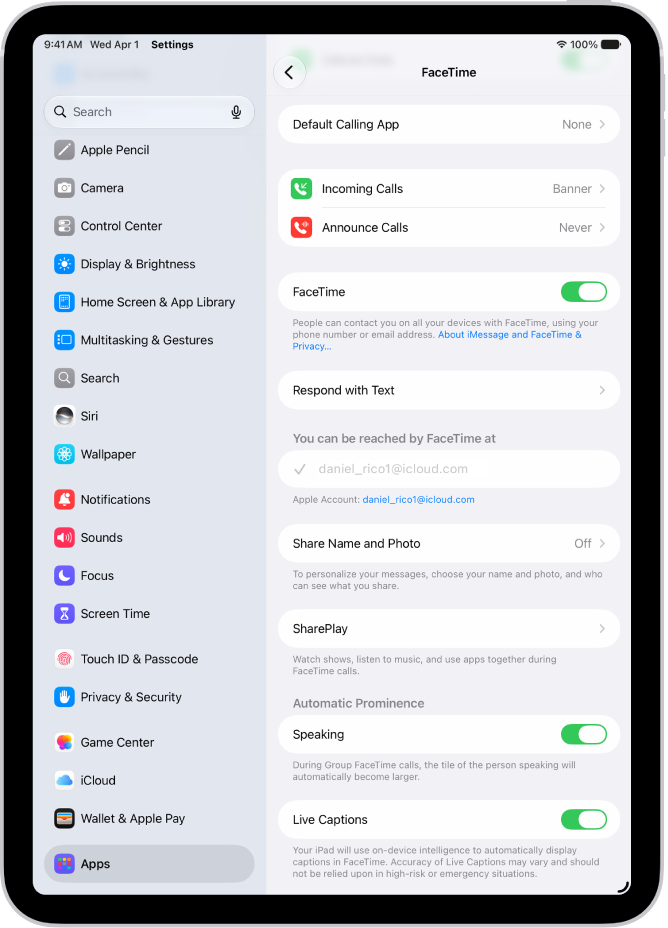
It’s possible FaceTime got turned off during iOS 26 update. Go into your iPhone’s Settings app, tap Apps, tap FaceTime, and make sure that the toggle next to FaceTime is enabled.

If FaceTime says ”Waiting for activation,” turn FaceTime off, restart your phone, then turn FaceTime back on. It might take up to 24 hours for your carrier to verify your phone number with Apple. Contact your carrier to make sure that you can send and receive SMS messages and wait up to 24 hours after you try the troubleshooting steps above.

If you aren’t seeing FaceTime at all, go from the Settings app to Screen Time, and then Content & Privacy Restrictions, followed by Allowed Apps. Then make sure both the camera and FaceTime are allowed by that device.

Make sure you’re signed in

To use FaceTime on your iPhone, you need to be signed in with your Apple Account email address or phone number. You can check this by going to Settings > Apps > FaceTime and making sure that below You Can Be Reached By FaceTime At, your phone number or Apple account email address are selected.

Make sure your date and time settings are correct

We recommend checking your iPhone’s Date & Time Settings. FaceTime won’t work on your iPhone if the date and time are incorrect, especially if your device thinks it is in the future.

Go to Settings > General > Date & Time. Then, turn on the switch next to Set Automatically if it’s not on already.

Check if FaceTime is down

There’s a chance that FaceTime is down on Apple’s end. Check Apple’s System Status page to learn whether FaceTime is experiencing a service outage.

Figure out whether the problem is on your end or someone else’s

Keep in mind that FaceTime problems can be caused by a problem with your iPhone — or with the person you’re trying to call.

Does FaceTime not work with anyone or just one person? If necessary, call several people and see whether the problem is limited to one person or to everyone.

Here’s a helpful rule of thumb: If FaceTime is not working with anyone, it’s probably a problem with your iPhone. If it doesn’t work with just one person, it’s probably a problem on the other person’s iPhone, iPad, or Mac.

Check whether a FaceTime feature is available

Even if both you and the person you’re trying to contact have a FaceTime account, that may not be all of the story. FaceTime and FaceTime audio calling are not available for all countries, regions, or carriers.

You can checkApple’s website to learn which countries and carriers do and do not support FaceTime. Unfortunately, If you’re trying to use FaceTime in an unsupported area, there’s nothing you can do to make it work.

Most of us use FaceTime on our iPhones every day, but are you getting the most out of it? Here are 14 FaceTime tips and tricks to help turbocharge video and audio calls on your iPhone.

FaceTime is Apple’s video and audio chatting platform that lets iPhone users communicate with one another through the standard FaceTime video protocol or using the FaceTime audio feature. Most of us probably use FaceTime on our iPhones daily. But are you getting the most out of the Apple’s video and audio chatting application?

To make sure you are, here are 14 tips and tricks to help you use FaceTime on your iPhone more effectively.

14 Tips and Tricks to Use FaceTime on Your iPhone More Effectively

1. Watch movies and TV shows together in FaceTime on your iPhone

You can easily watch movies with your friends on FaceTime using SharePlay. Apple introduced this FaceTime feature alongside iOS 15 and macOS Monterey.

The other people in the FaceTime call must also be Apple device users for you to use this FaceTime trick on your iPhone. And because of Digital Rights Management (DRM) restrictions, they must also be subscribed to the streaming service you use while sharing your screen.

  1. Open the FaceTime app on your iPhone and start a FaceTime call.
  2. Swipe up from the bottom edge of the FaceTime call, then open a video streaming app that supports SharePlay.
  3. Choose a movie or TV show, and press play. If prompted, tap SharePlay.

Playback controls are shared by everyone watching, so anyone can play, pause, rewind, or fast forward. Changing settings like closed captioning and volume will affect your device only.

You can also start a SharePlay session from supported streaming apps.

  1. Open your streaming app.
  2. Find a movie or TV show that you want to share. Tap the Menu button or the Share button .
  3. Tap SharePlay, then enter the contacts that you want to call.
  4. Tap FaceTime to start FaceTime video. Or tap the Audio button to start FaceTime audio.
  5. Start the video.

Playback controls are shared by everyone watching, so anyone can play, pause, rewind, or fast forward. Changing settings like closed captioning and volume will affect your device only.

2. Blur Your Messy Background With Portrait Mode in FaceTime

In the middle of an important meeting and don’t want your coworkers to see how messy your room is? Don’t worry because you can blur your background with a FaceTime trick on your iPhone.

Portrait mode is a video effect available on devices with the A12 Bionic chip and later. So it will onlywork on:

  • iPhone 14 series
  • iPhone 13 series
  • iPhone 12 series
  • iPhone 11 series
  • iPhone SE 2020
  • iPhone XS series
  • iPhone XR

This means, if you have iPhone X, iPhone 8, or earlier, you won’t be able to use blurred background on video calls.

Here’s how to blur the background in FaceTime video calls on iPhone

  1. Launch the FaceTime app on your iPhone and start a video call with any of your contacts.
  2. Tap your video view at the bottom right corner to expand it and reveal options.
  3. Select the Portrait Mode icon located at the top left corner to blur the background in your FaceTime video call.

3. Add filters, text and more to your FaceTime calls

Apart from Portrait Mode, you can apply other filters and features to a video in FaceTime calls on your iPhone. Here’s how.

  1. Start a FaceTime call on your iPhone.
  2. Tap the box where your video appears. This will enlarge and center your video box.
  3. Tap the star icon located at the bottom left corner of your screen, and a new menu will show up along the bottom of your screen.
  4. In the new menu you will see options to add your Memoji, filters, text and more to your FaceTime call. Tap into each option to explore and get your video to look the way you want.
  5. Tap the video around your video box to close the menu. Your filters and effects will be applied.

To get rid of the filters and effects, follow the first three steps above. Once you hit the star icon, the filters and effects will be removed.

4. Create FaceTime Link on iPhone

This FaceTime trick allows iPhone users to create meeting links and share them with Apple, Android, and Windows users. The only requirement for Android or Windows users is that they must be using the latest version of Google Chrome or Microsoft Edge.

When you create a new FaceTime link, you’ll have to allow people to join your meeting, but any Apple device user who’s been in the meeting for 30 seconds will also be able to let people in.

To create a FaceTime meeting link on your iPhone, follow the steps below:

  1. Open the FaceTime app on your iPhone.
  2. Tap Create Link near the top of the screen.
  3. Choose an option for sending the link (Mail, Messages, and so on.

5. Switch Between The Front and The Rear camera in FaceTime Call

During a call in the FaceTime app , you can use a quick FaceTime trick to switch between cameras. Instead of turning your wrist around to try and show another angle to the person on the video chat, try flipping the video right from within your phone.

Most users might already know about this FaceTime trick; however, if you haven’t yet figured out how to do this, then we’ve got you covered. Here’s how:

  1. When you’re on a FaceTime call, tap your tile, then tap the Flip to Back Camera button.
  2. To switch back to the front camera, tap the Flip to Back Camera button again.

6. Turn off your camera in FaceTime Call

If you FaceTime a lot, chances are you’ve ended up in situations where you’re not quite ready for a video call. In that case, you may want to use this cool FaceTime trick to turn off your camera during the call until you’re ready to show your face. Or maybe you just need some temporary privacy while on a call.

Here’s how to turn your camera on or off during FaceTime call on your iPhone:

  1. When you’re on a FaceTime call, tap the screen to make the controls appear.
  2. Tap the Camera On button. (Tap it again to turn the camera back on.)

7. Remove Background Noise During a FaceTime Call on iPhone

Trying to make a FaceTime call in a noisy environment? Whether it’s a loud cafe or busy traffic, you can use a FaceTime trick to filter background noise on your iPhone.

Most FaceTime calls we make using an iPhone are from home, the office, or an outside environment with several kinds of background noise. You might be surrounded by the sound of a fan, air conditioning, cars, kids, appliances, pets, and so on. Thankfully, this hidden FaceTime trick will let you filter out or reduce ambient noise, thus emphasizing your voice.

Please note: only iPhones with an A12 Bionic processor and later, running iOS 15 or later, support Voice Isolation and Wide Spectrum modes. This includes:

  • iPhone 14, 14 Plus, 14 Pro, and 14 Pro Max
  • iPhone 13, 13 mini, 13 Pro, and 13 Pro Max.
  • iPhone 12, 12 mini, 12 Pro, and 12 Pro Max
  • iPhone SE (2020)
  • iPhone 11, 11 Pro, and 11 Pro Max
  • iPhone XS and XS Max
  • iPhone XR

Here’s how to use Voice Isolation on FaceTime calls to get cleaner audio with unnecessary sounds filtered:

  1. During a FaceTime call, open Control Center. . To do this, on iPhone with Face ID, swipe down from the top-right of the screen. And on an iPhone with a Home button, swipe up from the bottom of the screen.
  2. Tap Mic Mode.
  3. Select Voice Isolation to minimize or block out the ambient noise. Tap anywhere in an empty area to return to the FaceTime screen.

8. Include The Sounds Around You in FaceTime Call

When you want your voice and all the sounds around you to be heard in a FaceTime call, you can turn on Wide Spectrum mode (available on the above mentioned iPhone models.

  1. During a FaceTime call, launch Control Center. On iPhone with Face ID, swipe down from the upper-right of the screen. And on an iPhone with a Home button, swipe up from the bottom of the screen.
  2. Tap Mic Mode.
  3. Select Wide Spectrum to keep or enhance the ambient noise. Tap anywhere in an empty area to return to the FaceTime screen.

9. Turn Off The Sound During FaceTime Call

There are a bunch of reasons why you might want to mute the mic during a FaceTime video call or FaceTime Audio call. Maybe you need to speak to another person you’re with and don’t want the person you’re calling to hear. Or you might need to briefly turn off the sound for the call, so it doesn’t disturb people around you.

When your sound is turned off, your mic detects whether you’re speaking, and you’re notified that your mic is muted and that you can tap the Mute On button to unmute it.

  1. When you’re on a FaceTime call, tap the screen to show the FaceTime controls (if they aren’t visible).
  2. Tap the Mute Off button to turn the sound off.
  3. To unmute yourself, tap the button again.

There is no direct way to mute the person you’re calling through the FaceTime app. However, there are some workarounds that can achieve the same effect.

  1. If you’re making a FaceTime call on your iPhone, you can stop the other person’s sound by plugging your headphones into your iPhone.
  2. You may still be able to hear the call coming faintly from your headphones, but the volume will be very low.
  3. When you want the call to continue as normal, simply unplug the headphones from your iPhone.

10. Share Your Screen in FaceTime Call on iPhone

You can share your screen with others in a FaceTime call to look at photos, browse the web, or help each other out.

Please Note: In order to share a screen, everyone on the call needs to be running iOS or iPadOS 15.1 or later or a Mac running MacOS Monterey 12.1 or later. Please also note, you can’t share any content that requires a subscription or purchase.

  1. Launch the FaceTime app on your iPhone and start a FaceTime call.
  2. When you are ready to share your screen, tap the Share Content button at the top of the screen.
  3. In the pop-up, tap Share My Screen. . You’ll see a short countdown and then your screen will be shared.
  4. You can now display any app or content you like. Everyone will now be able to see what you see on your iPhone.

11. Hand off a FaceTime Call to Another Device

You know those times when you answer a FaceTime call outdoors and then reach home and feel like switching to your Mac or iPad? With this FaceTime trick, you don’t need to hang up and start a new call from the other device. You can simply hand off the call to your other device without interrupting the call.

When you hand off a call, your connected Bluetooth headset transitions to the new device simultaneously.

  • Make sure your iPhone/iPad/Mac devices are paired to the same Apple ID account and running iOS 16, iPadOS 16, macOS Ventura, or later.
  • Ensure that Handoff is enabled in the General Settings of your devices (it’s on by default).
  • Check your Bluetooth and Wi-Fi toggles and confirm that they’re enabled on all of your devices.

Now, follow the steps below:

  1. Make sure your other device is turned on, then tap the screen that’s showing the call.
  2. A notification of the call appears on the Lock Screen (or in Notification Center) of the other device, along with the suggestion “Move call to this [device].”
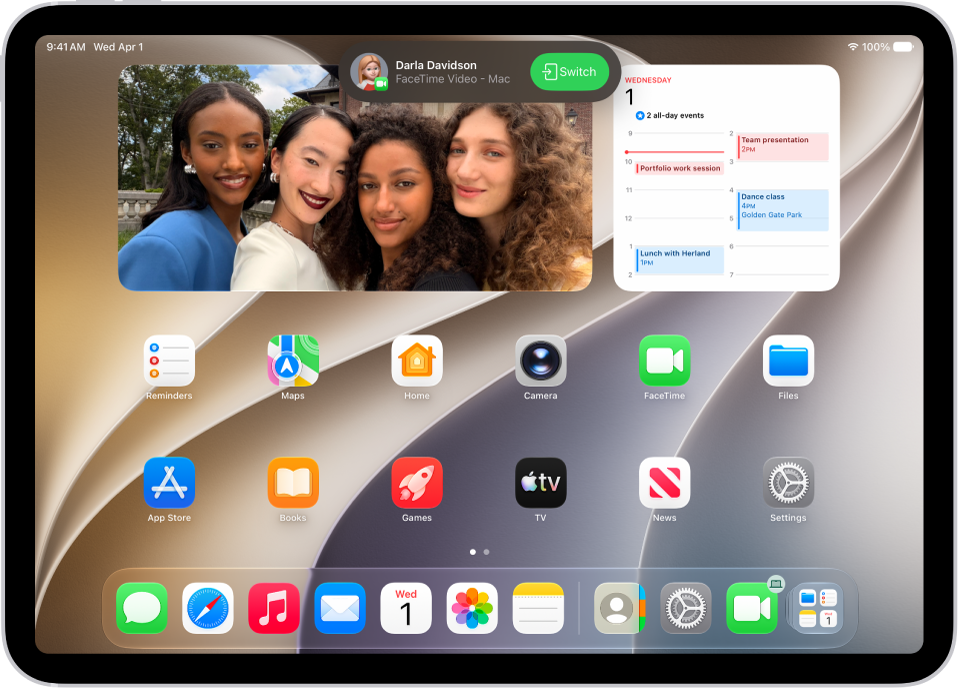
  3. Tap the notification to switch the call, or tap the Video Handoff button at the top left of the screen, then tap the Switch button.
  4. A preview of the call appears, showing your camera, microphone, and audio settings.
  5. Make sure the camera, microphone, and audio settings are the ones you want, then tap the Switch button.
  6. The call moves to the new device. On the original device, a banner appears confirming that the call was continued elsewhere, along with the Switch button, which you can tap if you want to bring the call back.

12. Use Spatial Audio in FaceTime

Spatial Audio in FaceTime makes it sound like your friends and family are in the room with you. Their voices are spread out and sound like they’re coming from the direction in which each person is positioned on the screen, helping conversations flow more naturally.

Please note, Spatial Audio is supported on iPhone XR, iPhone XS models and later, AirPods Gen 3, AirPods Pro, AirPods Pro Gen 2, and AirPods Max, plus the Apple-owned Beats Fit Pro.

If you own any of these products and you’ve enabled spatial audio within Settings > [Product Name] in iOS, you should get spatial audio within FaceTime automatically.

13. Turn on Live Captions in a FaceTime Call

While you’re on a video call in the FaceTime app, you can turn on Live Captions to see the conversation transcribed on the screen. With speaker attribution, it’s easier to follow along with the conversation. displayed in real time on your iPhone. The feature is handy during FaceTime calls, where it may be challenging to hear.

All you need is an iPhone 11 or newer, when the primary language is set to English (U.S.) or English (Canada).

  1. During a FaceTime video call, tap the screen to show the FaceTime controls (if they aren’t visible).
  2. Tap the Info button at the top of the controls.
  3. Turn on Live Captions.
  4. Tap Done and the spoken conversations will be displayed in written text at the bottom of the screen.

To stop showing the conversation on the screen, follow the steps below:

  1. Tap the screen.
  2. Tap the Info button at the top of the FaceTime controls.
  3. Turn off Live Captions.

14. Start a Group FaceTime Call With Up To 32 People

Still chatting with just one person on FaceTime? That’s old-school. Since 2018, Apple’s video call tool has supported chatting with up to 32 people. Using the FaceTime or Messages app, you can call multiple people at once or add all your friends to an existing call.

  1. In FaceTime, tap New FaceTime near the top of the screen.
  2. Type the names or numbers of the people you want to call in the entry field at the top.
  3. You can also tap the Add Contact button to open Contacts and add people from there. Or tap suggested contacts in your call history.
  4. Tap the FaceTime button to make a video call or tap the Call button to make a FaceTime audio call.

Your Favorite FaceTime Tips and Tricks?

We hope the above tips and tricks will enhance your user experience with FaceTime on your iPhone. What are your favorite FaceTime tips and tricks? Drop a comment and let us know.

How to fix FaceTime problems on iPhone 13 and iPhone 13 Pro

Is FaceTime not Working on your iPhone 13 or iPhone 13 Pro? You are not alone! This article explains what you can do to troubleshoot FaceTime issues on iPhone 13 or iPhone 13 Pro.

Let’s get started.

Several users have reported that they are unable to start or join FaceTime video and audio calls on their iPhone 13 or iPhone 13 Pro. Further, they have said that they are being disconnected while they’re in the middle of a FaceTime call. If you’re facing these problems, don’t fret. In this article, we’ll walk you through the necessary steps to troubleshoot and hopefully fix FaceTime issues on iPhone 13 and iPhone 13 Pro for good.

If you’ve purchased a brand new iPhone 13 or iPhone 13 Pro, then you’ll be eager to test the best iPhone 13 and iPhone 13 pro tips and tricks as well as the best iOS 15 FaceTime tips and tricks that include the ability to blur your background using portrait mode on your iPhone while you’re on a call, better isolation of your voice when you’re talking, and, most importantly, the ability to FaceTime with Android and Windows users. But what if FaceTime is not working on your iPhone 13 or iPhone 13 Pro? This can be frustrating especially if you’re unable to figure out the reason why you’re experiencing FaceTime issues on your new phone.

If FaceTime is not working on iPhone 13 or iPhone 13 Pro, there may be many reasons why, some of which are out of your control.

Why is FaceTime not working on iPhone 13 or iPhone 13 Pro?

There could be several reasons why FaceTime isn’t working an your iPhone 13 or iPhone 13 Pro.

Here’s a list of reasons why FaceTime app is not working on your iPhone 13 or iPhone 13 Pro, and troubleshooting tips to try:

  • There is a FaceTime outage .
  • FaceTime and FaceTime audio calling are not available in your country, region, or by your carrier.
  • You are trying to use call forwarding with FaceTime.
  • You are trying to switch from a FaceTime call to a phone call (or a FaceTime audio call).
  • You are exceeding the group FaceTime limit of 32 participants.

If those aren’t the problem, you can start troubleshooting.

How to troubleshoot when FaceTime isn’t working on iPhone 13 or iPhone 13 Pro

Check your Wi-Fi connection

You need an internet connection (either via Wi-Fi or a cellular-data connection) to use FaceTime – if you’re not seeing a Wi-Fi signal where it usually appears, you may need to go into your settings and turn Wi-Fi off and then back on again. It’s also a good idea to restart your router and modem. To restart your router and modem, unplug them from the power outlet. Let them sit like that for 30 seconds before plugging them back in.

See also: How to Fix WiFi Issues on iPhone 13, Pro, Max, and mini

Make sure your cellular data is on

If you’re trying to connect via cellular data, make sure that’s switched on in your settings. Head over to Settings and tap Cellular . Make sure that Cellular Data is enabled at the top of the page. Then scroll down to the Cellular Data section, and make sure FaceTime is enabled for cellular use in the list of apps.

See also: iOS 15: Cellular Data Not Working On iPhone? Fix!

Check that FaceTime is turned on

Head over to Settings, tap FaceTime , and make sure that the toggle next to FaceTime is enabled. If you see a ” Waiting for activation ” notification, toggle FaceTime off and then on again.

If you aren’t seeing FaceTime at all, go from the Settings app to Screen Time, and then Content & Privacy Restrictions , followed by Allowed Apps . Then make sure both the camera and FaceTime are allowed by that device.

Make sure you’re signed in

To use FaceTime, you need to be signed in with your Apple ID or phone number. You can check this by going to your Settings on an iPhone and making sure that below the FaceTime toggle, your phone number or Apple ID is listed.

Check Apple Servers

Sometimes even Apple servers go down. So it’s a good idea to check in with Apple’s System Status to see if there are any on-going service issues with FaceTime and associated services like iMessage and iCloud.

Check date And Time

If the time and date on your iPhone are wrong, it may cause problems with FaceTime. We recommend that you set the date and time automatically if FaceTime keeps failing on your iPhone 13 or iPhone 13 Pro. Most of us do this anyway, but you should make sure it’s enabled in the settings on your iPhone. To check and set it, go to Settings > General > Date and Time. Then, choose Set Automatically.

Restart IPhone

Sometimes a quick restart can fix issues like apps not working. This advice is the same for when FaceTime isn’t working on iPhone 13 or iPhone 13 Pro. It’s best to close all your apps first to make sure you don’t lose any unsaved progress and to ensure they start fresh after restarting. You can restart your iPhone by going to settings > General > shut down. Wait until the phone turns off completely. Leave it off for at least 30 seconds before you turn it back on.

Check for iOS update

Certain firmware versions of iOS may have wireless connectivity issues that could prevent you from using FaceTime properly. This is more likely to happen if you’re on a public or developer beta version of iOS, but Apple usually issues a hotfix with another update. So, make sure your iPhone is running the latest iOS version by going to Settings > General > Software Update. If you do have a pending update, you’ll be notified here and you can tap on “Install Now” to begin the update process.

Check The Blocked List

If have a problem when using FaceTime on iPhone 13 or iPhone 13 Pro, make sure you’ve not blocked particular phone number. Head to Settings > FaceTime > Blocked contacts. See if the contacts you are trying to FaceTime with are listed here or not.

Reset Network Settings

If you find FaceTime not working on iPhone 13 or iPhone 13 Pro, the issue may be related to network settings. However, this can be easily resolved by resetting your network settings. Be mindful that you’ll lose your saved Bluetooth connections, Wi-Fi networks and passwords once you reset these settings. To do this, head over to Settings > General > Transfer or Reset iPhone > Reset > Reset Network Settings.

If you’re still having issues, it could be that the person you’re trying to call is experiencing issues, like a weak Wi-Fi connection. Double-check this by trying to FaceTime someone else. Or if your network is behind a firewall, you might have to ask your administrator to enable the necessary ports to let FaceTime work.

It’s also likely that you’re trying to contact someone who lives in a country where FaceTime is unavailable or their devices aren’t updated yet. There’s also a slim chance that the person you’re attempting to start a FaceTime call with has switched to a non-Apple device.

You might also want to contact Apple Support or figure out how to talk to a live person at Apple for further assistance and try to resolve the problem at the earliest.

You might also want to check out:

FaceTime not Working on iPhone 13 or iPhone 13 Pro: Fixed

We hope you managed to fix any issues you were facing with FaceTime on iPhone 13 or iPhone 13 Pro. Have you experienced FaceTime problems on your iPhone 13 or iPhone 13 Pro? If yes, which of the troubleshooting methods we discussed in this article worked for you? Did you find another solution? Share your experience in the comments section down below.

Making FaceTime calls on your
Apple Watch
might not seem like something you would do, especially taking into account there’s no camera built into it (yet anyway). But
FaceTime
can do more than video calls. Your Apple Watch can make crystal clear audio calls over the internet, too. And the Cupertino based company has bundled a high quality speaker and a microphone inside the Apple Watch.

Or, even better, why not make calls using AirPods and Apple Watch? However you decide to do it, making a FaceTime audio call on your Apple Watch is quick and easy. In this article, I’ll walk you step-by-step’s on how to make FaceTime audio call on Apple Watch.

Just like
making FaceTime audio calls from a Mac, iPhone or iPad,
you can start a FaceTime call on an Apple Watch in a number of ways. The easiest is to use Siri, but you can also tap your way through the built-in Phone app as well. And, of course, we’ll discuss both methods. Without any father Ado, here are the instructions for how to make a FaceTime call on Apple Watch.

How to Make a FaceTime Audio Call on Apple Watch Using Siri

Siri
isn’t always smart in everything, but it is very good at making calls for you. Here’s how it works with Apple Watch:

  1. Say “Hey Siri” or if you’re using Raise To Speak, raise your watch to your mouth. You can also press and hold the Digital Crown, too.
  2. Say “FaceTime” and then the name of the person you’re trying to call.
  3. The full command could be something like “Hey Siri, FaceTime Dad”.
  4. Siri will then initiate the call using either the built-in speaker or any
    Bluetooth
    audio devices that are paired at the time. Like
    AirPods,
    AirPods Pro,
    or any other headphones.

How to Make a FaceTime Audio Call from Apple Watch Using the Phone app

You can use the Phone app to make FaceTime calls on your Apple Watch if you prefer to use this method. The call will be the same, it’s only the method to place a call which is different.

  1. Press the Digital Crown to bring up all of the apps installed on your Apple Watch.
  2. Now, tap the Phone app’s icon.
  3. Next, tap “Contacts”.
  4. Next on, tap on the contact that you want to call.
  5. Finally, tap the phone icon followed by “FaceTime Audio”.
    A FaceTime Audio call will then be started, and you can talk and chat away as much as you like.

Again, any headphones that are connected via Bluetooth at the time will be used to make the call.

The Apple Watch’s microphone and speaker will be used if no audio device is connected, so if you don’t use AirPods or another wireless audio solution than you can simply talk through the Watch.

It’s worth noting that Apple Watch will need an internet connection to be able to make a FaceTime call. That means if the Apple Watch is a cellular model, or if Apple Watch is paired to an iPhone that has cellular service it will work perfectly, and if Apple Watch is on a wi-fi network it will also make the call too. But if the Apple Watch is not near a paired device, on wi-fi, or doesn’t have it’s own cellular capability, you won’t be able to initiate a call from watchOS of course.

Do you make FaceTime calls from Apple Watch? What do you think of this feature? Do you have any nifty tips or tricks for making FaceTime calls on Apple Watch? Let us know your tips, experiences, and thoughts with using FaceTime chat from Apple Watch in the comments section below.

Are you getting No Video, FaceTime Has Not Received Any Video From Connected Camera error? worry not! here is the fix.

A number of Mac users have stated that they are unable touse FaceTime because the built-in Mac camera is not working. To be specific, users are reporting
Black FaceTime
screens and users are getting the following error message:

No Video. FaceTime has not received any video from the connected camera. restarting your computer may fix the issue. 

Almost all Mac models include a built-in iSight, FaceTime, or FaceTime HD camera. This camera automatically turns on and off when youmake a FaceTime call.
Most of the time, the camera works as expected. However, you may experience issues from time to time.

Apparently, these Mac camera issues affected all Mac models including MacBooks, MacBook Airs and MacBook Pros.

Please try these fixes below in order. After performing each step, check FaceTime again to see if your issue has been fixed.

Check out this article if
Mac microphone is not working.

Quit and restart

Quit FaceTime and then restart. Simply follow these steps:

  1. In FaceTime, click FaceTime.
  2. Now, hit Quit FaceTime.
  3. Next, launch the FaceTime app and try again.

Camera selection

If you have several cameras connected to your Mac, ensure that the correct camera is selected. Simply follow these steps:

  1. Launch the FaceTime app.
  2. Now, click Video inside the facetime app.
  3. Lastly, check to see if the correct camera is selected.

Restart your Mac

As the error message indicates, restarting your Mac may fix your “no video” error. Simply follow these steps to restart your Mac:

  1. Click the Apple menu.
  2. Now, click Restart.

Update your Mac

Make sure that your Mac is running the latest version of MacOS. Updating your Mac also updates FaceTime. Simply follow these steps to
update your Mac:

  • To update MacOS Mojave or higher: Click the Apple menu, go to System Preferences and then Software Update. This will check for updates. And if there is an update available, click
    the Update Now button and follow the on-screen instructions to update your Mac.
  • To check for update in earlier macOS versions: On your Mac, Go to the App Store and click Updates.

Safe Mode

Restarting your
Mac in Safe Mode
may fix camera issues on Mac. Simply follow these steps to restart your Mac in safe mode:

  1. Shut down your Mac.
  2. Power on your Mac and immediately press and enter the Shift key.
  3. Hold down the Shift key until the login screen appears and then release it.
  4. Log in to your Mac. You may have to log in a couple of times.
  5. Now, your Mac is in Safe Mode. (This is how you can know
    if your Mac has started in Safe mode).

    • Your Mac will be slower than normal. Don’t worry.
  6. Now, restart your Mac normally to
    exit Safe Mode.

Now check your FaceTime video issue. Mac facetime camera not working? Try the next solution.

Reset SMC and NVRAM or PRAM

Simply follow these steps to reset SMC and NVRAM or PRAM on your Mac:
Reset NVRAM or PRAM:

  1. Shut down your Mac.
  2. Power on your Mac and immediately press and hold down the Option, Command, P, and R keys at the same time for about 20 seconds.

Reset SMC:

  • Please check out this article to
    reset the SMC (System Management Controller) on your Mac

Terminal

Please follow these steps:

  1. Quit all apps that may actively use your camera. (
  2. Now, launch Terminal.
    (Applications /
    Utilities).
  3. Next, type in the command below and hit enter:
    sudo killall VDCAssistant
  4. Next on, type in the command below and press enter:
    sudo killall AppleCameraAssistant
  5. If asked, type in your password.

After this, check if FaceTime is working as expected. Mac Facetime camera dark? Try the next solution.

If the above fixes did not fix your problem, then it is time to
contact Apple.

How to fix FaceTime problems on iPhone 13 Pro Max

Is FaceTime not Working on your iPhone 13 Pro Max? You are not alone! This article explains what you can do to troubleshoot FaceTime issues on iPhone 13 Pro Max.

Let’s get started.

Several users have reported that they are unable to start or join FaceTime video and audio calls on their iPhone 13 Pro Max. Further, they have said that they are being disconnected while they’re in the middle of a FaceTime call. If you’re facing these problems, don’t fret. In this article, we’ll walk you through the necessary steps to troubleshoot and hopefully fix FaceTime issues on iPhone 13 Pro Max for good.

If you’ve purchased a brand new iPhone 13 Pro Max, then you’ll be eager to test the best iPhone 13 and iPhone 13 pro tips and tricks as well as the best iOS 15 FaceTime tips and tricks that include the ability to blur your background using portrait mode on your iPhone while you’re on a call, better isolation of your voice when you’re talking, and, most importantly, the ability to FaceTime with Android and Windows users. But what if FaceTime is not working on your iPhone 13 Pro Max? This can be frustrating especially if you’re unable to figure out the reason why you’re experiencing FaceTime issues on your new phone.

If FaceTime is not working on iPhone 13 Pro Max, there may be many reasons why, some of which are out of your control.

Why is FaceTime not working on iPhone 13 Pro Max?

There could be several reasons why FaceTime isn’t working an your iPhone 13 Pro Max.

Here’s a list of reasons why FaceTime app is not working on your iPhone 13 Pro Max, and troubleshooting tips to try:

  • There is a FaceTime outage .
  • FaceTime and FaceTime audio calling are not available in your country, region, or by your carrier.
  • You are trying to use call forwarding with FaceTime.
  • You are trying to switch from a FaceTime call to a phone call (or a FaceTime audio call).
  • You are exceeding the group FaceTime limit of 32 participants.

If those aren’t the problem, you can start troubleshooting.

How to troubleshoot when FaceTime isn’t working on iPhone 13 Pro Max

Check your Wi-Fi connection

You need an internet connection (either via Wi-Fi or a cellular-data connection) to use FaceTime – if you’re not seeing a Wi-Fi signal where it usually appears, you may need to go into your settings and turn Wi-Fi off and then back on again. It’s also a good idea to restart your router and modem. To restart your router and modem, unplug them from the power outlet. Let them sit like that for 30 seconds before plugging them back in.

See also: How to Fix WiFi Issues on iPhone 13, Pro, Max, and mini

Make sure your cellular data is on

If you’re trying to connect via cellular data, make sure that’s switched on in your settings. Head over to Settings and tap Cellular . Make sure that Cellular Data is enabled at the top of the page. Then scroll down to the Cellular Data section, and make sure FaceTime is enabled for cellular use in the list of apps.

See also: iOS 15: Cellular Data Not Working On iPhone? Fix!

Check that FaceTime is turned on

Head over to Settings, tap FaceTime , and make sure that the toggle next to FaceTime is enabled. If you see a ” Waiting for activation ” notification, toggle FaceTime off and then on again.

If you aren’t seeing FaceTime at all, go from the Settings app to Screen Time, and then Content & Privacy Restrictions , followed by Allowed Apps . Then make sure both the camera and FaceTime are allowed by that device.

Make sure you’re signed in

To use FaceTime, you need to be signed in with your Apple ID or phone number. You can check this by going to your Settings on an iPhone and making sure that below the FaceTime toggle, your phone number or Apple ID is listed.

Check Apple Servers

Sometimes even Apple servers go down. So it’s a good idea to check in with Apple’s System Status to see if there are any on-going service issues with FaceTime and associated services like iMessage and iCloud.

Check date And Time

If the time and date on your iPhone are wrong, it may cause problems with FaceTime. We recommend that you set the date and time automatically if FaceTime keeps failing on your iPhone 13 Pro Max. Most of us do this anyway, but you should make sure it’s enabled in the settings on your iPhone. To check and set it, go to Settings > General > Date and Time. Then, choose Set Automatically.

Restart IPhone

Sometimes a quick restart can fix issues like apps not working. This advice is the same for when FaceTime isn’t working on iPhone 13 Pro Max. It’s best to close all your apps first to make sure you don’t lose any unsaved progress and to ensure they start fresh after restarting. You can restart your iPhone by going to settings > General > shut down. Wait until the phone turns off completely. Leave it off for at least 30 seconds before you turn it back on.

Check for iOS update

Certain firmware versions of iOS may have wireless connectivity issues that could prevent you from using FaceTime properly. This is more likely to happen if you’re on a public or developer beta version of iOS, but Apple usually issues a hotfix with another update. So, make sure your iPhone is running the latest iOS version by going to Settings > General > Software Update. If you do have a pending update, you’ll be notified here and you can tap on “Install Now” to begin the update process.

Check The Blocked List

If have a problem when using FaceTime on iPhone 13 Pro Max, make sure you’ve not blocked particular phone number. Head to Settings > FaceTime > Blocked contacts. See if the contacts you are trying to FaceTime with are listed here or not.

Reset Network Settings

If you find FaceTime not working on iPhone 13 Pro Max, the issue may be related to network settings. However, this can be easily resolved by resetting your network settings. Be mindful that you’ll lose your saved Bluetooth connections, Wi-Fi networks and passwords once you reset these settings. To do this, head over to Settings > General > Transfer or Reset iPhone > Reset > Reset Network Settings.

If you’re still having issues, it could be that the person you’re trying to call is experiencing issues, like a weak Wi-Fi connection. Double-check this by trying to FaceTime someone else. Or if your network is behind a firewall, you might have to ask your administrator to enable the necessary ports to let FaceTime work.

It’s also likely that you’re trying to contact someone who lives in a country where FaceTime is unavailable or their devices aren’t updated yet. There’s also a slim chance that the person you’re attempting to start a FaceTime call with has switched to a non-Apple device.

You might also want to contact Apple Support or figure out how to talk to a live person at Apple for further assistance and try to resolve the problem at the earliest.

You might also want to check out:

FaceTime not Working on iPhone 13 Pro Max: Fixed

We hope you managed to fix any issues you were facing with FaceTime on iPhone 13 Pro Max. Have you experienced FaceTime problems on your iPhone 13 Pro Max? If yes, which of the troubleshooting methods we discussed in this article worked for you? Did you find another solution? Share your experience in the comments section down below.

In this article, I’ll explain exactly how you can set up and make FaceTime conference calls (also called group calls) on your iPhone, iPad, iPod touch or Mac. A conference
call refers to an audio or video call in which 3 or more participants converse at the same time. And you can do this using your iPhone, iPad or Mac
without buying extra software or tools. It is pretty simple and straightforward.

FaceTime Conference Call Requirements

  • You can conference call up to 31 people, 32 if you include yourself on FaceTime.
  • All of the participants need to have an Apple device:
    • iPhone 6s or newer, iPad Pro or newer, iPad Air 2 or newer, iPad mini 4 or newer, iPad (5th generation) or newer, or iPod touch (7th generation) or newer,
      running iOS 12.1.4 or higher, or iPadOS. To check your software version and update your device, head over to Settings > General > Software Update.
    • Mac computers running macOS Mojave 10.14.3 or higher. To check your macOS version, click the Apple menu and About This Mac.
  • Obviously, all participants should have FaceTime on their devices. If you deleted the app, you canget it from the App Store.
  • Other users including Android users, Windows users, etc cannot participate.

How to make FaceTime conference call on iPhone,iPad or iPod Touch

You can make FaceTime conference call in two ways :

  • You can start a call from the FaceTime app.
  • You can also start a call from the Messages app.

How to make FaceTime conference call using the FaceTime app

Here is how to make FaceTime conference call using the FaceTime app:

  • Launch the FaceTime app.
  • Tap the (+) add icon (located in the top-right-hand corner of the screen).
  • This new screen will read “New FaceTime”. In the “To:” field, start typing the participants, you can enter names, numbers or emails. If you tap the
    (+) add icon in the “To:” field, you can add participants right from your contacts.
  • As you type, iOS will provide you with a list of suggested participants. You will notice that some contacts will appear in blue while others will appear in gray. Only
    the blue contacts can be added. Blue contacts is an indication that their devices and software support conference FaceTime.
  • As we’ve already pointed out, you can add up to 32 participants at a go.
  • When you are finished adding participants, initiate the conference call by tapping either the audio or video button.

How to make FaceTime conference call using the Messages app

Here is how to make FaceTime conference call using messages app

  • Launch the Messages app on your Apple device.
  • Create a
    group message:

    • Tap the new message icon which is located in the upper right corner of the screen. Open an existing group conversation.
      New message
    • Type in participants in the “To:” field. You can also tap the add button to add participants right from your contact list.
  • At the top of the conversation lists, you will see avatars, tap on it.
  • And then tap the FaceTime icon.

How to answer a conference call

So someone has given you a FaceTime conference call. Here is how you can answer it on your iPhone, iPad or iPod touch:

  • You will get a notification.
  • Now, tap the notification to answer or decline a call.
  • Also, you can join the call from the Messages app and FaceTime app.

How to make a FaceTime conference call on Mac

You can also start a conference FaceTime call on your Mac. Just like the iPhone and iPad, you can use the Messages app to start a call. You can
only use the FaceTime app to make the call. Here is how to make a FaceTime conference call on Mac:

  • Launch the FaceTime app on your Mac.
  • Type in the names, emails or numbers of people you want to call on the search field.
  • You can add up to 32 participants.
  • Finally, tap the Video or Audio button to start your FaceTime conference call.

Use Messages on your Mac

  • On your Mac, launch the Messages app.
  • Click on the group message.
  • Now, click on Details.
  • Finally, click the video or phone button to start your audio or video conference call.

How to answer a conference call on your Mac

So you’ve received a conference call on your Mac?

  • You will get a notification.
  • Use the notification to answer (or decline) the call.
  • You can also answer a call in the Messages app.
  • You can also answer in the FaceTime app.

FaceTime conference calls not working? fix:

  • See this article if group FaceTime is not working.
  • On your Apple device, ensure that you’ve enabled FaceTime. You can check this by heading over to Settings > FaceTime.
  • Restart your Apple device.
  • Ensure that your camera and microphone are working (Check out this article if your
    Mac’s microphone is not working).
  • Ensure that your Apple device is running the latest software version:
    • iPhone or iPad: Head over to Settings > General > Software Update.

    • macOS: Click the Apple menu and go to System Preferences > Software Update.
    • Make sure that your Apple device is connected to a Wi-Fi or cellular network. Here is how you can troubleshoot your connection problems:
    • Make sure that Date & Time settings are correct:
      • iPhone or iPad: Head over to Settings > General > Date & Time and then enable Set Automatically.
      • macOS: Click the Apple menu, go to System Preferences > Date & Time > and then check the “set date and time automatically” box. You will need to click the
        lock icon and type in your password for your changes to take effect.

    FaceTime offers one of the most secure ways to video call your friends, family, and colleagues. If everyone has an iPhone, iPad, iPod touch, or Mac, you can have group FaceTime chats with up to 32 people for free.

    Here’s everything you need to know about how to use group FaceTime calls. That includes starting a new call, managing your mic or camera settings, and fixing common errors.

    How to Start a Group FaceTime Call

    FaceTimeis one of several in-built iOS apps that are preinstalled on your device by default. Its icon resembles a green video camera. If you deleted FaceTime from your iPhone, iPad, or iPod touch, you can download it again for freefrom the App Store

    To start a new call with FaceTime, start the Facetime app, tap the Add (+) button, and type the contact you want to call. On a Mac, use the search bar that appears to find your contacts. Add as many contacts to the call as you like; FaceTime supports up to a maximum of 32 people, including yourself.

    Then tap or click the Audio or Video buttons to start the group FaceTime call. The Audio button starts a call without turning your camera on, but you can enable it later if you like.
    When adding people in the FaceTime app, you can search for their name, phone number, or email address. If someone isn’t saved to your contacts, enter their full phone number or email address instead.

    FaceTime only allows you to add contacts who show up in blue. This happens when their Apple ID is linked to the contact details you typed in and their Apple device is currently online.

    Start a Group FaceTime Call From Messages

    Another way to start a group FaceTime call is by use of Messages app. This is a much more convenient method if you already have a group chat with everyone you want to call. That’s because it’s faster to get started and lets people join at a later stage without you having to add them.

    Simply open the group chat in Messages, then bring up the Details for that chat by tapping the profile pictures at the top of the display. Tap or click the FaceTime icon to call everyone in the group chat via FaceTime.

    If some people decline the call at first, they can join again afterwards by returning to the group chat in Messages. This shows an icon letting you know how many people are currently in the call, with a green button to Join the call as well.

    How to Use Group FaceTime on iPhone, iPad, or Mac

    Once you start a group FaceTime call, you’ll find yourself greeted with a selection of square video feeds from each of your contacts. If someone turns their camera off, their initials appear in a box instead of their video feed.

    FaceTime automatically arranges the video feeds on your screen to allow you to see everyone at once. When that isn’t possible without making each feed too small, FaceTime dynamically changes the size of each feed depending on who’s talking. The aim is to enlarge the feed when people start talking so you can see them well, but it doesn’t work perfectly.

    You can always take control of this manually by tapping or clicking on someone to make their video larger. In addition, this makes the fullscreen button visible, which enlarges the feed and moves it to the middle of your screen.

    Control the Camera, Microphone, and Speaker in FaceTime

    On a Mac, hover your mouse over the FaceTime window to reveal basic FaceTime controls, then click the Sidebar icon to Bring up additional controls. On an iPhone, iPad, or iPod touch, tapping in a blank space shows controls at the bottom of your screen; swipe up to expand these controls for more options.

    Tap the Mute button (shown by a microphone with a line through it) to mute yourself. This turns off your microphone so other people can’t hear you during a call.

    Similarly, tap the Camera Off button (shown by a camera with a line through it) to turn off your camera. Unless you also muted yourself, people should still be able to hear you.

    there is also a Flip and a Speaker option on an iPhone, iPad, and iPod touch. The Flip button lets you switch from the front-facing to the rear-facing camera on your device. And the Speaker button allows you to transfer the audio to other speakers on your network, such ass Apple’s HomePod.

    Add More People to Your Group FaceTime Call

    You can keep adding new people to an existing FaceTime call until you hit 32 participants. To do this on an iPhone or iPad, tap in a blank space and swipe up on the control panel that appears. On a Mac, launch the sidebar in the FaceTime app.

    This panel shows everyone in the call, including people you called who didn’t answer. Use the call button next to these contacts to try calling them again.

    you can instead use the Add Person option to search for new contacts to add to the call. Search for their name, phone number, or email address, just like when you started the FaceTime call. Then tap the Add Person to FaceTime button to bring them in.

    Add Effects to Your FaceTime Call

    If you’re using an iPhone 7 or later, it’s easy to add camera effects to your FaceTime calls. These include Animoji, filters, text, shapes, and various stickers. you simply need to tap in a blank space, then tap the Effects button.

    Choose the type of effect you wish to apply from the toolbar at the bottom of the screen. Certain effects, such as text or stickers, allows you to pick where to place them on your video feed by means of drag-and-drop.

    You can add as many effects as you like, even combining your Animoji with a filter and some stickers if you wish. To return to normal, tap the Effects button again to remove all the effects at a go.

    What to Do If Group FaceTime Isn’t Working

    FaceTime is one of the most convenient Waze to start a group video call, but it still isn’t perfect. SometimesFaceTime refuse to ring a given contacts or face weak connection problems.

    Here are instructions for how to fix some of the most common issues with group FaceTime calls.

    Check Your Internet Connection

    FaceTime works better on Wi-Fi. Launch the Settings app on your iPhone and tap on Wi-Fi to make sure you’re connected to a Wi-Fi network, then try loading a page on your web browser. to make sure that connection is working properly. If you can’t get online, restart your router, run through our network troubleshooting steps, then contact your internet service provider if you need further support.

    iIf you want to useFaceTime over mobile data on your iPhone or iPad, you need too first enable this in the settings. Start the settings app on your iPhone and go to Cellular, then scroll down to see a list of apps. Turn on the FaceTime toggle to allow it to use your cellular data.

    Turn FaceTime Off and On Again

    Start the Settings app on your iPhone or iPad and go to FaceTime, then use the FaceTime toggle to turn the feature off. On a Mac, start the FaceTime app and head over to FaceTime > Preferences from the menu bar, then uncheck the Enable this account box.

    Wait for one minute before turning FaceTime back on from the same settings page, then try to make a call again.

    Update Your Operating System

    sometimes, FaceTime problems can be caused by outdated operating system. It might happen that you can’t ring a certain contacts, use camera effects, or launch FaceTime at all. You can easily fix these problems by downloading and installing the latest software update.

    Start the Settings app on your iPhone or iPad and head over to General > Software Update. Then download and install any available software updates for your device. On a Mac, launch the Apple menu and head over to System Preferences > Software Update to check for new updates.

    Use a Third-Party App to Call Non-Apple Devices

    FaceTime’s biggest shortcoming is that it’s not available on other platforms beside Apple devices. You can’t download FaceTime for Android or Windows, which means there are likely lots of Friends, family members or coworkers who you can’t add to a FaceTime group call.

    thankfully, there are tons of third-party apps you can use instead. Check out Best video conferencing apps here