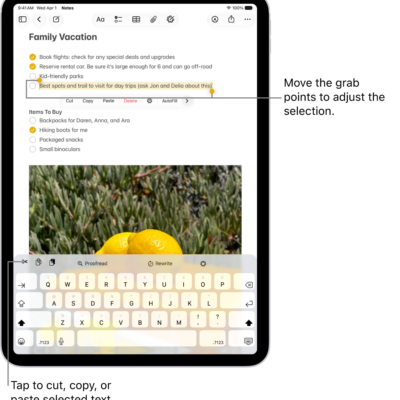
You can use the keyboard and mouse (or trackpad) of your Mac to control your iPad with the Universal Control feature. You can even connect an additional Mac or iPad and work across three devices. When you use Universal Control, you can open and use apps, enter text, and drag items across devices.
Both devices need Wi-Fi, Bluetooth®, Handoff, and two-factor authentication turned on, and you need to be signed in to the same Apple Account on both. Once they’re connected, you can move the pointer across screens, and change the screen arrangement between your Mac and iPad.
Before you begin
First, confirm each of the following:
- Both devices have Wi-Fi, Bluetooth®, Handoff, and two-factor authentication turned on.
- You’re signed in to the same Apple Account on both devices.
- Both devices meet minimum system requirements for Universal Control.
- If your Mac doesn’t have a built-in trackpad or keyboard, you must connect a keyboard and mouse or trackpad to your Mac.
When you’re using a VPN, make sure its configuration allows local networking, since preventing it may interfere with some Continuity features.
Set up Universal Control
To connect your Mac and iPad, wake and unlock both devices, then do one of the following:
- On your Mac, use your mouse or trackpad to move the pointer to the right or left edge of the screen, whichever is closest to your other device. Pause, then move the pointer slightly past the edge of the screen. When a border appears at the edge of the other device, continue moving the pointer to the other device’s screen.
- On your Mac, click the Control Center menu in the menu bar, click Display, then choose your other device below “Link keyboard and mouse to.” Then use your mouse or trackpad to move the pointer past the edge of the Mac screen until it appears on your other device.
With a connection established, the pointer moves across screens until you disconnect your devices or one of them goes to sleep.
Use your Mac keyboard and mouse or trackpad with your iPad
Your Mac mouse or trackpad works with many of the actions and gestures that work on your iPad with an external mouse or trackpad. See our article, Mouse actions and gestures for iPad, and our guide, Trackpad gestures for iPad.
Many iPad features available with external keyboards also work with your Mac keyboard. For these, see our guide, Switch between keyboards with iPad, and the keyboard topics after it.
Change the screen arrangement between your Mac and iPad
The side of the display you’ll use to move the pointer across devices depends on the direction you move it when establishing the Universal Control connection.
You can also adjust the arrangement of your devices.
-
On your Mac, open the System Settings app.
Note: If your Mac has macOS 12.5 or earlier, choose Apple menu > System Preferences.
- Click Displays in the sidebar. (You may need to scroll down.)
- Drag the iPad image to the new position.
Disconnect Universal Control between your Mac and iPad
To temporarily stop using Universal Control, disconnect your Mac and iPad.
To disconnect them, do one of the following:
- On your iPad: Press the top button on your iPad to put it to sleep.
- On your Mac: Click the Control Center menu in the menu bar, click Display, then deselect your iPad, below “Link keyboard and mouse to.”
Stop your Mac and iPad from automatically connecting
With Universal Control set up, your Mac and iPad or another Mac reconnect automatically whenever they’re close to each other with their screens unlocked. If you’d rather your Mac and iPad or another Mac not connect automatically, turn off this option on your Mac.
-
On your Mac, open the System Settings app.
Note: If your Mac has macOS 12.5 or earlier, choose Apple menu > System Preferences.
- Click Displays in the sidebar. (You may need to scroll down.)
- On the right, click Advanced. Then turn off Automatically reconnect to any nearby Mac or iPad.
Turn off Universal Control
Turning off Universal Control keeps your Mac keyboard and mouse or trackpad from being used across your iPad and other devices.
-
On your Mac, open the System Settings app.
Note: If your Mac has macOS 12.5 or earlier, choose Apple menu > System Preferences.
- Click Displays in the sidebar. (You may need to scroll down.)
-
Click Advanced on the right. Then do one of the following:
- Turn off all Universal Control connections: Turn off “Allow your pointer and keyboard to move between any nearby Mac or iPad.”
- Prevent a connection when moving the pointer to the edge of the screen: Turn off “Push through the edge of a display to connect to a nearby Mac or iPad.”
To prevent connecting your iPad keyboard and mouse or trackpad to your Mac, on iPad go to Settings > General > AirPlay & Continuity, then turn off Cursor and Keyboard.
If Universal Control isn’t working
- Make sure you’re signed in to the same Apple Account on both devices.
- Make sure that both devices have Wi-Fi, Bluetooth, Handoff, and two-factor authentication turned on and are on the same Wi-Fi network.
See also
- Use Continuity to work across Apple devices
- Insert sketches, photos, and scans from your iPad on Mac
- Use your iPad as a second display for your Mac