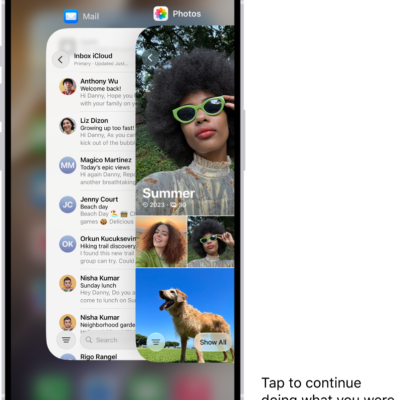
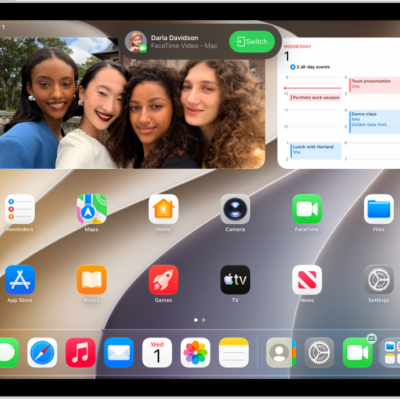
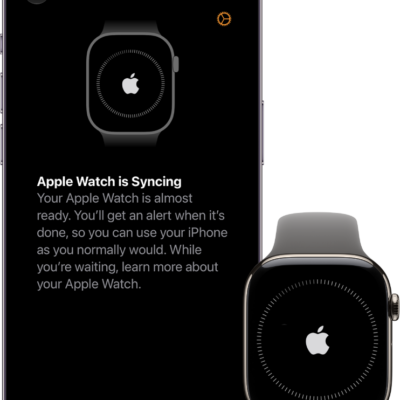
With Handoff, you can start a task on one device and complete it on another. For example, you can start an email on your iPhone but then finish it on your Mac computer’s bigger screen.
You can use Handoff with many Apple apps, for example, Safari, Mail, FaceTime, and Maps, and some third-party apps also work with Handoff. It works between your iPhone, iPad, and Mac, and you can also hand off tasks between your Apple Watch and iPhone.
Here’s how to hand off tasks between your iPhone and your other devices.
Before you begin
For Handoff to work, make sure all of these are in place:
- Both devices have Wi-Fi and Bluetooth® turned on.
- You’re signed in to the same Apple Account on both devices.
- Both devices meet minimum system requirements for Handoff.
Using a VPN? Make sure its configuration doesn’t prevent local networking, which may interfere with some Continuity features.
Turn on Handoff
On both your iPhone and your other Apple device, turn on Handoff.
- On your iPhone or iPad: Go to Settings > General > AirPlay & Continuity, then turn on Handoff.
-
On your Mac: Choose Apple menu > System Settings, click General in the sidebar (you may need to scroll). Click AirDrop & Continuity, then turn “Allow Handoff between this Mac and your iCloud devices” on or off.
Note: If your Mac has macOS 12.5 or earlier, choose Apple menu > System Preferences, click General, then select “Allow Handoff between this Mac and your iCloud devices.”
- On your Apple Watch: Open the Apple Watch app on iPhone, go to My Watch > General, then turn on Enable Handoff.
Hand off a task between your iPhone and other devices
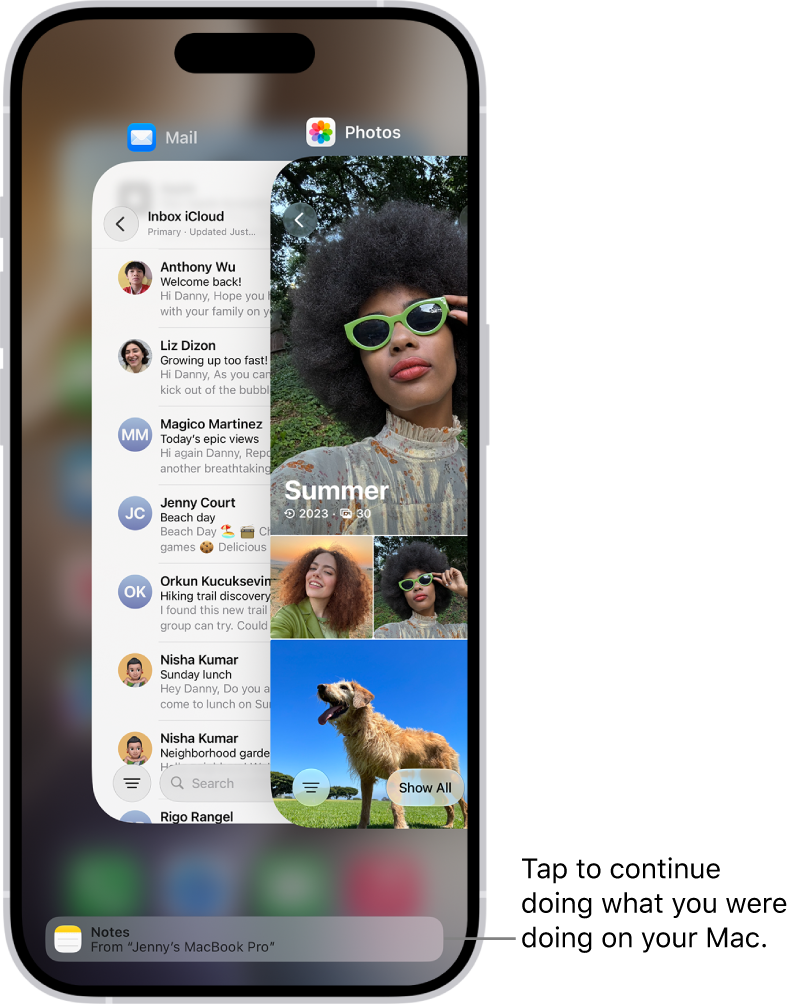
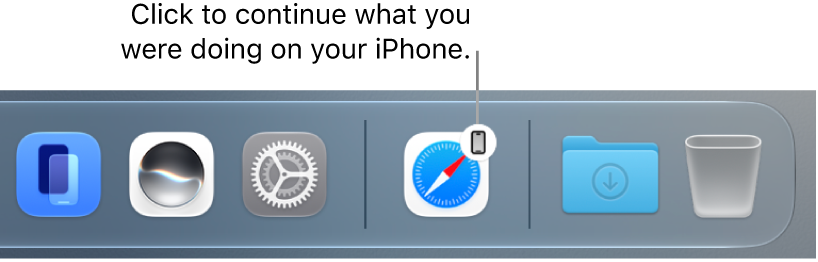
When your devices are near each other, an icon appears whenever a task can be handed off. Just tap or click the Handoff icon to continue working on your other device.
You’ll find the Handoff icon in these places on your devices:
-
On an iPhone: At the bottom of the App Switcher screen.
- On an iPad: At the right end of the Dock.
-
On a Mac: Toward the right end of the Dock, if the Dock is at the bottom of the screen. If you set up the Dock to appear on the left or right side of your screen, the Handoff icon appears at the bottom of the Dock.
Hand off a task from your Apple Watch
With an Apple Watch, you can hand off tasks to your iPhone from certain apps on your Apple Watch.
If Handoff isn’t working
- Make sure that both devices have Wi-Fi and Bluetooth turned on, and you’re signed in to the same Apple Account.
- Check that your app supports Handoff. Calendar, Contacts, FaceTime, Keynote, Mail, Maps, Pages, Numbers, Reminders, and Safari, as well as many third-party apps, allow Handoff.
Quick tip: With Handoff on, Universal Clipboard lets you copy and paste text, images, photos, and videos across devices.