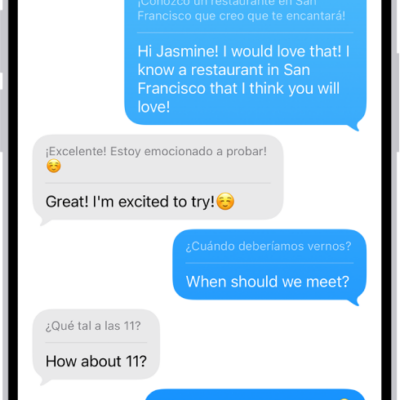
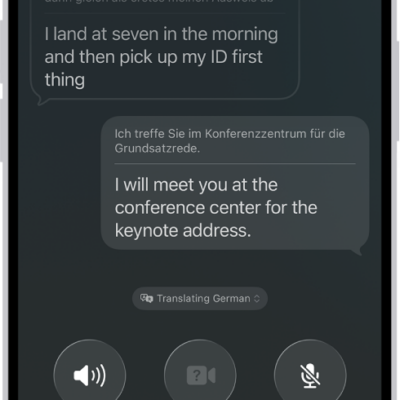
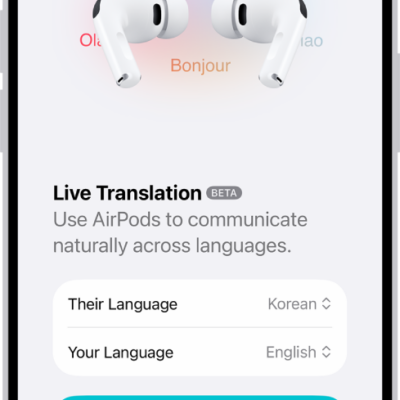
In the Translate app, you can type or speak words and phrases and translate them to another language. Download languages to translate entirely on your iPhone, even without an internet connection.
You can play the audio translation, look up the translation in the dictionary, show it in full screen, or copy it. You can also save your favorite translations, and they stay up to date across devices signed in to the same Apple Account.
Note: Translation is available for supported languages.
Translate a word or phrase
- Start the Translate app on your iPhone.
-
Tap the languages to choose what to translate from and to.
To swap languages, tap the Language Swap button.
-
Do one of the following:
- Type: Tap “Enter text,” type a phrase (or paste text) and tap Next.
- Speak: Tap the Listen button and then say a phrase.
Note: Words are translated as you type or speak.
-
When the translation is shown, do any of the following:
- Play the audio translation: Tap the Play button.
- Adjust the playback speed: Touch and hold the Play button and choose a speed.
- Show the translation in full screen: Tap the Enter Full Screen button.
- Look up the translation in the dictionary: Tap the Dictionary button.
- Copy the translation: Tap the Copy button.
- Delete the translation: Swipe left, then tap the Delete button.
Save and view your favorite translations
- Start the Translate app on your iPhone.
- To save a translation as a favorite, tap the Favorites button.
- To review your favorites, tap the Favorites List button.
Note: The Translate app keeps your favorite translations up to date on every device where you’re signed in to the same Apple Account.
Tag: Translate