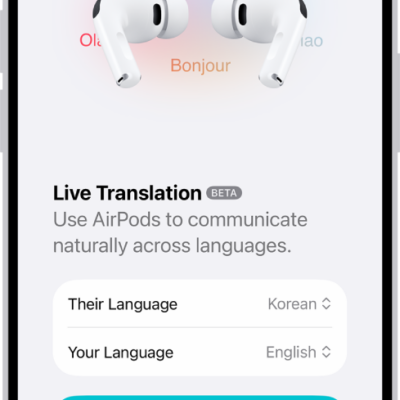
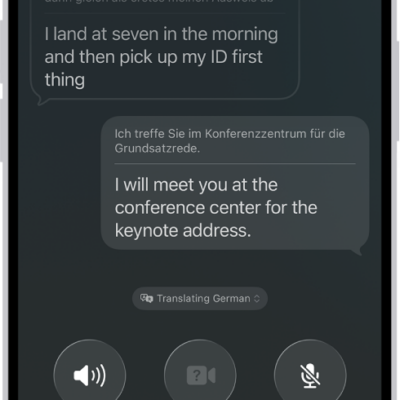
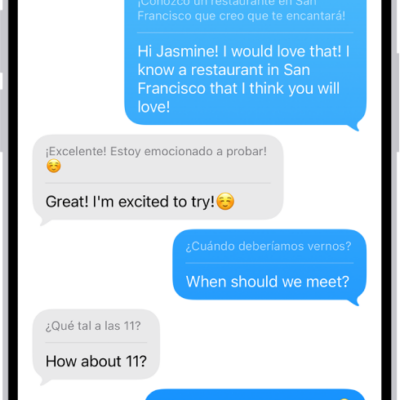
In the Translate app, you can translate text and voice into any supported language. You can also download languages to translate entirely on a device, even without an internet connection.
When you travel to a location with a language that’s different from your Apple Watch, Translate appears as a suggested widget in the Smart Stack. Your words translate as you type or speak, and you can play the audio translation and save translations as favorites, too.
Note: Translation is available for supported languages.
Translate text or your voice
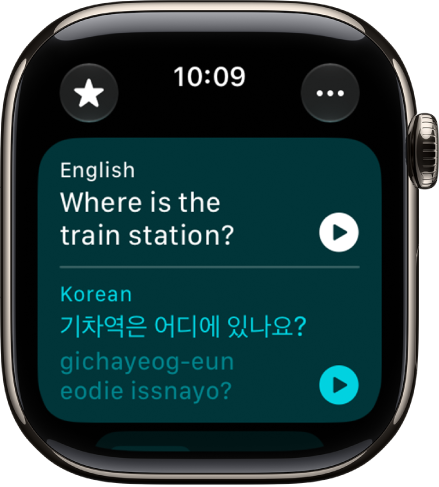
- Open the Translate app on your Apple Watch.
-
Tap the language you want to translate your selected text to.
To swap languages, tap the Swap button.
-
Tap the Microphone button, then say a phrase.
To translate with the keyboard, tap the More button, scroll down to Mode of Input, then tap Keyboard.
Note: Words are translated as you type or speak.
-
When the translation is shown, do any of the following:
-
Play the audio translation: Tap the Play button.
To automatically hear the translation, tap the More button, then tap Play Translations.
- Save the translation as a favorite: Swipe left and tap the Favorite button.
- Delete the translation: Swipe right and tap the Delete button.
-
Play the audio translation: Tap the Play button.
View your favorite translations
- Open the Translate app on your Apple Watch.
-
Tap the Favorites button and then turn the Digital Crown to view your saved translations.
To remove a translation from your favorites, swipe left, then tap the Unfavorite button.
Note: Your favorite translations show up in the Translate app on any iPhone, iPad, or Apple Watch that’s signed in to your Apple Account.
Review words with multiple meanings
If a word you’re translating has several meanings, you can choose the one you want, and for words with grammatical gender variations, you can select feminine or masculine translations.
Note: Translations automatically default to the gender-neutral form of a word when gender hasn’t been specified.
- Start the Translate app on your Apple Watch.
-
Tap the Microphone button, then say a phrase.
To translate with the keyboard, tap the More button, scroll down, tap Preferred Input, then tap Text.
Note: Words are translated as you type or speak.
-
When available, do any of the following:
- Choose a different meaning: When available, tap the light-colored word to select the intended meaning.
- Choose grammatical gender translations: When available, tap the light-colored word to select a feminine or masculine translation.
Download languages
You need to download both the input and output languages to enable offline translation.
Note: When using Apple Watch with cellular service, cellular data charges may apply.
- Start the Translate app on your Apple Watch.
- Tap the More button and tap Downloaded Languages.
- Tap a language you want to download.
Change Translate settings
- Open the Translate app on your Apple Watch.
- Tap the More button and then do any of the following:
- Automatically play translations: Tap Auto-Play Translations.
- Change the playback speed: Tap a speed.
- Change the mode of input: Tap Preferred Input and tap Voice or Text.
See also