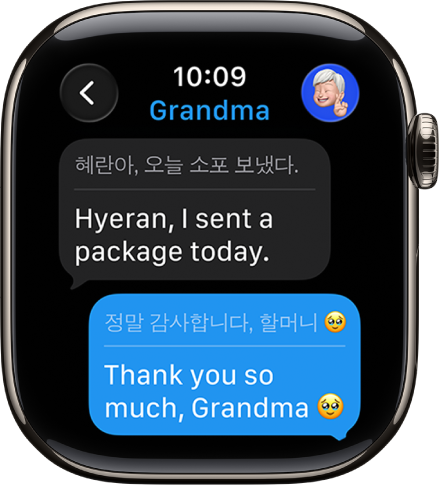
With Apple Intelligence on your paired iPhone, you can use Live Translation for text messages on Apple Watch. Live Translation is integrated into the Messages app and uses Apple-built models that run entirely on device, so your personal conversations stay private.
First, you download the input and output languages. Then translations automatically appear inline when you receive a text in another language. If Live Translation isn’t on yet, you’re prompted to turn it on.
Note: Live Translation in Messages is available in Apple Intelligence-supported languages when your Apple Watch is paired with an Apple Intelligence-enabled iPhone. Apple Intelligence is not available on all iPhone models or in all languages or regions.*
Download languages
To use Live Translation features in the Messages app, you’ll first need to download the input and output languages.
Note: When using Apple Watch with cellular service, cellular data charges may apply.
Translate messages
When you’ve turned on Apple Intelligence on your paired iPhone and you receive a text in another language, translations appear inline automatically.
- Open the Messages app on your Apple Watch.
- In a Messages conversation, tap the contact icon at the top right.
-
Turn on Auto-translate. Select the languages you want to translate.
Note: When you receive a message in a different language, you receive a prompt to turn on Live Translation.
- To view the original text, tap the language at the bottom of the conversation. Then choose to see the original text in addition to the translated text.
Choose a different language
- Open the Messages app on your Apple Watch.
- Tap a conversation. Tap the contact icon at the top right.
- Scroll down, tap Translate From or Translate To, and then choose a language.
Turn off Live Translation for the conversation
- Open the Messages app on your Apple Watch.
- Tap a conversation. Then tap the language at the bottom of the conversation.
- Tap Stop Translating.
To start translating again, tap the contact icon at the top right, scroll down, then turn on Auto-translate.
*Apple Intelligence is available with Siri and device language set to Chinese (Simplified), Chinese (Traditional), Danish, Dutch, English, French, German, Italian, Japanese, Korean, Norwegian, Portuguese, Spanish, Swedish, Turkish, or Vietnamese. Some features may not be available in all regions or languages. Some devices may not be available in all regions. Siri AI is available in beta in iOS 27, iPadOS 27, macOS 27, watchOS 27, and visionOS 27 and requires an Apple Intelligence–enabled device set to a supported language. Available in English to start. Siri AI will not be initially available in the EU on iOS, iPadOS, and watchOS. Certain Apple Intelligence features that rely on server-side models are subject to daily usage limits, including but not limited to Siri AI, Intelligent Photo Editing Tools, Image Playground, and AFM 3 Cloud models in Shortcuts. Daily limits may vary by feature, request complexity, system demand, system policies, and other factors. Expanded access to such features will be available for a fee in the future. Use of these features is subject to the Apple Intelligence Terms and Conditions.