Got a tip for us?

Continuity

People with physical and motor disabilities may find it easier to control their Apple Watch from the larger screen on their paired iPhone. With Apple Watch Mirroring, you can control Apple Watch using iPhone’s assistive features like Voice Control and Switch Control.

You can use inputs including voice commands, sound actions, head tracking, or external Made for iPhone switches as alternatives to tapping the Apple Watch display. An image that mirrors your Apple Watch display appears on your iPhone, and you use gestures on that mirrored image.

Note: Apple Watch Mirroring isn’t available on Apple Watch SE.

  1. Go to the Settings app on the paired iPhone.
  2. Go to Accessibility and tap Apple Watch Mirroring. Then turn on Apple Watch Mirroring.
  • Scroll: Swipe the display up or down.
  • Swipe between screens: Swipe the display left or right.
  • Press the Digital Crown: Tap the Digital Crown on the display.
  • Press the side button: Tap the side button on the display.
  • Press the Action button: (Apple Watch Ultra models) Tap the Action button on the left side of the display.
  • Use Siri: Touch and hold the Digital Crown on the display.

See also

Just as you can control your Apple Watch with your iPhone, you can also control nearby devices, like your iPhone or iPad, with your Apple Watch. It’s handy. Your watch shows buttons that replicate the controls on your device, like the Home button, App Switcher, and Control Center, as long as both are signed in with the same Apple Account.

  1. Start the Settings app on your Apple Watch.
  2. Go to Accessibility and tap Control Nearby Devices.

    Your iPhone or iPad must be signed in to iCloud with the same Apple Account and be on the same network.

  3. Choose a device if more than one is nearby and tap a button.

    Buttons replicate the controls on your device and include the following:

    • Home button
    • App Switcher
    • Notifications Center
    • Control Center
    • Siri
    • Options (includes media play controls and customizable hand gestures)

With VoiceOver enabled on your Apple Watch, controlling a nearby device turns VoiceOver on there too, and the VoiceOver gestures you use on your Apple Watch are performed on that device.

Similarly, when you enable Switch Control on your nearby device, Switch Control buttons, such as Move, Next, and Select, appear on your watch.

See also

Handoff lets you move from one device to another without losing focus on what you’re doing. For example, even though you can reply to email using the Mail app on Apple Watch, you might want to switch to your iPhone so you can reply using the onscreen keyboard.

Handoff is on by default, and you pick up the task from the App Switcher on your iPhone. You can turn it off, too.

Note: Handoff is available on an Apple Watch you set up for yourself, but not on an Apple Watch you set up for a family member.

Continue a task on your iPhone

  1. Unlock your iPhone.
  2. Do one of the following:
    • On an iPhone with Face ID: Swipe up from the bottom edge and pause to show the App Switcher.
    • On an iPhone with a Home button: Double-click the Home button to show the App Switcher.
  3. Tap the button that appears at the bottom of the screen to open the same item on your iPhone.

Quick tip: No button in App Switcher? Check that Handoff is on for your iPhone in Settings > General > AirPlay & Handoff.

Handoff is on by default. To disable it, go to the Apple Watch app on your iPhone, tap My Watch, tap General, then turn off Enable Handoff.

Handoff works with Activity, Alarm, Calendar, Home, Mail, and Maps, along with Messages, Music, News, Phone, Podcasts, and Reminders. Settings, Siri, Stocks, Stopwatch, Timers, Wallet, Weather, and World Clock work with it too. Handoff needs Apple Watch connected to your paired iPhone.

With OS X 10.10 or later installed on your Mac, you can also hand off from Apple Watch to your Mac.

See also

Your Apple Watch can unlock your iPhone. It needs a passcode, and it has to be unlocked, on your wrist, and close to your iPhone. To allow Apple Watch to unlock your iPhone for Siri requests or when an obstruction prevents Face ID from recognizing your face, do the following:

  1. On iPhone, open Settings and tap Face ID & Passcode. Then enter your passcode.
  2. Scroll down to Unlock With Apple Watch and turn on the setting for your watch.

    If you have more than one watch, turn on the setting for each one.

  3. To unlock your iPhone, make sure you’re wearing Apple Watch and wake your iPhone. Glance at its screen.

    Apple Watch taps your wrist to let you know that your iPhone has been unlocked.

Note: To unlock your iPhone, Apple Watch must have a passcode, be unlocked and on your wrist, and be close to your iPhone.

See also

Your Apple Watch can instantly unlock your Mac when it wakes from sleep. You need to be signed in to the same Apple Account on both your Mac and Apple Watch.

Your Mac needs to be a mid-2013 or later model with macOS 10.13 or later, with Wi-Fi and Bluetooth turned on, and your Apple Watch has to use a passcode.

Here’s how to unlock your Mac with Apple Watch.

Turn on Auto Unlock

  1. Make sure that your devices are set up as follows:

    • You have a Mac (mid-2013 or later) with macOS 10.13 or later.

      To find the model year of your Mac, click the Apple menu in the top-left corner of your computer screen, then choose About This Mac. The year your Mac was made is listed next to the model—for example, “MacBook Pro (15-inch, 2018).”

    • Your Mac has Wi-Fi and Bluetooth turned on.
    • Your Mac and Apple Watch are signed in to the same Apple Account, and your Apple Account has two-factor authentication turned on.
    • Your Apple Watch is using a passcode.
  2. On your Mac, do one of the following:

    • On macOS 13 or later: Choose Apple menu > System Settings. Click Login Password.
    • On macOS 12 or earlier: Choose Apple menu > System Preferences, click Security & Privacy, and click General.
  3. Select Use Apple Watch to unlock apps and your Mac.

    If you have more than one Apple Watch, select the watches you want to use to unlock your apps and Mac.

If you don’t have two-factor authentication turned on for your Apple Account, follow the onscreen instructions, then try selecting the checkbox again.

Unlock your Mac

While you’re wearing your watch, wake up your Mac, and there’s no need to type in your password.

Quick tip: Keep Apple Watch on your wrist and unlocked, and stay near your Mac.

See also

You can use iPhone Mirroring to control your iPhone from your nearby Mac. When iPhone Mirroring is turned on, you can also receive iPhone notifications on your Mac and keep track of Live Activities, so you don’t miss a thing.

Your iPhone needs iOS 18 or later and your Mac needs macOS 15 or later, and the two have to be signed in to the same Apple Account and within 30 feet (10 meters) of each other.

Here’s how to control your iPhone from your Mac.

Note: iPhone Mirroring isn’t compatible with some iPhone features, such as the camera and microphone. And while you’re using iPhone Mirroring, some Continuity features like Continuity Camera and AirPlay won’t be available on your Mac.

Before you begin

Before you start, check that all of these are true:

  • Both devices have Wi-Fi and Bluetooth® turned on.
  • You’re signed in to the same Apple Account on both devices.
  • Your devices are within 30 feet (10 meters) of each other.
  • Your iPhone has iOS 18 or later and your Mac has macOS 15 or later.
  • Both devices meet minimum system requirements for iPhone Mirroring.

If you’re using a VPN, check that its configuration doesn’t prevent local networking, which may interfere with some Continuity features.

You can only use iPhone Mirroring if it’s available in your country or region, and iPhone Mirroring isn’t currently available in the European Union.

In a country or region where iPhone Mirroring isn’t available, iPhone Mirroring tells you that’s the reason it’s unable to connect to your iPhone.

Set up iPhone Mirroring on your Mac

  1. Make sure your iPhone is turned on and nearby, with the screen locked.

    Note: Your iPhone must be nearby to use iPhone Mirroring.

  2. Go to the iPhone Mirroring app on your Mac.
  3. Click Connect.
  4. Enter your iPhone passcode. Then choose one of the following:

    • Ask Every Time: Receive a prompt for Touch ID, Face ID, or your device passcode each time you use iPhone Mirroring.
    • Authenticate Automatically: Automatically connect to iPhone Mirroring without needing to authenticate.

    Note: If you see an alert on your iPhone that says Trust This Computer? tap Trust. You may be asked to enter your device passcode to proceed. If you see an alert on your Mac that says “Allow accessory to connect?” click Allow.

  5. Choose whether or not to Allow Notifications from iPhone.

Choose which iPhone to use with iPhone Mirroring

Though you can set up more than one iPhone for iPhone Mirroring on your Mac, you can connect to only one iPhone at a time.

  1. Go to the iPhone Mirroring app on your Mac.
  2. Click iPhone Mirroring Settings and click Change iPhone.
  3. Under Widgets, click the iPhone pop-up menu and choose your iPhone.

You can also open the System Settings app on your Mac and click Desktop & Dock in the sidebar (you may need to scroll down). Under Widgets, choose your iPhone from the iPhone pop-up menu.

Use iPhone Mirroring on your Mac

  1. Make sure your iPhone is turned on and nearby, with the screen locked.
  2. Go to the iPhone Mirroring app on your Mac.
  3. Click Continue.
  4. Do any of the following:

    • Click to tap: Click your Mac computer’s mouse or trackpad to tap. You can also swipe and scroll in the iPhone Mirroring app, and use your keyboard to type.
    • Reposition the window: Move the pointer to the top of the window and drag the window by the title bar that appears.
    • Drag to resize the window: Hold the pointer near the edge of the iPhone Mirroring window until it becomes a double arrow and drag the window to the size you want. When you’re using a resizable app, like Weather or Photos, the amount of content that appears changes as you resize. When you’re using the Home Screen, App Switcher, or an app that isn’t resizable, the content scales larger or smaller as you resize. If you resize an app, it reopens at that size the next time you use it in iPhone Mirroring; to return it to its original size, choose View > iPhone Size.

      Note: Window resizing in iPhone Mirroring requires iOS 27 or later, and isn’t supported on iPhone 11, 12, or 13 (any model) or iPhone SE (2nd or 3rd generation). On unsupported models, the resize cursor scales the window instead of resizing it.

    • Choose a window size: Choose View in the iPhone Mirroring menu bar. Choose an option. iPhone Size returns the window to its original iPhone size. Actual Size shows the original content without any scaling applied. Zoom In shows the same content scaled larger, and Zoom Out shows the same content scaled smaller.
    • Open the App Switcher: Move your pointer to the top of the iPhone Mirroring app until the title bar appears. Then click the App Switcher button to open the App Switcher. The window returns to iPhone size.
    • Go to the Home Screen: If you’re in an app and want to return to the Home Screen, move your pointer to the top of the iPhone Mirroring app until the title bar appears and click the Home Screen button. The window returns to iPhone size.
    • Rearrange your Home Screen and perform quick actions: On the Home Screen, Control-click any app, then click Edit Home Screen. You can also Control-click an app and choose to turn some apps into widgets or to perform quick actions, like creating a new note in Notes or sending your location in Maps.

An iPhone widget you open on your Mac opens in the iPhone Mirroring app.

Get iPhone notifications on your Mac

While setting up iPhone Mirroring, you can also turn on iPhone notifications. On your Mac, iPhone notifications appear with an iPhone badge, which tells you they came from your iPhone.

Note: Your iPhone must be turned on for its notifications to appear on your Mac, but it doesn’t have to be nearby.

If you didn’t choose to turn on iPhone notifications while setting up iPhone Mirroring, you can still do it. To switch them on, or to choose the apps that send notifications to your Mac, do either of the following:

  • On your iPhone: Go to Settings > Notifications, choose any app, then turn “Show on Mac” on or off.
  • On your Mac: Choose Apple menu > System Settings, click Notifications in the sidebar (you may need to scroll down), then click “Allow notifications from iPhone.” Under Mirror iPhone Notifications From, turn the option on or off for any app.

View Live Activities from iPhone on your Mac

Setting up iPhone Mirroring also puts Live Activities from your iPhone in the menu bar on your Mac.

  1. On your Mac, click the Live Activity in the menu bar to view more information.
  2. Do any of the following:
    • Click the Live Activity again to open the relevant app in the iPhone Mirroring app on your Mac.
    • Click outside of the Live Activity to close it, but continue to see it in the menu bar.
    • Move the pointer over the Live Activity, then click the Close button to close the Live Activity and remove it from the menu bar.

Transfer files using iPhone Mirroring

You can transfer files, photos, videos, and more between your Mac and iPhone in supported apps using iPhone Mirroring. To transfer a file, simply drag and drop it from your Mac to the iPhone Mirroring app window, or vice versa.

Turn off iPhone Mirroring

  1. On your iPhone, open the Settings app.
  2. Tap General and tap AirPlay & Continuity. Then tap iPhone Mirroring.
  3. Tap AirPlay & Continuity, then tap iPhone Mirroring.
  4. Tap Edit in the top right and then select a Mac to remove.

If iPhone Mirroring isn’t working

  • Make sure that you’re signed in to the same Apple Account on both devices.
  • Make sure that your iPhone and Mac have Wi-Fi, Bluetooth, and Handoff turned on.
  • Your devices must be within 30 feet (10 meters) of one another.
  • If you have more than one iPhone set up for iPhone Mirroring, you can choose which iPhone you want to use. On your Mac, go to iPhone Mirroring Settings, click Change iPhone, then choose your iPhone.


With Handoff, you can start a task on one device and complete it on another. For example, you can start an email on your iPhone but then finish it on your Mac computer’s bigger screen.

You can use Handoff with many Apple apps, for example, Safari, Mail, FaceTime, and Maps, and some third-party apps also work with Handoff. It works between your iPhone, iPad, and Mac, and you can also hand off tasks between your Apple Watch and iPhone.

Here’s how to hand off tasks between your iPhone and your other devices.

Before you begin

For Handoff to work, make sure all of these are in place:

  • Both devices have Wi-Fi and Bluetooth® turned on.
  • You’re signed in to the same Apple Account on both devices.
  • Both devices meet minimum system requirements for Handoff.

Using a VPN? Make sure its configuration doesn’t prevent local networking, which may interfere with some Continuity features.

Turn on Handoff

On both your iPhone and your other Apple device, turn on Handoff.

  • On your iPhone or iPad: Go to Settings > General > AirPlay & Continuity, then turn on Handoff.
  • On your Mac: Choose Apple menu > System Settings, click General in the sidebar (you may need to scroll). Click AirDrop & Continuity, then turn “Allow Handoff between this Mac and your iCloud devices” on or off.

    Note: If your Mac has macOS 12.5 or earlier, choose Apple menu > System Preferences, click General, then select “Allow Handoff between this Mac and your iCloud devices.”

  • On your Apple Watch: Open the Apple Watch app on iPhone, go to My Watch > General, then turn on Enable Handoff.

Hand off a task between your iPhone and other devices

When your devices are near each other, an icon appears whenever a task can be handed off. Just tap or click the Handoff icon to continue working on your other device.

You’ll find the Handoff icon in these places on your devices:

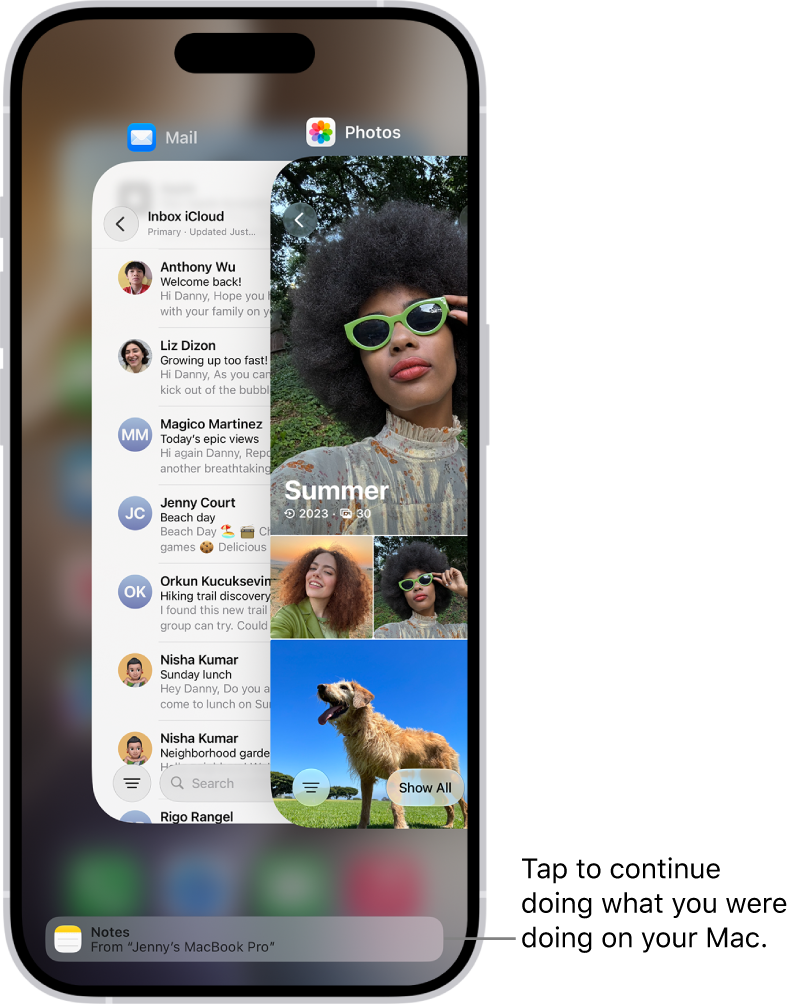
  • On an iPhone: At the bottom of the App Switcher screen.

    The App Switcher on iPhone showing a handoff notification at the bottom of the screen.

  • On an iPad: At the right end of the Dock.
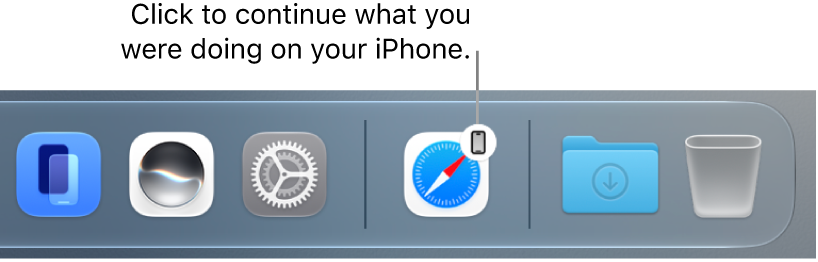
  • On a Mac: Toward the right end of the Dock, if the Dock is at the bottom of the screen. If you set up the Dock to appear on the left or right side of your screen, the Handoff icon appears at the bottom of the Dock.

    The Handoff icon visible in the Dock on a Mac.

Hand off a task from your Apple Watch

With an Apple Watch, you can hand off tasks to your iPhone from certain apps on your Apple Watch.

If Handoff isn’t working

  • Make sure that both devices have Wi-Fi and Bluetooth turned on, and you’re signed in to the same Apple Account.
  • Check that your app supports Handoff. Calendar, Contacts, FaceTime, Keynote, Mail, Maps, Pages, Numbers, Reminders, and Safari, as well as many third-party apps, allow Handoff.

Quick tip: With Handoff on, Universal Clipboard lets you copy and paste text, images, photos, and videos across devices.

You can use a feature called Universal Clipboard to copy content from one of your Apple devices and paste it on another. For example, you can copy text on your iPad and paste it into a note on your iPhone, or copy an image from a Safari webpage on your iPhone and paste it into an email message on your Mac.

It works with your iPhone, iPad, and Mac, as long as both devices have Wi-Fi, Bluetooth®, and Handoff turned on and you’re signed in to the same Apple Account on both.

Before you begin

For this to work, both devices need to meet these conditions:

  • Both devices have Wi-Fi, Bluetooth®, and Handoff turned on.
  • You’re signed in to the same Apple Account on both devices.
  • Both devices meet minimum system requirements for Universal Clipboard.

A VPN configuration that prevents local networking may interfere with some Continuity features, so if you’re using a VPN, make sure its configuration doesn’t.

Copy and paste between your iPhone and other devices

There’s nothing to see with Universal Clipboard: It behaves just like copy and paste on your iPhone, except that you can paste to one of your other Apple devices, such as a Mac or an iPad.

  1. Select the text or image on your iPhone and then tap Copy.
  2. On your other device, either tap (on another iPhone or an iPad) or click (on a Mac) where you want to paste the text or image. Tap or click Paste. You can also use keyboard shortcuts.

Note: Content you copy is only available on your Clipboard for a short amount of time.

How to copy and paste on an iPhone or iPad

  • Select and copy text: Double-tap with one finger to select a word or triple-tap with one finger to select a paragraph. (You can also move the grab points to adjust your selection.) Then tap Copy.
  • Select and copy an image: Touch and hold to select an image, then tap Copy.
  • Paste text or an image: Tap where you want to paste the text or image, then tap Paste.

How to copy and paste on a Mac

  • Select text or an image: With your pointer, select the text or image you want to copy.
  • Copy text or an image: Press Command-C or choose Edit > Copy from the menu bar.
  • Paste text or an image: Move your pointer where you want to paste the text or image and click, then press Command-V or choose Edit > Paste from the menu bar.

If Universal Clipboard isn’t working

  • Make sure that you’re signed in to the same Apple Account on both devices.
  • Make sure that your iPhone and Mac have Wi-Fi, Bluetooth, and Handoff turned on.
  • Your devices must be within 30 feet (10 meters) of one another.
  • If you’re having difficulty getting Universal Clipboard to work, restart your devices and try again.

For sharing small selections of text or copied images between devices, Universal Clipboard works best.

With iPhone Handoff, you can use the same phone number on two iPhone devices and switch between them whenever you like. Your calls, voicemail, messages, Find My location, and other data synced with iCloud follow whichever iPhone you’re using.

There’s a catch, though: only one iPhone is active on the network at a time. When you unlock an iPhone, it becomes the active device, and the other one becomes inactive automatically. Both iPhone devices must be signed in to the same Apple Account, and iPhone Handoff works with participating carriers in supported countries and regions.

Note: The two iPhone devices must be signed in to the same Apple Account. iPhone Handoff is available with participating carriers in supported countries and regions; contact your carrier to confirm availability. Some features may not be available when using iPhone Handoff.

Before you can use iPhone Handoff, you need to set up iPhone Handoff on the second iPhone you plan to use. That adds the eSIM for your phone number to that iPhone.

  1. Open the Settings app on your iPhone.
  2. Tap Cellular and tap Set Up Cellular or Add eSIM.
  3. Select Use Number on This iPhone and Another and tap Continue. Then follow the onscreen instructions.

After setup, unlocking either iPhone makes it the active device for calls, voicemail, and messages.

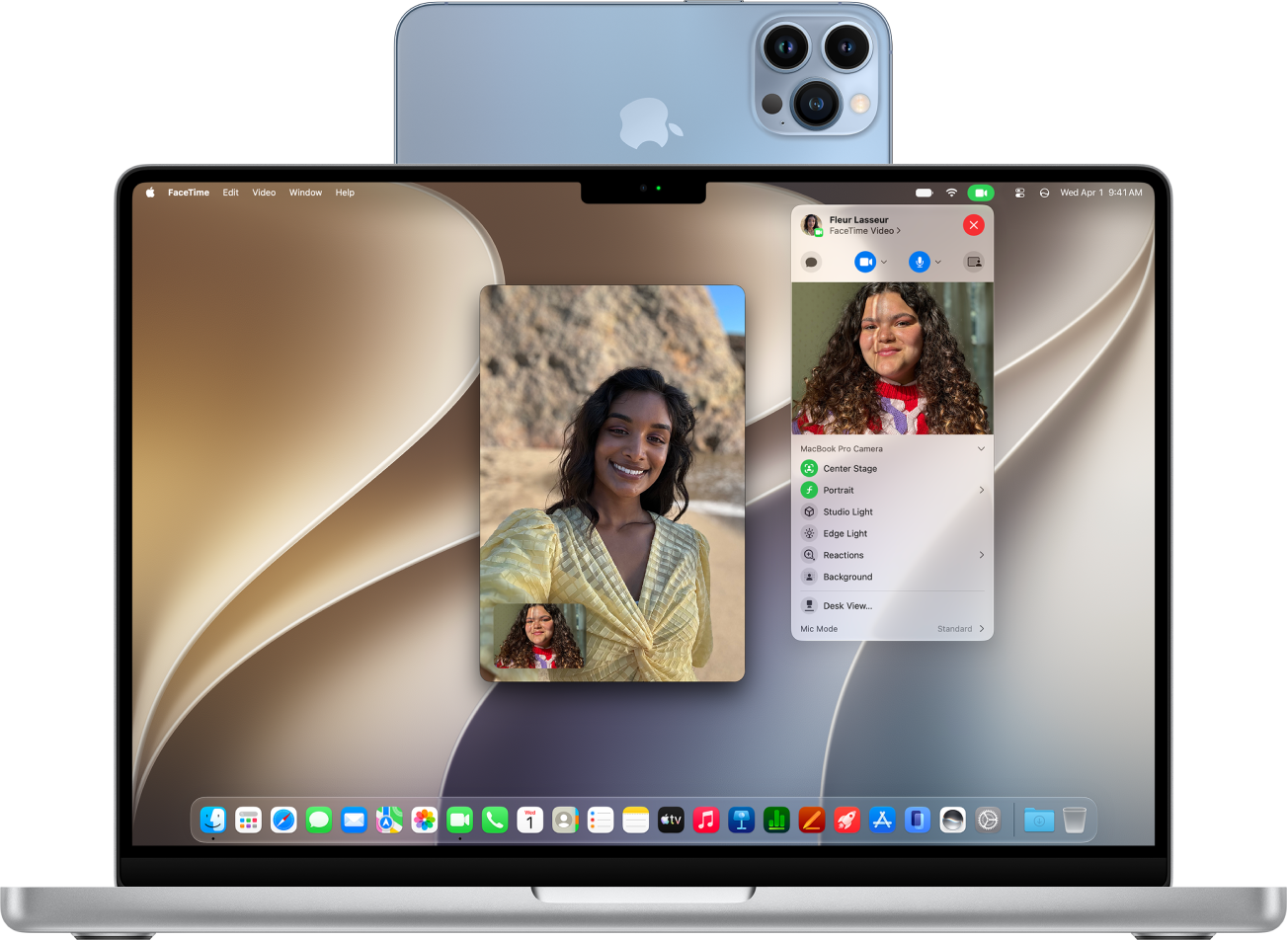
With Continuity Camera, you can use your iPhone as your Mac webcam or microphone, and take advantage of the powerful iPhone camera and additional video effects. You can connect wirelessly, or with a USB cable for a wired connection.

It works best with your iPhone mounted in landscape orientation near your Mac, with the rear camera facing you. You can also use your iPhone as a webcam when making a FaceTime call on Apple TV 4K. And once it’s set up as a webcam, you can use Desk View and other video effects.

A MacBook Pro using an iPhone as a webcam and showing a FaceTime conversation.

Before you begin

Before you start, make sure your iPhone and Mac meet the following:

  • Both devices have Wi-Fi and Bluetooth® turned on.
  • You’re signed in to the same Apple Account on both devices.
  • The devices are within 30 feet (10 meters) of each other.
  • Both devices meet minimum system requirements for Continuity Camera.

If you have a VPN running, check its configuration. Settings that prevent local networking may interfere with some Continuity features.

Set up your iPhone for Continuity Camera

  1. Mount your iPhone using an iPhone-compatible mount or stand in landscape orientation. It must be near your Mac (within 30 feet) in a stable position, with its rear camera facing you.
  2. To turn on Continuity Camera, open the Settings app on your iPhone.
  3. Tap General and then tap AirPlay & Continuity.
  4. Turn on Continuity Camera.

Continuity Camera works wirelessly, but you can also connect your iPhone to your Mac with a USB cable. The cable that came with your iPhone works, or you can use another cable that matches the ports on your iPhone and Mac.

Note: If you connect your iPhone and Mac with a cable and see an alert on your iPhone that says Trust This Computer? tap Trust. You may be asked to enter your device passcode to proceed. If you see an alert on your Mac that says “Allow accessory to connect?” click Allow.

Use your iPhone as a webcam for Mac

  1. On your Mac, open any app that has access to the camera or microphone, like FaceTime or Photo Booth. You can also use this feature with many third-party apps that access the camera or microphone.
  2. In the app’s menu bar or settings, choose your iPhone as a camera.

    Note: The location of these settings can vary depending on the app. For instance, in FaceTime, click the Video button in the menu bar, then choose your iPhone. Or in Magnifier, click Camera in the menu bar, then choose your iPhone.

    Your iPhone begins streaming audio or video from the rear camera to your Mac.

  3. To control video or audio, do any of the following:

    • Pause the video or audio: On your iPhone, tap Pause. You can also unlock your iPhone to pause video or audio by swiping up.
    • Resume the video or audio: On your iPhone, tap Resume. You can also resume by locking your iPhone.
    • Stop using your iPhone as a webcam or microphone: On your Mac, quit the app.

Note: For best results, charge your iPhone with a USB cable while Continuity Camera is turned on.

You can move your iPhone and change its orientation while streaming video or audio. For the best results, though, keep your iPhone mounted and in landscape orientation.

Video effects like Center Stage, Edge Light, and Portrait mode are available when you’re using your iPhone as a webcam.

Turn on Desk View

Desk View and other video effects are available in an app that supports video, once you’ve set up your iPhone as a webcam.

  1. On your Mac, do either of the following:

    • FaceTime: Start your video call, click the More button in the bottom of the video window, and then choose Desk View.
    • Other apps that support video: Click the Video button in the menu bar. Then click the Desk View button.
  2. Click Share Desk View.

    Desk View opens, which mimics an overhead camera and shows a top-down view of your desk.

  3. Use the Desk View setup window on your Mac to align your desk with the camera. To zoom in or out, drag the onscreen control at the bottom of the window. When you’re ready to share your desk view on the video call, click Share Desk View.

    Note: To share what’s on your desk in a third-party app, use the app’s screen sharing feature to select the Desk View window for sharing. To find out how, see the developer’s instructions or explore the app’s menus and settings.

  4. To turn off Desk View, click the Close button to close the window.

Use your iPhone as a microphone for your Mac

On a Mac without a built-in or external microphone, you can use your iPhone as a microphone.

  1. On your Mac, open the System Settings app.
  2. Click Sound in the sidebar. (You may need to scroll down.)
  3. Click Input and select your iPhone in the list of sound input devices.

Note: Using your iPhone as a microphone on a Mac only works when the iPhone is in landscape orientation and stationary, with its screen turned off.

Remove your iPhone as a webcam or microphone option for your Mac

On your iPhone, tap Disconnect, then confirm that you want to disconnect.

Your iPhone is removed from the camera and microphone lists in apps, and also from the list of sound input devices in Sound settings.

To reconnect your iPhone as a webcam or microphone, connect it to your Mac with a USB cable, then follow the steps to use your iPhone as a webcam or use your iPhone as a microphone, above.

If Continuity Camera isn’t working

  • Make sure that your iPhone and Mac have Wi-Fi and Bluetooth turned on.
  • Your devices must be within 30 feet (10 meters) of one another and, for best results, your iPhone should be mounted and in landscape orientation.
  • Connect your iPhone to your Mac with a USB cable and check again. (If it’s already connected with a cable, disconnect and reconnect it.) If your iPhone asks you to trust the computer or your Mac asks you to allow the accessory, be sure to give permission.
  • Make sure that you aren’t using another Continuity feature, such as iPhone Mirroring.
  • Check that your devices meet minimum system requirements for Continuity Camera.