Got a tip for us?

AirPods

With AirPods 3, AirPods 4, AirPods 5, or AirPods Pro, you can make and answer calls, mute or unmute yourself, and decline an incoming call. You can answer a second call, too. If you’ve got AirPods 4, AirPods 5, AirPods Pro 2, or AirPods Pro 3, Voice Isolation can enhance voice quality and remove background noise for the listener.

Make and answer calls

  1. Wear your AirPods, and make sure they’re connected to your iPhone, iPad, or Apple Watch (with cellular or Wi-Fi).
  2. Do one of the following:

    • Make a call: Say “Hey Siri,” or press and hold the force sensor or force sensor with volume swipe and then say something like, “Call Eliza’s mobile.” On an iPad without cellular, say something like, “Make a FaceTime call.”

      You can also make a call on your device, such as in the FaceTime app or Phone app.

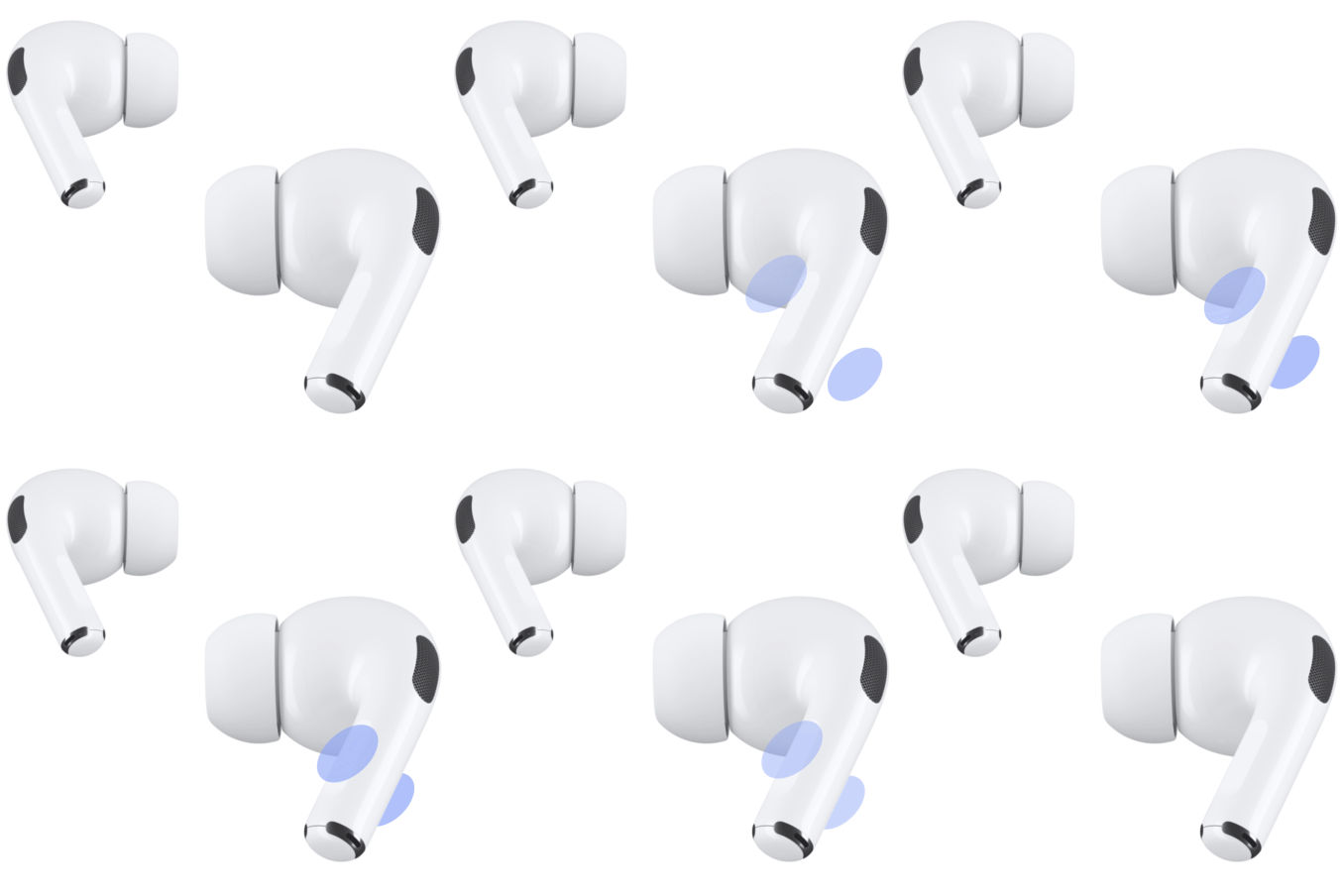
    • Answer a call: Press the stem once on either of your AirPods.

      If you have AirPods 4, AirPods 5, AirPods Pro 2, or AirPods Pro 3, you can nod your head up and down to answer a call, or shake your head side to side to decline a call. See Use controls and gestures with your AirPods.
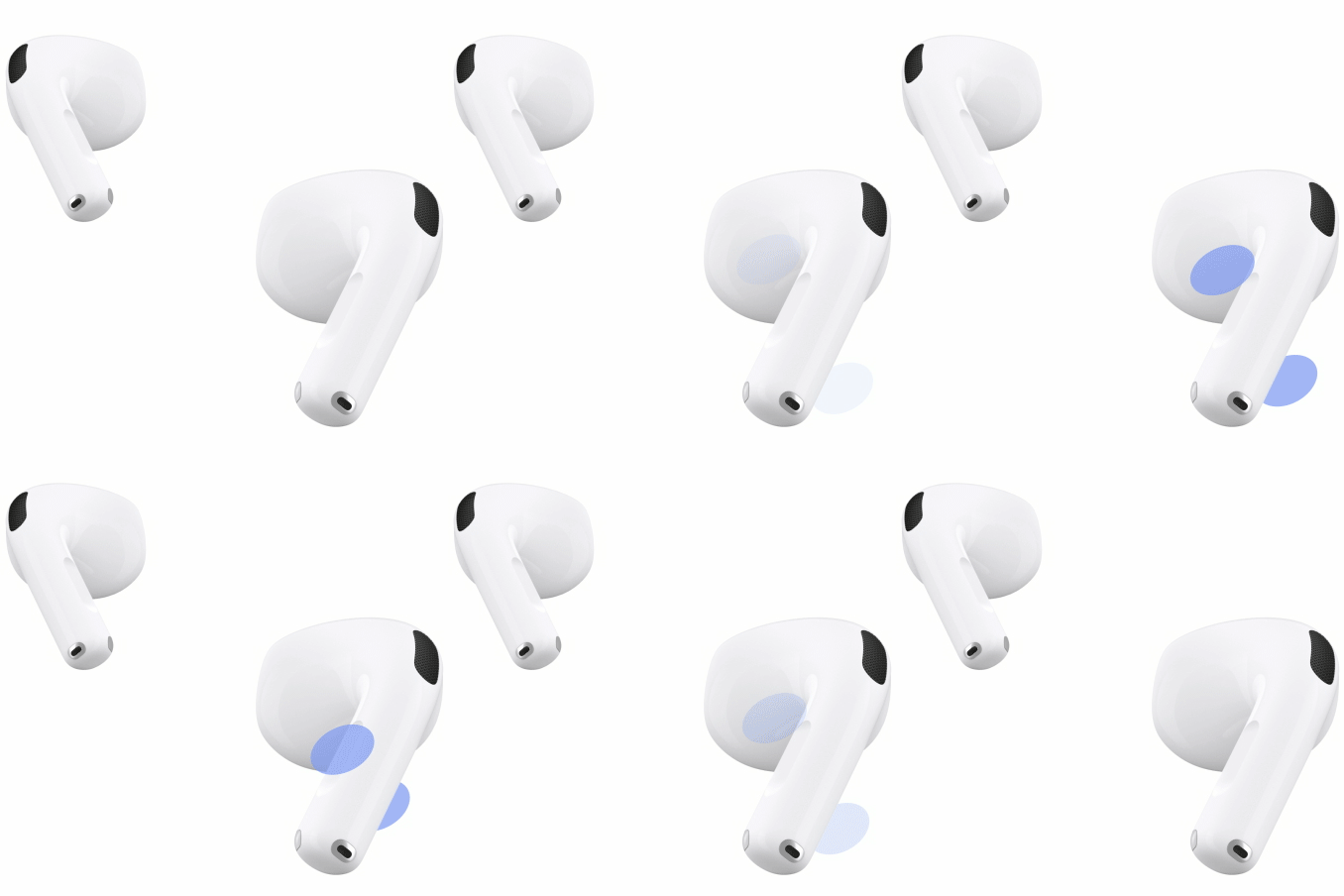
      AirPods 4 are shown. One of the AirPods is being pinched on the stem.
      AirPods 4

      AirPods Pro are shown. One of the AirPods is being pinched on the stem.

      AirPods Pro

    • End a call: Double-press the stem on either of your AirPods.

You can also answer or decline a call using your voice once you turn on Announce Calls.

Mute or unmute during a call

During a call, press the stem once on either of your AirPods.

In some apps, like FaceTime, you’ll hear a sound and see a message telling you if the microphone’s on or off.

Decline an incoming call

You can decline an incoming phone call and send it straight to voicemail when your AirPods are connected to an iPhone.

When you receive an incoming call, double-press the stem on either of your AirPods.

Shaking your head side to side declines a call on AirPods 4, AirPods 5, AirPods Pro 2, or AirPods Pro 3. For more head gestures, check out our article, Use controls and gestures with your AirPods.

Answer a second call

  1. When a second call comes in, press the stem to put the first call on hold and answer the new one.
  2. Do any of the following:
    • To switch between calls, press the stem.
    • To end the current call and switch to the one on hold, double-press the stem.

Filter out background sounds during calls with AirPods 4, AirPods 5, AirPods Pro 2, or AirPods Pro 3

During calls on your iPhone, iPad, or Mac, Voice Isolation on AirPods 4, AirPods 5, AirPods Pro 3, or AirPods Pro 2 enhances voice quality for the listener and removes background noise, such as wind.

While you’re on a call, you can do one of the following:

  • iPhone or iPad: Swipe down from the top-right corner of your screen to open Control Center. Tap FaceTime Controls at the top of the screen, then select Voice Isolation.
  • Mac: Click the Video icon or the Microphone icon in the menu bar (depending on the type of call), click Mic Mode, then select Voice Isolation.

You can switch the controls to end a call and mute or unmute. See Change how you end a call or mute yourself with AirPods 3, AirPods 4, or AirPods Pro or Change how you end a call and mute yourself with AirPods Max.

This guide is for iOS 27, iPadOS 27, macOS 27, tvOS 27, watchOS 27, or later.

See also
With supported AirPods, you can use Mono Audio, rather than stereo sound, to play the same content in both ears. It works when you use your AirPods with iPhone, iPad, Mac, or Apple Watch, and on a Mac, it’s called “Play stereo audio as mono.” You can’t use Spatial Audio and head tracking with Mono Audio, though.

  • iPhone or iPad: Go to the Settings app, then tap Accessibility. Tap Audio & Visual, then turn on Mono Audio.
  • Apple Watch: Go to the Settings app, tap Accessibility, then turn on Mono Audio below Hearing.
  • Mac: Go to the System Settings app, then click Accessibility in the sidebar. Click Audio, then turn on “Play stereo audio as mono.”

Note: Spatial Audio and head tracking aren’t available when you use Mono Audio.

See also

With AirPods Max, you can make and answer calls, mute or unmute during a call, decline an incoming call, and answer a second call, all with the Digital Crown. It also changes the volume while you’re on a call. If you have AirPods Max 2, you can nod your head to answer a call.

Make and answer calls with AirPods Max

  1. Wear your AirPods Max, and make sure they’re connected to your device.
  2. Do one of the following:

    • Make a call: On an iPhone or iPad (Wi-Fi + Cellular model), say “Hey Siri” and then say something like “Call Eliza’s mobile.” On an iPad without cellular, say something like “Make a FaceTime call,” or press and hold the Digital Crown, wait for a chime and then make your request.

      You can also make a call on your device, such as in the FaceTime app or Phone app.

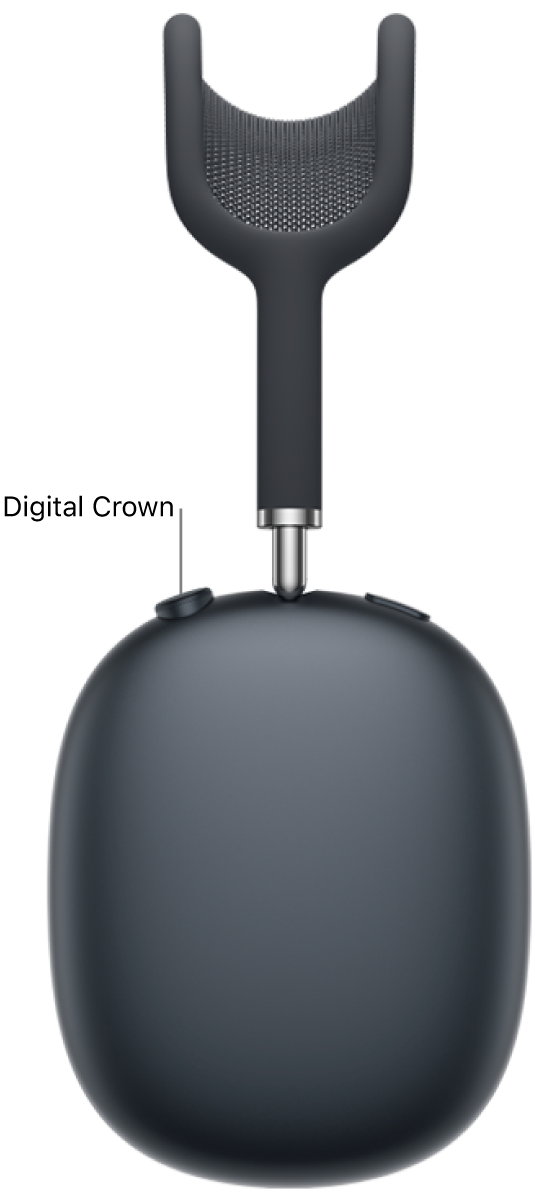
    • Answer a call: Press the Digital Crown.
    • End a call: Double-click the Digital Crown.

    If you turn on Announce Calls, you can also answer or decline a call using your voice. If you have AirPods Max 2, you can nod your head up and down to answer a call, or shake your head side to side to decline a call. See Use controls and gestures with your AirPods.

The location of the Digital Crown on the right headphone of AirPods Max 2.

Note: Turning the Digital Crown changes the volume while you’re on a call.

Mute or unmute during a call

During a call, press the Digital Crown.

In certain apps, like FaceTime, a sound and a message let you know if the microphone’s on or off.

Decline an incoming call

If your AirPods Max are connected to an iPhone, you’re able to decline an incoming phone call and send it directly to voicemail.

When you receive an incoming call, double-click the Digital Crown.

On AirPods Max 2, you can decline a call by shaking your head side to side. For more gestures, see our article, Use controls and gestures with your AirPods.

Answer a second call with AirPods Max

  1. When a second call comes in, press the Digital Crown to put the first call on hold and answer the new one.
  2. Do any of the following:
    • Switch between calls: Press the Digital Crown.
    • End the current call and switch to the one on hold: Double-click the Digital Crown.

If you’d like to switch the controls to end a call and mute or unmute, read our guide, Change how you end a call and mute yourself with AirPods Max.

This guide is for iOS 27, iPadOS 27, macOS 27, tvOS 27, watchOS 27, or later.

See also

With AirPods 1 or AirPods 2, you can make a call, answer or end a call, and even answer a second phone call while you put the first call on hold. With AirPods 2, if you set up Siri, you can answer or decline a call using your voice, too.

Make and answer calls with AirPods 1

  1. Wear your AirPods, and make sure they’re connected to your device.
  2. Do one of the following:

    • Make a call: Double-tap either of your AirPods to activate Siri and wait for a chime. Then make your request.

      You can also make a call on your device, such as in the FaceTime app or Phone app.

    • Answer or end a call: Double-tap either of your AirPods.

      If you want to decline a call, use the controls on your device, or wait until the call goes to voicemail.

    • Answer a second phone call: To put the first call on hold and answer the new one, double-tap either of your AirPods. To switch between calls, double-tap either of your AirPods.

      AirPods are shown. One of the AirPods is tapped twice.

Make and answer calls with AirPods 2

  1. Wear your AirPods, and make sure they’re connected to your device.
  2. Do one of the following:

    • Make a call: On an iPhone or iPad (Wi-Fi + Cellular model), say “Hey Siri” and then say something like “Call Eliza’s mobile.” On an iPad without cellular, say something like “Make a FaceTime call.”

      You can set either of your AirPods to activate Siri with a double tap. See Change settings for AirPods or AirPods Pro.

      You can also make a call on your device, such as in the FaceTime app or Phone app.

    • Answer or end a call: Double-tap either of your AirPods.

      If you want to decline a call, use the controls on your iPhone (or other device), or wait until it goes to voicemail. If you set up Siri, you can also answer or decline a call using your voice.

    • Answer a second phone call: To put the first call on hold and answer the new one, double-tap either of your AirPods. To switch between calls, double-tap either of your AirPods.

This guide is for iOS 27, iPadOS 27, macOS 27, tvOS 27, watchOS 27, or later.

See also
Your AirPods play sound effects at certain moments, such as when you put them in your ears or receive low battery alerts. On AirPods 5 with Wireless Charging Case, AirPods Pro 2, or AirPods Pro 3, the force sensor with volume swipe plays one, too.

You can adjust how loud they are from any of your devices.

  1. Wear your AirPods, and make sure they’re connected to your device.
  2. Do one of the following:
    • iPhone or iPad: Go to the Settings app, then tap Accessibility. Tap AirPods.
    • Mac: Go to the System Settings app and click Accessibility in the sidebar. Click Audio.
    • Apple Watch: Go to the Settings app and tap Accessibility. Tap AirPods and select your AirPods.
    • Apple TV 4K or Apple TV HD: Go to the Settings app, then select Accessibility. Select AirPods, then select your AirPods.
  3. Adjust Tone Volume.

Your AirPods also have accessibility settings you can change to suit your hearing needs. For details, see our guide, Set headphone accommodations.

See also

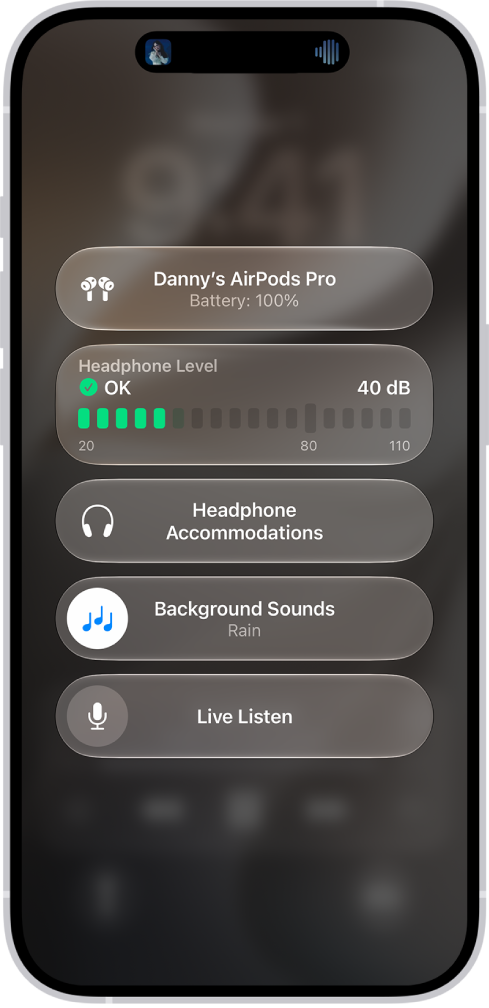
When you use supported AirPods with iPhone, iPad, or Mac, you can play calming background sounds, such as ocean or rain, to mask unwanted environmental noise. They’re there to help minimize distractions, so you can focus or rest.

You choose the sound and the volume. You can even stop the sounds with a timer.

The Hearing Devices screen in Control Center. From top to bottom, it includes the Headphone Level in decibels, Hearing Assistance, Background Sounds, and Live Listen.

  1. Wear your AirPods, and make sure they’re connected to your device.
  2. Do one of the following:
    • iPhone or iPad: Go to the Settings app, then tap Accessibility. Tap Audio & Visual and tap Background Sounds. Turn on Background Sounds.
    • Mac: Go to the System Settings app, then click Accessibility in the sidebar. Click Audio, then turn on Background Sounds.
  3. Set any of the following:
    • Sound: Choose a sound; the audio file is downloaded to your device.
    • Volume: Drag the slider.
    • Use When Media Is Playing: Adjust the volume of the background sound when your device is playing music or other media.
    • Equalizer: Turn this setting on or off. Choose your options.
    • Stop Sounds with a Timer: Turn this setting on or off. Choose your options.
    • Turn off background sounds when your Mac is not in use (Mac only): Turn this setting on or off.

Quick tip: Hearing in Control Center is a fast way to turn background sounds on or off and adjust the volume from your iPhone or iPad. To add it, open Control Center, touch and hold the screen, and tap Add a Control at the bottom. Then tap Hearing.

This guide is for iOS 27, iPadOS 27, macOS 27, tvOS 27, watchOS 27, or later.

See also
With AirPods Pro in Transparency mode, you can listen to audio and still hear the world around you. You can customize Transparency mode by adjusting amplification, balance, and tone, or reduce the amount of ambient noise you hear.

There are other headphone accommodation features, too. Own Voice Amplification adjusts the amplification of your own speech, and Conversation Boost helps you focus on the person talking in front of you. You can also turn off Loud Sound Reduction for Transparency mode and Adaptive Audio.

Customize Transparency mode

While you listen to audio on AirPods Pro, Transparency mode keeps the world around you audible, and you can customize Transparency mode by adjusting amplification, balance, and tone.

  1. Wear your AirPods, and make sure they’re connected to your device.
  2. Do one of the following:
    • iPhone or iPad: Go to the Settings app, then tap Accessibility. Tap Audio & Visual, tap Headphone Accommodations, and make sure Headphone Accommodations is turned on. Turn on Transparency and tap Customize Transparency. Then drag the Amplification, Transparency Balance, and Tone sliders.
    • Mac: Go to the System Settings app. Click Accessibility in the sidebar. Click Audio, and make sure Headphone Accommodations is turned on. (You may need to scroll down.) Turn on Transparency Mode. Drag the Amplification, Balance, and Tone sliders.

Reduce the amount of ambient noise you hear in Transparency mode

You can cut down the ambient noise you hear in Transparency mode, as long as your AirPods Pro are connected to your device.

  1. Wear your AirPods, and make sure they’re connected to your device.
  2. Do one of the following:
    • iPhone or iPad: Go to the Settings app and then tap Accessibility. Tap Audio & Visual, tap Headphone Accommodations, and make sure Headphone Accommodations is turned on. Turn on Transparency, tap Customize Transparency, and drag the Ambient Noise Reduction slider.
    • Mac: Go to the System Settings app and click Accessibility in the sidebar. Click Audio and make sure Headphone Accommodations is turned on. Turn on Transparency Mode and drag the Ambient Noise Reduction slider.

Adjust Own Voice Amplification

Once your AirPods Pro are connected to your device, Own Voice Amplification can adjust the amplification of your own speech.

  1. Wear your AirPods, and make sure they’re connected to your device.
  2. Do one of the following:
    • iPhone or iPad: Go to the Settings app and tap Accessibility. Tap Audio & Visual, tap Headphone Accommodations, and make sure Headphone Accommodations is turned on. Turn on Transparency, tap Customize Transparency, and then drag the Own Voice Amplification slider.
    • Mac: Go to the System Settings app. Click Accessibility in the sidebar. Click Audio and make sure Headphone Accommodations is turned on. Turn on Transparency Mode. Drag the Own Voice Amplification slider.

Use Conversation Boost

In a face-to-face conversation, Conversation Boost makes it easier to hear by focusing on the person talking in front of you. It’s available when your AirPods Pro are connected to your device.

  1. Wear your AirPods, and make sure they’re connected to your device.
  2. Do one of the following:
    • iPhone or iPad: Go to the Settings app and tap Accessibility. Tap Audio & Visual, tap Headphone Accommodations, and make sure Headphone Accommodations is turned on. Turn on Transparency, tap Customize Transparency, and then turn on Conversation Boost.
    • Mac: Go to the System Settings app and click Accessibility in the sidebar. Click Audio and make sure Headphone Accommodations is turned on. Turn on Transparency Mode and turn on Conversation Boost.

Turn off Loud Sound Reduction for Transparency mode and Adaptive Audio

You can choose to turn off Loud Sound Reduction on your AirPods Pro 2, AirPods Pro 3, or AirPods Max 2. Loud Sound Reduction reduces exposure to loud environmental noise when you use Transparency mode and Adaptive Audio. The Hearing Protection feature for AirPods Pro 2 or AirPods Pro 3 is off when Loud Sound Reduction is turned off for Transparency mode and Adaptive Audio. For more information on Hearing Protection, see Use hearing health features with AirPods Pro 2 or AirPods Pro 3.

  1. Wear your AirPods, and make sure they’re connected to your device.
  2. Do one of the following:
    • iPhone or iPad: Go to the Settings app, then tap Accessibility. Tap AirPods, then tap Turn Off Loud Sound Reduction.
    • Mac: Go to the System Settings app and then click Accessibility in the sidebar. Click Audio and then click Turn Off next to Loud Sound Reduction.

During a conversation, Conversation Awareness can automatically lower the volume of your media and enhance voices in front of you on AirPods Max 2, AirPods Pro 2, AirPods Pro 3, AirPods 4 with Active Noise Cancellation (ANC), or AirPods 5. To turn it on, check out our article, Use Personalized Volume or Conversation Awareness.

This guide is for iOS 27, iPadOS 27, macOS 27, tvOS 27, watchOS 27, or later.

See also
On AirPods 4 with Active Noise Cancellation (ANC), AirPods 5, AirPods Pro, and AirPods Max, you can block out external sounds with noise cancellation. On most of those models, you can also adjust your settings to allow noise cancellation in one ear.

There’s more you can change, too. You can turn on Personalized Volume with AirPods 4, and newer models, like AirPods Pro 3 and AirPods Max 2, add Conversation Awareness. And with Adaptive Audio, which cancels or allows noise around you, you can customize how much noise comes through.

  • Personalized Volume helps adjust the media volume for you by taking into account your environmental conditions and your system volume preferences over time.
  • Conversation Awareness makes it easier to interact with people nearby. When you start speaking, Conversation Awareness automatically lowers the volume of your media and enhances voices in front of you, while reducing background noise.

Allow noise cancellation in one ear

On AirPods 4 (ANC), AirPods 5, and AirPods Pro, you can allow noise cancellation in one ear.

  1. Wear your AirPods, and make sure they’re connected to your device.
  2. Do one of the following:
    • iPhone or iPad: Go to the Settings app and then tap Accessibility. Below Accessories, tap AirPods and then turn on Noise Cancellation with One AirPod.
    • Mac: Go to the System Settings app and click Accessibility in the sidebar. Then click Audio (you may need to scroll down). Turn on Noise Cancellation with One AirPod.
    • Apple TV 4K or Apple TV HD: Go to the Settings app and select Accessibility. Select AirPods and turn on Noise Cancellation with One AirPod.

Use Personalized Volume or Conversation Awareness

Note: You’ll need AirPods Pro 2, AirPods Pro 3, AirPods Max 2, AirPods 4 (ANC), or AirPods 5 to use Conversation Awareness.

  1. Wear your AirPods, and make sure they’re connected to your device.
  2. Do one of the following:
    • iPhone or iPad: Go to the Settings app, tap the name of your AirPods near the top of the screen, and turn on Personalized Volume or Conversation Awareness (if you don’t see that option, first tap Audio & Routing).
    • Mac: Go to the System Settings app, click the name of your AirPods in the sidebar (you may need to scroll down), and then turn on Personalized Volume or Conversation Awareness (if you don’t see that option, first click Audio & Routing).

Note: In some countries or regions, you may also have an option to turn Loud Sound Reduction on or off. Loud Sound Reduction automatically reduces harsh noise around you for more comfortable listening (available with AirPods Pro 2, AirPods Pro 3, and AirPods Max 2 on iPhone or iPad).

When Conversation Awareness is turned on, media volume lowers when you start speaking; if you’re listening to spoken media, like a podcast, the media pauses after a few seconds. The media remains at a low volume (or paused) as long as your conversation continues and returns to its previous level after your conversation ends. To manually end the conversation (for example, if people are talking around you, but you aren’t part of the conversation), press and hold the stem.

You can also turn Conversation Awareness on or off in Control Center on iPhone or iPad. Touch and hold the volume control, then tap Conversation Awareness.

Allow more or less noise when using Adaptive Audio

Adaptive Audio cancels or allows noise around you in response to your environment, and you can customize it to allow more or less noise.

Note: Adaptive Audio works with AirPods Max 2, AirPods Pro 2, AirPods Pro 3, AirPods 4 (ANC), and AirPods 5.

  1. Wear your AirPods, and make sure they’re connected to your device.
  2. Do one of the following:
    • iPhone or iPad: Go to the Settings app. Then tap the name of your AirPods near the top of the screen. Tap Adaptive below Listening Mode. Then drag the slider to adjust Adaptive Audio more toward Transparency or Noise Cancellation.
    • Mac: Go to the System Settings app and click the name of your AirPods in the sidebar (you may need to scroll down). Click Adaptive below Listening Mode and drag the slider to adjust Adaptive Audio more toward Transparency or Noise Cancellation.

Check out our article, Switch between listening modes, to start using Adaptive Audio.

Use Transparency mode with AirPods Pro 3

With AirPods Pro 3, you get an improved Transparency experience. It’s personalized, and it adapts to the fit of your AirPods Pro.

To switch to Transparency mode, see our article, Switch between listening modes.

This guide is for iOS 27, iPadOS 27, macOS 27, tvOS 27, watchOS 27, or later.

See also
You can switch between listening modes (Transparency, Adaptive, or Noise Cancellation) while listening to audio on AirPods 4 with Active Noise Cancellation (ANC), AirPods 5, AirPods Pro, or AirPods Max.

You can change modes right on your AirPods, and a chime confirms the change. You can also switch from your iPhone, iPad, Apple Watch, Mac, or Apple TV device. On AirPods Pro 2 and AirPods Pro 3, there’s an Off option, too, but only after you enable it.

  • Adaptive Audio on AirPods 4 (ANC), AirPods 5, AirPods Pro 2, AirPods Pro 3, and AirPods Max 2: Combines Active Noise Cancellation and Transparency mode into one additional mode, which automatically adjusts the level of noise control based on the changing noise conditions in your environment.
  • Active Noise Cancellation: Blocks out external noise to help you focus.
  • Transparency mode: Lets you hear the sounds around you.
  • Off: Turns off all listening modes.

    Note: For AirPods Pro 2 and AirPods Pro 3, AirPods listening modes include an Off option only after you enable it. See Turn off listening modes for AirPods Pro 2 and AirPods Pro 3.

Switch between listening modes on your AirPods

  1. Wear one or both AirPods, and make sure they’re connected to your device.
  2. Do one of the following:

    • AirPods 4 (ANC), AirPods 5, or AirPods Pro: Press and hold the stem on either of your AirPods until you hear a chime.

      If you have AirPods 4 (ANC), AirPods 5, AirPods Pro 2, or AirPods Pro 3, you can also press and hold the stem to switch to Adaptive Audio. See Change what the double tap, force sensor, or force sensor with volume swipe controls.

      AirPods Pro

      AirPods Pro are shown. The stem of one of the AirPods is being pressed.

      AirPods 4 (ANC)

      AirPods 4 are shown. The stem of one of the AirPods is being pressed.

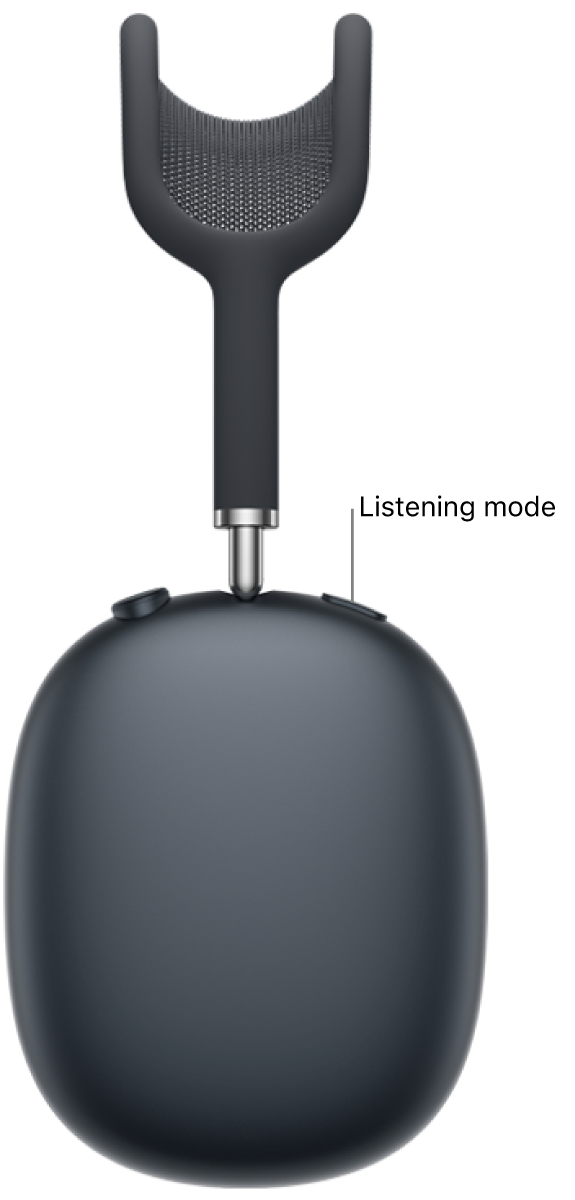
    • AirPods Max: Press the listening mode button on the right headphone. A chime confirms the change.

      The location of the listening mode button on the top of the right headphone of AirPods Max 2.

Switch between listening modes on iPhone or iPad

  1. Wear one or both AirPods, and make sure they’re connected to your device.
  2. Open Control Center, then touch and hold the volume control.
  3. Tap the Listening Mode button at the bottom left, then choose a listening mode.

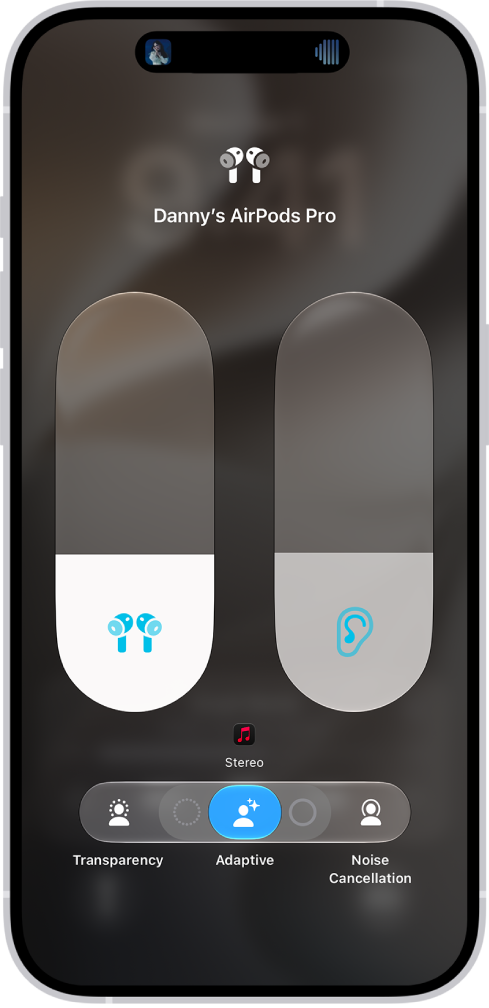
    Tip: You can adjust Adaptive Audio toward more Transparency or more Noise Cancellation by dragging the slider left or right.

    The volume screen in Control Center showing the volume level for AirPods Pro. Below the volume indicator on the left are the different listening modes—Transparency, Adaptive, and Noise Cancellation. Adaptive Audio is selected.

When you use Transparency mode on AirPods Pro, you can also customize which sounds come through. For details, read our guide, Use and customize Transparency mode.

Switch between listening modes on Apple Watch

  1. Wear one or both AirPods, and make sure they’re connected to your Apple Watch.
  2. Open Control Center and tap the AirPods icon on the left (you may need to scroll down). Choose a listening mode.

Switch between listening modes on Mac

  1. Wear one or both AirPods, and make sure they’re connected to your Mac.
  2. Do one of the following:

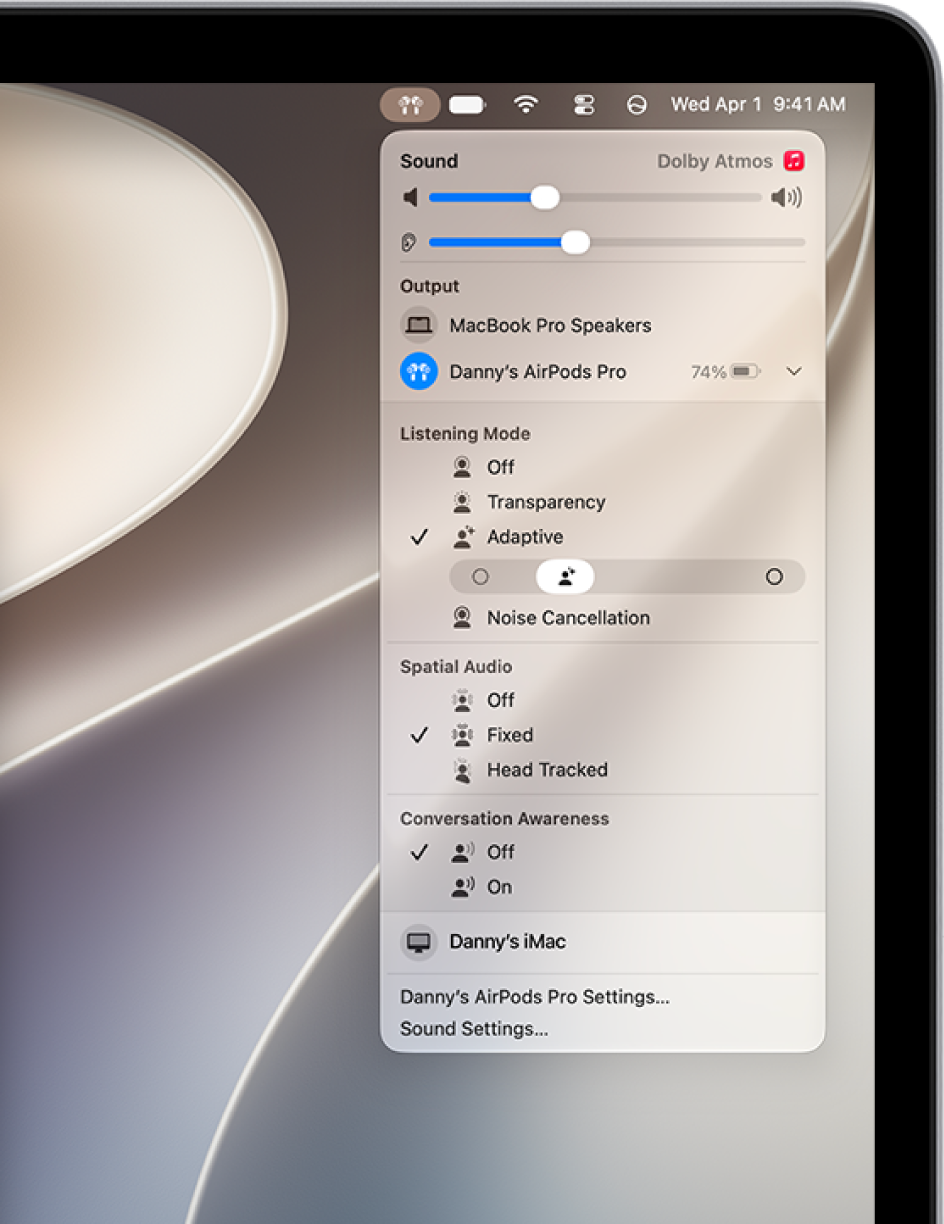
    • Click the AirPods Pro or the AirPods Max icon in the menu bar, then choose a listening mode.
    • Go to the System Settings app, click the name of your AirPods in the sidebar (you may need to scroll down), then choose a listening mode.

      Tip: You can adjust Adaptive Audio toward more Transparency or more Noise Cancellation by dragging the slider left or right.

    The AirPods icon is selected on the right side of the menu bar on Mac. For AirPods Pro, Adaptive is selected below Listening Mode and Conversation Awareness is Off.

Switch between listening modes on an Apple TV device

  1. Wear one or both AirPods, and make sure they’re connected to your Apple TV 4K or Apple TV HD.
  2. Open Control Center and go to the AirPods icon at the top of the screen (next to the time display). Then adjust the controls.

    The top-right part of Control Center on Apple TV 4K. AirPods appear to the right of the time.

Turn off listening modes for AirPods Pro 2 and AirPods Pro 3

For AirPods Pro 2 and AirPods Pro 3, AirPods listening modes include an Off option only after you enable it. Your hearing is not protected when the listening mode is set to Off.

  1. Wear one or both AirPods, and make sure they’re connected to your device.
  2. Do one of the following:

    • iPhone or iPad: Go to the Settings app, tap the name of your AirPods near the top of the screen, and turn on Off Listening Mode (if you don’t see that option, first tap Audio & Routing).
    • Mac: Go to the System Settings app and click the name of your AirPods in the sidebar (you may need to scroll down). Turn on Off Listening Mode (if you don’t see that option, first click Audio & Routing).

    After Off Listening Mode is turned on, you can choose Off in the Listening Mode slider.

This guide is for iOS 27, iPadOS 27, macOS 27, tvOS 27, watchOS 27, or later.

See also

On iPhone, iPad, or Mac, you can change the settings for AirPods Max. For example, you can customize the action performed when you turn the Digital Crown or press the listening mode button, and you can turn off automatic head detection.

You can also switch how you end a call and mute yourself. And if you have AirPods Max 2, you can turn Camera Control on or off and have audio pause automatically when you fall asleep while listening.

AirPods Max 2.

Change how the Digital Crown works

To increase the volume on AirPods Max, you can change which direction you turn the Digital Crown.

The location of the Digital Crown on the right headphone of AirPods Max 2.

  1. Wear your AirPods, and make sure they’re connected to your device.
  2. Do one of the following:
    • iPhone or iPad: Go to the Settings app. Tap the name of your AirPods near the top of the screen. Select Digital Crown (if you don’t see that option, first tap Controls & Gestures). Choose an option.
    • Mac: Go to the System Settings app and then click the name of your AirPods in the sidebar (you may need to scroll down). On the right, select an option next to Increase Volume by Rotating Digital Crown (if you don’t see that option, first click Controls & Gestures).

Customize the listening mode button

You can press the listening mode button on the right headphone of AirPods Max 1 to switch between Active Noise Cancellation and Transparency mode. With AirPods Max 2, you can switch between Active Noise Cancellation, Transparency mode, and Adaptive Audio.

The location of the listening mode button on the right headphone of AirPods Max 2.

  1. Wear your AirPods, and make sure they’re connected to your device.
  2. Do one of the following:
    • iPhone or iPad: Go to the Settings app and then tap the name of your AirPods near the top of the screen. Select the modes you want to access with the listening mode button (if you don’t see that option, first tap Controls & Gestures). When you’re listening to audio with your device and you press the listening mode button on AirPods Max, it cycles through all the options you selected on your device.
    • Mac: Go to the System Settings app and click the name of your AirPods in the sidebar (you may need to scroll down). On the right, select an option next to Press and Hold to Cycle Between (if you don’t see that option, first click Controls & Gestures). When you’re listening to audio with your Mac and you press the listening mode button on AirPods Max, it cycles through all the options you selected on your Mac.

Turn automatic head detection on or off

When you take off your AirPods Max, they automatically stop playing audio, then resume playback once you put them back on. That’s a setting you can change.

  1. Wear your AirPods, and make sure they’re connected to your device.
  2. Do one of the following:
    • iPhone or iPad: Go to the Settings app, tap the name of your AirPods near the top of the screen, and turn Automatic Head Detection on or off (if you don’t see that option, first tap Audio & Routing).
    • Mac: Go to the System Settings app and click the name of your AirPods in the sidebar (you may need to scroll down). Turn Automatic Head Detection on or off (if you don’t see that option, first click Audio & Routing).

Change how you end a call and mute yourself with AirPods Max

By default, you can double-click the Digital Crown on your AirPods Max to end a call, and press once to mute and unmute. You can switch these actions.

  1. Wear your AirPods Max, and make sure they’re connected to your device.
  2. Do one of the following:
    • iPhone or iPad: Go to the Settings app. Tap the name of your AirPods near the top of the screen. Tap End Call or Mute & Unmute (if you don’t see those options, first tap Controls & Gestures). Choose Press Once or Press Twice. The other option automatically switches.
    • Mac: Go to the System Settings app and then click the name of your AirPods in the sidebar (you may need to scroll down). On the right, select an option next to End Call or Mute & Unmute (if you don’t see those options, first click Controls & Gestures). The other option automatically switches.

Turn Camera Control on or off on AirPods Max 2

With AirPods Max 2, you can change the action that takes a photo or starts or stops a video recording.

  1. Wear your AirPods Max 2, and make sure they’re connected to your iPhone.
  2. Start the Settings app on your iPhone.
  3. Tap the name of your AirPods near the top of the screen.
  4. Tap Camera Remote (if you don’t see that option, first tap Controls & Gestures) and then do one of the following:

    • Turn Camera Control on: Tap either Press Once or Press and Hold.

      Note: If you select Press Once, media control gestures are temporarily unavailable while you use a supported camera app. If you select Press and Hold, listening modes and Siri gestures are temporarily unavailable while you use a supported camera app.

    • Turn Camera Control off: Tap Off.

Pause audio when you fall asleep with AirPods Max 2

You can use your iPhone, iPad, or Mac to choose whether AirPods Max 2 automatically pause audio if you fall asleep while you’re listening.

  1. Wear your AirPods, and make sure they’re connected to your device.
  2. Do one of the following:
    • iPhone or iPad: Go to the Settings app, tap the name of your AirPods near the top of the screen, and turn on Pause Media When Falling Asleep (if you don’t see that option, first tap Audio & Routing).
    • Mac: Go to the System Settings app, click the name of your AirPods in the sidebar (you may need to scroll down), and turn on Pause Media When Falling Asleep (if you don’t see that option, first click Audio & Routing).

You can change the sound effects volume on your AirPods, too. For the steps, check out our article, Adjust the volume of sound effects for AirPods.

This guide is for iOS 27, iPadOS 27, macOS 27, tvOS 27, watchOS 27, or later.

See also