Got a tip for us?

AirPods

This guide helps you get started using your AirPods with your other Apple devices. For every model, you’ll see when it was released, how its controls work, and what it comes with, like a wireless charging case, a Smart Case and USB-C connector, or silicone ear tips so you can customize your fit.

AirPods 1
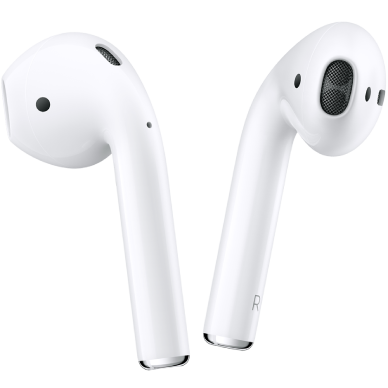
AirPods 1.

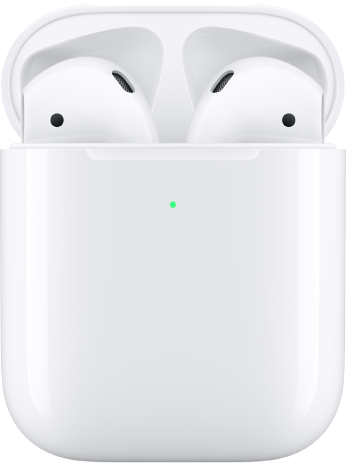
AirPods 1 in their charging case.

AirPods 1 were released in 2017. You can customize the double-tap for each of your AirPods to quickly play or pause audio, or to activate Siri. These AirPods come with a charging case.

AirPods 2

AirPods 2.

AirPods 2 in their charging case.

AirPods 2 were released in 2019. You can customize the double-tap for each of your AirPods to quickly play or pause audio, or to activate Siri. These AirPods come with a wireless or wired charging case.

AirPods 3
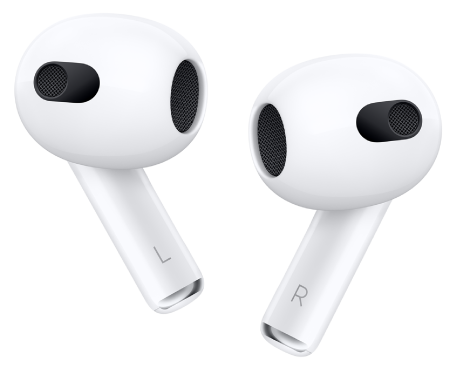
AirPods 3.

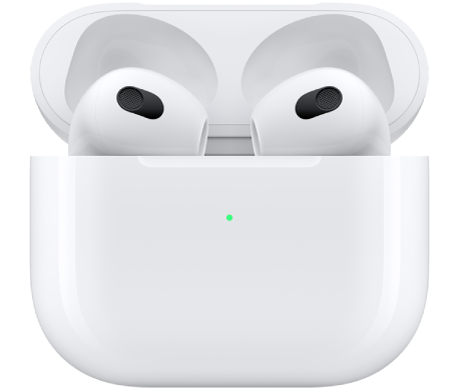
AirPods 3 in their charging case.

AirPods 3 were released in 2021. You can press the force sensor on the stem of either of your AirPods to quickly play or pause audio. You can also use your voice or press and hold the force sensor to activate Siri. These AirPods come with a wireless or wired charging case.

AirPods 4
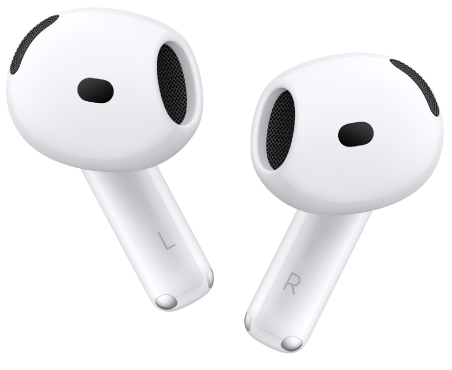
AirPods 4.

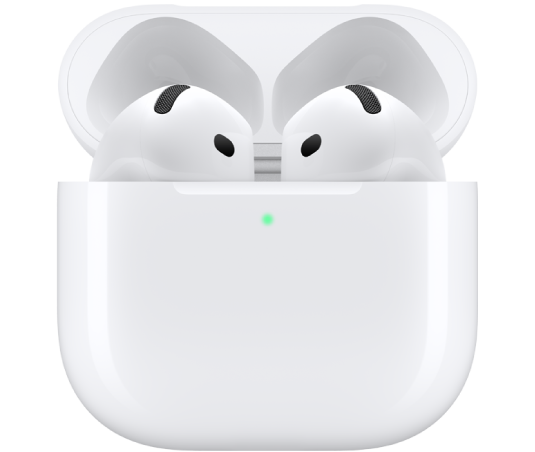
AirPods 4 in their charging case.

AirPods 4 were released in 2024. You can press the force sensor on the stem of either of your AirPods to quickly play or pause audio. You can also use your voice or press and hold the force sensor to activate Siri. These AirPods come with a wired charging case. Unlike charging cases for previous models, the charging case doesn’t have a button on the back.

AirPods 4 with Active Noise Cancellation

AirPods 4 (ANC).

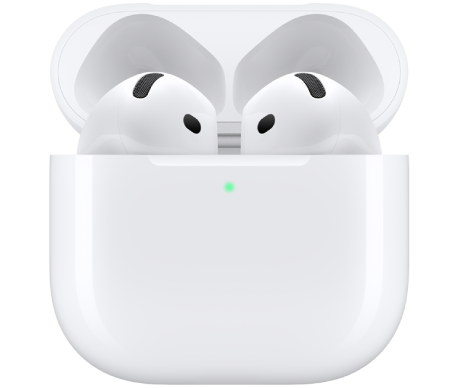
AirPods 4 (ANC) in their charging case.

AirPods 4 with Active Noise Cancellation (ANC) were released in 2024. You can press the force sensor on the stem of either of your AirPods to quickly play or pause audio. You can also use your voice or press and hold the force sensor to activate Siri. These AirPods come with a wireless charging case with an external speaker on the bottom to indicate charging and battery status. Unlike charging cases for previous models, the charging case doesn’t have a button on the back.

AirPods 5
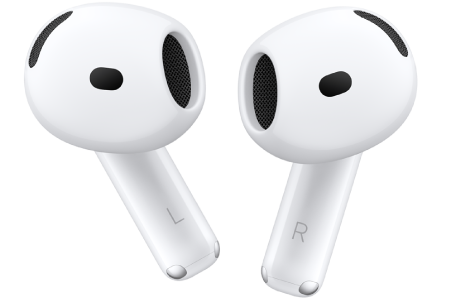
AirPods 5.

AirPods 5 in their charging case.

AirPods 5 were released in 2026. You can press the force sensor on the stem of either of your AirPods to quickly play or pause audio. You can also press and hold the force sensor to switch between Active Noise Cancellation, Transparency mode, and Adaptive Audio. These AirPods come with a USB-C charging case.

AirPods 5 with Wireless Charging Case

AirPods 5 with Wireless Charging Case.

AirPods 5 with Wireless Charging Case in their charging case.

AirPods 5 with Wireless Charging Case were released in 2026. You can press the force sensor with volume swipe on the stem of either of your AirPods to quickly play or pause audio, and lightly swipe up or down to control the volume. You can also press and hold the force sensor with volume swipe to switch between Active Noise Cancellation, Transparency mode, and Adaptive Audio. These AirPods come with a wireless charging case with an external speaker on the bottom to indicate charging and battery status.

AirPods Pro 1
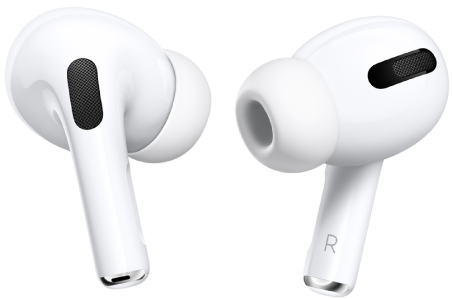
AirPods Pro 1.

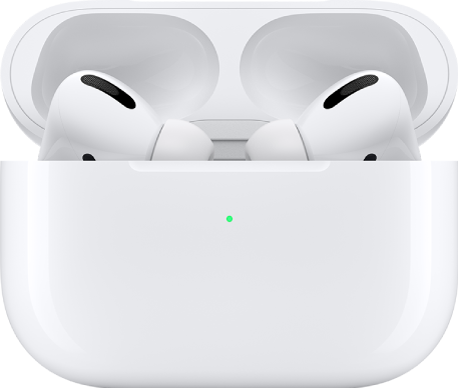
AirPods Pro 1 in their charging case.

AirPods Pro 1 were released in 2019. You can press the force sensor on the stem of either of your AirPods to quickly play or pause audio. You can also use your voice or press and hold the force sensor to activate Siri. These AirPods come with a wireless charging case, and three sizes of silicone ear tips so you can customize your fit.

AirPods Pro 2
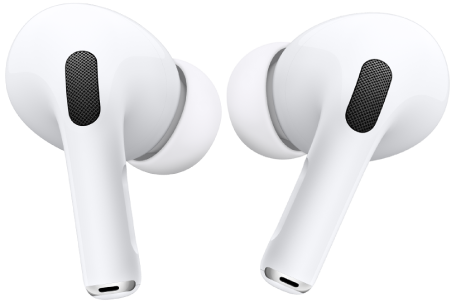
AirPods Pro 2.

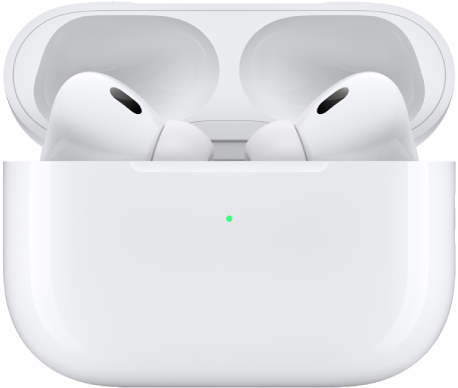
AirPods Pro 2 in their charging case.

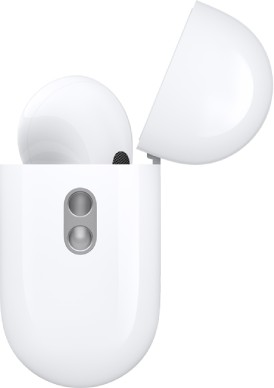
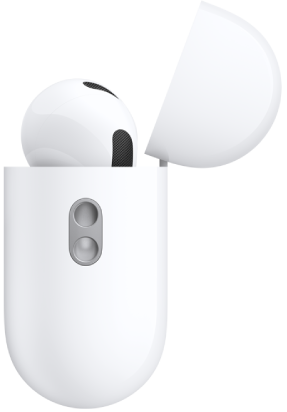
The side of the AirPods Pro 2 charging case, showing the lanyard loop to attach a carrying strap.

AirPods Pro 2 were released in 2022. You can press the force sensor with volume swipe on the stem of either of your AirPods to quickly play or pause audio, and lightly swipe up or down to control the volume. You can also use your voice or press and hold the force sensor with volume swipe to activate Siri. These AirPods come with four sizes of silicone ear tips so you can customize your fit.

On the bottom of the wireless charging case, an external speaker indicates charging and battery status, and there’s a lanyard loop for a carrying strap. It comes with either a Lightning or a USB-C connector.

AirPods Pro 3
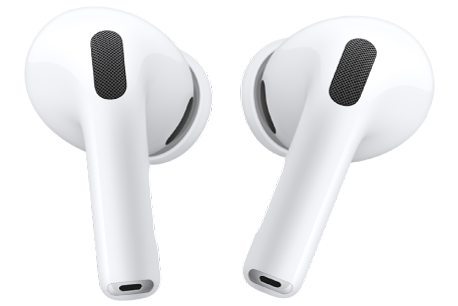
AirPods Pro 3.

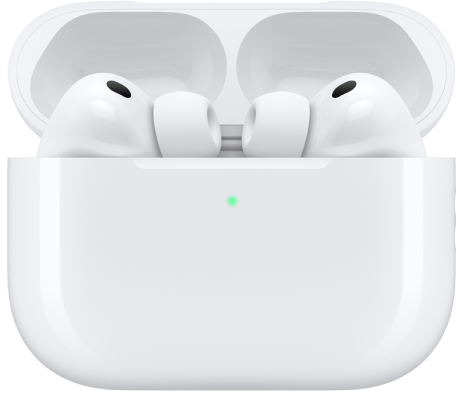
AirPods Pro 3 in their charging case.

The side of the AirPods Pro 3 charging case, showing the lanyard loop to attach a carrying strap.

Released in 2025, AirPods Pro 3 were redesigned with sound quality, audio performance, and fitness specifically in mind, and they feature in-ear heart rate sensors. On AirPods Pro 3, the silicone ear tips contain a layer of soft foam and turn slightly inward, helping the heart rate sensors make contact with the skin of your ear. And since these AirPods Pro come with five ear tip sizes, it’s even easier to get a personalized fit.

An external speaker on the bottom of the wireless charging case indicates charging and battery status. It has a USB-C connector and a lanyard loop for a carrying strap, too, but unlike charging cases for previous models, there’s no button on the back.

AirPods Max 1
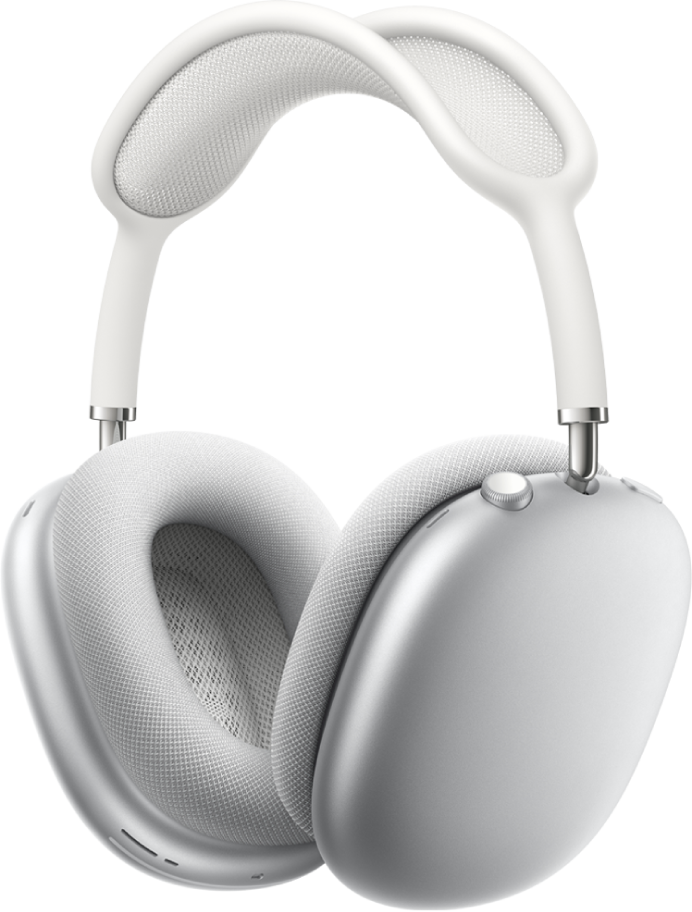
AirPods Max 1.

AirPods Max 1 were released in 2020. You can use your voice or press and hold the Digital Crown to activate Siri. You can also press the Digital Crown to quickly play or pause audio. These AirPods come with a Smart Case, and with either a Lightning or USB-C connector.

AirPods Max 2
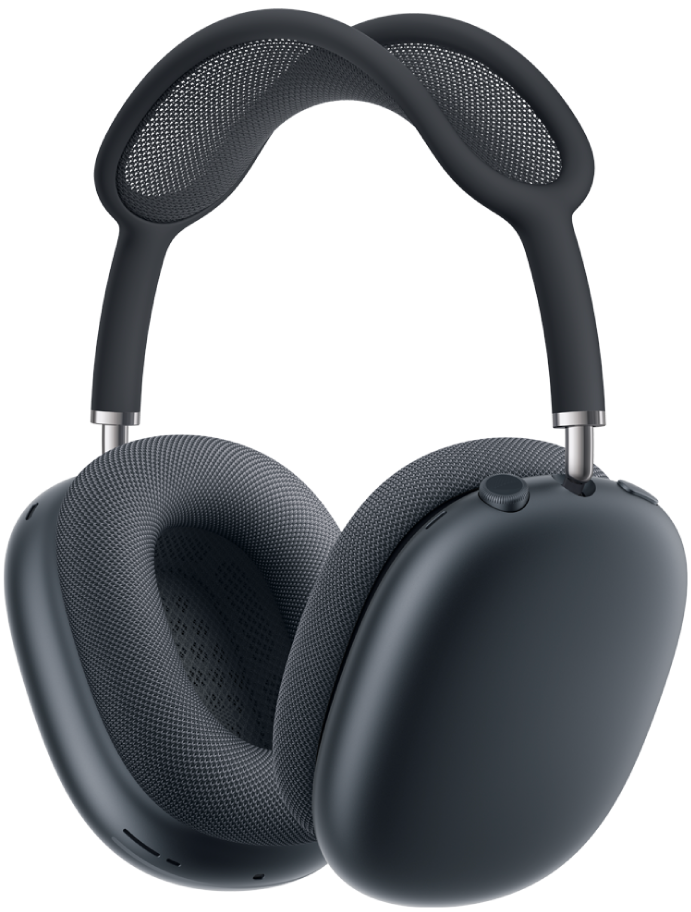
AirPods Max 2.

AirPods Max 2 came out in 2026. With Adaptive Audio and Conversation Awareness support, AirPods Max 2 adjust sound based on your surroundings and lower your music’s volume when you start talking to someone. Thanks to Head Gestures, accepting or declining calls and interacting with Siri is easier than ever. A Smart Case and USB-C connector come with these AirPods.

This guide is for iOS 27, iPadOS 27, macOS 27, tvOS 27, watchOS 27, or later.

See also
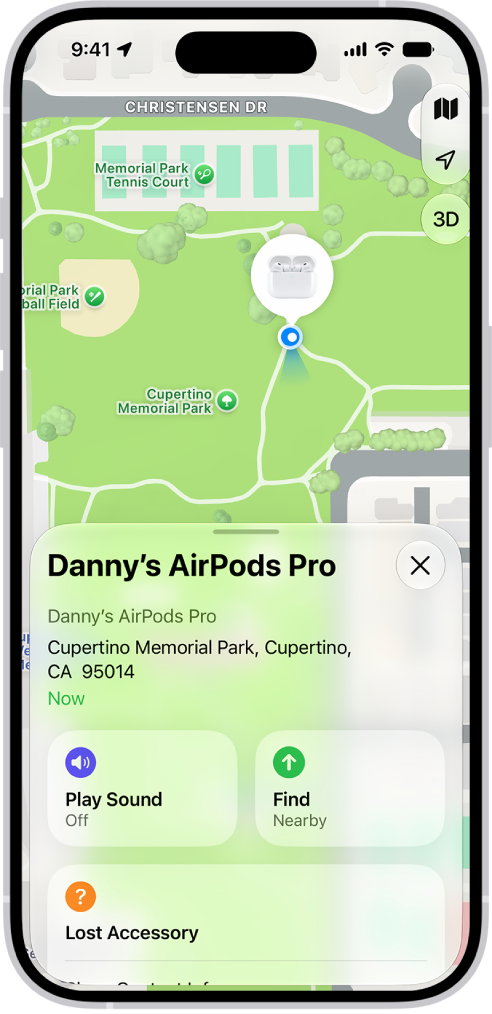
If your AirPods are lost, Find My can help you locate them on your iPhone, iPad, Mac, Apple Watch, or on the web at iCloud.com/find. You can also turn on separation alerts to warn you if you’ve left your AirPods behind.

There’s an important catch, though. Find My can only locate offline AirPods if the Find My network was on before they were lost. With it on, supported models show up for up to 24 hours after they last connect. You can also play a sound on your AirPods or mark them as lost.

A screen from the Find My app on iPhone. The location of AirPods Pro is shown on a map of Cupertino, along with an address listed and the options Play Sound, Directions, and Settings.

About using Find My with AirPods

  • You can use Find My with all AirPods models, but some models may have additional features to help you find them. If you’re not sure which AirPods you have, see Which AirPods do I have?
  • You must pair AirPods with iPhone or iPad where you’re signed in to your Apple Account to see your AirPods in Find My on your iPhone, iPad, Mac, or Apple Watch, or on the web at iCloud.com/find.
  • For the best experience with Find My, make sure your paired device has the latest version of iOS, iPadOS, macOS, or watchOS installed.
  • To locate your AirPods, you must turn on Find My on a paired device (such as your iPhone or Mac) before they’re lost. See Turn on the Find My network.
  • You can turn on the Find My network to see the location of some AirPods models even when they’re out of range of your device. If the Find My network is turned off (or if your AirPods don’t support the Find My network), the Find My app shows the last time and place they were connected.
  • If your AirPods are out of range or need to charge, you might see their last known location, “No location found,” or “Offline” in Find My. If they come back online, you get a notification on devices you paired with them.

Turn on the Find My network

Even if they’re not nearby, you can see the location of AirPods Pro, AirPods Max, AirPods 3, AirPods 4 with Active Noise Cancellation (ANC), or AirPods 5 with Wireless Charging Case in Find My for up to 24 hours after they last connected to your device. That’s only when the Find My network is on.

Important: To use the Find My app to locate AirPods when they’re offline, you need to turn on the Find My network before they’re lost.

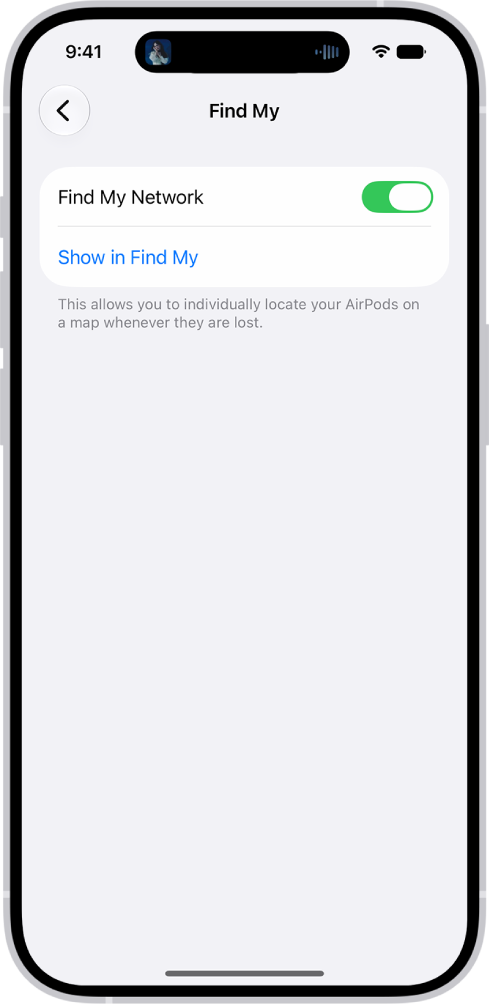
Bluetooth settings on an iPhone showing options for AirPods Pro. The Find My Network option is on, which allows AirPods to be located individually on a map whenever they're lost.

  1. Wear your AirPods, and make sure they’re connected to your iPhone or iPad.
  2. Start the Settings app on your iPhone or iPad.
  3. Tap the name of your AirPods near the top of the screen.
  4. Scroll down and turn on Find My Network (if you don’t see that option, first tap Find My).

Note: If your AirPods 3, AirPods 4 (ANC), AirPods 5 with Wireless Charging Case, AirPods Pro, or AirPods Max are used with multiple Apple Accounts (for example, if you lend or share AirPods), only the person who turned on the Find My network can see them in the Find My app. You may also get an alert if someone else’s AirPods are traveling with you.

Turn on separation alerts

With the Find My network on, the Find My app can alert you if you’ve left your AirPods Max, AirPods 3, AirPods Pro, AirPods 5 with Wireless Charging Case, or AirPods 4 (ANC) behind. Set trusted locations, like your home, and you’ll get a notification on your iPhone, iPad, Mac, or Apple Watch if your AirPods are left anywhere else. If the network isn’t on yet, see Turn on the Find My network, above.

Important: If you want to receive separation alerts, make sure you allow notifications for the Find My app.

  1. Do one of the following:

    • iPhone or iPad: Go to the Find My app, tap Devices and select your AirPods. Then tap Notify When Left Behind.
    • Mac: Go to the Find My app, then click Devices. Select your AirPods and click the Info button. Click Notify When Left Behind.
    • Apple Watch: Go to the Find My app, select your AirPods, and then tap Notify When Left Behind.
  2. Turn on Notify When Left Behind.

    On iPhone, iPad, and Mac, you can also set a trusted location. Choose a suggested location, or choose New Location, then select a location on the map.

See the location of your AirPods on a map or find them nearby

The Find My app shows the current or last known location of your AirPods.

When they’re somewhere close by, like in another room of your house, your iPhone or iPad can also help guide you to your AirPods Pro, AirPods Max, AirPods 3, AirPods 4 (ANC), or AirPods 5 with Wireless Charging Case. With AirPods Pro 2 or AirPods Pro 3, a UWB-capable iPhone can even find the precise location of the charging case.

  • iPhone or iPad: Go to the Find My app, tap Devices, then select your AirPods.

    To find your AirPods 3, AirPods 4 (ANC), AirPods 5, AirPods Pro, or AirPods Max nearby, tap Find, then follow the onscreen instructions.

    If you have AirPods Pro 2 or AirPods Pro 3, you may see an arrow pointing in the direction of your AirPods and a message telling you approximately how far away they are. You may have an option to turn on the flashlight, which can help you find your AirPods in a dark environment.

  • Mac: Go to the Find My app, click Devices, then select your AirPods.
  • Apple Watch: Go to the Find My app, then select your AirPods (requires a Wi-Fi or cellular connection).
  • iCloud.com: Go to iCloud.com/find, sign in to your Apple Account, select All Devices, then select your AirPods.

When your AirPods are separated, most AirPods models show the location of only one at a time. To find both, locate the one that’s on the map, return it to its case, and refresh the map to find the other one.

With AirPods Pro 2, AirPods Pro 3, AirPods 4 (ANC), or AirPods 5 with Wireless Charging Case, though, the map shows the location of each of your AirPods and the charging case.

Play a sound on your AirPods

If your AirPods aren’t in their case, playing a sound on them can help you locate them. On AirPods 5 with Wireless Charging Case, AirPods 4 (ANC), AirPods Pro 2, and AirPods Pro 3, the charging case can play a sound, too.

  • iPhone or iPad: Go to the Find My app, tap Devices, select your AirPods, then tap Play Sound.
  • Mac: Go to the Find My app, click Devices, select your AirPods, then click Play.
  • Apple Watch: Go to the Find My app, select your AirPods, then tap Play Sound (requires a Wi-Fi or cellular connection).
  • iCloud.com: Go to iCloud.com/find, sign in to your Apple Account, select All Devices, select your AirPods, then click Play Sound.

    Note: You can’t play a sound on the charging case for your AirPods 4 (ANC), AirPods 5 with Wireless Charging Case, AirPods Pro 2, or AirPods Pro 3 from iCloud.com.

To help you locate them, your AirPods play the sound for a few minutes or until you stop it. If your AirPods aren’t connected to your device and the Find My network is off, they’ll play it the next time they join a Wi-Fi or cellular network.

Quick tip: Muting one of your AirPods makes them easier to find one at a time when they’re separated from each other. To do that, tap or click Left or Right while the sound plays on your AirPods.

Mark AirPods as lost

Misplaced your AirPods Max, AirPods Pro, AirPods 3, AirPods 4 with Active Noise Cancellation (ANC), or AirPods 5 with Wireless Charging Case? You can mark them as lost and create a message with your contact information.

In case you’ve lost just one AirPod, or your AirPods get separated from the case, AirPods Pro 3, AirPods Pro 2, AirPods 5 with Wireless Charging Case, and AirPods 4 (ANC) also let you mark each of your AirPods and the case as lost separately.

  • iPhone or iPad: Go to the Find My app, tap Devices, select your AirPods, turn on Lost Mode, then follow the onscreen instructions.
  • Mac: Go to the Find My app, click Devices, select your AirPods, click the Info button, turn on Lost Mode, then follow the onscreen instructions.
  • Apple Watch: Go to the Find My app, tap a device, tap Lost Mode, then turn on Lost Mode.

Note: You need to turn on the Find My network before your AirPods are lost, or you won’t be able to mark your AirPods as lost.

This guide is for iOS 27, iPadOS 27, macOS 27, tvOS 27, watchOS 27, or later.

Tag: Find My

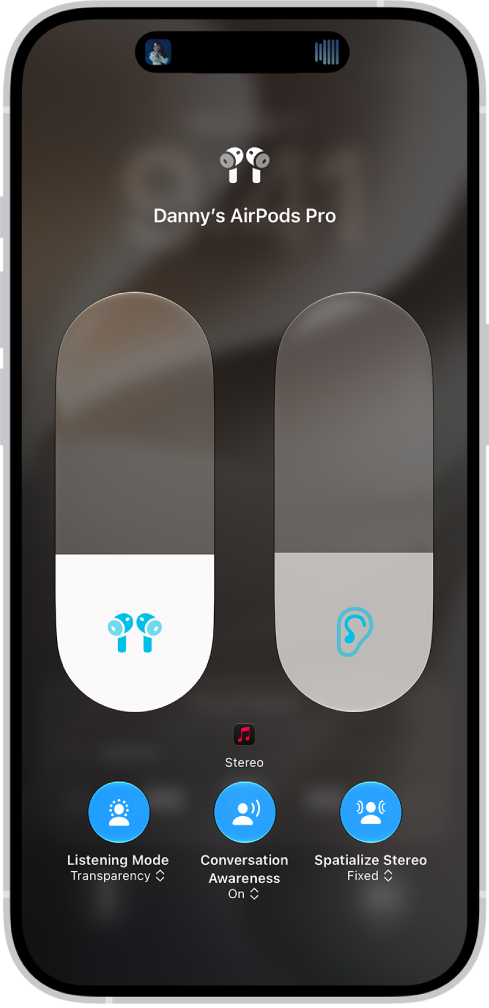
When you watch or play a supported show, movie, song, or game, or make a FaceTime call, your AirPods can use Spatial Audio and head tracking to create an immersive theater-like environment. Supported models include AirPods 3, AirPods 4, AirPods 5, AirPods Pro, and AirPods Max.

With Personalized Spatial Audio, your iPhone creates a representation of your ear and head shape to better match how you hear sound. Spatial Audio and head tracking can be controlled app by app, and the setting you choose sticks, so it’s applied automatically the next time you use that app.

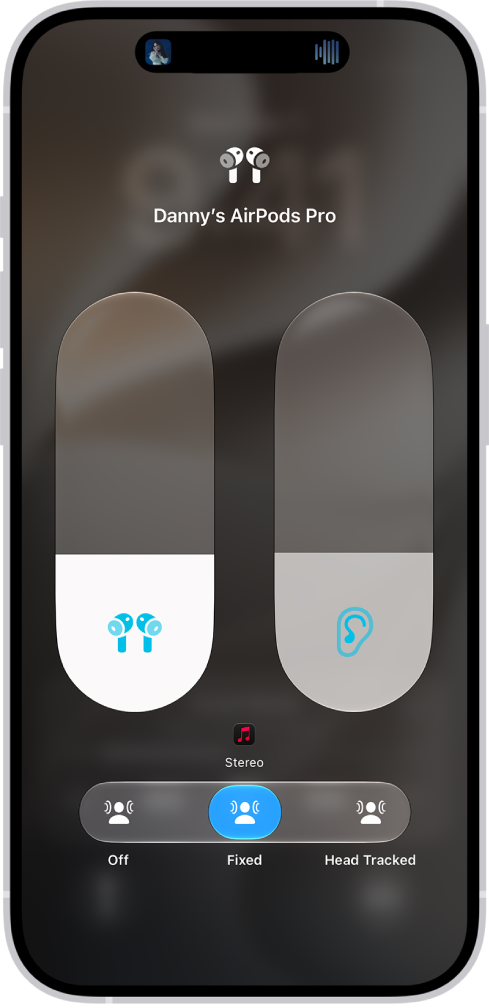
The volume screen in Control Center showing the volume level for AirPods Pro. On the right is the Spatial Audio/Head Tracked icon, indicating that Spatial Audio and head tracking are fixed.

Learn how Spatial Audio works

When you connect supported AirPods to iPhone or iPad, you can learn more about Spatial Audio.

  1. Wear your AirPods, and make sure they’re connected to your device.
  2. Open the Settings app on your iPhone or iPad.
  3. Tap the name of your AirPods near the top of the screen.
  4. Below Spatial Audio, tap See & Hear How It Works (if you don’t see that option, first tap Audio & Routing).

Use Personalized Spatial Audio

For Personalized Spatial Audio, an iPhone X or later can create a representation of your ear and head shape. The resulting Spatial Audio profile customizes audio so it better matches how you hear sound. It also syncs across your Apple devices where you’re signed in to the same Apple Account, if they have iOS 16, iPadOS 16.1, macOS 13, tvOS 16, or later.

Do one of the following:

  • Open the case lid with your AirPods inside, hold the case close to your iPhone, then follow the onscreen instructions.
  • Wear your AirPods, and make sure they’re connected to your device. On your iPhone, go to the Settings app, then tap the name of your AirPods near the top of the screen. Tap Personalized Spatial Audio (if you don’t see that option, first tap Audio & Routing), then tap Personalize Spatial Audio.

Stop using Personalized Spatial Audio

  1. Wear your AirPods, and make sure they’re connected to your device.
  2. Do one of the following:
    • iPhone or iPad: Go to the Settings app. Tap the name of your AirPods near the top of the screen. Tap Personalized Spatial Audio (if you don’t see that option, first tap Audio & Routing). Tap Stop Using Personalized Spatial Audio.
    • Mac: Go to the System Settings app, click the name of your AirPods in the sidebar (you may need to scroll down), and click Turn Off under Personalized Spatial Audio (if you don’t see that option, first click Audio & Routing).

To use Personalized Spatial Audio again, you can set it up on your iPhone.

Control Spatial Audio and head tracking on iPhone or iPad

You can control Spatial Audio and head tracking in Control Center for each supported app.

Spatial Audio and head tracking also work with AirPods Max 1 (USB-C) or AirPods Max 2 when you connect to your device with a USB-C cable, as long as your device has iOS 18.4, iPadOS 18.4, or later. For details, see our article, Connect AirPods Max with an audio cable.

The volume screen in Control Center showing the volume level for AirPods Pro. Below the volume indicator, the Spatial Audio options are showing. The options are Off, Fixed, and Head Tracked.

  1. Wear your AirPods, and make sure they’re connected to your device.
  2. Open Control Center and touch and hold the volume control. Tap Spatial Audio at the lower right.
  3. Tap one of the following:

    • Off: Turns off both Spatial Audio and head tracking.
    • Fixed: Turns on Spatial Audio without head tracking.
    • Head Tracked: Turns on both Spatial Audio and head tracking. The audio you’re listening to will sound like it’s coming from your iPhone or Mac.

    The settings you choose are saved and applied automatically the next time you use that app. For example, if you tap Fixed while listening to a song in the Music app, the Fixed setting is automatically used the next time you play a song in that app.

Control Spatial Audio and head tracking on Mac

If you have a Mac computer with Apple silicon and macOS 12.3 or later, Spatial Audio and head tracking make supported shows, movies, and music sound as if they’re coming from all around you. And for each supported app, you can turn Spatial Audio and head tracking on or off.

With AirPods Max 1 (USB-C) or AirPods Max 2, you can use Spatial Audio and head tracking over a USB-C cable connected to your Mac, too, but your Mac needs macOS 15.4 or later. Read our guide, Connect AirPods Max with an audio cable, to set up the cable connection.

Note: Spatial Audio isn’t available for all apps or content.

  1. Wear your AirPods, and make sure they’re connected to your Mac.
  2. Click the AirPods icon in the menu bar.

    If the AirPods icon isn’t in the menu bar, go to the System Settings app, then click Menu Bar in the sidebar. Below Menu Bar Controls, select Sound. (You may need to scroll down.)

  3. Choose one of the following below Spatial Audio:

    • Off: Turns off both Spatial Audio and head tracking.
    • Fixed: Turns on Spatial Audio without head tracking.
    • Head Tracked: Turns on both Spatial Audio and head tracking. This allows the sound to follow the movement of your head.

Control Spatial Audio and head tracking on Apple TV 4K

You can customize the Spatial Audio settings for each supported app using Control Center on Apple TV 4K. You can also turn head tracking on or off for all apps. (tvOS 15.1 or later required.)

Note: Spatial Audio isn’t available for all apps or content.

  1. Wear your AirPods, and make sure they’re connected to your Apple TV 4K.
  2. While watching a movie or TV show or listening to music, open Control Center. Go to the AirPods icon at the top of the screen (next to the time display).

    The top-right part of Control Center on Apple TV 4K. AirPods appear to the right of the time.

  3. Go to Spatial Audio and select an option.

    The settings you choose are saved and applied automatically the next time you use that app. For example, if you turn on Spatial Audio while using the Apple TV app with your AirPods, Spatial Audio automatically turns on the next time you use the app with your AirPods.

Note: You can disable dynamic head tracking on Apple TV 4K for every app. Go to the Settings app, select Accessibility, select AirPods, and select your AirPods. Then turn off Center Audio on TV.

This guide is for iOS 27, iPadOS 27, macOS 27, tvOS 27, watchOS 27, or later.

See also
If your AirPods aren’t working right, first make sure the device they’re paired with is up to date. Then try restarting, unpairing, or resetting them, in that order.

Unpairing takes your AirPods off every device where you’re signed in to the same Apple Account, so you’ll have to pair them again before you use them. If they still aren’t working correctly after you restart or unpair them, you can reset them to their factory settings.

Restart AirPods

If your AirPods aren’t working right, try restarting them.

  • AirPods or AirPods Pro: Put the AirPods in their case, then close the lid for a minimum of 10 seconds.
  • AirPods Max: On the right headphone, press and hold the Digital Crown and the listening mode button at the same time until the status light next to the charging port flashes amber (around 10 seconds), then immediately release the buttons.

    Important: If you hold the buttons longer than around 10 seconds, AirPods Max are reset to factory settings.

Unpair AirPods

  • iPhone or iPad: Go to the Settings app, tap the name of your AirPods near the top of the screen, then tap Forget This Device. (You may need to scroll down.) This removes the AirPods from all the devices where you’re signed in to the same Apple Account.
  • Mac: Go to the System Settings app, click the name of your AirPods in the sidebar (you may need to scroll down), then click Forget This Device.
  • Apple Watch: Go to the Settings app, tap Bluetooth, tap the Info button, then tap Forget Device to remove AirPods from all devices where you’re signed in to the same Apple Account.
  • Apple TV 4K or Apple TV HD: Go to the Settings app, then select Remotes and Devices. Select Bluetooth, select your AirPods, then select Forget This Device.

Note: To use your AirPods again after removing them, you must pair them with a device that’s associated with your Apple Account.

Reset AirPods to factory settings

Resetting your AirPods to their factory settings is something you can try if they aren’t working correctly after you restart or unpair them.

  • AirPods 1, 2, or 3, or AirPods Pro 1 or 2: Put the AirPods in their case, close the lid, then wait 30 seconds. Open the lid, then press and hold the setup button on the back of the case for about 15 seconds, until the status light flashes amber, then white.
  • AirPods 4 or 5, or AirPods Pro 3: Put the AirPods in their case, close the lid, then wait 30 seconds. Open the lid, then double-tap the front of the case three times.

    When you successfully reset your AirPods, the status light flashes amber, then white.

  • AirPods Max: On the right headphone, press and hold the Digital Crown and the listening mode button at the same time, until the status light next to the charging port changes from flashing amber to flashing white (around 15 seconds).

This guide is for iOS 27, iPadOS 27, macOS 27, tvOS 27, watchOS 27, or later.

See also
Pair AirPods with your Apple devices to listen to music, movies, messages, and more. You can also use your AirPods to make and answer phone calls and FaceTime calls with compatible devices.

When pairing with an iPhone or iPad, your device needs a Wi-Fi or cellular connection, or you may not have access to Find My features. After you set up your AirPods with one Apple device (like your iPhone), they connect automatically to your other Apple devices where you’re signed in to the same Apple Account. You can pair them with iPhone, iPad, Mac, Apple Watch, Apple TV, and Apple Vision Pro.

If you aren’t sure which AirPods you have, see Which AirPods do I have?

Pair AirPods with iPhone or iPad

Your device should have the latest version of iOS or iPadOS installed before you begin. It’ll also need a Wi-Fi or cellular connection while pairing. Without that connection, you may not have access to Find My features.

  1. Open the Settings app on your iPhone or iPad.
  2. Tap Bluetooth and turn on Bluetooth. Do one of the following:

    • AirPods or AirPods Pro: Open the case with your AirPods inside and then hold it next to the device that you want to pair until the setup animation appears.
    • AirPods Max: Take your AirPods Max out of the Smart Case, and within 60 seconds, hold them next to the device that you want to pair until the setup animation appears.

      You can also connect AirPods Max to your device using an audio cable.

  3. Follow the onscreen instructions, then tap Done.

If the setup animation doesn’t appear, you can pair AirPods with your device manually.

Pair AirPods with Mac

Your Mac needs the latest version of macOS installed first.

  1. Open the System Settings app on your Mac.
  2. Click Bluetooth in the sidebar.
  3. Make sure Bluetooth is on and then do one of the following:

    • AirPods 1, 2, or 3, or AirPods Pro 1 or 2: Open the case with your AirPods inside and hold it next to your Mac. Press and hold the setup button on the back of the AirPods case for about 5 seconds, or until the status light flashes white.
    • AirPods 4 or 5, or AirPods Pro 3: Open the case with your AirPods inside, hold it next to your Mac and then double-tap the front of the AirPods case so the status light flashes white.
    • AirPods Max: Press and hold the listening mode button for about 5 seconds, or until the status light flashes white.

      You can also connect AirPods Max to your device using an audio cable.

  4. In the list of devices, select your AirPods and click Connect.

Quick tip: It’s easier to pair your AirPods if you show Bluetooth settings in the menu bar.

Pair AirPods with Apple Watch

Your Apple Watch should have the latest version of watchOS installed before you start.

  1. Open the Settings app on your Apple Watch.
  2. Tap Bluetooth, then tap your AirPods on the Bluetooth screen to connect.

No setup animation? You can still pair AirPods with your device manually.

Pair AirPods with an Apple TV device

Your Apple TV 4K or Apple TV HD should be running the latest version of tvOS before you begin.

  1. Open the Settings app on your Apple TV device.
  2. Scroll down, select Remotes and Devices, and select Bluetooth.
  3. Do one of the following:
    • AirPods 1, 2, or 3, or AirPods Pro 1 or 2: Open your AirPods case and press and hold the setup button on the back of the case for about 5 seconds, or until the status light flashes white.
    • AirPods 4 or 5, or AirPods Pro 3: Open the case with your AirPods inside and hold it next to your device. Then double-tap the front of the AirPods case so the status light flashes white.
    • AirPods Max: Press and hold the listening mode button for about 5 seconds, or until the status light flashes white.
  4. Below Headphones, select your AirPods.

Pair AirPods with Apple Vision Pro

Check that your Apple Vision Pro has the latest version of visionOS installed before you begin.

You can pair AirPods Pro 3, AirPods Pro 2 (USB-C), AirPods 4, or AirPods 5 for the most immersive experience with Apple Vision Pro. Once they’re paired, they provide Lossless Audio with ultra-low latency, using a proprietary wireless audio protocol.

To deliver excellent audio quality, AirPods Max, AirPods 2, AirPods 3, AirPods Pro 1, and AirPods Pro 2 (Lightning) wireless headphones use Apple AAC Bluetooth® Codec. Bluetooth connections aren’t lossless, though.

  1. Go to the Settings app on Apple Vision Pro.
  2. Tap Bluetooth.
  3. Do one of the following:
    • AirPods 1, 2, or 3, or AirPods Pro 1 or 2: With your AirPods in the charging case, open the lid and then press and hold the setup button on the back of the AirPods case for about 5 seconds, or until the status light flashes white.
    • AirPods 4 or 5, or AirPods Pro 3: Open the case with your AirPods inside and hold it next to your device. Then double-tap the front of the AirPods case so the status light flashes white.
    • AirPods Max: Take your AirPods Max out of the Smart Case. Press and hold the listening mode button on AirPods Max for about 5 seconds, or until the status light flashes white.
  4. Below Other Devices, tap your AirPods.

Note: Lossless Audio only works when connected to Apple Vision Pro. Availability varies by region.

Connect AirPods Max with an audio cable

Using a supported audio cable, you can connect AirPods Max to your device.

  • AirPods Max 1: Connect an Apple Lightning to 3.5 mm Audio Cable to the charging port on your AirPods Max and to the headphone jack on your device.
  • AirPods Max 1 (USB-C) or AirPods Max 2: Connect an Apple USB-C to 3.5 mm Audio Cable to the charging port on your AirPods Max and to the headphone jack on your device.

    You can also connect a USB-C to USB-C cable from your AirPods Max 1 (USB-C) or AirPods Max 2 to an iPhone, iPad, or Mac with a USB-C port. For full functionality, turn on Bluetooth on the connected device. (Requires iOS 18.4, iPadOS 18.4, macOS 15.4, or later.)

Pair AirPods with a device manually

When you try to connect your AirPods to your device but the setup animation doesn’t appear, you can still pair AirPods with your device manually.

  1. Do one of the following:

    • AirPods 4 or 5, or AirPods Pro 3: Open the charging case with your AirPods inside and hold it next to your device. Then double-tap the front of the case so the status light flashes white.
    • AirPods Max: Press and hold the listening mode button on AirPods Max for about 5 seconds, or until the status light flashes white.

      If you have AirPods Max 1 (USB-C) or AirPods Max 2, you can also pair your AirPods with your device by connecting them using a USB-C to USB-C cable.

    • Other AirPods models: Open the case with your AirPods inside and hold it next to your device. Then press and hold the setup button on the back of the case until the status light flashes white.
  2. Go to the Settings app on your device (on Mac, open the System Settings app).
  3. Tap or click Bluetooth and select your AirPods when they appear in the list.

This guide is for iOS 27, iPadOS 27, macOS 27, tvOS 27, watchOS 27, or later.

See also
You can use AirPods as a Bluetooth headset with a non-Apple device, like an Android phone. You can’t use Siri, but you can listen and talk.

How you pair depends on your AirPods. Older models use the setup button on the back of the AirPods case, AirPods 4 or 5 and AirPods Pro 3 use the front of the case, and AirPods Max use the listening mode button. When the status light flashes white, your AirPods appear in the list of Bluetooth devices.

To set up your AirPods with an Android phone or other non-Apple device, follow these steps:

  1. On your non-Apple device, make sure that Bluetooth is on (on an Android device, go to Settings, tap Connections, then tap Bluetooth).
  2. Do one of the following:
    • AirPods 1, 2, or 3, or AirPods Pro 1 or 2: With your AirPods in the charging case, open the lid and then press and hold the setup button on the back of the AirPods case for about 5 seconds, or until the status light flashes white.
    • AirPods 4 or 5, or AirPods Pro 3: Open the case with your AirPods inside and hold it next to your device. Then double-tap the front of the AirPods case so the status light flashes white.
    • AirPods Max: Press and hold the listening mode button for about 5 seconds, or until the status light flashes white.
  3. When your AirPods appear in the list of Bluetooth devices, select them.

This guide is for iOS 27, iPadOS 27, macOS 27, tvOS 27, watchOS 27, or later.

See also

When someone nearby speaks to you in a different language, Live Translation with AirPods lets you hear what they’re saying in your preferred language. The translated dialogue also appears on your iPhone.

Before you start, you need both languages downloaded on your iPhone: the one the other person is speaking and the one you want to translate it to.

You can reply in your preferred language, too. And when both people are wearing supported AirPods, each of you hears a translation of the conversation in the language of your choice.

Note: Live Translation with AirPods is supported on AirPods 4 (ANC), AirPods 5, AirPods Pro 2, AirPods Pro 3, or AirPods Max 2 paired with an Apple Intelligence-enabled iPhone 15 Pro, iPhone 15 Pro Max, and iPhone 16 models or later. Apple Intelligence isn’t available in all languages or regions. Usage limits may apply.* Your iPhone must have the latest version of iOS, and AirPods must have the latest firmware.

Download languages you want to use with Live Translation

To use Live Translation, you need to download the language the other person is speaking and the language you want to translate it to. For example, if you want to translate a conversation from Spanish to English, you should download both Spanish and English. After the languages are downloaded, all processing takes place on your iPhone, where your conversation data remains private, according to Apple.

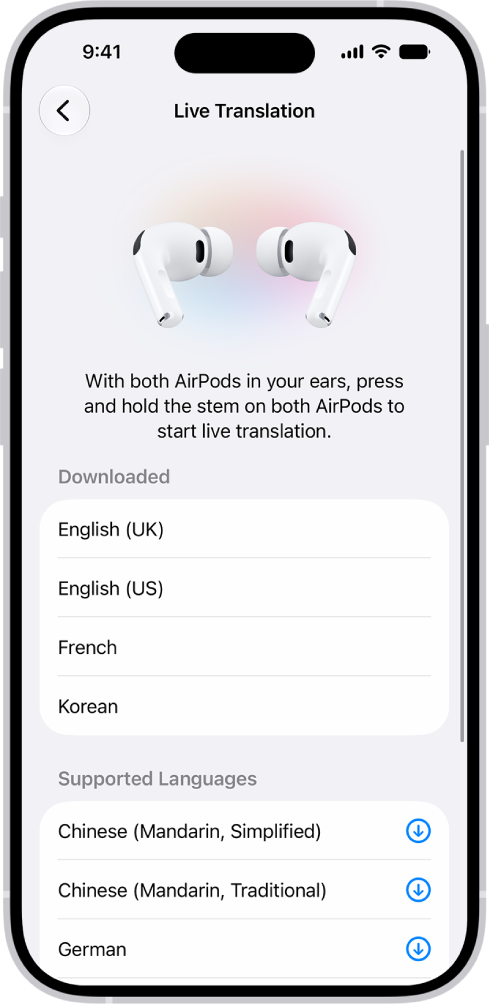
The Languages screen in AirPods Translate settings showing a list of downloaded and supported languages.

  1. Wear your AirPods, and make sure they’re connected to your device.
  2. Start the Settings app on your iPhone.
  3. Tap the name of your AirPods near the top of the screen.
  4. Below Translation, tap Languages (if you don’t see that option, first tap Live Translation [Beta]). Then tap the language you want to download.
  5. The icon to the right of the language shows the download progress.

To delete a downloaded language, swipe left, then tap the Delete button.

Set up and start Live Translation

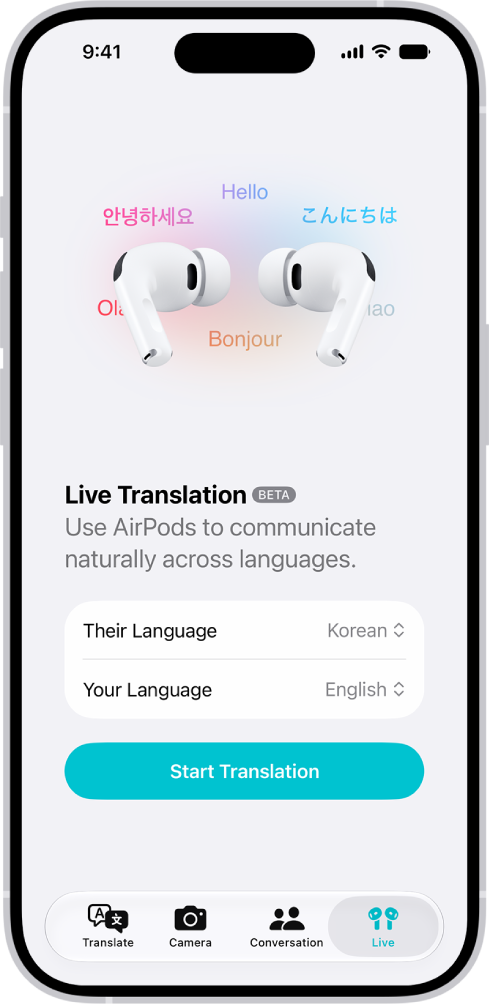
The Translate app on iPhone showing the Live Translation screen. The screen shows two pop-up menus for choosing the other person's language and your language, and a button to start Live Translation.

  1. Wear your AirPods, and make sure they’re connected to your device.
  2. Start the Translate app on your iPhone.
  3. Tap Live at the bottom of the screen. Choose your languages:

    • Their Language: The language the other person is speaking.
    • Your Language: The language you prefer to hear in your AirPods.
  4. To start Live Translation, do one of the following:

    • Use your AirPods: Press and hold the stem on both AirPods at the same time. If you have AirPods Max 2, press and hold the listening mode button.
    • Use Siri: Ask Siri something like, “Hey Siri, start Live Translation.”
    • Use the Translate app: Go to the Translate app on your iPhone and tap Live at the bottom. Then tap Start Translation.
    • Use Control Center on your iPhone: Swipe down from the top-right corner of your screen to open Control Center and tap Translate.
    • Use the Action button on your iPhone: You can change the Action button to start Live Translation.

    When you start Live Translation, Adaptive Audio is turned on (if it’s not already on).

Use Live Translation with AirPods

As someone speaks, your AirPods can translate for you. When you reply in your preferred language, the Translate app can display the translation or play the translated audio through your iPhone speaker.

Each participant hears a translation of the conversation in their chosen language when both people wear supported AirPods.

Note: Both people need the latest firmware on supported AirPods, an iPhone 15 Pro or later with iOS 26 or later. Features may vary by country or region.

  1. Set up and start Live Translation.

    If you’re in a noisy environment, you can use the microphone on your iPhone to improve the translation input quality.

  2. Do any of the following:

    • Listen to a person speak: Your AirPods automatically translate what the person says into your preferred language.

      You can also view a transcript of what they said in the Live tab of the Translate app on your iPhone.

    • Respond to a person: Speak your response. Then use the Live tab in the Translate app on your iPhone to show the person you’re speaking with a transcript, or tap the Play button to play a translation on your iPhone speaker.

      If the person you’re speaking with has supported AirPods and has set up and started Live Translation, they can also listen to your response using their AirPods.

  3. To stop Live Translation, tap the Delete button.

*Apple Intelligence is available with Siri and device language set to Chinese (Simplified), Chinese (Traditional), Danish, Dutch, English, French, German, Italian, Japanese, Korean, Norwegian, Portuguese, Spanish, Swedish, Turkish, or Vietnamese. Some features may not be available in all regions or languages. Some devices may not be available in all regions. Siri AI is available in beta in iOS 27, iPadOS 27, macOS 27, watchOS 27, and visionOS 27 and requires an Apple Intelligence–enabled device set to a supported language. Available in English to start. Siri AI will not be initially available in the EU on iOS, iPadOS, and watchOS. Certain Apple Intelligence features that rely on server-side models are subject to daily usage limits, including but not limited to Siri AI, Intelligent Photo Editing Tools, Image Playground, and AFM 3 Cloud models in Shortcuts. Daily limits may vary by feature, request complexity, system demand, system policies, and other factors. Expanded access to such features will be available for a fee in the future. Use of these features is subject to the Apple Intelligence Terms and Conditions.

So, you’re walking down the street, and you spot a white, shiny object on the ground. Upon closer inspection, you realize that it’s a pair of AirPods! Your heart races with excitement as you consider the possibilities.

You approach the earbuds cautiously, eyeing them with a mix of curiosity and suspicion. Are they broken? Are they lost? Are they just a cleverly disguised trap, waiting to ensnare the unwary?

There are many related questions you may have, including:

  • Can I contact the AirPods’ owner?
  • Can the owner see the AirPods location?
  • Can I reset the AirPods and use them?

In this article, we’ll explore what to do if you find a pair of AirPods, including whether you can contact the owner, whether the owner can see the AirPods’ location, and whether you can reset the AirPods and use them yourself.

Found AirPods

Can I contact the AirPods’ owner?

The good news is that it’s possible to contact the owner of lost AirPods, as long as they’ve set up the Find My app on their iPhone or other Apple device. The Find My app allows you to track the location of your Apple devices, including AirPods, and even play a sound to help you locate them if they’re lost.

If you are using an iPhone:

  • When your iPhone gets near the AirPods (assuming they are charged), a message should show up on your phone. It usually will just display the name of the AirPods and that they are not yours. However, someone may have decided to use their AirPods name, usually something like Dave’s AirPods, to instead give more information, such as a phone or email.
  • Many of the AirPods models can be put into Lost Mode (AirPods (3rd gen), AirPods Pro (1st and 2nd gen), AirPods Max). When this happens, a message should appear on a nearby iPhone. The Lost Mode message should contain contact info.

To see if the owner has set up Find My, simply open the AirPods case and check if they’re connected to an iPhone or other Apple device. If they are, you can try to use the Find My app to locate the owner. Here’s how:

  1. Open the Find My app on your own iPhone or other Apple device.
  2. Tap on the Items tab at the bottom of the screen.
  3. Scroll to the bottom of the Items list and tap Identify Found Item and check if there is any information on the AirPods.

If you’re able to locate the owner using the Find My app, you can try to contact them and let them know you’ve found their AirPods.

Can the owner see the AirPods location?

If the owner has enabled the "Find My" feature on their iPhone, they can see the location of their lost AirPods on a map in the Find My app. This can be a useful tool for locating lost AirPods, especially if they were misplaced in a large area like a park or shopping mall.

  • Someone who has lost their AirPods and is using Find My should be able to at least see the last known location.

  • For AirPods Pro (2nd gen): The charging case can also be located if it is separated from the AirPods.

  • For AirPods (3rd gen), AirPods Pro (1st and 2nd gen), AirPods Max:
    • They may be able to be located even if their iPhone isn’t connected to Wi-Fi or cellular.
    • The owner can get a "left behind" alert soon after separating from them.
    • The AirPods can use the Find My network. This means the AirPods can ping off of nearby Apple Devices to transmit their location to the owner.
    • The AirPods can be put into Lost Mode. This means if someone finds the AirPods, a message will appear on their iPhone. This message can contain an email or phone number.

However, there are some limitations to the "Find My" feature when it comes to AirPods. First, the AirPods must be within Bluetooth range of an iPhone or other Apple device in order to show up on the map. If the AirPods are out of range, their last known location will be shown instead.

Second, the location accuracy can vary depending on a number of factors, such as the strength of the Bluetooth signal and whether the AirPods are in their case or not. In some cases, the location may be accurate within a few feet, while in others it may be off by several yards.

Can I reset the AirPods and use them?

Now, let’s say you’ve exhausted all your options for finding the owner of the lost AirPods, and you’re left with a dilemma: can you keep them and use them as your own? Technically, yes, you can reset the AirPods and pair them with your own iPhone or iPad. However, doing so could be considered unethical and potentially illegal, depending on the circumstances.

First and foremost, if you find a pair of lost AirPods, the right thing to do is to try and return them to their owner. Imagine if you lost a valuable item like AirPods – wouldn’t you want someone to make an effort to return them to you? By keeping the lost AirPods and using them as your own, you’re depriving the owner of their property and potentially causing them financial loss.

Furthermore, if you find lost property and don’t make a reasonable effort to return it to the owner, you could be charged with theft or larceny. The laws regarding lost property vary by jurisdiction, but in general, if you find lost property and don’t make a good faith effort to return it to the owner, you could be charged with theft.

That being said, there are some situations where keeping the lost AirPods may be more reasonable. For example, if you found the AirPods in a public place with no identifying information, and you’ve made a reasonable effort to find the owner with no success, it may be more justifiable to keep them.

If you do decide to keep the lost AirPods, you should still be cautious about resetting and pairing them with your own device. Resetting the AirPods will erase any data stored on them, including the owner’s settings and preferences.

AirPods Max paired up with iPhone 12.  
Dave Johnson/GeeksModo

Please note: for AirPods (3rd gen), AirPods Pro (1st and 2nd gen), or AirPods Max, the AirPods need to be removed from the owner’s Apple ID before they can be added to a new owner’s Apple ID. This also removes the Find My Lock. This must be done by the AirPods’ owner.

To reset the AirPods, follow these steps:

  1. Put both AirPods in their case and close the lid.

  2. Wait at least 15 seconds.

  3. Press and hold the button on the back of the case until the LED light on the front starts flashing white.

  4. Release the button and wait for the LED light to turn amber.

  5. Open the lid of the case and bring it close to your device.

  6. Follow the instructions on your device’s screen to pair the AirPods with your device.

Keep in mind that resetting the AirPods will erase any data stored on them, such as custom settings and pairing information. Additionally, if the AirPods are linked to an Apple ID, they may be locked and unable to be reset without the owner’s permission.

Conclusion

If you find a pair of lost AirPods, your first course of action should be to try to contact the owner and arrange to return them. If you are unable to do so, you can open the "Find My" feature on your own Apple device to Identify Found Item and see if there is any information on the AirPods and help facilitate their return. Resetting the AirPods and using them without attempting to return them to the owner first is not ethical and could be considered stealing. Remember, the right thing to do is to always try to return lost items to their rightful owner.