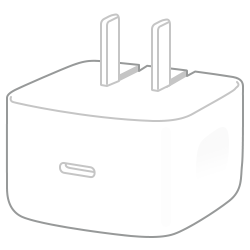
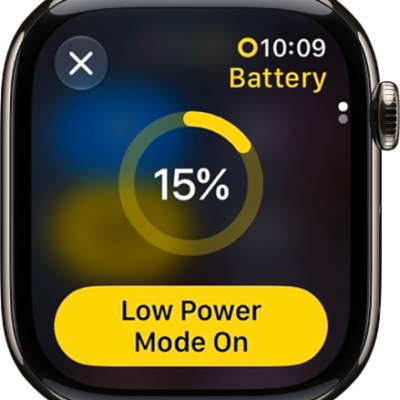
AirPods shut down and charge whenever they’re in the case, as long as the lid is closed. You can connect the case to a power outlet using a cable and a compatible power adapter, or use a MagSafe, Qi-certified, or Apple Watch charger with supported models.
The light on the case shows the charge status, and green means fully charged.
Charge AirPods or AirPods Pro
- Put your AirPods in their case.
-
Close the lid.
AirPods shut down and charge whenever they’re in the case with the lid closed.
Charge the AirPods or AirPods Pro case
-
Charge with a cable: Connect the case to a power outlet using a cable (Lightning to USB cable or USB-C cable) and a compatible power adapter.
Note: The cable you need depends on your AirPods model. If you have AirPods 4, AirPods 5, AirPods Pro 2 (USB-C), or AirPods Pro 3, connect the case to a power outlet using a USB-C cable and a compatible power adapter.
- Charge with MagSafe: For AirPods 3 (MagSafe) or AirPods Pro, place the case with the status light facing up on the center of a MagSafe wireless charger.
- Charge with a Qi-certified charger: For AirPods 2, AirPods 3 (MagSafe), AirPods 4 (ANC), AirPods 5 with Wireless Charging Case, or AirPods Pro, place the case with the status light facing up on the center of a Qi-certified charger.
- Charge with an Apple Watch charger: For AirPods 4 (ANC), AirPods 5 with Wireless Charging Case, AirPods Pro 2, or AirPods Pro 3, place the case—with the status light facing up—on the center of an Apple Watch wireless charger.
When the case lines up properly with the charger, its status light turns on for several seconds and then turns off as the case keeps charging. On AirPods Pro 2, AirPods Pro 3, AirPods 4 (ANC), and AirPods 5 with Wireless Charging Case, the charging case also plays a sound by default, but you can turn it off. Check out our article, Turn charging case sounds on or off for AirPods 4 (ANC), AirPods 5 with Wireless Charging Case, AirPods Pro 2, or AirPods Pro 3, to find out how.
Charge AirPods Max
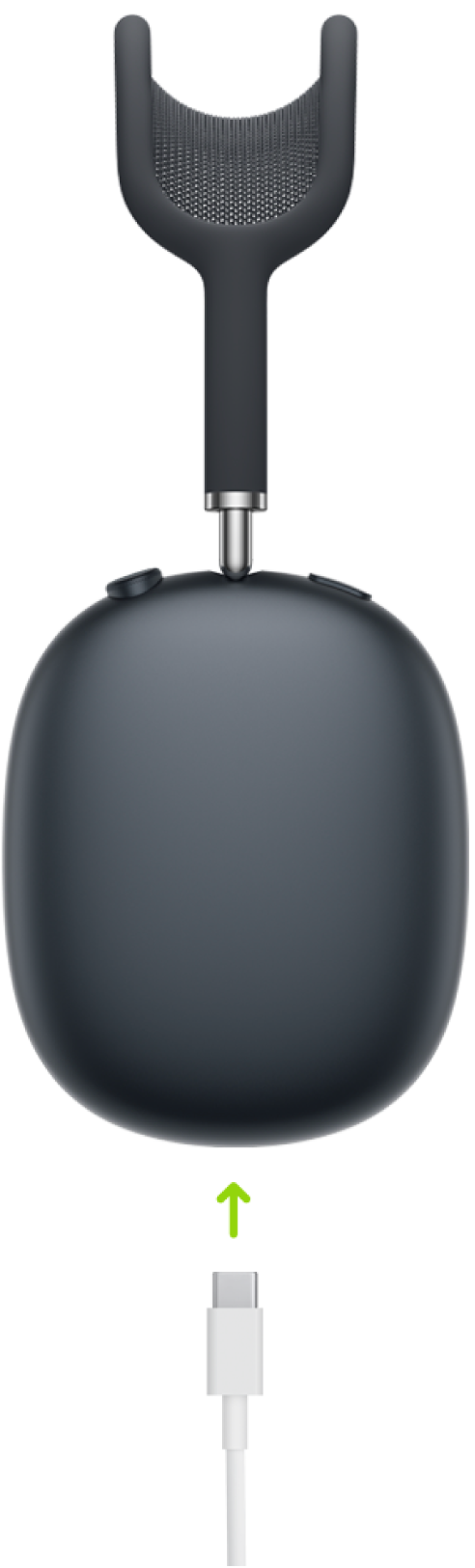
- AirPods Max 1: Connect AirPods Max to a power outlet using a Lightning to USB Cable and a compatible power adapter.
- AirPods Max 1 (USB-C) or AirPods Max 2: Connect AirPods Max to a power outlet using a USB-C cable and a compatible power adapter.
Note: When you’re not using AirPods Max, placing AirPods Max in the Smart Case puts them in sleep mode, which helps maintain the battery charge. You can’t play audio on AirPods Max while they’re in the Smart Case, though.
Check the charge status
To check the battery percentage of AirPods, AirPods Pro, or AirPods Max, you can use your iPhone, iPad, or Mac.
Quick tip: With AirPods Pro 2, AirPods Pro 3, AirPods Max 2, AirPods 4 (ANC), or AirPods 5 with Wireless Charging Case, you can also get a notification when your AirPods need charging and when your AirPods are fully charged. It’s easy to set up: Go to the Settings app on your iPhone or iPad, and tap the name of your AirPods at the top of the screen. Then tap Battery and turn Charging Notifications on or off.
- Wear your AirPods, and make sure they’re connected to your device.
-
Do one of the following:
-
iPhone or iPad: Go to the Settings app. Then tap the name of your AirPods near the top of the screen to see the battery percentage.
You can also add a widget to quickly check the battery level of your devices, including your AirPods.
-
Mac: Click the Bluetooth status menu in the menu bar to see the battery percentage of your AirPods.
If the Bluetooth status menu isn’t in the menu bar, go to the System Settings app, then click Menu Bar in the sidebar. Below Menu Bar Controls, select the box next to Bluetooth.
-
iPhone or iPad: Go to the Settings app. Then tap the name of your AirPods near the top of the screen to see the battery percentage.
With your AirPods or AirPods Pro in the case and the lid open, the case light shows the charge status of your AirPods. Once you take your AirPods out, it shows the case’s status instead. Green means fully charged. Amber means less than one full charge remains. And if no light appears, your AirPods may need charging before you can use them again.
Optimize battery charging
Optimized Battery Charging cuts the time your AirPods Pro, AirPods 3, AirPods 4, or AirPods 5 spend fully charged. It’s designed to reduce wear on your battery and its lifespan.
Besides using Optimized Battery Charging, AirPods Pro 3 also learn from your daily usage to work out when to charge to an optimized limit and when to allow a full charge. That limit adapts to how you use them each day, preserving your battery lifespan over time. Once you’ve turned on Optimized Charge Limit for AirPods Pro 3, opening the charging case lid with the AirPods inside shows a divided charge ring.
- Wear your AirPods, and make sure they’re connected to your device.
- Start the Settings app on your iPhone or iPad.
-
Tap the name of your AirPods near the top of the screen and tap Battery. Then do one of the following:
- AirPods 3, 4, or 5, or AirPods Pro 1 or 2: Turn on Optimized Battery Charging.
-
AirPods Pro 3: Turn on Optimized Charge Limit.
To fully charge your AirPods Pro 3, turn off Optimized Charge Limit, then tap Turn Off Until Tomorrow, or tap Turn Off to turn off the setting entirely. You can also tap Charge to Full Now when you open the lid of the charging case with the AirPods inside and see the current battery and charge status of the AirPods and case.
Turn on Charging Notifications
If you choose to receive notifications on your iPhone or iPad, you’ll get a reminder to charge your AirPods when the battery is low, plus another when charging is complete.
- Wear your AirPods, and make sure they’re connected to your device.
- Start the Settings app on your iPhone or iPad.
- Tap the name of your AirPods near the top of the screen, tap Battery, and turn on Charging Notifications.
This guide is for iOS 27, iPadOS 27, macOS 27, tvOS 27, watchOS 27, or later.
See also