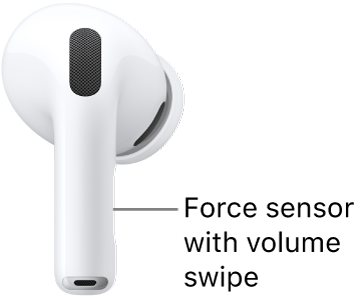
Your AirPods have built-in accessibility features that can improve your listening experience, whether you’re listening to your favorite music or trying to hear a conversation in a crowded room. Some settings apply to all headphones, and others are just for your AirPods.
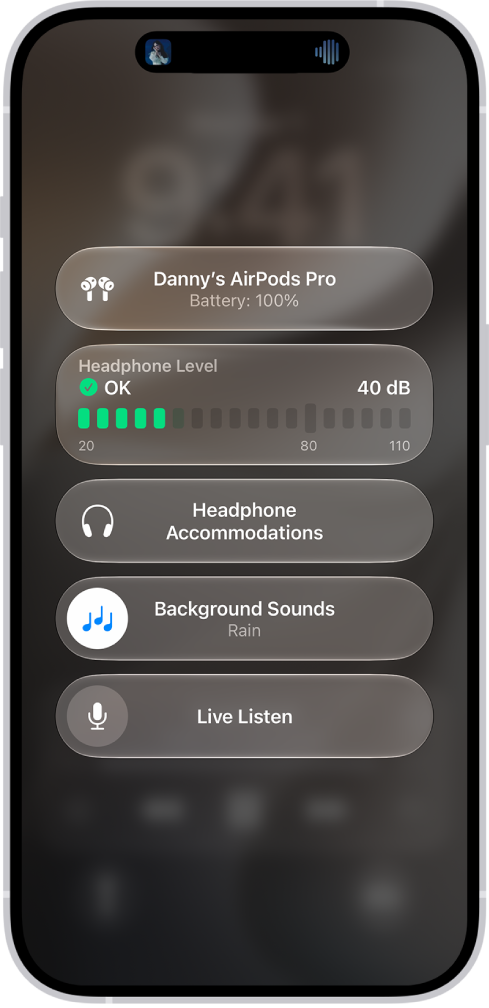
To get started, here are a few ways your AirPods can help:
Play background sounds
Calming background sounds can help you relax or focus, and you can choose from a list of them, like Rain or Ocean, and adjust the volume. For the steps, check out our article, Play background sounds.
Customize Transparency mode
While you’re listening to music, podcasts, and more on AirPods Pro, it’s possible to hear sounds around you with Transparency mode. You can also adjust the ambient noise you hear in it and turn on Conversation Boost to help you pick out conversations from background noise. For more, read our guide, Use and customize Transparency mode.
Hear across the room
With Live Listen, your iPhone or iPad acts as a microphone, sending sound straight to your AirPods, even from across the room. It’s a way to hear a lecture from the back row of the classroom or a conversation in a crowded room. For the steps, see our article, Use Live Listen.
Adjust AirPods control settings
You can adjust the settings for the button, force sensor, or force sensor with volume swipe on your AirPods to make them easier for you to use, such as how long you need to hold the force sensor before an action occurs. See Change force sensor, force sensor with volume swipe, or button settings.
Change accessibility settings
Once AirPods are set up, you can adjust accessibility settings. Headphone accommodations, for example, apply to all headphones, while others, like Transparency, are just for your AirPods.
Choose any of these features:
- Headphone accommodations
- Transparency mode for AirPods Pro
- Mono audio
- Background sounds
- Live Listen
- Force sensor, force sensor with volume swipe, or button settings
- Sound effects volume