On an iPhone with Face ID, you can adjust Face ID and attention settings if you have physical or vision limitations. If you can’t move your head in a full circle during setup, you can use Accessibility Options. Face ID is attention-aware, too, and you can turn that check off.
Set up Face ID with Accessibility Options
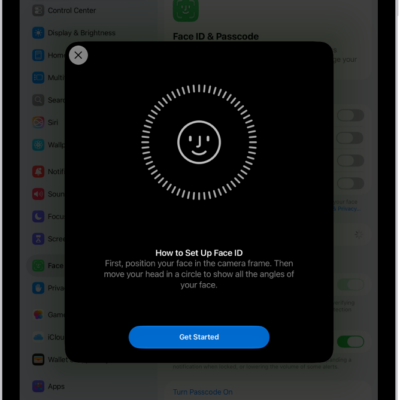
Face ID setup usually asks you to gently move your head in a circle so it can see all the angles of your face. If the full range of head motion isn’t possible for you, you can still set up Face ID without moving your head.
- Open Settings and then tap Face ID & Passcode.
- Tap Set Up Face ID and then tap Get Started.
- Position your face within the frame and tap Accessibility Options.
It’s still secure, but Face ID requires more consistency when you unlock iPhone.
Change attention settings
Face ID is attention-aware for additional security, so iPhone only unlocks when your eyes are open and looking at the screen. Attention-aware features also let iPhone lower the volume of alerts, reveal notifications and messages, or keep the screen lit when you’re reading.
If you don’t want iPhone to check for your attention, do the following:
- Open Settings, tap Accessibility, and then tap Face ID & Attention.
- Turn on or off any of the following:
- Require Attention for Face ID: Provide an additional level of security by unlocking iPhone only when you’re looking at it.
- Attention Aware Features: iPhone checks for attention before dimming the display, expanding a notification when locked, or lowering the volume of some alerts.
- Haptic on Successful Authentication: Play a haptic when Face ID successfully unlocks iPhone, authorizes Apple Pay, or verifies iTunes and App Store purchases.
If you turn on VoiceOver when you first set up iPhone, these settings are off by default.
Note: Requiring attention makes Face ID more secure.