Got a tip for us?

face id

  • If Face ID is not working after iOS 26 update, start by making sure it’s enabled in Settings for any features you want it to unlock.
  • You can create a second appearance in Face ID so it has an easier time recognizing you.
  • Ensure the camera isn’t blocked, but if your face is blocked (with a mask for example), you need to enable Use Face ID with a Mask feature before you can unlock your device with Face ID.

For many people, Face ID is nothing short of a revelation — it lets you log into your iPhone, various apps and services, and even make safe and secure purchases without any effort beyond looking at your phone. Of course, Face ID isn’t without its shortcomings, and it can occasionally fail to work properly, failing to unlock whatever you were trying to access.

If you updated your iPhone to the latest IOS 26 update and Face ID stopped working, there are tips you can try to fix the problem.

When Does Face ID Become Unavailable?

Before going straight to the fixes, Face ID will temporarily stop working in these situations:

  • The device has just been turned on or restarted.
  • The device hasn’t been unlocked for more than 48 hours.
  • The passcode hasn’t been used to unlock the device in the last six and a half days and Face ID hasn’t unlocked the device in the last 4 hours.
  • The device has received a remote lock command.
  • After five unsuccessful attempts to match a face.
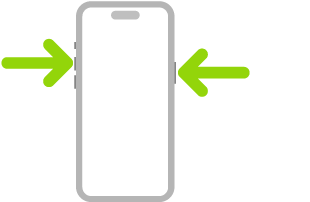
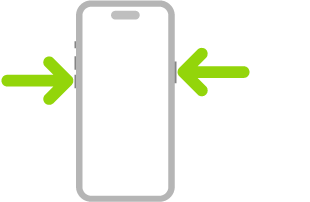
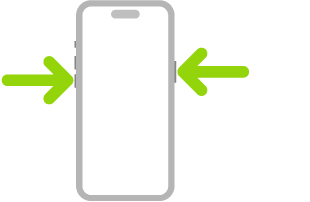
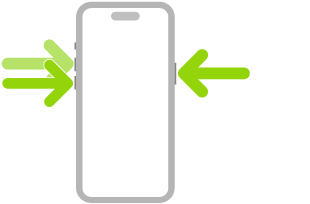
  • After initiating power off or Emergency SOS by pressing and holding either volume button and the side button simultaneously for 2 seconds.

What to do if Face ID isn’t working on iPhone in iOS 26

If you have a problem with Face ID not working after updating to iOS 26, try fixing it using these troubleshooting tips.

Make sure Face ID is turned on

If Face ID doesn’t seem to work on your iPhone in iOS 26, the problem might be an easy fix; either it was never enabled, or iOS 26 disabled Face ID for the app or feature you’re trying to unlock. Here’s how to check:

  1. Open the Settings app and then tap Face ID & Passcode.
  2. Enter your passcode if prompted.
  3. Make sure that Face ID is turned on for the feature you’re trying to unlock. In addition to iPhone Unlock, you can also use Face ID on iTunes & App Store, Contactless & Payments, Password AutoFill and any third-party apps that support Face ID.

Set up an alternate appearance

Face ID automatically adapts to changes in your appearance, such as wearing cosmetic makeup or growing facial hair. If your appearance changes radically on occasion, though, you might need to assist Face ID by setting up an alternate appearance.

  1. Open the Settings app and then tap Face ID & Passcode.
  2. Enter your passcode if prompted.
  3. Tap Set Up an Alternate Appearance.
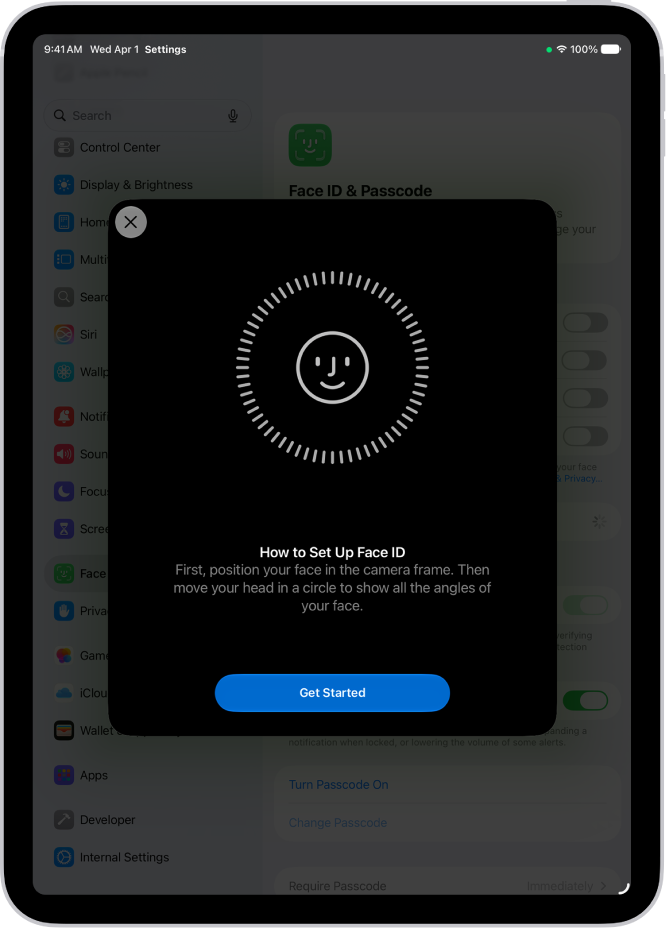
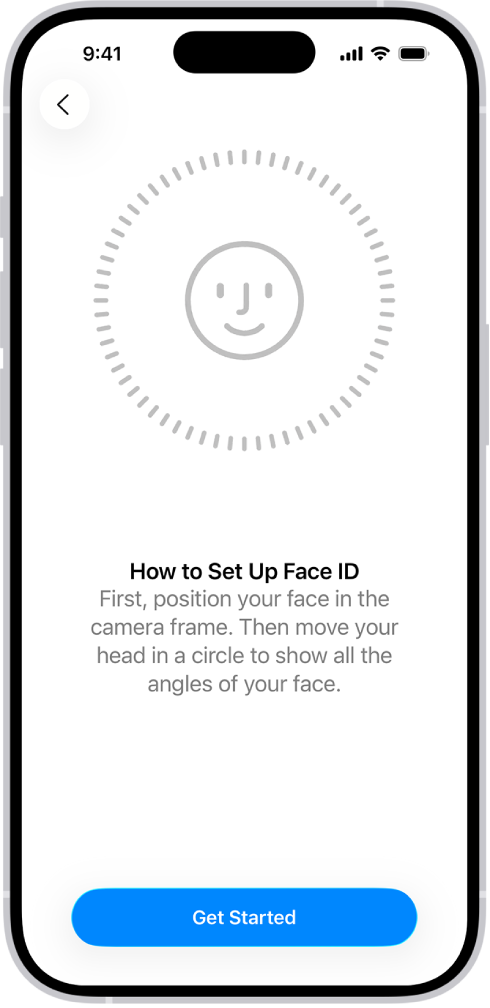
  4. Follow the instructions to let Face ID learn your face and save it as a secondary appearance.

Make sure your Face ID camera isn’t blocked

Face ID makes use of a camera system Apple calls TrueDepth. It’s actually composed of several components including a dot projector that illuminates your face with more than 30,000 tiny infrared dots as well as an infrared camera that detects those dots.

Because those components are spread out across the TrueDepth camera on the iPhone, the TrueDepth camera needs to have a clear and undisturbed view of your face. Make sure that the TrueDepth camera is clean and not covered or blocked by a case or any other sort of obstacle.

Don’t cover your face and look at the camera

In the same way that it’s important not to block the Face ID’s camera, you should make sure nothing is covering your face when you need Face ID to work on your iPhone. Here are some things to keep in mind:

  • Face ID generally works whether or not you’re wearing glasses. There are certain kinds of sunglasses that can interfere with Face ID, so if you find it doesn’t work with glasses on, try taking the glasses off and using Face ID again.
  • Your eyes, nose, and mouth need to be unobstructed in order for Face ID to work.
  • Face ID is most accurate when it’s set up for full-face recognition only. To use Face ID while wearing a mask, iPhone can recognize the unique features around the eye area to authenticate. You must be looking at your iPhone to use Face ID while wearing a mask. To use Face ID while wearing a mask, first enable the feature by going to SettingsFace ID & Passcode.
  • Face ID works best when the device is arm’s length or less from your face (25–50 cm away from your face).

Make sure your iPhone is up to date

An iOS 26 bug may cause your iPhone Face ID to stop working properly. To fix this, update your iPhone to the latest version of iOS 26. Go to SettingsGeneralSoftware Update. If a new update is available, install it.

Restart your iPhone to reboot Face ID

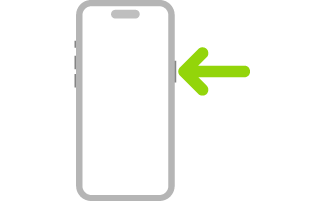
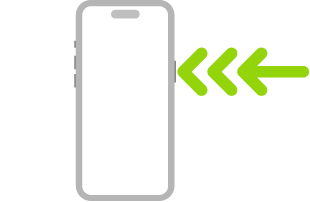
I had an issue with Face ID not working after updating to iOS 26. I restarted my iPhone and my problem was fixed immediately. This fix may work for you too, so give it a try. Go to SettingsGeneralShut Down. Drag the power slider from left to right to shut down your iPhone. Wait a few seconds, then press the side button to turn your iPhone back on.

Face ID should now start working on your iPhone. But for security reasons, you must enter your passcode to re-enable Face ID after a restart.

Make sure Face ID is not restricted in Screen Time

If you have Content & Privacy restrictions enabled on your iPhone, it may be blocking Face ID from working properly. Here’s how you can fix it:

  1. Go to Settings > Screen Time.
  2. Tap on Content & Privacy Restrictions.
  3. Enter your Screen Time passcode if prompted.
  4. Tap on Passcode Changes and set it to Allow.

After turning off the restriction, Face ID should start working on your iPhone again. If this is not your issue, check other recommended solutions below.

Reset Face ID

Some users on Reddit reported that they fixed their iOS 26 Face ID issues by resetting Face ID and setting it up again. This isn’t as onerous as it sounds, because it only takes a few moments to configure Face ID. Do this:

  1. Open the Settings app and then tap Face ID & Passcode.
  2. Enter your passcode if prompted.
  3. Tap Reset Face ID.
  4. Follow the instructions to set up Face ID a second time.

If you follow each of these troubleshooting steps and Face ID still does not work on your iPhone, you may have a hardware problem with your device that requires servicing. You should reach out to Apple Support for further help.

Face ID is a method for authenticating your identity on an iPhone or iPad. When Face ID isn’t working on iPhone 12 mini, you can’t use your face to get into your device, nor can you scan your face to make purchases through places like the App Store.

If you’ve already tried setting up Face ID on your iPhone 12 mini and it doesn’t let you complete setup or won’t let you scan your face, read on to learn how to fix Face ID not working on iPhone 12 mini.

What To Do When Face ID Not Working On iPhone12 mini

There could be multiple reasons why Face ID may not be working on your iPhone 12 mini. For instance, the problem might arise due to a random software glitch, a miscellaneous bug, or even your sunglasses or faulty screen protector. Therefore you will need to take a close look at various things to fix Face ID not working on iPhone 12 mini issue.

It’s worth pointing out that you can try out these solutions to troubleshoot Face ID problems on your iPhone 12, iPhone 12 Pro, or iPhone 12 Pro Max as well. So, irrespective of whether you run into issues on your iPhone 12 mini, iPhone 12, iPhone 12 Pro, or iPhone 12 Pro Max, follow the tips below to fix the Face ID not working problem.

1. Restart Your iPhone

As I said, some of these solutions might sound silly, and this probably the silliest sounding one of them all. Restarting your iPhone is the first thing you should try no matter what crazy glitch or issue you encounter. To turn off your iPhone, simply hold down the Side button and either of the volume buttons until the power off slider appears.

Once your iPhone is switched off, press and hold on the Side button until the Apple logo appears and wait for your phone to turn on. In more than 50% of the cases where your Face ID is not working on iPhone 12 mini, this simple method should solve the problem.

2. Check for Software Updates

If Face ID is not working on your iPhone 12 mini/ iPhone 12 Pro Max, another thing you should check for is the latest software update. Apple often releases bug fixes via new software updates, and you should update your iPhone as soon as the updates roll out. To check if you have a software update or not, open the Settings app and go to General -> Software Update and tap on the “Download and Install” button if an update is available.

3. Maintain the Required Distance

If your Face ID is not working intermittently, the chances are high that you are not holding your iPhone at a required distance. As per Apple’s guidelines, you should be holding your iPhone at a distance of 10-inches to 20-inches for Face ID to work flawlessly. So, keep this essential thing in mind while unlocking your iPhone using Face ID.

4. Check Your Sunglasses

Also, you should know that Face ID may stop working on iPhone 12 mini when wearing certain types of sunglasses. Sunglasses that stop infrared light from passing through cause Face ID to fail as infrared light is a part of its verification system. Sadly, there is no way to tell which sunglasses won’t work with Face ID, so you might want to check if it’s your sunglasses that are the problem.

5. Make Sure Your Face ID Sensors Are Not Covered

One of the biggest reasons that Face ID may have stopped working on your iPhone 12 mini/ iPhone 12 Pro Max is that users unknowingly cover the Face ID sensors. It might be the screen protector you are using, a screen replacement, or the sensors might be dirty and covered with dust. That’s why you should regularly clean sensors and remove/reapply any screen protector you have on the device if Face ID is not working on iPhone 12 mini. We would suggest using a screen protector with a precise cutout for the notch.

6. Set Up Alternate Appearance

With iOS 12 or later, Apple allows users to set an alternate appearance. This is a great feature for people whose work requires them to wear a mask or cover a part of their face. They can use this feature to set that specific look as an alternate appearance so that Face ID can identify them in any situation. To set an alternate appearance, open the Settings app and go to Face ID & Passcode -> Set Up an Alternative Appearance and set it up.

7. Turn off Attention Aware Feature

By default, Face ID requires you to look at your iPhone with the intent to unlock the device. While this is a handy feature for extra security, you should turn this feature off if you encounter too many failed unlock attempts. You can find this feature in the Settings app by going to Face ID & Passcode. Here, you can scroll down to see the Require Attention for Face ID option and turn it off.

When you turn off the toggle, a popup shows up on the screen saying, “If you turn this off, Face ID will unlock your iPhone even if your eyes are not clearly open and looking at the screen.” Tap on OK to confirm the action.

8. Reset Face ID

If none of the above solutions have fixed Face ID not working on iPhone 12 mini issue, the last thing that you can do is reset Face ID and set it up again. More often than not, it solves the ill-functioning of Face ID. Thus, I would recommend you to go for the reset. To do that, open the Settings app, tap on Face ID & Passcode, and then tap on “Reset Face ID” to re-record your facial data.

Face ID Not Working on iPhone 12 mini? Problem solved

As you can see, the solutions to the ‘Face ID not Working on iPhone 12mini’ issue are easy and straightforward.

If you find Face ID not working on iPhone 12 mini even though you have tried all the above-mentioned solutions, it may be a hardware problem – contact Apple or visit one of their stores.


Tag: face id