Here’s a handy reference to the gestures you use for interacting with an iPhone that has Face ID. They cover how to return to the Home Screen at any time, quickly access controls, open the App Switcher, switch between open apps, use Apple Pay, take a screenshot, use Emergency SOS, and force restart.
| Gesture | Description |
|---|---|
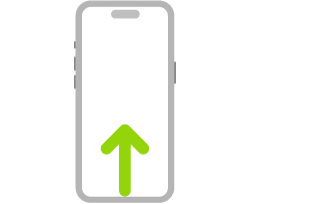 |
Go Home. Swipe up from the bottom edge of the screen to return to the Home Screen at any time. |
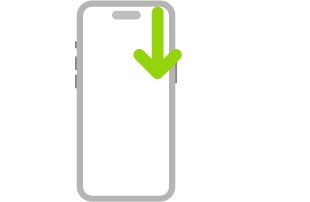 |
Quickly access controls. Swipe down from the top-right corner to open Control Center; touch and hold a control to reveal more options. To add or remove controls, go to the Settings app, then tap Control Center. |
 |
Open the App Switcher. Swipe up from the bottom edge, pause in the center of the screen, then lift your finger. To browse the open apps, swipe right, then tap the app you want to use. |
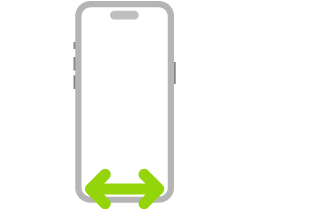 |
Switch between open apps. Swipe up from the bottom edge, then swipe right or left. |
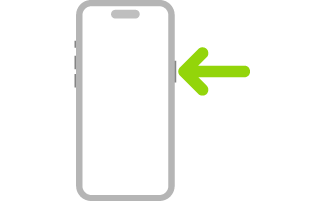 |
Use Siri. Just say “Siri” or “Hey Siri.” Or press and hold the side button while you ask a question or make a request. |
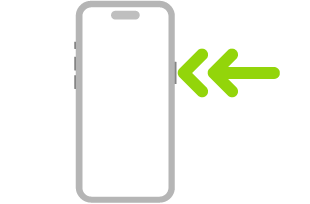 |
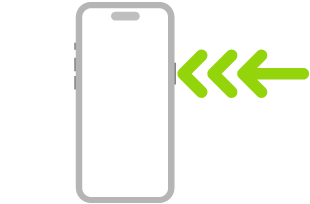
Use Apple Pay. Double-click the side button to display your default card for Apple Pay, then glance at iPhone to authenticate with Face ID. |
 |
Use Accessibility Shortcut. Triple-click the side button. |
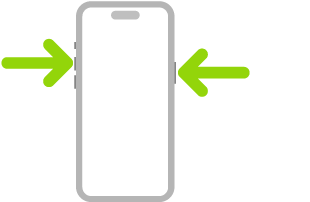 |
Take a screenshot. Simultaneously press and quickly release the side button and volume up button. |
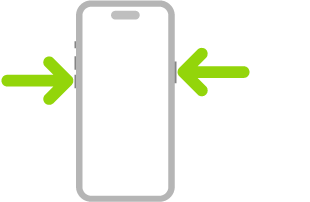 |
Use Emergency SOS (all countries or regions except India). Simultaneously press and hold the side button and either volume button until the sliders appear and the countdown on Emergency SOS ends, then release the buttons. |
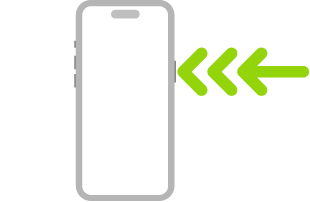 |
Use Emergency SOS (in India). Quickly press the side button 3 times until the sliders appear and the countdown on Emergency SOS ends. If you’ve turned on Accessibility Shortcut, simultaneously press and hold the side button and either volume button until the sliders appear and the countdown on Emergency SOS ends, then release the buttons. |
 |
Turn off. Simultaneously press and hold the side button and either volume button until the sliders appear, then drag the top slider to power off. Or go to the Settings app, tap General, then tap Shut Down. |
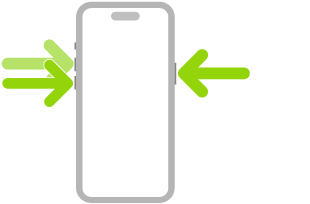 |
Force restart. Press and release the volume up button, press and release the volume down button, then press and hold the side button until the Apple logo appears. |
Tag: face id