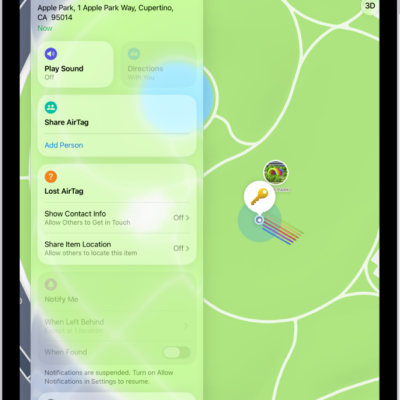
Use the Find My app to mark a missing iPhone, iPad, iPod touch, Apple Watch, Mac, supported AirPods, or iPhone Wallet with MagSafe as lost. In order to mark a device as lost, you must turn on Find My [device] before it’s lost.
When you do, a confirmation email is sent to your Apple Account email address, and you can show a message saying it’s lost and how to contact you.
What happens when you mark a device as lost?
- A confirmation email is sent to your Apple Account email address.
- You can create a message for the device that says it’s lost and how to contact you.
- For an iPhone, iPad, iPod touch, Mac, or Apple Watch, your device doesn’t display alerts or make noise when you receive messages or notifications, or if any alarms go off. Your device can still receive phone calls and FaceTime calls.
- For applicable devices, payment cards and other services are suspended.
Mark a device as lost
When a device is lost or stolen, you can put your Apple Watch, iPad, iPhone, iPod touch, iPhone Wallet with MagSafe, or supported AirPods in Lost Mode, or lock your Mac.
- Open the Find My app on your iPad.
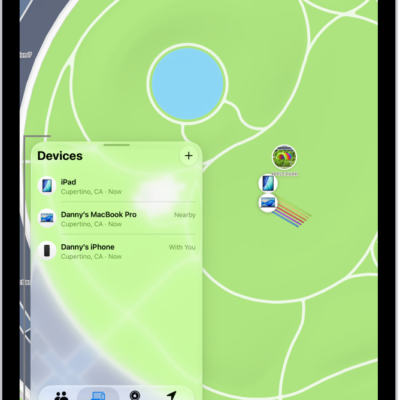
- Tap Devices at the bottom-left side of the screen, tap the name of the lost device, and tap the More button.
- Tap Lost Mode.
- Follow the onscreen instructions, keeping the following in mind:
- Passcode: If your iPhone, iPad, iPod touch, or Apple Watch doesn’t have a passcode, you’re asked to create one now. For a Mac, you must create a numerical passcode, even if you already have a password set up on your Mac. This passcode is distinct from your password and is only used when you mark your device as lost.
- Contact information: For iPhone, iPad, iPod touch, Mac, or Apple Watch, the contact information and message appear on the device’s Lock Screen. For AirPods or iPhone Wallet with MagSafe, the information appears when someone tries to connect with your device.
- Tap Activate (for an iPhone, iPad, iPod touch, Apple Watch, AirPods, or iPhone Wallet with MagSafe) or Lock (for a Mac).
When you’ve marked the device as lost, Activated shows up below the Mark As Lost section. You see Pending instead if the device has no network connection when you mark it as lost, and Pending stays until the device goes online again.
Change the information for a lost device
You can adjust the information in the Lost Mode message after marking your iPad, iPhone, Apple Watch, iPod touch, or iPhone Wallet with MagSafe as lost.
- Open the Find My app on your iPad.
- Tap Devices at the bottom-left side of the screen, tap the name of the lost device, and tap the More button.
- Below Lost [device], tap Pending or Activated.
- Update the information, then tap Done.
Turn off Lost Mode for an iPhone, iPad, iPod touch, Apple Watch, AirPods, or iPhone Wallet with MagSafe
You can turn off Lost Mode after you find your lost device.
- Open the Find My app on your iPad.
- Tap Devices at the bottom-left side of the screen, tap the name of the device, and tap the More button.
- Tap Pending or Activated below Lost [device], tap Turn Off Mark As Lost, and then tap Turn Off.
Entering your passcode on an iPhone, iPad, iPod touch, or Apple Watch also turns off Lost Mode, while attaching iPhone Wallet with MagSafe to your iPhone does the same for the wallet.
Unlock a Mac
If you find your lost Mac, do one of the following:
- Mac with Apple silicon: Enter your Apple Account password.
- Intel-based Mac: Enter the numeric passcode on the Mac to unlock it (the one you set up when you marked your Mac as lost).
If you forget your passcode, Find Devices on iCloud.com can help you recover it.
Lost your iPad? Use Find Devices on iCloud.com to turn on Lost Mode.
See also