Got a tip for us?

Tips & Tricks

Tips and tricks for all things Apple! Whether you want to learn tips for a Mac, iPhone, iPad, Apple Watch, or much more, you will find many tricks, tips, tutorials, and excellent walkthroughs for Apple devices and software here.

Everything we do now revolves around being online at all times

In today’s digitally connected world, online privacy has become a growing concern for many. As you browse, stream, and interact online, keeping your information and data secure is crucial. One effective solution to protect your online privacy is using a virtual private network (VPN) on your Mac. But how exactly does a VPN work on a Mac, and why do you need one?

The M1-powered 13-inch MacBook Pro.

In this comprehensive guide, we dive into the nuts and bolts of VPNs, exploring how they function, their advantages, and why they’re essential for safeguarding your privacy in the digital age by protecting your Mac.

What is a virtual private network (VPN), and how does it work?

A VPN creates a secure, encrypted connection between you and the internet. The VPN masks your IP address and location through an encrypted virtual tunnel. This ensures a protected connection that makes your IP address and online activities invisible to everyone.

Your Internet service provider (ISP) gives you a unique number known as an Internet Protocol (IP) address, which allows you to access the Internet. However, your online activities can be traced back to your physical home address using this number. Your ISP can also see everything you do by default, which isn’t great for privacy concerns. A virtual private network (VPN) service stops them from snooping on you. A VPN conceals your home IP address and encrypts your data through a secure tunnel, ensuring that your online activities remain private and inaccessible to third parties. Not even your ISP will know what you’re doing online.

When connected to a VPN, the initial web traffic starts its journey by authenticating your client or device with the remote server location. That data is encrypted based on the security protocol you use, sent to the remote server, and out to the public web. Your actual home IP address is faked or hidden using the new one from the VPN service or provider. Since encrypted data packets are sent between you and the remote VPN server when browsing online, you stay safe and secure no matter what. This entire process is often referred to as VPN tunneling.

Privacy Breaches and Data Leaks: How Mac Users Without VPNs are at Risk

Mac users who do not utilize a VPN are putting their privacy and data at significant risk. Without a VPN, your internet connection is vulnerable to interception by hackers and cybercriminals. Sensitive information, such as passwords, credit card details, and personal documents, can be easily accessed by malicious individuals.

Moreover, without the protection of a VPN, your online activities can be monitored and tracked by various entities, including government agencies and internet service providers. This invasion of privacy can lead to targeted advertising, identity theft, and even blackmail.

By not using a VPN, Mac users are essentially leaving their digital footprint exposed for anyone to exploit. It is crucial to prioritize online security by employing a reliable VPN service that encrypts your data and shields your identity from prying eyes.
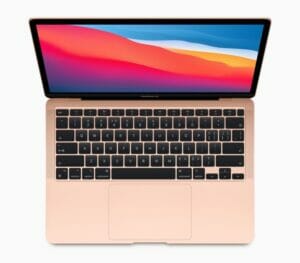
The M1-powered MacBook Air in rose gold.

How a VPN Increases Security and Privacy on Your Mac

Evading Government Surveillance and Censorship Using a VPN for Mac

Government surveillance and censorship are growing concerns in today’s digital age. Mac users can benefit greatly from using a VPN to bypass these restrictions, ensuring secure internet browsing.

With a VPN, Mac users can hide their online activities from prying eyes, including government agencies that monitor internet traffic. By encrypting data and routing it through remote servers, a VPN provides an added layer of protection against surveillance.

Moreover, some countries impose strict censorship on internet access or block certain websites and services. With a reliable VPN service on your Mac, you can easily bypass these restrictions, gaining access to blocked content while maintaining your privacy.

Using a VPN not only enhances security but also empowers Mac users to take control of their online experience by evading government surveillance and censorship effectively.

Shielding Your Mac from Cyber Threats: Enhancing Security with a VPN

With the continuous rise of cyber threats, protecting your Mac from potential dangershas become more crucial than ever. Using a VPN for secure internet browsing is one of the best steps you can take to enhance your online security. By encrypting your connection and masking your IP address, a VPN shields your Mac from hackers and other malicious actors.

A VPN also offers an additional layer of protection when using public Wi-Fi networks, which are notorious for their vulnerabilities. With a trusted VPN service, you can browse the web with peace of mind, knowing that your sensitive information is safe from prying eyes.

Investing in a reliable VPN not only safeguards against cyber threats but also preserves your privacy by preventing unwanted tracking and data collection. Don’t compromise on security – make sure to incorporate a VPN into your Mac usage for safer internet browsing.

Protecting Your Online Privacy: Why Mac Users Need a VPN

As a Mac user, your online privacy should be one of your top concerns. In today’s digital age, cyber threats are becoming more sophisticated and prevalent than ever before. Hackers can easily intercept your internet connection and gain access to your personal information, including passwords, financial details, and browsing history.

A VPN (Virtual Private Network) is an essential tool that provides an added layer of security for Mac users. By encrypting your internet traffic and masking your IP address, a VPN ensures that your online activities remain private and protected from prying eyes. Moreover, it prevents advertisers and ISPs from tracking your behavior and selling your datawithout consent.

With the increasing number of cyber attacks targeting Mac users specifically, using a VPN has become vital for safeguarding both your personal information as well as maintaining control over who has access to it.

Safeguarding Personal Information on Public Wi-Fi Networks with a Mac VPN

Public Wi-Fi networks can be incredibly convenient, allowing us to stay connected while we’re on the go. However, they also pose significant risks to our online security and privacy. Hackers often target these networks to steal personal information or intercept sensitive data.

That’s where a VPN for Mac becomes essential. By encrypting your internet connection, a Mac VPN creates a secure tunnel between your device and the websites you visit. This means that even if someone tries to access your data on a public Wi-Fi network, they won’t be able to decipher it.

With a Mac VPN, you can confidently browse the web, check emails, or use online banking services without worrying about potential threats lurking in public Wi-Fi hotspots. Protecting your personal information has never been easier!

Should you use a free or premium paid VPN service?

That all comes down to what you need and how often you plan to use a VPN with your Mac. Clearly, free VPNs have their downsides. But are there any instances when they’re worth using? The answer is yes, although it depends. If you’re someone who’s never used one of these services before and want to try one out before buying a premium version, then downloading a free VPN isn’t a bad idea. It’ll give you an idea of what VPNs can do.

If you don’t plan on using a VPN often and want it for a specific task, then a free version should be fine. But again, they’ll lack a lot of features and won’t offer the best performance. Overall, paying for a premium version will not only provide more capabilities but will be much safer to use. And many of these services are actually quite cheap, costing as low as $2 per month which is negligible considering the additional privacy features, server selection, and modern VPN security protocols. And many of the well-known VPN services offer excellent multi-year subscription discounts, making it a small price to pay in the long run.

MacBook Air in midnight displaying a wallpaper.  

What can you expect when using a free VPN service?

A lot of the time, free VPNs make money through in-app advertisements. But these are often intrusive, make apps frustrating to use and can even affect device performance. To make things worse, these free services aren’t always legitimate; there have been many instances of malware masquerading as VPN services. So instead of improving online privacy and security, free VPNs can make your Mac less secure.

It’s also worth noting that free VPNs may employ weak or outdated encryption protocols, leaving your data vulnerable to interception and unauthorized access. Premium VPN services however, use advanced encryption standards and industry-standard networking protocols to secure your online communications and data transmission.

Many free VPN services also have various paid options, but that may not always translate to them being trustworthy with your personal data. Depending on the VPN service’s reputation and logging policy, they may collect or misuse your data even if you’re paying for a premium subscription tier. It’s also a good idea to avoid the random free VPN apps that pop up overnight on the Apple App Store. Most of them aren’t designed with your best interest in mind. Their sole purpose is to siphon your data without you ever knowing.

What about premium paid VPN services?

On the other hand, a premium paid VPN service typically offers more unique features than what you get with a free option. With a premium VPN, like ExpressVPN, NordVPN or Surfshark, you can strengthen your defenses through real-time malware defense, ad blockers that stop sneaky tracking practices, and protection from most known malicious websites. Additionally, a premium paid VPN service prioritize your security and employ robust encryption protocols to ensure your online activities remain private. Premium VPN service also operate with a strict no-logs policy, meaning they do not monitor, collect, or store your internet traffic.

A premium paid VPN service also tends to have an extensive selection of high-quality servers you can access worldwide. Since there may be times when a server gets bogged down due to high traffic, the more options you have, the better. In this case, your connection speed can suddenly drop and become unstable, so server hopping would be beneficial. You also get more VPN security protocol choices, including Wireguard and other unique implementations. For example, NordVPN has NordLynx, while ExpressVPN offers Lightway. Both protocols are built around the needs of their respective customers.

What are some popular VPN services for Mac?

There are numerous VPN services available for Mac, each with its own set of features and pricing plans. Some popular options include:

ExpressVPN

ExpressVPN owns all of its own ‘TrustedServer’ DNS servers, meaning at no point in the chain is your data ever handed over to a third party. Combine that with impenetrable encryption and a rock-solid, fully audited zero-logging policy, and you can feel safe in the fact that your personal info won’t be compromised.

Proton VPN

Proton VPN delivers excellent protection for its users across the board. Fully audited apps, an excellent no-logging policy and full AES-256 encryption alongside more unusual features like Tor over VPN and its rock-solid Secure Core servers make it a good choice for anyone looking for a properly secure Mac VPN.

Surfshark VPN

Surfshark is an affordable, feature-rich Mac VPN with over 3,000 servers in 65 countries. With full support for WireGuard, OpenVPN and IKEv2, industry-standard AES-256 encryption and a few extra features like split tunneling and Double Hop, it’s a complete package. The simple, friendly interface also makes these features easy to either use or ignore, and just like ExpressVPN it’s a great option for first-timers.

NordVPN

NordVPN offers all the basics like powerful encryption and multiple protocols, but it also delivers a few features that aren’t available with rivals ExpressVPN and Surfshark. The unique ‘Onion over VPN’ setting routes your through the Tor network, which sacrifices speed for unrivalled privacy. You’ll also get two kill switches, and a nifty Double VPN feature.

How can you tell if a VPN service is safe and legitimate?

The first thing to look for in a VPN service is its no-logging policy. You need to be sure your information is safe and won’t be mishandled at any point. Some countries or governments may enforce strict data-logging policies, so look further into the company’s no-logging claims. Find the location or country where the VPN is based, then dig a little deeper using your own independent research. The goal is to see if the country they set up shop in requires a data-logging policy.

Aside from verifying their no-logging claims, you’ll want to learn as much about that VPN company or service as possible. For this part, stray away from their official website and explore other details using a search engine. Find out who runs it and how trustworthy they are based on community feedback. You should look up multiple third-party articles and videos to see if they all agree on its legitimacy. You can also check the user-based VPN app reviews on the Apple App Store for a little extra insight.

Can your personal data still be tracked when using a VPN?

This is a complicated question that often has a misleading answer, inadvertently giving the average user a false sense of security. A VPN can encrypt your internet traffic and keep your browsing session private to an extent. However, it won’t protect you from everything. For example, you can still be indirectly tracked by website cookies, ad trackers, and the information you share on social media. And the more online accounts you log in to that are tied to your factual personal details, the higher your chances of having that data getting tracked, sold, or stolen by an unwanted third-party entity.

A reputable and well-designed VPN does what it was meant to do by keeping your internet traffic encrypted. However, it still falls on the user to practice safe online browsing habits for everything a VPN can’t protect you from. We also trust these big tech companies and websites to keep our online accounts and personal information safe from harm. Still, data breaches and ransomware have been on the rise recently, which is beyond our control. Because of that, your private data can sometimes be taken from you without your consent or knowledge, VPN or not.

Overall, a VPN can encrypt your internet traffic and keep your browsing activities hidden from others on the public web to an extent. Your ISP won’t be able to tell what you’re doing either. They can only see that you’re using a VPN. This allows you to browse the web and use internet-connected devices, without being tracked by the unique IP address given to you by your ISP. Just be cautious about what information you put online, which links or websites you visit, and how much of your personal life you share with strangers on social media.

What are some safe online browsing habits you can use with a VPN?

No amount of VPN security can protect you from sharing private details online that can be tied to your personal information. People often overlook this when using a Mac VPN. It’s not a magic bubble that keeps you protected without thinking about your actions. VPN users must still be careful when freely browsing the open web. The VPN companies or services offering a premium subscription won’t always point this out either. You have nothing to worry about here if you combine various safe online browsing habits while using your favorite VPN provider.

So what are some examples of safe online browsing habits you can use in your personal life? For starters, avoid websites that are unencrypted and marked as unsafe. Web browsers are excellent at alerting you to this, but you still have to back out of the site manually. At the same time, don’t fall victim to spam calls, emails, or text messages. If it sounds too good to be true, it most likely is. Some VPN services have features to identify and protect you from these common scams.

We also want to touch on two-factor authentication (2FA), which can further protect your online security. In this case, you should ensure your VPN account has a strong primary password and that 2FA is enabled. A VPN might be able to encrypt your web traffic. However, your VPN account is still susceptible to being hacked. Once 2FA is active, you’ll enter a random passcode before you or anyone can log in to the account. You should use 2FA for as many online accounts as possible to keep your personal and private information safe.

Is there another reason to use a VPN ona Mac other than security purposes?

Many Mac users likely use a VPN service for its privacy and security features. Still, another popular reason makes them appealing. Most streaming services offer unique content that can’t be viewed if you live outside a specific country. Using a VPN to spoof or fake your personal IP address in order to bypass these geo-restrictions can give you instant access to many of these shows you couldn’t view before. Some Mac users are less concerned about security and more interested in streaming content outside their own country. For them, the added safety features of a VPN would be a welcomed bonus.

It’s worth noting that using a VPN to bypass geo-restrictions or access blocked streaming content may violate the terms of service for some websites and streaming services. When you sign up for a service, you agree to follow their terms and conditions, which might forbid VPNs. If you ignore those rules and use a VPN, you could risk getting your account suspended or terminated. So, be smart and cautious with your VPN usage when it comes to streaming!

Potential downsides and risks of using a VPN ona Mac

While VPNs offer many benefits to Mac users, there are also some potential downsides and risks to consider. One concern is that using a VPN can sometimes result in slower internet speeds since your data must travel through the VPN server before reaching its destination. This can be particularly noticeable when using a VPN server located far away from your actual location, so it’s best to choose a location that is closer to your current location.

Another concern is the trustworthiness of the VPN provider. When you use a VPN on your Mac, you are essentially entrusting your data to the VPN company. Some VPN providers may log your data or even sell it to third parties, negating the privacy benefits of using a VPN. To minimize these risks, it’s essential to choose a reputable VPN provider with a strict no-logs policy and strong encryption standards.

Step-by-Step Guide to Set Up a VPN on your Mac: Easy Ways to Strengthen Online Privacy

Setting up a VPN on your Mac is easier than you might think. With just a few simple steps, you can enhance your online privacy and strengthen your security. First, choose a reputable VPN service that meets your needs and offers strong encryption protocols. Next, download the VPN client software provided by the service onto your Mac computer.

Once installed, launch the app and enter your login credentials to connect to the server of your choice. Many VPN services offer servers in various locations worldwide, allowing you to bypass geo-restrictions and access content from different regions.

To ensure maximum security, it’s recommended to enable features like kill switch or automatic connection on startup in case the VPN connection drops unexpectedly. You can also customize other settings according to your preferences.

Remember to regularly update both the VPN client software and macOS for optimal performance and protection. By following these steps, you’ll be able to take full advantage of a secure internet browsing experience on your Mac with peace of mind knowing that your data is protected from prying eyes.

Protecting your Mac with a VPN has never been easier

If you’ve gotten this far, you now know that a VPN is an essential tool to keep your personal information safe while using your Mac. With a VPN, your online activities are private and secure, even from your internet service provider. However, a VPN cannot protect you from everything, like sharing private information online or falling for scams. Always practice safe online browsing habits, like avoiding unencrypted websites, enabling two-factor authentication, and being cautious about what information you share with strangers on social media.

While free VPN services may seem tempting, it’s best to invest in a premium paid VPN service to avoid data caps and get extra features like real-time malware defense and ad blockers. Finally, be sure to research and choose a VPN provider with a no-logging policy and a good reputation to ensure your personal data is safe.

Have you ever used a VPN on your Mac, and if not, what’s holding you back? We’d love to hear your thoughts in the comments below!

Here are our top AirTags tips and tricks to help you get the most out of Apple’s item trackers.

If you’re an iPhone user, Apple’s AirTag is a tailor-made option to help track your items. Whether it’s keys, a bag, or something else, the item tracker takes the best of Apple software and hardware design to provide a great solution. We want to help you get the most out of the item tracker by highlighting the best AirTags tips and tricks.

Here are our top tips and tricks to ensure you master your Apple AirTags in no time.

Top 10 AirTags Tips and Tricks

1. How to set up an AirTag

If you’ve just got hold of a new AirTag, you’ll want to get it set up and ready for use. Thankfully, setting up an AirTag is super easy. Here’s how:

  1. Make sure your ‌iPhone‌ is unlocked and showing the Home Screen.
  2. Remove the battery tab from the AirTag if you haven’t already done so, then hold it near your ‌iPhone‌.
  3. Tap Connect on the card that appears on the screen.
  4. Choose a name from the list, or tap Custom Name to type a name and select an emoji, then tap Continue.
  5. Tap Continue to register the item to your Apple ID, then tap Finish.

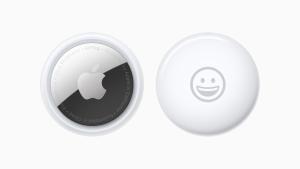
Front and back view of AirTag personalised with a smiley-face emoji.

2. How to View the Location of an AirTag Item

After setting up a new AirTag, you’ll want to know how to track it so that you can locate the attached item, should you misplace it. If your iPhone or iPad is running iOS 14.5/iPadOS 14.5 or later, you can use the ‌Find My‌ app to locate a missing AirTag that’s linked to your Apple ID. Here’s how.

  1. In the Find My app, tap Items, then tap the item that you want to locate.
  2. If the item can be located, it will appear on the map. You’ll see the updated location and timestamp under the item’s name.
  3. If the item can’t be found, you’ll see where and when it was last located. To receive a notification once it’s located again, turn on Notify When Found under "Notifications."

Use Find My to find your AirPods, Apple Watch, and AirTag  

3. How to Make an AirTag Play a Sound to Find it

If an AirTag is nearby, you can get it to play a sound so that you can locate it easier.

  1. Open the Find My app and tap Items.
  2. Select the AirTag that you want to play a sound.!
  3. Tap Play Sound.

To stop playing the sound before it automatically ends, tap Stop Sound. You can also pick up the AirTag and give it a squeeze to make it stop.

Pro tip: If you ask Siri to find my [item] or play a sound on my [item], ‌Siri‌ will ping the AirTag and cause it to make a noise so that you can locate it.

4. How to Check Your AirTags Firmware Version

Apple routinely issues over-the-air firmware updates for AirTags with updates that fix bugs, add features, and attempt to quench safety concerns.

Apple’s AirTag usually update automatically, but you can check the current firmware version of your item tracker on a connected iPhone. Here’s how:

  1. Open up the Find My App.
  2. Tap on the "Items" tab.
  3. Tap on the AirTag that you want to check in the list.
  4. In this view, tap on the name of the AirTag to see the current firmware version.

5. How to Check an AirTag’s Battery Life

AirTags come equipped with a CR2032 battery that Apple says is designed to last for at least a year, so you shouldn’t need to worry about the battery in your AirTag often.

If you’re curious about how it’s holding up or if you’re worried it could get low at a time that would be inconvenient, it’s easy to check the battery level of an AirTag in the Find My

  1. Open the ‌Find My‌ app and tap on the Items tab.
  2. Tap on the name of the AirTag that you want to check.
  3. Battery life is listed right under the AirTag’s name and location, so you can see it at a glance.

The battery icon does not provide a specific percent, but it’s similar to an iPhone battery and will drain down over time.

You don’t need to keep a close eye on the battery because your ‌iPhone‌ will let you know when it’s starting to get low so you can swap it out.

6. How to Change an AirTag’s Battery

AirTags use standard coin-shaped CR2032 batteries, which are designed to last at least a year before needing to be replaced. Most early AirTag adopters have probably already had to swap in a new battery, but if you’ve never done it before and find yourself in need of a battery replacement, it’s easy to put in a new one.

CR2032 batteries are common batteries that can be purchased on Amazon for about a dollar per battery, and you can also get them at many retail stores.
Once you have a new battery, follow these steps to put it in:

  1. Press down on the stainless steel backing of the AirTag.
  2. As you press down, rotate counterclockwise until the cover stops rotating.
  3. Pull apart the two halves of the AirTag.
  4. Take out the old battery and replace it with the new battery in the same orientation, which is positive side up. You’ll hear a chiming sound when the battery is seated correctly.
  5. Replace the stainless steel bottom of the AirTag, and make sure the three tabs on the cover align with the slots on the AirTag.
  6. Rotate the cover clockwise back in place until it stops.

7. How to rename an AirTag

If you chose the wrong name during setup, or simply want to change it, you can rename your AirTag in just a few steps.

  1. Open the Find My app on your iPhone, iPad, or Mac
  2. Choose Items
  3. Find your AirTag in the list and tap to select it
  4. Swipe to bring up the full information panel about that AirTag
  5. Tap on Rename Item. This takes you into the same naming selection you had during initial setup. So you can again pick from one of Apple’s suggestions.
  6. You can also choose Custom Name
  7. By default, you can now tap on an emoji to use that as the name.
  8. Or you can instead tap above the emoji, where the old name is
  9. This dismisses the emoji and brings up a regular keyboard for you to type what you want
  10. Tap Done.

Front and back view of AirTag personalised with a smiley-face emoji.  

8. How to get notified when you leave an AirTag behind

With this AirTag trick, you’ll be alerted when you’re leaving the AirTag behind, or if the AirTag is being moved away from you in a theft. This reduces the time it takes for you to be aware that something’s wrong, and therefore to act.

  • Open Find My.
  • Tap Items.
  • Tap the AirTag or the name you’ve given to the AirTag.
  • Scroll down and select Notify When Left Behind.
  • Tap the toggle next to Notify When Left Behind to turn it green.

9. How to Put an AirTag in Lost Mode

‌AirTags‌ can be tracked using the Items tab in ‌Find My‌, and just like your Apple devices, if one should become lost, you can put it in Lost Mode to locate it. If an AirTag is nearby, it will connect to an Apple device over Bluetooth to relay its location, and there’s even a Precision Finding feature on iPhone 11 and newer that uses the U1 chip for finding items that are misplaced close by.

An AirTag that’s out of range can still be tracked using the ‌Find My‌ app, but it won’t rely on the Bluetooth signals from your own device. Instead, the ‌‌‌Find My‌‌‌ Network takes advantage of nearly a billion Apple devices out in the world to help you locate your AirTag.

However, if an AirTag isn’t nearby and there are no Apple devices in the area in which it’s located, ‌‌Find My‌‌ will only be able to tell you where it was last seen on the map. In such cases, you can place the AirTag in Lost Mode. That way, if someone with an ‌iPhone‌ or Android device that has NFC comes across the item, they can help return it to you. Here’s how it works.

  1. Launch the Find My app on your ‌iPhone‌.
  2. Tap Items.
  3. Tap the AirTag you want to mark as lost.
  4. Swipe down on the card and under "Lost Mode," tap Enable.
  5. Tap Continue.
  6. Enter your phone number in the input field, then tap Next.
  7. Toggle the switch next to Notify When Found, and optionally customize the lost message that is shown when someone finds the item. Note that you can only customize the message and activate Notify When Found if the AirTag is out of range of your device.
  8. Tap Activate.

Now that the AirTag is marked as lost, anyone who finds it can bring it close to an NFC-enabled ‌iPhone‌ or Android phone and they will see a notification linking them to a website URL that contains your lost message and phone number.

See also: Top 11 benefits of AirTags: Apple’s Item Trackers

10. How to Factory Reset an AirTag So Someone Else Can Use It

When you set up an AirTag, it’s automatically associated with your Apple ID, which means it’s linked to your ‌Apple ID‌ and can’t be used by someone else unless you reset it.

Resetting is as simple as removing an AirTag from your ‌Apple ID‌, by following these steps:

  1. Open the Find My app.
  2. Tap on the AirTag that you want to remove by choosing its name from the list.
  3. Swipe upwards to bring up the full AirTag settings.
  4. Tap on "Remove Item."
  5. Tap on "Remove" and then tap again on the "Remove" popup.

Once you’ve gone through this process, the AirTag’s ownership is cleared and you can give it to someone else to set up and use with their own account.

Tag: AirTags

Looking to get an iPhone for cheap? Here are some useful tips for saving the most money when you buy an Apple iPhone.

iPhone 14 Pro and iPhone 14 Pro Max are shown in space black.

Apple’s iPhones are some of the best phones you can buy. But they’re also pretty expensive. A few tips and tricks can help the smart shopper figure out how to get an iPhone for cheap.

Here are seven ways you can save, as recommended by our experts.

1. Specify Needed Features and Set a Budget

Once you start looking for deals, it’s easy to get "deal blindness." That’s when you end up spending a few hundred dollars more for more storage space, or getting a Pro model instead of a standard models just because you found a good deal on the Pro. Remember, the best deal available isn’t necessarily the perfect choice for you.

Before you start looking around, ask yourself which iPhone you should get. You should also figure out what specifications you need. Write down the reasons you want those particular specifications or features. For example, "I want an iPhone Pro model because of additional camera features."

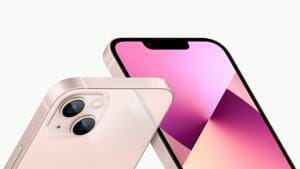
The TrueDepth camera system and the redesigned rear camera layout of iPhone 13 in pink.

Similarly, before you start, figure out a budget. Write down why you have chosen that budget, and how flexible you can be with it.

These two reminders are crucial because the moment you see deals, you’ll be tempted to spend a little extra or buy more than what you need. But the smart shopper knows that the phone itself isn’t the only part of the iPhone experience. Instead, you could spend that money on other items like the AppleCare Plus.

2. Buy Preloved And Still Usable iPhones

The next tip is for those content with getting a pre-loved gadget: buy a second-hand iPhone. You might be pleasantly surprised by the quality and range of pre-owned iPhones available, from brand-new to lightly used. Apple iPhones are made of premium materials. It’s well-known that iPhones hold their resale value because of this, so it’s safer to buy a refurbished or used iPhone compared to other smartphones. Generally, your options come down to one of three choices.

Buy from Apple’s official refurbished store: Apple takes faulty iPhones returned by owners, fixes them up, and sells them as refurbished units. Since they’re not brand-new phones, they come with a discount that puts them at 10-20 percent lower than the retail price. These refurbished units are tested extensively and Apple guarantees they will work as efficiently as a new model. They’re also backed by a one-year warranty.

Buy used and tested iPhones from resellers:Some stores purchase used iPhones from owners, fix them up and run extensive tests, then resell them. These stores offer their own warranty, not Apple’s. These are significantly cheaper than official refurbished iPhones from Apple.

Buy used iPhones directly from owners: This is the riskiest option, and we recommend avoiding it. There is no warranty offered, and you’re on your own if you get scammed. iPhones are expensive products, so it probably isn’t worth the risk. The upside is that you’ll probably get the cheapest deals this way.

When buying second-hand or refurbished iPhones, testing the device thoroughly before striking a deal is essential. Here are some important questions to ask when checking a pre-owned iPhone for sale:

  • Does it turn on immediately?;
  • Does it still have a passcode enabled?;
  • Is the previous owner’s private information wiped out?;
  • Do the speakers and microphone work fine?;
  • Are there any dead pixels on the display?;
  • What’s the maximum battery capacity?;
  • Is there visible physical damage that may hinder performance?; and others.

These questions are important to ask while checking a pre-owned phone for sale. Securing a low-cost iPhone is your goal but ensure its performance and quality match the price.

3. Put Up Your Current Phone For Sale or Trade

If you already have an iPhone, you can either get a trade-in deal when buying a new iPhone or sell it online yourself. While it might be hard to part ways with your reliable sidekick, selling or trading in your current phone could dramatically reduce how much you’re going to pay for your next iPhone’s.

Trading in your old device directly with Apple or through mobile carriers could knock off hundreds from your new phone’s price tag. Private sales on platforms online are viable options where you might fetch a higher price too.

Remember to follow the checklist above when selling or trading your phone. Your potential customer may also be looking for a great deal and won’t want to pay so much for a half-decent device.

4. The Best Deals Aren’t Always at the Apple Store

You can purchase an iPhone from an Apple Store retail outlet or Apple’s online store, but expect to pay the sticker price. However, if you buy from an authorized Apple reseller like Amazon, you’ll often find discounts. For example, you can get an Apple iPhone for less than the retail price.

A different approach is to visit your mobile carrier, especially if you’re worried about encountering stolen or blacklisted iPhone units.

Mobile carriers compete for your attention and loyalty. They’re frequently releasing sweet deals and enticing promos, which could make your iPhone purchase less of a financial sting.

Such deals may include contract sign-ups, trade-in offers, or even free devices with specific plans. Research thoroughly, compare offers, and don’t hesitate to negotiate. You might land a deal that makes your iPhone dreams more affordable.

5. Subscribe To Payment Plans

Once you’ve found a promo from your carrier, subscribe to a payment plan. It’s a savvy choice for those reluctant to pay a lump sum upfront. Apple and some carriers offer monthly plans that spread the payment cost of your new iPhone over several months or even years. These plans include benefits like warranties and free annual upgrades.

Remember, though, to read the fine print carefully. Although the monthly instalments might seem manageable, consider the long-term cost, which could be higher than buying outright.

6. Get An Older Or Smaller Model

To keep costs down, consider an older or smaller model. With each iPhone iteration, older models tend to drop in price, but they still pack a solid tech punch. An older model could be your best bet if you don’t need the latest camera or the fastest chip.

Similarly, smaller models like the iPhone SE or the Mini versions offer the full iPhone experience at a smaller price. They come with impressive features, snappy performance, and a compact design.

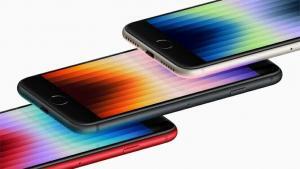
Angled shot showing the display of the third generation iPhone SE in (PRODUCT)RED, midnight, and starlight.  

7. Buy at the Right Time

If you buy a new phone, you certainly won’t want to see a new model released a week after your purchase. Thankfully, Apple is generally quite predictable when it comes to new iPhone releases, so it’s easy to predict when the new model will hit shelves.

The MacRumors Buyer’s Guide has always-up-to-date information that provides a snapshot of:

  • Number of days since the current model was released
  • Average number of days between models
  • Number of days between all recent releases of that product line
  • Rumors about the new product and what features it will have
  • Ratings: Buy Now, Neutral, Caution, Don’t Buy

Once you know when the new model will release, make a decision on whether you want to wait or not. Typically, the current models in a product line drop in price after the new models come out. So you can stick to your original budget and buy the new product, which saves money on upgrading later. Or you can buy the previous-gen model and save a few hundred dollars.

If you’re after the features, consider the models that are only a few years old. In fact, there are older models that can run the latest iOS version – allowing you to enjoy the newest Apple features with a slightly cheaper device.

Get A New iPhone For Less

Owning an iPhone doesn’t necessarily mean emptying your wallet. You have multiple ways to save money on your next iPhone purchase; these tips are some of the most effective. The crucial factor is understanding what works best for you and your budget.

The next time you’re eyeing the latest iPhone, remember: a savvy purchase could save you a pretty penny without compromising your tech cravings. Now, isn’t that a fantastic deal?

Apple Vision Pro, a revolutionary spatial computer that seamlessly blends digital content with the physical world, while allowing users to stay present and connected to others. Vision Pro creates an infinite canvas for apps that scales beyond the boundaries of a traditional display and introduces a fully three-dimensional user interface controlled by the most natural and intuitive inputs possible — a user’s eyes, hands, and voice. Featuring visionOS, the world’s first spatial operating system, Vision Pro lets users interact with digital content in a way that feels like it is physically present in their space.

Follow along to learn the best Apple Vision Pro tips, tricks and hidden gestures to help you navigate visionOS like a pro.

A close-up of Apple Vision Pro.  

Hand gestures in visionOS work in tandem with eye tracking. Your eyes provide targeting and intent, and gestures trigger specific actions. The Vision Pro features front, side, and bottom-mounted cameras for hand tracking, and infrared sensors inside the headset track your eyes.

You look at an onscreen item–like a button–to highlight it or hold your gaze to expand the underlying contextual menu or reveal a tooltip. With the selection made, perform a gesture like pinching to act on it. Because the external cameras cover a wide field of view, you can perform gestures while resting your hand comfortably in your lap to avoid strain.

Apple has outlined six common types of hand gestures for visionOS in a WWDC23 developer talk about designing hand and eye interactions for spatial input. Coupled with eyes for targeting, these hand gestures let you control apps and interactions across the system.

The Best Apple Vision Pro’ tips and tricks

Tap

Pinching your fingers together will perform the default action on the selected item. Think of pinching in terms of tapping the iPhone’s screen or clicking your Mac’s mouse or trackpad. Some visionOS features, such as air typing on the virtual keyboard, don’t require the tap gesture.

Double Tap

Pinch your thumb and index finger together twice in quick succession to perform the equivalent of the double-tap gesture in touch-first operating systems like iOS and iPadOS.

Pinch and Hold

Bring your thumb and index finger together and hold them momentarily to trigger this gesture. Pinch and hold in visionOS works similarly to the long-press (tap and hold) gesture on your iPhone for highlighting text or bringing up the contextual menu.

Move your pinched fingers to move windows and other UI elements in visionOS. If Safari is in front of you, you can also hold your hand in the air and just flick your finger to scroll.

Pinch and Drag

The pinch and drag gesture is used for scrolling. Just bring your fingers together and flick your wrist. You can scroll up, down, left, or right by dragging your hand in any direction.

The faster you move your hand, the faster you’ll scroll. You can scroll webpages in Safari, emails in Mail, documents in Pages, spreadsheets in Excel, etc. You can use the pinch and drag gesture to scroll content in any window on visionOS that supports scrolling.

Zoom

For zooming in Safari, Photos, and other apps, pinch the thumb and index fingers on both hands together, then move each outwards. You can use this gesture to bring a window in visionOS farther or closer, enlarge images, and more. In the Photos app, you can look at a specific part of an image when performing the zoom gesture to zoom in on it.

Rotate

To rotate an item, pinch your fingers with both hands close together, then move one hand upwards and the other downwards. You can use this gesture to rotate 3D objects in Quick Look, images in the Photos app, illustrations in documents, and so on.

Eye and Hand Tracking "Just Works" on the Vision Pro

Like on the iPhone, Apple provides a basic gestural language for navigating the entirety of the visionOS user interface and augmented reality apps. Third-party developers can leverage Apple’s official APIs for visionOS to create and add gestural input to their apps.

Apple doesn’t recommend creating custom gestures that clash with the system ones or those that aren’t easy to understand, perform, or memorize.

Eye and hand tracking in virtual, augmented, and mixed reality applications are not new features. However, the Vision Pro headset implements these features in Apple’s trademark manner. As a result, navigating visionOS with your eyes and hands is seamless and effortless.

In the world of iPhones and Apple devices, iCloud plays a significant role in ensuring that your data remains safe and accessible across all your devices. However, there may come a time when you want or need to sign out of iCloud on your iPhone. You might wonder, "If I sign out of iCloud on my iPhone, will I lose everything?"

Don’t worry; in this comprehensive guide, we’ll explore what happens when you sign out of iCloud on iPhone, how it affects your data, and answer other related questions. So grab a cup of coffee, sit back, and enjoy the read!

Can You Sign Out of Apple ID Without Losing Everything?

The short answer is, yes, you can sign out of Apple ID without losing everything. However, the process requires understanding how your data is managed and a few careful steps to ensure nothing gets lost in the transition.

What Happens When You Sign Out of iCloud on Your iPhone?

When you sign out of iCloud on your iPhone, the following things will happen:

  1. Your iCloud data will be removed from your iPhone: Data like contacts, calendars, reminders, notes, and Safari data will be removed from your iPhone. However, this data will still be stored in iCloud and can be accessed from other Apple devices that are signed in with the same Apple ID.

  2. iCloud Drive documents will be inaccessible: You will not be able to access your iCloud Drive documents on your iPhone until you sign back in. These documents will still be available in iCloud and accessible from other devices.

  3. Find My iPhone will be disabled: If you’ve enabled Find My iPhone, signing out of iCloud will disable this feature. You won’t be able to use it to locate your iPhone if it’s lost or stolen.

  4. iMessage and FaceTime will be signed out: You will be signed out of iMessage and FaceTime, and you won’t receive messages or calls on your iPhone until you sign back in.

  5. iCloud Photos will be removed: Your iCloud Photos will be removed from your iPhone, but they will still be stored in iCloud and available on other devices signed in with the same Apple ID.

  6. iCloud Keychain will be disabled: Your saved passwords and other keychain data will no longer be available on your iPhone.

Now that we’ve covered what happens when you sign out of iCloud on your iPhone, let’s dive into how to sign out of iCloud. The process of signing out from iCloud can seem scary. After all, the last thing you want is to lose your precious data. But fear not, with the right steps, you can sign out without losing a single bit of information.

How to Sign Out of iCloud Without Losing Data

Here’s a step-by-step guide on how to sign out of iCloud without losing your precious data:

Step 1: Backup Your Data

Before you sign out, it’s a good idea to back up your data. You can do this by going to Settings > [Your Name] > iCloud > iCloud Backup > Back Up Now.

Step 2: Sign Out of iCloud

Now you’re ready to sign out. Go to Settings > [Your Name] > Sign Out. You’ll be asked to enter your Apple ID password to turn off Find My iPhone.

Step 3: Keep a Copy of Your Data

Upon tapping sign out, you’ll be asked if you want to keep a copy of your data on your iPhone. Select the data you want to keep.

Step 4: Sign Out

Tap Sign out. Tap Sign Out again to confirm that you want to sign out of iCloud.

And voila! You’ve successfully signed out of iCloud without losing your data.

Does Signing Out From iCloud Remove Photos and Videos?

When you sign out of iCloud, your iCloud Photos will be removed from your iPhone, but they will not be permanently deleted. Your photos and videos will still be stored in iCloud and can be accessed from other devices that are signed in with the same Apple ID.

To access your iCloud Photos from a different device, follow these steps:

  1. On your other device (e.g., iPad, Mac, or iCloud.com), sign in with the same Apple ID.
  2. Open the Photos app or go to iCloud.com and click on Photos.
  3. You should see all your iCloud Photos, including those taken or saved on your iPhone before signing out.

If you want to keep a copy of your iCloud Photos on your iPhone before signing out, you can download them to your device. Follow these steps:

  1. Open the Settings app on your iPhone.
  2. Tap on your name at the top, then tap on iCloud.
  3. Tap on Photos, and then toggle the "Download and Keep Originals" option.
  4. Wait for your photos and videos to download to your iPhone. This may take some time, depending on your internet connection and the size of your library.

Once your photos and videos are downloaded, you can sign out of iCloud without losing access to them on your iPhone.

What About My Contacts, Calendars, and Other Data?

When you sign out of iCloud, your iCloud-synced data like contacts, calendars, reminders, notes, and Safari data will be removed from your iPhone. However, this data will not be permanently deleted. It will still be stored in iCloud and can be accessed from other devices that are signed in with the same Apple ID.

If you want to keep a copy of your iCloud-synced data on your iPhone before signing out, you can create a local copy. Here’s how:

  1. Open the Settings app on your iPhone.
  2. Tap on your name at the top, then tap on iCloud.
  3. Toggle off the switch next to each data type you want to keep on your iPhone (e.g., Contacts, Calendars, Reminders).
  4. When prompted, choose to "Keep on My iPhone." This will create a local copy of the data on your iPhone.

Once you’ve done this, you can safely sign out of iCloud without losing access to this data on your iPhone.

Can I Use My iPhone Normally After Signing Out of iCloud?

Yes, you can still use your iPhone normally after signing out of iCloud. However, some features and services that rely on iCloud will not be available. This includes things like iCloud Photos, iCloud Drive, Find My iPhone, iMessage, FaceTime, and iCloud Keychain.

You can still make calls, send SMS messages, use apps, and access the internet. Any data or documents stored locally on your iPhone will still be accessible. You can also still download and update apps from the App Store using your Apple ID.

What If I Want to Sign Back Into iCloud?

If you decide to sign back into iCloud on your iPhone, you can do so at any time. Simply go to Settings > [your name] > Sign in to your iPhone (or Settings > Sign in to your iPhone on older iOS versions), and enter your Apple ID and password.

Once you sign back in, your iCloud data will be available on your iPhone again. Your contacts, calendars, reminders, notes, Safari data, and iCloud Photos will reappear. Your iCloud Drive documents will be accessible, and features like Find My iPhone, iMessage, FaceTime, and iCloud Keychain will be enabled again.

What If I Want to Sign Out and Use a Different iCloud Account?

Maybe you’re planning to switch to a different iCloud account. In this case, when you sign out of the current account, you’ll be asked if you want to keep a copy of your iCloud data on your iPhone. If you choose to keep the data, your iCloud information (like Contacts and Calendars) will remain on your iPhone, even though it’s no longer syncing with iCloud.

Once you sign in with the new iCloud account, your iPhone will start syncing with the new account. Just remember, any changes you make won’t be reflected in the old account.

Wrapping Up

In conclusion, signing out of iCloud on your iPhone will not cause you to lose everything permanently. Your iCloud data will be removed from your iPhone, but it will still be stored in iCloud and accessible from other devices. You can also create local copies of your data before signing out to keep them on your iPhone.

Remember, iCloud is designed to keep your data safe, secure, and accessible across all your devices. So, if you decide to sign out of iCloud, be sure to understand what that means for your data and consider your options carefully.

We hope this guide has helped clarify what happens when you sign out of iCloud on your iPhone. Stay tuned for more informative and enjoyable reads!

As the popularity of Apple AirPods Max continues to grow, so does the likelihood of encountering counterfeit versions of these high-end headphones. Not only can fake AirPods Max be a waste of money, but they can also be potentially dangerous if they have not gone through the rigorous safety testing that genuine Apple products undergo. Fortunately, there are ways to spot fake AirPods Max before you make a purchase. Here are some tips to help you distinguish between genuine and counterfeit AirPods Max.

1. Inspect The Packaging

The first thing to look for when buying AirPods Max is the packaging. Apple products usually come in high-quality packaging with attention to detail. If the packaging looks cheaply made, with flimsy materials or poor printing quality, it’s a red flag that the product inside might be fake.

Check the labels and text for any spelling mistakes or inconsistencies. Apple packaging always has a very clean and precise look, with no grammatical or spelling errors. If you see any discrepancies, it’s likely that the product is not genuine.

2. Check The Design And Build Quality

The materials used in the construction of genuine AirPods Max are of a very high quality. They typically feature stainless steel and anodized aluminum, which give them a sleek, premium appearance. In contrast, counterfeit versions uses cheaper materials that lack the same durability and weight.

AirPods Max in silver.  

One of the most obvious indicators that a pair of AirPods Max is counterfeit is the positioning and quality of the Apple logo. On genuine AirPods Max, the logo is perfectly centered and has a subtle shine when it catches the light. A fake pair usually have a logo that is slightly off-center or has a different shine altogether.

The ear cups on genuine AirPods Max are designed to provide a comfortable, breathable experience, with a mesh canopy and knitted textile cover. Counterfeit AirPods Max usually have a different type of ear cup or cover that doesn’t match the genuine product, which can impact both comfort and sound quality.

Close-up of AirPods Max ear cushion.  
Dave Johnson/GeeksModo

The headband on genuine AirPods Max is made from a breathable knit mesh material that allows for easy adjustment and a comfortable fit. Counterfeit versions features a different type of headband material or design, which can lead to discomfort and poor fit.

Another way to tell if a pair of AirPods Max is genuine is by examining the controls. Genuine AirPods Max have a Digital Crown to provide physical controls. The Digital Crown can be used to turn the volume up or down, skip between tracks, answer phone calls, and activate Siri through both rotating and pressing gestures.

The Digital Crown and noise control button on AirPods Max.  
Dave Johnson/GeeksModo

The button next to the Digital Crown allows Active Noise Cancellation to be controlled, switching between ANC and Transparency mode.

Turning the Digital Crown controls volume, pressing once answers a call or plays/pauses a song, pressing twice skips forward one track, pressing three times skips back one track, and pressing and holding activates Siri.

On genuine AirPods Max, the controls are well-crafted and have a satisfying click when pressed. In contrast, counterfeit versions may feel cheap or poorly constructed.

Genuine AirPods Max have a Lightning port for charging, which is compatible with Apple devices. Fake AirPods Max features a different type of charging port that is not compatible with Apple devices, causing a lot of inconvenience.

When it comes to color, genuine AirPods Max come in a range of options, including silver, space gray, sky blue, green, and pink. If you come across a pair in a different shade, it’s a sign that they are counterfeit.

Genuine AirPods Max are relatively heavy, weighing around 385 grams due to the high-quality materials used in their construction. If a pair of AirPods Max feels noticeably lighter or heavier than this, it could be a sign that they are fake.

The size and dimensions of genuine AirPods Max are very specific and can be measured and compared to a counterfeit pair. If the dimensions of a pair of AirPods Max don’t match those of a genuine product, it’s a sure sign that they are fake.

Genuine AirPods Max have an LED light on the bottom of the right ear cup, which can be used to determine charge level when pressing the power button while the AirPods Max are charging. At above 95 percent, the light is green, at below 95 percent charge, it’s amber. Pressing the button on the AirPods Max when the headphones are not charging shows a green light if there’s more than 15 percent battery life remaining, while it shows an amber light if there’s less than 15 percent charge. Fake AirPods Max may not have this feature or have a different type of LED light that doesn’t match the genuine product.

3. Check AirPods Max Smart Case

Apple ships AirPods Max with a Smart Case that wraps around the ear cups but that does not provide protection for the headband. The case is designed to put the AirPods Max into an ultra low power state that preserves battery life, utilizing magnets. The Smart Case is made of high-quality microfiber material that feels soft to the touch. If the material quality feels cheap, rough or looks like plastic, it might be a fake.

Sky blue AirPods Max stored in matching Smart Case.  
Dave Johnson/GeeksModo

4. Check The Sound Quality

The sound quality of AirPods Max is another distinguishing factor between genuine and counterfeit products. Genuine AirPods Max pair high-fidelity audio with Active Noise Cancellation for what Apple describes as an "unparalleled listening experience."

There’s a custom-built driver inside the AirPods Max that produces ultra-low distortion sound across the audible range. Apple promises rich bass, accurate mids, and crisp, clean highs, even at the highest volumes.

In contrast, fake AirPods Max may have poor sound quality, with muffled or distorted sound.

When trying out AirPods Max, play music with a wide range of frequencies, including bass-heavy tracks, to test the quality of the sound. Genuine AirPods Max have a balanced sound with excellent bass and treble response, while counterfeit versions may have unbalanced or muffled sound quality.

5. Check The Connectivity

Like other AirPods, AirPods Max connect automatically to other Apple devices with one-tap setup and pairing capabilities. Connecting AirPods Max to an iPhone or iPad, for example, is as simple as holding the headphones near the device and then tapping the Connect button. If you have trouble connecting the headphones to your device, it could be a sign that the product is not genuine.

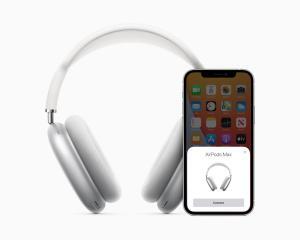
AirPods Max paired up with iPhone 12.
Dave Johnson/GeeksModo

One of the key features of AirPods Max is their seamless connectivity with Apple devices. Automatic device switching lets genuine AirPods Max automatically switch between iPhone, iPad, Mac, and Apple Watch as the devices are used, with no need to access Bluetooth controls to swap devices.

6. Other Sensors

Sensors in the AirPods Max allow them to determine when they’re on the head, so when the headphones are removed, audio pauses, and when placed back on the head, audio resumes. Pausing the music can also be done by lifting up an ear cup.

In contrast, fake AirPods Max are often made with cheaper materials and do not undergo the same rigorous quality control standards as the original products. As a result, the sensors on fake AirPods Max may not work at all, or they may not work as well as the sensors on the original headphones.

Additionally, counterfeit AirPods Max may not have all of the sensors that the original headphones have, or the sensors may be placed in different locations. This can affect the overall performance and user experience of the headphones.

7. Check Battery Life

Genuine AirPods Max have a battery life of up to 20 hours of listening to music, watching movies, or talking on the phone with both Active Noise Cancellation and spatial audio enabled.

AirPods Max charge with a Lightning cable, and a five-minute charge provides 1.5 hours of listening time. It takes approximately two hours for the headphones to charge to full. The AirPods Max has no power button, with Apple instead relying on different power modes to preserve battery life.

Counterfeit AirPods Max may have a shorter battery life or may not hold a charge as well as the genuine product. To test the battery life, charge the AirPods Max fully and use them continuously for a few hours to see if they last as long as they should.

8. Check The Price

The price of AirPods Max is another important factor to consider when determining whether they are genuine or counterfeit. Genuine AirPods Max are priced at $549.

With a $549 price tag, AirPods Max are much more expensive than fake AirPods Max. If you find a deal that seems too good to be true, it probably is. Counterfeit products are often sold at a much lower price than the genuine product, so be cautious of any seller offering a significant discount.

9. Verify The Serial Number

The serial number of AirPods Max can also provide valuable information about their authenticity. Genuine AirPods Max have a unique serial number printed on the inside of the left ear cushion, and it can be verified through Apple’s website or customer service.

To see the serial number of AirPods Max, simply detach the left magnetic ear cushion. If the serial number is missing, the AirPods Max are fake.

Serial number underneath the left cushion on AirPods Max
Dave Johnson/GeeksModo

Once you’ve obtained the serial number, the most foolproof way to tell if AirPods Max are fake is to go directly to the source: Apple.

  • In your web browser, go to Apple’s coverage checking tool.
  • Enter the serial number, the CAPTCHA, and click Continue.
  • If the tool returns information for that serial number (especially a valid purchased date), the AirPods Max are real. If the serial number cannot be verified, the AirPods Max are fake.

10. Check Accessories

Genuine AirPods Max come with a few accessories, including a Smart Case and a Lightning to USB-C cable for charging. If the packaging contains any additional accessories or missing some essential accessories, it could be a sign of a counterfeit product.

11. Check The Retailer Reputation

Purchasing AirPods Max from an authorized retailer is the best way to ensure that you are getting a genuine product. Apple products are sold through a network of authorized resellers and retailers, and it’s important to purchase from a reputable source. AirPods Max can be purchased from the online Apple Store or third-party retailers like Amazon.

Avoid buying from unlicensed third-party sellers or unknown websites, as they are more likely to sell counterfeit products.

12. Trust your Instincts

If something about the AirPods Max seems off, trust your instincts. If the price is too good to be true, or if the product seems poorly made or constructed, it could be a fake. It’s better to be safe than sorry when it comes to purchasing expensive products.

In conclusion, fake AirPods Max are becoming increasingly common, and it’s essential to be vigilant when purchasing these high-end headphones. By following these tips, you can distinguish between genuine and counterfeit AirPods Max and avoid wasting your money on fake products. Always purchase from authorized retailers and double-check the packaging, build quality, sound quality, connectivity, battery life, serial number, accessories, and price before making a purchase.

The Apple Pencil is a popular accessory for iPad users, allowing them to draw, write, and navigate their devices with precision and ease. However, with the rise in demand for the product, the market has seen an influx of fake Apple Pencils. These counterfeit products can be difficult to spot, but there are several ways to distinguish between a real and fake Apple Pencil.

1. Inspect The Packaging

One of the easiest ways to spot a fake Apple Pencil is to check the packaging. The packaging of a real Apple Pencil should be sleek and minimal, with a clear image of the product, the Apple logo, and the product name. The packaging should be of high quality, and there should be no signs of tampering. Look for any misspellings or differences in the font used on the packaging.

2. Check The Accessories and Documentation

A real Apple Pencil should come with a Lightning adapter for charging, as well as a spare tip. The documentation included with a real Apple Pencil should be clear and easy to understand, with instructions on how to use and care for the product. If any accessories or documentation are missing or appear to be low quality, it could be a fake.

3. Inspect The Body

The body of a real Apple Pencil should be smooth and have a matte finish. The color of the body should match the color of the tip, which should have a metallic finish and be magnetic. The body should not have any visible seams or gaps, and it should weigh approximately 20 grams. If the Apple Pencil feels too light or too heavy, it could be a fake.

4. Look for The Logo and Serial Number

A real Apple Pencil should have the Apple logo etched on the body, while a fake may have a printed logo or none at all. Additionally, a real Apple Pencil should have a serial number that can be verified through Apple’s website or customer service. If the serial number is missing or cannot be verified, it could be a fake.

5. Check The Lightning Connector

The Lightning Connector of a real Apple Pencil should be flush with the body and not loose or wobbly. The connector should be made of metal and have a glossy finish, and it should have a strong magnetic connection with the iPad.

6. Try Pairing

Pair the Apple Pencil with an iPad to test its pairing functionality. A real Apple Pencil should pair quickly and easily, and the iPad should recognize the Apple Pencil and display its battery level. If the pairing process is slow or difficult, it could be a fake.

7. Test The Functionality

Test the functionality of the Apple Pencil by using it to draw, write, or navigate your iPad. A real Apple Pencil should work smoothly and accurately, detecting pressure and tilt. It should also have low latency, meaning there should be minimal delay between the Apple Pencil and the iPad. If the Apple Pencil is unresponsive or does not work as expected, it could be a fake.

8. Check The Price

Be wary of prices that seem too good to be true. While there may be occasional sales or discounts on Apple Pencils, a price significantly lower than the market value could indicate a fake product.

9. Check Color Accuracy

The color of a real Apple Pencil should be accurate and consistent with the chosen color option. If the color appears off or does not match the chosen color option, it could be a fake.

10. Overall Quality and Feel

Finally, trust your instincts and pay attention to the overall quality and feel of the product. A real Apple Pencil should feel sturdy and well-made, with smooth and responsive functionality. A fake may feel cheap, flimsy, or have noticeable defects or inconsistencies.

Conclusion

It is important to be cautious when purchasing an Apple Pencil and to purchase from reputable retailers to ensure that you are getting an authentic product. Fake Apple Pencils not only waste your money but can also cause damage to your iPad. By inspecting the the above Apple Pencil features, you can spot the difference between a real and fake product. Always remember that investing in a genuine Apple Pencil will provide you with the best experience and longevity.

Keep your iPad Air running longer on a single charge with these battery-saving tips.

Apple’s iPad Air lineup is known for its battery life. They tend to offer excellent battery life, with all models promising 10 hours of usage as per Apple. However, there are a lot of terms and conditions attached here, and if you are looking to extend the battery life of your iPad Air, follow this guide.

As a user, you can tweak some of the settings in iPadOS to get maximum juice out of your iPad Air battery. In this post, we will talk about the best battery saving tips and tricks to extend the endurance time of your iPad Air.

The battery saving tips explained in this article apply to the following iPad Air Models:

  • Fifth Generation: 10.9-inch iPad Air released in 2022.
  • Fourth Generation: 10.9-inch iPad Air released in 2020.
  • Third Generation: 10.5-inch iPad Air released in 2019.
  • Second Generation: 9.7-inch iPad Air 2 released in 2014.

Improve iPad Air Battery Life With These Tips and Tricks

1. Reduce screen brightness

It may seem convenient to have your brightness on max, especially when you’re outside, but this can cause your iPad Air battery to drain faster. Turning the brightness down on your iPad Air can certainly help when it comes to extending the battery life.

To adjust screen brightness on your iPad, swipe up to open the Control Center and use the slider on the right to lower your screen brightness. You can also go to Settings > Display & Brightness to adjust the brightness. Also on this settings page is a toggle switch for Auto-Brightness. Unless you are frequently using your iPad Air at the beach or in other brightly lit environments, turn on Auto-Brightness, which adjusts the screen level based on ambient light.

2. Turn off Wi-Fi and Bluetooth when not in use

It might seem like a no-brainer to keep your Wi-Fi or data activated at all hours so that you can keep connected day and night. But this can significantly drain your iPad Air battery, as you constantly get notifications, background updates, and more when you don’t necessarily need them.

A Wi-Fi connection consumes less energy than a cellular connection, so use it when you can. But Wi-Fi consumes power, even if you are not using it to connect to a network, so you should consider turning it off when you are not online. During your sleeping hours is a great time to switch off your Wi-Fi.

Similarly, while using your iPad Air, you might have connected your headphones, keyboard or speakers to it using Bluetooth. Most users forget to turn off the option after completing the work. Unnecessarily keeping your Bluetooth on can impact the battery life on the iPad Air. Consider switching it off when you aren’t using it to conserve battery.

Both Bluetooth and Wi-Fi can be also toggled on and off by swiping up from the bottom edge of your iPad Air’s screen for the Control Center.

3. Turn off AirDrop

AirDrop is a feature that lets you shuttle files among your iOS devices or between your iPhone or iPad Air and your Mac. It’s super simple to use but, like fellow wireless technologies Bluetooth and Wi-Fi, it can also drain your battery even when you aren’t transferring files. Unless you are using AirDrop to transfer files regularly, why not keep it turned off until you need to use it? To do so, swipe up for the Control Center, tap AirDrop and then tap Receiving Off.

4. Turn off Handoff

I don’t need to answer phone calls on my iPad Air and I rarely use it to finish an email or text I started on my iPhone or Mac (or vice versa). Because I use my iPad Air for different things than my iPhone or Mac, I don’t need Handoff to share activities between these very different devices. If this also describes you, then you can save a bit of battery life by disabling Handoff, another wireless technology that is using battery resources in the background to search for compatible devices even when you aren’t actively using it. To disable Handoff, go to Settings > General > Handoff and toggle off the feature.

5. Don’t push, fetch less

If your iPad Air isn’t your primary device for checking email, you don’t need to have new messages constantly pushed to the device or have it frequently fetch new messages. Check your mail settings to make sure push is turned off and fetch set to Manually, or, if you must, Hourly. You can adjust Push and Fetch settings by following this path: Settings > Mail, Contacts, Calendars > Fetch New Data.

You can select to have data fetched for your iCloud account and any email accounts you set up with the Mail app. Choose Fetch or Manual for these accounts, and then select the frequency with which you’d like to fetch data.

6. Reduce Background App Activity

Next on our list is limiting background app activities on your iPad Air. Background apps essentially function even when you’re not directly using them. Examples include VPN, Maps, health, and calendar apps. These apps monitor or control certain aspects of your phone without you intervening, which, while convenient, causes your iPad Air battery to drain faster.

What’s more, you probably don’t need a good number of these apps to be working in the background. So, how can you reduce background app activity?

Head to Settings > General > Background App Refresh and you can turn Background App Refresh off entirely or select which apps you’d like to refresh in the background.

7. Keep an eye on location services

Many people claim you should force-quit out of apps, say, each night before bed. I’m lucky if I get all the dishes cleaned up before hitting the sack, so I certainly don’t have the time or the energy to be closing iPad Air apps on a regular basis. Plus, it has not been definitively proven to me that apps running in the background drain battery life to any great extent. I will, however, force-close Google Maps or any other GPS app, since these do seem to drain the iPad Air’s battery.

There are a huge number of apps that can track your location. While you may think these apps solely track your location when you’re directly using them, this isn’t always the case. This constant location monitoring requires energy and can take a toll on your iPad Air battery life.

To keep tabs on which of your apps are using location services. Go to Settings > Privacy & Security > Location Services to adjust which apps are requesting your location.

To kill four wireless birds — cellular, Wi-Fi, Bluetooth and GPS — with one stone, simply turn on Airplane Mode from the top option listed in Settings or from the Control Center.

8. No more notifications

When you install a new app on your iPad Air, the chances are that its notification settings will be automatically activated. But you don’t necessarily need to receive notifications from every app you have, and doing so can have a detrimental effect on the length of your iPad Air battery life. Notifications also wake up an idle iPad Air and turn on the display, which consumes battery power. So, you can deactivate notifications for certain apps to help mitigate battery loss. Go to Settings > Notifications and choose which apps can push notifications your way.

9. See which apps are battery hogs

On the iPad Air, the Battery page in settings is useful because it shows you which apps have used the most battery resources in the last 24 hours and the last seven days. If your iPad Air is running through battery life at a disturbingly fast pace, check here to see which apps are the cause and then quit using those apps until you can charge your iPad Air.

10. Quick trigger for Auto-Lock

Why let an idle iPad Air run down your battery? With Auto-Lock, your iPad Air will shut down after it has been inactive for a period of time. You can set it as short as 2 minutes. To set a time period for Auto-Lock, head to Settings > Display & Brightness > Auto-Lock.

11. Climate control

Excess heat can affect battery life. Apple recommends keeping your iPad Air between 32 and 95 degrees Fahrenheit, and points to the range of 62 to 72 degrees as the comfort zone. This means keep your iPad Air in the shade at the beach, out of locked cars in the summer, and off of heaters in the winter.

Also, if you have a case that envelopes your iPad Air and can cause it to heat up when it’s charging, remove your iPad Air from the case before charging it.

12. Update Your iPad Air to the Latest Software

Apple occasionally releases iPadOS updates to keep the iPad smooth and glitch-free. Alongside, Apple also adds some battery-related features to increase the life span of the iPad Air battery. With that in mind, it’s always advisable to keep your iPadOS up to date. Go to Settings > General > Software Update to check if an update is available for your iPad Air.

Say Goodbye to a Flat iPad Air Battery With These Power-Saving Tips

It’s always a pain to have your iPad Air die unexpectedly, but with the above-mentioned tips and tricks, you will see an improvement in iPad Air battery life.

If you’re watching full HD movies with the brightness turned all the way up, or you’re performing power intensive tasks like gaming, your iPad Air is still going to die on you in a few hours. But in general use, the above tips should help you get more juice out of your iPad Air.

See also:

Maintain your iPads battery health with these charging tips.

When you buy a new iPad, you most certainly get the advertised battery life. However, as time passes, your iPad’s battery health will slowly but surely deteriorate.

Battery degradation is natural to lithium-ion batteries used in iPads, smartphones, and most gadgets. Hence, there’s no way to keep your iPad’s battery 100% healthy.

However, you can maintain your iPad’s battery health by adopting optimal charging habits. In this article, we’ll discuss the best charging tips you should embrace to maintain your iPad’s battery health.

1. Don’t Fully Charge or Drain Your iPad’s Battery

As we’ve pointed out above, iPads use lithium-ion batteries, which usually reduce capacity as you continue charging and discharging your device. With each complete charge cycle, the maximum charging capacity of the battery slightly reduces.

Lithium-ion batteries take a big hit if you fully charge them as it makes them susceptible to overheating, which in turn reduces their lifespan. This is why you may have noticed that your iPad’s battery charges faster from 0 to 80%, then enters the slow charging phase from 80% to 100%.

Conversely, fully discharging lithium-ion batteries is just as bad, and hence, Battery University recommends that you keep your charge between 30% and 80% for maximum battery life.

2. Use Apple’s Official Charger

This might seem like a no-brainer, but it’s always worth mentioning. When you buy a new iPad, Apple always includes a power adapter and a USB-C charging cable. Using an official power adapter and charging cable is always recommended because they are optimized to ensure your battery’s long-term health.

And it’s not just about maintaining iPad battery health. An official iPad charger is also safer to use. However, it’s worth mentioning that there are some excellent third-party iPad chargers that you can use.

Just avoid cheap third-party iPad chargers from no-name brands, as they can be bad for long-term battery health and might be a safety risk, too. If you’re going to buy a charger, we recommend getting one made by Apple. If not, then get one from reputable accessory makers like Anker, Satechi, or Belkin.

Apple even sells select accessories from third-party companies on its website, so you can use that as a benchmark on which third-party chargers are the best.

3. Enable Optimized Battery Charging

Optimized Battery Charging is a feature available on your iPad that learns your daily charging routine and optimizes charging to help extend battery life. The feature is meant to reduce your battery’s wear and tear.

It does so by delaying charging your battery past 80% if it predicts that you will have your iPad plugged in for a long time. At the same time, the feature also ensures that you’ll have your battery charged by the time you unplug the charger.

You can enable Optimized Battery Charging in iPadOS from Settings. open the Settings app and select Battery > Battery Health > Optimized Battery Charging. Toggle on the feature.

As alluded to before, keeping your battery level between 30% and 80% is the best way to maintain iPad battery health. But, Optimized Battery Charging doesn’t stop your battery from charging past 80%. It only delays it, and keeping tabs on your battery levels.

4. Don’t Leave Your iPad Plugged In Overnight

Having your iPad plugged in overnight is common. Most of us are guilty of this, but iPads are not meant to be plugged in overnight. As noted before, charging your battery to 100% may cause overheating, negatively impacting your iPad’s battery life in the long run. You should, therefore, avoid having your iPad plugged in overnight.

5. Half-Charge Your iPad for Long-Term Storage

If, for some reason, you want to put away your iPad for some time, you need to control the environmental temperature and the battery percentage. These two will affect battery life while your iPad is in storage.

Apple recommends charging your iPad’s battery to about 50% if you need to store it long-term to maintain battery health.

The 50% recommended level is because if you fully charge your battery and store it for an extended period, it may lose some capacity, affecting the battery life. And if you leave it fully discharged for an extended time, Apple says, “the battery could fall into a deep discharge state, which renders it incapable of holding a charge.”

Excess heat can affect battery health. Apple recommends keeping your iPad between 32 and 95 degrees Fahrenheit, and points to the range of 62 to 72 degrees as the comfort zone. This means keep your iPad in the shade at the beach, out of locked cars in the summer, and off of heaters in the winter. Additionally, you should recharged your iPad to 50 percent every six months (in case you’re storing your device for more than six months). You should also shut down your iPad if you want to keep it for an extended period without use.

6. Charge Your iPad at Moderate Ambient Temperatures

Heat is the biggest enemy of all kinds of batteries. According to Battery University, extreme care has to be taken when charging lithium-ion batteries because of the delicate nature of the process.

Furthermore, Apple says charging your device in high ambient temperatures can damage battery capacity. According to the company, the sweet spot lies between 50 to 95 degrees F.

Also, if you have a case that envelopes your iPad and can cause it to heat up when it’s charging, remove your iPad from the case before charging it.

Use These Charging Tips to Maintain Your iPad’s Battery Health

While batteries can’t last forever, you can at least take good care of them to avoid replacement sooner than required. Besides, replacing a iPad’s battery is costly; it will set you back by at least $99 for regular iPad models and about $199 for iPad Pro models, according to Apple. But by following the tips highlighted, you can make your iPad’s battery last longer.

Here are the best HomePod (2nd generation) tips and tricks to help you make the most of your smart speaker.

Apple is taking another crack at smart speakers with the HomePod 2 (a.k.a the HomePod 2nd generation). This updated version of the original, which was discontinued in 2021, looks mostly the same on the outside, but has some features, tricks and hacks that you need to know about.

HomePod is packed with Apple innovations, Siri intelligence, and smart home capabilities, while delivering a truly groundbreaking listening experience.

Your HomePod (2nd generation) can really do it all. Whether you want to read messages, read news, stream music, or control your smart home — your HomePod (2nd generation) has you covered. With all of these neat tricks and the list of Siri commands ever-growing, it can be easy to overlook the basic — yet useful — things your Apple smart speaker can do for you. If you’re one of the many to have picked up an HomePod (2nd generation), but don’t know if you’re making the most of its functionality, or you’re simply wondering what to ask Siri next, here’s everything you’ll want to try.

31 Tips and Tricks to get the most out of your HomePod 2

Here’s a list of the best HomePod 2 tips and tricks that will help you get the most from Apple’s new smart speaker. Have fun!

1. Pair Two HomePod (2nd generation) for Stereo Sound

Two HomePod speakers are shown as a stereo pair.

There’s no doubt the new HomePod sounds great and is better than the vast majority of smart speakers. This time around, it has a cleaner, purer sound, with deft handling throughout, no matter what you play and the vocals are crystal clear.

Stereo pairing of two HomePods, however, lifts the audio from great to stunning, with room-filling sound that is just amazing. Of course, you’re talking about an investment of almost $600. On the other hand, two HomePods give the benefit of stereo separation.

Setting this up is fairly straightforward, just make sure the two HomePods are in the same room in the Home app, then tap on one of the HomePods and scroll down until you see ”Create Stereo Pair’. The app will then walk you through the rest of the setup. Note that you’ll get the Stereo Pair option automatically if you add a new HomePod to the same room as an existing one. Please also note, you can only pair two original HomePods or two ‌‌HomePod (2nd Generation)as stereo speakers. It’s also worth bearing in mind that when two ‌HomePod speakers are joined, only one responds to Siri requests, plays alarms, and acts as a speakerphone.

2. Send and read messages through HomePod (2nd generation)

Beyond music controls, there is a cool HomePod 2 trick that lets you send, read, and reply to text messages. Try saying, “Hey Siri, send a message to [contact name]” or “Hey Siri, send a message to [phone number].” Don’t worry; Siri will read back the message so you can make sure it heard you correctly before sending.

You can even have Siri on new HomePod read your latest text messages to you, but you’ll need to have set up Siri to handle Personal Requests. Head into the Home app, go into the settings for the home in which the HomePod lives. Tap on the icon with your name on it under People then select Personal Requests at the bottom. You’ll be able to ask Siri things like, ”Read the latest message from Monica”.

Note that below it there’s a second option for adding authentication. You can switch this on to stop other people sending messages and causing other havoc with your account.

3. Make calls on HomePod with Siri

This HomePod (2nd generation) trick lets you ask Siri to make and take calls on the speaker. First you’ll need to enable Personal Requests. Go to your HomePod settings and scroll down, you’ll find Personal Requests under Siri. Switch it on.

To make a call with HomePod (2nd generation), just say, “Hey Siri, call [contact name]” or “Hey Siri, call [phone number].” Your iPhone will handle the call using your regular number while routing audio through the HomePod (2nd generation).

You can also transfer calls in-progress from your phone to the HomePod and back. Just open the call menu from your iPhone, press the “audio” button, and select your HomePod from the source list.

When you’re finished with a call, say, “Hey Siri, hang up,” double-tap the top of the HomePod, or just hang up from your phone.

One more phone-related HomePod (2nd generation) trick: If you miss a call and your phone isn’t in reach, try saying, “Hey Siri, who just called me?” Siri will read out your most recent caller and offer to call them back.

4. Use Siri as a HomePod translator

Wondering how to say something in another language? Wonder no more – Siri can translate English to French, German, Italian, Spanish and Mandarin.

Simply ask, ”Hey Siri, how do you say [word] in [language]?” to expand your vocabulary.

5. Change Siri’s voice on your HomePod (2nd generation)

You already know you can change Siri’s voice on your iPhone, iPad, or Mac. So it stands to reason that you can make Siri sound different on HomePod, too. You have similar voice options on HomePod, but you find the settings in a different place.

If you want to give Siri on HomePod a man’s voice or a British accent, here’s what you do:

  1. Open the Home app and look for your HomePod
  2. Tap Settings at the bottom of the screen.
  3. Scroll down to the Siri section. Here you’ll find Siri’s Language and the Siri Voice menu.
  4. Tap Siri Voice and choose the accent and gender you wish to use.

6. Grow your music trivia knowledge

Siri’s musicologist skills aren’t limited to skipping tracks, rewinding and fast forwarding. Apple’s digital assistant is quite the music buff – it’s got all the knowledge (well, it’s got a direct link to Wikipedia, at least).

While listening to a song, you can ask things like, “Hey Siri, who plays the drums in this band?”… “What year was this album released?”… “Tell me something about this artist” and so on. Every day is a school day with Siri.

7. Automate your smart home with Siri

Siri can control your HomeKit enabled kit from your HomePod (2nd generation), that’s a given. But a much more natural, and cool, way of getting Siri working harder in your smart home is to create scenes that it can control.

For example, set up a bedtime routine in which Siri turns off all the lights, activates the alarm and locks the front door – where a simple, “Hey Siri, it’s bedtime,” gets the scene started. Any scenes created in the Home app can be activated using Siri on your new HomePod.

8. Control your HomePod with your iPhone instead of Siri

One of the big selling points of HomePod (2nd generation) is obviously voice control for music playback, however, not everyone likes to call out, “Hey Siri” when listening to music or podcasts on a speaker. Maybe you don’t want to have to ask Siri every time you want to know the name of the song your listening to, or maybe you feel silly asking Siri to turn up the volume. You can control playback of HomePod audio (even if you’re not AirPlaying from another device) from your iPhone or iPad. Here’s how.

From within the iOS Music app, choose the song you want, click the AirPlay logo and choose your HomePod. Or, from the lock screen, you’ll see the Music widget – again, just tap that AirPlay icon and do the same as above.

Finally, from the Control Center, either long-press or 3D Touch the music tile and you’ll get a screen with all your current music playbacks on your Apple devices. Again, just hit the AirPlay button to transfer a song over to your HomePod, or choose the HomePod section if something is already streaming on your smart speaker.

Remember, with AirPlay 2 you can pair two HomePods together easily from the AirPlay menu or even pair the HomePod with another AirPlay 2-supporting speaker.

9. Use HomePod (2nd generation) as a TV speaker

TV speakers are crap – that’s a fact. And while a HomePod (2nd generation) isn’t necessarily designed to be a TV speaker, it does a pretty good job of room-filling sound for your movies and TV shows.

Until now this has only been available with the Apple TV, but with AirPlay 2 landing on TVs from the likes of Samsung, LG, Vizio and Sony – the new HomePod can be paired with third-party sets.

When watching something from your Apple TV, you can hold down the play/pause button on the Apple TV remote and choose the HomePod option. If you want it to be the default speaker permanently, go to your Apple TV settings, select the Video and Audio section, choose Audio Output and pick your HomePod.

It gets even better when using the Apple TV 4K though – As part of Apple’s new ‘Home Theater with Apple 4K’ the first-gen HomePod can be used to form an immersive surround sound experience, with virtual 2.1, 5.1, 7.1 and Dolby Atmos all on offer.

The caveat here is you only get that surround sound action when you’re watching stuff via your Apple TV 4K; you can’t just plug your HomePod directly into your TV and get Atmos action on everything.

However, with Apple TV now supporting pretty much all the major streaming services – Netflix, Prime, HBO, Disney , Hulu and more – it’s a pretty compelling argument to make that single HDMI input switch for your AV setup.

10. Get the headlines from your HomePod (2nd generation)

Siri can also read news headlines to you from several sources, including CNN, NPR, or the BBC. Simply say, “Hey, Siri, what’s the news today?” for a personal broadcast. If you want sports, just ask Siri, ”what’s the sports news?” instead.

11. Get help with your spelling from Siri

Can’t remember how to spell a word? No problem. Siri, Apple’s personal digital assistant, can help. To ask for help on your new HomePod, simply say, ”Hey Siri, how do you spell [word]?” and your smart speaker will tell you what’s what.

12. Find your iPhone using HomePod

Misplaced your iPhone in the morning rush? Your HomePod (2nd generation) can help you find it. Just say, “Hey, Siri, where’s my iPhone?” Siri will then say, “Should I try to make it play a sound?” Say yes, and you’ll hear a ping from your phone if it’s nearby.

13. Check temperature and humidity

There’s a new sensor in the second-gen HomePod that measures temperature and humidity. This means it can now work with compatible devices so, for instance, close your smart blinds when the temperature reaches a certain level. Improved smart capabilities come from compatibility with Thread, which lets devices talk to each other even if wi-fi isn’t available.

The easiest way to check the temperature and humidity information being collected by the new HomePod is simple—just ask Siri. You can say “Hey Siri, what’s the temperature” or “Hey Siri, what’s the humidity.”

Apple’s virtual assistant will then tell you the most up-to-date reading.

Smart home users can also find the data in the Home app. Open up the app and select the three dots surrounded by a circle in the top-left side of the app. Then you’ll select the room where the speaker is located.

At the top of the page, under the name of the room should be a temperature and humidity reading. To confirm it is from the new HomePod, tap the reading and see more information including the speaker’s name.

Finally, you can also choose the speaker in the room view and scroll down to the bottom of its information page. Select the Settings icon on the bottom right part of the page. Choose Accessories to see the temperature and humidity.

14. Factory reset your Apple HomePod (2nd generation)

Whether you are looking to sell your HomePod (2nd generation) or give it away, you should reset it to factory settings first. This will delete all your personal information and data linked to the device. Resetting your HomePod (2nd generation) can also fix most issues you are having with your device, such as WiFi connectivity problems.

You’ve got two methods for resetting your HomePod (2nd generation). Firstly, on the Home app, press and hold the HomePod tile, tap ’Details’, scroll to the bottom and select ’Remove Accessory’.

To reset your HomePod (2nd generation) without a Mac or iOS device, unplug it and wait 10 seconds. Then plug it back in and wait for 5 seconds. Next, press and hold the middle button on top of the device until you hear three beeps. Finally, let go when Siri tells you that your device is about to reset. You will know your HomePod has been reset when you hear it sound a chime.

15. Add a song to a Apple Music playlist

When you’re listening to Apple Music or Beats Radio you can simply say, ”Hey Siri, add this song to [name of playlist]” and it’ll be added on to the end of that playlist.

16. Turn on a HomePod (2nd generation) Siri tone

The Siri waveform animation is a visual indicator that Siri is listening to you and working to answer your questions or commands. The sound tone is an audio indicator that Siri has heard you. If you have your HomePod on a shelf above your eye level, the chances are you’ll struggle to notice that Siri has heard you. If that’s the case, the Siri tone may be useful.

To turn it on, head into the HomePod’s settings menu within the Home app on your iPhone and check the Sound When Using Siri option.

17. Stream sound from Mac to HomePod

The Spotify app itself doesn’t list AirPlay speakers in the devices list, and the Mac AirPlay option in the menu bar only lists Apple TVs. But you can play any sound from your Mac – Spotify and more – over AirPlay to your HomePod. Dive into your System Preferences. From there, choose Sound and select your HomePod as the device for sound output.

18. Control Your Smart Home

You can also use HomePod as a smart-home hub for Apple HomeKit devices. In fact, when you first set up your HomePod, it automatically becomes a hub for your home. From there, you can use voice commands to control all sorts of HomeKit-enabled devices.

To take control of your hub, launch the Home app, and then tap the “house” icon in the top-left corner. Here, you can invite people to your hub, so they can also control your smart home. This is great for family members and guests, but be careful to whom you give access.

You can also change the “Allow Speaker and TV Access” setting to lock down your HomePod in case of abuse. If you choose “Everyone,” anyone in your home (regardless of whether they’re on the same Wi-Fi network) can control it.

The “Allow Speaker and TV Access” menu in the Home app for iOS.

If you limit the setting to “Only People Sharing This Home,” you’ll need to manually add people to your Home hub before they can use the HomePod on their own devices.

19. Enable VoiceOver on HomePod (2nd generation)

VoiceOver has long been a fine gesture-based screen reader. With this Accessibility feature, you can hear the description of what is currently going on on the device’s screen. What could be music to the ears of the blind and sight impaired is that they can enable and use VoiceOver on Apple’s smart speaker, HomePod as well?

To enable it, head into the HomePod settings, scroll down to Accessibility and select VoiceOver.

20. Reset the HomePod’s Sound Calibration

The HomePod (2nd generation) can calibrate itself to sound its best, given the current conditions. This happens every time the HomePod is moved, so if you want to force a manual recalibration, simply pick up the speaker and put it down again.

21. Share your HomeKit access for HomePod

Having a HomePod is well and good, but you might want to make sure that other people in your home can take advantage of it, too.

If you’re using your HomePod as a smart home hub, you can also add other users in your ‘Home’ app, allowing them to control the smart speaker and all its paired devices just like you might. You’ll practically feel the responsibility slipping off your shoulders.

22. Prevent other HomePod users from affecting your Apple Music recommendations

If you’re concerned that other people in your household will skew your Apple Music recommendations by using HomePod to play songs that don’t align with your tastes, then there’s a setting you’ll want to disable as soon as possible. It’s called “Use Listening History”, and here’s how to find it.

Launch the Home app and long-press your HomePod. Tap the Settings button, and then tap the “Update Listening History” option to turn it off.

If it’s too late and your recommendations have already been impacted, launch Music on your iPhone. Next, long-press any artists, albums, or songs you don’t like, and then tap “Suggest Less Like This” from the context menu.

23. Tell Siri what you like, and what you don’t

When a song’s playing, let Siri know if it’s something you like and Siri will recommend more stuff like it in the future. Just say “Hey Siri, I like this,” when it plays something you’re into, or “Hey Siri, I don’t like this band,” if it ever plays something you don’t like. Siri will take your taste into account and adjust what music it plays for you based on your likes and dislikes.

24. Set up multiple users

The HomePod (2nd generation) can now recognize individual voices from up to six users, so you always get your own information – like calendars and playlists – when interacting with it.

You should actually get a prompt to set this up automatically, provided you’ve met certain criteria that Apple has set out here (updating your iPhone to the latest iOS, having Bluetooth and “Hey Siri” turned on, and so on).

To customize how your HomePod interacts with your personally, head to the Home app on your phone, and tap the Home icon, Home Settings, then your home setup and your user profile under People.

25. Rename your HomePod (2nd generation)

You can customize settings for an individual HomePod (2nd generation), including changing its name from the default “HomePod” to something more descriptive, by using the Home app on your iPhone.

To rename your HomePod (2nd generation) – just long press on the device in the Home app, then tap on Settings, then tap on the current title.

26. Understanding HomePod (2nd generation) touch gestures

Along with Siri voice control, you can use gestures to control your smart speaker.

If your HomePod is in reach you can use tap gestures to control it, too. HomePod supports tap and touch for Siri and music playback. Single tap to Play/Pause, double-tap to skip to the next Track, triple-tap to jump to the previous Track, touch and hold to activate Siri, tap or hold the plus symbol to increase the volume, tap or hold the minus symbol to lower the volume.

27. Find songs by their lyrics

Have you recently found yourself singing some song lyrics only to discover that you’re unable to remember the actual name of the song they belong to? With Siri on your HomePod (2nd generation), you can quickly search the entire ‌Apple Music‌ catalog using just a short lyric phrase, allowing you to find the song in question and add it to your library or your favorite playlist for safekeeping.

Say ”Hey Siri, what’s that song that goes…” followed by a line or two to get a match – you can then ask to hear the song straight away as well, if you like.

28. Use your HomePods in multiple rooms

If you have multiple HomePods, you can move with your music or podcast from room to room, play the same music on all speakers and generally control audio in multiple places with ease. Multiple HomePods let different members of your household enjoy different music on different devices.

Go to Control Center on your phone and long press on the music playing tile, and you’re able to configure the multiple room setup further.

29. Play Ambient Sounds on HomePod (2nd generation)

To start streaming one of the sounds on your ‌HomePod‌, simply ask Siri.

  • “Hey Siri, play white noise sounds”
  • “Hey Siri, play rain sounds.””
  • “Hey Siri, play fireplace sounds.”
  • “Hey Siri, play forest sounds.”
  • “Hey Siri, play night sounds.”
  • “Hey Siri, play stream sounds.”

You can also get ‌HomePod‌ to play a random ambient sound by saying ”Hey Siri, play sounds.”

30. Update HomePod (2nd generation)

First things first, make sure to update iOS on your iPhone. Updates for the HomePod (2nd generation) depend on the most recent version of iOS on your iPhone.

  1. Open the Home app and tap the Home tab at the bottom. If a software update is available, you’ll see this at the top of the Home screen. Tap Update Available.

Alternatively, tap the Home icon on the top left. You can do this from either the Home or Rooms tab at the bottom. Choose Home Settings.

Scroll down and select Software Update.

If you have more than one HomePod, you can view which will receive the update by tapping More. All HomePods in the list will receive the update at the same time.

Tap either Update All next to Update Available or Update next to the HomePod at the bottom and follow the onscreen instructions.

31. Turn off Hey Siri on HomePod (2nd generation)

There’s isn’t a physical button on the HomePod to turn off Siri like the Echo, Sonos One, and Google Home, but you can still turn off the function if you are worried about Siri listening in on your conversation. To turn Siri off on the HomePod you have to do it via the Home app on your iPhone.

  1. Go to the Home app
  2. Select HomePod speaker in Favourite Accessories
  3. Long press on HomePod icon
  4. Tap Details
  5. Scroll down to Siri
  6. Toggle Listen for "Hey Siri"
Tag: HomePod