Got a tip for us?

HomePod

If you want to take charge of the music on your HomePod, we’ve broken down the most useful Siri commands to know below.

Whether you have a HomePod Mini or a second-gen HomePod, you can use Siri as a personal DJ to control song playback, queue up songs, find song facts, add songs to your library, play your favorite playlists, or even play something new.

Getting results on HomePod depends on using the right phrases, so here’s a look at some of the most important Siri commands that works with Apple Music.

Playback commands

  • "Hey Siri, play some music"
  • "Hey Siri, next/previous song"
  • "Hey Siri, pause this song"
  • “Hey Siri, resume playing”
  • "Hey Siri, repeat this song"
  • "Hey Siri, play this song from the start"
  • "Hey Siri, skip this song"
  • "Hey Siri, shuffle songs"
  • “Hey Siri, increase the volume by 10%”

Song commands

  • "Hey Siri, play [title] by [artist]"
  • "Hey Siri, play the newest song by [artist]"
  • "Hey Siri, play [radio station]"
  • "Hey Siri, play my favorites mix"
  • "Hey Siri, play something new"
  • "Hey Siri, play more like this"
  • Hey Siri, play the song that goes…." and insert the bit of lyrics you recall at the end
  • "Hey Siri, play something [mood]"
  • "Hey Siri, play the number one song right now"
  • "Hey Siri, play a live version of this song"
  • "Hey Siri, after this song, play [name] by [artist]"
  • "Hey Siri, play the top songs from 1991"
  • "Hey Siri, add this song to my [name] playlist"
  • "Hey Siri, add this song to my library"
  • "Hey Siri, love this song"
  • “Hey Siri, never play this song”

Song queries

  • "Hey Siri, who sings this song?"
  • "Hey Siri, who’s the drummer in this song?"
  • "Hey Siri, when was this song recorded?"
  • "Hey Siri, what album is this from?"
  • "Hey Siri, what song is this?" or "What’s this song?"

Have any useful ‌Siri‌ commands that work with ‌Apple Music‌ on HomePod that we should add to the list? drop a comment to let us know.

More about Siri and the HomePod

Tag: HomePod

Here are the best HomePod (2nd generation) tips and tricks to help you make the most of your smart speaker.

Apple is taking another crack at smart speakers with the HomePod 2 (a.k.a the HomePod 2nd generation). This updated version of the original, which was discontinued in 2021, looks mostly the same on the outside, but has some features, tricks and hacks that you need to know about.

HomePod is packed with Apple innovations, Siri intelligence, and smart home capabilities, while delivering a truly groundbreaking listening experience.

Your HomePod (2nd generation) can really do it all. Whether you want to read messages, read news, stream music, or control your smart home — your HomePod (2nd generation) has you covered. With all of these neat tricks and the list of Siri commands ever-growing, it can be easy to overlook the basic — yet useful — things your Apple smart speaker can do for you. If you’re one of the many to have picked up an HomePod (2nd generation), but don’t know if you’re making the most of its functionality, or you’re simply wondering what to ask Siri next, here’s everything you’ll want to try.

31 Tips and Tricks to get the most out of your HomePod 2

Here’s a list of the best HomePod 2 tips and tricks that will help you get the most from Apple’s new smart speaker. Have fun!

1. Pair Two HomePod (2nd generation) for Stereo Sound
Two HomePod speakers are shown as a stereo pair.

There’s no doubt the new HomePod sounds great and is better than the vast majority of smart speakers. This time around, it has a cleaner, purer sound, with deft handling throughout, no matter what you play and the vocals are crystal clear.

Stereo pairing of two HomePods, however, lifts the audio from great to stunning, with room-filling sound that is just amazing. Of course, you’re talking about an investment of almost $600. On the other hand, two HomePods give the benefit of stereo separation.

Setting this up is fairly straightforward, just make sure the two HomePods are in the same room in the Home app, then tap on one of the HomePods and scroll down until you see ”Create Stereo Pair’. The app will then walk you through the rest of the setup. Note that you’ll get the Stereo Pair option automatically if you add a new HomePod to the same room as an existing one. Please also note, you can only pair two original HomePods or two ‌‌HomePod (2nd Generation)as stereo speakers. It’s also worth bearing in mind that when two ‌HomePod speakers are joined, only one responds to Siri requests, plays alarms, and acts as a speakerphone.

2. Send and read messages through HomePod (2nd generation)

Beyond music controls, there is a cool HomePod 2 trick that lets you send, read, and reply to text messages. Try saying, “Hey Siri, send a message to [contact name]” or “Hey Siri, send a message to [phone number].” Don’t worry; Siri will read back the message so you can make sure it heard you correctly before sending.

You can even have Siri on new HomePod read your latest text messages to you, but you’ll need to have set up Siri to handle Personal Requests. Head into the Home app, go into the settings for the home in which the HomePod lives. Tap on the icon with your name on it under People then select Personal Requests at the bottom. You’ll be able to ask Siri things like, ”Read the latest message from Monica”.

Note that below it there’s a second option for adding authentication. You can switch this on to stop other people sending messages and causing other havoc with your account.

3. Make calls on HomePod with Siri

This HomePod (2nd generation) trick lets you ask Siri to make and take calls on the speaker. First you’ll need to enable Personal Requests. Go to your HomePod settings and scroll down, you’ll find Personal Requests under Siri. Switch it on.

To make a call with HomePod (2nd generation), just say, “Hey Siri, call [contact name]” or “Hey Siri, call [phone number].” Your iPhone will handle the call using your regular number while routing audio through the HomePod (2nd generation).

You can also transfer calls in-progress from your phone to the HomePod and back. Just open the call menu from your iPhone, press the “audio” button, and select your HomePod from the source list.

When you’re finished with a call, say, “Hey Siri, hang up,” double-tap the top of the HomePod, or just hang up from your phone.

One more phone-related HomePod (2nd generation) trick: If you miss a call and your phone isn’t in reach, try saying, “Hey Siri, who just called me?” Siri will read out your most recent caller and offer to call them back.

4. Use Siri as a HomePod translator

Wondering how to say something in another language? Wonder no more – Siri can translate English to French, German, Italian, Spanish and Mandarin.

Simply ask, ”Hey Siri, how do you say [word] in [language]?” to expand your vocabulary.

5. Change Siri’s voice on your HomePod (2nd generation)

You already know you can change Siri’s voice on your iPhone, iPad, or Mac. So it stands to reason that you can make Siri sound different on HomePod, too. You have similar voice options on HomePod, but you find the settings in a different place.

If you want to give Siri on HomePod a man’s voice or a British accent, here’s what you do:

  1. Open the Home app and look for your HomePod
  2. Tap Settings at the bottom of the screen.
  3. Scroll down to the Siri section. Here you’ll find Siri’s Language and the Siri Voice menu.
  4. Tap Siri Voice and choose the accent and gender you wish to use.

6. Grow your music trivia knowledge

Siri’s musicologist skills aren’t limited to skipping tracks, rewinding and fast forwarding. Apple’s digital assistant is quite the music buff – it’s got all the knowledge (well, it’s got a direct link to Wikipedia, at least).

While listening to a song, you can ask things like, “Hey Siri, who plays the drums in this band?”… “What year was this album released?”… “Tell me something about this artist” and so on. Every day is a school day with Siri.

7. Automate your smart home with Siri

Siri can control your HomeKit enabled kit from your HomePod (2nd generation), that’s a given. But a much more natural, and cool, way of getting Siri working harder in your smart home is to create scenes that it can control.

For example, set up a bedtime routine in which Siri turns off all the lights, activates the alarm and locks the front door – where a simple, “Hey Siri, it’s bedtime,” gets the scene started. Any scenes created in the Home app can be activated using Siri on your new HomePod.

8. Control your HomePod with your iPhone instead of Siri

One of the big selling points of HomePod (2nd generation) is obviously voice control for music playback, however, not everyone likes to call out, “Hey Siri” when listening to music or podcasts on a speaker. Maybe you don’t want to have to ask Siri every time you want to know the name of the song your listening to, or maybe you feel silly asking Siri to turn up the volume. You can control playback of HomePod audio (even if you’re not AirPlaying from another device) from your iPhone or iPad. Here’s how.

From within the iOS Music app, choose the song you want, click the AirPlay logo and choose your HomePod. Or, from the lock screen, you’ll see the Music widget – again, just tap that AirPlay icon and do the same as above.

Finally, from the Control Center, either long-press or 3D Touch the music tile and you’ll get a screen with all your current music playbacks on your Apple devices. Again, just hit the AirPlay button to transfer a song over to your HomePod, or choose the HomePod section if something is already streaming on your smart speaker.

Remember, with AirPlay 2 you can pair two HomePods together easily from the AirPlay menu or even pair the HomePod with another AirPlay 2-supporting speaker.

9. Use HomePod (2nd generation) as a TV speaker

TV speakers are crap – that’s a fact. And while a HomePod (2nd generation) isn’t necessarily designed to be a TV speaker, it does a pretty good job of room-filling sound for your movies and TV shows.

Until now this has only been available with the Apple TV, but with AirPlay 2 landing on TVs from the likes of Samsung, LG, Vizio and Sony – the new HomePod can be paired with third-party sets.

When watching something from your Apple TV, you can hold down the play/pause button on the Apple TV remote and choose the HomePod option. If you want it to be the default speaker permanently, go to your Apple TV settings, select the Video and Audio section, choose Audio Output and pick your HomePod.

It gets even better when using the Apple TV 4K though – As part of Apple’s new ‘Home Theater with Apple 4K’ the first-gen HomePod can be used to form an immersive surround sound experience, with virtual 2.1, 5.1, 7.1 and Dolby Atmos all on offer.

The caveat here is you only get that surround sound action when you’re watching stuff via your Apple TV 4K; you can’t just plug your HomePod directly into your TV and get Atmos action on everything.

However, with Apple TV now supporting pretty much all the major streaming services – Netflix, Prime, HBO, Disney , Hulu and more – it’s a pretty compelling argument to make that single HDMI input switch for your AV setup.

10. Get the headlines from your HomePod (2nd generation)

Siri can also read news headlines to you from several sources, including CNN, NPR, or the BBC. Simply say, “Hey, Siri, what’s the news today?” for a personal broadcast. If you want sports, just ask Siri, ”what’s the sports news?” instead.

11. Get help with your spelling from Siri

Can’t remember how to spell a word? No problem. Siri, Apple’s personal digital assistant, can help. To ask for help on your new HomePod, simply say, ”Hey Siri, how do you spell [word]?” and your smart speaker will tell you what’s what.

12. Find your iPhone using HomePod

Misplaced your iPhone in the morning rush? Your HomePod (2nd generation) can help you find it. Just say, “Hey, Siri, where’s my iPhone?” Siri will then say, “Should I try to make it play a sound?” Say yes, and you’ll hear a ping from your phone if it’s nearby.

13. Check temperature and humidity

There’s a new sensor in the second-gen HomePod that measures temperature and humidity. This means it can now work with compatible devices so, for instance, close your smart blinds when the temperature reaches a certain level. Improved smart capabilities come from compatibility with Thread, which lets devices talk to each other even if wi-fi isn’t available.

The easiest way to check the temperature and humidity information being collected by the new HomePod is simple—just ask Siri. You can say “Hey Siri, what’s the temperature” or “Hey Siri, what’s the humidity.”

Apple’s virtual assistant will then tell you the most up-to-date reading.

Smart home users can also find the data in the Home app. Open up the app and select the three dots surrounded by a circle in the top-left side of the app. Then you’ll select the room where the speaker is located.

At the top of the page, under the name of the room should be a temperature and humidity reading. To confirm it is from the new HomePod, tap the reading and see more information including the speaker’s name.

Finally, you can also choose the speaker in the room view and scroll down to the bottom of its information page. Select the Settings icon on the bottom right part of the page. Choose Accessories to see the temperature and humidity.

14. Factory reset your Apple HomePod (2nd generation)

Whether you are looking to sell your HomePod (2nd generation) or give it away, you should reset it to factory settings first. This will delete all your personal information and data linked to the device. Resetting your HomePod (2nd generation) can also fix most issues you are having with your device, such as WiFi connectivity problems.

You’ve got two methods for resetting your HomePod (2nd generation). Firstly, on the Home app, press and hold the HomePod tile, tap ’Details’, scroll to the bottom and select ’Remove Accessory’.

To reset your HomePod (2nd generation) without a Mac or iOS device, unplug it and wait 10 seconds. Then plug it back in and wait for 5 seconds. Next, press and hold the middle button on top of the device until you hear three beeps. Finally, let go when Siri tells you that your device is about to reset. You will know your HomePod has been reset when you hear it sound a chime.

15. Add a song to a Apple Music playlist

When you’re listening to Apple Music or Beats Radio you can simply say, ”Hey Siri, add this song to [name of playlist]” and it’ll be added on to the end of that playlist.

16. Turn on a HomePod (2nd generation) Siri tone

The Siri waveform animation is a visual indicator that Siri is listening to you and working to answer your questions or commands. The sound tone is an audio indicator that Siri has heard you. If you have your HomePod on a shelf above your eye level, the chances are you’ll struggle to notice that Siri has heard you. If that’s the case, the Siri tone may be useful.

To turn it on, head into the HomePod’s settings menu within the Home app on your iPhone and check the Sound When Using Siri option.

17. Stream sound from Mac to HomePod

The Spotify app itself doesn’t list AirPlay speakers in the devices list, and the Mac AirPlay option in the menu bar only lists Apple TVs. But you can play any sound from your Mac – Spotify and more – over AirPlay to your HomePod. Dive into your System Preferences. From there, choose Sound and select your HomePod as the device for sound output.

18. Control Your Smart Home

You can also use HomePod as a smart-home hub for Apple HomeKit devices. In fact, when you first set up your HomePod, it automatically becomes a hub for your home. From there, you can use voice commands to control all sorts of HomeKit-enabled devices.

To take control of your hub, launch the Home app, and then tap the “house” icon in the top-left corner. Here, you can invite people to your hub, so they can also control your smart home. This is great for family members and guests, but be careful to whom you give access.

You can also change the “Allow Speaker and TV Access” setting to lock down your HomePod in case of abuse. If you choose “Everyone,” anyone in your home (regardless of whether they’re on the same Wi-Fi network) can control it.

The “Allow Speaker and TV Access” menu in the Home app for iOS.

If you limit the setting to “Only People Sharing This Home,” you’ll need to manually add people to your Home hub before they can use the HomePod on their own devices.

19. Enable VoiceOver on HomePod (2nd generation)

VoiceOver has long been a fine gesture-based screen reader. With this Accessibility feature, you can hear the description of what is currently going on on the device’s screen. What could be music to the ears of the blind and sight impaired is that they can enable and use VoiceOver on Apple’s smart speaker, HomePod as well?

To enable it, head into the HomePod settings, scroll down to Accessibility and select VoiceOver.

20. Reset the HomePod’s Sound Calibration

The HomePod (2nd generation) can calibrate itself to sound its best, given the current conditions. This happens every time the HomePod is moved, so if you want to force a manual recalibration, simply pick up the speaker and put it down again.

21. Share your HomeKit access for HomePod

Having a HomePod is well and good, but you might want to make sure that other people in your home can take advantage of it, too.

If you’re using your HomePod as a smart home hub, you can also add other users in your ‘Home’ app, allowing them to control the smart speaker and all its paired devices just like you might. You’ll practically feel the responsibility slipping off your shoulders.

22. Prevent other HomePod users from affecting your Apple Music recommendations

If you’re concerned that other people in your household will skew your Apple Music recommendations by using HomePod to play songs that don’t align with your tastes, then there’s a setting you’ll want to disable as soon as possible. It’s called “Use Listening History”, and here’s how to find it.

Launch the Home app and long-press your HomePod. Tap the Settings button, and then tap the “Update Listening History” option to turn it off.

If it’s too late and your recommendations have already been impacted, launch Music on your iPhone. Next, long-press any artists, albums, or songs you don’t like, and then tap “Suggest Less Like This” from the context menu.

23. Tell Siri what you like, and what you don’t

When a song’s playing, let Siri know if it’s something you like and Siri will recommend more stuff like it in the future. Just say “Hey Siri, I like this,” when it plays something you’re into, or “Hey Siri, I don’t like this band,” if it ever plays something you don’t like. Siri will take your taste into account and adjust what music it plays for you based on your likes and dislikes.

24. Set up multiple users

The HomePod (2nd generation) can now recognize individual voices from up to six users, so you always get your own information – like calendars and playlists – when interacting with it.

You should actually get a prompt to set this up automatically, provided you’ve met certain criteria that Apple has set out here (updating your iPhone to the latest iOS, having Bluetooth and “Hey Siri” turned on, and so on).

To customize how your HomePod interacts with your personally, head to the Home app on your phone, and tap the Home icon, Home Settings, then your home setup and your user profile under People.

25. Rename your HomePod (2nd generation)

You can customize settings for an individual HomePod (2nd generation), including changing its name from the default “HomePod” to something more descriptive, by using the Home app on your iPhone.

To rename your HomePod (2nd generation) – just long press on the device in the Home app, then tap on Settings, then tap on the current title.

26. Understanding HomePod (2nd generation) touch gestures

Along with Siri voice control, you can use gestures to control your smart speaker.

If your HomePod is in reach you can use tap gestures to control it, too. HomePod supports tap and touch for Siri and music playback. Single tap to Play/Pause, double-tap to skip to the next Track, triple-tap to jump to the previous Track, touch and hold to activate Siri, tap or hold the plus symbol to increase the volume, tap or hold the minus symbol to lower the volume.

27. Find songs by their lyrics

Have you recently found yourself singing some song lyrics only to discover that you’re unable to remember the actual name of the song they belong to? With Siri on your HomePod (2nd generation), you can quickly search the entire ‌Apple Music‌ catalog using just a short lyric phrase, allowing you to find the song in question and add it to your library or your favorite playlist for safekeeping.

Say ”Hey Siri, what’s that song that goes…” followed by a line or two to get a match – you can then ask to hear the song straight away as well, if you like.

28. Use your HomePods in multiple rooms

If you have multiple HomePods, you can move with your music or podcast from room to room, play the same music on all speakers and generally control audio in multiple places with ease. Multiple HomePods let different members of your household enjoy different music on different devices.

Go to Control Center on your phone and long press on the music playing tile, and you’re able to configure the multiple room setup further.

29. Play Ambient Sounds on HomePod (2nd generation)

To start streaming one of the sounds on your ‌HomePod‌, simply ask Siri.

  • “Hey Siri, play white noise sounds”
  • “Hey Siri, play rain sounds.””
  • “Hey Siri, play fireplace sounds.”
  • “Hey Siri, play forest sounds.”
  • “Hey Siri, play night sounds.”
  • “Hey Siri, play stream sounds.”

You can also get ‌HomePod‌ to play a random ambient sound by saying ”Hey Siri, play sounds.”

30. Update HomePod (2nd generation)

First things first, make sure to update iOS on your iPhone. Updates for the HomePod (2nd generation) depend on the most recent version of iOS on your iPhone.

  1. Open the Home app and tap the Home tab at the bottom. If a software update is available, you’ll see this at the top of the Home screen. Tap Update Available.

Alternatively, tap the Home icon on the top left. You can do this from either the Home or Rooms tab at the bottom. Choose Home Settings.

Scroll down and select Software Update.

If you have more than one HomePod, you can view which will receive the update by tapping More. All HomePods in the list will receive the update at the same time.

Tap either Update All next to Update Available or Update next to the HomePod at the bottom and follow the onscreen instructions.

31. Turn off Hey Siri on HomePod (2nd generation)

There’s isn’t a physical button on the HomePod to turn off Siri like the Echo, Sonos One, and Google Home, but you can still turn off the function if you are worried about Siri listening in on your conversation. To turn Siri off on the HomePod you have to do it via the Home app on your iPhone.

  1. Go to the Home app
  2. Select HomePod speaker in Favourite Accessories
  3. Long press on HomePod icon
  4. Tap Details
  5. Scroll down to Siri
  6. Toggle Listen for "Hey Siri"
Tag: HomePod
How to know if HomePod is fake original

Apple debuted the HomePod in 2018 and it wasn’t long before scammers flooded the market with cheap knockoffs. With a hefty price tag of $349, it’s no wonder fake HomePod became a hot counterfeit item so quickly.
Now, it’s harder than ever to know the difference. Without a bit of know-how and background info, it’s easy to get duped into a scam. We’re here to help make sure that doesn’t happen.

Below, we’ll walk you through everything you need to know about fake HomePod so that you can avoid scams and find good deals on authentic Apple’s smart speaker.

How to know if HomePod is fake original

HomePod delivers impressive sound, works seamlessly with iPhone, features the intelligence of Siri, and is the foundation for any smart home. Unfortunately, counterfeit HomePods and knock-offs have been profiting from this initiative as well. And, distinguishing the copycats from real ones has become noticeably harder.

Fake HomePod Manufacturers have become so clever — even nailing the software aspect of the HomePod. In fact, even actual HomePod owners have been scratching their heads when identifying the real ones from the fakes.

The burden of checking for authenticity falls on the buyer. And if that someone is you, then you’re lucky because we’ll show you five ways to spot fake HomePod.

How to know if HomePod is fake original

Without further ado, here’s your ultimate guide on how to tell if HomePod is fake.

How to Identify Fake HomePod or HomePod mini

1. How to Tell if HomePod is Fake via the Serial Number

The serial number is the fingerprint of a product. It is a combination of numbers and letters assigned only to a specific unit produced.

This allows Apple to track specific units during inventory. Aside from that, Apple also uses serial numbers to identify defective batches. For users, the serial number is proof that the product actually came from Apple and not any other manufacturer.

The serial number can also be used to identify stolen or lost HomePod. Every HomePod has a one-of-a-kind serial number so you can verify whether a unit is yours or not. For example, if you suspect that another person is using your lost HomePod, check the serial number.

If you’ve casually picked up your HomePod and looked for the serial number, you might not have noticed it, but Apple does print the numbers on each and every smart speaker.

Flip the HomePod upside down and take a closer look at the writing at the bottom. You’ll find that the serial number is stated along with the Designed by Apple in California writing that surrounds the Apple logo.

If you can’t read the serial number on the HomePod, you can also find it on the original packaging. The serial number is located next to a barcode on the sticker. Check each side of the packaging to find this sticker. Make sure you read the serial number and not the UPC, which is next to a different barcode.

Apple has a dedicated website to check the authenticity of its products. To check whether the HomePod mini is original or not, visit Apple’s official https://checkcoverage.apple.com page. Enter the serial number and check the validity of the purchase date along with other details.

Checking the serial numbers to identify fakes used to be a foolproof method. Unfortunately, that’s not the case nowadays. Manufacturers of fake HomePod have been taking serial numbers from real HomePods to use in batches of fakes
We also noticed that counterfeit HomePods have different serial numbers on the box and the smart speakers themselves.

2. Price Difference of Real vs. Fake HomePod

The price difference between fake and real HomePod is the most significant source of temptation for counterfeit buyers. After all, why spend almost a hundred bucks on authentic HomePod if you can buy a pair that looks like it for a third of the price?

Currently, the HomePod mini cost $99. We saw quite a few discounts on the ‌HomePod mini‌ over the 2021 holiday season, but right now there isn’t currently a notable deal on the speaker. In contrast, counterfeit HomePod mini only costs around $10-$40, depending on their quality.

Some high-quality counterfeit HomePods are sold at a higher price — closer to the original’s price range. Some sellers raise the prices of their counterfeit HomePods to make it seem like they’re the real deal.
The best way to ensure that you’re buying originals is to buy from Apple Stores of Apple Authorized Resellers. You can check Apple’s locate page to find the nearest legit sellers near you. If you’re buying through online platforms such as Amazon, make sure that you’re buying from their official Apple Store.

3. How to Spot Fake HomePod via the Packaging

Minimalist, intelligent, and clean — these are the perfect words to describe the boxes that come with Apple products. Anyone who knows a thing or two about tech brands also knows how much Apple pays attention to the details, even when it comes to the packaging.

Because of this, counterfeit manufacturers seem to have a harder time producing high-quality packaging than the smart speaker itself.

Different counterfeit HomePods come from different manufacturers. This means that some manufacturers could have gotten parts of packaging right that other manufacturers haven’t.

The packaging for an original HomePod minis is exquisite. Each of the real HomePod minis come in a matching box. They’re absolutely gorgeous and the colors are eye popping. Each box has a unique “mini” word mark with a different sound-related effect applied to it. The top of each box shows off the colors that appear on the top of the new HomePod minis as well.

Check for misspellings and wrong information. A company like Apple would not have typographical errors on the box itself and even on the manuals. These materials go through multiple rounds of proofreaders and copywriters before printing. If you spot any errors on your HomePod’s packaging, then you’re probably holding a counterfeit one.

You’ll also notice that the labels for original boxes are separated whereas fake ones simply have one whole strip of paper attached.

You can also authenticate your HomePod by checking what’s inside the box. Oftentimes, counterfeit HomePods would only have the manual. However, authentic HomePod would have two more items outside of the manual — the 20W power adapter and the warranty card.

Who knew that even the suction you feel when you open the box of an Apple product was intentionally put there?

Apple boxes are composed of two parts — an inner box that houses the box contents and an outer box that has the image of the product. To open the box, you need to raise the outer box and wait for the inner box to naturally release itself. This is something that most counterfeit products cannot fabricate.

To check this, get yourself another box from an authentic Apple product. Familiarize yourself with the drag and suction from that box and compare it to your HomePod’s box. If the sensation isn’t the same, then you probably have counterfeit HomePod.

4. Physical Checks To Help Identify Real vs. Fake HomePod

Now, onto the HomePod itself.

Apple really showed their detail-oriented side with the HomePod so counterfeit manufacturers tend to miss the little things.

Unlike the packaging, though, the physical differences between real and fake HomePod are a lot more subtle. To an untrained eye, high-quality counterfeits can easily pass as originals so below are the key areas you can use to authenticate.

Different manufacturers make counterfeit HomePods differently. Some manufacturers can get some areas of the HomePod right so it’s important to check out the smart speaker from all angles and spot the mishaps.

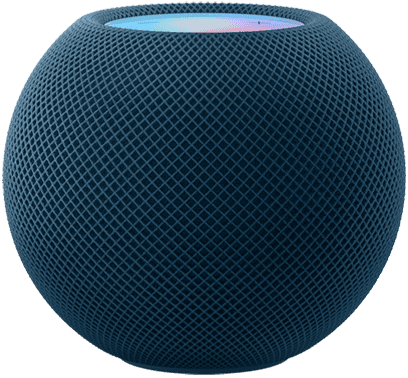
To identify HomePod clone, look carefully at the device. The ‌HomePod mini‌ has a compact spherical design, while the original ‌HomePod‌ has a bulkier capsule-like design.

Both devices are covered in Apple’s audio-conductive mesh material. The ‌HomePod‌ and ‌HomePod mini‌ also share the ‌Siri‌ waveform that appears on the top display to indicate when ‌Siri‌ is engaged, and integrated touch controls for volume.

The HomePod mini features a long, non-detachable fabric cable. The cable sports a USB-C connector,, which makes it fairly versatile on that end. HomePod mini clone will sometimes have a detachable cable instead.

Although technically not meant to be removed, the power cable on the original HomePod could be detached and reattached with a bit of force. In addition, the original HomePod model requires a direct connection to a power outlet via a plug, rather than a power adapter.

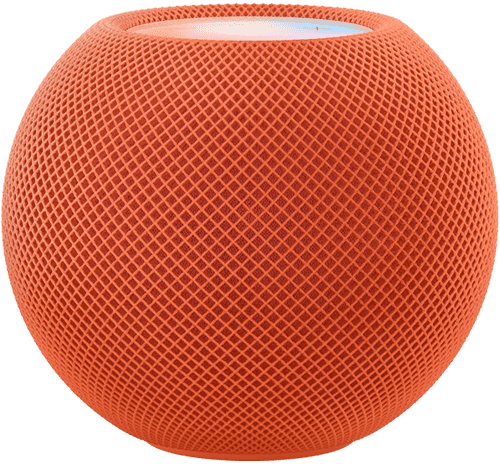
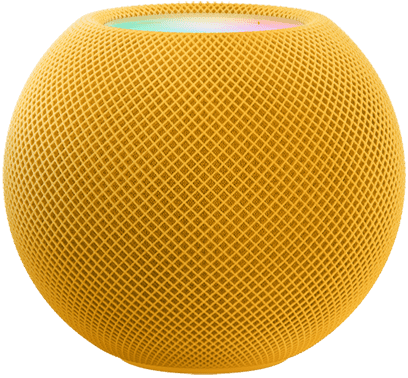
HomePod mini comes in 5 colors: orange, yellow, blue, white and space gray. If the HomePod mini doesn’t have either of these colors, that’s a bad sign.

On the bottom of the HomePod is a hard plastic base. This is where the Apple logo is located. If you don’t see Apple Logo on the bottom of the HomePod, it’s likely counterfeit.

Also in typical Apple fashion, HomePod has no buttons (no real physical buttons, at least). There’s just a glass touchscreen (more like touchpad) on the top. If you spot physical buttons on HomePod, you are dealing with counterfeit.

5. Check if it can connect to your iPhone

How to know if HomePod is fake original

Image Credit: Apple

You can’t connect your iPhone to the HomePod Mini through Bluetooth. However, the whole setup process is pretty simple with an iPhone. The HomePod and your iPhone see each other, and the iPhone tells the HomePod everything it needs to know about your home network, and your iCloud ID. It’s quite similar to pairing AirPods.

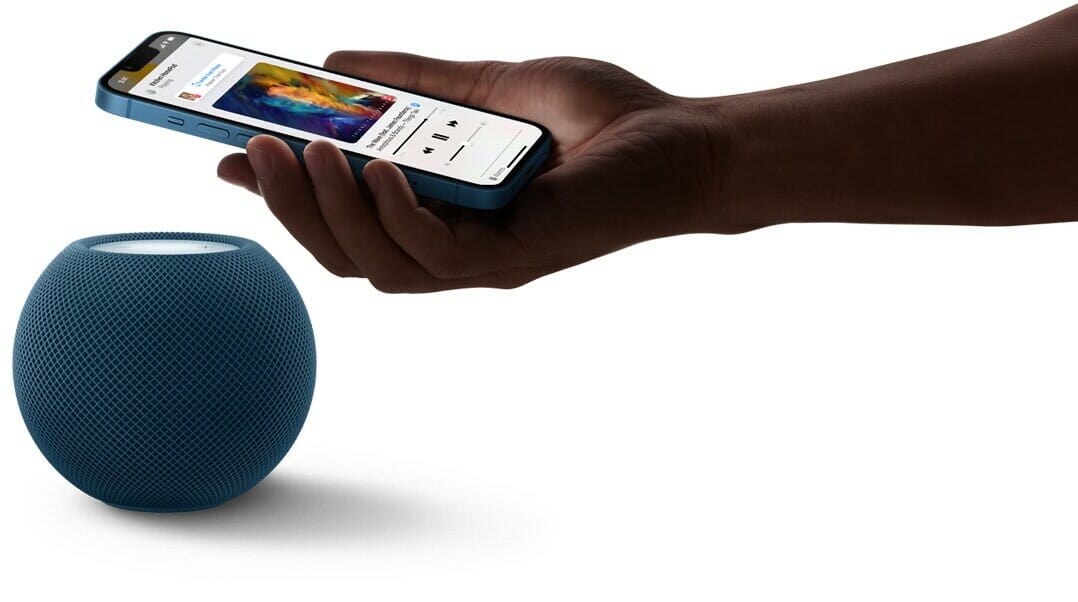
To set up your HomePod, plug it into an outlet and wait until you hear a chime and a white light appears on top. Then hold your unlocked iPhone next to it and tap Set Up. Follow the on-screen instructions, center the HomePod into your iPhone’s viewfinder, then wait for it to finish setting up.

If the HomePod is suddenly not working, make sure you’ve gone through the troubleshooting process first before calling the smart speaker a counterfeit.

What to Do If You Purchase Fake HomePod?

Mistakes happen. If you accidentally purchased fake HomePod, not all is lost. Depending on when you bought the smart speaker and where you bought it from, there’s still a lot you can do to recoup your money and right the wrong. The processes differ depending on the platform you purchased the product:

  • Wish: Contact Wish’s customer service to take advantage of their 30-day return policy. Check their list of exceptions to make sure your purchase qualifies. Wish is notorious for selling fake products, so always be cautious buying on the platform.
  • Craigslist: Craigslist won’t be able to protect you from scammers and counterfeits. You’ll need to do your due diligence to avoid getting scammed. However, if you believe you’ve been scammed, Craigslist still appreciates you reporting the fraud so that they can protect future buyers.
  • Facebook Marketplace: Facebook Marketplace doesn’t provide protections for sellers and buyers.
  • Walmart Marketplace: Request a refund via the Walmart Marketplace Promise to recover your funds.
  • Amazon: Contact Amazon customer support to file an A-to-Z Guarantee to start your refund process.
  • eBay: Contact eBay to ask for their money-back guarantee.

Contact the FBI’s digital division to submit a fraud report. They’ll provide additional advice, and this information will hopefully help them catch the bad guys.

Where Are Fake HomePods Sold?

Scammers sell fake HomePods all across the internet and local listings. So unless you’re buying from Apple, Best Buy, or another credible tech store, you’ll have to deal with fake products to some extent.

Here are the most common places scammers are selling fake Apple HomePods:

  • Craigslist
  • Amazon
  • Wish
  • eBay
  • Facebook Marketplace
  • Walmart
  • Alibaba

Scammers operate on other e-commerce platforms, too, but these are often the most prevalent. And that’s because these sites sometimes have mind-blowingly low legitimate discounts on high-quality tech items.

Where to Buy original Apple HomePod

You can find authentic HomePod at various in-store and online retailers. Here’s a shortlist of the most reliable places you can buy real HomePod:

  • Apple
  • Best Buy
  • Walmart
  • Target
  • Verizon
  • Microsoft

You can find real HomePod on popular e-commerce sites like eBay and Amazon, but you’ll always run the slightest risk of getting scammed. That’s not the case with the authentic websites listed above.

Conclusion

Authenticating HomePod is as tricky as ever. With the things we discussed above, though, you should be properly armed to take on the challenge. Now, you won’t be easily fooled by those who want to take advantage of you. The only thing left for you to do is to go get that HomePod now!

What inspections worked for you? Do you have any other tricks under your sleeves? Tell us about it through the comments below!

See also: 30 Best HomePod mini Tips and Tricks to Try First

HomePod sounds incredible, and with access to more than 90 million songs in the global Apple Music catalog and deep integration with your Apple devices, it’s the must-have smart speaker for iPhone users. HomePod fits in even more places and delivers amazing sound, the power of Siri, and simple and secure smart home controls, all while protecting your privacy. In this article, we’ll highlight 7 benefits of owning an Apple HomePod, kicking off with the room-rocking audio.

7 Benefits of Apple HomePod

Here are some of the advantages of having an Apple HomePod in 2025:

1. Genuinely Impressive Audio

This is arguably the most important thing about HomePod. Sure, whether it’s smart or not matters, but remember that Apple is promoting this as a hi-fi speaker, aiming to blow other smart speakers out of the water by offering greatly superior audio chops. Apple found that people who had smart speakers already, even cheap mini-model ones, were mostly being used for music, so that was Apple’s priority. If it doesn’t sound good, the implication is, the HomePod would be a disaster.

Not just compared to other smart speakers, though it certainly is better than any other I have heard, but also compared to regular, non-smart speaker systems that are similarly priced or more expensive.

The sad truth is that the vast bulk of smart speakers fail roundly to deliver on the audio front.

At first glance, it might seem unthinkable for a product to miss the mark in terms of core functionality, but that’s the thing.

For many smart-speaker customers, these dinky devices are simply portals for controlling other devices with voice commands.

Here is where being honest about your needs and usage habits can help you get the best device first time round. Think about how you will use the device, not what features it has and how you could theoretically use it.

Despite what smart speakers permit in terms of controlling other connected devices hands-free, for most people who buy Echo, Home or HomePod speakers, the main reason for purchase is listening to music.

HomePod is designed first and foremost as a speaker, so if you place real value on the quality of the audio you’re listening to, you won’t regret the stiff investment. Apple packed a lot of audio power into a small speaker. It’s loud enough to fill a room with sound. Bass, mids and treble are all distinct and easy to detect. Compared to the latest Echo Dot and Nest Mini, the HomePod Mini is clearer and less distorted.

Apple’s S5 processing chip powers some behind-the-scenes software to help make the audio clearer, pick up audio commands even when the music is loud, plus sort out direct and ambient sounds with echo cancellation.

Room-sensing tech baked in means Apple HomePod will optimize the soundscape to the living space. Using the multi-directional speakers, microphones, accelerometer and S5 chip, a lot of processing happens for real-time adjustments with the audio. The HomePod analyzes the room by listening to reflections of the sound off of surfaces, so it knows when it’s on a shelf, against a wall or in the middle of the room.

Energy is beamed into the centre of the room and reflects off the walls so that no matter where you are, the music sounds full and clear. You can stand behind the HomePod, in the corner of a cluttered room or directly in front of the speaker and you’ll have a consistent sound, much to my surprise. The impressive technology means there isn’t just one sweet spot for listening like other speakers have.

Room-sensing tech baked in HomePod works well with just one speaker, but when you have two HomePods set up through a simple stereo pairing process, the audio quality is even more full with an extra dimension and the hardware creates even better low and high frequencies. If money is no option, using stereo HomePods is the way to go.

In short, the technology makes for a very impressive music listening experience. Detail can be heard at all volume levels, making for crisp acoustics and deep bass. It is impressive that the high quality and detail in the sound can come from such small speakers.

You’ll be able to use AirPlay to stream audio from your phone to HomePod without needing to pair like you would with a Bluetooth set-up. AirPlay delivers superior audio compression, too. Connectivity with AirPlay is robust, but you will need to hook up to a WiFi network.

Analyze how you intend to use your smart speaker. If music is your first love, Apple makes sure you’ll hear all your music at its very best.

2. HomePod is the best way to listen to Apple Music

Apple Music doesn’t yet have the same global dominance as the music streaming service Spotify. As of 2021, Apple Music has estimated about 98 million users worldwide. Spotify, which has scored first place, has approximately 116 million users as of 2021.

Still, 98 million users is nothing to scoff at, and many of them are most likely looking for a way to get the most out of their music.

The iteration of Siri built into HomePod can be sorely lacking in places. Fortunately, Siri comes fully to the fore with Apple Music.

Siri will gradually become accustomed to your tastes and can soon start presenting you with playlists based on artists and genres you listen to on a regular basis. You can say things like, “Hey, Siri, I don’t like this song,” and the device will adjust the music accordingly and remember for the future.

It also learns what you like over time, so if you say, “Hey, Siri, play some party music,” it will present you a playlist full of the types of artists and genres it knows you like.

Ask, “Hey Siri, play my station” and you’ll get a customized playlist based on the contents of your Apple Music library.

AirPlay yourself a podcast and listen to something stimulating as you get ready for your day.

While these capabilities may not be must-have features, they’re certainly enhancements to any listening experience. Plus, everything syncs between the Apple Music you’re enjoying on the HomePod and the version on your phone, so your preferences will carry over when you leave the house.

If you’re already a committed Apple Music fan and iOS user, you’ll find Apple HomePod the perfect way to get the very most from the service.

3. Tight Integration with Apple Ecosystem

When you buy an Apple HomePod, you’re not only getting a HomePod, you’re getting a small cog in the grand symphony that a machine is. In this case, you’re buying a part of Apple’s Ecosystem. This is basically a fancy way of saying that almost every if not every piece of tech Apple makes works well with the rest of their devices.

The way HomePod slides in with the Apple ecosystem is made clear right out the box.

The setup process for the HomePod is simple. You simply hold your iPhone next to speaker and an automatic pop-up takes you through the process — a couple of minutes at most. Your iPhone’s Apple ID will be the profile associated with the HomePod and its calendar, reminders, messages and music library.

Phone calls and text messages are both supported, which is not the case with Alexa.

One potential flashpoint to be aware of is that you can only sync Apple HomePod to a single iPhone. This is less than ideal in the average household. The problem is that anyone could read your text messages or potentially send a message to anyone in your contacts. Think closely about the environment where you’ll be placing your speaker and ask yourself whether you’re comfortable with this or not. You can disable access to messages if required.

In a sense, the situation is the same with Apple HomePod as with all smart tech. If you’re heavily invested in the Apple ecosystem—Macs, iPhones, iPads, and HomeKit security devices—HomePod is your best bet. That makes for simple setup, more interoperability, and smoother functioning. If you’re not already a convert, buckle up for an expensive but rewarding journey!

4. Privacy Comes Uppermost

It seems like everybody and their mother is harvesting personal data from technology users these days. A lot of people are hesitant to buy a smart speaker because of this fear, and tech companies like Apple are keenly aware of this.

Apple assures users that the HomePod only listens after hearing the wake phrase, and you can disable Siri by saying, “Hey Siri, stop listening.” You can later re-enable Siri in the Home app. You can also disable the HomePod’s location services. Your verbal requests are associated with a random identifier rather than your Apple ID when they are sent to Apple to be processed, which prevents Apple from storing this information about you. When you ask Siri to read your messages or notes aloud, the HomePod doesn’t send that information to Apple, but rather the communication occurs directly between the HomePod and your iPhone.

Sending or receiving personal messages can only be tied to a single iCloud account. When your phone is not connected to the WiFi network, messages won’t shoot through to Apple HomePod. This is a nice touch if you’re concerned about your kids or housemates getting into your inbox.

Apple doesn’t adopt the same cavalier approach to monetizing your data as you can expect from Amazon and Google. Their business model is more fluid and you can remain quietly confident your data is as safe as it could be.

If you dislike the idea of inviting always-on devices from Amazon, Facebook, and Google into your home in the wake of so many privacy breaches, HomePod is a sea change. You can install a smart device without worrying about the manufacturer probing into your personal information.

5. Enjoy Basic Smart Home Control

It’s no secret that most people invest in a smart speaker at least in part due to the ability to control other compatible connected devices.

If you’re interested in Apple HomePod, this is quite likely not your primary motivation. We’ll assume, though, that you’ll want to enjoy at least basic control of other devices in your ecosystem.

While you might not be able to have items re-ordered from Amazon on your behalf or engage in a round of trivia questions, when the frippery is stripped away, Apple HomePod allows you to control other devices hands-free or in-app.

Smart Home control is improving with Siri as more companies add HomeKit support into their products. Third-party app integration has also been getting considerably better thanks to SiriKit. You won’t get the reach of control or interoperability that you’ll enjoy with Alexa or Google Assistant, but you’ll be able to get the job done.

And you can get that job done while listening to your favorite tunes in fine style rather than enduring a tinny whine.

6. You can use Your HomePod as a TV Speaker

Speaking of entertainment, another advantage of HomePod speakers is as the output for Apple TV, making for an immersive audio experience no matter what you’re watching.

The experience used to be fiddly, but it has improved with newer tvOS releases. A pair of HomePod speakers will certainly sound better than the speakers built into your TV so it’s worth taking the time to set this up if you have HomePods in the same room as your Apple TV. It’ll be a huge improvement over your TV’s stock speakers, turning movie night into a true surround-sound cinematic experience.

The bonus advantage of using Apple HomePod instead of regular external speakers is that you’ll also get all the perks of a Siri-powered smart home. You’ll be able to control your TV with voice commands like, “Hey, Siri, play Dexter season 4, episode 1,” and you won’t even need to bother with the remote control.

You’ll need to make sure your TV supports ARC or eARC technology to use your HomePod as a TV speaker, but most modern smart 4K TVs do, so you likely won’t need to upgrade to an entirely new TV at least.

7. It sounds more human.

Much has been made of the superior sound quality of Apple’s speaker, but the improvements go beyond technical specs for audiophiles. Siri’s communication on the HomePod is more human-like than that of Amazon’s Alexa or Google Home.

Specifically, after asking a question, [Siri] does not repeat the whole thing back to you as is the case with Google Assistant and Alexa, which makes for a subtly smoother process.

The HomePod is also a better listener than the Echo or Google Home. Thanks to a noise-cancellation feature, you could use your regular speaking voice with HomePod even in a situation where you’d have to raise your voice to talk to others in the same room. This is the HomePod’s most stellar feature.

Amazon’s weakness in that sense has been with listening: users like myself often have to shout several times to be heard by Alexa. Google’s is personality, and the fact that users still have to say “Ok, Google” to activate its speaker. (I still can’t make peace with the idea of regularly addressing a multibillion dollar corporation in my living room.)

Advantages of having an Apple HomePod: now you know!

So, these, according to us, are the seven of the most important benefits of owning an Apple HomePod. If you’re an Apple Music convert and you’re looking for a primary listening device that delivers, HomePod is a smart bet. For music lovers already invested into Apple’s ecosystem, this is undoubtedly the neatest match. AirPlay 2 means you can send the audio from your Apple TV or Mac to the HomePod, for example. You can also use your iPhone to control all the HomePods and other AirPlay devices in your home, plus individually switch which one is playing what. It’s very seamless and useful.

Being able to read and send messages, add reminders and notes, use the HomePod as a speaker phone and other native iOS features is very useful and not in other speakers. Plus if you use Apple Music as your primary music source like I do, then suddenly the HomePod feels like the smart speaker that opens up the floodgates. Other smart speakers don’t play nearly as well with the service.

See also: 10 Amazing Advantages of Apple TV in 2022