








Got a tip for us?

Features

The iPhone 15 Pro and iPhone 15 Pro Max offers a brand-new button on the side that can be customized to trigger a specific function. Here’s how to set up and use Action button on iPhone 15 Pro and iPhone 15 Pro Max.
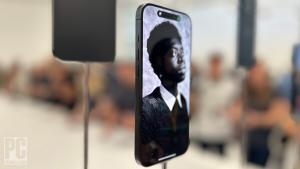
Apple iPhone 15 pro action button

What is action button in iPhone 15 pro?

The Action button on the iPhone 15 Pro and iPhone Pro Max is a force-sensitive solid-state button that can be customized to perform specific function. The Action button sits in the same place as the side switch on previous iPhones and is used with a long press.

The Action Button switches the iPhone between ring and vibrate by default, which is vital since it has replaced the ring / vibrate switch that Apple has included on the iPhone since its debut in 2007. You can even feel haptic feedback when you switch between the modes.

Apple notes that when you change the Action button to something other than controlling Silent mode, you can head to Control Center or use Focus modes to change your ringer.

What does the action button do on iPhone 15 Pro?

While the Action button by default switches the iPhone between ring and vibrate mode, it can be programmed to do things like activating the camera, turning on the flashlight, starting a Voice Memo, opening a note, switching Focus modes, or running your own custom shortcuts. You can also set accessibility options like Magnifier.

How to use Action Button on iPhone 15 Pro and iPhone 15 Pro Max

Before we dig into the iPhone settings, here are the basics of the Action Button.

  • To trigger most functions, you’ll need to press and hold the button.
  • By default, a press and hold of the Action Button switches between sound and silent modes, much like how the original alert slider behaved.
  • On a per-app basis, a single tap of the Action Button will also trigger a secondary function. For example, a single tap while the camera is open prompts the shutter. A single tap while Voice Memo is on will stop the recording.

Customize the iPhone 15 Pro Action button

Should you want to get more creative with the Action Button, the Settings app is where to go. Here’s how to set it up:

  1. Open the Settings app on your iPhone 15 Pro or iPhone 15 Pro Max.
  2. Scroll down and choose Action Button.
  3. You can set the Action button to launch:
    • Silent mode (default)
    • Focus mode
    • Camera
    • Flashlight
    • Voice Memo
    • Magnifier and other Accessibility features
    • Shortcut
    • Translate (arriving with an update "later this year")

While there are eight main features the Action button can control, being able to set it to control Accessibility shortcuts or run a custom shortcut from the Shortcuts app is huge. That means the possibilities are pretty much endless.

Some features make use of the Action button once you’re in an app too. For example, if you launch the Camera with the Action button, you can press it again to take pictures. If you launch a Voice Memo recording, you can use the Action button to stop the recording, etc.

The Action Button, though subtle, is one of few visually noticeable changes to the exterior of the iPhone in many years — alongside the new USB-C port on the bottom of the device.

FAQs

What iPhone models have the Action Button?

Only the iPhone 15 Pro and iPhone 15 Pro Max have the new Action Button. Older models instead have a physical alert slider that switches between sound and silent modes. Naturally, cases and covers made for previous iPhone models won’t fit on the iPhone 15 Pro series.

Can I map a third-party app to the Action Button?

You can, thanks to the Shortcut option in the Action Button menu. You first need to create a Shortcut with the desired app. Then, select it as the sequence to open when the Action Button is triggered. Due to how versatile Shortcuts can be, the possibilities for what the Action Button can do are endless.

What are you wanting to customize your Action button to control? Drop your ideas in the comments section below!
The Apple iPhone 15 lineup comes with exciting features such as USB-C port, Dynamic Island, Action Button and more. The iPhone 15 starts at $799 and only goes up in price from there depending on the desired specs. Because of how costly it is to stay current with Apple tech, those looking to buy in want to make sure that the iPhone 15 is able to withstand at least some degree of wear and tear — including potential waterproofing. Here’s what you need to know about whether the iPhone 15 is waterproof and if you should be bringing it poolside.

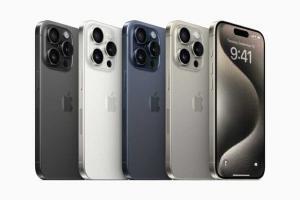
iPhone 15 Pro in black titanium, white titanium, blue titanium, and natural titanium finishes.

KEY TAKEAWAYS

  • The iPhone 15 has a water resistance rating but is not waterproof.
  • The iPhone 15’s water resistance is limited to fresh water and will not protect against damage in salt water or chemically treated pools.
  • Water damage is not covered under warranty, so if you damage your iPhone 15 by submerging it without a case, you will have to pay for repairs.

How Waterproof Is the iPhone 15?

The iPhone 15 isn’t completely waterproof. However, all iPhone 15 models, including the iPhone 15, iPhone 15 Plus, iPhone 15 Pro, and iPhone 15 Pro Max, are water resistant with an IP68 rating.

IP, or ingress protection, ratings fall under the International Electrotechnical Commission(IEC) 60529 standard, which rates how well devices hold up to dust and moisture. IP grades are the industry standard for electronics. You’ll find IP ratings on headphones, smartwatches, and various other personal gadgets.

IP numbers come in two parts:

  • Dust protection: The first number measures dust protection on a scale from no protection (zero) to wholly sealed off (six).
  • Moisture resistance: The second number goes from no seal (zero) to complete protection against water pressure from multiple angles–and hot water too (nine).

The IP68 rating on iPhone 15 indicates these phones are well protected against dust and are also water-resistant but not fully waterproof.

What does that mean in real life? Whether you accidentally drop your phone in a pool or intentionally take your phone with you in water, your iPhone 15 should be okay.

Apple states all four iPhone 15 models can be submerged and protected in water up to 6 meters deep for up to 30 minutes.

Is the iPhone 15 resistant to salt water?

While the IP68 rating for the iPhone 15 family says that they’re all good for exposure to fresh water, it’s a little ambiguous about other kinds of liquids. Questions regarding how well devices hold up in salt water are frequently asked as a result. Fresh water is harmless to the iPhone 15 in the ways specified above, but salt water can have devastating effects on it. It’s a good idea, then, to pay special attention to keeping your phone dry when swimming in a salt water pool or when heading to the ocean.

Is There Any iPhone That Is Waterproof?

No iPhone is entirely waterproof, but many models after iPhone 7 come with water resistance. Several of the newer iPhone generations share or come close to iPhone 15’s water protection.

Models with the same IP68 resistance to splashing, dust, and immersion in up to 6 meters of water for a maximum of 30 minutes include:

  • iPhone 14
  • iPhone 14 Plus
  • iPhone 14 Pro
  • iPhone 14 Pro Max
  • iPhone 13
  • iPhone 13 mini
  • iPhone 13 Pro
  • iPhone 13 Pro Max
  • iPhone 12
  • iPhone 12 mini
  • iPhone 12 Pro
  • iPhone 12 Pro Max

If your iPhone is exposed to or dunked in water, Apple recommends drying the device by gently tapping it against your hand with the lightning connector facing downward. You’ll also want to avoid charging or using the Lightning port on your iPhone until it’s dry.

Some iPhones also hold the IP68 rating but can’t be immersed as deeply in water. These models come with IP68 protection in up to 4-meter depths for 30 minutes:

  • iPhone 11 Pro
  • iPhone 11 Pro Max

Other iPhones can withstand only 2-meter depths for 30 minutes maximum. This list includes:

  • iPhone 11
  • iPhone XS
  • iPhone XS Max

Several older iPhones cut back the water resistance further with an IP67 rating. This rating offers dust protection and tolerance to submersion in 1-meter depths for 30 minutes.

  • iPhone SE (2nd generation)
  • iPhone XR
  • iPhone X
  • iPhone 8
  • iPhone 8 Plus
  • iPhone 7
  • iPhone 7 Plus

The above iPhones can also withstand everyday spills from beverages such as coffee, tea, and juice. If you need to clean your phone, Apple recommends avoiding soaps or detergents.