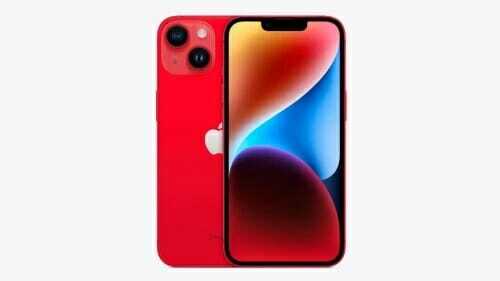
Apple’s brand new iPhone 14, iPhone 14 Plus, iPhone 14 Pro, and iPhone 14 Pro Max have been out for a few weeks now, and we’ve managed to go all this time without a single “gate” scandal. However, there are still some problems that early adopters have run into. Luckily, there are often simple solutions to even the most frustrating iPhone 14 and iPhone 14 Pro problems, and in this post, we’ve compiled six of the most common iPhone 14 issues people are running into, along with potential solutions.
1. Battery drain Issue on the iPhone 14
Battery drain issue on the iPhone 14 is relatively common. If it’s a software issue, there’s a chance you can fix it. You can use Low Power Mode, limit your iPhone 14 Pro’s frame rate, disable always on display, lower the screen brightness, disable haptic feedback for keyboard, and stop background app refresh to improve your battery’s performance.
If you notice “Home & Lock Screen” on your battery usage is higher than you’d expect, it’s good to check those settings.
Auto-Lock at 30 seconds will help you preserve the most battery life. Especially with iPhone 14 Pro having an always-on display, 30 seconds can be worth it.
Navigate to Settings > Display & Brightness > Auto-Lock.
Lowering your screen brightness will also help with battery life, but this will come down to personal preference. You can do that in Control Center (swipe down from the top right corner) or Settings > Display & Brightness.
With iPhone 14 Pro HDR brightness now going up to 1600 nits and outdoor peak brightness going to 2000 nits, this is something to keep an eye on to help keep battery life in check.
If you’re looking to eke out the most battery, turning off the always on display feature could help a touch.
Head to Settings > Display and brightness > Always On at the bottom.
To use Low Power Mode, head to Settings > Battery and tap the toggle for Low Power Mode.
If you choose not to use Low Power Mode, you can manually control Push and Fetch for your email/internet accounts.
Head to Settings > Mail > Accounts > Fetch New Data. One approach is to leave your primary account(s) as push to receive new mail asap, and turn less important accounts to fetch every hour or even set them to manual.
If you have one of the Pro models, you can limit your iPhone 14 Pro’s frame rate by opening Settings > Accessibility > Motion and tapping the Limit Frame Rate toggle. Doing this will cap the frame rate at 60 frames per second.
Low Power Mode turns off background app refresh across the board, but you can customize which apps use this feature for a more convenient experience as well as improved battery life. Head to Settings > General > Background App Refresh.
You can also opt to only use background app refresh on Wi-Fi in addition to Wi-Fi and Cellular or turn the feature off totally. However, most users will find leaving Wi-Fi and Cellular on while customizing which apps are used for background app refresh to be the best fit.
Turning off Background App Refresh prevents apps that you’re not actively using from updating (until you open them again).
Dialing in your location services settings is another way to extend battery life. (It can reduce cellular data use too). Head to Settings > Privacy & Security > Location Services to update the privileges for your apps.
Look out for any apps that ask to Always use your location and switch to While Using, Ask Next Time, or Never.
haptic feedback "might affect the battery life of your iPhone." No specifics are given as to how much battery life the keyboard feature does drain, but if you want to conserve battery, it’s best to keep this feature disabled.
Fortunately, it is not on by default. If you’ve enabled it in yourself, go to Settings > Sounds & Haptics > Keyboard Feedback and toggle off Haptic to turn off haptic feedback for your keyboard.
2. iPhone 14 Touchscreen Issues
Unlike battery problems, iPhone 14 touchscreen issues are relatively rare. However, they can make the device virtually unusable. There’s a chance you can fix it without sending it in for repairs, as it’s usually caused by software or user errors.
First, ensure your iPhone 14 is running the latest version of iOS. Next, thoroughly clean your iPhone and disconnect all cables. Restart your iPhone 14 and check if the touchscreen starts working again.
If it doesn’t fix the touchscreen issue, you can try factory resetting your iPhone 14. And, if all else fails, you’ll have to send your iPhone to Apple for repairs. But if you have the hardware expertise, you can take advantage of Apple’s Self Service Repair program.
3. iPhone 14 Wi-Fi Issues
One of the most common iPhone 14 issues has to do with Wi-Fi connections. Sometimes, even while connected to a Wi-Fi network with access to the internet, your iPhone might not work properly.
There are three things you can try to fix this problem:
- Toggle the Wi-Fi connection off and on.
- Forget the Wi-Fi network and reconnect.
- Turn off the Wi-Fi Assist feature on your iPhone.
To toggle your Wi-Fi connection off and on, head to Settings > Wi-Fi. Then, tap the toggle at the top right of the screen. After 30 seconds, tap it again to enable it.
To forget and reconnect to a Wi-Fi network, open Settings > Wi-Fi. Then, tap and hold the corresponding network. Next, tap Forget This Network and then try to reconnect from the Wi-Fi settings menu.
To turn off Wi-Fi Assist, open Settings > Cellular and toggle off Wi-Fi Assist at the bottom of the menu.
4. Activation Error on the iPhone 14 and iPhone 14 Pro
One of the more frustrating iPhone 14 bugs involves activation problems. If you can’t activate your iPhone 14, you won’t be able to log in to use the phone at all.
This can happen in two ways. You’ll either get an activation error, a message stating that the phone can’t detect your SIM card, or that it’s invalid.
Fortunately, you can follow a few steps to solve the iPhone 14 activation bug. However, they’re pretty limited. Here’s one method you can try:
- Restart your iPhone 14.
- Connect to a Wi-Fi network.
- Try activating your iPhone 14 again.
You can try an alternate method if these steps don’t solve the activation issue. For these steps, you’ll need the latest version of macOS or iTunes. Here are the steps you can try:
- Update iTunes on your Windows PC. If you use a Mac, update macOS to the latest version.
- Ensure your computer has an internet connection.
- Use your iPhone 14’s charging cable to connect it to your computer.
- Your computer should automatically detect your iPhone 14.
- If Set Up as New or Restore from Backup notifications show up on your computer, your iPhone 14 is activated. If SIM card invalid or No SIM Detected notifications appear, you’ll need to reach out to your phone carrier.
But if you see the activation information was invalid message, you’ll have to enter recovery mode to restore your iPhone 14.
You’ll likely have to reach out to Apple or your phone carrier at some point during the activation process if you’re still running into errors after following these steps.
5. iPhone 14 Face ID Issues
Face ID on iPhone 14 can stop working randomly, potentially barring you from using certain apps and built-in features. Fortunately, you can try a few methods to fix Face ID.
First, consider cleaning the front-facing camera. It’s surprising how often Face ID won’t work just because there’s a smudge or two on the camera lens.
You can also check the Face ID settings. To do this, head to Settings > Face ID & Passcode. Then, ensure all the items listed in this menu are toggled on. This includes:
- iPhone Unlock
- iTunes & App Store
- Wallet & Apple Pay
- Password AutoFill
You can also toggle on Face ID for specific apps from the Settings menu. Simply scroll down, find the app you want to use Face ID for, and use the toggle to enable it.
Another option is to remove and reset Face ID. To do this, go to Settings > Face ID & Passcode. Then, tap Reset Face ID.
Finally, you can add an alternative appearance. First, open Settings > Face ID & Passcode. Then, tap Set Up an Alternative Appearance.
If these tips aren’t working, you can check out our list of solutions for Face ID not working on iPhone 14 Pro.
6. iPhone 14 Pro Max Overheating Issues
If your iPhone 14 is overheating, it might be from overuse. While in most cases, you’ll likely need to send your iPhone 14 in for repairs if it’s overheating, there are a few tweaks you can try beforehand. These are also useful for other battery issues, but they can sometimes help to solve overheating.
First, consider tweaking a few of your iPhone 14’s battery settings. This includes lowering the brightness, disabling Background App Refresh, and turning off Location Services. These changes reduce the overall processing power required by your iPhone, reducing the load on your battery.
If your iPhone 14 is still overheating after these changes, try resetting all settings and restarting your phone. And if that doesn’t help either, you’ll likely have to send your iPhone 14 in for repair.
Fixed the most common iPhone 14 Problems
While every new generation of iPhones comes with impressive hardware and software, none of them are immune to bugs and problems. iPhone 14 issues are relatively common. Luckily, there are a few ways you can solve these issues without sending your phone in for repair.
More often than not, a restart or factory reset can solve most of the bugs or problems. If our list of common iPhone 14 issues and solutions didn’t help, you could try some of the tips in our other guides.