Got a tip for us?

Action Button

On Apple Watch Ultra models, the customizable Action button gives you quick, physical control over a variety of functions. It can do things like start a workout, mark a Compass Waypoint, or begin a dive.

During setup, you choose a function for the Action button, and you can change it any time, with Quick Switch making it even faster. Some actions offer additional options, too, and third-party apps may support the Action button.
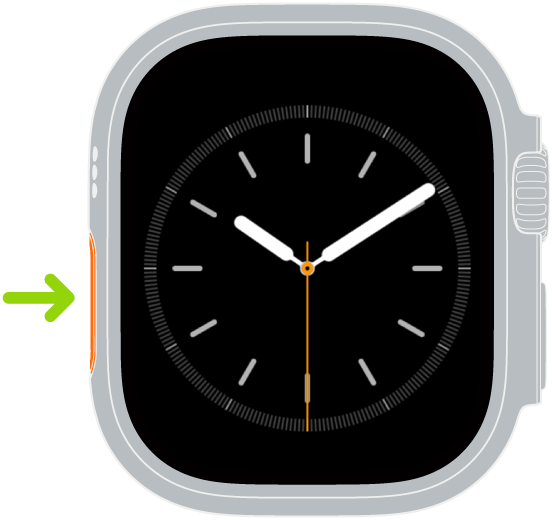
Illustration of Apple Watch with an arrow pointing to the Action button on the left side.

Available functions for the Action button

Some actions offer additional options when you press the Action and side buttons simultaneously. The following list isn’t exhaustive; third-party apps may support the Action button.

Action What it does
Workout Press once: Go to the Workout app or start a selected workout.

Press again: Perform a secondary action based on the selected workout.

Press the Action button and side button together: Pause.

Stopwatch Press once: Start.

Press again: Mark a lap.

Press the Action button and side button together: Pause.

Waypoint Drop a Compass Waypoint
Backtrack Press once: Record your route.

Press the Action button and side button together: Toggle between Record and Retrace.

Dive Press once: Start a dive.

Press the Action button and side button together: Perform a secondary action based on the selected diving app.

Flashlight Press once: On

Press again: Off

Shortcut Start the selected shortcut.
Voice Memo Press once: Start a voice memo.

Press again: Stop recording.

Translate Press once: Start translating.

Press again: Stop translating.

Accessibility Press once: Turn on the selected Accessibility feature.

Press again: Turn off the selected Accessibility feature.

Recognize Music Press once: Listen and identify music.

Press again: Stop.

Customize the Action button

On Apple Watch Ultra models, you’re asked to choose a function for the Action button during setup. You can change the function any time.

  1. Go to the Settings app on Apple Watch Ultra.
  2. Tap Action Button and then do any of the following:

    • Change the action: Tap Action and choose an action, such as Workout, Backtrack, or Dive.

      Tip: You can change the action later using Quick Switch.

    • Choose an app: If the selected action is supported by more than one app, tap the app shown. Choose a different app.
    • Change the actions available in Quick Switch: Tap Quick Switch and turn on or off any of the available actions. You can also turn off Quick Switch.
    • Deactivate Siren: If you don’t want to activate Siren by pressing and holding the Action button, turn off Hold to Turn On.

Quickly switch the function of the Action button

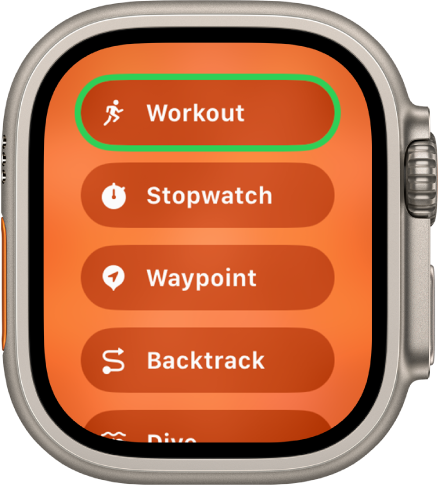
On Apple Watch Ultra models, you can do the following:

  1. Press and hold the Action button.
  2. Choose an action.

    The Quick Switch screen showing the actions that can be assigned to the Action button, such as Workout, Stopwatch, and Waypoint.

To customize Quick Switch, go to the Settings app, tap Action Button, tap Quick Switch, then choose the actions you want to be included in Quick Switch. You can also turn off Quick Switch.

Turn off the Action button

  1. Go to the Settings app on Apple Watch Ultra.
  2. Tap Action Button, tap Action, and tap None.

See also
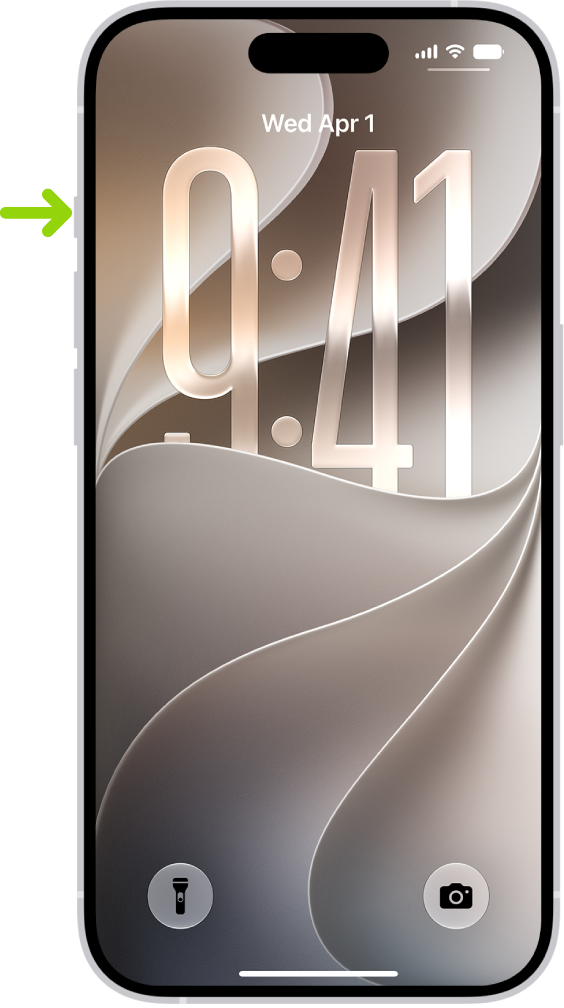
On supported models, iPhone has an Action button in place of the Ring/Silent switch. You can choose which function you want the Action button to perform when you press it.

Because the button is so accessible, it’s useful for actions you perform often. And it’s easy to change the Action button to perform a different function, right in Settings.

Here’s how to use and customize the Action button on iPhone.

A screen showing that the Action button is located on the left edge of the iPhone 15 Pro. You can customize the function of the button in Settings > Action Button.

Use the Action button

To perform the action assigned to the Action button, press and hold the Action button.

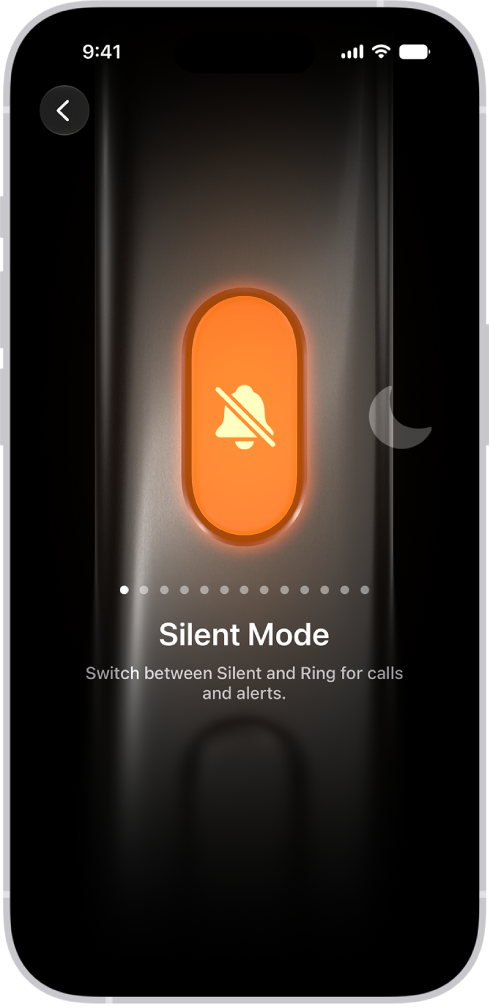
For many functions, the Action button can be used to turn a setting on or off. For example, if the selected action is Silent Mode (the default), you can press and hold the Action button to put iPhone in Silent mode. If you press and hold the Action button again, it turns off Silent mode.

Customize the Action button

  1. Start the Settings app on your iPhone.
  2. Tap Action Button.
  3. To choose an action (like Silent Mode), swipe to the action you want to use—its name appears below the dots.

    The screen for customizing the Action button. The Camera is the selected action. Other features appear to the right and left of the camera, including Do Not Disturb and Flashlight. Below the actions are dots you can tap to switch to another action. Below the selected action, Camera, is a menu of Camera options you can tap to assign to the Action button.

  4. If there are additional options for the selected action, the Menu button appears below the action; tap it to see the list of options.

For the Controls, Shortcut, and Accessibility actions, you need to tap the button below the action and select a specific option—otherwise the Action button does nothing.

Icon Action
the Silent Mode button Silent Mode: Switch between Silent and Ring for calls and alerts.
the Focus button Focus: Turn on a Focus to silence notifications and filter out distractions.
the Camera button Camera: Open the Camera app to capture a moment.
the Visual Intelligence button Visual Intelligence: Use Visual Intelligence to learn more about the places and objects around you (Requires Apple Intelligence).

Note: Apple Intelligence on iOS 27 or later is available on an Apple Intelligence-enabled iPhone 15 Pro, iPhone 15 Pro Max, or iPhone 16 model or later. Apple Intelligence is not available in all languages or regions. Usage limits may apply.*

the Flashlight button Flashlight: Turn on extra light when you need it.
the Voice Memo button Voice Memo: Record personal notes, musical ideas, and more.
the Recognize Music button Recognize Music: Find out what song is playing nearby or on your iPhone with Shazam.
the Translate button Translate: Translate phrases or have a conversation with someone in another language.
the Magnifier button Magnifier: Turn your iPhone into a magnifying glass to zoom in on and detect objects near you.
the Controls button Controls: Quickly access your favorite control.
the Shortcut button Shortcut: Open an app or run your favorite shortcut.
the Accessibility button Accessibility: Quickly use an accessibility feature.
No Action Do nothing.

*Apple Intelligence is available with Siri and device language set to Chinese (Simplified), Chinese (Traditional), Danish, Dutch, English, French, German, Italian, Japanese, Korean, Norwegian, Portuguese, Spanish, Swedish, Turkish, or Vietnamese. Some features may not be available in all regions or languages. Some devices may not be available in all regions. Siri AI is available in beta in iOS 27, iPadOS 27, macOS 27, watchOS 27, and visionOS 27 and requires an Apple Intelligence–enabled device set to a supported language. Available in English to start. Siri AI will not be initially available in the EU on iOS, iPadOS, and watchOS. Certain Apple Intelligence features that rely on server-side models are subject to daily usage limits, including but not limited to Siri AI, Intelligent Photo Editing Tools, Image Playground, and AFM 3 Cloud models in Shortcuts. Daily limits may vary by feature, request complexity, system demand, system policies, and other factors. Expanded access to such features will be available for a fee in the future. Use of these features is subject to the Apple Intelligence Terms and Conditions.

The iPhone 15 Pro and iPhone 15 Pro Max offers a brand-new button on the side that can be customized to trigger a specific function. Here’s how to set up and use Action button on iPhone 15 Pro and iPhone 15 Pro Max.

Apple iPhone 15 pro action button

What is action button in iPhone 15 pro?

The Action button on the iPhone 15 Pro and iPhone Pro Max is a force-sensitive solid-state button that can be customized to perform specific function. The Action button sits in the same place as the side switch on previous iPhones and is used with a long press.

The Action Button switches the iPhone between ring and vibrate by default, which is vital since it has replaced the ring / vibrate switch that Apple has included on the iPhone since its debut in 2007. You can even feel haptic feedback when you switch between the modes.

Apple notes that when you change the Action button to something other than controlling Silent mode, you can head to Control Center or use Focus modes to change your ringer.

What does the action button do on iPhone 15 Pro?

While the Action button by default switches the iPhone between ring and vibrate mode, it can be programmed to do things like activating the camera, turning on the flashlight, starting a Voice Memo, opening a note, switching Focus modes, or running your own custom shortcuts. You can also set accessibility options like Magnifier.

How to use Action Button on iPhone 15 Pro and iPhone 15 Pro Max

Before we dig into the iPhone settings, here are the basics of the Action Button.

  • To trigger most functions, you’ll need to press and hold the button.
  • By default, a press and hold of the Action Button switches between sound and silent modes, much like how the original alert slider behaved.
  • On a per-app basis, a single tap of the Action Button will also trigger a secondary function. For example, a single tap while the camera is open prompts the shutter. A single tap while Voice Memo is on will stop the recording.

Customize the iPhone 15 Pro Action button

Should you want to get more creative with the Action Button, the Settings app is where to go. Here’s how to set it up:

  1. Open the Settings app on your iPhone 15 Pro or iPhone 15 Pro Max.
  2. Scroll down and choose Action Button.
  3. You can set the Action button to launch:
    • Silent mode (default)
    • Focus mode
    • Camera
    • Flashlight
    • Voice Memo
    • Magnifier and other Accessibility features
    • Shortcut
    • Translate (arriving with an update "later this year")

While there are eight main features the Action button can control, being able to set it to control Accessibility shortcuts or run a custom shortcut from the Shortcuts app is huge. That means the possibilities are pretty much endless.

Some features make use of the Action button once you’re in an app too. For example, if you launch the Camera with the Action button, you can press it again to take pictures. If you launch a Voice Memo recording, you can use the Action button to stop the recording, etc.

The Action Button, though subtle, is one of few visually noticeable changes to the exterior of the iPhone in many years — alongside the new USB-C port on the bottom of the device.

FAQs

What iPhone models have the Action Button?

Only the iPhone 15 Pro and iPhone 15 Pro Max have the new Action Button. Older models instead have a physical alert slider that switches between sound and silent modes. Naturally, cases and covers made for previous iPhone models won’t fit on the iPhone 15 Pro series.

Can I map a third-party app to the Action Button?

You can, thanks to the Shortcut option in the Action Button menu. You first need to create a Shortcut with the desired app. Then, select it as the sequence to open when the Action Button is triggered. Due to how versatile Shortcuts can be, the possibilities for what the Action Button can do are endless.

What are you wanting to customize your Action button to control? Drop your ideas in the comments section below!