Got a tip for us?

iPhone 15 Pro

Normally, your iPhone 15 Pro keep apps running smoothly in the foreground (or suspended in the background, ready to resume when needed). But if an iOS app misbehaves, it’s easy to force the app to close. Here’s how.

QUICK ANSWER

To close an app on the iPhone 15 Pro:

  1. Swipe up from the bottom of the screen to about a third of the way up, then let go.
  2. In the app switcher, swipe left or right to find the app you want to close.
  3. When you’ve located it, swipe it all the way up, dragging it offscreen.

Note: information in this article apply to iPhone 15, iPhone 15 Plus, iPhone 15 Pro and iPhone 15 Pro Max.

How to close apps on iPhone 15 Pro

To close an app on your iPhone 15 Pro, you’ll need to launch the app switcher screen. To do so, swipe upward from the bottom edge of the screen and pause near the middle of the screen, then lift your finger.

On the App Switcher screen, swipe left or right to navigate to the app that needs to be closed and then simply swipe up on that app preview. This will close the app for good and remove it from memory.

While this method works well for one or two apps, it can be tedious to repeat the process for multiple apps. iPhones do not offer a ‘Clear All’ button on the App Switcher screen unlike on Android devices, meaning there’s no way to clear all open apps at once. However, users can close multiple apps simultaneously on iPhones by using multiple fingers to swipe up on multiple app previews at once. Two or three fingers work best when trying to close two or three apps together. including all iPhone 15 Pro models.

Only Close Apps if They Malfunction

The iPhone 15 Pro’s operating system, Apple’s iOS, does a great job at automatically handling system resources. So you don’t need to manually force an app to close unless the app becomes unresponsive or glitchy.

While it’s temping to "clean house" by closing your suspended apps on a regular basis, doing so can actually slow down your iPhone and hurt your battery life. That’s because the next time you launch an app, the app has to completely reload from scratch. It’s slower and uses more CPU cycles, which drains your iPhone’s battery.

All you really need is a Wi-Fi connection.

You’ve finally received your iPhone 15. Maybe you picked it up at your local carrier store or preordered it and got it in the mail — but at long last, Apple’s latest phone is now in your hands. And you need to set it up — but you might need some help doing so.

In this guide, we’ll walk you through all the steps of setting up your iPhone 15, iPhone 15 Plus, iPhone 15 Pro or iPhone 15 Pro Max, from turning on your device and connecting to Wi-Fi to activating your eSIM and transferring all your data.

iPhone 15 Pro in black titanium, white titanium, blue titanium, and natural titanium finishes.

What to do before you start to set up your iPhone 15

Before you start setting up your iPhone 15, you’ll need the following things if you’re moving over from another phone or setting up an iPhone for your first time:

  • Back up your old iPhone. If you’re moving over from an older iPhone, you’ll be transferring data from your existing phone to your new iPhone 15, so it’s best to have an up-to-date backup to restore from. If you don’t have enough storage, you can back up to your computer.
  • Keep your old phone close by. No matter if it’s an Android or iPhone, it’s a good idea to have your previous phone ready. This can actually expedite the setup process.
  • And have your charger with you, just in case. Although your new iPhone 15 should have enough battery to get you through the setup process, you might need power to charge your older iPhone during the transfer.
  • Make sure you’re connected to the Internet. You need to connect to a stable Wi-Fi network to set up your iPhone 15.
  • Have your Apple ID credentials on hand. In case you need to sign in to your Apple account, to restore a backup and more, have your email and password ready. You can also create one during the setup process.

Ready? Let’s get started.

1. Turn on your iPhone 15

The first thing you need to do is turn on your iPhone. Whether you have an iPhone 15, iPhone 15 Plus, iPhone 15 Pro, or iPhone 15 Pro Max, turning it on is the same: Press and hold the side button, on the right side of your iPhone, until you see the Apple logo appear. Wait a few seconds, and the Hello screen should appear. Swipe up to begin.

2. Follow the iPhone onscreen instructions

Now you’ll have to do a couple minor things on your iPhone to get through the first part of the setup, and luckily they’re both easy to do. To start, you’ll have to:

  • Choose a language: If you’re in the US, you should see English listed directly at the top.
  • Select your country or region. Again, if you’re in the US, you should see “United States” at the top.

3. Use Quick Start to set up your iPhone 15

On the next page you’ll see the Quick Start screen, which allows you to automatically set up your iPhone 15 with the help of your previous iPhone or even an iPad. If you go this route, you’ll need to turn on your old device, connect it to Wi-Fi or cellular and then bring it near the new iPhone 15

Next, you’ll be asked to authenticate or connect the two phones. You can either use the camera on your old iPhone to scan the pattern on the new iPhone or enter a verification code. Activation will then take a few minutes.

Note: If you want to do this manually, skip down to the next section.

You’ll then be prompted to do the following, among other things:

  • Join your Wi-Fi network on your new iPhone.
  • Set Up eSIM. You should see two options: Transfer from another iPhone (the best option) or Set Up Later in Settings. If you choose the first option, you’ll be asked to double-press the side button on your old iPhone.
  • Set up Face ID.
  • Choose how you want to transfer your data. You can either do it from iCloud or from your previous iPhone.

It’s a good idea to keep both devices connected to a power source while you do this, because depending on how many apps and how much data you have, it could take a while. Follow all the steps until you’re finished and have access to iOS 17 on your iPhone 15.

4. Set your iPhone 15 up manually

Now, if you’re coming from an Android or other phone or want to set up your iPhone 15 manually, tap Set Up Manually on the Quick Start screen. If you decide to go this route, you’ll need to manually do the following things:

  • Connect to a Wi-Fi network. Wait a few minutes for your phone to activate.
  • Read the Data & Privacy prompt. Hit Continue when you’re finished.
  • Set up Face ID.
  • Create a six-digit passcode to unlock your iPhone 15. This is your backup for unlocking your iPhone 15. Enter the passcode twice.
  • Choose how to restore your apps and data. You can restore from iCloud backup, restore from Mac or PC, transfer directly from iPhone, move data from Android or don’t transfer apps and data.

Depending on your method of restoring your apps and data, you may be asked to enter your iCloud credentials to sign in to your Apple account. You then need to enter a verification code, which may appear on one of your other devices, to verify your identity.

Next, agree to the terms and conditions; customize your settings; update to the latest iOS; and set up Apple Pay, Siri and Screen Time, if necessary. You’ll also be asked whether you want to share your app analytics with developers, which helps developers improve their apps using your data (anonymously).

Finally, set up the True Tone display, choose light or dark mode and select a standard or zoomed view (for those that have impaired vision).

5. You can now use your iPhone 15 running iOS 17

Once you’re finished, you can swipe up to enter your iPhone. You may not see all your applications on your home screen or your photos and videos in your camera roll, so you’ll need to wait a bit while your phone slowly transfers all your apps and data to your new iPhone 15. Depending on how much there is to transfer, this can take as much as a few hours.

The all-new iPhone 15 Pro and iPhone 15 Pro Max are finally available for purchase globally. The latest models come with various upgrades, including the new Action Button, A17 Pro Bionic chip, upgraded cameras, and more. If you’re thinking of picking up one of the new ‘Pro’ models and are wondering what accessories you’ll get with the phone, you’ve come to the right place. Read on to learn more about the iPhone 15 Pro unboxing experience and all the goodies you get with the device.

iPhone 15 Pro in black titanium, white titanium, blue titanium, and natural titanium finishes.

QUICK ANSWER

What is in the iPhone 15 Pro box?

  • Included in the box is the iPhone 15 Pro, a USB‑C Charge Cable, SIM ejector tool (non-U.S. models only) and documentation.
  • , iPhone 15 Pro and iPhone 15 Pro Max do not include a power adapter or EarPods.

Although the iPhone 15 Pro and iPhone 15 Pro Max feature significant upgrades over the iPhone 14 Pro and iPhone 14 Pro Max, Apple hasn’t made any drastic changes to their retail packaging. The phones arrive in a rather slim box with an illustration of the iPhone 15 Pro’s display on the top, iPhone text on the left and right sides, and the Apple logo on the top and bottom.

Unboxing the iPhone 15 Pro and iPhone 15 Pro Max is as seamless as ever, and you don’t need any tools to open the packaging. Simply pull the labeled tabs to open the seal, and you’re in. On the inside, you’ll find the iPhone lying face down with a peel over its display.

Underneath it, you’ll find a couple of accessories, including the new USB‑C Charge Cable, some documentation, and an Apple sticker. In case you purchased your iPhone 15 Pro or iPhone 15 Pro Max outside the U.S., you’ll also find a SIM ejector tool in the box.

What’s inside the box:

  • iPhone 15 Pro or iPhone 15 Pro Max
  • USB‑C Charge Cable
  • Documentation
  • 1x Apple sticker
  • SIM ejector tool (non-U.S. models only)

Sadly, Apple does not ship a power brick with the iPhone 15 Pro and iPhone 15 Pro Max. If you don’t have a charging brick with a USB Type-C port lying around, you can purchase one from Apple.

Apple iPhone 15 Pro

The new iPhone 15 Pro brings several improvements to the table, including the Dynamic Island, A16 Bionic chip, better cameras, and more.

Unlike some Chinese Android OEMs, , iPhone 15 Pro and iPhone 15 Pro Max do not include a phone case, power adapter or EarPods. Included in the box is a USB‑C Charge Cable that supports fast charging and is compatible with USB‑C power adapters and computer ports.

The iPhone 15 Pro and iPhone 15 Pro Max offers a brand-new button on the side that can be customized to trigger a specific function. Here’s how to set up and use Action button on iPhone 15 Pro and iPhone 15 Pro Max.

Apple iPhone 15 pro action button

What is action button in iPhone 15 pro?

The Action button on the iPhone 15 Pro and iPhone Pro Max is a force-sensitive solid-state button that can be customized to perform specific function. The Action button sits in the same place as the side switch on previous iPhones and is used with a long press.

The Action Button switches the iPhone between ring and vibrate by default, which is vital since it has replaced the ring / vibrate switch that Apple has included on the iPhone since its debut in 2007. You can even feel haptic feedback when you switch between the modes.

Apple notes that when you change the Action button to something other than controlling Silent mode, you can head to Control Center or use Focus modes to change your ringer.

What does the action button do on iPhone 15 Pro?

While the Action button by default switches the iPhone between ring and vibrate mode, it can be programmed to do things like activating the camera, turning on the flashlight, starting a Voice Memo, opening a note, switching Focus modes, or running your own custom shortcuts. You can also set accessibility options like Magnifier.

How to use Action Button on iPhone 15 Pro and iPhone 15 Pro Max

Before we dig into the iPhone settings, here are the basics of the Action Button.

  • To trigger most functions, you’ll need to press and hold the button.
  • By default, a press and hold of the Action Button switches between sound and silent modes, much like how the original alert slider behaved.
  • On a per-app basis, a single tap of the Action Button will also trigger a secondary function. For example, a single tap while the camera is open prompts the shutter. A single tap while Voice Memo is on will stop the recording.

Customize the iPhone 15 Pro Action button

Should you want to get more creative with the Action Button, the Settings app is where to go. Here’s how to set it up:

  1. Open the Settings app on your iPhone 15 Pro or iPhone 15 Pro Max.
  2. Scroll down and choose Action Button.
  3. You can set the Action button to launch:
    • Silent mode (default)
    • Focus mode
    • Camera
    • Flashlight
    • Voice Memo
    • Magnifier and other Accessibility features
    • Shortcut
    • Translate (arriving with an update "later this year")

While there are eight main features the Action button can control, being able to set it to control Accessibility shortcuts or run a custom shortcut from the Shortcuts app is huge. That means the possibilities are pretty much endless.

Some features make use of the Action button once you’re in an app too. For example, if you launch the Camera with the Action button, you can press it again to take pictures. If you launch a Voice Memo recording, you can use the Action button to stop the recording, etc.

The Action Button, though subtle, is one of few visually noticeable changes to the exterior of the iPhone in many years — alongside the new USB-C port on the bottom of the device.

FAQs

What iPhone models have the Action Button?

Only the iPhone 15 Pro and iPhone 15 Pro Max have the new Action Button. Older models instead have a physical alert slider that switches between sound and silent modes. Naturally, cases and covers made for previous iPhone models won’t fit on the iPhone 15 Pro series.

Can I map a third-party app to the Action Button?

You can, thanks to the Shortcut option in the Action Button menu. You first need to create a Shortcut with the desired app. Then, select it as the sequence to open when the Action Button is triggered. Due to how versatile Shortcuts can be, the possibilities for what the Action Button can do are endless.

What are you wanting to customize your Action button to control? Drop your ideas in the comments section below!

Ready to check out the best iPhone 15 Pro and iPhone 15 Pro Max tips and tricks? From the new smart display mode to health features, interactive widgets to a new Action Button experience, Live Voicemail to offline Apple Maps, and more, here are the top 15 iPhone 15 Pro and iPhone 15 Pro Max tips and tricks you should try out first.
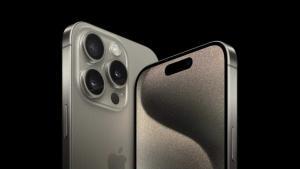
The iPhone 15 Pro and iPhone 15 Pro Max in the natural titanium finish.

KEY POINTS

  • The iPhone 15 Pro and iPhone 15 Pro Max have a ton of tips and tricks that you’ll want to take advantage of if you’ve just purchased the device.
  • The Action Button is among the biggest features on the iPhone 15 Pro and Pro Max.
  • There are plenty of iPhone 15 Pro tricks, such as deleting duplicate verification codes automatically or cross-fading between songs in Apple Music, that will work on any iPhone running iOS 17.

iPhone 15 Pro in black titanium, white titanium, blue titanium, and natural titanium finishes.

If you’re upgrading from a much older iPhone model, there’s going to be a bit of a learning curve when it comes to navigating your brand-new iPhone 15 Pro or iPhone 15 Pro Max.

If you just bought the the iPhone 15 Pro or Pro Max, you may be wondering what an Action Button is (that little button at the left side of your phone). If you bought any of the iPhone 15 models, you’ll want to know what visual lookup is and how to use it. There are also hidden iPhone 15 Pro hacks you should know about, such as StandBy mode, which i’m using all the time and can really come in handy.

Here are the best iPhone 15 Pro and iPhone 15 Pro Max tips and tricks to get you started.

Best iPhone 15 Pro tips and tricks to try first

1. Customize Action Button
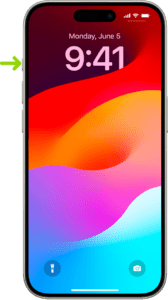
A screen showing that the Action button is located on the left edge of the iPhone 15 Pro. You can customize the function of the button in Settings > Action Button.  

The iPhone has had a ring/silence switch since the very beginning, and the iPhone 15 Pro and iPhone 15 Pro Max finally changes that. The switch has been replaced with the Action button.

By default, just press and hold the button to toggle between ring and silence, just like the switch used to do. You’ll get a haptic response and animation in the Dynamic Island. But there are a number of other modes available, too. You can set the button to launch the camera, start a voice recording, activate an accessibility feature like launching the Magnifier or flashlight, or running a Shortcut.

That last one is especially exciting, as it means you can quickly perform complex actions, or even just launch any app you want.

Should you want to take advantage of all iPhone 15 Pro Action Button tips and tricks, the Settings app is where to go. Open the app and scroll down until you find the Action Button tab.

The first thing you will notice is how different the user interface looks compared to other settings on the iPhone. There’s a fancy animation of the Action Button as you swipe through the programmable functions.

Your options include Silent Mode (default), Focus, Camera, Flashlight, Voice Memo, Accessibility, Shortcut, and Translate (arriving later this year).

Apple allows you to map a specific function with the broader categories. For example, a drop-down box on the Camera slide gives you the options of Photo, Selfie, Video, Portrait, and Portrait Selfie.

2. Turn on Face ID for Private Browsing in Safari

Safari has added several new privacy settings on iOS 17: You can now choose a different search engine like [DuckDuckGo when privately browsing, automatically strip all tracking information from URLs, and securely share passwords with friends and family. And you can even lock your private browsing tabs in Safari — but you’ll need to toggle this setting on before you can use it.

In Settings, go to Safari and toggle on Require Face ID to Unlock Private Browsing. That’s all you need to do! If you want to test out the feature, open the Safari web browser and make your way to Private Browsing. If you attempt to browse privately, you’ll be asked to use Face ID to access your private tabs.

3. Automatically delete your verification codes

This iPhone 15 Pro trick cleans up the clutter of verification codes in your text messages, and it’s somewhat hidden in your settings. And oh yeah, it’s not enabled by default, so it’s up to you to turn it on.

In the Settings app, go to Passwords > Password Options and toggle on Clean Up Automatically. Now, when you receive authentication notifications in Messages (or even in Mail), they’ll be automatically deleted from their respective applications — as long as you use the verification code with the autofill feature at the top of your keyboard. If you don’t use the autofill feature, the verification code will stay in your messages or emails.

4. Enable the level in your camera

If you want to take better photos, or at least straighter photos, then this iPhone 15 Pro trick is for you. The native Camera application on your iPhone has a new, somewhat hidden feature that adds a virtual horizontal level as you snap a photo. You’ll know the shot is level with the ground when it turns yellow and you feel the haptic feedback.

This feature is once again, not enabled by default, so go to Settings > Camera and toggle on Level under the _Composition_section. Now when you take a photo, you should see a broken straight line in the middle of your screen — this is the level. Adjust your phone to make it yellow, signifying that it’s now level to the ground.

5. Use Apple Maps offline to navigate

You might be surprised to learn this, but you’ve never been able to use Apple Maps offline. Instead, you’d have to be connected to the internet, which is useless if you need to find your way back home when you’re out in the wilderness or in an area with no connection. In iOS 17, you can finally download an offline map to grab directions even when you don’t have service.

In Maps, tap your profile photo in the top right of the navigation window and go into Offline Maps. Depending on where you drive most, you may see a suggested map to download, along with the size of the map, in case you don’t have much storage. You can also just hit Download New Map, type a city, manually adjust the map if needed and download it to your iPhone.

6. Crop your photos using the zoom feature in Photos

Cropping a screenshot or picture in the Photos app is a relatively easy process, but Apple has made it even easier on iPhone 15 Pro.

Now, when you’re viewing a photo and you zoom in on it, a new Crop button will appear in the top-right. This will automatically take you into edit mode and allow you to then adjust the crop even more, or you can simply hit Done to finish the crop. You must act quick though, as the crop button appears for only a few seconds after you zoom in to a photo.

7. Use Visual Look Up to figure out laundry codes

You grab a shirt and look at the tag. It’s filled with symbols that are supposed to help you figure out how to wash this specific article of clothing — maybe it can only be washed in cold water, or it might require a dry cleaning. Unfortunately, you might not know how to read these laundry symbols. But your iPhone 15 Pro can.

With this iPhone 15 Pro trick, you can now use the Visual Look Up feature, which can identify words and objects in your photos, to decipher what these laundry codes say. All you have to do is take a clear photo of your laundry symbols, go into the **Photos **app, find the image of the laundry symbols, swipe up and tap on Look Up Laundry Care. The results will show you what each of the recognized laundry symbols mean.

8. Use Crossfade for smoother transitions in Music app

If you’re in charge of playing music at a friend’s party or in the car, you can use an iPhone 15 Pro trick to cross-fade effect between songs in Apple Music.

In the Settings app, go to Music and toggle on Crossfade. Once the setting is enabled, you can choose how long you want the cross-fade to be: Choose between one second and 12 seconds, in second intervals. If you choose five seconds, for example, the next song in the playlist/album will begin to slowly play in the background five seconds before the current song ends.

9. Interact with certain widgets on your home screen

The widgets that live on your home screen are no longer there just for looks. Apple has brought interactive widgets to the iPhone, allowing you to control applications from your home screen, much like you would from the control center.

For now, the number of interactive widgets is limited, but if you want to add one to your home screen, press down on an empty space on your home screen to enter edit mode, tap the plus sign in the top right, and scroll through the list of widgets. A few interactive widgets available include Podcast, Home, Notes and Music.

For example, in Music you can play or pause music, while in Home, you can turn any connected devices off and on, such as a smart light bulb or a thermostat.

10. Change Siri volume and speaking rate

With iOS 17, you can change how loudly, softly, or quickly Siri speaks on your iPhone 15 Pro.

Change Siri’s speaking volume on your iPhone 15 Pro

To change Siri volume on your iPhone15 Pro, just activate the assistant then say "Speak louder" or "Speak quieter."

Change Siri’s speaking speed on iPhone 15 Pro

To change how quickly or slowly Siri speaks on your iPhone 15 Pro, follow the steps below:

  1. Open the Settings app and tap Accessibility.
  2. Tap Siri.
  3. Slide the Speaking Rate slider toward the right for faster speech, toward the left for slower speech.

What do you think about iPhone 15 Pro? Are there any other useful but subtle tips and tricks that I missed? Let me know in the comments below.

11. Use StandBy Mode

StandBy is a new customizable Lock Screen mode in iOS 17 that activates when an ‌iPhone‌ is charging and positioned on its side. Think of it as a kind of smart display for your ‌‌iPhone‌‌ that offers fast access to different screens of glanceable information that can be viewed at a distance, when your device is charging on a kitchen, desk, or nightstand, for example.

  1. With your iPhone 15 Pro screen locked, place it in landscape on an upright charger (the mode won’t work on flat or low-angle chargers or when your screen is unlocked – and it must be charging)
  2. iPhone StandBy will automatically appear – the feature is enabled by default.
  3. The classic analog clock plus calendar widget on the right is the default StandBy view, swipe up on either to change them. Press and hold on either one to add or remove widgets.
  4. On the first StandBy view, do a big swipe from right to left to change views
  5. Press and hold on the other StandBy views to customize them.

You can tweak StandBy settings by heading to Settings > StandBy.

12. Create Your Own Contact Poster

Contact Posters allow you to customize how you’re represented when you give people a call. You can use photos and emoji to personalize your Contact Poster, which appears on a person’s ‌iPhone‌ when you phone them. And like the ‌iPhone‌ Lock Screen, you can match images with eye-catching typography.

But your Contact Poster doesn’t just show up in calls. It’s also part of your contact card in the Contacts app, giving consistency in the places where you communicate and share. The following steps show you how it’s done:

  1. Open the Contacts app and tap on your own name.
  2. Tap the Contact Photo & Poster option.
  3. Tap Edit, then tap Customize.
  4. Tap Poster.
  5. Use the buttons at the bottom of the screen to take a photo, choose a photo you want to use from your library, pick a Memoji, or add a simple Monogram of your initials.
  6. To go along with your chosen image, you can optionally customize the font size, style, and color. (Note that you cannot change your name from this interface – that needs to be done by changing your contact info.)
  7. Swipe across the poster to preview a selection of filters, including black and white, duotone, and color wash in the color of your choice.
  8. When you’re ready, tap Done to preview what a person sees when you call them. If you’re happy with the look, tap Continue.
  9. Now you can opt to edit the crop of your Contact Photo, choose a different photo to use, or Skip this step.

13. Don’t read articles — listen to them

If you’re a fan of podcasts, you’ll probably enjoy a hidden iPhone 15 Pro trick that lets you ask Siri to read news articles, informational sites or anything else in Safari out loud, meaning all you have to do is listen.

One way to get Siri to read the selected article to you is to hold your iPhone’s side button which will activate Siri. Then say "Read this to me." Alternatively, simply say "Siri, read this to me," hands-free. (In iOS 17, you don’t even have to prefix a command with "Hey" to invoke Siri any more.)

Siri will then begin reading the article to you out loud, and a media player panel will appear in the upper section of the screen, allowing you to rewind, fast-forward, adjust the volume, and even AirPlay the spoken audio to another device.

Another way to get Siri talking is to tap the Aa icon in the address bar, then choose the Listen to Page option in the pop-up menu. Siri will immediately begin reading the page to you.

The only difference with this method is that, unless you lock your device while Siri is reading, you won’t see a media control panel on the screen. If the article is still open in Safari, you can stop Siri reading it by tapping the Pause Listening option that replaces the "Listen to Page" option in the Aa pop-up menu.

14. Set multiple timers

Yes, for the first time ever, you can set multiple timers to run at the same time on an iPhone. Just start a timer in the Clock app as before, and then tap the sign at the top right to add a new one. You can label each timer so that you don’t get confused as to what they’re counting down to, just as you can with various alarms.

15. Live voicemail

For those who’d rather text than call, this iPhone 15 Pro trick is for you. Live Voicemail makes it easy to know if you’d like to pick up a call while someone is leaving a message without having to call them back.

The Live Voicemail feature is turned on by default on iPhone 15 Pro.

When you receive a call and let it go or send it to voicemail, you’ll see the phone and recording icon in the Dynamic Island or at the top of your iPhone
Tap the phone icon to jump to the Live Voicemail transcription
Now you can block the caller, answer the call, or let them finish leaving a voicemail – and you can swipe up from the bottom to leave Live Voicemail at any time..