On supported models, iPhone has an Action button in place of the Ring/Silent switch. You can choose which function you want the Action button to perform when you press it.
Because the button is so accessible, it’s useful for actions you perform often. And it’s easy to change the Action button to perform a different function, right in Settings.
Here’s how to use and customize the Action button on iPhone.
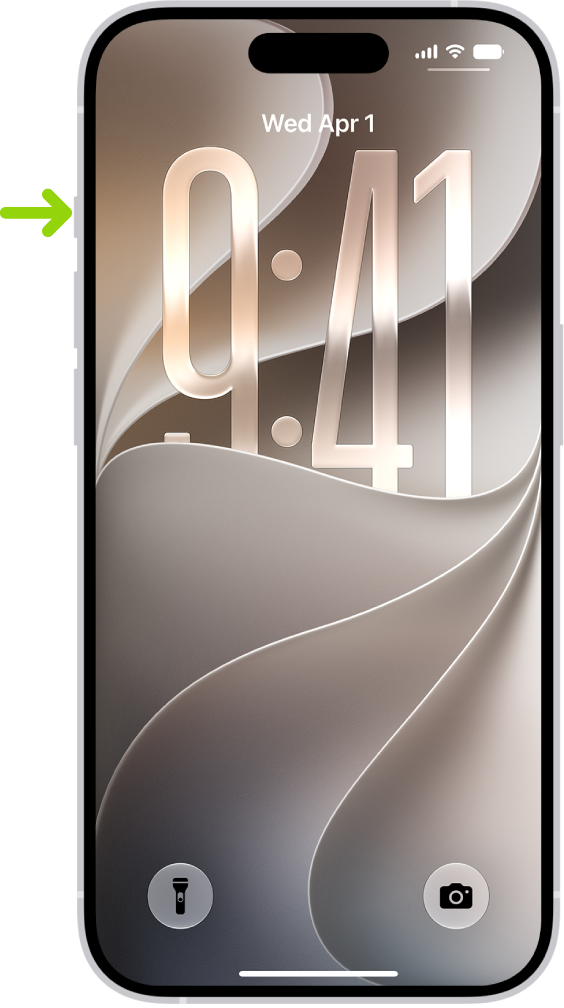
Use the Action button
To perform the action assigned to the Action button, press and hold the Action button.
For many functions, the Action button can be used to turn a setting on or off. For example, if the selected action is Silent Mode (the default), you can press and hold the Action button to put iPhone in Silent mode. If you press and hold the Action button again, it turns off Silent mode.
Customize the Action button
- Start the Settings app on your iPhone.
- Tap Action Button.
-
To choose an action (like Silent Mode), swipe to the action you want to use—its name appears below the dots.
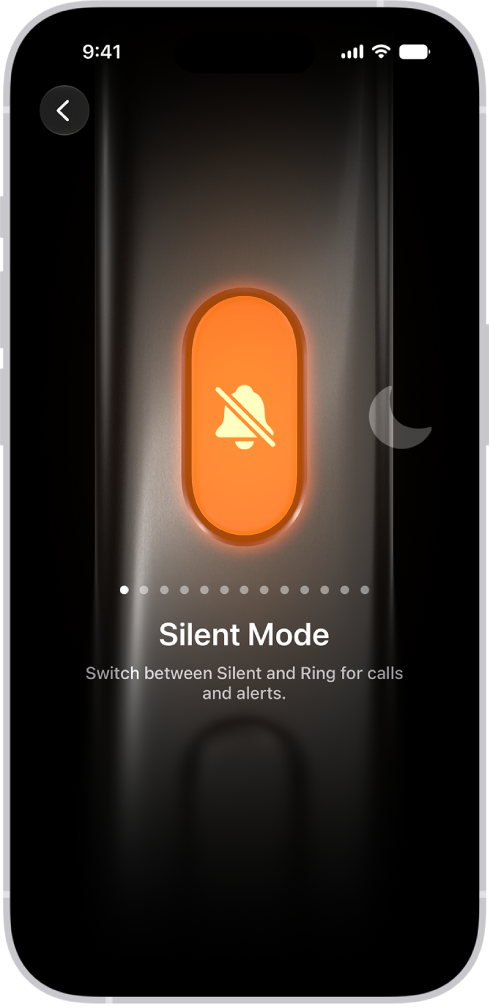
- If there are additional options for the selected action, the Menu button appears below the action; tap it to see the list of options.
For the Controls, Shortcut, and Accessibility actions, you need to tap the button below the action and select a specific option—otherwise the Action button does nothing.
| Icon | Action |
|---|---|
 |
Silent Mode: Switch between Silent and Ring for calls and alerts. |
 |
Focus: Turn on a Focus to silence notifications and filter out distractions. |
 |
Camera: Open the Camera app to capture a moment. |
 |
Visual Intelligence: Use Visual Intelligence to learn more about the places and objects around you (Requires Apple Intelligence).
Note: Apple Intelligence on iOS 27 or later is available on an Apple Intelligence-enabled iPhone 15 Pro, iPhone 15 Pro Max, or iPhone 16 model or later. Apple Intelligence is not available in all languages or regions. Usage limits may apply.* |
 |
Flashlight: Turn on extra light when you need it. |
 |
Voice Memo: Record personal notes, musical ideas, and more. |
 |
Recognize Music: Find out what song is playing nearby or on your iPhone with Shazam. |
 |
Translate: Translate phrases or have a conversation with someone in another language. |
 |
Magnifier: Turn your iPhone into a magnifying glass to zoom in on and detect objects near you. |
 |
Controls: Quickly access your favorite control. |
 |
Shortcut: Open an app or run your favorite shortcut. |
 |
Accessibility: Quickly use an accessibility feature. |
| No Action Do nothing. |
*Apple Intelligence is available with Siri and device language set to Chinese (Simplified), Chinese (Traditional), Danish, Dutch, English, French, German, Italian, Japanese, Korean, Norwegian, Portuguese, Spanish, Swedish, Turkish, or Vietnamese. Some features may not be available in all regions or languages. Some devices may not be available in all regions. Siri AI is available in beta in iOS 27, iPadOS 27, macOS 27, watchOS 27, and visionOS 27 and requires an Apple Intelligence–enabled device set to a supported language. Available in English to start. Siri AI will not be initially available in the EU on iOS, iPadOS, and watchOS. Certain Apple Intelligence features that rely on server-side models are subject to daily usage limits, including but not limited to Siri AI, Intelligent Photo Editing Tools, Image Playground, and AFM 3 Cloud models in Shortcuts. Daily limits may vary by feature, request complexity, system demand, system policies, and other factors. Expanded access to such features will be available for a fee in the future. Use of these features is subject to the Apple Intelligence Terms and Conditions.