








Got a tip for us?

iPad Pro

Apple introduced the new iPad Pro and its Tandem OLED display. The technology, which Apple calls “Ultra Retina XDR,” creates a new display that will soon be seen in more of the company’s devices. So what is this Tandem OLED, the technology behind the Ultra Retina XDR display? Here is a short explanation.

What is Tandem OLED and how it differs from regular OLED displays

Tandem OLED is a unique display technology that includes two layers of OLED pixels layered on top of each other to create one consistent screen. By combining light from both panels, iPad Pro can achieve an impressive full-screen brightness of 1,000 nits for both SDR and HDR content, with maximum HDR brightness reaching 1,600 nits.
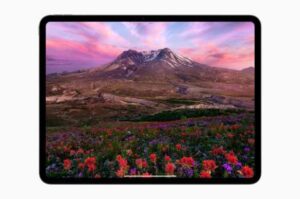
The Ultra Retina XDY display showcasing beautiful landscape scenery on the new iPad Pro.
Photo credit: Apple

In contrast, regular OLED displays typically have lower brightness levels, as increasing brightness can lead to potential burn-in issues and reduced display lifespan. The Tandem OLED structure addresses these challenges by spreading the load across two panels, resulting in higher brightness and better performance.

What are the advantages of Tandem OLED

There are many benefits of Tandem OLED. Above all, unmatched brightness levels of 1,000 nits for full-screen content and 1,600 nits for premium HDR content deliver a stunning viewing experience that outperforms other mobile devices. This makes iPad Pro ideal for use in a variety of lighting conditions, from dimly lit indoors to bright outdoor environments.

Precise control over each pixel enables the display to reproduce colors with exceptional accuracy, making it ideal for professional content creation and consumption.

Finally, submillisecond control over pixel color and luminance provides a more responsive and smooth display, improving the user experience while gaming and video playback.

What problems does Tandem OLED fix?

There are two main issues with OLED screens, whether that’s on the OLED TVs, laptops or smartphones.

The first is brightness. OLED screens are not especially bright compared to what you can do with LED/LCD screens. And this is a problem with any device that will be used in sunlight or any bright environment, because it means you’ll face reflections that interfere with what you’re seeing.

The second is ‘burn-in’. OLED screens are prone to an problem where images that stay on an OLED screen for a very long time, such as the Taskbar in Windows, or the floating ‘Home’ bar on iPadOS, may become imprinted on the display permanently, leaving a ghost image that’s always there, even when you have something else displayed.

These two problems are somewhat connected: you could make OLED screens brighter by pushing more power through them, but that generates a lot more heat, and heat is a big factor in causing burn-in.

Tandem OLED screens, like the new iPad Pro’s, are supposed to solve both of these issues by, essentially, throwing pixels at the problem.

With two layers of OLED pixels, there is literally twice as much light being produced, because OLED pixels generate their own light. This allows Apple to reach 1,600 nits of peak HDR brightness and 1,000 nits of fullscreen HDR brightness, which is exactly what the previous iPad Pro could achieve using a mini-LED screen. This is way beyond what other large OLED screens manage, especially for the fullscreen brightness. For comparison, the brightest fullscreen OLED TV measurement we’ve ever taken is 318 nits, during our Samsung S95D review. Apple is delivering triple that – albeit, in a much smaller screen.

That solves the brightness issue, but what about burn-in? Well, the other advantage of using two layers of pixels is that if you’re using the device at a more standard brightness (as you will be the vast majority of the time), each layer can run less bright than a single layer would have to, making each more efficient in terms of energy and heat use. That helps to reduce a key cause of burn-in, and should help to keep the screen going for longer in general.

At least, these are the goals of Tandem OLED as a technology. And all while keeping the things that OLED is renowned for, including excellent image quality from all viewing angle, superb color reproduction and – of course – unmatched per-pixel contrast and realistic black tones.

You probably use a laptop as a primary productivity tool, since it’s powerful and makes any task possible. And you probably think the iPad is a gorgeous tablet that is useful for people who don’t work with numbers, and who don’t multi-task between powerful apps to get work done. Which was the case until a few years ago. Since I replaced my laptop with an
iPad Pro
a few months ago, it was surprising to see how the iPad somehow managed, ten years later, to become a better productivity tool than a laptop.

1. The physical structure

The physical structure of the iPad Pro is a significant evolution from laptops. The iPad Pro is a tool that can be used in an array of contexts. First, the iPad Pro can have a similar setup to laptops, where it’s attached to the keyboard. The
Smart Keyboard Folio
resembles a toy, but is surprisingly fan to type on. The keyboard is narrow, so the hands can easily reach for the screen. The keyboard attaches magnetically to the back of the iPad Pro, making it easy so it’s practical to alternate between holding the iPad by hand, and attaching it to the keyboard. And that’s one aspect of the evolution. I use the keyboard to type, then hand hold the iPad to read and produce media. It’s no problem at all to keep alternating between the keyboard and the hands in one sitting. It might sound silly, but it’s very pleasant to sit back on a sofa, attach the keyboard, and edit a movie. This is particularly for the 12.9 inch screen, and might not hold true for the 11 inch. Since iPad OS uses the large Display size efficiently, I rarely think about a smaller Display. A nice side effect here is how portable this device is. Suddenly the train table is quite spacious. The backpack space needed for the iPad, keyboard and charger is negligible.
See also:
Why I Choose the Smart keyboard Folio for the iPad Pro!
The last physical piece of the evolution is the Applepencil. I thought it’s just for artists. Turns out it’s well integrated with iPad OS in helpful ways. Touching the pencil while iPad is turned off automatically presents you with a blank note you can sketch on. You can also use the pencil to annotate screenshots. Move the pencil from the side of the display to
take a screenshot,
then draw directly on it. If you do that in Safari, you can take a whole webpage screenshot, then save it as a PDF. You can also pull up any PDF, then use the pencil to highlight things or fill out a form just like you would on paper. Sketch an idea effectively in a Keynote presentation, or review a
Microsoft Word
document by using the pencil directly on text. In Adobe Lightroom, you can use the pencil to selectively edit parts of a photo, and move the sliders with more accuracy.

2. The internal hardware

The power that comes from such a small device is surprisingly impressive. This thing is a beast, even compared to MacBook Pros. Intensive apps like Lightroom and LumaFusion works quite smoothly, even as they are exporting videos and raw photos simultaneously. Even without a fan, the iPadPro hardly heats up.

The multiport adapter offers quite a number of opportunities too, because it has HDMI, USB-old-school, as well as USB-C ports. There’s the traditional things such as connecting an SD card and a hard disk. But more interestingly, by connecting the HDMI adapter, I can mix live audio and video from Algoriddim’s djay app, while at the same time previewing the next song on my headphones. Various apps make use of the multi-port adapter. For instants, Luma Fusion can play a 4K video preview on the TV, while keeping the editing interface on the iPad itself. And the USB ports can be connected to a hard disk and SD card, giving me the ability to import photos into Lightroom.

The battery power of an iPad Pro surpasses that of a Macbook by far. I don’t have to worry about forgetting to carry my charger. Apps like Google Hangouts, which generally drain macbook batteries, perform much more efficiently on the iPad Pro (by the way, screen sharing to a Hangouts call is so easy). Lastly, compared to a Macbook or Surface, the iPad’s cameras have better resolution, the speakers produce great sound, and the mic is more accurate. It’s funny that a Device smaller and thinner than a laptop performs better in every aspect when it comes to what needs space the most – hardware.

3. The operating system

It took ten years, but iPad OS is now an evolution of desktop-based systems. Especially for multi tasking. It always seemed that the way desktop systems do multi tasking is the right way. I never questioned the time it takes on desktop to setup apps side by side, dragging and resizing them until I see all the necessary content. And even then, there is so much wasted screen space left because of how apps organize content. content. Then I need to resize a window to reach an item in the toolbar. And even then I always ended up with wasted screen space. Or if not wasted, it would be another app on the back of the screen that adds clutter and makes it harder to navigate my way through the many windows. If i want to drag an image to an app, I have to align the finder and app so I can move things around.

I don’t know if the iPad engineers questioned these drawbacks, or if they were trying to come up with multitasking within the existing iPad operating system. But it looks like they hit the jackpot. The way multiple windows work together is an evolution in the efficiency of multitasking. Apps use all the properties of the screen and the system makes it easy to work with a few apps at a time. That is without ending with a stack of apps on top of each other that I eventually navigate like a maze. Two apps can be displayed simultaneously using drag and drop. I have control over which app takes up more space, and I don’t have to constantly resize each side of a window to display that last button in the toolbar. If I need a separate app for quick reference, as I often do with Google Keep or Slack, I can turn it into a slide over app, which I can slide in and out when I need it. And if you switch from Netflix to another app, the video will continue to play on the side, taking up only the space of a video. With all that said, it actually feels like a desktop system is completely unaware of how we all use multitasking these days.
The iPad system benefits significantly from drag-and-drop interactions, and not just for setting up multiple windows. It uses people’s ten fingers and that natural gesture to make moving things powerful. For instance, grab a file from the Files app. Or multiple files by keeping the first file handy and tapping the other files you need. You can even browse folders and choose files from different places, as long as the selected files are at hand. Then feel free to browse further to the desired folder, and have the files ready so that they all go there. Did you actually want to put these files in another app, for example to send them by email? You can keep the files in place, quit the files app, go to the Mail app, tap to create a new email and drop the files there.

The power to keep items on hand is not limited to files. I can grab an image in Safari with one finger, switch back to Google Docs with another finger, and drop the image into a document. Or grab some videos in Photos, switch to LumaFusion and drop the videos in the edited timeline. Or select a sketch I drew in Notability, grab it and straighten it in a Google Slides presentation.

Being a bit of a powerful user, the Shortcuts app is the last piece that really makes the iPad system powerful. My workflows often include small technical things, such as encoding an audio file to a different format, converting a PDF to images or combining 3 screenshots into just one image. There are apps and websites that accomplish these little technical things. But the experience of finding these services and having to go through ads is not productive or enjoyable.
Shortcuts
allow me to quickly save a series of powerful actions that complete many of these technical things. So far this is comparable to the Automator app on Mac OS. But Shortcuts goes further. You will find that installed apps can also add their own actions, making it easy to perform a series of actions involving multiple apps. And since shortcuts appear in the shared sheet and within Siri, it’s much easier to activate a shortcut.
So this is how the iPad redefined the main tool I use for learning and producing. Ten years after the launch of iPad, it now stands as the evolution

With the right tools and the right adjustments, the iPad Pro can become a productivity workhorse. In this article, i’ll show you exactly how to be more productive with iPad Pro.

We keep hearing stories that the iPad Pro can be even more capable than a laptop to get things done. It’s very tempting to switch from a computer to Apple’s top of the range tablet, as it’s often described as the best portable computing device. It has a stunning Display, fantastic processing power, all packaged in a small, light mobile design.
However, even if the device is marketed as a “Pro” machine, it can be heard to know if the iPad Pro will be sufficient to get your job done. Depending on the review and experiences you read about, people are either in love with the device or consider it as a toy only suited to play a few games and watch Netflix.
In this article, I’ll give you some of my favorite iPad pro productivity tips, as I’ve been using this device as my primary computing device for an array of tasks for the past six months.

The iPad Pro’s Design Limits Distractions

The first thing I loved about the iPad Pro was how it focuses on single tasks. Apps display fullscreen, the dock is hidden, and if you get rid of notifications (which you should do), you can’t be distracted by anything else than what you are currently doing.
Although The Cupertino based brand has been putting a lot of effort on the multitasking features of the iPad Pro, I think the split-screen features aren’t that easy and smooth to use. I find it quicker just to hit the command + tab shortcut on my keyboard to switch between to apps than having to place to windows side-by-side. While this may look like a drawback, I think it helps you concentrate on your tasks without being distracted ever. The amount of effort you have to put out to be able to multitask or switch apps is higher than on a laptop, which makes focusing on a single task in a single app a lot more practical to do.
Notification settings are also a lot more flexible than on a desktop device. You can choose just to disable banners but still see notifications in the notification center of your iPad Pro. This way, you eliminate the interruption of a banner at the top of the Display, while still being able to stay up to date with whatever app or conversation you are having.
The iPad Pro’s design makes it a lot easier to do deep work than a laptop experience. Distractions are easily expunged, and staying on one full-screen app is incredibly fantastic.

Getting the Best Keyboard and Mouse for the iPad Pro

You won’t manage to accomplish many tasks if you don’t have, at least, a hardware keyboard for your iPad Pro. Apple has improved the virtual keyboard of the iPad over the years and is now better than ever, but it’s not sufficient if you have to produce content, and it doesn’t allow you to use any keyboard shortcuts that simplifies and streamlines your workflow.
The good news is that there is an array of options out there now. Apple has the
Smart keyboard Folio
which is great and Super portable, but it doesn’t offer a great typing experience. They recently released the
Magic Keyboard
for iPad, which appears to be way much better but is quite heavy and very expensive. My personal preference goes to the
Canopy
by Studio Neat, which is a keyboard case for the Apple Magic Keyboard that opens up as a stand for the 12.9 iPad Pro. To me, it’s a way lighter, cheaper, and more portable option than the Magic Keyboard for iPad.
See also:
The Cheapest iPad Pro keyboard that Doesn’t Suck
As far as the mouse is concern, I have been using my Logitech MX Anywhere 2X for a while, and I’m fine with it. I don’t think the mouse is as necessary as a keyboard. If you know your keyboard shortcuts pretty well, you can navigate on the iPad Pro without having to touch the screen much. But having a mouse or a trackpad can help you with some tasks like formatting or editing.
If you are considering the iPad Pro to get work done, you need to have at least a keyboard and maybe a BlueTooth mouse to go with it. Spend a little extra time finding the right keyboard for you, you won’t ever use your iPad if you hate using it and typing on it.
See also:
Why I Choose the Smart keyboard Folio for the iPad Pro!

Using the Right Apps on the iPad Pro

This part will be the toughest to cover, as getting the appropriate iPad Pro productivity apps depends a lot on your current workflow and your personal preferences.
Actually, most apps on a Mac have a proper iPad version or an equivalent that will cover, at least, most of the basic features you need to get your work done. Depending on the tools you use, you will have to do some research to figure out if the iPad will be limiting you in any way or not.
In my case, I create content using the minimalistic writing app Bear. That’s where I take my notes, brainstorm, write my blog content. I edit my website using Squarespace on Safari, even if it is a bit limited. I edit my other sites directly on WordPress, and everything works pretty well. I edit my pictures in Lightroom and Photoshop. Photoshop isn’t as complete as on a Mac, but for Basic photo editing, it works just fine. I edit 4K videos in Lumafusion. It’s enough for short, not too ambitious, social media videos and stories, and it works incredibly well. I can also manage my Google Drive as well as on a Mac, manage my files directly in the Files app, and even do backups and file management on external hard drives.
The only job that I needed a desktop for, was to do some editing on my Squarespace website, which i trust will be possible sooner than later after a few updates and patches.
There are numerous resources online now about professionals going deep into details about their workflow since many people have fully transitioned to the iPad Pro already.
It’s worth noting that that your workflow will have to change a little bit from the one you are used to on desktop, but ultimately, you should be able to be as productive on the iPad Pro as you are on a laptop, but with even fewer distractions and unnecessary features.
The iPad Pro is a very powerful device if you commit to it, and if you spend some time adapting your workflow. If you don’t spend this time and effort, the iPad Pro will only appear like a little cool toy that won’t get you anything done. But with a good keyboard and mouse, with an adapted workflow, and with some smart notification setups, the iPad Pro can become the ultimate productivity machine.
It’s a very minimalistic Device. Push aside all the details and things that don’t matter. With the iPad Pro, you can totally focus on the 20% that contribute to 80% of your results.

if you are looking for the best iPad apps for students, here are the apps that can help you increase productivity, retention, and workflow.
The possibilities to study smart and efficiently have never been greater. For the last couple of years, Apple has made some big strides to accommodate students. The release of the first iteration of the Apple Pencil in 2015 marked the beginning of what is undoubtedly the best handwriting experience on any tablet. iOS (now iPadOS for selected iPads) continued to improve steadily over the years and today the prospect of replacing laptops with the iPad Pro is within a shouting distance.
One of the things that makes the iPad such a great device is the seemingly endless number of apps in the App Store. Whatever task you want to do, there’s a high chance that there’s an app for it. Developers have made tremendous efforts to make use of the powerful operating system and outstanding hardware, making the iPad one of the best investments you could make as a student.
With that in mind, here are some of the best iPad apps for students. Enjoy!

#1. Notion

I found it challenging to come up with a perfect description of what Notion is, so I navigated to the App Store page. Notion is “the all-in-one workspace for your notes, tasks, wikis, and databases”. It’s so much more, though. You can use the app to count down days until deadlines and exams, keep track of projects, take notes, write article drafts, keep track of job applications, and much more. The list goes on and on.

Pros

  • Very user-friendly — can be very advanced if you want it to be
  • Clean user interface
  • Versatile — no need of many other apps by using Notion
  • GIF integration
  • Top notch support that takes feature requests seriously and releases frequent app updates

Cons

  • iPad app is not as polished as the macOS app.
  • Drag-and-drop for images does not function — you have to manually copy and paste (minor con, but other note-taking apps have included this feature)
  • Requires a keyboard to have most comfortable note-taking experience

#2. Notability

Looking for a great note-taking app for handwritten notes? Well, you’re going to want to choose between Notability and GoodNotes 5. I happened to start using Notability first, so I became used to the pen dynamics of Notability.
I’ve tried both applications, and while Notability is a little more “bare-bones” I find it to be incredibly powerful and a little polished than GoodNotes 5. The iPad + Apple Pencil allows for some really beautiful notes — if you have the time and patience.

Pros

  • Fantastic user interface and note sorting system
  • Runs very smoothly
  • Users can record, take notes, and then play the recording back with note-taking recorded on top
  • You can export directly to Google Drive

Cons

  • Very few paper and pen options

#3. ScanPro

If you’re a student you probably know the struggle; Handouts. Loads of handouts. For The vast majority of people, using an iPad is all about going paperless. So, if you are looking for the Best iPad Pro apps for students, ScanPro is a very simple document scanner that converts your handouts into nicely scanned PDF:s. The scanner automatically crops the image you take of a document (you can manually do it too.

Pros

  • The interphase is easy to navigate and use.
  • Does exactly what it’s says.

Cons

  • OCR scanning hidden behind paid upgrade
  • (there are loads of sites that do this free of charge)

#4. Anki

The science of memory and information is an interesting field, especially when applied to the area of studying. Two of the most common methods of studying are active recall and spaced repetition. Basically, active recall involves actively retrieving information on a subject as you study. The most efficient method of doing this is to use flashcards. As doctor and YouTuber Ali Abdaal preaches: active recall is a way of life. Spaced repetition means that in order for information to truly stick, you need to revise it at increasing intervals. When it comes to tying the two methods together, Anki is arguably the most well-built flashcard app on the market. The Anki app for iPad costs $24.99, which is a high price point considering that the macOS app is free, but being able to revise on-the-go definitely makes it worth it.
I trust you enjoyed these app recommendations. Feel free to leave a recommendation of some of your favorite iPad apps in the comments section below!
If you found this article useful, do consider Sharing it with friends.
See also: Best drawing apps for iPad

No, it’s not the Magic Keyboard for iPad
The virtual keyboard on the iPad Pro is excellent. Having the possibility to make it smaller and drag it anywhere on the screen is a great feature that allows you to type only with one hand.

Even if the virtual keyboard is a lot better than it used to be, it’s not a perfect solution if you want to use your iPad Pro as your primary working device.

My first keyboard was the
Apple Smart keyboard Folio case
Unlike most people, I didn’t hate the feeling of the keys. I did find the keys a little small and hard to be precise on.

Don’t get me wrong, it was super great for small typing tasks, like replying to a few texts and typing a few emails, but it got very annoying to use for longer texts. I was consistently hitting the wrong key, sometimes I wasn’t pressing hard enough, and the noise it was making was somehow irritating to me.

It did indeed enjoy the portability of it, though. It was keeping my iPad secure, pretty thin, and rather light — especially since the 12.9 inch iPad Pro is already quite heavy.

The form factor was a crucial feature for me, and that’s why I wasn’t attracted to any other keyboards. Most of them were turning the iPad Pro into such a thick device or making it extremely heavy. If I need a thick and heavy device, I might as well just use a MacBook.

The New Magic Keyboard for the iPad Pro Could Have Been Great…

The new Magic Keyboard for iPad looks great. It turns the iPad into some sort of iMac, and having this (small) touchpad is probably going to have a significant impact on people’s productivity, as it’s going to make the iPad way much better to use. Overall, the product looks premium, the typing experience seems fantastic according to what all these geek bloggers are saying, and the trackpad works like a breeze. When I saw this product being released, I was certain that it was what I needed until some people got it and started doing reviews.

People are complaining about the weight of the device, particularly with the 12.9-inch model. The combined weight of the iPad and the keyboard makes it heavier than a 13 inch MacBook Pro. If I need to carry something this heavy, why would I bother with the iPad? My MacBook would seem like a better option.

I don’t understand this Magic Keyboard. It seems great to have on your desk so that you don’t have to carry it around all day. But then what’s the point of having an iPad if you just use it at your desk? And if you are only using it at your desk, why don’t you use a MacBook or even an iMac or something? These devices are a lot easier to work on. I guess some folks will love it. I’m just not in that group of people. Some would argue that I need to try it out before I express my opinion on it. I’d say that I’m not willing to give it a try since the price has been set this high!

The Canopy

For sometimes now, I’ve been using a regular Apple Magic Keyboard with my iPad, and it’s been great. I like the feeling of typing on this keyboard, it’s quite compact, and it has incredible battery life. I know that it’s not the best keyboard on the market, but for what I do, I think it’s my best bet.

Alongside this keyboard, I’m using the Canopy from Studio Neat (not affiliate). It’s both a sleeve for the Magic keyboard and an iPad stand. The sleeve makes transporting the keyboard pretty easy. The sleeve opens in an iPad stand. The final result appears very sleek. The complete setup is the most practical one I’ve found yet. It’s highly portable, it doesn’t make the iPad insanely thick or heavy, and the typing experience is outstanding since you’re typing on an actual keyboard, and not some sort of compact compromise.

I’m astounded this solution is not more popular. No one came up with the perfect product yet, but I feel like this solution is the best available today. Unlike the iPad Magic Keyboard, it doesn’t make your iPad untransportable.

I am now trying to figure out the best way to have a mouse or trackpad with this setup because that’s the only thing that I’m interested in trying. Currently, I’m using a Logitech MX Anywhere 2S. It’s highly portable, and the battery life is super great. But I’m not super sold on the ergonomics of the mouse. Again, since I’m need something portable, it’s quite difficult to find a product that doesn’t compromise on the comfort and ease of use. Finding the right mouse or trackpad is the last step for building my ideal iPad setup. I trust I’ll find the right fit.

The most common question I get from people is “Can an iPad Pro replace a laptop?” Short answer: in most cases it can, and it’s not as scary as you think.

After using the
iPad Pro
for sometimes now, I wanted to share some of the reasons I think it could replace a computer and some of the reasons iPad Pro can’t replace a computer at least for me.

Before we dive into it, it is important to note here that to consider an iPad Pro as a replacement for a computer or laptop, you need to get the Apple’s Smart Keyboard Folio or any other iPad Pro keyboard accessory. I bought the
Smart keyboard Folio
for my 12.9-inch iPad Pro with Wi-Fi + Cellular.
See also:
Why I Choose the Smart keyboard Folio for the iPad Pro!
Ever since Apple announced their new line of iPad Pros, I kept wondering if I could get rid of my MacBook and only rely on an iPad and a keyboard cover.

iPad Pro appeared like the perfect device for me: it’s very portable, it has a stunning display, and the touch interface just makes it enjoyable to use.
The iPad Pro also seemed to be higher than macOS in Apple’s priorities. Apple seemed firmly convinced that the iPad could replace a laptop, and a lot of effort was put into software and updates to make this a reality.
That’s exciting, given that macOS lags far much behind in terms of innovations and integrations.

While switching to the iPad Pro was a bold move a couple of years ago, it’s now easier than ever to make the switch considering all the improvements Apple has made to iOS now iPadOS.
Having said that, switching entirely to the iPad from a laptop or even a desktop computer can be a tricky decision to make. So here are a couple of things you may want to know before deciding whether or not the
iPad Pro
would be a appropriate computing device for you.

The iPad Pro is Powerful Enough

I’m not going to quote Apple on this, stating the iPad is more powerful than 90% of the laptops on the market. I not sure if it’s true, and I don’t think it matters.
I have never been able to push my 12.9 inch iPad Pro to its limits. Maybe I don’t have the most intensive workflow of all, but I’m sure I use my iPad pretty thoroughly. I browse the internet, I write a lot, I manage social media, I edit pictures on Lightroom, I edit 4K videos on Lumafusion, I create designs on Canva and Photoshop etc.
Sure, some people push it further, but the question is, will you need to?

My iPad can perform some of these tasks better than my 2019 MacBook Pro. For instance, the video editing experience is much smoother on the iPad than on my MacBook. In addition, I don’t have to deal with the noise the fan of my Mac would make, which worries me since it gives me the impression than I am slowly killing my laptop.

File Management on the iPad Pro

Managing files and storage on the iPad Pro is better than ever. Files has always been a lighter version of Finder, but we now have a more capable interface, and that looks a lot better than it used to be. Moving, copying, and pasting files is very similar to using Finder on Mac. I still find the process a bit more extensive than on a laptop, but the iPad is quite capable of managing files.
The harddrive support works quite well. Again, managing files isn’t as practical as on a Mac, but it’s enough, and with a bit of practice, you won’t feel any difference at all.

The iPad Apps

There is an app for pretty much everything on the iPad, and chances are, most of the tools you use on a daily basis have an iPad version on the AppStore.
For anything web-based, the iPad should work just fine, as it now displays the desktop version of websites by default. So even if the iPad app is limited, you can still take advantage of the web version of the tools you use, and you should be fine this way.
The only task that I absolutely couldn’t get my iPad to do with either the iPad app or the website version of it was Squarespace. I can entirely edit my WordPress websites using Safari, but for some reason, I’m unable to edit some parts of my Squarespace website on either the app or Safari.

The Limitations of the iPad Pro

Although the iPad Pro appears like a perfect device, it has a few downsides.
Besides the limitations I pointed out above, most pro apps don’t have an iPad version. So Logic, Final Cut, Adobe Premiere aren’t compatible with the iPad at all.
There are some alternatives, but they aren’t as great and flexible as the original pro apps.
These alternatives are just enough for most people. But it also means that you have to learn an entirely new program to perform these tasks that you were so used to do before. Learning how to use Lumafusion properly, for instance, took me a few hours and made me scratch my head a bit. It’s a fantastic piece of software, and I’d say that you can get quite striking results with it. But it’s a lot more limited than Final Cut, and you may get discouraged not being able to edit your videos as freely as on a more professional tool.

So can an iPad Pro replace a MacBook?

I belief the iPad Pro can be a laptop replacement for many users, but at the same time, it can’t for some. It really depends on your use cases. The iPad is a perfect choice for people who are looking for a simple machine that they can bring with them wherever. If you are a real pro, and need a device that can handle powerful tasks such as thousands of RAW images and complex file management system, then the iPad Pro might not be the right choice. But if you are a creative that needs something flexible, capable, and enjoyable to use, the iPad is a lot better than a Mac, in my opinion.

If you are on the fence and looking to make a decision on whether you want to buy an iPad Pro as a computer replacement then please don’t hesitate to drop me a line in the comments if you have any questions and I’ll answer them

in this article, I’ll tell you exactly why I chose the Smart Keyboard Folio instead of the Magic Keyboard And whether I regret it.
I had thought about buying the Smart Keyboard Folio for my 2018 12.9 ” iPad Pro for a while but at $179, I could never make a leap. When the Magic Keyboard was launched, like many other people, was drooling. The design was outstanding and the capabilities it added to the iPad Pro was thrilling. Not only did it finally give the iPad Pro a “real keyboard” it also gave it something brand new, a trackpad. The Magic Keyboard seemed ready to finally answer the question “Can an iPad Replace a Laptop?”
I was certain I would get the Magic Keyboard. Until I didn’t. Instead, I bought the Smart Keyboard Folio. This is why:

Cost

If I were to buy the Magic Keyboard for my 12.9 ” iPad Pro, it would set me back $299. That’s a lot of money. It’s a lot of money by itself but even more when you consider I already paid $999 for the iPad. It’s a huge investment to make my iPad Pro work more like my MacBook Pro.
If I already own a MacBook Pro, do I need to spend $299 to make my iPad Pro function more like MacBook Pro? Although yes, the Magic Keyboard adds a trackpad as well as a keyboard but does what I do on my iPad support the need for both of those?
This was the issue I started pondering the more I considered parting with the considerable amount of money.
Now, compare that $299 price tag to $179 for the Smart Keyboard Folio. Like I pointed out, I already had a difficult time convincing myself the Smart Keyboard Folio was worth buying. Let the internal fight begin.
Yes, the Magic Keyboard is gorgeous.
And yes, it has a “real keyboard” with real keycaps and actual key travel. Gone are the woven-fabric keys of the Smart Keyboard Folio.
And yes, it has an additional USB-C port for charging, so you can free up the one on the iPad for accessories.
And yes, it comes with a trackpad for a whole new way of interacting with the iPad Pro.
But for $299, I had to make sure the things I did on my iPad Pro versus my MacBook Pro justified that price tag.

Uses

The
Magic Keyboard
is an absolute solution for a very specific category of iPad users. If you are someone who is deeply entrenched into the iPad and iPadOS and has long desired to replace your traditional laptop with it, the Magic Keyboard makes that a very real possibility.
If the things you care about are web browsing, word processing, email, and media consumption then the Magic Keyboard now lets you get the best of most worlds.
You get a great typing experience with backlit keys, more viewing angles, and an extra USB-C port. And you get a trackpad that gives you more control of your apps.
However, if you are like me and you want your iPad to be the best device you can get, one that lets you surf the internet, watch movies and TV shows, and play some games from time to time, one that doesn’t replace your laptop but complements it, you should reconsider the
Smart Keyboard Folio
as I did.

Besides wanting the best tablet, I also want to be able to sit down and easily reply to an email, type a new blog post, or take some notes.
When I need something with more power and capabilities, I take my MacBook Pro with me. When I need something more portable and handy, I take my iPad Pro with me.

Weight and Portability

Unfortunately, Due to the pandemic, I didn’t get a chance to try the Magic Keyboard myself. I was, however, watching all the unboxing and review videos I could find. A commone theme came up in every video, the weight.
My 12.9 ” iPad Pro, with no case, weighs 631.00 grams. The Smart Keyboard Folio weighs 297 grams compared to the Magic Keyboard at 601 grams. The Magic Keyboard by itself weighs almost the same as my iPad Pro. I needed something that would offer me a more comfortable typing experience without sacrificing portability.

Apple’s Smart Keyboard Folio is the best option if you truly value portability. It’s a slim case that attaches magnetically to the back of the iPad and flips around like a laptop, with two angles that you can snap the screen into. The fabric-covered keys have very shallow travel but actually offers a pretty comfortable typing experience. I prefer them to Apple’s current MacBook keyboards, and they’re certainly less likely to break.

One thing that separates the Smart Keyboard Folio from the park though, is its convenience. It’s the only iPad Pro keyboard to make use of the Smart Connector on the back of the tablet, which handles pairing and power automatically. You never have to charge the keyboard or dive into Bluetooth settings. It’s also really easy to remove whenever you just want to use the iPad as a tablet by itself, and it’s by far the thinnest and lightest keyboard option out there. Actually, it’s arguably the only keyboard that really makes sense as a basic protective case at times when you’re unsure whether you’ll be doing any typing.

While the combined weight of my iPad Pro and the Magic Keyboard, at 1232 grams or just about 2.8 pounds, would still be less than my 13 inch ” MacBook Pro at 3.02 pounds, it was getting close. To me, the Magic Keyboard would actually add a lot of weight to my iPad and affect one of it’s best features, it’s portability.

Final Thoughts

I was waiting for the Cupertino based company to announce the “next-gen Smart Keyboard Folio” just as much as the next person. I had long wanted to get the Smart Keyboard Folio and was excited to see what Apple would do to eventually get me to buy it. As it turned out, they announced a brand new keyboard instead.

Like I said, the Magic Keyboard is one of the best keyboard for the iPad pro out there. It certainly offers the best typing experience you can have with an iPad and I think the trackpad will surely be a game-changer for the iPad Pro.
But at the moment, for the stuff I do with my iPad on a daily basis, I couldn’t justify spending the cash on it.

I purchased the Smart Keyboard Folio because it lets me get an fantastic typing experience on my iPad Pro without sacrificing weight, comfort, or portability. I can still take notes using my Apple Pencil without having to take off the folio. The Smart Keyboard Folio hasn’t forced me to change the way I use my iPad Pro whatsoever, it has just made one part of what I do with it, typing, a much better experience.

If I needed to replace my laptop with my iPad or didn’t have a laptop and wanted my iPad to be able to do more things a traditional laptop can do, then I would have considered getting myself a Magic Keyboard.

I think the iPad Pro together with the Magic Keyboard is a fantastic set-up for a student or writer but even though, if you purchase the cheapest iPad Pro at $799 and the Magic Keyboard for $299, you’re looking at almost $1,100, which is more than the base MacBook Air. It’s a tough decision to make and one that requires some thoughts about what you plan to use it for.
Definitely, the Magic Keyboard made my decision to purchase the Smart Keyboard Folio easier. It compelled me to consider what I use my iPad for and how each keyboard would fit into that. The Smart Keyboard Folio is a perfect fit for what I use both iPad Pro and MacBook Pro for. I have enjoyed using the Smart Keyboard Folio and it has made me grab my iPad Pro over my MacBook Pro more times than I might have in the past. I don’t regret my purchase and recommend anyone considering the two options to take a closer look at what you do with your iPad Pro and what you want out of it. Keep in mind, there is no single best iPad Pro keyboard for everyone.
See also:
A few reasons the iPad Pro can’t replace the MacBook, even with the Magic Keyboard

The iPad Pro is more powerful than many of the entry-level laptops lining the shelves at Best Buy. It earns that “Pro” name with a processor that’s on par with a mid-level PC and a screen resolution that exceeds many of those same laptops, and the graphics power of an Xbox 360. And when you combine these specs with an operating system that supports slide-over and split-screen multitasking and a virtual touchpad, it’s about time to reevaluate the iPad as a laptop killer.

You can use an iPad as your main computer if …

The most common tasks people perform on their laptop or desktop PC are the very same tasks in which the iPad excels: exploring the web, checking email, finding out what friends and family are up to on Facebook, playing games, balancing the checkbook, writing a letter or a paper for school, etc.

YOU USE MICROSOFT OFFICE

Productivity has also become increasingly easy on the iPad. The virtual touchpad makes manipulating text easier; the iPad supports Microsoft Office and includes a free version of Apple’s iWork; and if you need to do a lot of typing you can connect a Bluetooth keyboard.

YOU FILM AND EDIT VIDEOS

Perhaps just as importantly, the iPad can do some tasks even better than a laptop. It has a back-facing camera, so you can film your own home movie. And with the 9.7-inch iPad Pro’s 12 MP camera, the movie will look fantastic. You can also edit the video right on your iPad. Need to get online while on the go? You don’t need to look for a coffee shop with Wi-Fi. If you buy the 4G LTE version of the iPad, you can connect anywhere you can connect with your smartphone.

YOU PLAY PORTABLE GAMES

The iPad has increasingly become a portable gaming machine as well. It won’t compete with a high-end PC, a PlayStation 4 or an Xbox One in terms of hardcore gaming, but it’s more than enough for most of us. The graphics are nearly on par with the Xbox 360 and PlayStation 3, and with its touch controls and motion sensors, the iPad can deliver unique ways to play some very good games.

You can’t use an iPad as your main computer if …

The number one reason why you can’t use an iPad as a primary computer is if you’re tied to a proprietary piece of software that’s not available for the iPad. While businesses are increasingly leaning toward cloud-based solutions—which is a fancy way of saying they’re building software on the web—many of them still use software that requires Microsoft Windows.

YOU USE PROPRIETARY SOFTWARE

And proprietary software isn’t found just in the workplace. Any application you run on your Windows PC or Mac would need a replacement for your iPad. This substitution is easy for email and web browsing, but can be more difficult for other types of software. The iPad has become increasingly competent for photo and video editing, and you certainly won’t miss iMovie on your Mac when you have a very capable iMovie on the iPad. But if you need professional video-editing software like Final Cut Pro, the iPad isn’t quite there yet. The iPad Pro may have the power to do it, but Apple still needs to make a version for its newest heavyweight tablet.

YOU NEED A LOT OF STORAGE SPACE

Another challenge with the iPad is storage space. While the internal storage of an iPad can range up to 256 GB with the latest models, this space still doesn’t compete with the storage offered by many laptops. The offset of this is that the iPad doesn’t require as much storage. For example, simply running Windows 10 will cost you around 16 GB of space. The iPad’s operating system takes up less than 2 GB of space. The same is true for software, with Microsoft Office taking around 3 GB of space to install on a PC and less than half that on an iPad.

The portability of an iPad makes it great for videos, photos, and music—all of which consume storage space.

The best solution for the iPad is cloud storage, like iCloud, which also provides a great backup for this data in case anything happens to your iPad, but it may cost a monthly subscription fee to get enough storage to support your photo collection.

YOU’RE A HARDCORE GAMER

Hardcore gaming is another area where the iPad won’t be able to compete with a PC. For Xbox and PlayStation gamers, this limitation might not be a big issue, but if your idea of fun involves cutting back the demonic hordes in World of Warcraft, farming for the best loot in Star Wars: The Old Republic, or throwing some beat-down in League of Legends, you simply won’t find the same experience on the iPad. There are some really good games there, but nothing that will rival a game like Skyrim.

As you may already know, the Apple iPad is that one tablet people look stupid taking mirror selfies with. Well, it’s way more than that. Surprisingly.
The Cupertino based brand released the
first generation iPad
in April of 2010. Initially, people treated it as a gimmick and it was seen as more of a cash grab on Apple’s side. People generally used it to consume media and maybe, just maybe, do some light web browsing.
Since then, Apple has made a variety of iPads that ranges from 7.9 inches to 12.9 inches display.
So, why is the iPad so successful?
Now that iPads have become more reliable and attractive in terms of design, people seem to have gotten the memo and bought into Apple’s strategy of making this a widely used piece of technology. Not only has the iPad transitioned from being perceived as just a bigger iPod but it’s become a staple in a lot of people’s lives, ranging from students in a university to veterans using it to connect with their loved ones.
The biggest game-changer in the evolution of Apple’s iPad was the introduction of the Apple Pencil back in 2015.

– [ ] This introduction was revolutionary since people finally had the chance to use this tablet in a manner that is familiar to everyone. People finally used it to write their to-do lists, take notes, sign documents, highlight important text, etc. It was the first time a product allowed people to go completely paperless.
Not only did it become a common device among the working population, it became something young adolescents saved up money for months, sometimes years for. As someone who interacts with students every now and then, I can confirm that a lot of today’s college youth is perceiving this Apple device to be an essential in College, and even in High School.
Note-taking apps such as “Goodnotes” and “Notability” have become very popular among note-takers. “Procreate” is an app all new age artists have heard about, and the list continues.
In addition to the young adolescent’s perceived essentials, people have started and maintained entire businesses on this tablet. Doctors use it to reinforce anatomy information. Even kids are a huge fan of this tablet.
So should you invest in one?
Today, you can get the premium iPad experience not paying any more than 329$.
– [ ] The Apple iPad is designed to be fast, slick, and usable. It even offers multitasking if you need to have multiple apps open at a time. It’s the ultimate personal data consuming device. If you read, watch or listen to stuff, the iPad gives you the best experience due to its larger screen size and improved battery life compared to a smartphone.
– [ ] Second, tablets are getting better at creating content. With an attachable external keyboard you can have the same experience as a laptop, sometimes even better. The apps are optimized for touch, which makes interfaces more user-friendly. Many people find that the iOS versions of these apps work more efficiently than the Mac OS or Microsoft versions.
– [ ] You can also choose an iPad screen size that best suits your routine, and it’s still lighter to carry around than the average laptop (a decent laptop is twice as expensive).

An iPad is said to be more of a consumption device – video, music, email, web, etc., but those are the the very things we spent most of the time on a PC anyway. However, if one wants, an iPad can double as a creation device as well – word processing, spreadsheets, slide shows, email composition, etc. Of course, processor rich tasks like design, programming, etc. would still need a powerful Computer, although since most of us don’t do that stuff. So computers, like trucks – in Steve Jobs’ parlance, are becoming a niche product.

See also:
If It Weren’t For This Feature, The iPhone Wouldn’t Exist
All in all, it depends on your preference, if you find all of the aforementioned things attractive and think a smaller tablet might improve your efficiency, I say go for it!

When it comes to the iPad, Apple loves to make a controversial statement or two. Remember when CEO Tim Cook said, “Why would you buy a PC anymore? No really, why would you buy one?” Or the commercial with the iPad-toting kid that sparked rage in the PC world with the question “What’s a computer?”

Thanks to the iPad Pro’snew Magic Keyboard, you may find yourself agreeing with Mr. Cook and friends. It has all sorts of advantages over a MacBook, and its floating magnetic design is downright cool.

But when it comes to being a great computer for getting work done, there are still numerous reasons why the iPad Pro is not yet ready to replace your MacBook. It’s a fantastic 2-in-1 tablet, but here are the prime reasons why the humble laptop is still a better option for some people.

Typing and extended working

The Magic Keyboard is a big leap forward for the iPad. The improved keyboard and the inclusion of a trackpad bring it closer than ever to replicating a real laptop experience. The physical feeling of the keypresses is better than any other keyboard cover out there, and matches what you get on a MacBook. And yet, when it comes to the pure typing experience, MacBooks still have the upper hand for a couple reasons.

First off, everything on a MacBook is spacious and more comfortable. The keyboard layout is wider, the trackpad is broad, and the wrist rests are taller. The Magic Keyboard is good enough in these areas, but if you had to pick a better typing experience, you’d choose the MacBook every time. The Magic Keyboard also doesn’t have a function row, which is pretty useful when it comes to quickly adjusting settings or accessingShortcuts.

The bigger issue at this moment in time is software. Cursor support for the iPad Pro was a big improvement, however, not all applications are up to speed. Apple’s own apps fluidly switch between contextual cursor types and vastly improve text selection. But useful apps such as Google Docs and OneNote still use the old iOS-style text selection, which is clumsy. That’ll hopefully get ironed out over time, but currently the experience is hit-or-miss.

Multitasking apps and workflows

Apple has put a lot of effort to enhance the multitasking experience on the iPad Pro. It now includes Split View and mouse support, and Apple has forkediPadOS away from iOS to deal with iPad-centric workflows. And still, it cannot compete with MacOS.

Let’s look at Split View. It is fantastic however, it allows you to use just two apps side-by-side. On a MacBook (with a little help from third-party apps like the excellent BetterSnapTool), you can snap windows to the corners of your screen and have four apps on the go simultaneously. simply drag the windows to your screen corners — or even better, use some keyboard shortcuts — and you have an endless more flexible workspace than you get on the iPad Pro.

Even without third-party apps, the Mac has got an upper hand here. for example, there is no way to have multiple virtual desktops on the iPad, but there is on the Mac. While the iPad Pro does some multitasking things well, it’s got nothing on the Mac.

Connectivity

Take a look at your MacBook. How many devices do you usually connect to it? perhaps you raise it up on a stand and hook up a keyboard and mouse. maybe you also use an external monitor with your laptop for a better viewing experience. There are many instances we need to connect more than one peripheral at a time, but the iPad Pro’s single USB-C port puts paid to that.

Worse, the iPad Pro’s Single port means that even if you only want to pair your device with a single peripheral, you cannot do that as you charge your iPad at the same time. although both the iPad Pro and MacBook includes USB-C ports, those on modern MacBook models are much faster thanks to being Thunderbolt 3 compatibility, — the MacBook’s ports can rock speeds of up to 40Gbps, while the iPad Pro can only reach a quarter of that. all that combined means the iPad Pro is far less flexible as far as connectivity is concerned.

The Magic Keyboard does include an extra USB-C port in its base, however you can only use it for charging.

File management

not so long ago, Apple has belatedly added some sort of file management and external hard drive support to the iPad Pro. That’s awesome for travel photographers who want to manage files on the go, however, in case you have a huge library of documents that you need to get under control, it still falls short of what you can do on the Mac.

for instance, when we tried substituting a MacBook for an iPad Pro: “Selecting a thousand photos to add to an album is hectic, as there is no equivalent to a Command-A shortcut to select all. Instead, you have to slide a finger over every image.”

The Mac has a wealth of third-party file-management apps, including those that modify or even completely replace the Finder. But even a fraction of that level of customization is not available on the iPad Pro. You can sort your documents in the Files app by date, for example, but on the Mac you can sort by date modified, date created, date last opened, and date added. If you handle dozens of files every day, Mac has got an edge over iPad Pro.

Content creation

If you engage inserious, pro-level tasks in the Apple ecosystem, there is still only one option, The Mac. Sure, you can use some professional apps like Photoshop on the iPad Pro, but if you were thinking that means it can replace the MacBook, there are some serious shortcomings, both in terms of hardware and software.

Let’s look at apps first. While Adobe promised “real Photoshop” on the iPad, the mobile version still does not have feature parity with the equivalent Mac app despite the fact that Adobe is releasing new features each month). But Photoshop is an outlier. Looking for apps like Logic Pro X, Adobe Premiere Pro, or Final Cut Pro X on the iPad Pro? Tough luck.

Even for those pro-level apps you can get on the iPad Pro, you’ll encounter a limitation. Sure, the Apple A-series processor in the iPad Pro is surprisingly powerful, but you will find yourself Limited in other ways. For tasks like video rendering and machine learning, a dedicated graphics card is compulsory, yet the iPad Pro is devoid of options in this area. If you want to engage in high-end, serious tasks, you are best off sticking with a MacBook Pro,specifically the 16-inch model