








Got a tip for us?

MacBook Pro

The vast majority of people use their MacBook to browse the Internet or send a couple of emails. These tasks only scratch the surface of what you can do with your Mac. Your Mac can be a timesaver and a useful productivity tool with just a little bit of know-how. If you want to move into the power user category, continue reading to learn five hidden Mac features you didn’t know about.
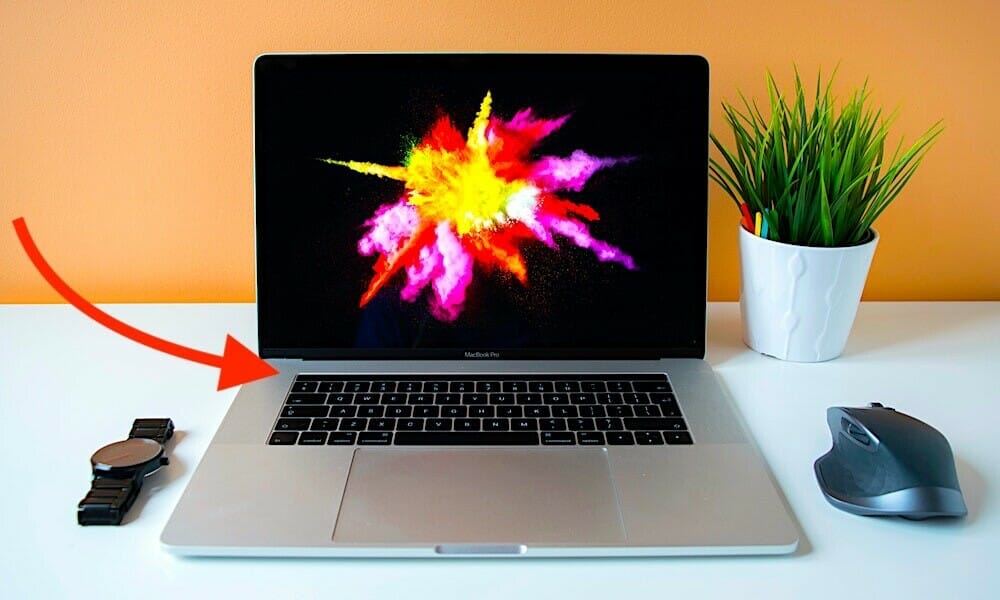
Hidden Mac Features you Didn’t Know About

Many of us have had mack OS big sir on our MacBooks for a while now, so we’re pretty used to the new features of the operating system from daily use. But whether you’re using the Macbook you’ve had for years or upgraded to a new one, you might find it useful to learn some of the tricks that Apple has hidden underneath the hood. Give these hidden MacBook Pro features a try, and improve your macOS Big Sur experience.

See also: Amazing Mac tips and tricks

Cool Hidden Mac Features

Here are 5 cool hidden Mac features most people didn’t know existed.

Add Quick Actions to the Touch Bar

Hidden Mac Features you Didn’t Know About

Besides using Quick Actions to automate your workflows, macOS has a hidden feature that lets you add Quick Actions to the Touch Bar on your Mac. Please follow these steps:

  1. Select the Apple menu located on the upper left corner.
  2. Now, click System Preferences, then hit Extensions.
  3. Next, click Touch Bar located on the left panel,
  4. Next on, select the checkbox next to each action you want to be available from the Touch Bar.
  5. Now, click Customize Control Strip located on the bottom right.
  6. Next, drag the Quick Actions button to the bottom of the Display until it appears in the Touch Bar. You can move it left or right to place it where you want.
  7. Finally, hit Done and the button will now be on your Touch Bar.

Lock Your Screen in an Instant

Hidden Mac Features you Didn’t Know About

Need to step away from your Mac for a few minutes and want to lock your screen? You can do this in just a single click. Hold down Control + Command(⌘) + Q, and your screen will turn off instantaneously. This keystroke combo works in newer versions of macOS such as macOS Catalina. If your Mac is running an earlier version of macOS, you’ll need to hold down control + shift + power or control + shift + eject if you have an optical drive.

Create Text Shortcuts

Hidden Mac Features you Didn’t Know About

Do you find yourself typing the same phrase over and over again on your Mac? Speed up your work by using the nifty text replacement feature in macOS. Please follow these steps:

  1. Click on the Apple menu located on the upper left and choose System Preferences.
  2. Now, click Keyboard, then hit Text.
  3. Please nOTE: If you’re working in an app, you can also jump right to the settings by selecting Edit > Substitutions > Show Substitutions. Then select Text Preferences.
  4. Click the Add button (+) in the lower-left corner and type the text you want to replace. You should put something like “&done” in the Replace section, with its replacement saying “Heading home for the day. See you tomorrow!” in the With section.
  5. When you are working in an app, try typing your “replace” phrase like &done and macOS will automatically replace it with “Heading home for the day. See you tomorrow!”

Add Emojis Quickly 😁

Hidden Mac Features you Didn’t Know About

Want to add emojis to an email or message? You can quickly bring up the emoji menu by holding down Control + Command(⌘) + Spacebar from any window. Your emojis will be presented in various categories with a section for the ones you use most often. Simply click on an emoji and it will be inserted into your text.

Design Custom Folder Icons

Hidden Mac Features you Didn’t Know About

The vast majority of people use folders to organize all their files. Make it easy to find folders by assigning an emoji or custom icon to each one. You could use a dollar sign for your finances folder and an office chair for your work folder. When browsing through your folders, you only have to look at the icon to find the one you want. It’s a simple thing, but it can come in handy, especially if you work with a lot of folders. Here’s how to assign an icon:

  1. Find an emoji (or another image) that you want to use by searching Google or the search engine of your choice.
  2. Now, save the image you want to your Mac.
  3. Now, open the emoji in Preview and make the background transparent by selecting the Markup Tool, then the Magic Wand, and then clicking the image’s background to select it.
  4. Next, select Edit > Cut to remove the background
  5. Next on, use the selection tool to drag a box around the emoji.
  6. Now, click Edit > Select All. Then press Command + C to copy the emoji.
  7. Next on, select the folder for the emoji and right-click on it.
  8. Now, select Get Info to reveal the folder details.
  9. In the informational screen that appears, select the blue folder icon located on the upper-left hand corner.
  10. Press Command + V to paste your emoji onto the folder.
  11. If you don’t like how it looks, simply hit Command + Z to undo.

And that covers everything about hidden Mac features most people don’t know about. Have we missed some cool hidden Mac features here? Let us know in the comments section below.

Is your Mac slow after macOS Monterey update? , there may be good reason for that slowness, or it may be due to a variety of other factors. Don’t fret, as there very well could be a simple solution. Find out why your Mac is so slow after macOS Monterey update and discover a few ways to speed it up

If your Mac starts running slow after Monterey update, it doesn’t necessarily mean that it caught a virus or became too outdated. The problem might lie in its settings, or lack of disk space, or poor resource allocation. This would be a logical consequence of intense exploitation and it might reveal itself in just a few months after you purchase the device. In this article, we’ll walk through some possible reasons as to why macOS Monterey feels slow on a Mac, as well as covering some advice and general tips and tricks to speed things back up again.

Without further ado, here’s how to fix a slow macOS Monterey and prevent your Computer from slowing down further in the longterm.

Slow Mac right after macOS Monterey update? Wait it out!

If you just recently updated to macOS Monterey and you feel the Mac is slower than usual, the best course of action is to keep the Mac awake, plugged in (if it’s a laptop), and let it sit for a while (perhaps overnight or for a nights) – basically, hurry up and wait. I know that sounds like weird advice, but here’s the logic behind it: after a major macOS system software update, the Mac performs various maintenance routines behind the scenes, it reindexes the drive for Spotlight and Siri, and apps like Photos may reindex too.

So basically, let the Mac sit turned on overnight, perhaps for a few nights in a row, and allow those indexing and optimization processes to complete. When they’re finished, the performance of the Mac should be significantly better, if not entirely back to normal.

This is often the the number one reasons Mac users think a new operating system is slower than a prior version, so don’t disregard this simple advice!

Resort to the Activity Monitor to Detect and Delete Resource Hogs

If a Mac feels slow or sluggish after Monterey update, one way to possibly find the culprit is to check Activity Monitor for processes that are using the slow down. This is somewhat advanced to take action on, but it’s simple enough to observe that it can be helpful.

Feel free to select between these two interchangeable ways to access Activity Monitor:

  • Proceed to the Utilities section in the Applications
  • Press Command + Spacebar and type “Activity Monitor” in the search bar

Open the CPU tab and sort the inventory so that the most resource-consuming apps would be displayed at the top.
To suspend the unwanted processes, press the “X” button in their left upper corners. Be careful not to stop the ones that are crucial to the system’s functioning! An equal procedure can be done with the Memory section.

Consider Your Messages

If you use the Messages app on the Mac to talk to people, and if you send and receive many videos, stickers, animated GIFs, and other things of that nature, you may notice the Mac slows down when those active message conversations are open on the Mac.

You may notice that animated GIFs can be particularly sluggish, as they’re playing repeatedly on screen.

There’s no need to delete or remove the messages however, all you need to do is wait for the animated GIF to move off the screen, or select another message chat thread, which will cause the animated GIF to stop playing constantly.

Using the aforementioned Activity Monitor trick you may notice this directly; if you have a message thread with a lot of animated GIFs going on, and you open Activity Monitor, don’t be surprised to see “Messages” using some CPU.

Disable Window Transparency & Use Reduce Motion

Visual effects can make the Mac look quite fancy, but they can also cause some system slow downs, particularly if you have a lot of windows and apps open, or if the Mac is older or has fewer system resources in general. Accordingly, one way to speed up macOS Monterey (and most other modern Mac OS releases too for that matter) is to simply disable Window Transparency and use the Reduce Motion feature.

Open the  Apple menu, open ‘System Preferences’, then select the “Accessibility” preference panel
Choose “Display” settings
Check the boxes for “Reduce motion” and “Reduce transparency”
Exit out of System Preferences
You will see an immediate change in the visual appearance of things as the transparency is disabled, and windows, sidebars, titlebars, menubar, and other interface aspects will no longer have a translucent effect. You’ll also notice far fewer animations of zips and zooms, and instead with Reduce Motion enabled you’ll find there’s a fading animation used instead. The net effect is less system resource usage as there are fewer resources needed to draw the interface eye candy, and often a faster Mac too.

The ability to reduced transparency on Mac and Reduce Motion has been around a while, and these tips can help speed up other older system software versions too.

Stop the Programs Working in the Background

If you think that closing an app is equal to stopping it, you are making a common mistake. An app might not stop functioning after you press the “X” mark in the corner of its window. To check if the program keeps on working in the background, cast a glance at the dock. If the app’s icon is there, marked with a tiny dot, stop it with any of the following methods:

  • Two-finger tap the app’s icon, then press Quit
  • Right-click plus Command-click
  • Use the Command + Q keyboard shortcut
  • Proceed to File, then Quit
  • In case the item doesn’t respond, right-click its icon, hold Option and push the Force Quit button.

Steam, Excel and Photoshop would be among the most likely candidates to keep functioning in the background, consuming your Mac’s resources without your knowledge.

Don’t Allow Apps to Autostart

When you start the system, several apps would launch automatically. You won’t be able to use the computer properly until all of them load and start functioning. If you don’t want to wait that long, proceed to the System Preferences and press the Login Items button in the Users & Groups section. In the inventory of the auto starting programs, select the ones you are not planning to use and push the “minus” button.

Reset SMC and PRAM/NVRAM

The SMC abbreviation stands for the System Management Controller. This component is in charge of fans, power buttons, light LEDs and other low-level functions. If a decline in performance is accompanied by weird fan behavior or unusual keyboard backlighting, you should reset your SMC. Please google the exact step-by-step instructions because they might considerably differ depending on the model of your device.
Resetting NVRAM or PRAM, on the contrary, is very easy: while the system is starting up, hold Command + Option + R + P. This element is in charge of storing settings such as time zone, screen resolution or sound volume. PRAM or NVRAM failures are among the most frequent answers to the question why your Mac is slowing down.

Free at Least 5 GB in Your Mac’s Memory

Or even better 10 GB, if possible. This is the minimum volume of memory the device needs to function properly. In the right upper corner, press the Apple icon and then the About This Mac icon. The Storage tab will show you which part of your hard drive’s memory is currently used and which ratio of it is still available.
If you critically lack free memory, the system might fail to boot or hibernate. You’ll be unable to download large files and install updates. The functionality of certain apps might be limited. To fix these problems, erase unnecessary files and apps.

Clean Up the Desktop

Each item stored on your desktop consumes as many resources as if it were a separate window. To boost productivity, relocate the files from your desktop to other folders and eliminate the icons of the apps that you are not planning to use frequently.

Get Rid of Excessive Tabs and Browser Extensions

The more extensions you have in your browser, the more memory and CPU they require. The volume of the resources they consume is incommensurate with their insignificant functionality. The same can be said about all the tabs that you keep open while not actually using them: Twitter, Google, Instagram… Proceed to the Memory tab in the Activity Monitor to check how thirsty these tabs are and close them immediately.

Switch to Safari Browser

Unlike Firefox or Chrome, this one was tailor-made for Apple devices. It saves your Mac’s battery and won’t irritate you with memory hogs.

Timely Upgrade Your Operating System

The above-mentioned measures will have just a partial effect. Installing the latest version of your macOS or a new operating system will give a major boost to your device’s productivity. But beforehand, make sure to save all the meaningful data on an external physical drive or a cloud storage.
Previously, owners of older Macs would hesitate to switch to the latest operating systems because that would slow down their devices. Today, this problem is not relevant anymore. However, it would be wise to do some preliminary investigation and ensure that the newest version supports all the programs you use daily.
If installing a new OS is out of the question, try to upgrade at least all the applications. The exact procedure of doing it depends on how you installed them. Those downloaded from the AppStore should be updated right in the store.

Conclusion

The older your Mac, the less impressive its productivity. Fortunately, investing in a new computer is not the only way out. Try to clean the device’s memory, upgrade its OS and programs, fine-tune its settings to optimize the consumption of resources. As soon as you complete the procedures described in this article, your device will once again become quick and responsive.

Choosing between iPad Pro and MacBook depends on what features and specs are most important to you. Here’s what you need to know to make the right decision.

Apple’s tagline for the 2020 iPad Pro is “ Your next computer is not a computer”. It’s a fancy way to address the tension at the heart of most of the buyers. It costs more than any laptop, but will it be able to replace your MacBook?

So to this comparison, both the devices hovering around a range of $1000 price point and since we have more updates coming to the iPad Pro, they are bridging the gap between a laptop and a dedicated tablet. And i’m pretty sure people are experiencing difficulty choosing which device to go for!
The MacBook Air has a starting price of $999 but if you spend additional $200 and get the 16 GB Ram and 512 GB storage capacity, and also the i5 processor that will be about $1300, that will be a Machine that will serve you for a longer time. And people are also wondering whether they should get a MacBook Air or a 13 inch MacBook Pro which will also be about $1300-$1400.

The iPad Pro, in contrast, are a bit of a tougher choice because A — we have two different sizes and B — the accessories that are necessary to buy with an iPad which if you add, would round you up to a MacBook. Apple Pencil for $129, the smart keyboard folio or another $100 and after this you might want to get yourself a trackpad to get a feeling of a laptop, that’s another $75 you need to fork out. In all, you will be spending $300 more in just accessories. So purchasing an iPad for $699 or $999 depending on what size and spec you choose, you will have to part with a couple of hundred dollars just to complete its setup. Why not buy a MacBook? A macbook you don’t need to spend extra cash on, which is going to perform everything at the best speed and the main reason to buy a MacBook is that it’s a laptop, not a Tablet. In an iPad, you will be getting the mobile OS and it is similar to using an iPhone with just a big body.
Well, what device you choose is totally for what you are going to use it for and also it’s your choice. Personally, I think that iPad is a great device. But for productivity tasks such as editing videos and replying to emails, that’s the main work of a Computer. If you find yourself typing a lot, go for a MacBook because the MacBook offers you a better response rather than the iPad keyboard. Like if you are sitting in a park and you have to send a couple of emails, you cannot sit all the time keeping your thighs together typing on a shaking device. That’s what a laptop is made for.
Coming to a field where the iPad leaves the MacBook in the dust, The Editing. After comparing the time that a MacBook Air and iPad Pro takes to edit a video, the iPad Pro edits the videos faster than the MacBook as it has an advantage of running on a mobile OS. Same for the photo editing. Photo editing on the MacBook vs editing it on the iPad using the Apple Pencil gives you a better response.

Using the Apple Pencil, you can draw pretty fantastic things and for someone who is into designing, the iPad for sure would help you design better than any device. And as I mentioned, photographers, the iPad thrushes the MacBook hands down.
Another area where the iPad Pro leaves the MacBook in the dust is gaming. You can play games on the iPad without worries of getting overheated. iPadOS offers you an array of games compared to a MacBook. Actually, the MacBook’s were never made for gaming however you can play short and light games on it. Well, the iPad has a powerful processor and dedicates graphics which offers you a smoother gaming experience.
With the iPad weighing 1.09 pounds and the MacBook weighing 1.29 pounds, both are one of the thinnest devices in the market. But the only thing that holds me back that if you/re dropping a thousand bucks on a device is that compatibility and use.
As far as the cameras are concerned, the MacBook Air comes with a 720p camera which I think is disappointing because at such a high price range, you should be getting a 1080p camera. Some of the windows PC at similar price range offers face unlock and yet the MacBook still has the touch id. On the other hand, Apple has put in the 12-megapixel main wide sensor with an f/1.8 aperture which captures great pictures but isn’t able to match the low light performance. Apple also added another 10-megapixel ultrawide sensor at f/2.4 with a 125-degree field of view. They didn’t stop here.

The biggest change is the camera system. You can’t miss it. The big camera bump on the back of the iPad Pro is now a square now. It features two regular camera sensors and a new LIDAR sensor. The iPad also features a selfie camera which is also used to unlock the device similar to the newer iPhone models.
So if you’re a student or you are just getting into the Apple Ecosystem, close your eyes and get the MacBook Air as a laptop is what a student needs. And if you are looking for a device which has a faster processor, better performance, lighter weight, and also if those cameras matter to you, get yourself the iPad Pro. If you’re an Apple fan boy, you would keep both and hey, don’t listen to what I or other people say, get a device that would suits your needs.

See also:
How to Get into the Apple Ecosystem for Less than $1500

In this article, I’ll explain 5 must have Mac apps in 2020. Without any further ado, let’s get started.

Apple’s
macOS
is one of the most powerful and efficient operating systems out there. With the new macOS 11 Big Sur update Apple is stepping up their aesthetic game once again. Some even say macOS is one of the mature operating systems in the market. And yet macOS is not without its Drawbacks. Sometimes those little drawbacks could make or spoil the experience for many users. And the Mac App Store is still not fleshed out for better or worse. Fortunately, the Cupertino based company allows Mac users to download apps from third-party websites. Try out these must have Mac apps to make your work a bit easier.

See also:
5 Best Mac Apps For Working from Home

Must have Mac apps 2020

Shift: An App for everything

The Shift is basically a social media account for all your social media accounts. The app lets you use all your social accounts in one convenient app. Shift provides you with an option to link your email accounts right in the setup process of the app. Then the app gives you a list of web apps & tools that can be linked to the app.

You can add web apps like slack, WhatsApp, Instagram, LinkedIn, Dribbble, Spotify, WordPress, Google Apps Suite, etc. The app even lets you customize options like the icon color of the apps and prioritize notifications from each app you add. In addition, the app gives you a choice to separate your work apps into a dedicated section.
What’s makes the app standout is that if your work is mostly on the web or browser you don’t even need to open another app. Shift offers a basic free tier and a premium tier which could cost you up to $100 a year for advanced features. You can download it right from the Shift website.

Alfred: The Butler!

Alfred is one of the best must have free Mac apps in 2020. The app is an award-winning productivity app for macOS. Alfred is sort of a replacement for the spotlight search. But there is more to it. With the Alfred app installed on your device, you won’t even require a mouse to navigate your Mac.

The app lets you find your apps, browse your files, search the web, control your music, email your friend, and much more. You just need to press the command key + spacebar and Alfred will be at your service. What more is you can even assign specific hotkeys for your favorite apps to quickly access them. It’s free to download and nothing is behind a paywall.

Apollo One

Apollo One is one of the best photo and video viewer for macOS. The app takes the best features of Lightroom and combines it with the speed of a system app. It also provides an EXIF metadata, RGB parades, and histograms which is really useful to most photographers and video editors. It can do what the mac system can’t even do. This photo viewer app can basically support every RAW file format if you’re into processing RAW images.

Thanks to metadata if you have RAW images you can even click a point on the subject to see if the autofocus point was in the right place or not. The app also allows you to do macOS based tagging, color tagging. The app also gives you an option to add spotlight metadata, tag the GPS location, edit metadata, and many more features. It is free and they even have a premium version if you need the more advanced features.

Magnet: Windows Snapping for Mac

This app addresses one of the most annoying features of the macOS. Magnet is an app that allows macOS to snap windows much like Windows 10’s built-in windows snapping feature. Whenever you want to multitask or compare the data in different apps, all you need to do is drag the app to the side of the screen and Magnet will resize the window into half of the screen.

To have more than two apps on the screen, you simply need to drag the window to the corners of your screen, the window will be resized into a quarter of the screen. And drag the window to the bottom of the screen to create thirds. Magnet also supports wide screens and can adjust itself to vertical screens pretty easily. You can download Magnet on the Mac App Store and it only costs $3.

PDF Pen: A better PDF reader

PDF Pen is one of the simple yet most advanced PDF readers for macOS available today. It is the best alternative to Adobe’s Acrobat reader in almost every single way. Indeed and in fact, it is even better than that. It is fast, smooth, and feature-rich.

PDF Pen features a built-in Optical Character Recognition (OCR) feature which can turn texts from pictures into word text. Users can easily correct or modify mistakes. A built-in exporter for faster and easy file conversion to other formats. Moreover, the app gives you the ability to sign your documents by scribbling with your mouse or trackpad. PDF Pen also lets you integrate your cloud service within the app to store your files in your favorite cloud service. It is a bit expensive at $80 but it is totally worth every penny. Before purchasing the app, you can try out the free trial too.

Other apps like AdGuard for better Ad filters across the entire system to block annoying ads and dangerous websites, Notion a project management tool for teams and individuals to better manage your workflow. And even more like Unarchiver for extracting RAR files and Transmission.

Some of the apps we’ve discussed above such as the Shift, PDF Pen, AdGuard, and Notion also have Windows versions. I trust these apps will surely boost your
productivity
. We’d love to know your must have Mac apps that you use in your daily workflow. Thank you for reading.

It’s no doubt
Working from home
is becoming an increasingly common practice. This has kept me searching for the best Mac apps that can increase my productivity and improve my workflow.

In 2020, the necessity to effectively
work remotely
is critical to productivity more than ever. Here at GeeksModo, we refuse to pretend as if remote work is a new trend.

Having said that, there is a delicate balance between working from home and effectively working from home. This delicate balance boils down to the apps a person could use to stay productive. 

For macOS users, there is a nearly never-ending list of native features and
apps
to carry out various tasks. The team here at GeeksModo has traversed through the internet to find the most useful macOS apps for everyone who is working remotely. 

Best Mac apps for working from home

Here are the best Mac apps for working from home in 2020:

1. DemoPro

($1.99)

An integral part of working from home is video conferencing whether it’s on Zoom or Google meet. If you are presenting your screen can sometimes prove challenging to grab the audience attention to a certain section of the screen.

Most peple just start wiggling the cursor around with half of the audience wondering what is happening with your computer.

DemoPro offers a solution to this by turning the whole screen into a canvas which allows you to draw or highlight any section of the screen.

2. CleanShot X

($29)

Sometimes it’s difficult to explain to your coworker what you mean via a slack message. I love taking screenshots as I know I won’t have to go back and forth explaining myself and we both are discussing the same thing.

Besides being able to edit and style the screenshots you take. The app also allows you to record your screen as a video or as a Gif.

3. Paste

($0.99/month or $9.99/year)

Imagine a clipboard that can save all your cuts and copies from the last month, Paste has all that ability. You can search through the clipboard and arrange them in different categories for easy access.

4. Duet Display

($9.99)/SideCar — free

It’s always a good idea to add an extra screen to be more productive. Now that’s where these two apps come in handy. Both perform the same task – Sidecar will turn your iPad into a seamless second display for your MacBook or iMac. It is free and comes in all devices compatible with iOS 13 (iPadOS) and macOS Catalina.

In case you are running an older Mac model not compatible with Sidecar, you should try Duet Display instead.

5. Time Out

($2.99/3 months, $4.99/6 months or $9.99/year)

Working from home made me stick to my computer for long periods of time. Consequently, I have had a lot of backaches and headaches.

Time Out offered me a solution. I love the Pomodoro method to keep myself productive so I have set up the Time Out app to hide my screen for 5 minutes after every 25 minutes of work.

The app offers several customizations according to the screen cover you want.

The best macOS apps for productivity during remote work should consistently serve the everchanging needs of the remote worker. Sometimes it’s hard to craft the best environment for productivity during working remotely. Still, I sincerely hope this list has helped you sort through tons of macOS apps that are available on the app store. Please, let us know what you think or if you have any recommendations for our list of the best macOS apps for productivity when working from home. 

And that covers everything about best Mac apps for working from home. If you enjoyed this article, please share it with your friends and comment if you have any favorite productivity apps for Mac of your own!

This is a very useful, but somehow also dangerous trick. Useful because you can still access your
Mac
even if you forgot your password. Dangerous because anybody could bypass your Mac password by changing it. As always it depends on the person’s intention. There are good persons, using knowledge and tools for the right things and bad persons misusing knowledge. Be a good person.
in this article, I’ll tell you how to bypass Mac password login and how I discovered the trick. Actually, you do not forget the passwords you use every day. That’s what I thought. One day at work I tried to access my MacBook and I was 100% sure it was the correct password. I tried several different variations. Turned it off. Thought about it. Tried again. Searched in my documents for the passwords. Tried again, but could not access it. Somehow I must have forgotten a tiny part of it, just a special character as ? or : or maybe any of the signs was uppercase. I tried to remember but could not figure it out.
So what to do?
The first idea that crossed my mind, was the apparently easiest solution: just asking the IT guys for help. However, I knew that the team was overloaded due to its small size. So asking for help regarding such an annoying problem was somehow embarrassing, but also stressing for them. Next to asking my co-workers, there was the more unlikely possibility of trying to do it myself. However, I thought that Macbooks have reputable security and it would certainly not be possible to gain access without having any kind of password or a third-party tool. Far from it! Actually, it is a pretty easy and quick solution from which I was really surprised.
You just need to perform a few simple steps, so let’s jump into it and see how to bypass Mac password in 2020. If you just want to try it, but know your password then you should load this guide on another device because the first step involves shutting down your Mac. And I guess you might still need to follow the instructions step by step when executing it. So let’s start by turning off the computer.
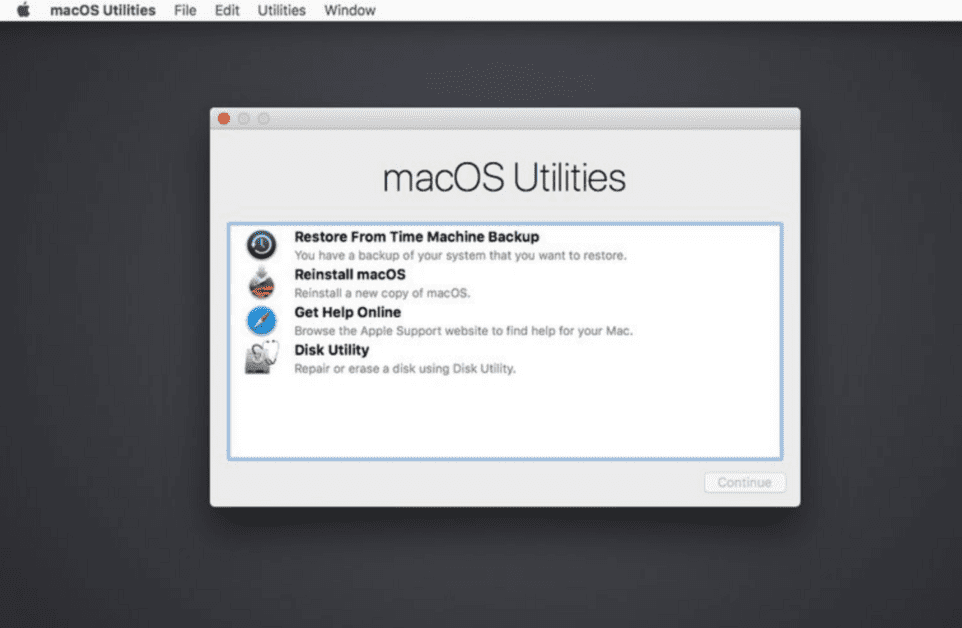
Next, turn on your Mac and hold immediately the keys “CMD+R” together until you see the  logo on the screen. The recovery mode of your Mac will launch. It should open a window with the header macOS utilities. On the uppermost part of the screen you can see the top bar with the following menu points as can also be seen on the image below:

Bypass Mac password

Click on Utilities and choose Terminal to launch the Mac Shell Terminal. It should appear a new window that looks like the window below.

Bypass Mac password

Click in the terminal and type resetpassword. A new window will appear with the header Reset password. On this window, you can see all user accounts with their names and profile pictures. Choose the user account for which you intend to change the password. Enter a new password, confirm it and hit save. Boom, a new password has been set. Restart your Mac and login with your new password. It should work. In case it does not, repeat the above steps. So in case you are forgetful, don’t worry. The above solution should help you bypass Mac password in no time.
Considering my slightly embarrassing situation, the above solution was a quite quick and easy fix. So, what lesson can you learn from the story?
As soon as a problem arises, there is already an answer to it. You just have to go out there and find it. I hope you learned something and maybe you were as surprised as I was.
You can achieve the same on Windows or Linux-based systems such as Ubuntu. If you are interested in a similar article for other operating systems, please let me know down in the comments.

A lone
MacBook
is a powerful and impressive device. However, add some accessories into the mix, and they’ll enable an almost magical experience. There are numerous options of accessories for a MacBook, even so, many that it is difficult to see which ones will help you to get work done on your Mac. Finding the accessories that suits your needs can prove challenging, so it helps focus on the essentials. However, some accessories benefit power users as well as casual ones.

1. Mouse

It’s a good idea to have a reliable, precise mouse for your MacBook. Even though MacBook’s comes with best in class trackpads you can ever find in a computer, they don’t quite manage to beat the experience a mouse provides.

There are tons of outstanding mice out there. Which one you should get to accompany you, and your MacBook heavily depends on your needs.

When purchasing a new mouse, I suggest that you look for wireless connectivity, preferably via Bluetooth, and a USB-C charging that lets you use it even while on the charger (sorry Apple Magic Mouse 2).

Accessories for MacBook

Personal Recommendation

My personal recommendation for a mouse is the Logitech MX Master 3. It features all the things I want it to have plus so much more. Starting with the essential features, it has wireless connectivity via Bluetooth and even has multi-device support. With just a press of a button on the mouse’s underside, you can switch the device you want it to control. It charges via USB-C and has an excellent battery life. Over the half-year I’ve owned it, I had to charge it once.

On top of these major features, the mouse has Logitech’s Magspeed scroll wheel. It is the best scrolling you’ll ever find, switching seamlessly from precision scrolling to the fast, 1’000 lines of text in a second scrolling.

In addition, the mouse comes with a gesture button that is perfect for the Mac, a thumb scrolling wheel, and two customizable buttons. The sensor is also brilliant and works smoothly on almost any surface.

The only minor downside of this mouse is the size. Since it is an ergonomically designed and feature-packed mouse, it is a bit bulky.

Having said that, if you are looking for one of the best mice in the market, you cannot go wrong with the Logitech Master MX 3.

2. USB-C Hub

When getting a new MacBook, you’ll get four Thunderbolt 3 ports at most. Because not everyone uses peripherals with USB-C connectivity, owning a USB-C hub can prove helpful.

Having one protects you from the awkward moment when you have to explain your coworker that you can’t read a USB stick, but it will also increase your flexibility.

When buying a USB-C hub, you should always make sure the one you choose has all the ports you want it to have, such as an SD-Card reader and HDMI.

It is also important to look out how many ports the hub will need to work. There are a couple of options out there, some only need one Thunderbolt 3 connector others need two.

Accessories for macbook

Personal Recommendation

As far as I’m concern, a USB-C hub ought to be portable and have a lot of input options. With that in mind, I chose the Satechi ST-SCMA2M. It comes in proper Mac colorways, and henceforth doesn’t take away the beautiful aesthetics of a Mac, it also gives me a broad range of input options. It comes with an HDMI, an SD-Card reader, a micro SD-card reader, two standard USB type A readers, and a USB-C port, which allows for passthrough charging.

The Satechi ST-SCMA2M also only needs one Thunderbolt 3 port to connect, and that’s all what I need.

The sleek form factor and the multitude of ports are pretty good, which makes me recommend this hub for everyone.

3. Headphones

Love listening to music while getting work done? Well, if you want to be able to listen to your music all the time, you should grab a pair of headphones.

Although all MacBooks comes with a headphone jack, when purchasing headphones to go along with your MacBook, I highly recommend looking for wireless headphones.

No matter your budget, you’ll get good wireless headphones in every price range, from sub 100$ to +300$.

When looking for a good headphones to complement your MacBook, I suggest that you think about the essential features. Do you need good microphones because you find yourself in conference calls a lot? Do you need active noise canceling because your workspace is too loud otherwise?

Outline all the features you want to have and then look for the headphones that suits your needs. Nowadays there are a wide range of valuable options, there is one for everybody.

Of course, getting Apple headphones (Beats also included) you’ll get some features the other headphones can’t provide, so I advice you to look into the Apple headphones first. However, the features they offer are not game-changing at all, and if you find yourself liking the headphones of a different company more, go for them.

Accessories for MacBook

Personal Recommendation

As far as I’m concerned, one of the best headphones to complement your MacBook are the
Apple AirPods Pro.
The AirPods Pro have a super active noise canceling feature. In addition, they are super portable and perfectly integrated into the
Apple ecosystem.

If you are looking for one pair of headphones for all your needs, including to pair it with other devices, then your MacBook, the AirPods Pro Might be only headphones you’ll ever need.

AirPods Pro offers a great sound, and the battery life of about 4.5 hours with active noise canceling should be enough for almost everybody.

The only downside of the AirPods Pro is that they are quite expensive , and when compared to other headphones in their price tag, the sound isn’t that superb anymore.

However, due to their small size, the one headphones for all needs aspect, and their excellent active noise canceling, it’s pretty easy to recommend the AirPods Pro as headphones Companion for your MacBook. Additionally, the fact that they are designed by Apple gives them a unique connection with the MacBook and makes them easy to use.
See also:
AirPods 2 Vs. AirPods Pro – FIGHT!

4. External storage

One of the best utility apps that come pre-installed on the MacBook is Time Machine. Apple’s backup program is fantastic, and everyone should take advantage of it. To do so, you need a reliable external hard drive or SSD storage.

In addition, having an external storage solution allows you to free up space on the MacBook’s internal storage.

When looking for the perfect external storage solution, the most important thing is reliability. If you find yourself needing the backup, you want to be sure that your external storage can handle it.

Another essential factor to consider is the type of storage, hard drive, or solid-state storage (SSD). Both have their pros and cons, but they are both greatoptions.

SSD’s usually come in at a little higher price but have higher write and read speeds, where hard drive mostly costs a bit less but can’t provide as fast speeds. It is said that SSD’s don’t have the same lifespan as hard drives, however, although this is technically true, no regular user will ever have problems with this.

Accessories for MacBook

Personal Recommendation

I wouldn’t recommend going all out on a high capacity, lighting-fast external SSD as your solution for external storage, except you need the fastest speeds to transfer data.

As far as I’m concerned, western digital’s “my passport” line is a perfect option for everyone. The hard drives offer a quick transfer speed and very high capacities while maintaining a reasonable price. They also have no known reliability issues, and personally, I use two of them as my storage solutions.

For time machine, I use a LaCie rugged 4TB hard drive that I got as a present. However, while it’s quite appealing and also is very reliable, the price of this hard drive is only justified by its looks, and there are more great options out there.

5. A backpack

Laptops standout feature is their portability. MacBooks are powerful machines that’ll go where ever you take them. Whether you use it to get work done on the train, edit videos in the airplane, or take your lecture notes in the auditorium, the MacBook is part of your daily carry.

In order to facilitate that portability of a MacBook or, for that matter, any Laptop, you’ll need a means of transportation for it. I highly recommend a backpack for transporting your MacBook. It is easier to carry than a sleeve, and it also has room for additional stuff you bring around.

When getting a Backpack for your MacBook, ensure it has a good pocket for your device. It should be padded well, and if there are zippers close to it, look for a lining that separates the zipper from the MacBook.

Once you’ve made sure that the backpack has a functional pocket for your MacBook and does not damage it while carrying around, find a bag that fits your needs. If you carry around a camera with you a lot, maybe you want a backpack that allows you to take your camera with you also. Do you need waterproofing?

As with the headphones, make a list and look for the backpack that ticks all the boxes for you.

Accessories for MacBook

Personal Recommendation

To carry around my 16’ MacBook Pro, I use Douchebags the “Backpack”. With a dedicated Laptop compartment right against your back, it keeps the MacBook safe from all the other stuff I lug around on a daily basis. The main compartment is also easily accessible and has sufficient space for all the stuff I need to carry around.

In addition, the “Backpack” has a simple, yet modern and fresh look that perfectly complements the MacBook. If you are also into photography, there is a camera inlet that fits perfectly into the “Backpack”. So carrying around your camera and the MacBook is easy and secure.

While it a bit pricy, it ticks all my boxes and is the perfect means of transportation for my MacBook.

When you ask a geek for help because of some issues with your Mac, iPhone, but also printer or internet connection, the first question they throws at you is always the same:
Have you tried turning it off and on again?
But why rebooting a device solves almost, all the problems?
As a software engineer I’m aware that every system has glitches , it is impossible to have a flawless application. And often glitches only occur under certain conditions when specific events happen. If a problem occurred at every startup, it would be resolved immediately.

Occasionally, a certain combination of conditions and events causes the MacBook or iPhone to crash. A process could possibly accumulate RAM space, with a glitch known as
memory leak.
By restarting, the memory resets, execution starts again, the program is reloaded, and the software variables are initialized. The conditions that caused the anomaly no longer exist. They may reoccur by executing the same operations, or the cause may not even appear any longer, since it might be caused by something not directly related to how we used the software.

As for network devices , like routers or switches, some routing tables might be corrupted for some reason. Or the connection to some service might be lost, like a DNS server, whose work is to translate web addresses into IP addresses. In these cases, or in similar cases, restarting the device will clean the internal tables and force a reconnection with the other network components, often resolving the problem.

Lastly, I recommend that you restart your devices once in a while, even if they work. It doesn’t hurt to reboot your iPhone or your Mac every now and then and give it a fresh start!
See also:
How To Force Restart a MacBook, MacBook Air, or MacBook Pro

Apple has finally said goodbye to the butterfly keyboard forever as new
13-inch Macbook Pro
comes with Apple’s new and improved Magic Keyboard. I am currently writing this on a
2019 13-inch MacBook Pro,
so will I be upgrading to the new one?
Without any further ado, let’s discuss what’s new with the 2020 13-inch Macbook Pro. Before the arrival of this, we saw the release of the new 16-inch MacBook Pro and smaller and lighter MacBook Air with the new Magic Keyboard. Therefore, it was only a matter of time before Apple applied the same treatment to the 13-inch Pro model. There had been rumours for a 14-inch MacBook Pro, but we haven’t seen one…yet.

So, what’s new? Well, not much with the basic ones. The bottom two models of the new 13-inch are pretty much the same as the 2018 Macbook Pro except you get double the amount of storage to start off with.
Now starting at 256gb, this is an excellent Computer for those who don’t really care about performance, but then again, if you are in that group then you may as well get the MacBook Air for a few hundred pounds cheaper?
But the real changes appear in the more impressive 2.0GHz Quad-Core MacBook which starts at £1,799 and this is the one to go for. It now comes with a 10th-generation Intel Core i5 processor instead of the 8th gen on the older one. It also comes as standard with 16gb of RAM which is a first for the 13-inch models. Before this, they started at 8gb. This more expensive one also comes with two more USB C ports than the cheaper ones which is always a bonus.

On top of this, you can now opt for up to 4TB of SSD storage which is a massive improvement. My concern, however, is that once you have specced up a top of the line 13-inch MacBook Pro, you are already looking at nearly £4,000 and by that point, you may as well get the 16-inch for £2,399.

Apple’s update is an unusual one, as in this particular case, the level of changes seen depend on whether the customer opts for a lower-end or higher-end configuration. Across the board, the Magic Keyboard and higher storage capacity starting points will be welcomed.

However, while that’s largely the story for the lower-end options, the higher-end arguably gets more of the changes. Shifting from eighth-generation Intel chips to tenth-generation versions will give a considerable performance advantage, while the faster memory and higher memory capacities will further push the 13-inch MacBook Pro as a portable powerhouse.

Even the maximum storage capacity of 4TB is only available to those with deep pockets to go for the higher-end configurations from the start. That price premium would buy a lot of network or Thunderbolt 3 storage.

For those looking to buy a new 13-inch MacBook Pro to replace their existing model, there isn’t really that much to write home about for the lower-end versions. Sure, the Magic Keyboard is a nice addition, but aside from a storage bump, there isn’t much in the way of groundbreaking elements here.

Anyone considering the upper end of the range, however, will see considerably more changes and huge performance boosts. Those with a bigger budget will fare better for their upgrades than people who go for the frugal option this time around.

Here’s how you can do it too but only if you qualify…

As you may already know, the first generation of the MacBook Pro with a touch bar suffered from keyboard issues. It came with Apple’s butterfly keyboard which was meant to be thin and streamlined but turned out to be a right pain in the butt for many of those people who used it.
I happened to be one of those people. Now, I actually enjoy using the butterfly keyboard which is a very controversial statement but I like the way it feels but what I don’t like is when it fails on me. The keyboard begun failing on me just as I was really getting into the groove of writing about a year ago.
The problem was with certain keys sticking such as the enter key, backspace, tab, shift and a range of letters spread across the keyboard. This was a real nightmare and lead to many hours of frustration as the keyboard would often put the same letter ten times. I even resorted to an external keyboard for a while which meant typing out and about was a hassle.

So, I conducted some research online and found out that I wasn’t the only one who was facing this issue. And to my excitement, Apple offered a keyboard replacement programme for my MacBook which was very nice
So, I
made a genius bar reservation
and got on the next train to Leeds to get this issue resolved. I arrived and they were very friendly and had obviously had people complain before about these problematic keys. So, I showed them the problem and they were more than happy to get it sent off for me which was perfect.
It took around five days I think in total which was Great and I went back into Leeds to pick it back up. When I got it back I was blown away to find out Apple had pretty much just given me a whole new laptop for free.

The internals were still the same, and it was my MacBook but they had made some changes. They gave me a new display, a new metal case, top and bottom, a new battery, new trackpad and a brand new keyboard which had been updated to the 2019 version. This keyboard works much better than the previous one and even has some changes to the backspace key and option key.
The total for this repair job amounted to $359.83 and I wasn’t charged a penny. This was great news as not only was I low on cash but I had also just bought a Pret lunch which really meant I had no cash to spare.
I am using that keyboard exactly a year on to type this blog post on and it handles it no problem which is Great news.

If you think you qualify for this and are experiencing keyboard issues on your MacBook between 2016 and 2019 then
visit this link
to check out Apple’s repair programme.