Got a tip for us?

Apps

Phone spam and scam are on the rise, with no signs of stopping. Luckily, you can take a few actions on your own to get rid of spam calls. For instance, you can set your iPhone or Android phone to block specific phone numbers. Mobile carriers offer blocking tools too. On top of that, you can register your mobile and landline phone numbers with the FTC’s Do Not Call Registry, though that won’t stop scammers and disreputable telemarketers from calling you.

The best option is to install a call blocking application on the smartphone to automatically block scammers, telemarketers, robocalls, and other spam. Many call blockers strive to protect you from spam and identify unknown callers. Let’s get a closer look at the best call blocking apps for iPhone and Android smartphones.

#1 REKK Call Blocker

REKK is relatively new on the market, but it has already gained trust among iPhone and Android users. It’s a powerful solution for identifying unknown callers with an option to block unwanted phone numbers. The database with spam numbers is frequently updated, which makes REKK a perfect tool for identifying spam. Besides, the app allows you to block incoming messages with specific keywords, like "special offer", "sale", and others. Thanks to this feature, you’ll forget about annoying SMS during Black Friday.

Additionally, you can use a reverse number lookup to check data about the caller if you’ve missed a call, including the company, its category, location, official website, and additional contact information. To make the app work, you’ll need to configure the app in the settings of your smartphone. The built-in instruction in the app will help you set up the call blocking feature.

REKK is compatible with iOS and Android

#2 RoboKiller: Block Spam Calls

With RoboKiller, you can eliminate up to 99% of spam calls coming to your phone number. The utility helps you filter and control incoming phone calls by automatically blocking and adding to the blocklist any unwanted caller. Unwanted callers are blocked without bothering you. On top of that, you can keep essential contacts or any new number safe by adding it to your Allow List. So the app will never block important callers by mistake. If you’re expecting an important call from an unknown number, you can temporarily pause the call blocking feature.

RoboKiller allows you to recognize SMS spam by notifying you of unwanted text messages. It’s also possible to report any specific number or an unknown caller to RobKiller’s spam blocker and protect other users from spammers. RoboKiller is free to download. A subscription is required to use the service, but you can try it out completely free for seven days.

RoboKiller is compatible with iOS and Android.

#3 Truecaller

Truecaller is among the most-used free spam blocking apps on the market with many valuable features. It’s a multifunctional app that allows you to identify and block spam calls or SMS, search for unknown numbers, call and chat with friends. To help you avoid spam calls and text messages, Truecaller identifies spam automatically before you pick up and filters unwanted callers. Besides, the app provides users with the reverse lookup feature to search for any spam number in the app’s database to check who its owner is.

Other than call blocking and identification, the app comes with in-built call dialer and messenger. You can call your friends directly from the app and chat with them at no cost. The app is free, but you get more features with the premium subscription: know who viewed your profile, get 30 contact requests per month, and remove all ads.

You can install the app on Android and iOS smartphones.

#4 Hiya: Spam Phone Call Blocker

Hiya is one of the most-used spam blocking tools on the market. It comes in very handy when you’re looking for reliable protection from telemarketers, robocalls, fraud calls like neighbour spoofing, and debt collectors. The app identifies and blocks spam calls automatically and allows you to get rid of the "neighbor spoofing" calls from numbers that look similar to yours. The global database will let you know who’s calling you, where they work and if they make annoying calls to other Hiya users.

Additionally, the app provides a number lookup that lets you check any phone number and find out the caller’s true name. The app is paid and offers monthly and yearly subscriptions.

Download the app from Google Play or App Store.

#5 Robo Shield Spam Call Blocker

Robo Shield is a perfect tool to stop annoying spam calls. The app was developed by Pango, a mobile security company trusted by over 650 million users worldwide. Robo Shield allows you to create blocklists of your contacts or block callers by categories such as spam, scam, political, telemarketers, etc. Unlike other apps from the list, this service updates its spam number database every six minutes.

With Robo Shield, you can quickly look up any unknown number and instantly know if you have been contacted by scammers, spammers, telemarketers, etc. The app comes with a monthly subscription that costs $2.99/month.

The app is compatible with iOS and Android.

#6 Nomorobo Robocall Blocking

Nomorobo is one of the best call blockers that can bring peace and quiet back to your life. The app protects users from annoying robocalls, telemarketers, spam texts, and phone scammers. It comes with real-time protection from over 3,200,000 spam numbers and identifies over 1,500 robocallers daily. On top of that, Nomorobo protects you from text spam and phishing attempts. It also allows you to send spam calls directly to voicemail.

The app is privacy-friendly and never accesses your call logs. It has already stopped 1.5 billion robocalls since 2013 and is trusted by over 2,500,000 people every day. Nomorobo provides a 14-day free trial for you to try the app and decide if it meets your needs.

You can download the app from App Store and Google Play.

#7 AT&T Call Protect

This is a well-received tool that may benefit AT&T network users. The app provides you with 24/7 automatic fraud call blocking and detects spam before your phone even rings. It sends unknown callers to voicemail and warns you of telemarketers, nonprofits, surveys, account services, private or political callers. You can also add particular callers to your personal blocklist.

AT&T Call Protect isn’t just a call blocker app. It is a community of people who help one another get rid of spam and report spam numbers. The app comes with a premium subscription that offers a caller ID feature and reverse number lookup.

You can download the app from the App Store and Google Play.

If you’re finding yourself nodding off in the afternoon, or waking up feeling like you’ve only just gone to bed, then what you need is a report on your sleep quality to find out what’s happening. If you’ve got an Apple Watch Ultra, then you already have the device you need to help you track your sleep glued to your wrist. All you need is the right software to unleash its potential.

You can track your sleep using the Sleep app on the Apple Watch Ultra. The app lets you create Wind Down and Bedtime schedules to help you meet your sleep goals. It also tracks your sleep automatically when you wear your Apple Watch to bed. Once you wake up, you can view how much sleep you got the last night on the Sleep app. In addition, you can view your sleep trends over the past two weeks. The Sleep app on the Apple Watch Ultra also offers a Sleep Focus feature, which limits distractions before you go to bed and ensures you don’t wake up due to untimely notifications.

Apple’s built-in sleep tracking in the Apple Watch Ultra is not bad at all, but it’s not perfect. For example, if you take a little nap during the day, it won’t register. And while the stats it throws out will satisfy the most incurious of you, there is so much more that can be gleaned from our time in the land of nod.

I’ve tried a ton of sleep tracking apps on my Apple Watch Ultra — these are the best of the bunch.

AutoSleep

AutoSleep is probably the best sleep tracking app for Apple Watch Ultra, and for good reason. It’s one of the few sleep trackers that includes a companion app for your Apple Watch, so you can see your sleep quality right on your wrist without having to look at your iPhone.

The amount of stats AutoSleep can produce from your night’s sleep is simply staggering, and tapping on any of them seems to reveal even more layers of information.
It also uses a simple ring-based scoring system that is very like Apple’s own Move, Exercise and Stand rings, combined with a green, amber and red color scheme that everybody will be familiar with. Red is bad, amber better and green is good. We also thought it did a better job of accurately deducing how long we’d been asleep than the other apps, too, but we’ll be honest, we still felt Apple’s own Health app did the most accurate job of estimating how long we’d been asleep.

AutoSleep isn’t free, but it’s only $4.99 on the App Store, which is a one-time purchase that isn’t going to break the bank. And after that purchase you don’t need to worry about a monthly subscription or more in-app purchases, as you do with a lot of other sleep tracking apps.

The amount of stats AutoSleep can produce from your night’s sleep is simply staggering, and tapping on any of them seems to reveal even more layers of information. If you want to find out if you have any medical conditions, like say, sleep apnea, then the data here will give you solid proof of what’s going on, which you could present to a medical doctor for a diagnosis. But there are also simple graphs that show you at a glance how well you’re sleeping — we particularly liked the Sleep Fuel Rating, which is the equivalent of a car’s gas tank meter, but showing if the sleep you’re getting is of sufficient quality to ‘fuel’ your tank.

Best of all is the companion app that is loaded onto your Apple Watch. This means you just have to glance at your wrist to see the important information about how well you just slept when you get up in the morning. Your rings show you your REM sleep and Deep Sleep times and your average heart rate, as well as AutoSleep’s best feature — the Sleep Bank. Here you can see if you are behind on your sleep requirement. Over a week the amount of sleep you’re missing out on can add up to truly staggering amounts, which might make you rethink your sleep patterns and enact a positive change in your lifestyle.

Sleep

Sleep is another great sleep tracking app for Apple Watch Ultra. The app offers support for automatic sleep detection, bedtime reminders, sleep goals, and more. In the Sleep app, the main interface provides a detailed look at your sleep habits over the past few days.

Like its competitors, Sleep also offers quite a bit of data on sleep trends, cycles, phases, and more. You can also see a detailed timeline of your sleep, including when you were restful, restless, and awake, with a particularly neat look at when your “best sleep” occurred.”

One of the best things about Sleep is that it’s completely free, with an optional in-app purchase to remove advertisements. If you’re looking for a data-rich automatic sleep tracker for your Apple Watch Ultra, you can download Sleep on the App Store.

Pillow

With features like automatic sleep detection and heart-rate analysis, Pillow is a great sleep tracking app for Apple Watch Ultra.

One of the key features of Pillow is its support for recording important audio events throughout the night. This means the app can track data including snoring, sleep apnea, and sleep talking, but the biggest caveat here is that noise detection only works in manual mode.

There’s also support for viewing detailed sleep trends over time, personalized recommendations, and more. You can try Pillow on the App Store for free with in-app purchases.

NapBot

NapBot is a newcomer to the Apple Watch sleep tracking fun, and it’s quickly becoming one of the most powerful options. NapBot uses machine learning to perform automatic sleep tracking, allowing you to see details on phases, trends, and more.

NapBot offers an impressive amount of data in an impressively easy-to-navigate interface. The “Calendar” tab in the app allows you to get a detailed look at your sleep on a daily basis, and you can pick a specific day to see more detailed information on heart rate and phases.

NapBot also just launched its first Apple Watch app that’s completely independent of the iPhone. It currently only allows you to see the previous day’s sleep, but hopefully it will add more capabilities and historical data over time.

NapBot is the newest Apple Watch sleep tracking app, but it’s also quickly becoming my go-to. You can download it on the App Store for free with in-app purchases.

Your iPhone is more than a phone; it’s a tool to make your life easier.

One of the greatest benefits of having an iPhone is its versatility. You can use it for work, browsing the web, and even playing some games. And most of this is thanks to all the apps the App Store has to offer.

Whether it’s booking a ride or sending money right from your iPhone, App Store has a lot of useful apps that’ll make your everyday life a bit easier. Keep reading to find out more.

Spotify

Even though Apple Music is better than Spotify in certain areas, Spotify is the best all-around music streaming app for iPhone. The app has the cleanest and most user-friendly interface in the field, and it features the strongest music discovery algorithms and social components for swapping music with your friends.

If you want to get rid of advertisements and have unlimited song skips, you can drop $10 per month for the Premium tier.

1Password

Maybe you are not aware, but you probably spend a lot of time trying to remember your passwords, especially if and when you forget one to an app you use on a regular basis.

1Password is a great app for iPhone that saves and remembers all your passwords for you in one place, so you can access all your favorite sites with one tap.

The app has a built-in password generator, so you won’t have to think up your own passwords. You’ll save time and keep all your accounts safe and secure.

Spark Mail

Usually, working with emails is quite cumbersome yes, boring, too). However, Spark Mail is designed to enhance the experience of working with your emails tremendously.

It’s worth pointing out that the features of Spark Mail are simple, yet deep and interactive. One of the great features of this nifty app is Smart Inbox that lets you focus on the most important emails and skip the noise. On the other hand, with Shared Inboxes, you can easily handle your inbox together with other people. The tool makes it possible to create and write collaborative emails with multiple users in real-time!

Other notable features include the ability to schedule, snooze, group, label, organize your emails, invite colleagues to discuss specific threads, and more!

Ulysses

Writers of any kind have got to try Ulysses! With an interface that is so easy to navigate and use, users can truly focus on what they write.

One thing that sets Ulysses apart is that when writing, you don’t have to worry about saving the document. The app saves your work on the fly as you write, allowing you to immerse yourself exclusively in what you are doing. In addition, the app features a built-in proofreader and editing assistant allowing users to detect possible errors or inconsistencies in the text.

Finally, the app offers a flexible export feature, you can create eBooks, export in all common text formats, or publish directly to platforms such as WordPress, Medium, or Ghost.

Uber

If you need to get somewhere and don’t own a car, hop in someone else’s ride. Uber allows you to call upon a private driver in your area who will help you get to where you need to go.

Stuck at the shopping mall? Call an Uber. Got an emergency call, and you have to travel immediately? Call an Uber. The uses are infinite, allowing you to get around with ease while also avoiding drunk drivers and other hazards. It’s all the ease of a taxi, at an affordable price, and without the fumbling for cash at the end.

PayPal

The easiest online checkout method is right on your iPhone. The app makes it incredibly easy to manage your PayPal account, send and receive payments, and more. The app can also notify you of transactions, offering reliable reminders and alerts when you use PayPal as a payment method or have an upcoming bill due.

PayPal offers Face ID and Touch ID authentication for easy sign-ins, alerts any time funds are sent or received, and you can make transfers straight from your iPhone.

While you may never replace your bank with PayPal, the conveniences and security that the app brings to the table are worth the effort of linking a bank account.

Conclusion

Just like your iPad, Mac, or Apple Watch, your iPhone is filled with a ton of cool and useful apps you can use in your everyday life. Technology can impact your life in many ways, so be sure to try all these apps out and use the ones that help you out the most. If we missed any useful apps for iPhone, drop a comment and let us know.

Are you doing enough to protect your kids online? With the best parental control app for iPhone, you won’t have to think twice.

As the world continues its relentless charge into the digital age, it’s more important than ever to ensure your children are protected from some of the web’s more mature content.

It’s impossible to know just how much of the internet is devoted to adult material, but estimates suggest pornography alone accounts for anywhere from 5–35 percent of all websites. And that’s before you count topics such as gambling, extreme profanity, dating sites, and other associated themes.

Luckily, the number of parental control apps for iPhone has been growing at an impressive rate over the last few years. Parents now have a wide choice of software to choose from.

We took a look at some of those parental control apps for iPhone and came up with the best.

The best parental control app for iPhone right now is FamiSafe.

What is FamiSafe? Why should you download it?

Developed by Wondershare, FamiSafe is an award-winning parental control app that allows you to monitor your kids without jail breaking the device. It can help you protect your children from malicious people, websites, places, and more.

FamiSafe features a host of comprehensive tools to help you oversee and manage your family’s internet activity. It doesn’t matter whether the children are young, approaching their teens, or preparing for exams—FamiSafe has tools to suit.

Cyberbullying protection, location tracking, app blocking, web filtering (for all types of adult-level content), and screen time controls are all included. As a parent, you get access to an activity report, notifications when your kids attempt to breach rules, a browser report (including deleted history and incognito browsing), and even the ability to set a schedule and set alerts when your children visit undesirable areas in your town (or beyond).

Furthermore, FamiSafe has tools to alert parents when unsuitable images are exchanged, intended to protect children from sextortion and bullying.

If you are a careful parent who wants to keep a safe online space for your kids, then the FamiSafe Software is the best bet. However, before purchasing your FamiSafe subscription, you should know about its key features.

Top Famisafe Features

There are plenty of useful features that make Famisafe a great option for many people.

1. Screen Time Management

Famisafe really excels in their Screen Time Management feature that helps parents restrict the amount of time kids spend on their devices. This can be helpful for parents who want to limit their kids’ screen time.

2. Activity Reports

Famisafe provides detailed activity reports, which can help parents keep track of their kids’ online activity. These reports include information on websites visited, apps used, and Social Media posts.

3. Location History

The Location History feature shows the list of all the places that your kid has been to. Not just the visited places but the time for which they stayed there will also appear on the screen. If your kid loves exploring new places and you’re always tensed, thinking about the places they go to, then it’s time to keep a record of all those places.

4. Driving History Reports

Famisafe offers driving history reports, which can be used to keep parents updated on their kids’ driving activity. The stats it shares with you include their driving time, route, hard braking, average speed, and top speed. It even allows you to set a speed limit so that whenever they cross the set limit in their car or bike you will get a notification about it. This can be helpful for parents who want to keep track of their kids’ driving habits or reward them for safe driving.

5. Real-Time Location Tracking

Famisafe Real-Time location tracking can be used to track the location of your kids. With the Real-time Location function, you can get the exact spot where your child is roaming. This function can be a real lifesaver if your kid is a minor and easily forgets the route home.

Not just the location tracking, you also get information about the battery life of your child. So if the battery life is really low, you can call your child and ask them to come back home or charge the phone somewhere asap. This can be helpful for parents who want to keep track of their kids’ whereabouts.

6. Geofencing tracking

Famisafe also includes geofencing, which can be used to set up safe zones for your kids. This feature creates imaginary fencing on the borders of the location set by a parent. The fencing is to be created when you don’t want your child to cross the area that you set using the geofencing feature.

The Geofencing feature of the app immediately sends you a notification whenever the child leaves or enters the set area. This can be helpful for parents who want to keep their kids safe while they’re out and about.

This is also a handy feature when your child misplaces their phone.

7. Safe Search

The Famisafe safe search feature can be used to ensure kids only see appropriate content when searching the internet. It can filter any harmful search results from Google, Bing, or Yandex. This helps parents keep their kids safe from inappropriate content online.

8. Explicit Content Detection

Famisafe also includes explicit content detection, which can be used to block inappropriate content from being accessed by kids. This feature detects explicit or inappropriate words in all apps, including Snapchat, Twitter, Facebook, and more.

9. Inappropriate Pictures Detection

Famisafe include inappropriate pictures detection which can help parents block their kids from accessing inappropriate images. It will recognize nude photos and pornographic images on your child’s device and send you an instant alert.

10. Web Filtering

Web filtering will block inappropriate websites from being accessed by kids. Parents can block specific websites or categories of websites, such as adult content, social media, and gaming websites.

11. Browser History

With FamiSafe, parents can view their kids browsing history with ease. The browser history feature can even track Incognito search history. So even if your child makes searches in the private window still you will be able to see it. All of this can be done remotely without needing to access the physical phone.

12. YouTube Monitoring

The FamiSafe block app keeps an eye on your child’s YouTube activity. If you’re unhappy with what your kid has been consuming on this video-sharing platform, you can restrict certain content and even channels.

13. Suspicious Text Detection

FamiSafe phone monitoring gives immediate warnings when it finds offensive and upsetting words sent to your child through Facebook, Gmail, Instagram, Kik, Messenger, SMS, Twitter, Whatsapp, or YouTube.

It’s possible to link your kid’s social media accounts to your device and choose the category of suspicious terms to monitor. Also, you can add trigger words to FamiSafe’s database.

Design and Ease of Use

Famisafe is designed to be easy to use for parents and kids. It includes a user-friendly dashboard and apps for all major platforms. Famisafe is easy to set up and get started, and parents and kids can easily access the features they need.

Compatible Devices

FamiSafe software is compatible with Kindle Fire OS, Android, iOS, macOS, and Windows operating systems. This means your kids will be protected regardless of which device they are using.

How to set parental controls on iPhone using Famisafe

Step 1: To set up Parental Controls, download the app on the parent’s phone and the kid’s iPhone and install it.

Step 2: After installation, launch the app and register for a FamiSafe account. You can use your email, Google or Facebook account or Apple ID for registration. The same account can be used on both devices.

Step 3: On your child’s iPhone, log in with your FamiSafe account, setting the identity as Kid, and entering the corresponding name and age.

Step 4: Select the OS of the kid’s device and grant the necessary permissions such as Location access and install the Mobile Device Management File.

Step 5: On your phone, log into the app with your account credentials and select Parent to view activity on the child’s device.

It’s really that simple to get started. Moving forward, the parents will have access to all the activities of the kids on their iPhones remotely. The parents can track the kid’s location, iPhone usage, restrict specified apps and websites, lock games, and also monitor when they are using their iPhone.

FAMISAFE – LIMITATIONS AND ADVANTAGES

Just like any other parental control app, FamiSafe also has certain pros and cons that you should know in advance.

Pros

  • A transparent Parental control app.
  • Real-time location tracking and multiple geofencing.
  • Smart scheduling and screen time features.
  • You can monitor and set restrictions on multiple phones from your FamiSafe app.
  • Wide range of device monitoring options.
  • No need to jailbreak iPhone to install FamiSafe.
  • Thoughtful and useful features.
  • Minimal and easy to use UI
  • Quite accurate.

Cons

  • Your kids can easily know you’re tracking them. After all, the app does not work invisible.
  • The child can delete the app (you will get an alert).

How Much Does FamiSafe Cost?

FamiSafe is one of the cheapest monitoring apps for the kids especially when you compare the price to its amazing features. The tracking app is available in three pricing plans: monthly, quarterly, and annually.

Monthly Plan costs $10.99 / month, with protection for up to five devices. The QUARTERLY plan will cost you $20.99 / Quarter, and ANNUAL plan for $48.79 / Year.

FamiSafe accepts almost all types of cards, be it, American Express, Visa, Mastercard, PayPal, and more.

Protect Your Kids Online With FamiSafe

FamiSafe is an excellent app for controlling and monitoring your kid’s iPhone. Its a reliable parental control app that will help you to remotely track your kids and secure their iPhone usage. With FamiSafe installed on your kids’ iPhone and your own device, you’ll be taking the precautions necessary to ensure online and physical safety. The cost of the software is quite affordable in the long run and it also offers a wide range of features. Therefore, we recommend it to our readers.

With the consumption of video on digital devices on the rise as the number of streaming services rocket each year, gone are the days when watching movies and television from the comfort of a couch via cable TV was a norm. But if you are on the go or suffering from a spotty internet connection where streaming video could lead to choppy video playback, downloading videos on your Mac to watch offline would make for a more enjoyable experience. Thus in this post, we compiled the 10 best free video downloaders for Mac featuring the most up-to-date video downloading capability. Read through to see what we have on the menu!

1. VideoProc Converter AI

Compatibility: Mac, Windows.

Pricing: Free

Designed as a dedicated free video downloader for Mac, VideoProc Converter AI boasts support for media downloads of any sort. Its built-in downloader feature is free to use.
The free version gives you everything you need to get started. It allows you to download video on Mac from 10 sites including YouTube, Instagram, etc. With the batch download option, you can effortlessly save the entire playlists with no concurrent download limits. The best part? This downloader allows you to save audio and videos in their original resolution, whether it’s 1080p or 4K.

For those who want more, the paid version unlocks some really useful extras. For example, you can use the AI features to upscale the downloads to up to 4K resolution without quality loss, if the saved video isn’t clear enough. In addition, it also includes editing features to trim, crop, and convert videos to multiple formats, making it perfect for users looking for a comprehensive solution. If you don’t need the entire video file, it can save just the audio track of that file. Or, if you want to convert all videos to MP4 format, you can set it to do the conversion automatically.

Pros:

  • Support 8K, 4K, and 1080p video downloading in their original resolutions
  • Stable, fast and batch download videos easily
  • No limits to simultaneous downloads
  • Downloads playlists, channels, and subtitles
  • Video toolkit built-in: AI enhancements, convert to 420 formats, extract audio, rip DVDs

Cons:

  • I haven’t noticed any drawbacks using the free video downloader for Mac yet.

2. 4K Video Downloader Plus

Compatibility: Mac, Windows, Linux, Android.

Pricing: Free; US$15 for the licensed version (one-time fee for multiple devices); US$25

As the lightweight yet full-featured Mac free video downloader, 4K Video Downloader Plus enables you to download videos from YouTube, Vimeo, Twitch, TikTok, SoundCloud, Facebook, and more. The Mac free video downloader excels in both speed and performance, preparing your videos with only a few seconds.

While easily downloading videos in any resolution (anything from 720p HD to 8K UHD) is the key feature, 4K Video Downloader Plus offers a number of features to make itself a unique app worth having on your Mac.

It has a built-in browser – which makes it easier than ever to find your favorite videos to download. On top of that, if you’re logged in, you can access protected content. Typically, you’re unable to download private YouTube videos on your Mac, but with 4K Video Downloader Plus, so long as you’re authorized – you have that ability.

There’s also a feature called smart mode, which speeds up future downloads by saving your preferred preferences that are best for your device. 4K Video Downloader Plus also offers a built in proxy, so you can access YouTube on networks where it might be blocked.

Additionally, as mentioned earlier, there’s a feature to subscribe to a playlist or channel and auto download future videos. This means 4K Video Downloader Plus will work in the background for you, and you can easily have the files for your favorite video creator or series right after it gets uploaded.

All in all, 4K Video Downloader Plus is an incredibly nifty tool for heavy video consumers. Between the ability to easily download videos, audio tracks, and playlists from any resolution from 720p to 8K, it’s a worthwhile app to check out on your Mac.

With the free version, you can download 10-15 videos per day, which is still rather generous. For unlimited downloads, paid plans start at $15/year. For multiple devices, you can pay $25 for a lifetime version, and if you need commercial usage you can purchase a lifetime license for $45.

Pros:

  • Simple UI adds to a clutter-free downloading experience.
  • Smart download mode to auto-apply specific settings to all future downloads on Mac.
  • Allow for 3D videos and 360°/virtual reality videos download.
  • Strong ability to handle all common formats including MP4, FLV, MKV, 3GP, MP3, M4A, OGG, etc.
  • Customization feature to adjust video format, resolution, duration, and more.

Cons: With the free version, you can download a maximum of 15 videos per day.

3. MacX YouTube Downloader

Compatibility: Mac OS X 10.5 or higher

Price: Free

Running as a straightforward and capable video downloader for Mac, MacX YouTube Downloader enables you to quickly download videos from 1000 websites including YouTube, Facebook, Vimeo, Instagram, Dailymotion, and more. With a single click of the mouse, these videos can be downloaded and saved in formats such as MP4 or WebM in the best available quality up to 8K resolution. The batch downloading option allows you to download multiple videos simultaneously and features a simple user interface so you need only paste a video URL, select your preferred quality and format, and let the program handle the rest.

MacX YouTube Downloader stands out for its straightforward approach—no complicated settings, no annoying ads, and no unnecessary bloat. It’s designed to do one thing and do it well: download videos fast and reliably from a massive range of websites. Whether you’re downloading a single video or batch downloading an entire playlist, this free downloader delivers consistent performance.

Pros:

  • Download from 1000 websites including YouTube, Facebook, Vimeo, Instagram, and Dailymotion
  • Support for 8K, 4K, and 1080p video downloads without quality loss
  • Batch downloading capability for downloading multiple videos simultaneously
  • Simple, clean interface with no annoying ads
  • Download and save subtitles from videos
  • Preview videos before downloading
  • Fast download speeds with support for multiple simultaneous downloads

Cons:

  • No built-in video conversion after download
  • Limited to downloading only; lacks editing features
  • No GPU/hardware acceleration for faster downloads

4. YTD Video Downloader for Mac

Compatibility: Mac.

Price: Free; Pro version available for unlimited downloads

YTD Video Downloader for Mac constitutes a fast and functional tool for downloading streaming videos. Including a neat interface with straightforward functionality, the Mac free video downloader offers all of the options that one would expect for video downloading and some additional ones for video conversion.

The free version allows downloading videos from all major streaming sites with some limitations—the free edition supports a daily download limit of a few videos, making it ideal for casual users. For those who need unlimited downloads and advanced features, the paid Pro version removes these restrictions and offers batch downloading capabilities.

Pros:

  • Download, convert and play videos from all major streaming sites.
  • You are allowed to pause, resume, or cancel downloads anytime you want.
  • Batch download is available in the Pro version.

Cons:

  • Free version has daily download limits (typically 3-10 videos per day)
  • Downloading speed is quite sluggish, notably when downloading videos in bulk.
  • Pro version required for unlimited downloads and batch features

5. iFunia YouTube Downloader

Compatibility: Mac

Price: Free trial available; US$42.99 for 1 Mac lifetime license

Providing the one-stop solution to download videos and playlists for offline use, iFunia YouTube Downloader is one of the best video downloaders for Mac users to save videos from YouTube, Facebook, Instagram, and 1000 other websites. Incorporating a cutting-edge downloading engine into its design, the program enables you to batch download online videos in such qualities as 1080P, 2K, 4K, and 8K, and convert them to the formats you desire.

iFunia offers a free trial that allows you to test the software before committing to a purchase. The full version includes lifetime support and access to all features without recurring subscription fees.

Pros:

  • Download high-resolution videos and playlists from more than 1000 websites
  • Built-in preview and playback of different media files in 1080p quality and support for 3D videos
  • Convert videos to desired formats like MKV, MOV, WMV, MP4, etc.
  • Batch download capability for downloading multiple videos at once

Cons:

  • Requires paid license for full functionality beyond trial period
  • Occasional crashes reported during video downloading process

6. ClipGrab

Compatibility: Mac, Windows, Linux.

Price: Free

ClipGrab, another free video downloader for Mac, allows you to download streaming videos from various websites and convert them to key formats along the process. Besides, the search feature that is overlooked by most of its peers provides such a quick and easy way to find a video you wish to download, saving you from the hassle of manually switching to another browser time and again. The whole user experience is quite approachable as the program can quickly analyze the links you add, making the downloading work straightforward.

Pros:

  • Support a handful of video websites including YouTube, Dailymotion, Vimeo, and Facebook.
  • Download videos in high/standard/low definition based on your liking.
  • Integrated search feature and conversion option help to streamline the workflow.
  • Beautifully designed graphical user interface.

Cons:

  • The search tools return limited results each query.
  • The installation package might bundle adware with it.

7. GetTube for Mac

Compatibility: macOS 10.7 or later

Price: Free

Functioning as another Mac free video downloader, GetTube enables you to store any video hosted on popular video platforms to your Mac device in any quality from 144p to 4K so that you can enjoy your choice videos without draining your data plan. As a standalone app, it works well with Safari and Firefox. Once installed, you can see a download button in the browser while surfing on YouTube, and when you find a video you wish to download, simply click on the video and choose the format you want to work with, and the downloading process will start.

Pros:

  • The lightweight macOS video downloader to save videos in high quality.
  • Direct connection to YouTube and downloading without using a web browser.

Cons:

  • Limited output formats to choose from.

8. PasteDownload

Compatibility: Web tool

Price: Free

As one of the most reliable and safe online services built to help Mac users free download videos or music easily, PasteDownload allows download from over 500 video sharing platforms by simply pasting the URL of the video without installing any application.

Pros:

  • Resumable download support; simple and safe-to-use.
  • Website is regularly updated.
  • Download video in quality ranging from low quality up to 1080p Full HD.

Cons:

  • Downloading speed can be sluggish with a low internet connection

9. QDownloader

Compatibility: Web tool

Price: Free

QDownloader is a free online video downloader for Mac users to save videos from a range of websites including YouTube, Facebook, Vimeo, and Instagram within simple clicks. The conversion engine incorporated helps convert video from websites to MP4, MP3, and other formats on Mac or PC. In addition, it comes with browser extension version that can be applied in Safari, Firefox, Opera, and Chrome. The platform is completely free and safe to use.

Pros:

  • Download video in HD, 720p, SD, and many other available resolutions.
  • Unlimited downloads without any restrictions.
  • Free and safe to use without registering for an account.
  • Fast downloads and conversions with no rate limits

Cons:

  • Annoying pop-up ads.
  • Audio quality limited to standard bitrates

10. Keepvid

Compatibility: Web tool

Price: Free

As one of the best free online video downloaders for Mac, Keepvid allows you to download videos of any sort from YouTube, Facebook, Vimeo, Dailymotion, and more. On top of that, it also enables you to convert videos to MP3 and save them as your new ringtone.

Pros:

  • Fast in video download and service.
  • Keep subtitles in various languages

Cons:

  • No batch download support.
  • Downloading speed can be slow sometimes, and crashes are frequently found.

See also: 4K YouTube to MP3 Review: Best app to download YouTube videos in MP3 on Mac

There are some things we have come to take for granted that would have seemed absurd twenty years ago. One such thing is the fact that we walk around with devices that cost a thousand dollars in our pockets, constantly at risk of being stolen.

We can’t afford to leave our phones in a safe at home, of course. The best we can do is install some security apps and stay alert. It is also crucial to get theft insurance for your phone. No matter how prepared you may be, your phone could always be stolen.

What anti-theft apps can you get for your phone? Here are the best options for iPhone and Android.

Best Anti-Theft Apps For iPhone

In most cases, the best apps for Android and iPhone tend to be the same. However, when it comes to theft, the options are very different. This is because Apple is very particular about what third-party apps are able to do on an iPhone. You’ll find very few anti-theft apps for your iPhone. These are the ones you should consider installing.

Find My iPhone

Apple’s native anti-theft app is excellent, even if it does not do everything other anti-theft apps do. It is ideal for people who have multiple Apple devices, as you can access Find My on any of these devices.

Find My iPhone is not just for tracking a stolen phone either. You can get your phone, tablet, or Macbook to beep using the app, leading you right to it. But its anti-theft properties go beyond tracking. You can use Find My iPhone to erase your phone remotely. This way, a thief cannot get access to your data even if they figure out your PIN.

Find My iPhone is automatically turned on. However, if you have privacy concerns, you can switch it off.

Prey

One of the few anti-theft iOS apps worth downloading is Prey Find my Phone Tracker. It offers one of the few things the Find My iPhone app does not. You can take a photo of the thief using the front and back cameras. It can also be set to trigger an alarm if your phone is taken out of specific zones.

The problem with using third party apps is that you are giving them a lot of access to your phone. If you don’t fully trust the company behind the app, you should not download it.

Best Anti-Theft Apps For Android

There are a few anti-theft apps for Android. However, there has been something of a crackdown on these apps in recent days. The app most considered to be the best anti-theft app for Android – Cerberus – was banned from the Google Play Store after having been exposed for selling their code to malicious parties and putting Android users at risk.

Nonetheless, the following anti-theft apps are available and effective.

Find My Device

This is the native Android tracking app. In terms of features, it is fairly similar to Apple’s Find My iPhone. You can track its location as well as erasing your data remotely. You can also send a message to the screen of your phone for whoever has stolen or found it.

Anti-Theft Alarm

Anti-Theft Alarm is not meant to be a complex security system. Rather, it serves as an alarm to alert you that something is wrong. You can set it to go off when your phone is taken from its charger, when the SIM card is removed, and in other scenarios. The sound will not stop until a passcode is entered. You can also activate it remotely and it will sound even if the phone is on silent.

McAfee Mobile Security

If you are going to give permissions to an app to access all aspects of your phone, you can’t do better than trusting McAfee, the antivirus company that has led the way for decades. Their mobile security app has tracking features, as well as the ability to capture an image of the thief.

You can set it so that if a person enters the code incorrectly 3 times, the phone is locked and a photo of the person is captured from the front-facing camera.

Losing your phone to theft is incredibly frustrating. The best anti-theft apps will help you find it or, at the least, keep your data from the hands of the thief.

If you’re planning to develop a mobile app, you’ll need to choose between iOS and Android development. Both platforms have their pros and cons, but which one is best for your app?

Android versus iOS development

Introduction

When it comes to development of mobile applications, there are two major platforms available: iOS and Android. While both platforms have their own strengths and weaknesses, which one is best for your app?

iOS is known for its powerful and intuitive user interface, while Android has a larger user base and is more open to customization. However, iOS has a tighter integration with the App Store, making it easier to market and sell your app.

Ultimately, the decision of which platform to use for your app depends on your specific needs and goals. If you want to target a specific audience or have specific requirements for your app, then iOS may be the better choice. On the other hand, if you want to create an app that can be used by a wider audience, then Android may be a better option.

The Pros and Cons of iOS Development

iOS Pros:

  • User-friendly interface: iOS is known for its sleek and user-friendly interface, making it a great choice for apps that need a high level of accessibility.
  • Strong capabilities: iOS has a wide range of capabilities, including strong security features and support for various devices and operating systems. This means that your app can be easily ported to different devices and platforms.
  • App Store popularity: The App Store is one of the most popular app stores in the world, meaning that your app has a good chance of being successful.
  • Great Resources: iOS has a well-developed ecosystem of apps, so you can find lots of resources to help you develop your app.

iOS Cons:

  • Steep learning curve:iOS requires more time and effort to learn than Android.
  • Cost: iOS development can be expensive, especially if you want to use advanced features or develop for multiple platforms.
  • Lack of flexibility: While iOS has a lot of flexibility, it doesn’t allow for as much customization as Android does. This can make developing on iOS more challenging.

The Pros and Cons of Android Development

Android Pros:

  • Robust capabilities: Android has a wide range of capabilities, making it perfect for apps that need robust functionality. This includes features like support for various languages and devices, as well as robust security features.
  • Wide range of devices: Android is available on a wide range of devices, meaning that your app can be easily ported to different devices. This also makes it easier to target specific markets.
  • Less costly: Android is cheaper to develop for than iOS.
  • Large user base: Android has a larger user base than iOS, so your app will have a wider reach.
  • wider range of resources: Android is more open than iOS, so you can access a wider range of resources to help you develop your app.

Android Cons:

  • Security Concerns: In one aspect iOS app development surely surpasses Android app development and that is security. In Android, the approval process is easy which is listed as an advantage comes with its own set of disadvantages. The lack of strict protocols causes Android to be very prone to security threats and malicious practices.
  • Testing: Unlike iOS, Android runs on various devices which lead to a massive increase in Android end-devices from different smartphone manufacturers. This surge in number of end-devices makes the testing of Android apps extremely difficult, time-consuming, and expensive. Basically, to make your Android app compatible with every Android-supporting device becomes a mammoth of a task in terms of time and cost expenditure.

Which One is Best for Your App?

Both iOS and Android development have their own strengths and weaknesses, so it’s important to choose the platform that will best suit your app’s needs.

iOS is the more popular platform, but Android has been growing in popularity recently. So which one is best for your app? Here are some factors to consider:

App Development Tools

iOS has a number of powerful development tools, such as Xcode and the Swift programming language. Android doesn’t have as many tools available, but Android Studio is a good option if you want to develop apps using Java or Kotlin.

App Development Process

iOS is more complicated to use than Android, but it offers a more comprehensive development process. You need to learn how to use Xcode and Swift, and then create an app using these tools. Android is simpler to use, but you don’t need to learn any new programming languages. You can create an app using the Android Studio interface.

App Development Costs

iOS development costs more than Android development costs, but this may be worth it if you want to use the most powerful development tools available. Android development costs less than iOS development costs, but you may not need all the features available in iOS apps.

App Distribution Options

iOS apps can be distributed through the App Store, while Android apps can be distributed through Google Play or other app stores. This affects how your app can be used and how much money you will make from it.

Ultimately, it’s important to consider which platform will best suit your app’s needs. If you want to create an app that will be popular on both iOS and Android platforms, then iOS development is the best option. If you only want to create an app for one platform, then Android development is the best option.

Key Considerations for Developing Your App

When you’re looking to develop an app for either iOS or Android, there are a few key considerations that you’ll want to keep in mind. iOS is generally regarded as the more developed platform, with more comprehensive and feature-rich software libraries andtools than Android. On the other hand, Android has been expanding rapidly into new markets and industries, making it a potentially more versatile choice forapplications that target specific mobile devices and usage contexts. One of the most important factors to consider when selecting a developmentplatform is your app’s business model. If your app will be sold throughthe App Store or Google Play store, then iOS will likely be the better choice – Apple offers heavier marketingsupport, higher fees for in-app purchases, and stricter rules about advertisingand content distribution. Conversely, if you plan on developingan app that will be used only internally by your company or organization (for examplea CRM application), then Android may be a better option since it’sopen source and free to download from the Google Play store. There are also manyandroid development services available which can help speed up the processof creating an app from scratch.

How to Choose the Right Platform for Your App

When it comes to choosing the right platform for your app, iOS and Android both have their pros and cons. Here’s a look at what you need to consider when making your decision.

iOS vs Android: Platform Features

When it comes to features, iOS and Android are pretty much neck-and-neck. Both platforms offer a wide range of features, from robust app stores with millions of apps to powerful mobile operating systems with tons of built-in functionality.

However, there are a few key differences between the two platforms that should be considered when choosing which one is best for your app.

iOS vs Android: Platform Development Tools

One key difference between iOS and Android is the range of development tools available. iOS has a number of powerful development tools, such as Xcode and Objective-C, while Android has more open-source options, such as Java and Kotlin.

Which platform you choose will largely depend on which development tools you’re most comfortable using. If you already have some experience with one platform, you may be better off using that instead of learning a new language or toolset.

iOS vs Android: Platform Performance and Battery Life

Another key difference between the two platforms is their performance and battery life. iOS is generally faster than Android, but both platforms offer good battery life. If battery life is a key consideration for your app, then iOS may be the better choice. However, if speed is more important, then Android may be the better platform to choose.

Conclusion

The popularity of iOS and Android platforms means that app development is an ever-growing industry. However, which platform should you use for your next project?

Ultimately, the decision comes down to what you are trying to create. If your app is solely designed for entertainment purposes, then iOS will give you a better user experience due to its tighter controls over graphics and animations. For business or productivity apps however, Android is more likely to be suitable as it offers a more flexible platform with more third-party options available.

Overall, both iOS and Android offer good solutions for developing apps; however, keep in mind what the app’s primary purpose is and choose the platform that provides the best overall user experience.

If you’re wondering whether to develop your app for iOS or Android, it’s important to weigh the pros and cons of each platform. iOS offers a more streamlined development process and fewer devices to support, while Android gives you more freedom to customize your app and reach a wider audience. Ultimately, the best platform for your app depends on your specific goals and needs.

If you’re still undecided, we encourage you to leave a comment below with your thoughts on iOS vs Android app development.

Apps are also frequently used as a business tool and different apps could be helpful to make the business grow. So, what are the most popular apps of 2023 and what are they used for?

Apps have long been a natural part of our everyday life as we use apps for a wide range of important and less important matters. Whether we need to find our way around a new city or collect inspiration for a new meal. As much as we use apps in our personal lives, apps are also quite useful for businesses. If you want to know what the most popular business apps of 2023 are if you are questioning how and why you should read further.

The social media – moving business online

The first three on the list are all social media. Most businesses have recognized that it is necessary to make a mark on social media. This is where people use a lot of their time. Therefore, it is a great potential line to plenty of different customers. The different social media platforms can help you catch a wider audience and establish a clearer presence.

These are important factors of surviving in a competitive field where a lot of businesses are fighting for the consumers’ attention. Breaking into the consumers’ screentime is one of the most effective ways to get more customers. And with great algorithms, the content is often targeted towards the consumers most likely to be interested in the content. If you are using social media, you should gather tips and tricks on how to create accessible content.

Website creations and communications

Even though social media is important, your website is necessary as you will need to have a place to guide all the potential customers too. Apps like WordPress and Weebly that present templates for you to develop your website are also to be found on the list of popular apps. You won’t get far if you’re not able to present a business website, so these are necessary apps.

Mailchimp and Google Drive are two apps that are consistently popular to businesses as they offer channels for communication. They present intuitive and easy solutions to something as indispensable as communication and sharing information and documents.

Keeping track of finances and accounting

Down the list, we encounter accounting apps like Xero and Freshbooks. These apps can make your business finances easy to overcome and keep track of. This is one of the more used apps as it can be a struggle for most to keep the books straight. And it is an important factor of a successful business. Naturally, they are a part of the most popular and used apps in business in the past year. It is not surprising that accounting apps are popular as this is one thing it can be hard to keep track of as a business. And having an app that can assist you is popular.

Does your iOS device give you problems now and then? Thus the screen gets stuck, or you cannot get out of the recovery mode?

There can be numerous errors, even with the newest iPhone models. The best and safe way to solve all these errors is to use an iOS system repair tool to make your repair work easier.

iPhone may be the world’s best smartest phone in the market, but even the perfect things have some flaws. You may be aware of some iOS systems problems such as wheniPhone is stuck on the apple logo, screen freezing, recovery mode, white screen, system error, boot loop, application stuck, updates stuck, and other kinds of issues.

iOS users experience a lot of issues. Fixing these iOS system issues without any software to help you can prove tricky and complex, especially when the iPhone buttons are unresponsive. Most iPhone users prefer going to the factory resetting option, but there is a risk of losing data.

If you’re having a problem with your iOS device – if it’s stuck on the Apple logo or a white screen, for example, or you can’t get it out of recovery mode – these reliable iOS system repair tools are exactly what you need.

How to Choose the Best iOS System Repair Tool

When you choose an iOS system repair tool, it’s good to consider some factors, such as powerful features, success rate, security, compatibility, price, repair speed, ease of use, technical support, free download, upgrades, etc. Based on these few criteria, we have selected the 7 best iOS system repair software in 2022.

The 7 best iOS System Repair Software

So here are the seven best iOS system repair software tools we recommend for you. Each has its own pros and cons, and we list them here. You can compare them and choose the best one that fully meets your needs.

1. Dr. Fone System Repair

Dr. Fone
Dr. Fone System Repair software is undoubtedly the best iOS recovery and repair tool out there.Dr. Fone is a software developed by Wondershare. Not only a reliable system repair tool. Dr.Fone also recovers, transfers, and manages iOS and Android phone data, which aims to give you more control over your device and protect your files.

Loaded with tons of powerful features, Dr. Fone System Repair can help you resolve major problems such as updating problems, iPhone stuck on the Apple Logo, black screen, recovery mode, white screen of death, and more. The company also designed a similar version of System Repair for Android.

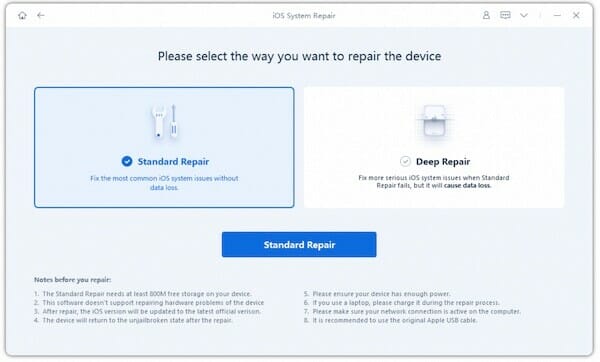
For a good reason, Dr.Fone is one of the most powerful iOS system repair software. The tool comes with two optional modes, the standard and the advanced, convenient for you to solve different problems according to specific situations.

With Standard Mode, we can fix most iOS system issues without losing data on the iOS device.

The software also has advanced mode capabilities, making it easy to fix more serious iOS issues.

Pros

  • Fix various iOS system issues, including white Apple logo, boot loop, etc
  • Repair the iOS system from the full range of devices, including iPhone, iPad, and iPod touch.
  • Standard and Advanced repair options
  • Fix most iOS issues without data loss
  • Supports various iOS versions, including iOS 15
  • Easy to use
  • A free version is available

2. Tenorshare ReiBoot

Tenorshare ReiBoot

ReiBoot is another iOS repair tool that Tenorshare introduced. It is crucial in repairing iOS issues such as iPhone freezing, and the screen won’t turn on, iPad stuck on DFU mode, and other commON problems. It is worth noting that this tool allows one to recover the iOS system to normal status without losing any data. Additionally, the trial version of this program allows you to either enter or exit the recovery mode in one click for free.

Pros

  • Fix 150 iPhone system, not working issues and iPhone/iTunes 4013/4005 errors.
  • Easy To Use

Cons

  • The Tenorshare ReiBoot Free version does not work. You are required to register and provide the ReiBoot registration code.
  • Even though ReiBoot does not work, it is hard to ask for a refund. The ReiBoot 30-day money-back guarantee is misleading.
  • Most ReiBoot iPhone troubleshooting solutions are not working.

3. PhoneRescue for iOS

Phone Rescue for iOS

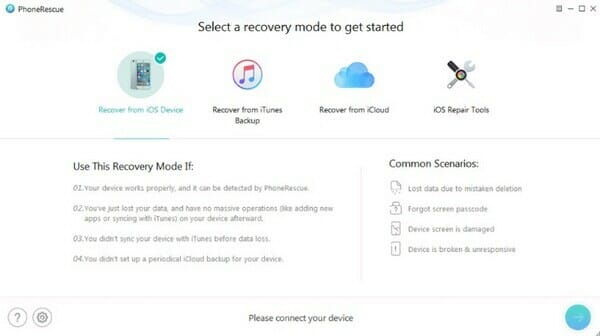
This app is arguably one of the best iPhone repair software tools out there. It will help you to repair a wide range of problems such as devices stuck in the recovery mode, Apple logo, upgrade failure, iPhone activation problem, and so on.

Pros

  • One-click to get into recovery mode free
  • Fix a wide range of iPhone issues on iPhone/iPad.

Cons

  • Time-consuming to repair iOS system issue;
  • High chance of data loss during the repair process
  • The tool is not stable and will crash at times.

4. Joyoshare UltFix

JoyoshareUltFix(iOS System Recovery

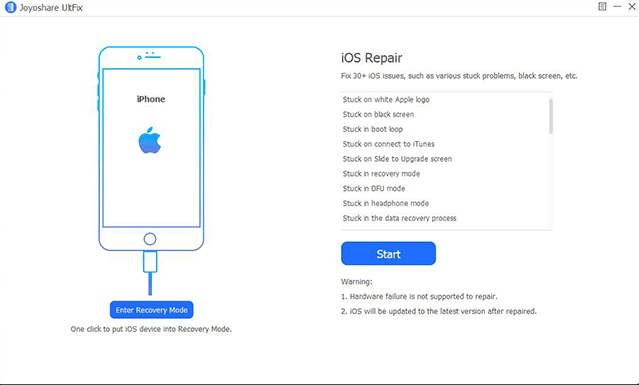
Joyoshare UltFix is a safe and trustworthy iOS system recovery tool that can fix over 30 different common or serious iOS problems such as iPhone gets bricked, iPhone stuck on a black screen with a spinning wheel, GIFs not working on iPhone, etc. More importantly, Joyoshare UltFix can repair the problem without causing any data loss.

Pros

  • Repair more than 30 kinds of iOS/iPadOS/tvOS issues.
  • Reset your iOS device to factory settings without a password.

Cons

  • The trial version has limited features.
  • The support team is slow to resolve the queries of the customers.

5. FoneDog Toolkit- iOS Recovery System

fonedog ios system recovery

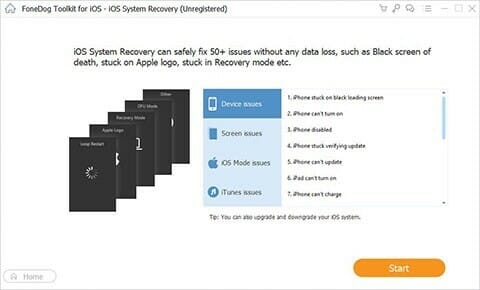
FoneDog Toolkit, an iOS Recovery Program, is one of the favorite tools for iOS users. It claims to fix more than 50 problems like an iPhone that is stuck on Apple’s logo, freezing, crashing, iTunes error codes, red/white/black/blue screen, among others.

Pros

  • Repair different system issues on iPhone/iPad

Cons

  • Doesn’t have the ability to fix issues on Apple TVs

6. iMyFone – Fixppo

imyfone fixppo

iMyFone Fixppo lets you fix a wide range of iOS problems, including an iOS device stuck on a white screen, Apple logo, spinning circle, recovery mode, boot loop, etc.

Pros

  • Simplified UI makes it easy to use
  • Available for both Mac and Windows
  • Has step-by-step guide for all users

Cons

  • The advanced mode of this program might wipe out the settings and delete content on iPhone

7. FoneLab – iOS System Recovery

FoneLab- iOS System Recovery

One more tool that has been made to this list is FoneLab. The tool lets you fix an iOS device from headphone mode, DFU mode, Apple logo, recovery mode, and Apple logo to a normal state without data loss.

Pros

  • Recover iPhone from headphone mode, DFU mode, Apple logo, recovery mode, among others.
  • It is safe and easy to use.

Cons

  • Slower to work
  • Sometimes it won’t fix iOS stuck effectively.
  • The trial version doesn’t include the file recovery feature.

Conclusion and recommendation

Commonly, you may encounter such problems as iPhone stuck on the Apple logo, recovery mode, etc. But take it easy because these iOS system repair tools are here to help you. Above all the listed tools, it is recommended that users use Dr. Fone System Repair since it’s undoubtedly the easiest iOS system repair solution with the highest success rate.

Dr.fone – System Repair stands out among other software like ReiBoot and iMyFone due to its high demand and comprehensive features, affordable price, and high customer rating.

As compared to other iOS system repair tools, Dr. fone – System Repair is much more powerful, and all the features are as simple as they could be. Where other iOS system repair tools are complex and advanced and are compatible with few iPhone models, Dr. fone – System Repair has a simple UI and UX interface and is compatible with a wide range of iPhone models.

Feel complicated to store multiple passwords for various accounts? Worried about your social media accounts getting hijacked by hackers and abusing your social media accounts?

You don’t have to anymore; use the following best password storage applications or password managers to keep your social media accounts safe on iOs devices.

Understanding Password Manager

A password manager is a software or application that allows you to create passwords with complex and lengthy combinations. Still, you don’t need to remember them because this application will automatically store and manage the passwords.

Some of these password storage applications also have a form filler feature, which is a feature that can automatically fill in your username and password when you log into any social media account.

So if you want to have super-secure passwords and complicated combinations but don’t want to remember them, a password manager app is an answer.

How It Works

These are the applications for storing and managing passwords by generating unique, complex and lengthy password combinations and then saving them to a database in encrypted form so that this password data is protected from hackers.

So, for example, someone can access your PC or smartphone to get your account password. The hacker will not get it because the stored password data is encrypted. This encrypted file can only be accessed via the master password; the primary password used to access the Password Manager application. So, all you need to remember is the master password to open the password manager application.

But make sure that this master password is secure. Use a combination of numbers and letters, preferably at least 16 characters.

Best iOS Apps for Managing Your Password

Authy

Authy already supports most services that have implemented 2-factor authentication, such as Gmail, Github, Evernote, Dropbox, etc. The appearance of the application is immaculate and sleek. Account options with 2-factor authentication are listed in the boxes at the bottom.

You can easily copy the resulting 6-digit number with the easy-to-notice button. Authy added a today widget in the Notifications Center to make things easier. Authy also has an Apple Watch version of the app.

Although you got a decent amount of protection with Authy, it’s better if you add another layer of safety. Keeping yourself safe when browsing is essential since hackers can obtain your personal information once you’re connected to the internet.

To solve the problem, you need something called VPN. Amongst the other top best VPNs, there’s one called Cyberghost VPN, which we highly recommend.

LastPass Authenticator

LastPass is an online password manager service. Apart from managing passwords, LastPass has its app to generate an additional 6 digit number.

Just like Authy, LastPass already supports most online services with 2-factor authentication. If you use the LastPass password manager service, this application would be a fitting complement.

Enpass

The Enpass password manager application also supports a 6-digit code to access data from your saved list of account credentials. This application helps store account data and passwords in one place, so you only need to remember one secure password to access other data.

The application is also equipped with a peek and pop feature to find the stored passwords’ details easily. An Apple Watch version is also available to make it easier to get 6 OTPs via Apple smartwatches.

1Password

1Password was originally a password manager app that later added 2-factor authentication. The advantage of using 1Password is that you can manage it with your stored passwords and sync them according to your needs, either via Dropbox or iCloud.

OneSafe Password Manager

OneSafe is one of the best password storage apps for iOS devices, be it iPhone or iPad. This application can store passwords and be used to store important documents such as credit card data, photos, and others.

Like other password manager applications, One Safe also works by encrypting password data with AES-256 encryption, which is the highest level of encryption for mobile devices today.

OneSafe also uses Touch ID to log in to apps securely. In addition to the primary password, you can also provide additional passwords for specific folders that you think contain sensitive data.

Another feature is that it supports autofill when logging in to the browser, so you don’t have to repeatedly enter your username and password every time you want to log in.

In addition, OneSafe also provides features such as automatic locking, detecting suspicious logins, self-destruct (which runs automatically) and two-step authentication.