Before apps use the camera or microphone on your iPhone, they’re required to request your permission and explain why they’re asking. For example, a social networking app may ask to use your camera so that you can take and upload pictures to that app.
Apps are similarly required to request your permission to use various other hardware features, including Bluetooth® connectivity, motion and fitness sensors, and devices on your local network. You can review which apps have requested access to these hardware features, and you can change their access at your discretion.
Here’s how to control access to hardware features on iPhone.
Review or change access to the camera, microphone, and other hardware features
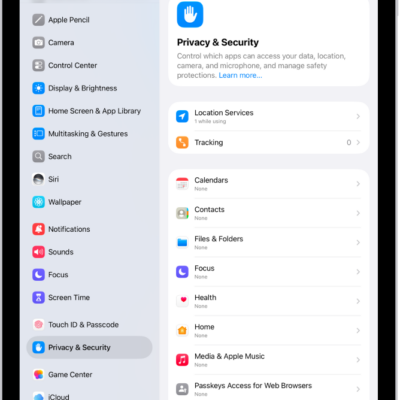
- Open Settings and then tap Privacy & Security.
-
Tap a hardware feature, such as Camera, Bluetooth, Local Network, or Microphone.
The list shows the apps that requested access. You can turn access on or off for any app on the list.
Note: Whenever an app uses the camera (including when the camera and microphone are used together), a green indicator appears. An orange indicator appears whenever an app uses the microphone without the camera. Also, a message appears at the top of Control Center to inform you when an app has recently used either.