You can copy, move, customize, share, and delete your documents, images, and other files on your iPhone.
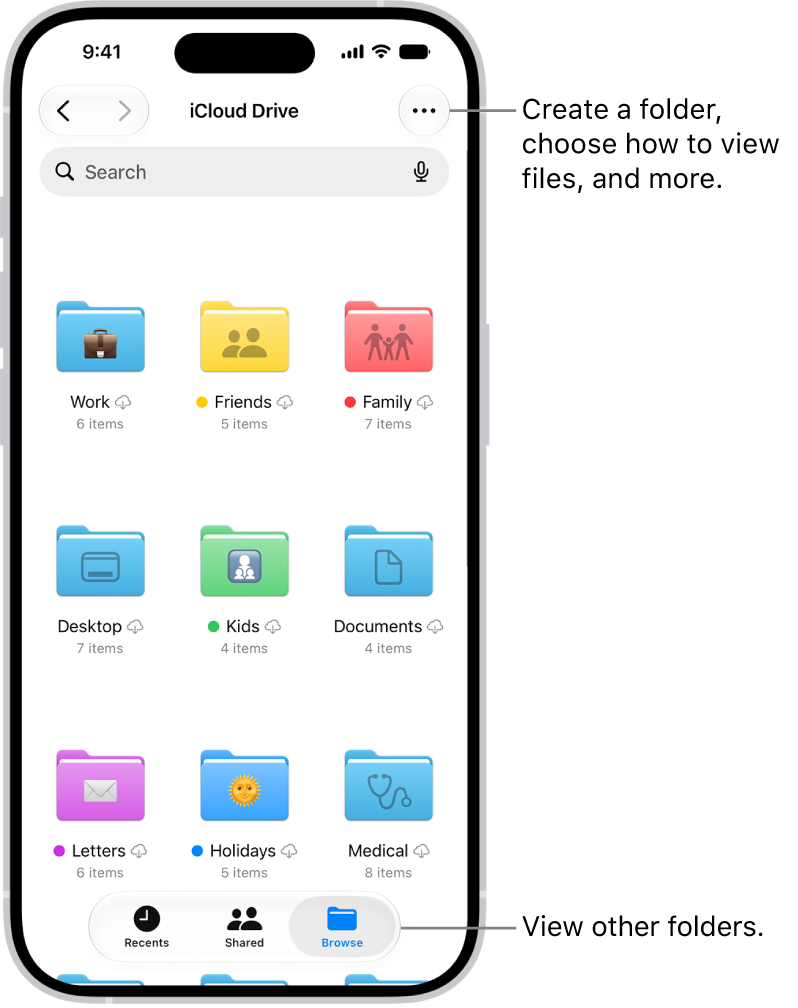
Your folders don’t have to look alike, either. You can customize the appearance of your folders with color and icons, change to list view or icon view, and rearrange the Browse screen. And you can delete a file or folder you no longer need. That command doesn’t appear for the Desktop, Documents, or Downloads folders, though.
Customize the appearance of your folders
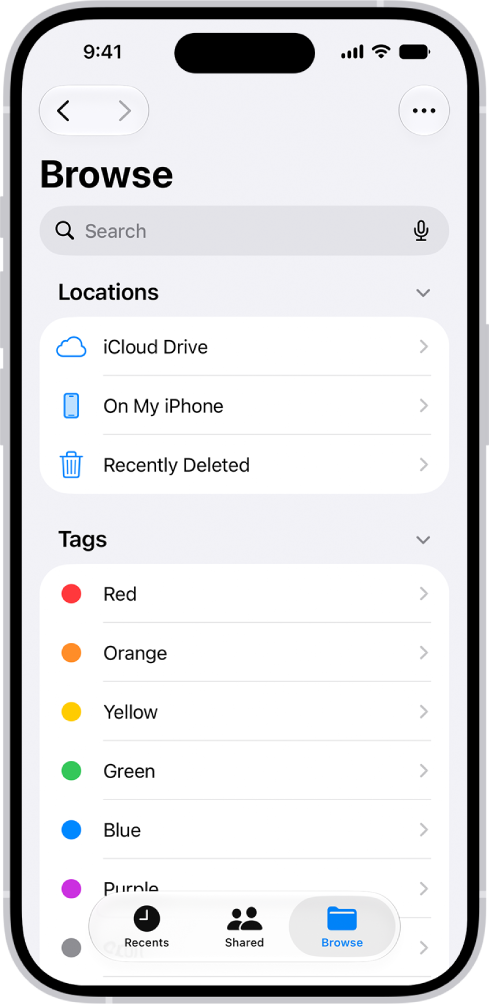
To make your folders easier to spot, add color and icons to them.
- Open the Files app on your iPhone.
-
Touch and hold a folder you want to customize and choose Customize Folder & Tags.
Note: This command doesn’t appear for the Desktop, Documents, or Downloads folders.
- Tap Tags, choose a color, and then tap the Back button.
- Select an icon or tap Emoji to add an emoji to the folder.
To remove the icon from the folder, tap Clear below the icons.
Change to list view or icon view
- Open the Files app on your iPhone.
- From an open location or folder, tap the More button. Tap Icons or List to change your view of the files.
To look deeper into a file hierarchy in List view, tap the Forward button next to a folder to expand it.
Rearrange the Browse screen
- Open the Files app on your iPhone.
- Tap Browse.
- On the Browse screen, tap the More button, tap Edit, and do any of the following:
- Hide a location: Turn the location off.
- Delete a tag and remove it from all items: Tap the Remove button next to the tag.
- Remove an item from the Favorites list: Tap the Remove button next to the item.
- Change the order of an item: Touch and hold the Reorder button and then drag it to a new position.
Delete a file or folder
- Open the Files app on your iPhone.
- Tap Browse and then locate the file or folder you want to delete.
- Touch and hold the file, then tap Delete.
Tag: Files