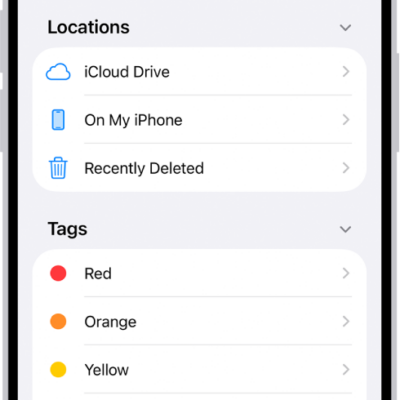
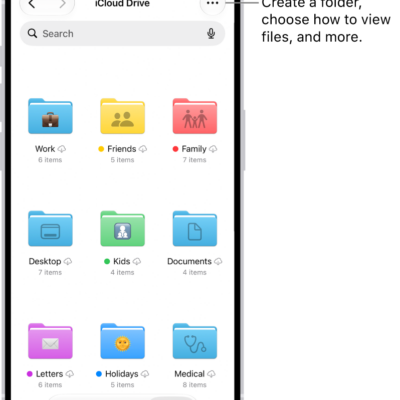
In the Files app, you can organize documents, images, and other files in folders.
You can create a folder in a location or an existing folder, then copy, compress, and make other changes to a file or folder. You can also rename a file or folder, zip or unzip a file or folder, tag a file or folder, and mark a folder as a favorite. If you don’t see New Folder, though, you can’t create a folder in that location.
Create a folder
- Start the Files app on your iPhone.
- Open a location or an existing folder.
- Tap the More button, then tap New Folder.
Note: If New Folder doesn’t appear, you can’t create a folder in that location.
Copy, compress, and make other changes to a file or folder
- Start the Files app on your iPhone.
- Open a location or an existing folder.
- Touch and hold the file or folder. Choose an option: Copy, Move, Compress, Duplicate, or Delete.
Depending on the item you select, some options may not be available. You can’t delete or move an app library, for example, which is a folder labeled with the app name.
To modify multiple files or folders at the same time, tap the More button, tap Select, tap to select the files or folders you want to modify, then tap an option at the bottom of the screen (for example, Share, Move, or Delete).
Rename a file or folder
- Start the Files app on your iPhone.
- Open a location or an existing folder.
- Touch and hold the file or folder and choose Rename.
With Apple Intelligence, Files recommends a name above the keyboard when you rename a file.
Note: Apple Intelligence on iOS 27 or later is available on an Apple Intelligence-enabled iPhone 15 Pro, iPhone 15 Pro Max, or iPhone 16 model or later. Apple Intelligence is not available in all languages or regions. Usage limits may apply.*
Zip or unzip a file or folder
Zipping a file or folder compresses it so it takes up less storage space on your iPhone, and unzipping a compressed file or folder works, too.
- Start the Files app on your iPhone.
- Touch and hold the file or folder you want to zip. Then tap Compress.
To unzip a compressed file or folder, touch and hold it, then tap Uncompress.
Tag a file or folder
- Start the Files app on your iPhone.
- Open a location or an existing folder.
- Touch and hold the file or folder, tap Tags, and then tap one or more tags.
- Tap Done.
To find tagged items, tap Browse, then tap an item below Tags.
To remove a tag, tap it again.
Mark a folder as a favorite
- Start the Files app on your iPhone.
- Open a location, touch and hold the folder, and tap Favorite.
To find Favorites, tap Browse.
*Apple Intelligence is available with Siri and device language set to Chinese (Simplified), Chinese (Traditional), Danish, Dutch, English, French, German, Italian, Japanese, Korean, Norwegian, Portuguese, Spanish, Swedish, Turkish, or Vietnamese. Some features may not be available in all regions or languages. Some devices may not be available in all regions. Siri AI is available in beta in iOS 27, iPadOS 27, macOS 27, watchOS 27, and visionOS 27 and requires an Apple Intelligence–enabled device set to a supported language. Available in English to start. Siri AI will not be initially available in the EU on iOS, iPadOS, and watchOS. Certain Apple Intelligence features that rely on server-side models are subject to daily usage limits, including but not limited to Siri AI, Intelligent Photo Editing Tools, Image Playground, and AFM 3 Cloud models in Shortcuts. Daily limits may vary by feature, request complexity, system demand, system policies, and other factors. Expanded access to such features will be available for a fee in the future. Use of these features is subject to the Apple Intelligence Terms and Conditions.