Some websites and apps offer two-factor authentication (also known as multifactor authentication), which helps prevent other people from accessing your accounts even if they know your passwords. Passwords are the first authentication factor, and temporary, one-time verification codes are commonly a second factor.
iPhone can automatically generate these verification codes without your reliance on SMS messages or additional apps. Setting it up takes either a QR code from the website, scanned with your iPhone camera, or a setup key you enter in the Passwords app.
Here’s how to automatically fill in one-time verification codes on iPhone.
Set up automatic verification codes for a website or app by scanning a QR code
Another device with a screen, like a computer or iPad, can display a QR code from a website or app. Then you can scan the code with the iPhone camera.
- On your other device, sign in to the area of the website or app where you manage your account. Select options to enable two-factor authentication and an authenticator app. A QR code appears to help you set up an authenticator app.
- On iPhone, use the camera to scan the QR code.
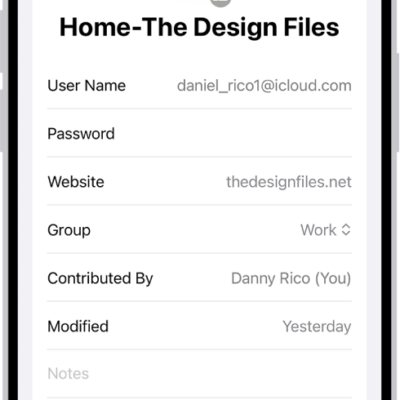
- On iPhone, select your account for the website or app. A verification code appears below the User Name and Password fields.
- On your other device, enter the verification code that appears on your iPhone.
Set up automatic verification codes for a website or app by entering a setup key
If you can’t scan a QR code from another screen, enter a setup key manually instead.
- Sign in to the area of the website or app where you manage your account and then select options to enable two-factor authentication and an authenticator app.
- Choose the option to manually use a setup key (or setup code or similar) and select and copy the setup key.
- Start the Passwords app on your iPhone.
- Tap All, then tap your account for the website or app.
- Tap Edit, then tap Set Up Code.
- Visit the website to get a setup key, enter the setup key in Passwords and then tap Use Setup Key.
If the website offers a QR code, you can touch and hold it, then choose Add Verification in Passwords to do this automatically.
Use a verification code on a website or in an app
- Sign in to the website or app.
- If prompted, select the option to use an authenticator app.
- When asked for a verification code, tap the suggestion that appears above the keyboard.
If no suggestion appears, go to the Passwords app on your iPhone, select your account for the website or app, tap the verification code, then tap Copy Verification Code. Return to the website or app, then paste the verification code into the field.
Automatically delete one-time verification codes
Since one-time verification codes are filled in automatically, there’s no need to leave the website or app you’re signing in to. After Autofill enters the verification codes, you can keep them or choose to delete them automatically.
- Start the Settings app on your iPhone.
- Tap General, then tap Autofill & Passwords.
- Under Verification Codes, turn Delete After Use on or off.