You can search for text messages and attachments, using different criteria to narrow your results. You can limit your search to one person or conversation, or to types of shared items, like Photo, Link, or Wallet, and combine search criteria.
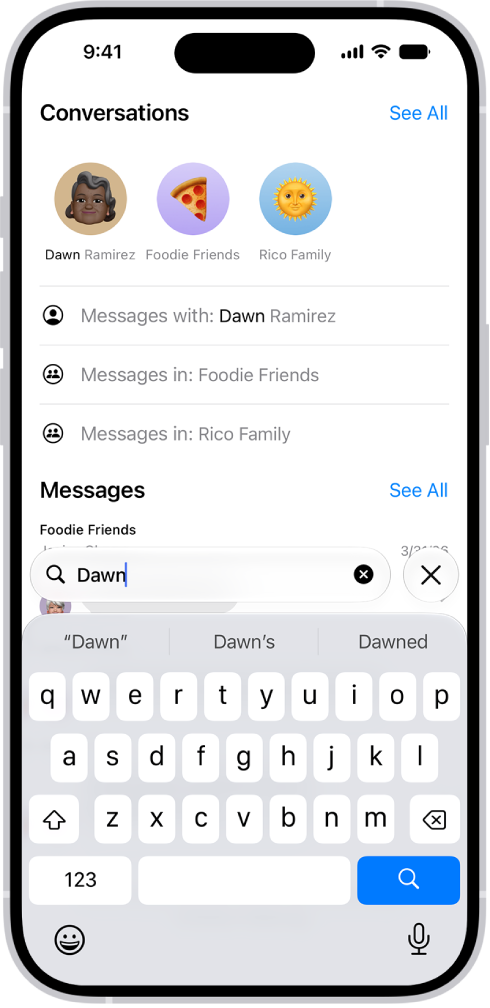
- Open the Messages app on your iPhone.
- Tap the search field below the conversation list.
- Enter what you’re looking for (such as a word or phrase).
- To filter your search, do any of the following:
- Limit your search to one person or conversation: Start by typing a person’s name, tap Messages with or Messages in and then tap other criteria that appear or add any text you want to find in your conversation.
- Limit your search to types of shared items: Begin your search with a search term—such as Photo, Link, Wallet (for passes). When a filter appears near the top of the screen, tap it to add it to filter the search.
- Combine search criteria: Add another search term or filter.
- Tap the Search button. Tap a message in the results list to read it.
The search field also opens suggestions—such as conversations, photos, locations, links, and more. Tap any suggestion to quickly jump to a conversation.
Tag: Messages