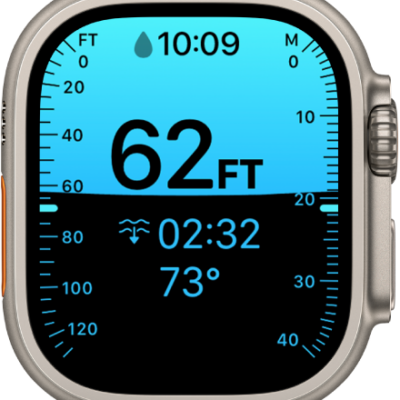
You can customize your preferences for the Depth app in Settings. (Supported on all Apple Watch Ultra models, Apple Watch Series 10, and later—excluding Apple Watch SE 3.)
You can choose depth and temperature units, set the Depth app to open automatically or manually, and configure the Action button to start a dive. You can also make these changes in the Apple Watch app on your iPhone.
Here’s how to configure the Depth app on Apple Watch.
Choose depth and temperature units
- Start the Settings app on your Apple Watch.
- Tap Depth, then choose depth units (Meters or Feet) and temperature units (Celsius or Fahrenheit).
You can also go to the Apple Watch app on your iPhone, tap My Watch, tap Apps, then tap Depth.
Set the Depth app to open automatically or manually
- Start the Settings app on your Apple Watch.
- Tap General, then tap Auto-Launch.
- Below When Submerged, choose one of the following:
- Off: Start a dive manually by opening the Depth app or pressing the Action button (available on Apple Watch Ultra models).
- Selected App: Automatically opens the Depth app. (To open a compatible third-party app instead, tap App, then choose the app.)
- Remain on Watch Face: Monitor your dive by adding complications to the watch face.
You can also go to the Apple Watch app on your iPhone, tap My Watch, tap General, tap Auto-Launch, then choose an option below When Submerged.
Configure the Action button to start a dive (available on Apple Watch Ultra models)
- Go to the Settings app on your Apple Watch Ultra.
- Press Action Button, tap Action, and then choose Dive.
- Tap the Back button and tap App. Then choose the Depth app or a compatible third-party app.
See also
Tag: Depth