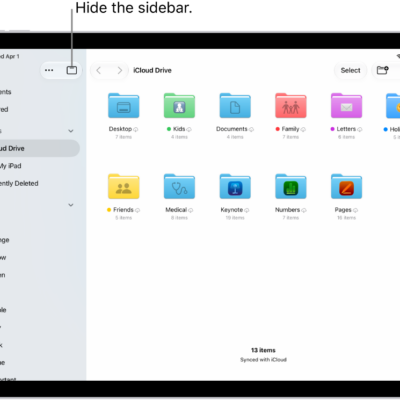
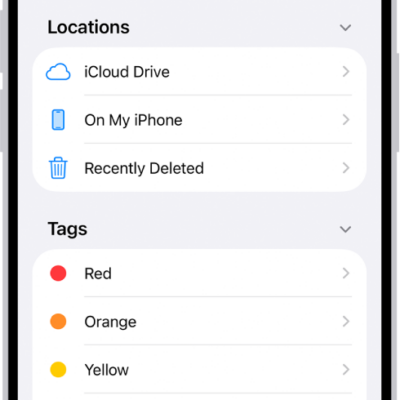
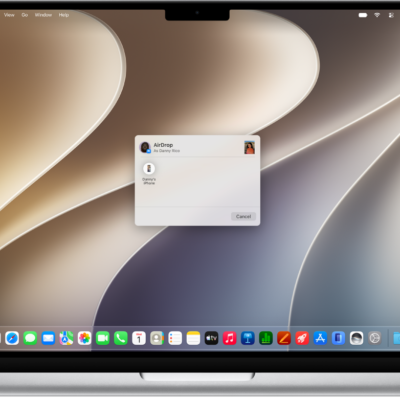
In the Files app, you can locate and view your files, organize and rearrange them in folders, compress, rename, and share them with friends, and transfer them to and from iCloud Drive and other locations. Downloads, iCloud Drive, and Recents are all in the sidebar.
- Open the Files app on your iPad.
-
Do any of the following:
-
View files downloaded from email or the internet: Tap the Sidebar button at the top of the screen and tap Downloads in the sidebar. See Find your downloaded files.
Note: If you don’t see the Sidebar button, tap the Hide Sidebar button.
- Browse your files on iCloud Drive: Tap the Sidebar button at the top of the screen. See Browse iCloud Drive.
- View files you opened recently: Tap the Sidebar button at the top of the screen and then tap Recents at the top of the sidebar.
- View shared files: Tap the Sidebar button at the top of the screen and then tap Shared in the sidebar.
- Copy, move, share, or delete a file or folder: Locate the file or folder, touch and hold it and then tap Copy, Move, Share, or Delete. See Modify files and folders in Files.
-
View files downloaded from email or the internet: Tap the Sidebar button at the top of the screen and tap Downloads in the sidebar. See Find your downloaded files.
Tag: Files