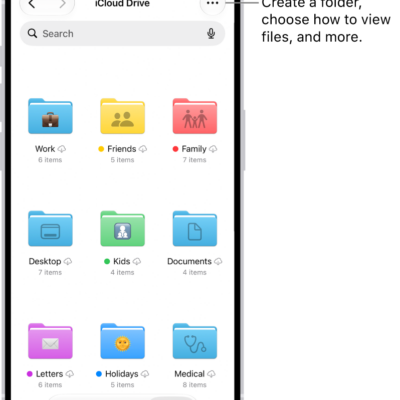
In the Files app, you can search for and view your documents, images, and other files.
You can focus your search on Recents or a location or tag, and start a new search at any time, too. You can also select an app to open a file, and choose a default app for a type of file.
Here’s how to find and view files and folders in Files on iPad.
Find a specific file or folder
- Open the Files app on your iPad.
-
Tap the Search button and enter a filename, folder name, or document type in the search field.
When you search, you have these options:
- Focus the scope of your search: Below the search field, tap Recents or the name of the location or tag.
- Hide the keyboard and see more results on the screen: Tap the search key on the keyboard.
- Start a new search: Tap the Clear Text button in the search field.
- Open a result: Tap it.
Select an app to open a file
When opening a file, you can specify the app you want to open it with.
- Open the Files app on your iPad.
- Touch and hold the file you want to open.
- Choose Open With from the menu. Choose an option.
Choose a default app to always open a file
- Open the Files app on your iPad.
- Touch and hold the file, then choose Get Info.
-
Below the Preview, tap the pop-up menu next to Always Open With. Then select an app.
When you select a new default app to open the file, a prompt appears to verify if you want to change the default app for that file or file type.
Open a file in Quick Look
You can preview an image file or a PDF in Quick Look.
- Open the Files app on your iPad.
-
Touch and hold the file, then tap Quick Look.
Tip: To open a specific type of file in Quick Look, touch and hold the file, tap Open With, then tap Preview with Quick Look.
Browse files and folders
- Open the Files app on your iPad.
-
Tap Browse at the top of the screen. Then tap a document on the Browse screen.
If you don’t see the Browse screen, tap Browse again.
- To view recently opened files, tap Recents at the top of the screen.
-
To open a file, location, or folder, tap it.
Note: If you haven’t installed the app that created a file, a preview of the file opens in Quick Look.
To mark folders as favorites or add tags, read our article, Tag a file or folder.
Change how files and folders are sorted
- Open the Files app on your iPad.
- From an open location or folder, tap the More button in portrait orientation or the Icons button in landscape orientation.
- Choose an option: Name, Kind, Date, Size, or Tags.
See also