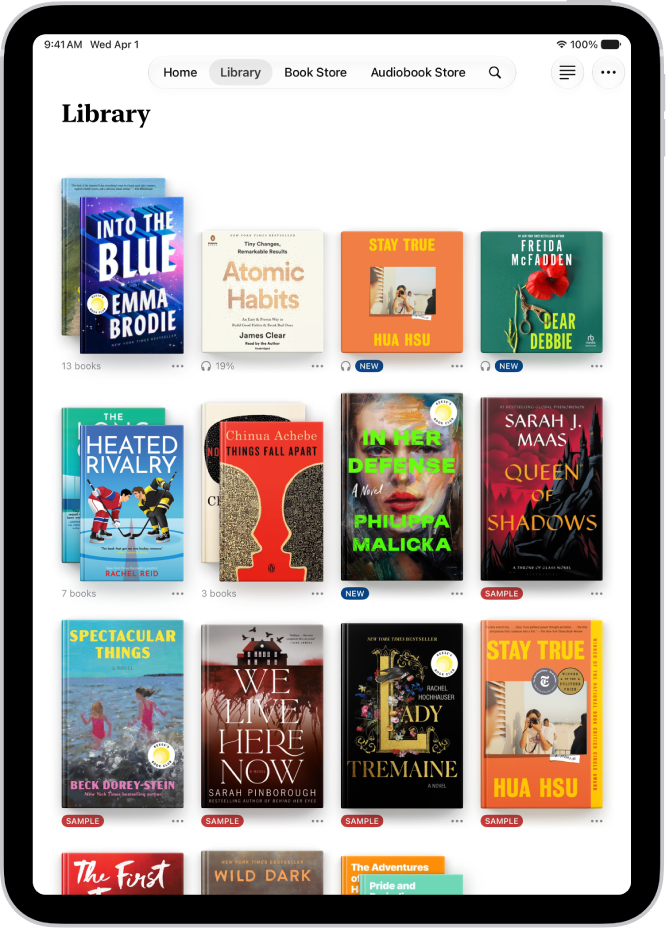
The books and audiobooks you purchase in the Books app are saved in your library and automatically sorted into collections, such as Audiobooks, Want to Read, and Finished.
You can also create your own collections to personalize your library, and add a book from your library or the Book Store to them. The same book can be in more than one collection, and you can remove books and audiobooks from your library.
Note: Apple Books isn’t available in all countries or regions.
Create a collection
Creating your own collections helps organize and personalize your library.
- Open the Books app on your iPad.
-
Tap Library, tap the Collections button, and then tap New Collection.
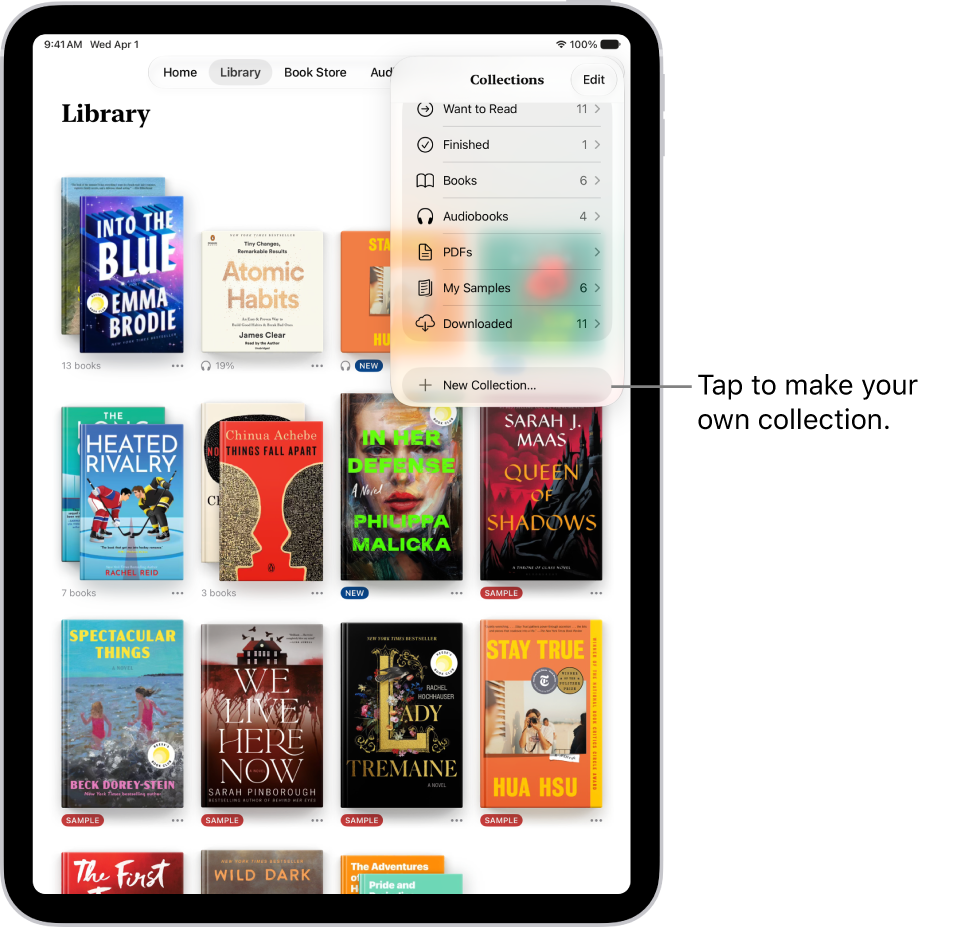
- Name the collection—for example, Beach Reads or Book Club—then tap the Done button.
Add a book to a collection
Collections you create can hold books from your library or from the Book Store.
- Open the Books app on your iPad.
- Go to a book. Then tap the More button below the cover.
- Tap Add to Collection and tap the collection you want to add it to.
Quick tip: You can add the same book to multiple collections.
Organize your books
You decide how books in your library or a collection are displayed and sorted.
- Open the Books app on your iPad.
- Tap Library or go to a collection.
-
Tap the More button. Then do either of the following:
- Change the book display: Tap Grid or List.
-
Sort your books: Tap Recent, Title, Author, or Manual.
If you choose Manual, touch and hold a book cover, then drag it to a new position.
Remove books, audiobooks, and PDFs
Books, audiobooks, and PDFs can be removed from Home and your library collections, and you can also hide them on your iPad.
- Open the Books app on your iPad.
- Go to a book or audiobook you want to remove. Tap the More button below the cover.
-
Tap Remove and choose an option.
Note: If you choose Remove Download, the content and data associated with the title are no longer stored on your iPad. To redownload the title, tap the More button, then tap Download. If you choose Hide Book, the book won’t appear in your library or collections. To unhide books and audiobooks, tap Home, tap your account icon, then tap Manage Hidden Purchases.
You can automatically remove downloads from your iPad after you finish a book. Tap Library, then tap the More button at the top right of the screen. Tap Remove Downloads, then tap Automatically When Finished.
Delete a collection
- Open the Books app on your iPad.
- Tap Library, then tap the Collections button.
-
Swipe left on the collection you want to delete and then tap Delete.
Note: Deleting a collection doesn’t delete the books or audiobooks in the collection; they’re still in your library.
See also