Got a tip for us?

Apple

Grab your digital sign (or a TV) and grab your Apple TV box. Plug it all in, which is easier than it sounds because it is all plug-and-play. Then, add your Apple TV signage software, such as the Kitcast program, and you can start streaming your digital sign content to your screen. Not only that, but you can also scale up the process so that you are screening the same information to several screens, or you can rig a setup where you have different things streaming to different screens. Here is a quick review of how digital signage for Apple TV software works.

Downloading and Installing the Software

These days, downloading and installing your digital sign software is just as easy as downloading and installing Candy Crush or Angry Birds on your phone. If you wish to operate your digital sign using the Internet, then you will need to visit your dashboard online and register your new device.

This may seem like busy work, or perhaps even like some sort of Microsoft-inspired piracy protection, but it is actually for your protection. If you register your devices, then other people can’t put your content on their screens without your permission. It also means that if somebody steals your digital sign or Apple TV box, then you can deactivate it so that they cannot use or steal your digital sign content or settings.

The sign-up procedure is pretty simple. You link your device and name it. Choose your names very carefully because you may eventually have many digital signs. When you launch the Kitcast app on your Apple TV, you will be given a code that allows you to link your device to your Kitcast online account and/or your digital sign software.

Create Your Content

You may already have all the content you need for your digital sign, or maybe you are streaming live data, in which case it doesn’t matter if you create fancy content. You can choose between both when you use good digital sign software.

You can choose live feeds and all sorts of data-driven content by using various widgets on offer. For example, you can have a live feed of the weather in your area by adding a live weather widget and setting the surrounding area as its target location.

On the other hand, you can choose to make your own digital sign content. If you use a good piece of digital sign software, like that offered by Kitcast, then you can use smart templates. These are templates that allow you to drag-and-drop information and slot content into the template. These templates then run like well-made digital sign content. As far as anybody is concerned, a professional designer created your content to look as slick and smooth as a TV advert.

Getting Your Own Content Up There

If you are using your digital sign software over the Internet, which is the easiest way (especially if you have multiple screens), then uploading your own content is just like adding it to Facebook or YouTube. You can then arrange and schedule it using the Kitcast app or Kitcast dashboard.

Even if you created some content using the smart templates system, you can still schedule your content to run both the template stuff and your own videos. In fact, if you just want a slideshow of images, then you can do that too.

Getting Live Feed Information

As hinted at earlier, all you have to do is add a widget to get live feed information. Getting something like the weather up there is easy, especially when it comes to setting it up. But, you can also add a slew of other widgets. You can get live feeds for everything from news on current wars to bitcoin prices. If you were part of a bigger company, you could even have your own data streamed as part of your digital sign strategy. For example, many call centers have their sales quotas or waiting times fed into their digital signs so that their employees can see how much more is needed before they hit their targets or go over the call-waiting threshold.

An
Apple Watch
can do many things that your iPhone can’t. Benefits include tracking your heart rate, sleep, activity and overall fitness level.

The Apple Watch has taken center stage in the last few years. An Apple Watch has the capabilities of a fitness tracker, can run apps like an iPhone, and looks fashionable while being worn on the wrist.

Maybe you’ve been thinking of buying an Apple Watch for quite some time but still unsure whether you really need such a device. To help you make an informed decision, we will discuss the Apple Watch advantages.

Advantages of an Apple Watch

There are many advantages of having an Apple Watch. Here are just some of them:

1. timekeeping

This is the first most concrete benefit of having an Apple Watch. It’s not an uncommon story: You stopped wearing a watch because your iPhone had a big clock right on the Lock screen, only a pocket- or bag-pull away. It’s the old single- vs. multi-tasker debate, and why convergent devices like the iPhone proved so popular in the first place.

The Apple Watch is also a convergent device, and that convergence can be seen in every aspect, including how it tells time. When you want to see the clock on your Apple Watch, you don’t have to dig into your pocket or reach for your bag. You simply turn your wrist, the screen lights up, and you can view the time and date. It can be just that simple or, in the grand tradition of timekeeping, you can add “complications”.

The Watch’s faces range from minimal to infographic to utilitarian to motion graphics to astronomy to, well, Mickey and Minnie Mouse. Each face also includes a number of complications which offer even more data, if you want to enable them.

Complications can include features as subtle as a monogram for personalization, but also world clocks, alarms, a stopwatch, the weather, sunrise and sunset, activity levels, phases of the moon, upcoming appointments, and stock quotes.

You can have complications for your apps as well, so you can see your ETA, access your voice recorder, see sports scores, measure your activity, or even tell how much distance is left before your Pokémon eggs hatch. (Seriously.)

If that level of efficiency is intriguing to you, the Apple Watch might be just intriguing to you.

2. Quick Access to Notifications

You already get notifications on your iPhone. You can tell when they come in thanks to the beep, buzz, or bubble on your Lock screen. With the Apple Watch, however, those notifications can appear on your wrist, sending you a subtle tap that doesn’t even light up the display unless you turn the Watch to signal your interest.

Then, you only get a short summary of the information, providing the app name along with a brief bit of context. From there, you get to decide if you want to stop what you’re doing and view more.

There’s also a Notification Center, just like on iPhone, so you can swipe down and glance at everything and anything that’s come in and quickly see what’s happening and what, potentially, you need to take care of. And you can do it without reaching into your pocket or bag.

Facebook messages, turn-by-turn directions, airplane boarding passes, coffee cards, and other app interactions can benefit from being more easily accessible. If that appeals to you, Apple Watch might appeal to you.

3. health and fitness

Apple has recently re-focused Watch marketing around health and fitness and it’s no mystery as to why. With a GPS and an upgraded built-in heart-rate monitor on the latest Series 7 models, Apple Watch makes for a compelling exercise and wellness companion.

You automatically track all the basics, including standing and moving around as well as exercise, steps, and stairs climbed.

There’s also a Workout app that’s been specifically created to track your walks, runs, rides, rolls, and more. With improved water resistance for more recent Apple Watches, you can even track your swims and get detailed maps of your routes on land and sea.

Beginning with the Apple Watch Series 4, Apple has included an ECG, or electrocardiograph in the watch. Electrodes built into the Digital Crown and the back crystal work together with the ECG app to read your heart’s electrical signals. Customers in the United States, much of the European Union, as well as an expanding list of countries around the world, simply need to open the ECG app, place a finger on the digital crown, and wait for 30 seconds while measurements are taken. The app will tell you whether you’re experiencing normal (sinus) rhythm, or if you might be experiencing atrial fibrillation.

The newer Apple Watch models also packs hardware for fall detection. If you have this feature turned on, and you take a serious fall, the Apple Watch will issue an alert, allowing you to either dismiss it if you’re not hurt, or call emergency services. If you don’t respond to the alert within one minute, the watch will automatically contact emergency services for you.

With Activity Sharing, you share your achievements with the people closest to you. That way, when you reach a goal or they do, you can send a message or emoji to encourage them. Or to trash talk them. Whatever works for you.

Strava, Nike , RunKeeper, and most other popular exercise apps have extensions for Apple Watch as well: You get to add the convenience of Apple Watch to whatever system and community you’re already involved with.

If any of those features could help you live a healthier, fitter life, the Apple Watch might be all the help you need.

4. Apple Pay

Apple Pay on Apple Watch is magic. Instead of having to fumble for your wallet or even your iPhone, you simply press a button on your Apple Watch, hold it close to the terminal, and you’re done. What makes it so great is that it’s always right there on your wrist, it never reveals your real credit card number or personal information, and if it loses contact with your skin (via the heart rate monitor), it shuts off so no one else can use it.

In many countries, tap to pay is already ubiquitous. In the U.S., it’s still rolling out. Yes, years later. Still. If you have a lot of tap-to-pay near you, the Apple Watch is especially compelling.

5. Reply to messages & receive calls instantly

Apple Watch has basic phone and messaging features built right in, which makes it feel like something straight out of science fiction. It’s incredibly convenient, especially if you have a bigger iPhone you typically leave on a table or in a bag. When any call or message comes in, rather than scrambling for it, you can simply glance at your wrist.

For short conversations or replies, you can talk or text right from your watch. For longer communications, you can start on your watch and smoothly transition to your phone, or you can just go get your phone once you see who’s calling and messaging on your wrist. You can even dictate or hand write short messages on Apple Watch, which makes it remarkably effective for quickly communicating on the go.

The GPS Cellular model takes this one step further, letting you call, communicate, dictate, or write even when your iPhone is far away. Send a message on a boat in the middle of a lake or look up a friend’s location while walking over to their place — whatever your heart desires, the GPS Cellular model lets you do it with or without your iPhone nearby.

If keeping in touch matters to you, the Apple Watch just might be the right touch for your wrist.

6. Remote control

The Apple Watch will let you control your Apple TV. It’ll also let you remotely access your iPhone’s camera, and thanks to Siri and HomeKit integration, it can even control the lights, thermometer, blinds, fans, and other connected devices in your home.

The possibilities for the Apple Watch are boundless. Not only does it mean never having to get up to turn off your lights, it means not even having to reach for your phone. You can adjust anything in your setup, right from your wrist.

7. Find your missing iPhone

Although an Apple Watch can do a lot of the same tasks as your iPhone, it’s still not an outright replacement – yet. However, it can come in very handy if you ever misplace your iPhone nearby by acting as a tracker.

If your iPhone and watch are still connected, you will be able to locate your larger device easily via the Find My app. Simply tap from the watch to make your iPhone emit a ringing sound that you can use to locate it. This is a very simple feature, but one you’ll likely end up using time and time again.

8. Listen to music offline

The Apple Watch come with some internal storage space. How much you get depends on the model, but there should always be enough for a few personal files. If you install a music app like Spotify then you’ll be able to use this storage space to download music for offline listening. This is perfect for certain situations where you want to listen to music but don’t want to take your iPhone, like going out for a run. You’re able to put an album or podcast on and hear it using wireless headphones.

9. Crash detection in Apple Watch might save your life

If a serious car wreck happens in a remote location, there might not be anyone to call for help. The driver can lie unconscious for hours or even die without rapid medical attention. In hopes of preventing this, the 2022 Apple Watch models all have crash detection.

The Apple Watch Series 8, the new Apple Watch SE and the Apple Watch Ultra use their accelerometer and gyroscope and a crash detection algorithm of Apple’s own creation. The software also gets data from the barometer to detect cabin pressure changes, the GPS for speed changes and the microphone listens for sounds indicative of a car wreck.

“To create the algorithm, data was collected from these new motion sensors at professional crash test labs with common passenger cars in simulated real-world accidents, including head-on, rear-end, side-impact, and rollovers,” said Apple.

If the Apple Watch detect an automobile wreck, the user will be notified that emergency services are about to be notified. If they are unresponsive after a 10-second countdown, the automatic call will go out. . Emergency responders will be given the device’s location, which is also shared with the user’s emergency contacts.

Many people who’ve been in a serious car wreck tell the same story – they’re driving down the road and the next thing they know there’s a EMT leaning over them. In situations like this, having an Apple Watch call for help can be a life saver.

Conclusion

There are many other benefits of having an Apple Watch. The ones mentioned above are just some of the concrete benefits you must know.

See also: Top 10 Advantages of an iPhone Over Android in 2022!

If you want to know the best uses of mac mini, you have come to the right place. In this article, I’ll explain the best uses of Mac mini in 2025.

Best uses of Mac mini

Like desktop computers, Mac mini are present in all areas of our lives. Companies, businesses, banks, schools, universities, and homes, in all these contexts the raw data is transformed into value and substantial knowledge. From Engineers to Doctors, Students, Teachers, businessman, and government organizations they all use Mac mini to carry out various tasks – entertainment, online earnings, and office work. If the uses of Mac mini are for good purposes then it is a blessing for humans.

What Is a Mac mini?

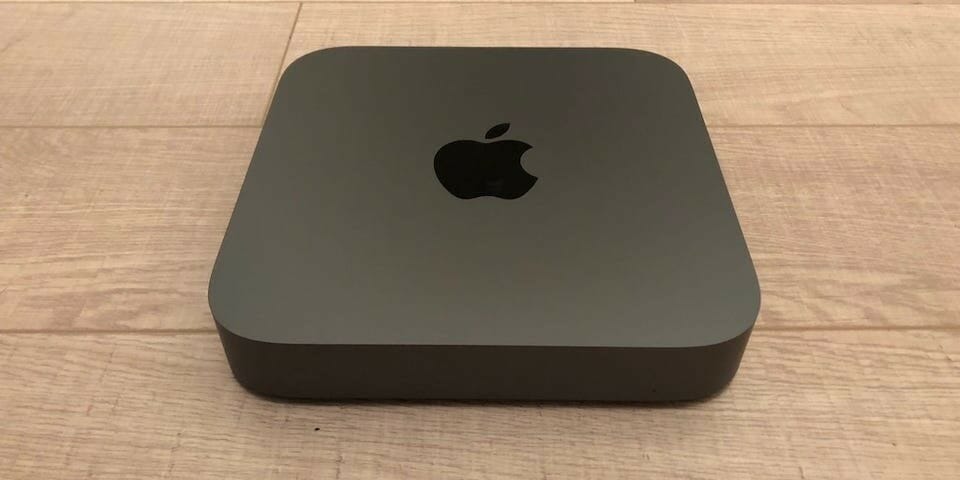
The Mac mini is a small desktop computer created by Apple. What makes the Mac mini different from a MacBook Pro or iMac is that it’s shipped without an accompanying screen, keyboard or mouse. However, one should not underestimate the power bundled into this tiny machine.

Mac minis are gaining popularity for both leisure and professional purposes. Unlike other small devices, such as netbooks or tablets, Mac mini rarely sacrifices computing power in its attempt to be more portable. You can do some incredible things with a Mac mini.

So what is Mac mini used for? Why would you buy a Mac mini instead of a MacBook Pro or iMac? Read on to learn the reasons they are becoming a highly-sought-after computing option in 2025.

Best Uses of Mac mini

Want to make sure you’re getting the most from your Mac mini device? The following are some of the best uses of Mac mini in 2025:

#1: Entertainment Center

The mac mini can be an amazing source of entertainment at home. You can watch movies, videos, listen to some music, play video games and chat with friends and family using this device. If you are at home and feel bored, you simply need to turn on your Mac mini and start watching some movies or start listening to music. Or if you enjoy playing games you can play video games on your Mac mini for entertainment purposes. If you want to chat with friends and family you can start chatting while staying at home via the internet.

The Mac mini ships with most of the software you need to listen to audio or play videos. Additional third-party software and services such as YouTube and Hula increase its range of uses. Apple includes these features because the mini still makes an incredible master of entertainment content. You do have to purchase a separate screen, keyboard and mouse or track pad, however. The heft storage space and plenty of RAM options, as well as the powerful processor, ensure that you can play and store any content you want.

#2: A Computer for the Professional on the Go

If you are a graphic designer, engineer, music producer, developer or freelancer who require serious computing power without the restrictions of a typical desktop computer, Mac mini is a great choice. The above occupations typically require a robust desktop computer for managing varied and demanding tools. As such, you have to make tradeoffs: buy a powerful but costly and not so portable iMac or iMac Pro, if you can afford it, or buy a MacBook Pro with portability but performance restrictions. The Mac mini offers performance and portability, but lacks a display, making it a good compromise for some users.

Lack of portability can be a huge drawback for creative professionals, as collaborating with clients outside of a typical working environment is becoming very popular. The added mobility – when necessary – of the Mac mini solves this problem, as long as a monitor is available. Mac mini is incredibly easy to carry around. It won’t take up more room than a business folio or academic binder.

#3: Set up digital signage with the Mac mini

The Mac mini has already found a niche in the world of small business, both as an IT data system and as a more affordable alternative to more expensive Macs. Businesses can use the Mac minis for digital signage. By turning screen into a digital sign, businesses can pre-schedule and setup content to show on digital screen including company updates and announcements, emergency alerts, presentations, event listings, office directories and more.

If you’re invested in the Apple ecosystem and want to deploy more digital signage players, the Mac Mini is the best choice. Mac mini is capable of handling all content without limits and support multiple 4k displays. The Mac Mini is a very powerful iOS device suitable for digital signage to all types of businesses. While the Mac Mini might appear costly to set up, it will be able to handle all types of content with ease.

These are the best uses of Mac mini

Mac minis are commonly used in a variety of settings, such as at work, in education, for playing games, listening to music, digital signage, web browsing, accessing emails, for personal multimedia, and general home computer use. You can use Mac mini to store information, data, and multimedia content, upload, and download information from the web, scan all types of content across different input devices and much more. And therefore, we recommend it to our readers.

This article will explore Apple’s consistent attention to accessibility, and how other tech companies with commitments to accessibility, like Microsoft and Google, compare to Apple in their accessibility efforts. It also shows where these companies can improve their consistency, and that no company is perfect at being an Assistive Technology provider yet.

Introduction

Apple has shown a commitment to accessibility since the early days of the iPhone, and since mac OSX Tiger. Its VoiceOver screen reader was the first built-in screen reader of any usability on a personal computer and smart phone. Now, VoiceOver is on every Apple product, even the HomePod. It is so prevalent that people I know have begun calling any screen reader “VoiceOver.” This level of consistency should be congratulated in a company of Apple’s size and wealth. But is this a continual trend, and what does this mean for competitors? This will be an opinion piece. I will not stick only to the facts as we have them, and won’t give sources for everything which I show as fact. This article is a testament to how accessibility can be made a fundamental part of a brand’s experience for effected people, so feelings and opinions will be involved.

The trend of accessibility

The following sections of the article will explore companies trends of accessibility so far. The focus is on Apple, but I’ll also show some of what its competitors have done over the years as well. As Apple has a greater following of blind people, and Applevis has documented so much of Apple’s progress, I can show more of it than I can its competitors, whose information written by their followers are scattered, thus harder to search for.

Apple

Apple has a history of accessibility, shown by this article. Written just under a decade ago, it goes over the previous decade’s advancements. As that article has done, I will focus on little of a company’s talk of accessibility, but more so its software releases and services. Apple is, by numbers and satisfaction, the leader in accessibility for users of its mobile operating systems, but not in general purpose computer operating systems. Microsoft’s Windows is used far more than Apple’s MacOS. Besides that, and services, Apple has made its VoiceOver screen reader on iOS much more powerful, and even flexible, than its competitor, Google’s TalkBack.

iOS

As iPhones were released each year, so were newer versions of iOS. In iOS 6, accessibility settings began working together, VoiceOver’s Rotor gained a few new abilities, new braille displays worked with VoiceOver, and bugs were fixed. In iOS 7, we gained the ability to have more than one high quality voice, more Rotor options, and the ability to write text using handwriting. Next, iOS 8 was pretty special to me, personally, as it introduced the method of writing text that I almost always use now, Braille Screen Input. This lets me type on the screen of my phone in braille, making my typing exponentially faster. Along with typing, I can delete text, a word or character, and now, send messages from within the input mode. I can also change braille contraction levels, and lock orientation into one of two typing modes. Along with this, Apple added the Alex voice, its most natural yet, which was only before available on a Mac. For those who do not know braille or handwriting, a new “direct touch typing” method allows a user to type as quickly as a sighted person, if they can memorize exactly where the keys are, or have spell check and autocorrection enabled.

In iOS 9, VoiceOver users are able to choose Siri voices to speak using VoiceOver, as an extension of the list of Vocalizer voices, and Apple’s Alex voice. One can now control speech rate more easily, and the speed of speech can be greater than previously possible. One can control the time a double tap should take, a better method of selecting text, braille screen input improvements, and braille display fixes and new commands.

Then, iOS 10 arrived, with a new way to organize apps, a pronunciation dictionary, even more voices, reorganized settings, new sounds for actions, a way to navigate threaded email, and some braille improvements. One great thing about the pronunciation editor is that it does not only apply to the screen reader, as in many Windows screen readers, but to the entire system speech. So, if you use VoiceOver, but also Speak Screen, both will speak as you have set them to. This is a testament to Apple’s attention to detail, and control of the entire system.

With the release of iOS 11, we gained the ability to type to Siri, new Siri voices, verbosity settings, the ability to have subtitles read or brailled, and the ability to change the speaking pitch of the voice used by VoiceOver. VoiceOver can now describe some images, which will be greatly expanded later. We can now find misspelled words, which will also be expanded later. One can now add and change commands used by braille displays, which, yes, will be expanded upon later. A few things which haven’t been expanded upon yet are the ability to read formatting, however imprecise, with braille “status cells,” and the “reading” of Emoji. Word wrap and a few other braille features were also added.

Last year, in iOS 12, Apple added commands to jump to formatted text for braille display users, new Siri voices, verbosity options, confirmation of rotor actions and sent messages, expansion of the “misspelled” rotor option for correcting the misspelled word, and the ability to send VoiceOver to an HDMI output.

Finally, In iOS 13, Apple moved accessibility to the main settings list, out of the General section, provided even more natural Siri voices, haptics for VoiceOver, to aid alongside, or replace, the sounds already present, and the ability to modify or turn them off. A “vertical scroll bar” has also been added, as another method of scrolling content. VoiceOver can now give even greater suggestions for taking pictures, aligning the camera, and with the iPhone 11, what will be in the picture. One can also customize commands for the touch screen, braille display, and keyboard, expanding the ability braille users already had. One can even assign Siri shortcuts to a VoiceOver command, as Mac users have been able to do with Apple Script. One can now have VoiceOver interpret charts and graphs, either via explanations of data, or by an audible representation of them. This may prove extremely useful in education, and for visualizing data of any type. Speaking detected text has improved over the versions to include the detecting of text in unlabeled controls, and now can attempt to describe images as well. Braille users now have access to many new braille tables, like Esperanto and several other languages, although braille no longer switches languages along with speech.

MacOS

MacOS has not seen so much improvement in accessibility over the years. VoiceOver isn’t a bad screen reader, though. It can be controlled using a trackpad, which no other desktop screen reader can boast. It can be used to navigate and activate items with only the four arrow keys. It uses the considerable amount of voices available on the Mac and for download. It simply isn’t updated nearly as often as VoiceOver for iOS. OSX 10.7, 10.8, and 10.9 have seen a few new features, like more VoiceOver voices, braille improvement, and other things. I couldn’t find much before Sierra, so we’ll start there.

In Sierra, Apple added VoiceOver commands for controlling volume, to offset the absence of the physical function keys in new MacBook models. VoiceOver can also now play a sound for row changes in apps like Mail, instead of interrupting itself to announce “one row added,” because Apple’s speech synthesis server on the Mac doesn’t innately support a speech queue. This means that neither does VoiceOver, so interruptions must be worked around. Some announcements were changed, HTML content became web areas, and interaction became “in” and “out of” items. There were also bug fixes in this release.

In High Sierra, one can now type to Siri, VoiceOver can now switch languages when reading multilingual text, as VoiceOver on the iPhone has been able to do since iOS 5 at least, improved braille editing and PDF reading support, image descriptions, and improved HTML 5 support.

In MacOS Mojave, Apple added the beginning of new iPad apps on Mac. These apps work poorly with VoiceOver, even still in Catalina. There were no new reported VoiceOver features in this release.

This year, In MacOS Catalina, Apple added more control of punctuation, and XCode 11’s text editor is now a little more accessible, even though the Playgrounds function isn’t, and the Books app can now, after years of being on the Mac, be used for basic reading of books. Braille tables from iOS 13 are also available in MacOS. For step-by-step information and explanation on how to initially use VoiceOver on your Mac, check out GeeksModo’s Learn to use voiceover on your Mac: a beginners guideThe future of Apple accessibility

All of these changes, however, were discovered by users. Apple doesn’t really talk about all of its accessibility improvements, just some of the highlights. While I see great potential in accessible diagrams and graphs, Apple didn’t mention this, and users had to find this. Subsequently, there may be fixes and features that we still haven’t found, three versions of iOS 13 later. Feedback between Apple and its customers has never been great, and this is only to Apple’s detriment. Since Apple rarely responds to little feedback, users feel that their feedback doesn’t mean anything, so they stop sending it. Also of note is that on VoiceOver’s Mac accessibility page, the “Improved PDF, web, and messages navigation” section is from macOS 10.13, two versions behind what is currently new in VoiceOver. Another point is that services haven’t been the most accessible. Chief among them is Apple Arcade, which has no accessible games, so far. Apple research, I’ve found, has some questions which have answers that are simply unlabeled buttons. While Apple TV Plus has audio description for all of their shows, this is a minor glimmer of light, shrouded by the inaccessibility of Apple Arcade, which features, now, over one hundred games, none of which I can play with any success. In all fairness, a blind person who is patient may be able to play a game like Dear Reader, which has some accessible items, but the main goal of that game is to find a word in a different color and correct it, which is completely at odds with complete blindness, but could be handled using speech parameter changes, audio cues, or other signals of font, color, or style changes.

Time will tell if this new direction, no responsibility for not only other developers’ work, but also the Mac and work done by other developers and flaunted by Apple, will become the norm. After all, Apple Arcade is an entire Tab of the App Store; inaccessibility is in plain view. As a counterpoint, the first iPhone software, and even the second version, was inaccessible to blind people, but now the iPhone is the most popular smart phone, in developed nations, for blind people.

Perhaps next year, Apple Arcade will have an accessible game or two. I can only hope that this outcome comes true, and not the steady stepping back of Apple from one of their founding blocks: accessibility. We cannot know, as no one at Apple tells us their plans. We aren’t the only ones, though, as mainstream technology media shows. We must grow accustom to waiting on Apple to show new things, and reacting accordingly, but also providing feedback, and pushing back against encroaching inaccessibility and decay of macOS.

Apple’s competitors

In this blog post, I compare operating systems. To me, an operating system is the root of all software, and thus, the root of all digital accessibility. With this in mind, the reader may see why it is imperative that the operating system be as accessible, easy and delightful to use, and promote productivity as much as possible. Microsoft and Google are the largest competitors of Apple in the closed source operating system space, so they are what I will compare Apple to in the following sections.

Google

Google is the main contributor to the Android and Chromium projects. While both are open source, both are simply a base to be worked from, not the end result. Not even Google’s phones run “pure” Android, but have Google services and probably other things on the phone as well. Both, though, have varying accessibility as well. While Apple pays great attention to its mobile operating system’s accessibility, Google does not seem to put many resources towards that. However, its Chrome OS, which is used much in education, is much more easily accessible, and even somewhat of an enjoyable experience for a lite operating system.

Android

Android was released one year after iOS. TalkBack was released as part of Android 1.6. Back then, it only supported navigation via a keyboard, trackpad, or scroll ball. It wasn’t until version 4 when touch screen access was implemented into TalkBack for phones, and up to this day, only supports commands done with one finger, two finger gestures being passed through to Android as one finger commands. TalkBack has worked around this issue by recently, in Android version 8, gaining the ability to use the finger print sensor, if available, as a gesture pad for setting options, and the ability the switch spoken language, if using Google TTS, when reading text in more than one language. TalkBack uses graphical menus for setting options otherwise, or performing actions, like deleting email. It can be used with a Bluetooth keyboard. By default, it uses Google TTS, a lower quality, offline version of speech used for things like Google Translate, Google Maps, and the Google Home. TalkBack cannot use the higher quality Google TTS voices. Instead, voices from other vendors are downloaded for more natural sound. BrailleBack, discussed on its Google Support page, is an accessibility service which, when used with TalkBack running, provides rudamentary braille support to Android. Commands are rugged, meaningless, and unfamiliar to users of other screen readers, and TalkBack’s speech cannot be turned off while using Brailleback, meaning that, as one person helpfully provided, that one must plug in a pair of headphones and not wear them, or turn down the phone’s volume, to gain silent usage of one’s phone using braille. Silent reading is one of braille’s main selling points, but accessibility, if not given the resources necessary, can become a host of workarounds. Furthermore, brailleback must be installed onto the phone, providing another barrier to entry for many deaf-blind users, so some simply buy iPods for braille if they wish to use an Android phone for customization or contrarian reasons, or simply stick with the iPhone as most blind people do.

Now, though, many have moved to a new screen reader created by a Chinese developer, called Commentary. This screen reader does, however, have the ability to decrypt your phone if you have encryption enabled. For braille users, BRLTTY is used for braille usage. This level of customization, offset by the level of access which apps have to do anything they wish to your phone, is an edge that some enjoy living on, and it does allow things like third-party, and perhaps better screen readers, text to speech engines, apps for blind people like The vOICe, which gives blind people artificial vision, and other gray area apps like emulators, which iOS will not accept on the App Store. Users who are technically inclined do tend to thrive on Android, finding workarounds a joy to find and use, whereas people who are not, or are but do not want to fiddle with apps to replace first-party apps which do not meet the needs of the user, and unoptimized settings, find themselves doing more configuring of the phone than using it.

Third party offerings, like launchers, mail apps, web browsers, file managers, all have variable accessibility, which can change from version to version. Therefore, one must navigate the shifting landscape of first party tools which may sort of be good enough, third party tools which are accessible enough but may not do everything you need, and tools which users have found workarounds for using them. Third party speech synthesizers are also hit or miss, with some not working at all, others, like Eloquence, being now unsupported, and more, like ESpeak, sounding unnatural. The only good braille keyboard which is free hasn’t been updated in years, and Google has not made one of their own.

Because of all this, it is safe to say that Android can be a powerful tool, but has not attained the focus needed to become a great accessibility tool as well. Google has begun locking down its operating system, taking away some things that apps could do before. This may come to inhibit third party tools which blind people now use to give Android better accessibility. I feel that it is better to have been on iOS, where things are locked down much, but you have, at least somewhat, a clear expectation of fairness on Apple’s part. Android is not a big income source for Google, so Google does not have to answer to app developers.

Chrome OS

Chrome OS is Google’s desktop operating system, running Chrome as the browser, with support for running Android apps. Its accessibility has improved plenty over the years, with ChromeVox gaining many features which make it a good screen reader. You can read more about chromeVox. One of the main successes to ChromeVox is its braille support. It is normal for most first-party screen readers to support braille nowadays. When one plugs in a braille display to a Chromebook with ChromeVox enabled, ChromeVox begins using that display automatically, if it is supported. The surprise here is that if one plugs it in when ChromeVox is off, ChromeVox will automatically turn on, and begin using the display. This is beyond what other screen readers can do. ChromeVox, and indeed TalkBack, do not yet support scripting, editing punctuation and pronounciation speech, and do not have “activities” as VoiceOver for iOS and Mac have, but ChromeVox feels much more polished and ready for use than TalkBack. You can read about: My Experience Using a Chromebook as a Blind Mac User for 30 days

The future of Google accessibility

Judging by the past, Google may add a few more features to TalkBack, but less than Apple adds to iOS. They have much to catch up on, however, as they have only two years ago added the ability for TalkBack to detect and switch languages, and use the finger print sensor like VoiceOver’s rotor. I have not seem much change over the two years since, except making a mode for tracking focus from a toggle to a mandatory feature. I suspect that, in time, they will remove the option to disable explore by touch, if they’ve not already. With Chrome OS, and Google Chrome in general, I hope that the future brings better things, now that Microsoft is involved in Chromium development. It could become even more tied to web standards. Perhaps ChromeVox will gain better sounding offline voices than Android’s lower quality Google TTS ones, or gain sounds performed using spacial audio for deeper immersion.

Microsoft

Microsoft makes only one overarching operating system, with changes for XBox, HoloLens, personal computers, and other types of hardware. Windows has always been the dominant operating system for general purpose computing for blind people. It hasn’t always been accessible, and it is only in recent years that Microsoft have actively turned their attention to accessibility on Windows and XBox. Now, Windows’ accessibility increases with each update, and Narrator becomes a more useful screen reader. I feel that, in a year or so, blind people may be trained to use Narrator instead of other screen readers on Windows.

Windows

In the early days of Windows, there were many different screen readers competing for dominance. JAWS, Job Access with Speech, was the most dominant, with Window-Eyes, now abandoned, as second. They gathered information from the graphics card to describe what was on the screen. There were no accessibility interfaces back then. Years later, when MSAA, Microsoft Active Accessibility, was created, Window-Eyes decided to lean on that, while JAWS continued to use video intercept technology to gather information. In Windows 2000, Microsoft shipped a basic screen reader, Narrator. It wasn’t meant to be a full, useful screen reader, but one made so that a user could set up a more powerful one.

Now, we have UI Automation, which is still not a very mature product, as screen readers are still not using it for everything, like Microsoft Office. GW Micro, makers of Window-eyes, bonded with AI Squared, producers of the ZoomText magnifier, which was bought by Freedom Scientific, whom promptly abandoned Window-eyes. These days, JAWS is being taken on by NVDA, Nonvisual Desktop Access, a free and open source screen reader, and Microsoft’s own Narrator screen reader.

In Windows 8, Microsoft began adding features to Narrator. Now, in Windows 10, four years later, Narrator has proven itself useful, and in some situations, helpful in ways that all other screen readers have not been. For example, one can install, setup, and begin using Windows 10 using Narrator. Narrator is the only self-described screen reader which can, with little configuration, show formatting not by describing it, but by changing its speech parameters to “show” formatting by sound. The only other access technology which does this automatically is Emacspeak, the “complete audio desktop.” Its braille support must be downloaded and installed, for now, but is still better than Android’s support. Narrator cannot, however, use a laptop’s trackpad for navigation. Instead, Microsoft decided to add such spacial navigation to touchscreens, meaning that a user must reach up and feel around a large screen, instead of using the level trackpad as a smaller, more manageable area.

Speaking of support, Microsoft’s support system is better in a few ways. First, unlike Apple, their feedback system allows more communication between the community and Microsoft developers. Users can comment on issues, and developers can ask questions, a bit like on Github. Windows Insider builds come with announcements by Microsoft with what is new, changed, fixed, and broken. If anything changes regarding accessibility, it is in the release notes. Microsoft is vocal about what is new in accessibility of Windows, in an era when many other companies seem almost ashamed to mention it in release notes. This is much better than Apple’s silence on many builds of their beta software, and no notice of accessibility improvements and features at all. Microsoft’s transparency is a breath of fresh air to me, as I am much more confident in their commitment to accessibility for it.

Their commitment, however, doesn’t seem to pervade the whole company. The Microsoft Rewards program is hard to use for me, and contains quizzes where answers must be dragged and dropped. This may be fun for sighted users, but I cannot do them with any level of success, so they aren’t fun for me at all. Another problem is the quality of speech. While Apple has superb speech options like Macintalk Alex, Vocalizer, or the Siri voices, Microsoft’s offline voices sound bored, pause for too long, and have a robotic buzzing sound as they speak. I think that a company of Microsoft’s size could invest in better speech technology, or make their online voices available for download for offline use. Feedback has been given about this issue, so perhaps the next version of Windows will have more pleasant speech.

Windows has a few downsides, though. It doesn’t support sound through its Linux subsystem, meaning I cannot use Emacs, with Emacspeak. Narrator does not yet report when a program opens, or when a new window appears, and other visual system events. Many newer Universal Windows apps can be tricky to navigate, and the Mail app still automatically expands threads as I arrow to them, which I do not want to happen, making the mail app annoying to use.

The future of Microsoft accessibility

I think that the future of Microsoft, regarding accessibility, is very bright. They seem dedicated to the cause, seeking feedback much more aggressively than Apple or Google, and many in the blind community love giving it to them. Windows will improve further, possibly with Narrator gaining the ability to play interface sounds in immersive audio using Windows Sonic for Headphones, braille becoming a deeper, and built in part of Narrator, and higher quality speech made available for download. Since Microsoft is also a gaming company, it could work on creating sound scapes for different activities: browsing the web, writing text, coding, reading, to aid in focus or creativity. Speech synthesis could be given even more parameters for speaking even more types of formatting or interface item types. really, with Microsoft’s attention to feedback, I feel that their potential is considerable for accessibility. Then again, it is equally possible that Apple will implement these features, but they aren’t as inviting as Microsoft when it comes to sharing what I’d love in an operating system as Microsoft has been, so I now just report bugs, not giving Apple new ideas.

Conclusion

It may be interesting to note the symmetry of accessibility: Apple’s phone is the dominant phone, but Microsoft’s Windows platform is the dominant laptop and desktop system among blind people. Apple’s iPhone is more accessible than Google’s Android, but Google’s Chrome OS is more polished and updated accessibility-wise than Apple’s MacOS. Personally, I use a Mac because of its integration with iOS Notes, Messages, Mail, and other services, the Mail app is a joy to breeze through email with, and open source tools like Emacs with Emacspeak do not work as well on Windows. Also, speech matters to me, and I’d probably fall asleep much more often hearing Microsoft’s buzzing voices than the somewhat energetic sound of Alex on the Mac, who speaks professionally, calmly, and never gets bored. I do, however, use Windows for heavy usage of the web, especially Google web apps and services, and gaming. Time will tell if companies continue in their paths, Apple forging ahead, Microsoft burning bright, and Google… being Google. I hope, nevertheless, that this article has been useful for the reader, and that my opinions have been as fair as possible towards the companies. It should be noted that the accessibility teams for each company are individuals, have their own ideas of what accessibility is, means, and should be, and should be treated with care. After all, this past decade has been a long journey of, probably, most effort spent convincing managers that the features we now have are worth spending time on, and answering user complaints of “my phone is talking to me and i want it turned off right now!”.

This does not excuse them for the decay of Android and Mac accessibility, and the lack of great speech options on Windows. It does not excuse them for Apple Arcade’s lack of accessible games, or Microsoft Rewards’ inaccessible quizzes. We must give honest, complete, and critical feedback to these people. After all, they do not know what we need, what will be useful, or, if we dare tell, what will be delightful for us to use, unless we give them this feedback. This applies to all software, whether it be Apple’s silent gathering of feedback, Microsoft’s open arms and inviting offers, or open source software’s issue trackers, Discord servers, mailing lists, and Github repositories. If we want improvement, we must ask for it. If we want a better future, we must make ourselves heard in the present. Let us all remember the past, so that we can influence the future.

Now, what do you think of all this? Do you believe Apple will continue to march ahead regarding accessibility, or do you think that Microsoft, or even Google, has something bigger planned? Do you think that Apple is justified in their silence, or do you hope that they begin speaking more openly about their progress, at least in release notes? Do you like how open Microsoft is about accessibility, or do they even talk about accessibility for blind users enough to you? I’d love to know your comments, corrections, and constructive criticism, either in the comments, on Twitter, or anywhere else you can find me. Thanks so much for reading!

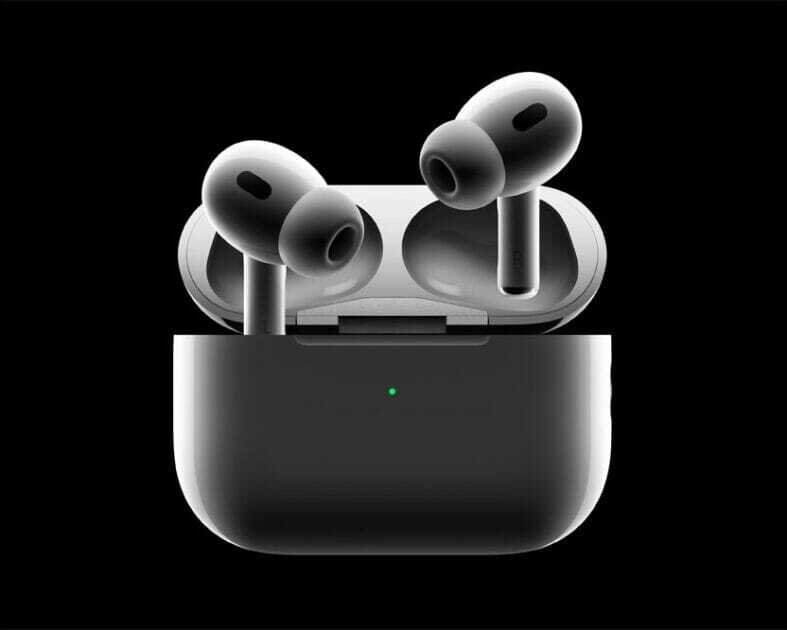
Apple AirPods Pro 2 were released in September 2022, and it wasn’t long before scammers flooded the market with cheap knockoffs. With a hefty price tag of $249+ and talk of being Apple’s premium Samsung Buds contender, it’s no wonder fake AirPods Pro 2 became a hot counterfeit item so quickly.

The second-generation AirPods Pro and new charging case.

Now, it’s harder than ever to know the difference. Without a bit of know-how and background info, it’s easy to get duped into a scam. We’re here to help make sure that doesn’t happen.

Below, we’ll walk you through everything you need to know about fake AirPods Pro (2nd generation) so that you can avoid scams and find good deals on authentic earbuds.

What Are Fake AirPods Pro 2?

Fake AirPods Pro 2 are imitation earbuds built to look like Apples’s AirPods Pro 2, but they lack the sophisticated hardware and software to warrant the high price tag. Scammers use cheap materials that lack iOS compatibility and often break down much faster than the authentic AirPods.

Apple doesn’t create fake AirPods Pro 2, so you’ll get no customer support if (more likely when) your AirPods stop working. You’ll be on your own.

Unfortunately, there’s not one tell-tale sign of a fake pair of Apple AirPods Pro 2. Expert scammers have nailed the design, and some will even sell the AirPods Pro 2 at a premium to fend off any initial buyer suspicion. You’ll need to inspect the nitty-gritty details to find the counterfeit giveaways.

Where Are Fake AirPods Pro 2 Sold?

Scammers sell fake AirPods Pro 2 all across the internet and local listings. So unless you’re buying from Apple, Best Buy, or another credible tech store, you’ll have to deal with fake products to some extent.

Here are the most common places scammers are selling fake Apple AirPods Pro 2:

  • Craigslist
  • Amazon
  • Wish
  • eBay
  • Facebook Marketplace
  • Walmart
  • Alibaba

Scammers operate on other e-commerce platforms, too, but these are often the most prevalent. And that’s because these sites sometimes have mind-blowingly low legitimate discounts on high-quality tech items.

How to Identify Fake AirPods Pro 2

1. Check the Box

Apple is meticulous about its packaging, so if you still have the box your AirPods Pro 2 came in, check here first. The box may look legitimate at first glance, but there are a few areas to check.

The AirPods Pro 2 come in a very familiar, minimalist white square box. The earbuds are the only thing you’ll see on top of the box, printed beautifully, and even embossed.

Stickers on the side of the box, and the printing on the bottom reassure you that these are 2nd generation AirPods Pro with a MagSafe charging case (hard to tell otherwise, at least at first).

The box itself should fit quite snug. If the inner box and its lid come apart very easily or don’t line up correctly, this is a sign that something may be amiss.

The lettering used for the AirPods name and the Apple logo on the box are another area to check. If these are reflective and not flat gray, for example, you may be dealing with a counterfeit.

Getting to your new true wireless earbuds is the usual ordeal for Apple products – you hold the top of the retail box, with the bottom part sliding out slowly, so you can really savor the moment.

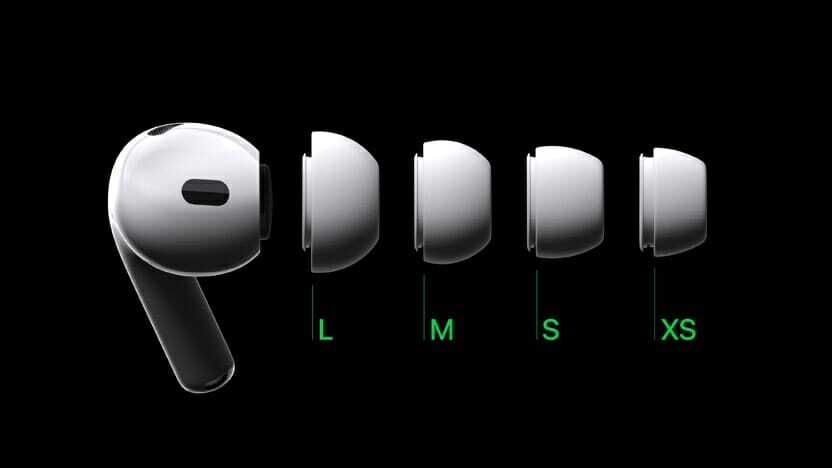
Inside the box you’re greeted with your new AirPods Pro 2 wrapped in protective plastic, a Lightning-to-USB Type-C charging cable, paperwork (no Apple sticker though), and not the usual three, but four pairs of ear tips.

Those are extra small, small, medium and large ear tips too choose from, with the medium ones already pre-applied to the earbuds.

Second-generation AirPods Pro’s ear tip sizes, including the new extra small ear tip.

2. Check Your Case

The original AirPods Pro 2 charging case has a few new things going for it, visible almost immediately. First, it now has a metal lanyard loop to the right, which is a nice little touch to see make a comeback in general. But perhaps even more noteworthy – the AirPods Pro 2 case now has its own speaker on the bottom, and thus, a little speaker grill next to its Lightning charging port. Yep, no USB Type-C, but fake models will sometimes have a USB-C port at the bottom instead.

Lanyard loop attached to a backpack on the all-new charging case of the second-generation AirPods Pro.

Besides that, the AirPods Pro 2 case is a familiar rounded rectangle, with a solid-feeling lid, and a metal hinge. On the front of the case, we still have a single LED light, and on the back of the case is the Bluetooth pairing button you’ll likely never need to use. If your case doesn’t have either of these features, it’s a fake.

3. Closely Inspect Your AirPods

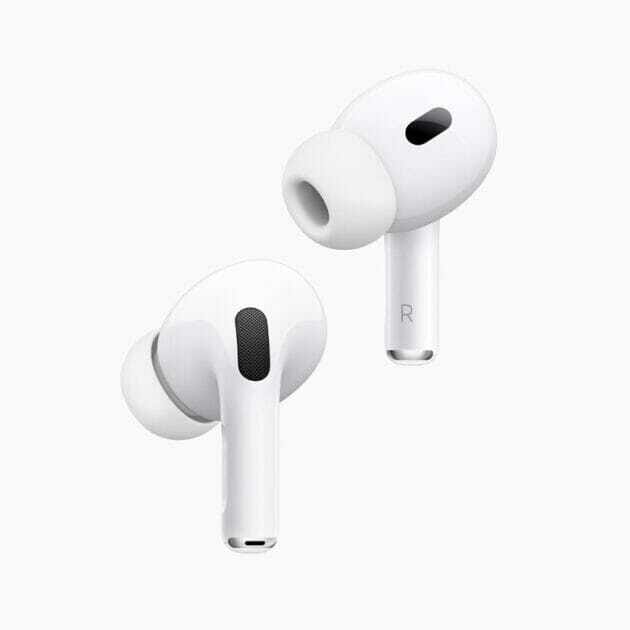
For some reason, the very ends of the AirPods seem to be difficult for counterfeit manufacturers to match. On the original AirPods, the bottom should be an oval-shaped vent. If this is circular, it’s likely counterfeit.

The low-distortion audio driver and custom amplifier on the second-generation AirPods Pro.

Original airpods Pro 2 have the familiar straight stems, with touch-sensitive spots that serve as playback controls. We also have generally the same glossy plastic build as always. If the headsets lack any of these features, it’s a fake airpods Pro 2.

4. Check the color

Now let’s talk about the AirPods Pro 2’s color options – there are none. As you may have expected, the AirPods Pro 2 only come in glossy white, for both the case and the earbuds themselves. If you see a different color, it’s a fake airpods Pro 2.

5. Try pairing

Pairing genuine AirPods Pro 2 with an iPhone is as easy as ever – simply unbox your new earbuds, open their case close to your iPhone, and a pairing prompt will pop up on screen. It’s a very quick and easy process.

However, if you’re pairing them with an Android phone, you’ll have to go the longer route – navigating into the Bluetooth settings on your phone, then finding and tapping your new AirPods to pair them that way. If they’re not appearing, press and hold the circular button on the back of the AirPods Pro 2 case until the LED on the front starts flashing, which means they’re in pairing mode. If the airpods Pro 2 are not detected by your devices, they’re probably fake.

6. Check the Serial Number

The most definitive method of making sure your AirPods Pro 2 are the genuine item is checking the serial number with Apple. If the company has never heard of the serial number, you’ve probably got a fake.

To check, open the lid of your AirPods case and look on the underside of the lid. It’s on the section that is closest to the charging status LED when the case is closed.

You can also check on the underside of the right earbud, even though the type is smaller, and it’s more difficult to see here.

Once you’ve found your number, head to https://checkcoverage.apple.com and enter the serial number.

What to Do If You Purchase Fake AirPods Pro 2?

Mistakes happen. If you accidentally purchased fake AirPods Pro 2, not all is lost. Depending on when you bought the earbuds and where you bought them from, there’s still a lot you can do to recoup your money and right the wrong. The processes differ depending on the platform you purchased the product:

  • Wish: Contact Wish’s customer service to take advantage of their 30-day return policy. Check their list of exceptions to make sure your purchase qualifies. Wish is notorious for selling fake products, so always be cautious buying on the platform.
  • Craigslist: Craigslist won’t be able to protect you from scammers and counterfeits. You’ll need to do your due diligence to avoid getting scammed. However, if you believe you’ve been scammed, Craigslist still appreciates you reporting the fraud so that they can protect future buyers.
  • Facebook Marketplace: Facebook Marketplace doesn’t provide protections for sellers and buyers.
  • Walmart Marketplace: Request a refund via the Walmart Marketplace Promise to recover your funds.
  • Amazon: Contact Amazon customer support to file an A-to-Z Guarantee to start your refund process.
  • eBay: Contact eBay to ask for their money-back guarantee.

Contact the FBI’s digital division to submit a fraud report. They’ll provide additional advice, and this information will hopefully help them catch the bad guys.

Where to Buy original Apple AirPods Pro 2

You can find authentic AirPods Pro 2 at various in-store and online retailers. Here’s a shortlist of the most reliable places you can buy real AirPods Pro 2:

  • Apple
  • Best Buy
  • Walmart
  • Target
  • Verizon
  • Microsoft

You can find real pairs of AirPods Pro 2 on popular e-commerce sites like eBay and Amazon, but you’ll always run the slightest risk of getting scammed. That’s not the case with the authentic websites listed above.

Many iPhone 14 Pro Max features are very helpful, but particularly well hidden in the depths of system settings. Other features, on the other hand, are activated by default, but do not benefit you because you rarely use them, if at all. Save your battery and protect your privacy by disabling the following iPhone 14 Pro Max settings.

Note: information in this article apply to iPhone 14, iPhone 14 Plus, iPhone 14 Pro and iPhone 14 Pro Max.

If you just purchased a new iPhone 14 Pro Max, take a peek at its settings. So many categories, so many options within those categories. It’s enough to make your head swim.

And you might find yourself wondering, are Apple’s factory settings ideal? Right out of the box, is the iPhone 14 Pro Max really configured for optimal performance, productivity and battery life?

Not so much. Here are the iPhone 14 Pro Max settings you should consider turning off right away:

1. Disable keyboard suggestions

When you type a message in Whatsapp or write an email on your iPhone, you have probably already noticed the word suggestions that appear above the keyboard. While these can be helpful for slow typers, for nimble fingers the word suggestions usually come too late. If you don’t use this feature you can simply deactivate it, which means one less task for which the iPhone must provide computing capacity.

To do this, go to Settings and move the slider to the left under General > Keyboard and deselect Predictive.

2. Automatically close Safari tabs

On the iPhone a few dozen open tabs can quickly accumulate and paralyse Safari. And even if you do want to keep tabs open finding the one you want among a sea of open tabs can be tricky. If you are someone who rarely closes a tab after use you can have this done automatically in the settings.

Your iPhone can automatically close “tabs that have not been viewed recently” after a day, a week or a month.

In order for is to do this, go to Settings and select Safari > Close Tabs and then the interval you want.

3. Stop app review requests

Annoyed that you keep seeing notifications to review apps in the App Store? If you move the corresponding slider to the left in System Preferences, you can stop these requests for feedback.

To do this, go to Settings > App Store and deselect In-App Ratings & Reviews.

4. Disable automatic app downloads and updates

Apple offers automatic app downloads and updates. This is handy if you want the app that you download on your iPhone to automatically download you on your iPad. But the feature is not always practical, nor are the automatic app updates. Fortunately, you can deactivate both:

To do this, go to Settings > App Store and move the slider to the left for App downloads and App Updates.

5. Stop keyboard clicks

For many users the sound that the iPhone makes when you type is quite an annoying feature. If the iPhone is muted, you won’t hear the sounds, but you don’t always want your iPhone on silent. So what can you do if you don’t want to annoy other people every time you type a message?

Fortunately, you can deactivate the touch tones in the system settings:

To do this, go to Settings > Sounds & Haptics > Keyboard feedback and turn off Sound. In Sounds & haptics, you can also deactivate the lock sound.

6. Disable unnecessary system services

System services includes a list of system-based services on your iPhone that are using your location. Some of these services are necessary like Emergency Calls & SOS, Find My iPhone, and Share My Location. To view your list go to: Settings > Privacy & Security > Location Services > System Services.

When you’re evaluating your list of system services, it’s also important to remember what the purple arrows mean: A hollow purple arrow indicates that an item may receive your location under certain conditions. This is typically referred to as geofencing and will check to see if you are entering or leaving an area. A solid purple arrow indicates that an item has recently used your location. A gray arrow indicates that an item used your location in the last 24 hours.

7. Disable “Analytics and Improvements”

Go to Settings > Privacy & Security > Analytics and Improvements. Turn off the first option “Share iPhone Analytics” and it will disable other analytics reports happening in the background. This should immediately improve battery life.

8. Allowing apps to track you

iOS gives you the ability to disable notifications from apps requesting to track you. When you turn this off, all app requests to track you will be automatically denied.

To disable: Go to Settings > Privacy & Security > Tracking > and then toggle “Allow Apps to Request to Track.” You can also view the apps that currently or previously requested to track you.

9. Disable push email

Do you need your iPhone 14 Pro Max to monitor your email accounts every second of every day? That’s the basic definition of “push” email, which is widely regarded as a huge battery suck.

I’m not a big fan of “fetch,” either, which checks for new mail at designated intervals. My thought: When I want to check for new messages, I fire up the Mail app and check for new messages. Anything else is not only a battery drain, but also a distraction.

Try turning these settings off. To do so, tap Settings > Mail, Accounts, then tap Fetch New Data. Turn off Push, then scroll down to the Fetch section and choose Manually.

Remember: If someone needs to reach you in a hurry, they can still call or send a text message.

10. Background app refresh tweaks

Background App Refresh allows for an app to check for updates or new content while running in the background. To find background app refresh, go to Settings > General > Background App Refresh.

First thing, tap “Background App Refresh” and decide if you want apps refreshing in the background while you’re using data. If you want to limit data use, you should change this setting to Wi-Fi only.

Some apps need background app refresh enabled including Messages and some social media apps. However, does GarageBand need background app refresh enabled? Probably not.

Conclusion

If you just purchased a new iPhone 14 Pro Max, consider turning off these settings to improve performance and battery life. If you’ve made any iPhone 14 Pro Max settings changes you consider essential, hit the comments and name them!