




Got a tip for us?

Apple

If you’ve just purchased a new ‌iPhone 14 Pro‌ or ‌iPhone 14 Pro‌ Max, you may be slightly overwhelmed or simply interested in what new tips and tricks you should try out. To try and help, we’ve outlined forty of the ‌best iPhone 14 Pro and iPhone 14 Pro Max tips and tricks that will help you to get the most out of your new device.
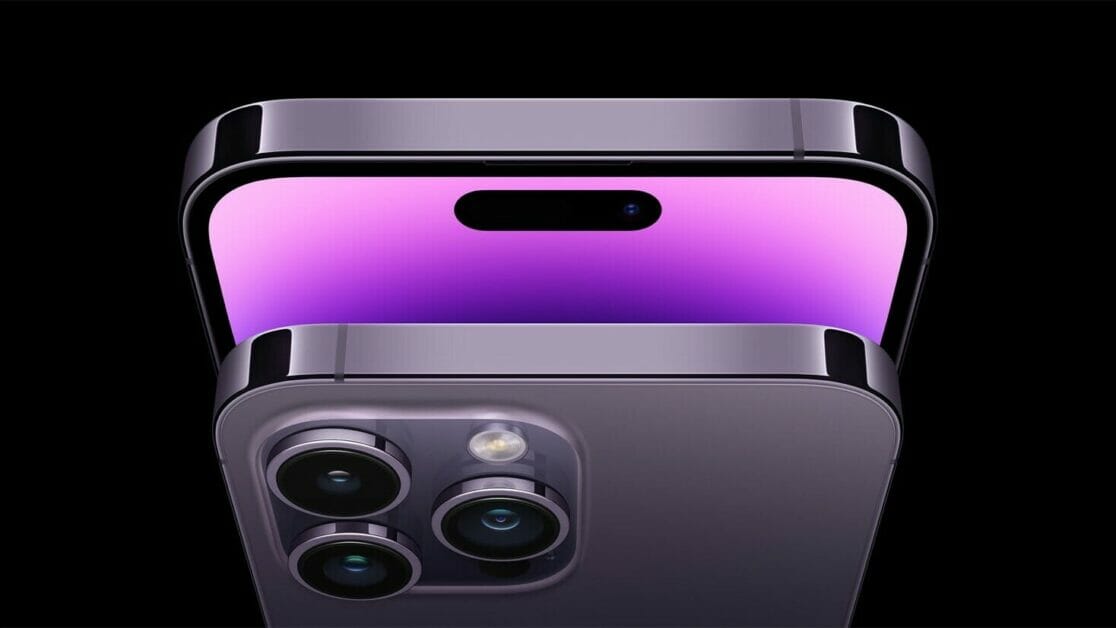
iPhone 14 Pro and iPhone 14 Pro Max are shown in close-up form from the top.

If you haven’t heard yet, Dynamic Island and Always-On-Display are two of the big-ticket features on the iPhone 14 Pro and iPhone 14 Pro Max, but those items are just the beginning. You’ll be excited to learn that there are several new hidden iPhone 14 Pro and iPhone 14 Pro Max tips and tricks that could completely change how you use your phone.
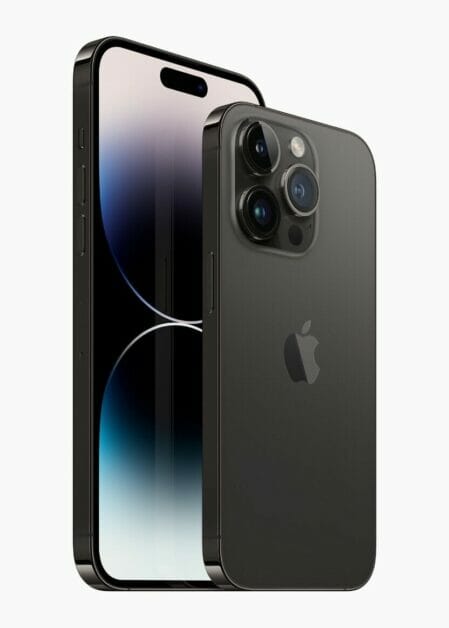
iPhone 14 Pro and iPhone 14 Pro Max are shown in space black.

If you want to take a closer look at some of the hidden iPhone 14 Pro and iPhone 14 Pro Max tips and tricks, like using Emergency SOS via satellite, here’s what you need to know.

Best iPhone 14 Pro and iPhone 14 Pro Max tips and tricks

Here is a list of the Best iPhone 14 Pro and iPhone 14 Pro Max Tips and Tricks you need to try first:

1. Use Apple’s Dynamic Island Feature

Dynamic Island is Apple’s new “notch” for the iPhone 14 Pro and iPhone 14 Pro Max. Instead of looking like a blacked-out dead space at the top of the screen, it can morph into different shapes and sizes. You can even interact with it. It can change to show you incoming calls, alerts, notifications, Face ID authentication, turn-by-turn navigation, music playing, and so on. You can tap or long press on the area to access different functions or launch apps. Think of it as a multi-tasking shortcut – one that still hides iPhone’s TrueDepth front camera as well as the sensors that enable Face ID.

Dynamic Island isn’t just limited to notifications or alerts, but also ongoing activities such as directions in the Maps app, music that might be playing, or how much is left in your timer. Those remain visible at the top of your phone in Dynamic Island, and they’re interactive, so you can tap, swipe, or long-press. Say you order a Lyft and then proceed to browse the web or play a game. The Dynamic Island will show your Lyft ride’s estimated time of arrival at the top of your screen as you use other apps. At any time if you want to open Lyft, tap Dynamic Island. Or, say you’re in an ongoing call and then minimise it, Dynamic Island will elongate horizontally and show the call duration on the left with a voice waveform on the right.

If you have two apps running in the background, Dynamic Island can split into two sections, so you’ll see a smaller pill on the left for one app and a small circle on the right for another app. For instance, if you have a song playing from the Music app and a timer set on the Clock app, you’ll see the song’s art on the left pill and the timer icon inside the circle on the right. You can only see a maximum of two apps appear on Dynamic Island when they’re running in the background.

The most impressive thing about Apple’s Dynamic Island feature is how it can intuitively morph into different shapes to display all sorts of glanceable info. For instance, when you put your phone on silent, connect your AirPods, access Face ID, or plug your charger, the cutout will expand and display the activity and then immediately go back to normal.

Also, if there’s an ongoing background activity, such as a call, playlist, podcast, or timer, the cutout will stay expanded until it ends. You can tap it to go to the app or long-press it to explore options, allowing for better multitasking.

For instance, if you get a call while scrolling through your Instagram feed, the cutout will expand to show you who’s calling and the option to accept or deny it. Once you pick up the call, the cutout will stay expanded during the duration of the call. You can long-press the cutout to access various options to cut the call, switch to FaceTime, mute yourself, and more.

Similarly, if you’re listening to music while reading an e-book, you can long-press the cutout to see options to pause the song, skip forward or back, or jump to a particular part in the song. And if there are multiple ongoing background activities, the iPhone 14 Pro’s Dynamic Island will form a new circular bubble beside the pill-shaped cutout. All of this without leaving the app you’re in.

2. Use Always-On display with your iPhone 14 Pro or iPhone 14 Pro Max

With Always-On display, your iPhone 14 Pro or iPhone 14 Pro Max dims the Lock Screen while still showing helpful information, like the time, widgets, and wallpaper, all while using new technologies that make the display incredibly power efficient.

This can be useful when you just want to glance at the time or see relevant information from your Lock Screen widgets without unlocking your ‌iPhone‌ and going directly into an app.

The display always remains on by intelligently lowering its brightness and refresh rate to as low as 1Hz to save battery life. Always-On display is on by default on iPhone 14 Pro and iPhone 14 Pro Max. To turn Always-On display off or on, follow these steps:

  1. Go to Settings > Display & Brightness.
  2. Scroll down to Always On and turn Always-On display off or on.

3. Capture steadier video with Action mode

With Action mode on iPhone 14 Pro and iPhone 14 Pro models, you can capture smooth hand-held video even when you’re moving around a lot.

  1. Open the Camera app and swipe to Video mode.
  2. Tap the button to turn on Action mode.
  3. Tap the Shutter button and record your video.

Action mode works best with lots of light, and the Camera will show “More light required” if things are too dark. You can change your settings to use Action mode in lower light.
In the Settings app, tap Camera.
Tap Record Video.
Turn on Action Mode Lower Light.
Action mode can capture video at either 1080p or 2.8k resolution up to 60 frames per second. It supports Dolby Vision HDR or, on iPhone 14 Pro models, Apple ProRes video formats.

4. Manage Crash Detection on your iPhone 14 Pro

When your iPhone 14 Pro detects a severe car crash, it will display an alert and will automatically initiate an emergency phone call after 20 seconds unless you cancel. If you are unresponsive, your iPhone will play an audio message for emergency services, which informs them that you’ve been in a severe crash and gives them your latitudinal and longitudinal coordinates with an approximate search radius.
When a crash is detected, Crash Detection won’t override any existing emergency calls placed by other means.

Crash Detection is on by default. You can turn off alerts and automatic emergency calls from Apple after a severe car crash in Settings > Emergency SOS, then turn off Call After Severe Crash. If you have third-party apps registered to detect crashes on your device, they will still be notified.

5. Use Emergency SOS via satellite on your iPhone 14 Pro

With this iPhone 14 Pro trick, you can use Emergency SOS via satellite to text emergency services when you’re out of cellular and Wi-Fi coverage.

Emergency SOS via satellite can help you connect with emergency services under exceptional circumstances when no other means of reaching emergency services are available. If you call or text emergency services and can’t connect because you’re outside the range of cellular and Wi-Fi coverage, your iPhone tries to connect you via satellite to the help that you need.

If you need to contact emergency services, follow these tips to help connect your iPhone to a satellite:

  1. Hold your phone naturally in your hand. You don’t need to raise your arm or hold your phone up, but don’t put it in a pocket or backpack.
  2. Make sure that you’re outside with a clear view of the sky and the horizon.
  3. Be aware that trees with light foliage might slow down the connection, and dense foliage might block it. Hills or mountains, canyons, and tall structures can also block the connection.
  4. In case you need to turn left or right or move to avoid a blocked signal, your iPhone provides guidance—just follow the onscreen instructions.

To text emergency services via satellite

  1. First, try calling emergency services. Even if your normal cellular carrier network isn’t available, you might be able to make the call.
  2. If your call won’t connect, you can text emergency services via satellite:
  3. Tap Emergency Text via Satellite.
  4. You can also go to Messages to text 911 or SOS, then tap Emergency Services.
  5. Tap Report Emergency.
  6. Using simple taps, answer the emergency questions to best describe your situation.
  7. You can also choose to notify your emergency contacts that you contacted emergency services, along with your location and the nature of your emergency.
  8. To connect to a satellite, follow the onscreen instructions.
  9. After you’re connected, continue following the onscreen instructions to stay connected while you send your message to emergency services.
  10. Once you’re connected, your iPhone starts a text conversation with emergency responders by sharing critical information like your Medical ID and emergency contact information (if you have set them up), the emergency questionnaire answers, your location (including elevation), and remaining battery life for your iPhone.

6. Hidden and Recently Deleted albums protection

The Hidden album in the Photos app is clearly not hidden, seeing as you can easily find it, making it impractical for adequately hiding private photos and videos. While Apple does have an option to make the Hidden album “invisible,” anyone with access to your phone can make it visible again and view everything inside.

Thanks to an iPhone 14 Pro trick, you can now lock the Hidden album. You don’t actually need to do anything to toggle this feature on. If you want to check it out, launch the Photos app and go to the Albums tab at the bottom of the screen. If you scroll down, you’ll see a tiny lock next to the Hidden and Recently Deleted albums. To view what’s inside, use Face ID or your passcode.

7. View and share saved Wi-Fi passwords

Apple has allowed iOS users to share Wi-Fi passwords for a while now, but only by placing two Apple devices near each other. And if that feature didn’t automatically work, you couldn’t just dig out the password from your settings. Plus if you wanted to share a saved Wi-Fi password with someone else, like an Android user or someone on a computer, you had to know the password. Until now.

In Settings, go to Wi-Fi and tap the tiny information icon to the right of the network you want the password for. To view the network password, tap the Password section and then use Face ID or enter your passcode to view it. You can then tap Copy to copy the password into your clipboard and share it.

8. Find and remove any duplicate photos and videos

Maybe you’ve saved the same photo multiple times or downloaded a video more than once, and so you’ve got duplicates littered in your photo album. It may not be a problem if you’ve got the storage to spare, but if not, it might be a good idea to go back and remove every single duplicate — which is now easy to do thanks to an iPhone 14 Pro trick.

In Photos > Albums, you should now see a new Duplicates album under Utilities, where Apple scans through all of your photos and shows you any photo or video you’ve saved more than once. From there, you can either delete any duplicates, or simply press Merge, which will keep the photo with the highest quality (and relevant data) and then move the others to the trash.

Although you’ll probably want to go through each set of duplicates, to ensure that they’re actually exact copies and not similar photos, you can also hit Select > Select All > Merge to remove every single photo and video that Apple thinks is a duplicate, all at once.

9. Pin your favorite tabs in Safari

Safari caps your open tabs at 500, and if you’re nearing that limit, it might be pretty darn hard to find the exact tab you’re looking for. You could scroll endlessly, but there’s now an easier way to find the exact tab you’re looking for.

In Safari, if you press down on an open tab, you now have the option to hit Pin Tab. This will move that tab to the top of Safari, where it will exist as a tiny tab preview, permanently pinned there, which you can then tap to view.

If you press down and unpin a tab, it will move to first in your grid of open tabs.

10. Pair Nintendo Switch Joy-Cons with your iPhone

Apple has long allowed you to pair third-party controllers, like the PS5 Sony DualSense and Xbox Core Controller, to your iPhone and iPad, in order to more comfortably play mobile video games like the Apple Arcade library, Minecraft and Call of Duty. And you can add another console controller to that list.

If you own a Nintendo Switch, you can now pair your Joy-Con controllers to your iPhone 14 Pro. To start, hold down the little black pairing button on the Joy-Con, until the green lights start running back and forth. This means the device is in pairing mode. Next, open your iPhone and go to Settings > Bluetooth and select the Joy-Con from the list. Repeat this step with the other Joy-Con.

11. Recover recently Deleted Chats in Message

If you have the habit of deleting messages in the Message app and happen to require them at a later point in time, you can recover the deleted messages on your iPhone 14 Pro. The deleted messages are moved to the Recently Deleted folder in the Message app itself. Here’s how to access the Recently Deleted folder in Message,

  1. Open the Messages app.
  2. Tap the Edit button at the top left.
  3. Select the Recently Deleted folder.
  4. Select the chat you want to Recover the messages from.

Note: Deleted messages will be available in the Recently Deleted folder for 30 days, after which the messages will be deleted permanently.

12. Easily Delete contacts

With previous versions of iOS, deleting a contact on iPhone was a tiresome process. You had to go to the detailed information of the contact, select the Edit option, and then scroll down all the way to finally select the Delete Contact option. Apple has finally heard the requests of its users as it has made the process of deleting a contact easier in iOS 16. You can now simply tap and hold on a particular contact to delete it from your list.

13. Disable ‘Lock to End Call’

One of the quirks that iPhone users (especially the new users who switch from Android) complain about is that pressing the lock button ends the call. You can finally disable the ‘Lock to End Call’ feature with this iPhone 14 Pro trick.

  1. Open the Settings app.
  2. Go to Accessibility.
  3. Select Touch.
  4. Toggle off Lock to End Call.

14. End call using Siri

With iPhone 14 Pro, other than tapping the on-screen end call button or side button of the device to end a call, you can have your virtual assistant, Siri, hang up a call for you in a very high-handed way. While you are on a call, just say “Hey Siri, hang up” and the assistant will do it for you.

While this is a convenient and hands-free way to end a call, it is recommended to use it with caution as the caller on the other end will be able to hear your command to Siri.

15. Restart your iPhone 14 Pro with Siri

Another iPhone 14 Pro trick is rebooting your device with Siri. Just wake your assistant up with a “Hey Siri” call and say “reboot ” or “restart”. When Siri asks for confirmation, reply with a “Yes” or “No” and that’s it! You don’t even have to unlock your device to complete the action using Siri, so it can be done entirely remotely.

16. Dictate emojis with Siri

You could previously dictate texts with Siri, but if you’re the type who thinks emojis are worth a thousand words, your iPhone’s digital assistant couldn’t really helped you. Dictate a lovely message to your sweetie that ends with a heart emoji, and Siri will quite literally type “heart emoji” in the text. It really kills the mood.

iOS 16 makes Siri smarter about dictated emojis, and now, telling the assistant “heart emoji” will yield a nice red heart right there in your text message.

17. Skip Siri confirmation

Previously, if you ask Siri to send a message to a contact and dictate the content, it asks for confirmation. The positive side is that you can check if Siri has transcribed your message correctly.

Nonetheless, it is another added step and takes more time. With this iPhone 14 Pro trick, you can turn it off and send messages automatically with Siri. Here’s how,

  1. Open the Settings app.
  2. Go to Siri & Search.
  3. Tap Automatically Send Messages.
  4. Toggle on Automatically Send Messages.

18. Make Siri listen longer

While we’re on the subject of Siri improvements, let’s talk about an accessibility feature that Apple actually revealed back in May, a month before its iOS 16 preview. Back then, Apple promised a host of accessibility features was coming to the iPhone, and one of the promised additions that caught my eye was the ability to the adjust Siri’s pause time.

Adjusting the pause time will make the digital assistant wait longer before responding to your request. It’s ideal for anyone with impaired speech, but really if you find yourself rushing to complete a Siri command before the assistant leaps into action, you’ll appreciate this iOS 16 addition as well.

  1. Go to Settings.
  2. Tap Accessibility.
  3. Tap Siri.

19. Merge Duplicate Contacts

If your Contacts app is riddled with duplicates that you haven’t been able to fix, then this iPhone 14 Pro trick is for you. The update includes a dedicated feature for merging duplicate contacts, solving problems with multiple contacts once and for all.

In the ‌iOS 16‌ Contacts app, if you have more than one contact card for the same person, the app will automatically detect the duplicate and let you know that duplicates were found.

The “Duplicates Found” interface is at the top of the app, and if you tap it, the Contacts app is able to merge all of the duplicate contact cards into one.

Prior to now, there was no built-in way to quickly manage duplicate contacts in the iOS Contacts app, so the new ‌iOS 16‌ feature should be a relief for those dealing with Contacts issues. This feature did previously exist on the Mac, but it was not available on iOS devices.

20. Copy and Paste Photo Edits

Want all of your photos to have the same aesthetic, or have improvements you want to make to an entire batch of images? That’s possible with this iPhone 14 Pro trick, which lets you copy edits from one photo and apply them to another photo with a tap. Here’s how:

  1. Open Photos and select the edited image.
  2. Tap the Three Dots at the top right.
  3. Tap Copy Edits.
  4. Go to the image you want to paste the edit and tap the Three Dots at the top right.
  5. Tap Paste Edits and done.

The same edits are now applied to the selected image too.

21. Sort Playlists in Apple Music

Playlists are great, but in Apple Music, they’re fixed in the order you created them. If you want to change things up, you’ll have to open the editor and do it by hand. Now, with this hidden iPhone 14 Pro trick, you can easily sort Playlists by title, artist, album, or release date.

22. Use Face ID in Landscape Mode

The iPhone 14 Pro models ‌ support Face ID in landscape mode, making it easier to unlock the ‌iPhone‌ when it’s not held in the standard portrait orientation.

23. Lock Notes with a Passcode

Rather than creating a new password for a note, you can now simply use your device passcode or Face ID/Touch ID to lock a note, which is much easier.

  1. Open the Notes app.
  2. Tap and Hold the note you want to lock.
  3. Select Lock Note.
  4. Tap Use iPhone Passcode.

24. Enable haptic feedback on the Keyboard

There’s a keyboard setting in ‌iPhone 14 Pro ‌ that lets you enable haptic feedback that can be felt when you’re typing. The vibrations are for each key tap, offering users a physical confirmation that a letter has been pressed. Here’s how to enable it:

  1. Go to Settings.
  2. Tap Sounds & Haptics.
  3. Select Keyboard Feedback.
  4. Toggle on Haptic.

25. Add Quick Note to Control Center

Apple introduced Quick Note as one of the best new iPadOS 15 features earlier last year. What makes this a useful feature is its ability to let you start taking notes from anywhere on your device. So whenever an interesting idea strikes, or if you wish to pen down important points in a meeting, you need not open the Apple Notes app and use the Quick Notes instead. Now, with the release of iOS 16, Apple has extended this productivity-centric feature to provide a quick and simplified note-taking experience on iPhone as well. Here’s how to add this tile to your Control Center:

  1. First, open the Settings app on your iPhone and select “Control Center“.
  2. Under the “More Controls” section, find “Quick Note” and tap the green “ ” button next to it. That’s it! The Quick Note icon will now show up in the control center.

Note: If you want the Quick Note icon to appear higher in the control center, touch and hold the three horizontal lines next to Quick Note to drag the icon to your desired location in the Control Center.

Once the Quick Note icon is available in your device’s Control Center, taking a Quick Note is merely a tap away. Here’s how it works:

  1. First, bring up the control center on your iPhone.
  2. Then, tap on the Quick Note icon (sticky note with a squiggly line).
  3. Now, a Quick Note window will appear on the iPhone screen to let you jot down your thoughts or anything that you want to take note of. Since it provides all the familiar formatting tools and features, including a document scanner and markup, so you can take notes with the desired efficiency. Make sure to tap “Save” at the top-right corner to save your note.

26. Schedule Emails in the Mail App

Have you ever tried to remember to email someone about something on a particular date in the not-so-distant future, but ended up forgetting to send it when the day eventually came around? If that sounds familiar, scheduling emails could be the perfect way to ensure it doesn’t happen again.

Whether it’s a birthday or other celebration, or maybe something business-related that you need to bring up on a specific future date, This iPhone 14 Pro trick offers you the ability to schedule emails ahead of time. Here’s how to schedule emails in the Mail app,

  1. Open Mail app.
  2. Tap Add New icon located at the bottom right corner and draft your mail.
  3. Press and hold the Upwards Arrow, representing Send.

27. Convert currency through the Camera

Currency conversion is a convenient tool to save your pocket from taking any heavy losses in over-priced deals especially if you travel abroad a lot. Usually, we browse the web to convert currency. Following this method can get hectic, especially if you’re traveling abroad. However, with this hidden iPhone 14 Pro trick, you can convert currency directly from your Camera and no longer need to manually enter the currency values online.

Here’s how to convert currency directly through your iPhone’s camera:

  1. Open the Camera and point it to the text.
  2. Tap the Scan icon at the bottom right corner.
  3. When done, tap the Convert icon at the bottom left.

You can now see the currency value converted!

28. Get Translations Directly From the Camera App

Apple in iOS 16 has brought its system wide translate feature to the Camera app, allowing the iPhone to be used to translate signs, packaging, and more in real time.

Using the translate feature is as simple as opening up the Camera app and pointing it at the text you want to translate. Tap on the text selection button in the app to select the detected text, and then choose the translate option to get an instant translation.

You can pause the view to get translations overlaid on text, and zoom in for a closer look. It’s a useful feature that’s perfect for signs and other wording that you might not understand when you’re traveling.

29. Edit messages in iMessage

I think it’s safe to say that everyone has relied too much on autocorrect when sending an iMessage, leading to potentially embarrassing typos. Prior to iOS 16, you had to own the mistake and accept that it would exist on the recipient’s phone, forever. However, with this iPhone 14 Pro trick, you have the ability to edit a message within 15 minutes after it was sent.

You’ll need to act fast after you realize your mistake. But once you do and you’re still within the 15-minute window, all you need to do is long-press on the message, then select Edit from the list of options.

The text field will show back up, letting you fix your error and then save it.

On the recipient’s end, if they’re using iOS 16 as well, a small “Edited” label will appear below the message that no longer shows any signs of wrongdoing.

For those on older versions of iOS, they’ll receive a second message with the corrected text.

30. Unsend messages in iMessage

The process for completely deleting a message you’ve sent within the last 2 minutes — helpful if you send it to the wrong contact or thread — is nearly identical to editing a message.

Once you realize the error of your ways, long-press on the message until you see a menu pop up. From that menu, tap Undo Send. There’s a small animation that shows the message disappearing, followed by a line of text in the thread letting everyone know a message was removed.

Easy-peasy, right?

31. Create a sticker from images

With this iPhone 14 Pro trick, you can create stickers from images and share these stickers with other applications. It is shared as a sticker in iMessage and as a PNG image in other instant messaging services. Here’s how to do it,

  1. Open the Photos app.
  2. Select the image you want to create as a sticker.
  3. Tap and Hold the image.
  4. You can copy the image and paste it as a sticker in iMessage or any other service you want. Or you can share the image from the same page. You can also save the sticker in notes.

32. Personalize Lock Screen

One of the things you look at the most on your iPhone is the lock screen. iOS 16 brings the most substantial update to the iPhone’s lock screen yet. Press and hold to edit your lock screen. You can swipe to try out several different styles. Each style changes the color filter for the background photo and the font on the lock screen so everything complements each other. This feels a bit like Apple’s take on Google’s Material You, which launched with Android 12.

You can also customize the fonts for the time and date, and add lock screen widgets like temperature, activity rings and a calendar. The widgets are akin to complications on the Apple Watch lock screen.

You can even set up multiple customized lock screens with different widgets and easily swipe to switch between them. There’s also a photo shuffle option that automatically changes the pictures on your lock screen.

33. Skip CAPTCHAs using Private Access Tokens

The CAPTCHA — which stands for Completely Automated Public Turing test to tell Computers and Humans Apart — has been a necessary evil across the internet. CAPTCHAs are designed to make sure that a person is accessing a website or service, and not a bot. I find them annoying, as they often involve reading strangely written letters or having to find all the images that have a truck. Tapping on images of traffic lights or deciphering squiggly text to prove you are human is now a much less common nuisance for iPhone users, as this iPhone 14 Pro trick lets you bypass CAPTCHAs in supported apps and websites.

This cool iPhone 14 Pro trick can be found in the Settings app under Apple ID > Password & Security > Automatic Verification. When enabled, Apple says iCloud will automatically and privately verify your device and Apple ID account in the background, eliminating the need for apps and websites to present you with a CAPTCHA verification prompt.

34. Transfer an eSIM Between iPhones via Bluetooth

This iOS 16 trick allows an eSIM to be transferred between iPhones via Bluetooth while setting up cellular service.

In the Settings app on an iPhone running iOS 16, tapping on ”Set up eSIM” brings up an option to transfer an eSIM and its associated phone number from another iPhone via Bluetooth. To transfer an eSIM from another iPhone, Apple says to make sure the other iPhone is nearby, unlocked, has Bluetooth turned on, and is running iOS 16 or later.

  1. Open the Settings app on your new iPhone.
  2. Tap Cellular.
  3. Above the Cellular Data section, tap the Set Up eSIM button.
  4. When prompted, tap the Transfer From Another iPhone button.
  5. From there, you’ll be prompted to the next screen which provides the following message: “To transfer a phone number from another iPhone, make sure your other iPhone is passcode protected, nearby, unlocked, has Bluetooth turned on, and is running iOS 16 or later.

35. Use Spotlight on the Home Screen

This hidden iPhone 14 Pro trick lets you access Spotlight search from the Home Screen without swiping down or left. You’ll find it right above the dock, which makes it easier to search for apps, contacts, documents, images, and more. Spotlight can fetch results using the information from images stored in Messages, Notes, and Files, like text, objects, people, and so on.

36. Set a Reminder to Check Emails Later

At times, you might want to check an important email later. With this iPhone 14 Pro trick, you can add a reminder to check messages in the future. Simply swipe right on an email and select Later. Ask the Mail app to remind in an hour, tonight, tomorrow, or later.

37. Drag and Drop Subjects With Visual Lookup

Apple’s updated Visual Lookup feature in iOS 16 can separate subjects from the background of an image with a simple long-press action. You can use it to grab an object from a picture and drop it as a sticker into the Messages app, for example. Thanks to machine learning, you no longer need to spend time drawing outlines using third-party apps to get a sticker you want.

38. Use Live Text in video

Live Text was already great with iOS 15. You could grab information from a photo by selecting the text available, a telephone or address, for example.

Now, with Live Text in videos, text is completely interactive in paused video frames, so you can use functions like copy and paste, lookup, and translate.

In addition, Live Text with iOS 16 adds recognition of Japanese, Korean, and Ukrainian text. Last but not least, data detected in photos and videos is actionable with a single tap. Track flights or shipments, translate foreign languages, convert currencies, and more.

Here’s how to use Live Text in a video:

  1. Open the Photos app and open the preferred video.
  2. Scroll the video to the point where you want to extract the text.
  3. Pause the video, tap and hold on to the text on video.
  4. Live Text will automatically recognize text and show you the following options copy, select all, look up, translate, search web and more.
  5. Tap on the desired option to use the text as needed.

Also, the Live Text feature can be used over Map to copy the address.

39. Add the battery percentage to the status bar

With this iPhone 14 Pro trick, you can add the battery percentage back to the status bar. Simply go into Settings, then choose Battery, then toggle on the new Battery Percentage option. It might even be enabled by default, but that only appears to be the case for some users.

40. Track your orders in Apple Pay

Let’s wrap up by highlighting some features in Apple’s existing apps that have gotten overshadowed by other changes. For instance, in the Wallet app, the big change brought about by iOS 16 is Apple Pay Later, in which you can divvy up your purchase into four installment payments. But that’s not the only new capability available when you buy things with Apple Pay in iOS 16.

You’ll also be able to track orders of your Apple Pay purchases directly from within the Wallet app. The feature only works with participating merchants, but considering how widespread Apple Pay has become since Apple introduced it in 2014, you’d imagine that there will be a lot of retailers providing order tracking info to you via Wallet.

Your favorite iPhone 14 Pro and iPhone 14 Pro Max tips and tricks

So these were some of the best iPhone 14 Pro and iPhone 14 Pro Max tips and tricks you would love to try today. My favorite iPhone 14 Pro and iPhone 14 Pro Max tips and tricks include using dynamic island, ability to edit/delete messages, ability to end calls with Siri, and ability to schedule emails in Mail. There’s surely plenty more hidden iPhone 14 Pro and iPhone 14 Pro Max tips and tricks to discover, so I’ll keep tapping, swiping and noting anything I find. Did we miss out on something important that needs to be added to the list? Which are your favorite iPhone 14 Pro and iPhone 14 Pro Max tips and tricks? Share your thoughts in the comment section below.
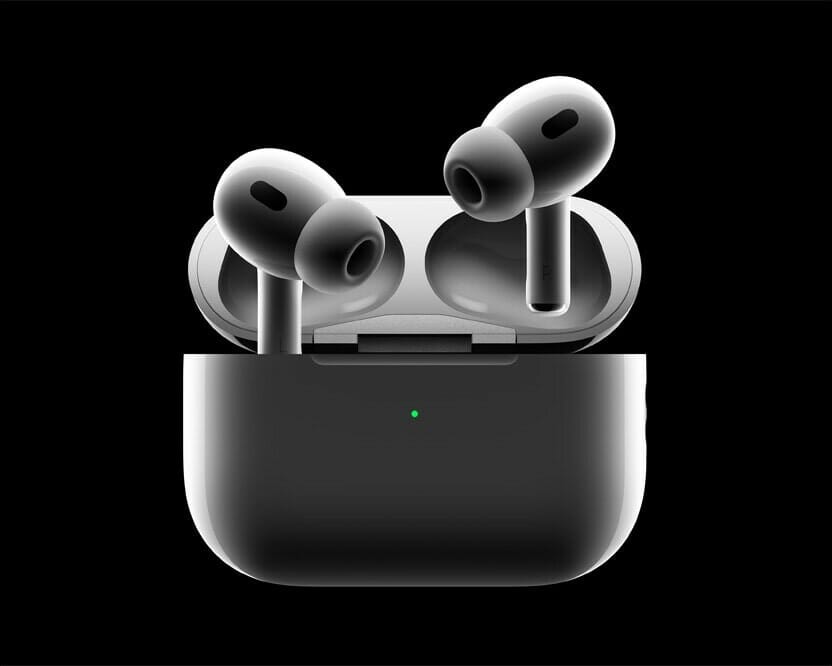

The AirPods Pro 2 are here, three years after the original launched, sporting an updated feature set and all-new charging case. In this article, I’ll explain all the best hidden Airpods Pro 2 features.

AirPods Pro 2

The new AirPods Pro 2nd Gen, while still among the top true wireless earbuds on the market, deliver some big upgrades in terms of both functionality and audio performance, with Apple clearly setting its sights on offering some of the best audio experiences on the market. So, if you were holding off on purchasing a new pair of wireless earbuds, check out all the major new features that the AirPods Pro 2 bring to the table.

The Best AirPods Pro Features

1. Improved Sound Quality and ANC

Thanks to its latest H2 chip, a new low-distortion audio driver, and a custom amplifier, the second-gen AirPods Pro delivers notably better sound quality and Active Noise Cancellation (ANC).

Apple claims the new earbuds cancel up to twice the amount of noise compared to the outgoing model. The bass is also richer, with a wider sound stage that helps improve the overall clarity.

2. Better In-Ear Fit

What’s the point of great sound quality if the earbuds keep falling from your ears? It looks like the company has heard some of your complaints, as the new AirPods Pro comes with an additional set of XS-sized ear tips to help provide a better in-ear fit for people with small ear canals.

This will allow the earbuds to passively block more noise, indirectly boosting the ANC performance and sound quality. The better fit will also help if you use the AirPods Pro to help hear conversations better.

3. Adaptive Transparency

The second-generation AirPods Pro takes the existing Transparency mode to the next level with Adaptive Transparency. Voice processing happens so much more naturally now, with it possible to hold a conversation without even realizing you’re wearing Apple’s new earbuds – although you might seem tremendously rude.

Apple is also claiming that, thanks to the H2 chip, it can offer ‘Adaptive Transparency’ automatically. So if you’re using Transparency when walking down the road and a vehicle with a siren goes past, the AirPods Pro will automatically tune down the sound without getting rid of it completely (in case you need to hear it as a warning).

4. New Charging Case With Find My Integration

The new charging case of the second-generation AirPods Pro is dust and water-resistant, just like the earbuds. There’s a lanyard loop, too, for extra convenience. If you order the AirPods Pro 2 online through the Apple Store, you can even engrave your favorite Memoji on the charging case.

Another highlight of the new charging case is Find My integration and a built-in speaker. If you have an iPhone with a U1 chip, you can use the Precision Finding feature in the Find My app to get the exact location of the AirPods Pro. And the built-in speaker on the charging case will play a loud tone so that you can locate it quickly.

5. Longer Battery Life

The final improvement to the AirPods Pro comes with the battery life: thanks mostly to the more efficient H2 chip (compared to the original H1 in the older AirPods) the Pro 2 earbuds can last six hours off a single charge when using ANC, and seven hours without.

The case can charge the AirPods Pro 2 five times, so you’ve got 30 hours’ use in ANC mode – which is a big jump over the 24 hours’ use previously.

And you’re able to charge the case in a new way too: using an Apple Watch charger. This is something that makes so much sense, especially given Apple is so intent on getting people to think of the AirPods as a key part of owning a Watch, as you can easily listen to and control music from the screen on your wrist.

6. Touch Control

Unlike the original AirPods Pro, you don’t need to press the stem to adjust the music playback or volume. The stems pack a new feature: finally, you can control the volume of your music from your AirPods Pro. While gripping the stalks, slide a finger up or down the ridge, which can register your touch through the new capacitive surface. This allows you to adjust the volume with a light swipe up or down. And to accept phone calls or control music playback, you need to press the stem lightly.

Apple has also upgraded the skin detection sensor, so the earbuds will more accurately detect when to resume or stop music playback.

These are the best AirPods Pro 2 features

You might think that the new AirPods Pro 2 seem very similar to the original AirPods Pro – but there’s a lot going on here that means these true wireless headphones are going to be a big draw for so many people.

Whether it’s the new and massively improved noise cancellation, the extra speakers in the case so it’s much harder to lose them, or the improved transparency mode to chat to your pals, there are many AirPods Pro 2 features to be excited about.

AirPods are wireless Bluetooth earbuds designed by Apple Inc. In this article, i’ll explain the advantages of Apple AirPods in 2022.

AirPods were first announced on September 7, 2016, alongside the iPhone 7. Within two years, they became Apple’s most popular accessory.[3][4] The most recent model, AirPods (3rd Generation), are a replacement to the 1st and 2nd Generation models although the 2nd Generation is still sold on Apple’s website. These models are Apple’s entry-level wireless headphones, sold alongside the AirPods Pro and AirPods Max. Check out some of the benefits of Apple AirPods.

Advantages of Apple AirPods

Here are 11 benefits that you get by owning Apple AirPods:

1. AirPods don’t have wires to tangle

One of the major advantages of Apple AirPods is that they are true wireless. This means they have neither cords or wires between them nor to an audio source (iPhone, iPad, MacBook, etc.). Since they have no wires, the mic, controls and battery are built into the housing of the earbuds.

With Apple AirPods, you are able to do away with the multiple wired gadgets in your life. You can do your things handsfree, meaning that you will be able to pick your calls without the need to place your iPhone on your ears. The hands-free earbuds will do the work for you. It is also true that you will never have to unwind any knots formed by the wires of your headphones or earbuds. It also becomes easy to work out as you listen to music from your iPhone through the Apple AirPods. In short, it is convenient to use the Apple AirPods.

2. You can connect your AirPods to all of your Apple devices at once

Another great advantage of Apple AirPods is that It’s incredibly easy to connect them to all your Apple devices at the same time, whether you want to listen to music on your phone or watch a movie on your tablet.

After unboxing the AirPods, unlock your iPhone, then open the AirPods’ charging case next to the phone (or your iPad). Don’t do anything else. After a second or two, there will be a pop-up on your iPhone asking if you want to connect the AirPods to it. Tap Connect. A few seconds later, the pop-up will display the current battery level of your AirPods and the charging case.

Yes, it’s just that easy.

3. AirPods are so easy to use

Another advantage of Apple AirPods is that they are incredibly easy to use. Just insert the buds into your ears and they work instantly and seamlessly with your iPhone. When you are done using them, pop them into a white case that replenishes their power. They are sleek, innovative and convenient.

4. Use AirPods before sleep

Another fringe benefit of having Apple AirPods is that some people use their earbuds to fall asleep at night—think earplugs, but with soothing sounds. Apple AirPods can function a bit like a white noise machine, but one that only you can hear. This is particularly useful if you live in an urban area or your partner snores, and this would not be possible with wired or standard wireless headphones.

5. AirPods have good sound quality

The fact that the Apple AirPods are wireless does not mean that they will not give you the best quality sound. AirPods produce the best quality sound.

The AirPods’ bass won’t make your world shake, but it’ll hit with surprising impact on songs like Woodkid’s “Iron.” There’s enough of everything — bass and treble extension, soundstage, clarity, and detail — in Apple’s tuning to render a convincing reproduction of most genres of music.

I say the AirPods aren’t technically amazing, but that’s only when comparing against existing standards for sound quality. In the category of truly wireless earbuds, the AirPods are the best you can get.

6. AirPods are highly convenient

Another advantage of Apple AirPods is that you have the freedom to walk as you talk. In fact, with the Apple AirPods, you can work and even do chores at home without the need for you to hold the phone. You can listen to music and even receive calls and resume the playback as you wish. You could actually drive as you use the AirPods. You will, however, need to make sure that you are careful enough not to cause an accident.

For starters, having two earbuds without an interconnecting cable is a lot simpler of an equation than what we’ve seen in the past. Just think about the myriad inconveniences that you can avoid by getting rid of that cable. This is especially true for the gym where having a cord is simply the worst.

7. AirPods can work even with non Apple devices

Another advantage of AirPods is that you can pair them with non Apple devices such as phones, tablets, computers, TV sets, MP3 Players and so on. This means that you can listen to your programs on TV or computer by pairing the AirPods with these devices. This way, you can enjoy your programs without the need of bothering other people in the room.

8. AirPods have extended battery life

This is an often overlooked point, but if you compare Apple AirPods to regular wireless earbuds, the battery life is technically better with the AirPods if you count the charge case—which you should. Taking the new third Generation AirPods as an example, the battery life on a single charge is about six hours, however, practically speaking it’s more like 30 hours since you will absolutely be using them with the charge case. This means more often than not, your Apple AirPods will be charged and ready to go since, in effect, they have three to four times the battery capacity of your regular wireless earbuds.

9. AirPods are highly portable

The portability of Apple AirPods is another benefit that AirPods enjoy. Apple AirPods are easier to carry around because you don’t have to worry about messy wires. You can literally place them anywhere you want since they don’t take up much space. Put them in your pocket, backpack, or hold them in your hand.

Flexibility and freedom of movement are some of the Apple AirPods advantages. AirPods’ portability is what amplifies this factor. You can go wherever you want with them and enjoying your music, podcasts, etc. For sports users, Apple AirPods are a must-have.
There are still many more uses of Apple AirPods portability. You can use them at work, when traveling, at the gym, in your bedroom, in the car, in the shower – anywhere! The options are unlimited, as long as you know what you want out of them.

10. AirPods are affordable and stylish

Apple AirPods look stylish and sophisticated. They are sporty in looks and design. They are made in such a way that they will remain firm when you are working out. You will love their looks even if you are a casual user of earbuds. They are also affordable despite their stylish looks and nature.

11. AirPods are durable

Durability is a factor that should be looked into while buying a headset whether they are wired or not. And compared to the wired earphones, the Apple AirPods definitely are more durable. The simple reason being that the wire can easily wear out. The connection point between the wire and the connector is always a problematic area for wired earphones. Twisting and turning eventually will meet its toll. Unlike conventional wired headphones, AirPods have no cables to break their fall if they slip out of your ear or accidentally dropped from your grasp. AirPods have a durable plastic coating that protects the important inner components from damage. This plastic housing is thick enough to effectively shield the electrical components in the earbuds. Normal wear and tear should not affect them as they just lie on your ears all the time. As long as you take care of your AirPods when they are away from your body, they should be fine for a long time.

These are advantages of AirPods

So, these, according to us, are the 11 of the most important benefits of owning an Apple AirPods. they’re lightweight, easy to use, durable. They don’t have wires to tangle and get caught on something when your move. They sync easily with your iPhone and other Apple products. They have good sound for such a tiny hardware. The carrying case are wirelessly charged. The AirPods will last around 6 hours on a single charge and wit the case you can recharger and use for up to 30 hours. Plus, although they work best when used with an Apple product, they can be paired with any Bluetooth device, from smart TVs to smartphones. They are very convenient.

Now that you know the benefits of Apple AirPods, consider checking out our article on benefits of AirTags: Apple’s Item Trackers

AirTag is a small, puck-shaped tracker that can help you locate misplaced or stolen items with the Find My app. In this article, i’ll explain the advantages of Apple AirTags in 2022.

AirTags use ultra-wideband technology and Apple’s existing network of devices to help you track down lost or stolen items. Here are some of the advantages of Apple AirTags you should know.

Everyone has at one point or another lost something. Nothing quite matches that frantic feeling of scouring through your couch, nightstand, or car for something that was there just a moment ago. What if you could find your lost stuff easily and precisely with your smartphone? An entire industry has sprung into action for this very scenario and several device makers, including Tile and Samsung, have created smart tags for help locating things. Apple saw a market ripe for entry and dove in headfirst with its AirTags. Check out all the benefits of AirTags below!

Benefits of Apple AirTags

Here are 11 benefits that you get by owning Apple AirTags:

1. AirTags Work Amazingly in the Apple Ecosystem

As you’d expect from any Apple product, your AirTag will work flawlessly with all of your other Apple devices, especially your iPhone. Especially when you compared them with other popular trackers like Tile, the AirTag is way easier to use.

One great advantage of AirTags is that they are incredibly easy to use. In fact, they might be too easy to use. Wake your iPhone, bring the tag near the iPhone, tap a couple of permissions buttons, and bingo they are instantly paired. It takes mere seconds to get AirTags up and running on your iPhone. Attach the tag to whatever you want to track, and you’re all set.

Location tracking is ridiculously precise. AirTags rely on multiple technologies to work. There’s Bluetooth, ultra-wideband, and Apple’s Find My network, which is created by the more-than-one-billion iOS devices out in the world.

Using the Find My app, you can initiate a search for a lost item and it will emit an audible chirp. The chirp is loud enough (60dB) to hear in a quiet house, but you might miss it if the TV is on. Simply follow the sound to your item. We were able to find an AirTag hidden in various places around a house in just moments. It works with Siri on your phone, Watch, iPad, or HomePod. Just say, “Hey, Siri, find my keys,” and Siri will automatically ping the associated AirTag, which will then begin emitting a sound.

2. AirTag makes it easy to keep track of your stuff.

AirTags are just such a product. Apple designed these little trackers to do one kind of thing: help you find your lost stuff. And they do that well! Very well, in fact. Attach one to your keys, slip another in your backpack. And just like that, they’re on your radar in the Find My app, where you can also track down your Apple devices and keep up with friends and family.

Aside from the obvious things – keys, a purse, a backpack, etc. – AirTags can be used to track some less common items. You could stick one under your bicycle seat; you could put one in a musical instrument case; you could even tape one to a remote that you misplace often (though that’s a bit clunky).

Now, there will be several instances where you might not feel the need for any sort of object to attach your AirTags to your important items. If you want to track some luggage, a purse, or even something like a jacket, you can toss the AirTag in there and forget about it until it’s time to change the battery.

3. Tracking AirTags is very efficient

One of the major benefits of AirTags will probably be to find your keys. Most people misplace their keys from time to time, and this can be quite stressful, if you think you’ve lost them. You’ll be able to use the Find My app (or ask Siri) to see if you left your keys in the office, in the car, or at a friend’s house.

4. Privacy

What’s really impressive about AirTags and how they interact with the Find My network is that all of this was built with privacy in mind, which is a little strange for a tracker. But Apple thought about things like anti-stalking protections, as well as protecting the devices that help you track down your lost items.

First, all the communication between your iPhone and your AirTag is end-to-end encrypted. This includes all the devices that ping a lost AirTag that you’re trying to find. What this means is that no one, not even Apple, has any information on the devices that relayed your AirTag’s location back to you. These devices are all anonymous, including from you, and AirTags utilizes rotating secure Bluetooth identifiers to increase the privacy of the Find My network.

5. AirTags Are Also Super Secure

Another great advantage of Apple AirTags is that there are safety precautions built right into the device. We all know that there are bad actors out there, and it would be just a matter of time before someone tried to use an AirTag to track an unsuspecting person. Thankfully, Apple has built in security restrictions that are designed to prevent an AirTag for being used for unwanted and secretive tracking purposes.

Let’s say someone is trying to use an AirTag to track your location and see where you’re going in real life. When your iPhone “senses” an AirTag’s been following you for a long time without the owner being nearby, you’ll receive a notification telling you that there’s an AirTag near you. When this happens, you’ll be able to play a sound to find the AirTag, after which you can discard it as you see fit, or at the very least, remove its battery. That way, you can avoid any unwanted or unnecessary tracking from an AirTag.

6. Apple AirTag have good Battery

AirTags use a replaceable CR2032 battery that is designed to last about a year before it needs to be replaced. The batteries are user replaceable, and to swap out a battery, you can press and twist on the back panel of the AirTag to pop it off.

If your AirTag is low on battery life, you’ll get a notification that the battery needs to be replaced.

7. AirTags are highly durable

Apple’s products are known for being reliable in the long term, and the AirTag is not an exception.

Another great advantage of AirTags is that they are more durable than you might expect. Of course, they have to be, especially if you’re carrying them on your keys all day. Still, AirTags are certified IP67 water- and dust-resistant. You can drop them in water for some time, and nothing will happen to them. This makes the AirTag a perfect companion for when you’re commuting to work or camping in the wild. AirTags can stand up to a lot, and they are well designed for most of the extreme conditions they’ll encounter. Don’t worry too much about how you treat them, and, by all means, don’t buy AirTag screen protectors.

8. Anyone Can Find, Identify and Return Your Stuff

If you can’t find your stuff near you, you can easily see where your AirTag and your items are by following the indications on your iPhone 11 or iPhone 12. However, that doesn’t work if you’re too far away from your things. For that reason, Apple added a feature that lets other people use their smartphones to identify your AirTag to find who it belongs to.
Notice that I didn’t just say iPhones. People with Android phones can scan the AirTags too.
After you pair your AirTag, you’ll need to give it a name, as well as enter a phone number. If someone happens to find your AirTag, that name and number will show up when they scan the AirTag.

9. Returning lost AirTags is easy

If you come across a lost AirTag, or if someone comes across your lost AirTag, it can be scanned with any smartphone that’s equipped with NFC to bring up contact information.

This works on iPhones and Android devices, so if you find an item, give it a scan to locate the owner. If in Lost Mode, the AirTag will also relay its location back to the owner through the ‌Find My‌ network.

10. Keep track of 16 items simultaneously

Each Apple ID can be associated with up to 16 AirTags, so you can keep track of 16 items at one time.

11. AirTags Will Fit (Almost) Anywhere

The first thing you’ll notice about the AirTag is how small it is. It’s about the size of a coin, albeit a bit thicker. That said, your AirTag can virtually fit anywhere. You can put an AirTag in your bag, backpack, with your keys, and even in your wallet—if it’s big enough. There are even third-party accessories to put your AirTag in your glasses. They’re perfect for both big and small things you carry with you every day.

These are the benefits of Apple AirTags

These, according to us, are the 11 best advantages of Apple AirTag. When used for its intended purpose, the Apple AirTag is an amazingly effective product for finding lost items. Around your house, it can be an essential time-saver in help finding lost keys, bags, or other vital items. It locates your missing stuff quickly, audibly, and precisely. Moreover, the strength of Apple’s Find My network means lost AirTags (and the attached stuff!) can be located from many miles away just as easily as around your home. These products are a no-brainer purchase for iPhone owners who want to keep tabs on their valuables or essentials.

Since you often can’t put a price tag on losing something, the Apple AirTag is a priceless purchase — if you’ve got an iPhone.
Bottom line, if you’re an iPhone or iPad owner and want the best way to track down lost gear, the Apple AirTag is the best option for you.

Now that you know the benefits of Apple AirTags, consider checking out our article on benefits of Apple Card

Apple Card is a cash back credit card created by Apple and issued by Goldman Sachs. This card is meant to be used with your iPhone or iPad and Apple Pay wallet to earn rewards on purchases, but also offers a physical card (albeit with a lower rewards rate). In this article, i’ll explain the advantages of Apple Card in 2022.

There are numerous advantages of Apple Card, so we’ve created this guide to provide details on benefits you get after signing up for the card. Apple Card has been available since 2019, and Apple is continuing to add new features. You’ll find all the advantages of Apple Card below.

Advantages of an Apple Card

Here are the top 12 benefits of an Apple Card:

1. Apple Card Work Amazingly in the Apple Ecosystem

As you’d expect from any Apple product, the Apple Card work’s flawlessly with all of your other Apple devices, especially your iPhone.

The Apple Card offers deep integration with the Wallet app on the ‌iPhone‌, but it can also be used on the ‌iPad‌, Apple Watch, and the Mac for making purchases and viewing some credit card information.

There are many advantages of the Apple Card but overall, the best thing about it is how easy it is to use.

Everything from applying for the Apple Card, to paying your bill, to checking your Daily Cash and spending habits; it’s all done directly within the Wallet app. It’s incredibly simple to use and loads instantly on your iPhone.

Want to make your Apple Card your default card for App Store purchases? Easy, there’s a button for that. Chat with specialists, request replacement cards, lock your card, schedule payments, and more – it’s all done in the Wallet app.

It’s a notably pleasant experience that’s much quicker than using apps from Chase, Citi, or U.S. Bank, all of which were pretty good to begin with.

2. Apple Card supports real-time alerts and notifications

Another advantage of Apple Card is that it comes with built-in alerts to let you know when your payment due date is coming up.

You’ll also get a notification any time you make a purchase with your card. That’s a plus if you’re worried about fraud or hacking.

If a charge pops up that you don’t recognize, you can let Apple Card know with a tap. You won’t be held liable for fraudulent charges.

3. Card numbers are safe

One great advantage of Apple Card is that it boasts strong security features that aim to provide more peace-of-mind when using the card to pay for purchases.

When you get your card, a linked unique device number is created and stored on your iPhone in the Secure Element. Every purchase you make requires that unique device number to complete.

Purchases can be authorized with Face ID or Touch ID. So if someone steals your phone or you lose it, no one else can use it to buy anything.

The physical Apple Card doesn’t have any identifying information on it, other than your name. No card number and no CVV code mean nothing for anyone to copy if your card is lost or stolen.

If your card is lost, you can freeze it through the Wallet app. That can block anyone from using it to make a purchase. You can also use the Wallet app to order a replacement card.

4. No fees

With any credit card, you expect there to be some fees. This is another way the Apple Card is different.

There are no:

  • Annual fees
  • Cash advance fees
  • International foreign transaction fees
  • Over-the-limit fees
  • Returned payment fees
  • Late fees

If you ever plan to leave the U.S., you’ll want a credit card that doesn’t charge you an extra fee to use it abroad. That means you’ll want a card that doesn’t charge international fees, specifically; which is actually a very common practice.

Cards that don’t charge international fees will likely charge an annual fee (usually between $50 and $100 per year). Apple won’t charge either of those fees, which is a major bonus for those who like to visit new countries.

According to Apple, there are no hidden fees of any kind associated with the card.

That’s a huge advantage if you’re cost-conscious when it comes to spending on credit.

5. Physical credit card available

With Apple Card you can make digital ‌Apple Pay‌ payments, but Apple is also providing a physical card. Since this is a credit card designed by Apple, it is, of course, unique among credit cards.

Unlike most credit cards that are made from plastic, the Apple Card is made entirely from a titanium base material, with a multi-layer, white coating which is laser etched with your name. It’s the only card on the market made of this sleek metal.

One great advantage of Apple Card is that the front of the card does not have a card number or an expiration date listed, and on the back, there’s no CVV and no signature. If someone finds or steals your card, there’s no real way for them to use it, at least for online purchases.

There’s still a traditional magstripe on the back, along with a built-in chip. While the card number and CVV are not on the card itself, you can find them in the Wallet app if you need them.
The physical Apple Card does not support contactless payments itself — you need to use your ‌iPhone‌ for ‌Apple Pay‌ payments. There is no cost for the card and there is no fee associated with replacing it if you lose it.

6. Apple Card offers various spending management features

Another great advantage of Apple Card is that you can easily categorize your transactions to see where you’re spending the most.

Spending can be broken down weekly or monthly, which can make budgeting a breeze.

If there’s a purchase you don’t recognize, you can pinpoint where it took place on a map. You can get questions about your account answered via text.

Apple Card streamlines your monthly payment by making your due date the last day of every month. You can set up weekly or biweekly payments to manage your balance.

7. Apple Card offers virtual Card Numbers for Online Non-Apple Pay Purchases

As we’ve already pointed out, there are no credit card numbers or other information on the physical titanium Apple Card. This data is instead available in the app, leaving some questions about online purchases where you often need a number and a CVV.

One huge benefit of Apple Card is that it can generate virtual card numbers for these kinds of purchases. The Wallet app provides a virtual card number and a virtual confirmation code, with the number being semi-permanent and able to be regenerated whenever you want. This info can be used for non-Apple Pay online purchases, over-the-phone purchases, and other similar situations.

8. Interest-Free Payments for Mac, iPad, and More

Another advantage of Apple Card is that Apple offers interest-free monthly installment payment plans for Macs, iPads, AirPods, HomePods, and more. Users can pay for products over time with the Apple Card, and will also earn 3 percent Daily Cash for purchases.

The installment plans can be used when checking out on the online ‌Apple Store‌. Products like Macs and iPads offer 12-month interest-free installment plans, while others, like the Apple TV, AirPods, and HomePod have 6-month interest-free installment plans.

There are no payment plans for Apple Watch or iPod touch, but there are payment options for accessories like ‌iPhone‌ and ‌iPad‌ cases.

9. Apple Card features Advanced Fraud Protection

Advanced Fraud Protection is a new feature in iOS 15 that’s designed to keep Apple Card information more secure by changing the three-digit security code associated with the card on a regular basis.

When enabled, Advanced Fraud Protection will cause the three digit security code used for making purchases online to change every so often, which protects you if your card details are compromised by an online merchant. Apple says that the feature will not impact recurring purchases and subscriptions.

Advanced Fraud Protection can be enabled in the Wallet app.

10. Apple Card features fantastic Privacy measures

As with any credit or debit card added to Wallet, Apple creates a unique card number on ‌iPhone‌ for Apple Card that’s stored in the Secure Element. All payments are confirmed with Face ID or ‌Touch ID‌ along with a one-time unique dynamic security code.

This system means Apple does not know which stores a customer shopped at, what was purchased, or how much was paid.

11. Mastercard Network

As a Mastercard, the Apple card comes with benefits including access to Mastercard Priceless experiences, ID theft protection and a 24-hour hotline to report a lost or stolen card and get a replacement.

12. Apple Card supports Family Sharing

Another advantage of Apple Card is the Family feature, which allows for spouses to share a single Apple Card account, with each person serving as a co-owner in order to build credit.

Apple Card Family also lets parents share an Apple Card with their children for making purchases, with optional spending limits and parental controls to help children learn smart financial habits. All spending by the family is tracked with a single monthly bill.

Up to five people can be added to an Apple Card account for sharing purposes, with sharing handled through the Wallet app. All users must be part of the same Family Sharing Group, and be 13 years of age or older.

Co-owners must be 18 years or older, and will have a combined spending limit and the ability to see each other’s spending. Existing Apple Card customers will be able to merge their Apple Card accounts if they have two cards, resulting in a higher shared credit limit with the lower APR of the two accounts.

These are the advantages of an Apple Card

So, these, according to us, are the 11 of the most important advantages of Apple Card. Apple Card is user friendly and aesthetically pleasing. It charges absolutely no fees, which is a rarity in the credit card world. Transactions are color-coded and easy to follow, and cash back gets deposited daily. The card itself has a sleek, minimalist design without a credit card number in sight. The Apple Card could be a solid rewards credit card for you if you already use Apple Pay to make purchases. It’s secure and you can always see at a glance what you’ve spent and where.

Now that you know the benefits of Apple Card, consider checking out our article on benefits of Apple Pay

Apple Pay is a digital wallet that aims to replace your physical money. In this article, we’ll discuss the top 10 advantages of Apple Pay in 2022.

With Apple Pay, you don’t need to carry around your payment cards or cash. Everything is handily contained in one app, ready for you to tap and make payments when on the go. Millions of people around the world already use it—With that in mind, here are the advantages of Apple Pay in 2022.

Top 10 benefits of using Apple Pay

Apple Pay offers many benefits for Apple users. Here are some of them:

1. Apple Pay is easy to setup

Setting up Apple Pay is easy and intuitive. Most iPhone and Apple Watch users will find it pre-loaded on their device. Just click the “Wallet” icon, hit the plus sign in the right-hand corner and start adding your favorite credit cards by positioning your card in your camera’s view frame. You can also add a card manually by entering the name, account number, expiration date and CVV code on the back of the card.

You can store numerous types of cards in your Apple Wallet. This includes bank cards, rewards cards, and tickets. This makes it easy and convenient to pay on the go.

2. Apple Pay Is Faster and Easier Than Using Credit Cards

Besides being easy to set up, Apple Pay payments are quick to process. The transaction takes just seconds, which is noticeably faster than transactions on physical cards (especially EMV transactions).

A great advantage of Apple Pay is that the one-step payment process prevents people from needing to dig through a purse or wallet to find credit or debit cards. Because it is built on existing NFC technology, Apple Pay works anywhere NFC-based contactless payments are accepted. Simply unlock your phone screen, scan your phone on a card reader at a store, and you’re done.

If you own a business, Apple Pay helps make checkouts quicker. This contactless payment system processes payments faster than regular credit cards. It enables your audience to check out efficiently in seconds.

This will cut down on your line wait time. It also benefits you, as a merchant, because you can help more customers. When the line moves faster, more consumers are inclined to wait and make a purchase.

This means you’ll earn more conversions for your business. If you use Apple Pay, you’ll make your customers happy with faster checkout and your business happy with more customers.

3. Apple Pay Is More Secure Than Using Credit Cards

Apple Pay utilizes Near Field Communications (NFC) to carry out transactions. NFC technology has been deemed one of the safest ways to make payments as it’s immune to credit card skimming technology (where cyber thieves can collect your account number when you swipe your credit card) and uses sophisticated encryption to protect your account data.

One great advantage of Apple Pay is that a cashier does not see a credit card number, a name, an address, or any other personally identifying information, making it more secure than traditional payment methods. There is no need to take out a credit card or confirm the authenticity of a credit card with a driver’s license or ID card, because all of that information is stored on the iPhone and protected by several built-in security systems, including Touch ID. Plus, Apple’s “Find my iPhone” service enables you to wipe your phone of all its data if it’s ever lost or stolen.

Finally, if you are a merchant, Apple Pay benefits both your consumers and your business. If you offer Apple Pay, your audience will feel more comfortable making a purchase from your business. This will help you earn more conversions for your business.

See also: 12 tips That Will Strengthen Your iPhone Security

4. Apple Pay doesn’t require internet connection to work

Apple Pay does not require any form of internet service in order to make a transaction, as your payment details will be saved on your phone’s SE Chip upon setting up your account.

Once you submit your card details to your Apple Pay account, your details will immediately be stored on your phone or watch’s SE chip. An SE chip stands for Secure Element chip, this is an industry-standard, certified chip designed to store your payment information securely. Once your information is stored you will be able to make a transaction without the need for an internet connection.

The information on your phone or watch’s SE chip it will be able to communicate with the store’s card readers through Near Field Communication technology (NFC). you will then need to simply authenticate your payment method using Face ID, Touch ID, or your passcode.

So, you will not need to worry whether or not your phone has service in order to pay. Simply place the backside of your phone on the card reader’s terminal and you will be prompted to confirm your purchase with either your phone’s Pin, face ID, or touch ID. And that’s it, you just bought a doughnut!

5. Apple Pay Is More Private Than Using Credit Cards

One of the major advantages of Apple Pay is privacy. Apple Pay is designed to protect your personal information. Apple doesn’t store or have access to the original credit, debit, or prepaid card numbers that you use with Apple Pay. And when you use Apple Pay with credit, debit, or prepaid cards, Apple doesn’t retain any transaction information that can be tied back to you—your transactions stay between you, the merchant or developer, and your bank or card issuer.

6. Apple Pay is available in over 60 countries

Apple Pay is accepted in more than 60 countries around the globe. It can be used throughout  the European Economic Area, and also in the U.S., Canada, the U.K., Australia, Brazil, the United Arab Emirates, Saudi Arabia, Russia, Kazakhstan, New Zealand, Singapore, and other countries and territories.

7. You can use Apple Pay with Apple Watch

Another great advantage of Apple Pay is that it works with Apple Watch, the company’s wrist-worn wearable device. The Apple Watch allows owners of older iPhones, including the iPhone 5, 5c, and 5s, to use Apple Pay in retail stores. Though the Watch needs to be paired with a phone, Apple Pay can be used when the phone is not present.

8. No Additional or Hidden Charges

One of the major advantages of Apple Pay is that does not cost you anything extra to use the service. If you use Apple Pay at the register in stores or restaurants, Apple does not charge any fees. Since merchants consider this a “card present” sale, however, the merchant may charge additional fees, just like they would for physical credit card users. Merchants who offer “cash discounts” may not extend that discount to Apple Pay customers, so be sure to read the signage around the register carefully before you decide how you want to pay.

If you pay with Apple Pay using a debit card, there are no additional fees.

If you transfer money to another Apple Pay user from a debit card linked to Apple Pay, there is no fee. But you will pay a 3% fee if you transfer money to an individual using a credit card linked to Apple Pay.

Finally, if you are a merchant, there is no additional cost to your business to add Apple Pay. This makes it a great option because you can accept more forms of payment at no additional cost. You’ll earn more conversions from people who want to use Apple Pay.

9. You can use Apple pay in stores, in apps, and online.

You can use Apple Pay for in-app purchases on your iPhone and to pay for Apple services from the App Store, the iTunes store, Apple Music, Books, Apple News+, Apple TV+ and iCloud.

In stores, you can use Apple Pay anywhere you see the NFC logo or the Apple Pay logo at a point-of-sale location. This includes millions of stores, restaurants, and entertainment venues worldwide, from ACE Hardware and Albertsons grocery stores to Walt Disney World and Whole Foods. Apple Pay is currently accepted at more than 85% of retailers in the U.S.

You can also use Apple Pay on popular apps and online services, including Lyft, Fandango, Airbnb, GrubHub and Groupon.

Finally, use Apple Pay with the following metropolitan area transit provider apps:

  • Caltrain
  • MBTA
  • Metrolink
  • MTA Metro-North and Long Island
  • Railroads (LIRR)
  • NJ Transit
  • RTC
  • RTD
  • Ventra (CTA, Pace, and Metra)

10. Most banks are Apple Pay compatible

Apple Pay can link to thousands of banks and credit unions across the world, with more being added all the time. All major U.S. credit card providers support the payment system.

That means you can link credit cards from the following providers to your Apple Pay account to pay easily and securely through the platform:

  • American Express
  • Bank of America
  • Barclaycard
  • Capital One
  • Chase
  • Citi
  • Discover
  • Synchrony Bank
  • U.S. Bank
  • Wells Fargo

Smaller banks and credit unions that issue credit cards also support the service, including USAA, PNC Bank, HSBC, Fifth Third Bank, Navy Federal Credit Union, Huntington Bank, Regions Bank, Beneficial Bank, Citizens Bank, KeyBank, SunTrust, PenFed Credit Union and Alliant Credit Union.

These are the benefits of Apple Pay

There are numerous advantages of Apple Pay. With the ability to link to practically any credit card you’re likely to carry, there’s a reason Apple Pay is the most widely used mobile wallet app available today. iPhone and Apple Watch, in particular, users may want to consider making Apple Pay their main payment method going forward since it can help maintain social distancing from cashiers and its contactless operation means it might be more sanitary than other payment options.

See also: Top 10 Advantages of an iPhone Over Android

The Apple TV has always been an excellent option for people already in the Apple ecosystem. The seamless integration that Apple offers is something that you can’t find elsewhere.

But, things are changing. Apple TV has partnered with most major TV manufacturers to make its best apps, like HomeKit, iTunes, and AirPlay, available to everyone.

At the same time, the complaints from tech enthusiasts still stand. Apple is too restrictive when it comes to streaming local content. Plus, there is no support for external storage or 3D gaming.

As an Apple enthusiast, that should make you wonder what else is out there. What does the world of Android TV, which is slowly evolving into Google TV, look like?

Guess What! Things Are Changing In The Android World Too

Chromecast is no longer a lonely little dongle. It has an accompanying remote. Also, you get features like 4K, Dolby Vision, and Dolby ATMOS. You can even use it to play games from the cloud and on a local device. Local storage and audio/video calls are also supported. Do you notice all the changes?

If you are looking for the best android tv box, we have had an undisputed champion for a very long time. NVIDIA Shield has been the preferred choice among tech experts since its release in 2019.

It is a very easy-to-use device and comes with Amazon Alexa and Google Home support. The only gripe has been its price. At $150, it was one of the most expensive options.

Priced at only $50, Chromecast is about to offer stiff competition.

The Beginnings

Google launched Chromecast in 2013 and priced it at a mere $35. It has been an excellent option to play content from your mobile devices on the big screen. It kept things simple. It was nothing more than a wireless display adapter, not a media player.

Chromecast has evolved since its launch. Over the years, it added support for various Android apps. Also, it added 4K capabilities, and the latest version comes with a brand new user interface.

Google TV

It is the new interface on Chromecast devices. Google TV acts as a skin on top of Android TV. The concept is similar to what Android phone makers do for their devices.

Google TV will start replacing Android TVs everywhere. Google TV is available as an app on Google Play and has replaced Play Movies and Play TV. All of this means is that it is capable of doing everything Android TV can do and much more.

How Does It Stack Up Against the Competition?

  • A Firestick is pretty inexpensive. However, it doesn’t support native play or dongles. It also gives you Fire OS, which isn’t the best version of Android.
  • There are a plethora of Chinese-made Android TV boxes. They look quite futuristic, but their software leaves a lot to be desired. After-sales support and spare parts aren’t readily available.
  • TiVo Stream 4k comes closest in comparison to the new Chromecast. The pricing and hardware capabilities are similar to Chromecast. But it also comes with an older processor and worse software.
  • Then there’s Nvidia Shield. It is quite capable. The AI up-scaling tech is an industry leader, not to mention the low latency gaming power. However, you could get three Chromecasts for that price. And that’s just the starting price.

The Experience

The new Google TV user interface feels like Apple TV, Amazon, and Roku. It offers content by pooling it from various streaming services. You can jump into a movie directly from the home screen.

You can use Google’s voice assistant for all these functions. It will also teach Google about your content preferences.

The Design

Chromecast retains its old shape. But you get to choose from 3 different designs. And as mentioned before, it also comes with a remote. The port has been upgraded to USB C. That’s the port you will use for plugging in other supported.

These include an Ethernet adapter, as well as external storage. You can play video files and Blu-ray rips from a hard drive. You can also plug in a video camera for calls with a USB pass-through.

Gaming

This is one aspect where the Chromecast might fall short. The 4 GB storage isn’t enough to load a lot of gaming content. The performance of the games isn’t the smoothest either. This, however, has a lot to do with the strength of your internet connection. Streaming games locally from the PC shouldn’t be a problem.

So, what do you think of the new Chromecast? A lot of the features that seem rather obvious to Android users might make your jaw drop. Do you still think purchasing an Apple TV makes a lot of sense?

Are you in a dilemma of asking yourself if you should or should not buy an Apple TV? The answer is yes, you should. The Market is huge and very competitive with various brands from different companies. But Apple TV is exceptional, it can do a lot that your other TV can’t do or perform better than any other TV. Here’s a look at some of the top benefits of Apple TV.

Apple TV 4K and Apple TV HD can be plugged into your TV and your favourite live shows or apps like Netflix, Amazon prime video and many more other Apps will stream. But if you have a smart TV, the operating system tvOS will be able to operate on your Apple TV. Checked out some of the top benefits of Apple TV below.

Apple TV remote on a white surface

Advantages of Apple TV

Here are some of the main benefits of Apple TV in 2023:

1. Apple TV has a great remote – the Siri Remote

One great benefit of having the Apple TV is that the remote control comes integrated with Siri. You can use your voice to find anything you want to watch on your Apple TV. Siri Remote brings precise control on your Apple TV. It is all touch enabled clickpad with gesture support. With just a single click, it will take you to TV shows and movies, while a swipe will move you through a long list of contents. Also you can fast forward or rewind through your movies and shows with a swipe across your Remote.

Siri Remote second generation is compatible with both first and second generation Apple TV 4K and Apple TV HD.

2. The Smart Home Advantage

Another advantage of Apple TV is that you can easily have a smart home. A smart home allows you to organise, control and manage multiple accessories on your home with remote or with the help of Siri at the same time.

With HomeApp in your Apple TV, you can control your smart home from anywhere you are. Imagine, you are on your way home from work and the climate is a bit chilly. All you need to do is to open Siri on your iPhone and command it to heat up your room. Apple TV being always on in your home will take the command and your room will start to warm up before you arrive.

3. Screen mirroring with AirPlay

Apple TV allows you to see your TV as a second display. Screen mirroring allows you to view streaming Apps or any other Apps on your Apple device in your TV screen. You can stream your iPhone, iPad or MacBook with AirPlay.

You can be watching an interesting clip or a movie on your Apple device, and you need to share it with your family members or your friends. You will just need to screen your Apple device with your Apple TV for everyone to see on the screen. For screen mirroring to occur, your Apple TV and your Apple device should be connected to the same Wi-Fi or wired network.

4. Apple TV supports a huge range of Apps

Another great Apple TV 4K and Apple TV HD benefits is that you can download an array of apps. If you like watching movies you can download apps like Netflix or Amazon prime video. Further, you can subscribe to Hulu and many more other Apps. The games lovers can download ESPN to enjoy football and many other games.

The Apple TV also comes with the in build Apps. Like photos which you can use to browse through pictures, Apple music to watch or listen to music. Also with Apple TV you can enjoy thousands of live channels or TV shows through subscription.

5. The multi user experience

Apple TV saves one profile based on personal preference. You can be a family of many people, those who like to watch action series, horror movies, Apple music or animation and cartoons for children. Thus everyone has a different taste from the other. Apple TV with time is able to detect everyone’s taste and will be able to switch between profiles and offer personalised experience based on one’s personal preferences.

6. Fabulous screensavers

When your Apple TV is idle or it’s not in use for some minutes, it displays some screen savers. The screen savers are Aerial and are displayed on your screen through beautiful slow motion videos of places and things around the world.

Aerial videos on the Screen savers can be downloaded on your Apple TV at your own interest and control how your TV looks when it’s not in use. Also you can view information about the location shown on the TV screen and change to as many locations as you desire.

7. Access to Apple TV Plus

One of the Apple TV benefits is access to Apple TV Plus. Apple TV is a streaming service that features Apple’s originals like series, dramas, documentaries, kids entertainments and many more. You can ultimately experience the Apple TV with Apple 4K HDY and Dolby Atmos sounds.

You can get different offers depending on which choice you choose on the subscription of your Apple TV . Although Apple gives you a free three months offer for your Apple TV if you purchase an Apple device, you need to subscribe monthly for you to enjoy your Apple TV . You can share your Apple TV subscription with upto five family members.

8. Apple TV is portable

You may not think of portability as a major benefit of Apple TV. However, it’s quite a point to note when you own one. You can be travelling or camping and you need some entertainment with you. Apple TV 4K or Apple TV HB box with 32GB storage space or more is easy to carry anywhere you want to go. You can connect with Wi-Fi or wired networks to download apps or view live shows on your Apple TV anywhere you are.

9. Connect to your AirPods

Another benefit of Apple TV is that you can connect it to your AirPods, AirPods Pro or AirPods Max and listen to your TV privately. If your AirPods share the same Apple ID with your Apple TV, they will connect automatically. Or you can hold the Play button on your remote and a drop down will let you connect with the Apple TV.

10. Easy to set up

Apple has made it easy to set up their device. Every device comes with understandable steps to follow step by step until the set up is complete. In addition, the Apple support is always there to guide you though the full process. Apple TV is not exceptional, you will have the instructions to follow to connect your Apple TV and even how to connect with other Apple Devices.

Advantages of Apple TV. Now you know

From supporting a wide range variety of Apps, connectivity with AirPods, fabulous screensavers and many more advantages discussed above. The Apple TV is worth buying.

See also: 16 Amazing Apple TV Tips and Tricks You Need to Know

How to know if HomePod is fake original

Apple debuted the HomePod in 2018 and it wasn’t long before scammers flooded the market with cheap knockoffs. With a hefty price tag of $349, it’s no wonder fake HomePod became a hot counterfeit item so quickly.
Now, it’s harder than ever to know the difference. Without a bit of know-how and background info, it’s easy to get duped into a scam. We’re here to help make sure that doesn’t happen.

Below, we’ll walk you through everything you need to know about fake HomePod so that you can avoid scams and find good deals on authentic Apple’s smart speaker.

How to know if HomePod is fake original

HomePod delivers impressive sound, works seamlessly with iPhone, features the intelligence of Siri, and is the foundation for any smart home. Unfortunately, counterfeit HomePods and knock-offs have been profiting from this initiative as well. And, distinguishing the copycats from real ones has become noticeably harder.

Fake HomePod Manufacturers have become so clever — even nailing the software aspect of the HomePod. In fact, even actual HomePod owners have been scratching their heads when identifying the real ones from the fakes.

The burden of checking for authenticity falls on the buyer. And if that someone is you, then you’re lucky because we’ll show you five ways to spot fake HomePod.

How to know if HomePod is fake original

Without further ado, here’s your ultimate guide on how to tell if HomePod is fake.

How to Identify Fake HomePod or HomePod mini

1. How to Tell if HomePod is Fake via the Serial Number

The serial number is the fingerprint of a product. It is a combination of numbers and letters assigned only to a specific unit produced.

This allows Apple to track specific units during inventory. Aside from that, Apple also uses serial numbers to identify defective batches. For users, the serial number is proof that the product actually came from Apple and not any other manufacturer.

The serial number can also be used to identify stolen or lost HomePod. Every HomePod has a one-of-a-kind serial number so you can verify whether a unit is yours or not. For example, if you suspect that another person is using your lost HomePod, check the serial number.

If you’ve casually picked up your HomePod and looked for the serial number, you might not have noticed it, but Apple does print the numbers on each and every smart speaker.

Flip the HomePod upside down and take a closer look at the writing at the bottom. You’ll find that the serial number is stated along with the Designed by Apple in California writing that surrounds the Apple logo.

If you can’t read the serial number on the HomePod, you can also find it on the original packaging. The serial number is located next to a barcode on the sticker. Check each side of the packaging to find this sticker. Make sure you read the serial number and not the UPC, which is next to a different barcode.

Apple has a dedicated website to check the authenticity of its products. To check whether the HomePod mini is original or not, visit Apple’s official https://checkcoverage.apple.com page. Enter the serial number and check the validity of the purchase date along with other details.

Checking the serial numbers to identify fakes used to be a foolproof method. Unfortunately, that’s not the case nowadays. Manufacturers of fake HomePod have been taking serial numbers from real HomePods to use in batches of fakes
We also noticed that counterfeit HomePods have different serial numbers on the box and the smart speakers themselves.

2. Price Difference of Real vs. Fake HomePod

The price difference between fake and real HomePod is the most significant source of temptation for counterfeit buyers. After all, why spend almost a hundred bucks on authentic HomePod if you can buy a pair that looks like it for a third of the price?

Currently, the HomePod mini cost $99. We saw quite a few discounts on the ‌HomePod mini‌ over the 2021 holiday season, but right now there isn’t currently a notable deal on the speaker. In contrast, counterfeit HomePod mini only costs around $10-$40, depending on their quality.

Some high-quality counterfeit HomePods are sold at a higher price — closer to the original’s price range. Some sellers raise the prices of their counterfeit HomePods to make it seem like they’re the real deal.
The best way to ensure that you’re buying originals is to buy from Apple Stores of Apple Authorized Resellers. You can check Apple’s locate page to find the nearest legit sellers near you. If you’re buying through online platforms such as Amazon, make sure that you’re buying from their official Apple Store.

3. How to Spot Fake HomePod via the Packaging

Minimalist, intelligent, and clean — these are the perfect words to describe the boxes that come with Apple products. Anyone who knows a thing or two about tech brands also knows how much Apple pays attention to the details, even when it comes to the packaging.

Because of this, counterfeit manufacturers seem to have a harder time producing high-quality packaging than the smart speaker itself.

Different counterfeit HomePods come from different manufacturers. This means that some manufacturers could have gotten parts of packaging right that other manufacturers haven’t.

The packaging for an original HomePod minis is exquisite. Each of the real HomePod minis come in a matching box. They’re absolutely gorgeous and the colors are eye popping. Each box has a unique “mini” word mark with a different sound-related effect applied to it. The top of each box shows off the colors that appear on the top of the new HomePod minis as well.

Check for misspellings and wrong information. A company like Apple would not have typographical errors on the box itself and even on the manuals. These materials go through multiple rounds of proofreaders and copywriters before printing. If you spot any errors on your HomePod’s packaging, then you’re probably holding a counterfeit one.

You’ll also notice that the labels for original boxes are separated whereas fake ones simply have one whole strip of paper attached.

You can also authenticate your HomePod by checking what’s inside the box. Oftentimes, counterfeit HomePods would only have the manual. However, authentic HomePod would have two more items outside of the manual — the 20W power adapter and the warranty card.

Who knew that even the suction you feel when you open the box of an Apple product was intentionally put there?

Apple boxes are composed of two parts — an inner box that houses the box contents and an outer box that has the image of the product. To open the box, you need to raise the outer box and wait for the inner box to naturally release itself. This is something that most counterfeit products cannot fabricate.

To check this, get yourself another box from an authentic Apple product. Familiarize yourself with the drag and suction from that box and compare it to your HomePod’s box. If the sensation isn’t the same, then you probably have counterfeit HomePod.

4. Physical Checks To Help Identify Real vs. Fake HomePod

Now, onto the HomePod itself.

Apple really showed their detail-oriented side with the HomePod so counterfeit manufacturers tend to miss the little things.

Unlike the packaging, though, the physical differences between real and fake HomePod are a lot more subtle. To an untrained eye, high-quality counterfeits can easily pass as originals so below are the key areas you can use to authenticate.

Different manufacturers make counterfeit HomePods differently. Some manufacturers can get some areas of the HomePod right so it’s important to check out the smart speaker from all angles and spot the mishaps.

To identify HomePod clone, look carefully at the device. The ‌HomePod mini‌ has a compact spherical design, while the original ‌HomePod‌ has a bulkier capsule-like design.

Both devices are covered in Apple’s audio-conductive mesh material. The ‌HomePod‌ and ‌HomePod mini‌ also share the ‌Siri‌ waveform that appears on the top display to indicate when ‌Siri‌ is engaged, and integrated touch controls for volume.

The HomePod mini features a long, non-detachable fabric cable. The cable sports a USB-C connector,, which makes it fairly versatile on that end. HomePod mini clone will sometimes have a detachable cable instead.

Although technically not meant to be removed, the power cable on the original HomePod could be detached and reattached with a bit of force. In addition, the original HomePod model requires a direct connection to a power outlet via a plug, rather than a power adapter.

HomePod mini comes in 5 colors: orange, yellow, blue, white and space gray. If the HomePod mini doesn’t have either of these colors, that’s a bad sign.

On the bottom of the HomePod is a hard plastic base. This is where the Apple logo is located. If you don’t see Apple Logo on the bottom of the HomePod, it’s likely counterfeit.

Also in typical Apple fashion, HomePod has no buttons (no real physical buttons, at least). There’s just a glass touchscreen (more like touchpad) on the top. If you spot physical buttons on HomePod, you are dealing with counterfeit.

5. Check if it can connect to your iPhone

How to know if HomePod is fake original

Image Credit: Apple

You can’t connect your iPhone to the HomePod Mini through Bluetooth. However, the whole setup process is pretty simple with an iPhone. The HomePod and your iPhone see each other, and the iPhone tells the HomePod everything it needs to know about your home network, and your iCloud ID. It’s quite similar to pairing AirPods.

To set up your HomePod, plug it into an outlet and wait until you hear a chime and a white light appears on top. Then hold your unlocked iPhone next to it and tap Set Up. Follow the on-screen instructions, center the HomePod into your iPhone’s viewfinder, then wait for it to finish setting up.

If the HomePod is suddenly not working, make sure you’ve gone through the troubleshooting process first before calling the smart speaker a counterfeit.

What to Do If You Purchase Fake HomePod?

Mistakes happen. If you accidentally purchased fake HomePod, not all is lost. Depending on when you bought the smart speaker and where you bought it from, there’s still a lot you can do to recoup your money and right the wrong. The processes differ depending on the platform you purchased the product:

  • Wish: Contact Wish’s customer service to take advantage of their 30-day return policy. Check their list of exceptions to make sure your purchase qualifies. Wish is notorious for selling fake products, so always be cautious buying on the platform.
  • Craigslist: Craigslist won’t be able to protect you from scammers and counterfeits. You’ll need to do your due diligence to avoid getting scammed. However, if you believe you’ve been scammed, Craigslist still appreciates you reporting the fraud so that they can protect future buyers.
  • Facebook Marketplace: Facebook Marketplace doesn’t provide protections for sellers and buyers.
  • Walmart Marketplace: Request a refund via the Walmart Marketplace Promise to recover your funds.
  • Amazon: Contact Amazon customer support to file an A-to-Z Guarantee to start your refund process.
  • eBay: Contact eBay to ask for their money-back guarantee.

Contact the FBI’s digital division to submit a fraud report. They’ll provide additional advice, and this information will hopefully help them catch the bad guys.

Where Are Fake HomePods Sold?

Scammers sell fake HomePods all across the internet and local listings. So unless you’re buying from Apple, Best Buy, or another credible tech store, you’ll have to deal with fake products to some extent.

Here are the most common places scammers are selling fake Apple HomePods:

  • Craigslist
  • Amazon
  • Wish
  • eBay
  • Facebook Marketplace
  • Walmart
  • Alibaba

Scammers operate on other e-commerce platforms, too, but these are often the most prevalent. And that’s because these sites sometimes have mind-blowingly low legitimate discounts on high-quality tech items.

Where to Buy original Apple HomePod

You can find authentic HomePod at various in-store and online retailers. Here’s a shortlist of the most reliable places you can buy real HomePod:

  • Apple
  • Best Buy
  • Walmart
  • Target
  • Verizon
  • Microsoft

You can find real HomePod on popular e-commerce sites like eBay and Amazon, but you’ll always run the slightest risk of getting scammed. That’s not the case with the authentic websites listed above.

Conclusion

Authenticating HomePod is as tricky as ever. With the things we discussed above, though, you should be properly armed to take on the challenge. Now, you won’t be easily fooled by those who want to take advantage of you. The only thing left for you to do is to go get that HomePod now!

What inspections worked for you? Do you have any other tricks under your sleeves? Tell us about it through the comments below!

See also: 30 Best HomePod mini Tips and Tricks to Try First

The Apple TV has always been an excellent option for people already in the Apple ecosystem. The seamless integration that Apple offers is something that you can’t find elsewhere.

But, things are changing. Apple TV has partnered with most major TV manufacturers to make its best apps, like HomeKit, iTunes, and AirPlay, available to everyone.

At the same time, the complaints from tech enthusiasts still stand. Apple is too restrictive when it comes to streaming local content. Plus, there is no support for external storage or 3D gaming.

As an Apple enthusiast, that should make you wonder what else is out there. What does the world of Android TV, which is slowly evolving into Google TV, look like?

Guess What! Things Are Changing In The Android World Too

Chromecast is no longer a lonely little dongle. It has an accompanying remote. Also, you get features like 4K, Dolby Vision, and Dolby ATMOS. You can even use it to play games from the cloud and on a local device. Local storage and audio/video calls are also supported. Do you notice all the changes?

If you are looking for the best android tv box, we have had an undisputed champion for a very long time. NVIDIA Shield has been the preferred choice among tech experts since its release in 2019.

It is a very easy-to-use device and comes with Amazon Alexa and Google Home support. The only gripe has been its price. At $150, it was one of the most expensive options.

Priced at only $50, Chromecast is about to offer stiff competition.

See also: 16 Amazing Apple TV Tips and Tricks You Need to Know in 2022

The Beginnings

Google launched Chromecast in 2013 and priced it at a mere $35. It has been an excellent option to play content from your mobile devices on the big screen. It kept things simple. It was nothing more than a wireless display adapter, not a media player.

Chromecast has evolved since its launch. Over the years, it added support for various Android apps. Also, it added 4K capabilities, and the latest version comes with a brand new user interface.

Google TV

It is the new interface on Chromecast devices. Google TV acts as a skin on top of Android TV. The concept is similar to what Android phone makers do for their devices.

Google TV will start replacing Android TVs everywhere. Google TV is available as an app on Google Play and has replaced Play Movies and Play TV. All of this means is that it is capable of doing everything Android TV can do and much more.

How Does It Stack Up Against the Competition?

  • A Firestick is pretty inexpensive. However, it doesn’t support native play or dongles. It also gives you Fire OS, which isn’t the best version of Android.
  • There are a plethora of Chinese-made Android TV boxes. They look quite futuristic, but their software leaves a lot to be desired. After-sales support and spare parts aren’t readily available.
  • TiVo Stream 4k comes closest in comparison to the new Chromecast. The pricing and hardware capabilities are similar to Chromecast. But it also comes with an older processor and worse software.
  • Then there’s Nvidia Shield. It is quite capable. The AI up-scaling tech is an industry leader, not to mention the low latency gaming power. However, you could get three Chromecasts for that price. And that’s just the starting price.

The Experience

The new Google TV user interface feels like Apple TV, Amazon, and Roku. It offers content by pooling it from various streaming services. You can jump into a movie directly from the home screen.

You can use Google’s voice assistant for all these functions. It will also teach Google about your content preferences.

The Design

Chromecast retains its old shape. But you get to choose from 3 different designs. And as mentioned before, it also comes with a remote. The port has been upgraded to USB C. That’s the port you will use for plugging in other supported.

These include an Ethernet adapter, as well as external storage. You can play video files and Blu-ray rips from a hard drive. You can also plug in a video camera for calls with a USB pass-through.

Gaming

This is one aspect where the Chromecast might fall short. The 4 GB storage isn’t enough to load a lot of gaming content. The performance of the games isn’t the smoothest either. This, however, has a lot to do with the strength of your internet connection. Streaming games locally from the PC shouldn’t be a problem.

So, what do you think of the new Chromecast? A lot of the features that seem rather obvious to Android users might make your jaw drop. Do you still think purchasing an Apple TV makes a lot of sense?

See also: 10 Amazing Advantages of Apple TV in 2022