Got a tip for us?

Apple TV

Be warned that there are many fake Apple TV for sale and while clones or fakes are becoming increasingly more popular you can still tell the difference. The last thing you want is to buy an Apple TV clone. So if you are worried that you may buy a fake Apple TV or a Clone Apple TV then this comprehensive guide is for you. Here is the step-by-step guide which will help you to spot a fake Apple TV and distinguish it from the original.

How to identify a fake Apple TV

1. How to tell if your Apple TV is fake: check the Serial number

Serial Number makes it easier for Apple consumers to check the authenticity of their Apple products. Serial Numbers are unique to each model of the Apple products. Your Apple TV still have that unique Serial Number.

Apple runs a website that lets users check if their products are still under warranty. This is great for checking real products, of course, but it also has the added benefit of telling you when you’re using a fake product.

To use the site, you’ll just need your Apple TV’ serial number. You can find this number in various ways.

  • Check in Settings: For you to check the Serial Number of your Apple TV you should go to Settings > General > About.
  • Check the bottom of your Apple TV: Serial number of the Apple TV can also be found at the bottom of your TV. You can use light to check it out because the numbers are a bit reflective.
  • Find the Serial Number with your Apple ID: On your Apple Device that is signed in with your Apple ID, you can find the Serial Number of your Apple TV. If you have an iPad, iPhone or iPod touch, go to Settings > Your Name, then scroll down and tap your Apple TV to see the Serial Number. If you have a MacBook you can go to your Apple ID account page and find the Serial Number of your Apple TV.

Once you have the Apple TV’ serial number, head to the Check Coverage website and enter it into the field at the top, then fill out the CAPTCHA and click Continue.

If you’re brought to either a page that asks you to enter the purchase date, or one that tells you what warranty options you have available, your Apple TV is probably legit. But if you instead get an error message saying that Apple is “unable to check coverage for this serial number,” it’s almost definitely fake.

Quick tip: Systems like this are why you should always keep your serial numbers private. Leaking your number online makes it easier for companies to make fake Apple TV with real serial numbers, which makes it harder to detect fakes.

2. How to spot a fake Apple TV: Packaging

Apple has pretty high production standards, and fake Apple TV manufacturers rarely meet them. Minimalist, intelligent, and clean — these are the perfect words to describe the boxes that come with Apple products. Anyone who knows a thing or two about tech brands also knows how much Apple pays attention to the details, even when it comes to the packaging.

Because of this, counterfeit manufacturers seem to have a harder time producing high-quality packaging than the Apple TV itself.

Different counterfeit Apple TVs come from different manufacturers. This means that some manufacturers could have gotten parts of packaging right that other manufacturers haven’t.

The packaging of an original Apple TV is exquisite. It’s absolutely gorgeous and the colour is eye popping. The box has a unique “Apple TV 4K or Apple TV HD” word marked with a black colour. In the box you’ll find the Apple TV, the Siri Remote, a power cable, and Lightning cable, which is used to charge the remote.

If you look carefully, you can find signs that Apple TV is fake on the packaging:

  • Information: Although we don’t actually read the technical specs or any of the information on the packaging. It might actually be extremely useful when it comes to figuring out if you have fake Apple TV. Since the packaging is usually made in non-English speaking countries, there are bound to be a few spelling errors. In fact, if the text is in Chinese, then it’s a dead giveaway.
  • Color: Packaging for the Apple TV comes in a nice, clean white, while knock-off brands usually look off-white or yellowish.
  • Labeling: The Apple TV 4K and Apple TV HD both come with distinct labeling that is uniform everywhere in the world. If you find that your box doesn’t have the same labels as the original ones, then it’s most likely fake. For example, if you find weird stickers or labels that refer to giveaway, then you’re dealing with a fake.
  • Serial number: This is a huge one. If your packaging doesn’t have a serial number or if it’s been tampered with, then there is a good chance you’re dealing with fake Apple TV. So be sure to inspect it thoroughly. Use apple TV serial number check to know if it is fake or not. Note that some fake Apple TV with real serial numbers. So use the first tip on this guide to know how to check if Apple TV is real by serial number.

3. How to Spot Fake Apple TV: Pricing

Apple products are known worldwide for their high prices compared to any other products. Of course, we acknowledge the existence of deals and promos across the board that could have possibly let you buy an authentic Apple TV for dirt-cheap. So just because you got your Apple TV for $100 or less doesn’t necessarily mean it’s fake – although it’s likely.

You can get Apple TV 32GB for $179 or Apple TV 64GB for $199 from any Apple store.

If you got your pair brand-new for under $100 from a Black Friday sale or some other super-low discount price, then either you’re lucky, or your Apple TV, unfortunately, may not be authentic.

The same goes for new “Apple TV” that you got for under the $100 range. If you got a brand-new set for $50 or less, then you can probably already tell that it’s fake since you most likely won’t be getting the best build quality at $50 or less.

4. How to spot Apple TV: Operating system

Original Apple TV comes with tvOS installed. This is not something you’ll find on fake Apple TV. Usually, the installed operating system is free or open access such as Android rather than tvOS. This is a complete dead giveaway of a fake Apple TV.

5. How to Tell If Apple TV is Fake: Check it’s ability to connect with other Apple Devices

Apple TV connects with other Apple Devices well. You can connect your HomePod or HomePod Mini with your Apple TV for speakers. You can connect your Apple TV to be used as your HomeKit to control your Smart Home. AirPods can also be connected with Apple TV for Private listening. so if your Apple TV does not connect to your Apple Devices, just know that you are looking at a fake Apple TV.

6. How to Tell If Apple TV is Fake: Try to Use Siri

Another reliable way to tell if Apple TV is fake is by doing something only authentic Apple TV can do.

Siri is a virtual assistant that is part of the tvOS operating system. Siri is available in both Apple TV 4K and Apple TV HD.

Siri is one thing that counterfeit manufacturers have never been able to fake. Try asking Siri for things like movies, TV Shows or Apps. If Siri doesn’t respond to your commandds, we’re sorry to tell you, but your Apple TV is fake.

7. How to Spot Fake Apple TV: Build Quality

If you look at the physical hardware of fake Vs fake Apple TV, the differences are quite difficult to discern. You have to nitpick and look at the smallest details to identify the fake.

Apple’s tolerances on hardware are second-to-none. You shouldn’t see any seams in the plastic, the ports and connectors are tight and sturdy, and the color of Apple products (like MacApple TV) is clean and bright. If your Apple TV seem a little low quality, the pieces are loose, or the color isn’t perfect, you might have knock-off Apple TV.

If ever doubt, you should simply open up a schematic or an image of the authentic Apple TV on your computer and compare it to yours. 90% of the time the clone manufacturers tend to cut corners on the design.

8. Bring it to an authorised reseller

If you are not at ease of being in possession of a fake Apple TV, you can take it to your nearest Apple store. Apple stores have their own engineers and experts that can help you to identify if your Apple TV is original or fake. There is nothing you can do if they find out that your Apple TV is fake because you have purchased it from a fake agent. To avoid all the messes of buying a fake Apple TV, it’s advisable to buy from Apple Authorised Resellers. If you are buying Apple TV online through platforms such as Amazon, make sure that you are buying from their official Apple Store.

Spotting Apple TV Clone – Final Thoughts

At first glance, it is quite easy to mistake a clone for an original Apple TV, as the makers pay high attention, especially to the TV appearance. If you look closely using the methods below, you can spot a fake from a genuine Apple TV:

  • Serial number
  • Packaging
  • Build quality
  • Pricing
  • Features check

Let us know if you’ve spotted any fake Apple TV and be careful when buying or trading online with these distinct feature differences!
See also: Fake MacBook Pro: how to tell fake Vs real? Know Here


The Apple TV has always been an excellent option for people already in the Apple ecosystem. The seamless integration that Apple offers is something that you can’t find elsewhere.

But, things are changing. Apple TV has partnered with most major TV manufacturers to make its best apps, like HomeKit, iTunes, and AirPlay, available to everyone.

At the same time, the complaints from tech enthusiasts still stand. Apple is too restrictive when it comes to streaming local content. Plus, there is no support for external storage or 3D gaming.

As an Apple enthusiast, that should make you wonder what else is out there. What does the world of Android TV, which is slowly evolving into Google TV, look like?

Guess What! Things Are Changing In The Android World Too

Chromecast is no longer a lonely little dongle. It has an accompanying remote. Also, you get features like 4K, Dolby Vision, and Dolby ATMOS. You can even use it to play games from the cloud and on a local device. Local storage and audio/video calls are also supported. Do you notice all the changes?

If you are looking for the best android tv box, we have had an undisputed champion for a very long time. NVIDIA Shield has been the preferred choice among tech experts since its release in 2019.

It is a very easy-to-use device and comes with Amazon Alexa and Google Home support. The only gripe has been its price. At $150, it was one of the most expensive options.

Priced at only $50, Chromecast is about to offer stiff competition.

The Beginnings

Google launched Chromecast in 2013 and priced it at a mere $35. It has been an excellent option to play content from your mobile devices on the big screen. It kept things simple. It was nothing more than a wireless display adapter, not a media player.

Chromecast has evolved since its launch. Over the years, it added support for various Android apps. Also, it added 4K capabilities, and the latest version comes with a brand new user interface.

Google TV

It is the new interface on Chromecast devices. Google TV acts as a skin on top of Android TV. The concept is similar to what Android phone makers do for their devices.

Google TV will start replacing Android TVs everywhere. Google TV is available as an app on Google Play and has replaced Play Movies and Play TV. All of this means is that it is capable of doing everything Android TV can do and much more.

How Does It Stack Up Against the Competition?

  • A Firestick is pretty inexpensive. However, it doesn’t support native play or dongles. It also gives you Fire OS, which isn’t the best version of Android.
  • There are a plethora of Chinese-made Android TV boxes. They look quite futuristic, but their software leaves a lot to be desired. After-sales support and spare parts aren’t readily available.
  • TiVo Stream 4k comes closest in comparison to the new Chromecast. The pricing and hardware capabilities are similar to Chromecast. But it also comes with an older processor and worse software.
  • Then there’s Nvidia Shield. It is quite capable. The AI up-scaling tech is an industry leader, not to mention the low latency gaming power. However, you could get three Chromecasts for that price. And that’s just the starting price.

The Experience

The new Google TV user interface feels like Apple TV, Amazon, and Roku. It offers content by pooling it from various streaming services. You can jump into a movie directly from the home screen.

You can use Google’s voice assistant for all these functions. It will also teach Google about your content preferences.

The Design

Chromecast retains its old shape. But you get to choose from 3 different designs. And as mentioned before, it also comes with a remote. The port has been upgraded to USB C. That’s the port you will use for plugging in other supported.

These include an Ethernet adapter, as well as external storage. You can play video files and Blu-ray rips from a hard drive. You can also plug in a video camera for calls with a USB pass-through.

Gaming

This is one aspect where the Chromecast might fall short. The 4 GB storage isn’t enough to load a lot of gaming content. The performance of the games isn’t the smoothest either. This, however, has a lot to do with the strength of your internet connection. Streaming games locally from the PC shouldn’t be a problem.

So, what do you think of the new Chromecast? A lot of the features that seem rather obvious to Android users might make your jaw drop. Do you still think purchasing an Apple TV makes a lot of sense?

Are you in a dilemma of asking yourself if you should or should not buy an Apple TV? The answer is yes, you should. The Market is huge and very competitive with various brands from different companies. But Apple TV is exceptional, it can do a lot that your other TV can’t do or perform better than any other TV. Here’s a look at some of the top benefits of Apple TV.

Apple TV 4K and Apple TV HD can be plugged into your TV and your favourite live shows or apps like Netflix, Amazon prime video and many more other Apps will stream. But if you have a smart TV, the operating system tvOS will be able to operate on your Apple TV. Checked out some of the top benefits of Apple TV below.

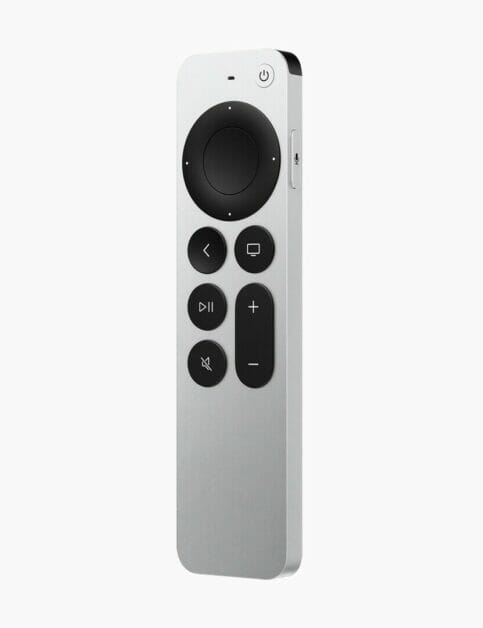
Apple TV remote on a white surface

Advantages of Apple TV

Here are some of the main benefits of Apple TV in 2023:

1. Apple TV has a great remote – the Siri Remote

One great benefit of having the Apple TV is that the remote control comes integrated with Siri. You can use your voice to find anything you want to watch on your Apple TV. Siri Remote brings precise control on your Apple TV. It is all touch enabled clickpad with gesture support. With just a single click, it will take you to TV shows and movies, while a swipe will move you through a long list of contents. Also you can fast forward or rewind through your movies and shows with a swipe across your Remote.

Siri Remote second generation is compatible with both first and second generation Apple TV 4K and Apple TV HD.

2. The Smart Home Advantage

Another advantage of Apple TV is that you can easily have a smart home. A smart home allows you to organise, control and manage multiple accessories on your home with remote or with the help of Siri at the same time.

With HomeApp in your Apple TV, you can control your smart home from anywhere you are. Imagine, you are on your way home from work and the climate is a bit chilly. All you need to do is to open Siri on your iPhone and command it to heat up your room. Apple TV being always on in your home will take the command and your room will start to warm up before you arrive.

3. Screen mirroring with AirPlay

Apple TV allows you to see your TV as a second display. Screen mirroring allows you to view streaming Apps or any other Apps on your Apple device in your TV screen. You can stream your iPhone, iPad or MacBook with AirPlay.

You can be watching an interesting clip or a movie on your Apple device, and you need to share it with your family members or your friends. You will just need to screen your Apple device with your Apple TV for everyone to see on the screen. For screen mirroring to occur, your Apple TV and your Apple device should be connected to the same Wi-Fi or wired network.

4. Apple TV supports a huge range of Apps

Another great Apple TV 4K and Apple TV HD benefits is that you can download an array of apps. If you like watching movies you can download apps like Netflix or Amazon prime video. Further, you can subscribe to Hulu and many more other Apps. The games lovers can download ESPN to enjoy football and many other games.

The Apple TV also comes with the in build Apps. Like photos which you can use to browse through pictures, Apple music to watch or listen to music. Also with Apple TV you can enjoy thousands of live channels or TV shows through subscription.

5. The multi user experience

Apple TV saves one profile based on personal preference. You can be a family of many people, those who like to watch action series, horror movies, Apple music or animation and cartoons for children. Thus everyone has a different taste from the other. Apple TV with time is able to detect everyone’s taste and will be able to switch between profiles and offer personalised experience based on one’s personal preferences.

6. Fabulous screensavers

When your Apple TV is idle or it’s not in use for some minutes, it displays some screen savers. The screen savers are Aerial and are displayed on your screen through beautiful slow motion videos of places and things around the world.

Aerial videos on the Screen savers can be downloaded on your Apple TV at your own interest and control how your TV looks when it’s not in use. Also you can view information about the location shown on the TV screen and change to as many locations as you desire.

7. Access to Apple TV Plus

One of the Apple TV benefits is access to Apple TV Plus. Apple TV is a streaming service that features Apple’s originals like series, dramas, documentaries, kids entertainments and many more. You can ultimately experience the Apple TV with Apple 4K HDY and Dolby Atmos sounds.

You can get different offers depending on which choice you choose on the subscription of your Apple TV . Although Apple gives you a free three months offer for your Apple TV if you purchase an Apple device, you need to subscribe monthly for you to enjoy your Apple TV . You can share your Apple TV subscription with upto five family members.

8. Apple TV is portable

You may not think of portability as a major benefit of Apple TV. However, it’s quite a point to note when you own one. You can be travelling or camping and you need some entertainment with you. Apple TV 4K or Apple TV HB box with 32GB storage space or more is easy to carry anywhere you want to go. You can connect with Wi-Fi or wired networks to download apps or view live shows on your Apple TV anywhere you are.

9. Connect to your AirPods

Another benefit of Apple TV is that you can connect it to your AirPods, AirPods Pro or AirPods Max and listen to your TV privately. If your AirPods share the same Apple ID with your Apple TV, they will connect automatically. Or you can hold the Play button on your remote and a drop down will let you connect with the Apple TV.

10. Easy to set up

Apple has made it easy to set up their device. Every device comes with understandable steps to follow step by step until the set up is complete. In addition, the Apple support is always there to guide you though the full process. Apple TV is not exceptional, you will have the instructions to follow to connect your Apple TV and even how to connect with other Apple Devices.

Advantages of Apple TV. Now you know

From supporting a wide range variety of Apps, connectivity with AirPods, fabulous screensavers and many more advantages discussed above. The Apple TV is worth buying.

See also: 16 Amazing Apple TV Tips and Tricks You Need to Know

The Apple TV has always been an excellent option for people already in the Apple ecosystem. The seamless integration that Apple offers is something that you can’t find elsewhere.

But, things are changing. Apple TV has partnered with most major TV manufacturers to make its best apps, like HomeKit, iTunes, and AirPlay, available to everyone.

At the same time, the complaints from tech enthusiasts still stand. Apple is too restrictive when it comes to streaming local content. Plus, there is no support for external storage or 3D gaming.

As an Apple enthusiast, that should make you wonder what else is out there. What does the world of Android TV, which is slowly evolving into Google TV, look like?

Guess What! Things Are Changing In The Android World Too

Chromecast is no longer a lonely little dongle. It has an accompanying remote. Also, you get features like 4K, Dolby Vision, and Dolby ATMOS. You can even use it to play games from the cloud and on a local device. Local storage and audio/video calls are also supported. Do you notice all the changes?

If you are looking for the best android tv box, we have had an undisputed champion for a very long time. NVIDIA Shield has been the preferred choice among tech experts since its release in 2019.

It is a very easy-to-use device and comes with Amazon Alexa and Google Home support. The only gripe has been its price. At $150, it was one of the most expensive options.

Priced at only $50, Chromecast is about to offer stiff competition.

See also: 16 Amazing Apple TV Tips and Tricks You Need to Know in 2022

The Beginnings

Google launched Chromecast in 2013 and priced it at a mere $35. It has been an excellent option to play content from your mobile devices on the big screen. It kept things simple. It was nothing more than a wireless display adapter, not a media player.

Chromecast has evolved since its launch. Over the years, it added support for various Android apps. Also, it added 4K capabilities, and the latest version comes with a brand new user interface.

Google TV

It is the new interface on Chromecast devices. Google TV acts as a skin on top of Android TV. The concept is similar to what Android phone makers do for their devices.

Google TV will start replacing Android TVs everywhere. Google TV is available as an app on Google Play and has replaced Play Movies and Play TV. All of this means is that it is capable of doing everything Android TV can do and much more.

How Does It Stack Up Against the Competition?

  • A Firestick is pretty inexpensive. However, it doesn’t support native play or dongles. It also gives you Fire OS, which isn’t the best version of Android.
  • There are a plethora of Chinese-made Android TV boxes. They look quite futuristic, but their software leaves a lot to be desired. After-sales support and spare parts aren’t readily available.
  • TiVo Stream 4k comes closest in comparison to the new Chromecast. The pricing and hardware capabilities are similar to Chromecast. But it also comes with an older processor and worse software.
  • Then there’s Nvidia Shield. It is quite capable. The AI up-scaling tech is an industry leader, not to mention the low latency gaming power. However, you could get three Chromecasts for that price. And that’s just the starting price.

The Experience

The new Google TV user interface feels like Apple TV, Amazon, and Roku. It offers content by pooling it from various streaming services. You can jump into a movie directly from the home screen.

You can use Google’s voice assistant for all these functions. It will also teach Google about your content preferences.

The Design

Chromecast retains its old shape. But you get to choose from 3 different designs. And as mentioned before, it also comes with a remote. The port has been upgraded to USB C. That’s the port you will use for plugging in other supported.

These include an Ethernet adapter, as well as external storage. You can play video files and Blu-ray rips from a hard drive. You can also plug in a video camera for calls with a USB pass-through.

Gaming

This is one aspect where the Chromecast might fall short. The 4 GB storage isn’t enough to load a lot of gaming content. The performance of the games isn’t the smoothest either. This, however, has a lot to do with the strength of your internet connection. Streaming games locally from the PC shouldn’t be a problem.

So, what do you think of the new Chromecast? A lot of the features that seem rather obvious to Android users might make your jaw drop. Do you still think purchasing an Apple TV makes a lot of sense?

See also: 10 Amazing Advantages of Apple TV in 2022

Are you getting an error saying “The Apple TV Library file cannot be saved. The required file cannot be found”? In this article, I’ll show you how to fix this problem for good!

Fix the Apple TV library file cannot be saved. An unknown error occurred (-54)

If you are encountering The Apple TV library file cannot be saved. An unknown error occurred (-54) error on your Mac, here are step-by-step instructions to fix the issue.

Fix #1: Reset the TV application on your Mac

If you are able to open the Apple TV app Choose the TV menu > Preferences > Files. Tap Reset. This should reset the TV application on your Mac and could solve your problem.

Fix #2: Restart your Mac

This may resolve your problem. To restart your Mac, choose the Restart option from the Apple menu in the upper-left-hand corner of your screen.

Fix #3: Update your Mac

Make sure that your Mac is running the latest version of the macOS software. To update your Mac:

  • macOS Mojave or higher: Navigate to System Preferences and then Software Update.
  • macOS High Sierra or earlier: start the App Store on your Mac and then click the Updates tab.

Fix #4: Make sure the date, time, and time zone are set correctly on your Mac

  • Go to Apple menu > System Preferences, then click Date & Time. In the Date & Time pane, make sure that ”Set date and time automatically” is selected and your Mac is connected to the Internet.

Fix #5: Check your security software

Are you using a security software on your Mac. If so, make sure that the software is up to date. Also, try to disable the security software and then check if your problem is fixed.

Fix #6: delete and then redownload the files

  • Start the TV app on your Mac and sign in with your Apple ID and password.
  • From the menu bar, locate and click Account > Purchased,.
  • Locate the content you want to redownload and click the cloud icon to download the item.

Fix #7: Reset permissions or items in the home folder

  1. Launch Finder
  2. Next, go > Home. Your home folder will launch.
  3. Next on, from the menu bar, choose File > Get Info. You will see a window.
  4. Find the “Sharing & Permissions” section. Expand this section by clicking on the arrow icon.
  5. If a lock icon appear at the bottom, click it and type in your password.
  6. Now click the settings icon and select “Apply to enclosed items.” You’ll see a popup that says “Are you sure you want to apply the selected owner, group and permissions to all the enclosed items?” Agree by clicking OK.
  7. Once you do this, Launch the Terminal app by heading over to  (Applications > Utilities) on your Mac and type in the following command and hit enter:
    • diskutil resetUserPermissions / `id -u`
  8. Wait for the process to finish. Then go ahead and restart your Mac.

Are you experiencing Apple TV Wi-Fi connection issues? Well. In this article, I’ll explain exactly how you can fix your Apple TV Wi-Fi connection problems. If you cannot play movies and other content on your Apple TV, this may mean that your Internet connection is weak. You need a strong Wi-FI connection to be able to stream entertainment to your Apple TV.

Here are some signs of Apple TV Wi-Fi connection problems:

  • Downloads do not start.
  • Unable to join a Wi-Fi network.
  • Contents do not play.
  • Various error messages show up, for instance:
    • ”An error occurred loading this content”
    • “There is a problem loading this content”

Are you having the above Apple TV Wi-Fi connection issues? If your Apple TV is unable to connect to the internet through the router, then this troubleshooting guide is for you.

Please try the fixes below. Be sure to test after each step to see if your Apple TV starts working again:

Check the basics

Before you dive in, try the following:

  • Make sure that your Apple TV is connected to the correct wireless network. Head over to Settings > Network).
  • Ensure that you type in the correct password.
  • Ensure that your Apple TV is not too far from your Wi-Fi router.
  • Make sure that your router is working. Verify the router is working by connecting a different device, such as your iPhone. If the Internet works on your other device, your router is working. If not, try the following fixes:
    • Ensure that your router is 802.11a/g/n/ac compatible. Most routers that were built after 2015 are compatible.
    • Consider restarting your router. Disconnect the power cable. Wait for about one minute. Then reconnect it.
    • Ensure that your router is running the latest firmware version. Check the manufacturer’s manual for instructions on how to update your router. You may also contact the manufacturer for more help.
    • There could be a service outage in your location. Contact your Internet service provider for support.

See also:
Apple TV Remote Not Working? Fix

Troubleshooting tips:

Now, follow these steps to fix Apple TV wireless connection problems:

  1. Restart your Apple TV. You can do this in various ways:
  • You can head over to Settings > System > Restart to restart your Apple TV.
  • You can use your remote to restart your Apple TV:
  • To restart Apple TV 4K or Apple TV HD: Simply hold down the TV and Menu buttons.
  • To restart 3rd-generation Apple TV and older: Simply press and hold the Menu and Down buttons.
  • And finally, you can simply disconnect it from the power outlet, wait for a few seconds, then reconnect it.
  • Update your Apple TV. Simply follow these steps:
  • Apple TV 4K or Apple TV HD: head over to Settings > System > Software Updates and Select Update Software. And if an update is available, follow the onscreen prompts. You can also turn on Automatic Updates by heading to Settings > System > Software Updates.
  • Apple TV (3rd generation): head over to Settings > General > Software Updates and Select Update Software. Follow the onscreen prompts if an update is available. To turn on Automatic Updates, head over to Settings > General > Software Updates.
  • If you are still having Apple TV Wi-Fi connection problems, consider resetting your Apple TV to its factory settings. Keep in mind, this will remove all your data and settings from your Apple TV. Here is how:

    1. To reset Apple TV 4K or Apple TV HD: head over to Settings > System > Reset. Click Reset and Update. This will reset your Apple TV and also update your Apple TV to the newest version of tvOS.
    2. To reset Apple TV (3rd generation) or earlier: head over to Settings > General > Reset. And Select Restore.

    Are you experiencing Apple TV remote problems? Well. In this article I’ll explain exactly how you can fix if your Apple TV remote is not working properly. It’s important to fix Apple TV remote issues because you won’t be able to use your Apple TV without your remote.

    See this article if
    the remote app is not working.

    Sometimes your Apple TV remote may become glitchy, act bizarre or may not work at all. How you can troubleshoot your Apple TV remote depends on what type of remote you have.

    There are three different types of Apple TV remote:

    1. Siri Remote or Apple TV Remote:
    • They have a rechargeable battery.
    • They can work with Apple TV 4K and Apple TV HD.
  • Apple Remote (aluminum):
    • It has a replaceable battery.
    • It can work with any Apple TV.
  • Apple Remote (white):
    • It has a replaceable battery.
    • It can work with any Apple TV.

    Please see below how you can fix Apple TV remote problems. Before you dive into it, however, check for obstruction. Ensure that there are no objects between your Apple TV and Apple TV remote that can block the sensor and signal. Get rid of any obstacles in front of your TV. Moreover, ensure that you do not use your remote too far away from your Apple TV.

    Siri Remote or Apple TV Remote not working?

    Apple TV remote not working? No problem! here is what you can do to fix Apple TV remote problems:

    After trying each fix below, test your Apple TV remote to see if the problem is fixed.

    1. It is possible that your remote may seem to be unresponsive its battery is completely dead. If your remote is low on charge, it may stop working. Connect your remote to a power source and charge it. Allow it to charge for about 30 minutes. If you suspect that your battery is not charging, make sure that:
    • Your charger and cable are not damaged.
    • Your cables are plugged in properly.
    • Your power source is working.
  • Restart your Apple TV. Since you are having issues with your remote, simply disconnect your Apple TV from its power outlet, wait for about 10 seconds and then reconnect it. This is also referred to as reset.
  • Repair your remote. Simply follow these steps:
    • Ensure that your Apple TV is powered on.
    • Point your remote towards your Apple TV.
    • Press and hold down the menu and volume up buttons together for about five seconds. Then follow the onscreen prompts.

    Is your Apple TV not connecting to Wi-Fi?

    Aluminum or white Apple TV remote not working?

    Here is what you can do:

    1. Consider replacing its battery. You can purchase the batteries from most general stores. The aluminum remote uses a CR2032 or BR2032 lithium 3V coin battery while the white remote uses CR2032. To change the battery, simply follow these steps:
    • Open the battery slot located at the back of he remote.
    • Take out the old battery.
    • Insert the new battery. Please make sure that you fix the battery properly. Observe the polarity. Please make sure that the – (negative) and + (positive) ends of the new battery match with the + and – battery slots in your Apple TV remote.
    • Close the slot.
  • Restart your Apple TV. As indicated above, you can do this by disconnecting (and then reconnecting) your Apple TV device from power outlet.
  • Unpair and then repair. Simply follow these steps:
    • Unpair: Press and hold down the Menu and Left buttons for about six seconds.
    • Pair: Press and hold down the Menu and Right buttons for about six seconds.

    So you have tried all the above fixes. If you are still having Apple TV remote problems, it is time to
    contact Apple support.
    There is a possibility that your Apple TV remote is defective.

    See also:
    How to use the Apple TV remote app.

    Is your Apple TV remote app not working? Or is your Apple TV remote app not scrolling? Or is your Apple TV remote app not swiping? Well. In this article, I’ll explain exactly what to do if your Apple TV Remote app is not working.

    Apple TV remote lets your control your Apple TV with your iOS device, iPhone, iPad or iPod touch. All you need to do is
    set up the Apple TV Remote app.

    One problem I face most often is that I do not see my Apple TV. Another issue I’m facing quite often is that my Apple TV looks offline, even though Apple TV is turned on.

    It’s pretty easy to connect your iOS device to your Apple TV with the Apple TV Remote app. Sometimes you may experience various issues. Furthermore, to be frank, Apple’s Remote App is quite buggy. From my experience, it is not always working as expected.

    If you can’t get the Apple TV Remote app or the Apple TV Remote in Control Center working, try the following fixes. Please test to see if the Apple TV App is working after each troubleshooting step.

    1. Ensure that your Apple TV and your iOS device are connected to the same Wi-Fi network.
    2. Restart your device.
    3. Close the TV app and then re-open and try again. To do this, double press the Home button (if your device has a Home Button), if your device does not have a Home Button, For instance iPhone 11; swipe up and pause, then find the Apple TV Remote app, and swipe it up. Now open the app again.
    4. Restart your Apple TV. To do this: head over to Settings > System > Restart (assuming that you have your remote). If you do not have your TV remote and since the Apple TV Remote app is not working, just disconnect your Apple TV from the power source; wait a minute, then reconnect it.
    5. Ensure that your iPhone is running the latest version of the iOS. You can update your device by heading to Settings > General > Software Update. This is significant because updated software fixes lots of glitches.
    6. On your Apple TV, using its remote, Go to Settings > General > Remotes and select the Remote and unpair it. Then pair it again.
    7. There could be a problem with your connection. Restart your Wi-Fi router. To do this: disconnect it from the power source and wait for a few seconds and reconnect it.
    8. On your iPhone or iPad, turn on Airplane Mode, wait a few seconds and turn it off.
    9. The above tips should fix if your Apple TV Remote app can’t connect to Apple TV. However if you are still facing issues,
      contact Apple.

    Are you experiencing Apple TV app store problem? You can download apps and games on your Apple TV through the App Store. Downloading apps is pretty easy when it works. However, you may experience issues trying to install or update apps. Sometimes Apple TV downloads won’t start, sometimes downloads are taking forever and won’t finish and downloads freeze and get stuck. And sometimes the App Store won’t open and shows a blank screen. And finally, you may see error messages (such as a “cannot connect” message) while trying to access the App Store.

    See also:
    iPhone cannot Connect to the App Store

    It’s worth noting that there are currently five different Apple TV models as follows:

    • Apple TV 4K: launched in 2017.
    • Apple TV HD: launched in 2015.
    • Apple TV 3rd generation: launched in 2012.
    • Apple TV 2nd generation: launched in 2010.
    • Apple TV (1st generation, launched in 2007).

    If you own a 1st, 2nd, and 3rd generation Apple TV model, then it doesn’t run apps. If you own the 4th generation Apple TV, or the Apple TV 4K, you can purchase and install apps.

    In this article, I’ll explain exactly how you can fix Apple TV apple store problem, i.e. if your Apple TV 4K or Apple TV HD won’t work and download apps.

    How to fix Apple TV App Store connection issues

    After trying each fix below, test your Apple TV again to see if you can download apps.

    Solution #1. Restart your Apple TV.

    Apple Tv app store not loading? try restarting it. Follow the steps below :

    You can do this in various ways:

    1. On your Apple TV, head over to Settings > System > Restart.
    2. Using your Apple TV remote, press and hold down the Menu button and Home together until you see the Apple TV status light flashes.
    3. Or you can just disconnect your Apple TV from the power source , then wait for about ten seconds and then reconnect.

    Solution #2. Check for software updates.

    If you are still experiencing Apple TV app store problem, you could be running older version of tvOS software. Ensure that your TV is running the latest tvOS software version. Here is how you can check and update:

    • On your Apple TV, head over to Settings > System > Software Updates and select Update Software. This will check for updates. If an update is available, Simply Download and Install and then follow the onscreen prompts.
    • You can also enable automatic updates. This will ensure that new updates will be automatically installed when they are ready. On your Apple TV, head over to Settings > System > Software Updates and turn on Automatically Update.

    If you are unable to update, there could be a connection problem. Please check the next solution for more details.

    Solution #3. Check that you have a strong Internet connection.

    • If you are using your Apple TV over Wi-Fi network:
      • Ensure that your Apple TV is not too far away from your router. Consider moving your Apple TV closer to the router.
      • Restart your wireless router:
        • Disconnect your router from the power outlet.
        • Wait for about thirty seconds.
        • Reconnect your router back to the power source.
      • Apple TV app store not loading? Consider connecting your Apple TV directly to your router via the Ethernet cable.
      • There could be some issues with your service provider. Maybe there are outages in your location. Contact your Internet provider for further assistance.

      Solution #4. Date & time setting.

      Ensure that your Apple TV’s date and time is set correctly. Simply follow these steps:

      • On your Apple TV, head over to Settings > General > Date and Time. If you see anything incorrect, correct it.

      Solution #5. Sign out, restart and sign in.

      • On your Apple TV, head over to Settings > Accounts > iTunes and App Store and choose Sign Out option.
      • Next, restart your Apple TV.
      • Next on, head over to Settings > Accounts > iTunes and App Store and sign in and enter your Apple ID and password.

      Solution #6. Last resort. Reset your Apple TV.

      If you are still experiencing Apple TV app store problem, consider restoring your Apple TV to its factory settings. This will remove everything. Follow these steps:

      • On your Apple TV, head over to Settings > System > Reset. There are two options:
    • Reset: This will reset your Apple TV.
    • Reset and Update: This will reset and then update your Apple TV. Please make sure that you have a good Internet connection.

    In this article, I’ll explain exactly how you can download, install and set up Apple TV remote app on your iOS device (iPhone or iPad); so that you can control your Apple TV. Doing so will allow you to use your iPhone or iPad as a remote. This will have many benefits, that includes:

    • You can enter text faster using the keyboard. For example, it may take a long time to enter your keywords without a keyboard, for example, when you are searching a show on Netflix.
    • You can use Siri to search and find shows and much more.
    • You can use touch gestures to control media, fast forward , pause etc.
    • You can use the volume settings on your iPhone or iPad to adjust the volume.

    It’s easy to set up your iPhone or iPad to control your Apple TV from anywhere on your home’s Wi-Fi. Here’s how to set up Apple TV remote app:

    Install Apple TV Remote

    1. On your iPhone or iPad, launch the App Store app
    2. Go to Search and type in “Apple TV Remote”
    3. Find the Apple TV remote app and tap to install

    How to pair your Apple TV and your iOS device

    Next on, you need to add your Apple TV. Simply follow these steps:

    1. Ensure that your Apple TV and your iPhone or iPad are connected to the same Wi-Fi network.
    2. On your iPhone/iPad home screen, tap the Apple TV remote icon to launch the app
    3. You should see your Apple TV. If you do not see it, check to ensure your iPhone/iPad and Apple TV are connected to the same Wi-Fi.
    4. Next, tap your Apple TV:
    5. A 4 digit number will appear. You need to enter this number on your Apple TV in order to pair your Apple TV and iOS device.
    6. To enter the code, on your Apple TV, head over to Settings > General > Remotes
    7. Your device will appear (under the iOS Remotes section). Select your device add. (note that if you had previously paired devices, you can also unpair them From this screen).
    8. Now you need to type in the passcode that is displayed on your iPad or iPhone and hit Done.

    Boom! your device is paired with your Apple TV. 

    Starting with
    iOS 11,
    you can control your
    Apple TV
    from Control Center. To do this: simply add Apple TV Remote to Control Center by heading to Settings > Control Center > Customize Controls and then add Apple TV. Then launch Control Center, and then tap Apple TV Remote.