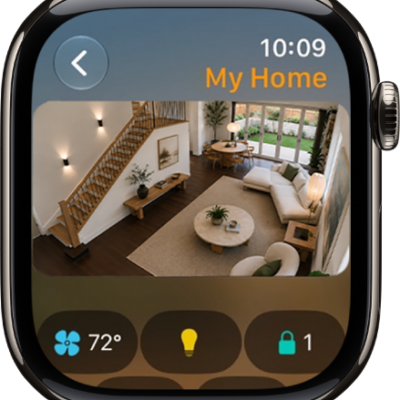
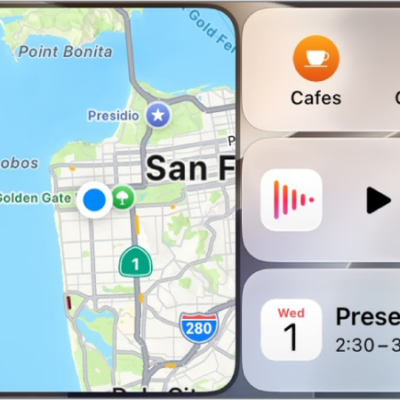
Siri is an intelligent assistant that’s built into your Apple Watch to help you get answers, find what you need, and get things done.
Once Siri is on, it needs to be activated before you ask a question or make a request. You can also type to Siri, and Apple Watch must be connected to the internet. Siri AI, the new version of Siri powered by Apple Intelligence, is available on watchOS 27 or later, too.
Here’s how to use Siri on Apple Watch.
Note: Siri is designed to protect your information and to let you choose what you share.
Turn on Siri
- Start the Settings app on your iPhone.
- Tap Siri.
-
Tap Turn On Siri and then follow the onscreen instructions.
Tip: Tap Try Siri AI (Beta)* to get Siri AI, the new version of Siri powered by Apple Intelligence on watchOS 27 or later. See Get started with Siri AI on Apple Watch.
Activate Siri and make requests
You need to activate Siri before you can ask a question or make a request, even after you turn it on.
Note: To use Siri, Apple Watch must be connected to the internet. Cellular charges may apply.
-
Raise your wrist and speak into your Apple Watch.
To turn off the Raise To Speak feature, go to the Settings app on your Apple Watch, tap Siri, then turn off Raise to Speak.
-
Say “Hey Siri” or just “Siri,” followed by your request.
To turn off “Ask Siri,” go to the Settings app on your Apple Watch, tap Siri, tap Listen for “‘Siri’ or ‘Hey Siri'” (or “Hey Siri”), then choose Off.
Note: The use of “Siri” only is not available in some languages and regions.
-
Press and hold the Digital Crown until you see the listening indicator, then speak your request.
To turn off the Press Digital Crown feature, go to the Settings app on your Apple Watch, tap Siri, then turn off Press Digital Crown.
Quick tip: You can lower your wrist after you activate Siri; you’ll feel a tap when there’s a response.
If Siri asks you a question, or you want to continue the conversation, hold down the Digital Crown and speak.
Siri can speak responses to you, as it does on iOS, iPadOS, and macOS. You can also hear Siri responses through a Bluetooth headset or speakers connected to your Apple Watch.
Type to Siri and Siri Pause Time
You can type Siri requests if you have difficulty speaking, or ask Siri to wait longer for you to finish speaking.
- Start the Settings app on your Apple Watch.
- Tap Accessibility and tap Siri. Turn on Type to Siri.
- If you want Siri to wait longer for you to finish speaking, tap Longer or Longest under Siri Pause Time.
Turn off Siri
- Start the Settings app on your iPhone.
- Tap Siri.
- Tap Turn Off Siri at the bottom and then tap Turn Off Siri.
- If you have Siri AI, but want to use the previous version of Siri, tap Turn On Siri. Tap Use Siri Classic.
*Apple Intelligence is available with Siri and device language set to Chinese (Simplified), Chinese (Traditional), Danish, Dutch, English, French, German, Italian, Japanese, Korean, Norwegian, Portuguese, Spanish, Swedish, Turkish, or Vietnamese. Some features may not be available in all regions or languages. Some devices may not be available in all regions. Siri AI is available in beta in iOS 27, iPadOS 27, macOS 27, watchOS 27, and visionOS 27 and requires an Apple Intelligence–enabled device set to a supported language. Available in English to start. Siri AI will not be initially available in the EU on iOS, iPadOS, and watchOS. Certain Apple Intelligence features that rely on server-side models are subject to daily usage limits, including but not limited to Siri AI, Intelligent Photo Editing Tools, Image Playground, and AFM 3 Cloud models in Shortcuts. Daily limits may vary by feature, request complexity, system demand, system policies, and other factors. Expanded access to such features will be available for a fee in the future. Use of these features is subject to the Apple Intelligence Terms and Conditions.